Published 21 October 2026 · Acer Nitro 5 case study
Acer Nitro 5 cleaning
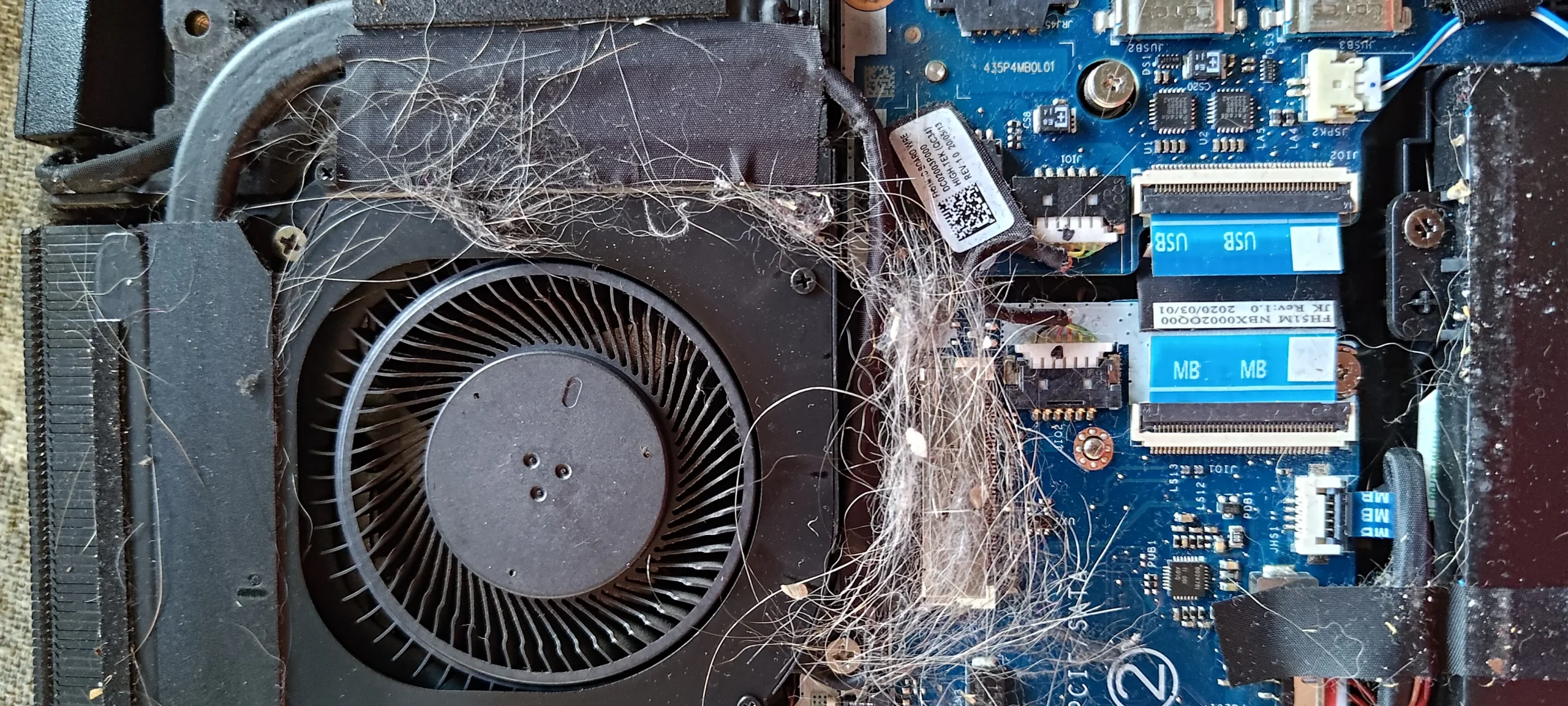
the fan could spin, but the air path was full of fibres.
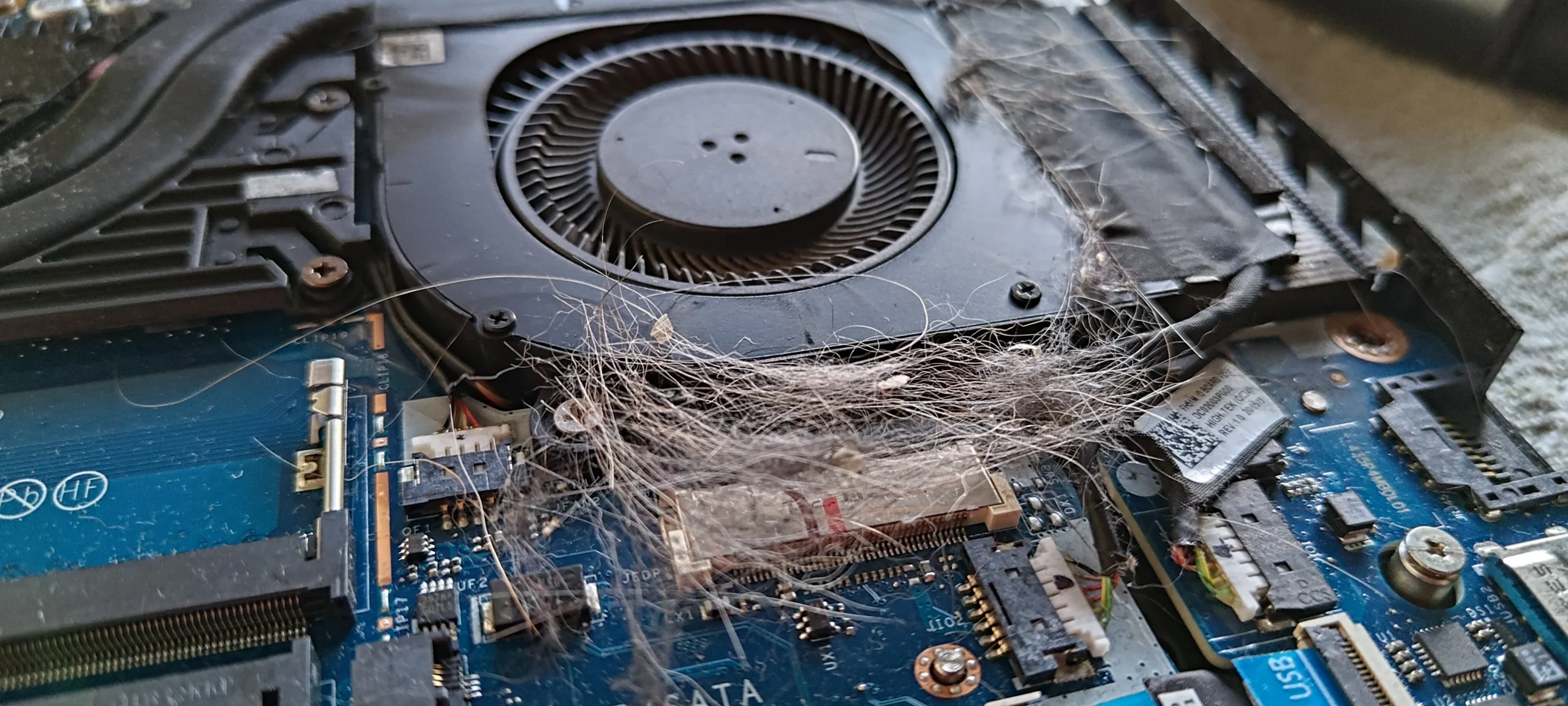
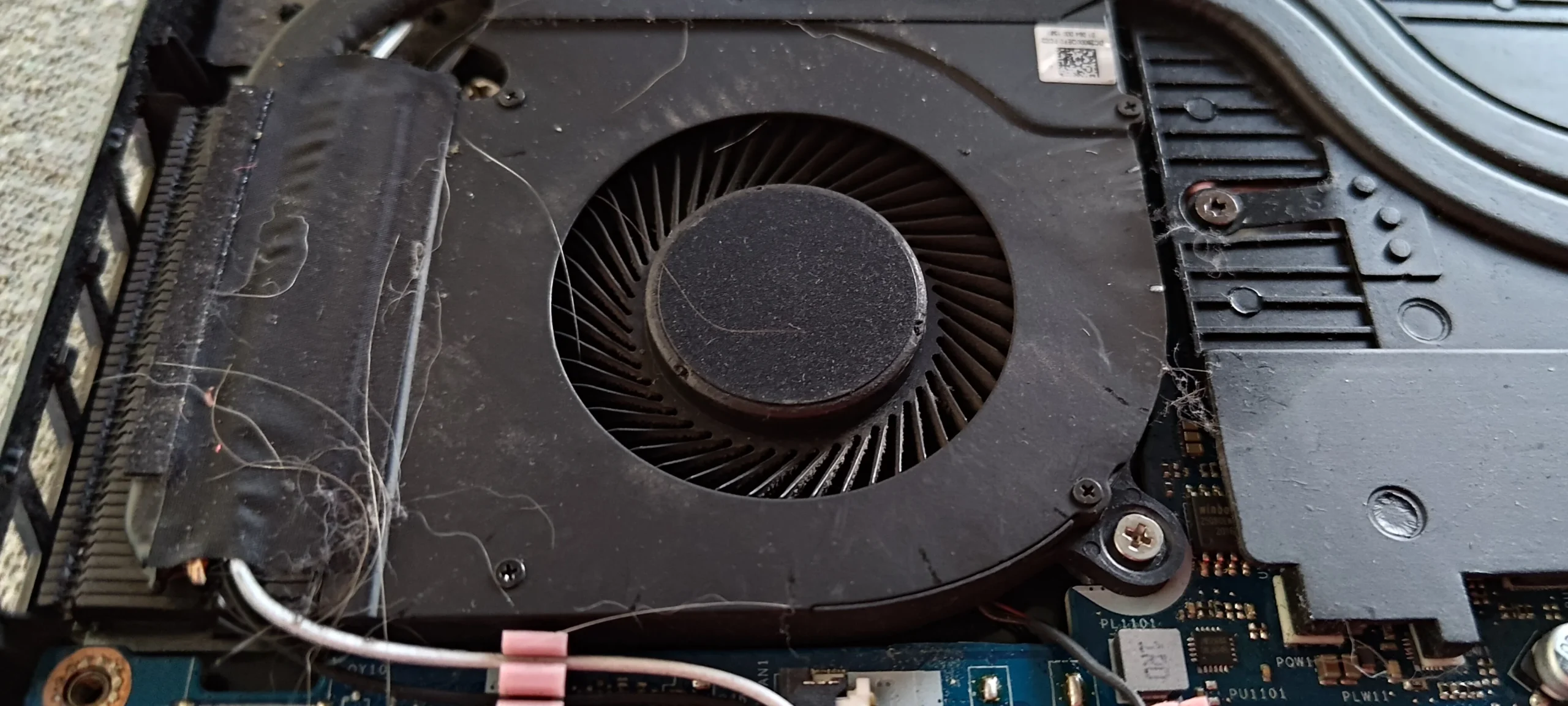
The first open-case photo looks like someone laid a small web across the right-hand fan. Those fibres sat between the blower, board and exhaust. In a dual-fan gaming laptop, clearing that material is more useful than merely wiping the fan cover, because heat still needs a path out of the machine.
The machine
Acer Nitro 5 confirmed by its underside label
The cooler
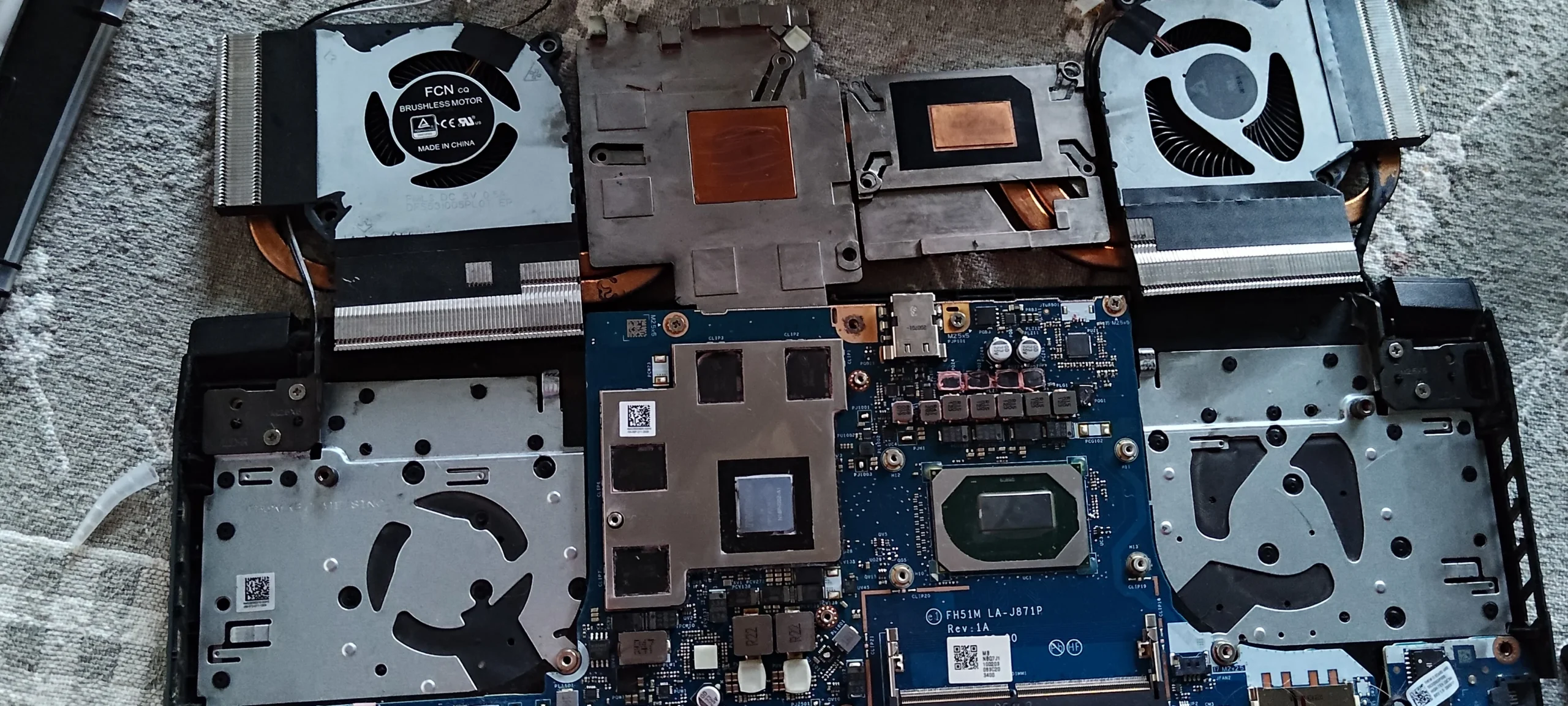
Two blower fans joined by heat pipes
The finding
A matted web of fibres at one fan and the outlet area
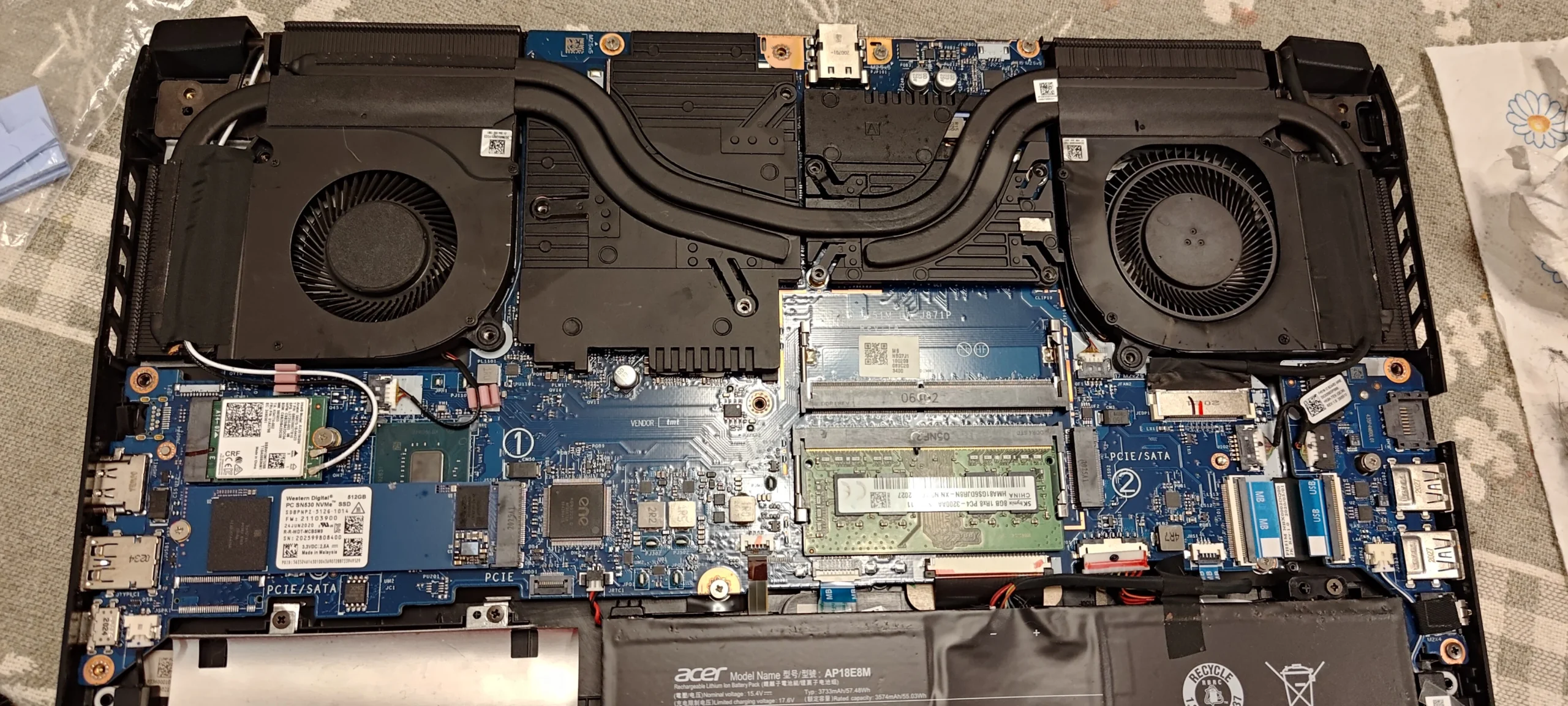
The underside label says Acer Nitro 5, although the smaller model suffix is not legible enough here to publish. The opened case reveals two fans, heat pipes over the chips and narrow exhaust fins at the rear. One side carried an unusually obvious mass of hair-like fibres.
These are workshop photos of the internal condition and cooling assembly during access. There is no controlled before-and-after temperature record in the set, so the useful lesson is the location of the blockage and the checks a careful clean should include.
In this case study
01 / The visible problem
A web of fibres had collected beside the blower
The close-up shows fine fibres draped across the fan housing and the board edge. Some lie at the narrow passage where air from the blower heads towards the fin stack. That is why a laptop can look only mildly dusty from outside while the cooling path is restricted inside.
Lift the material out in controlled pieces. Blasting it loose risks sending it into the fan wheel, connectors and other side of the case. Check that none remains packed between the outlet fins after the obvious web is gone.
02 / The complete path
Both fans and both outlets need inspection
A wider photo maps the two blowers and shared copper heat pipes. Each fan has its own inlet and outlet; cleaning only the dramatic side would leave the rest of this cooling circuit unchecked.
Hold each fan still while clearing its vanes, inspect the fin faces from the inside and the vent openings from the outside, then remove loose dust from the case. A fan that turns is not proof that its outlet is clear.
03 / Under the assembly
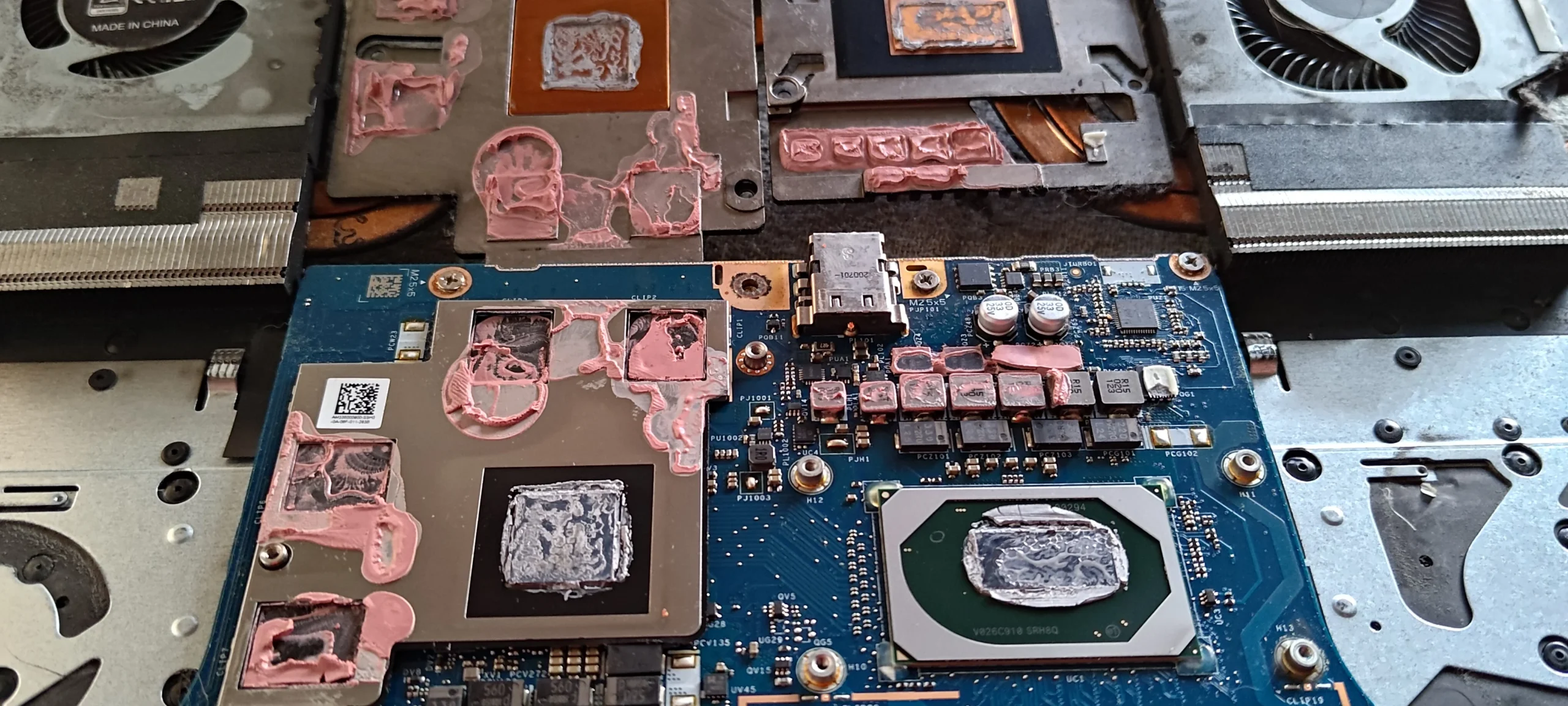
Lifting the cooler exposes chip contacts and thermal material
The later photographs show the cooling assembly lifted away from the chips. The contact plates, heat pipes and thermal material are visible; this access is more involved than a quick fan clean because disturbing the cooler breaks the existing paste interface.
If the cooler is lifted, clean and reassemble the thermal contacts using the correct materials and fastening order for the exact Nitro 5 variant. Keep any thermal pads in their intended locations and thicknesses. The photos show exposed contacts, but do not prove a finished repaste or a measured result.
04 / After reassembly
Clear airflow is only one part of the final check
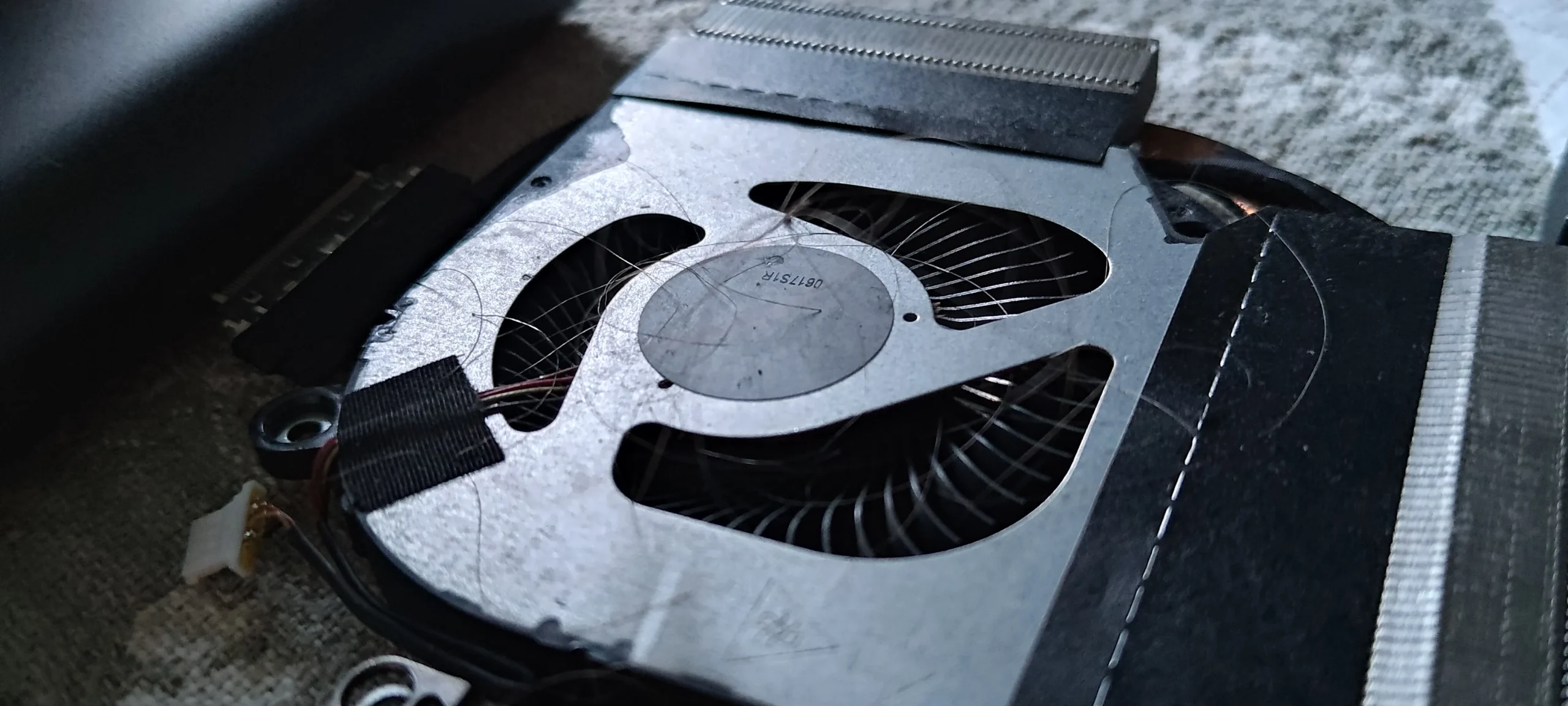
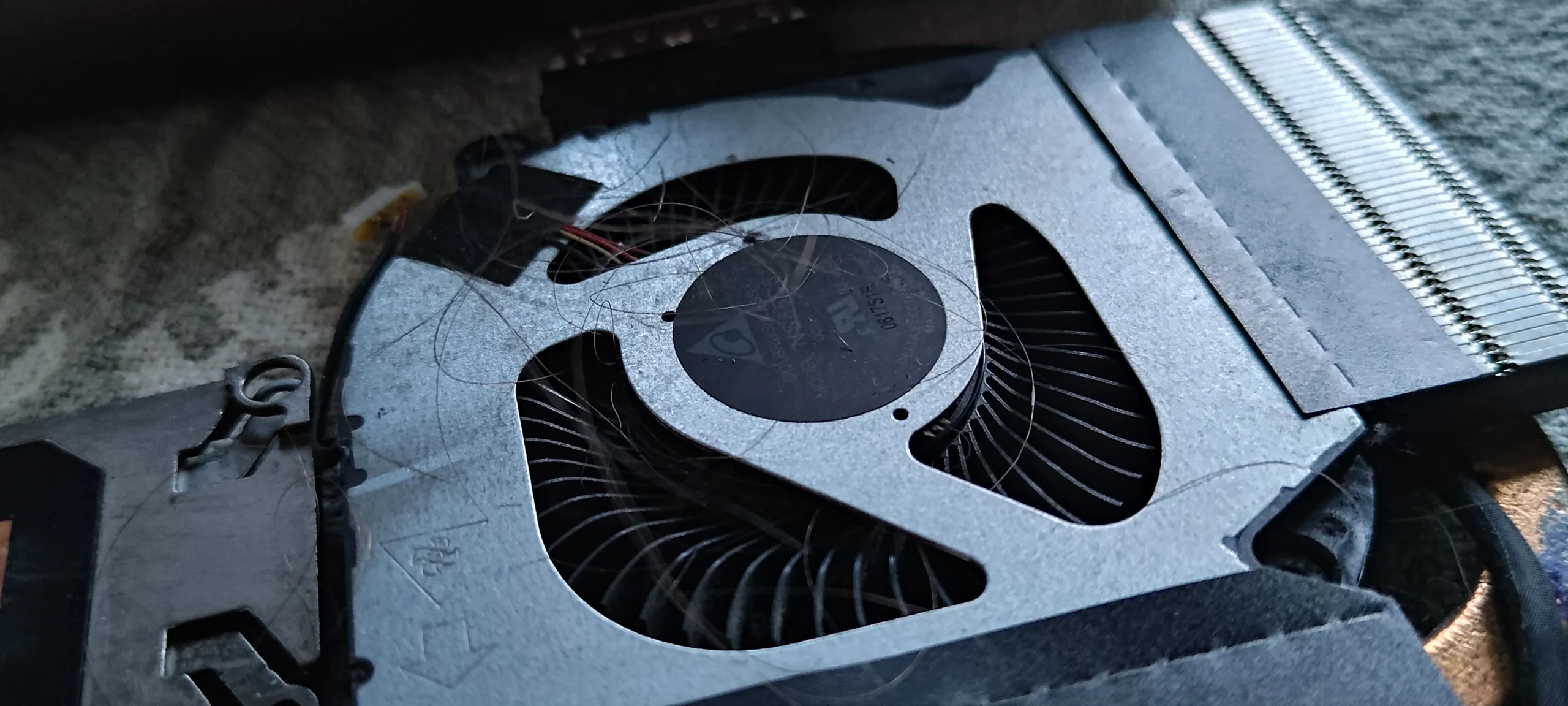
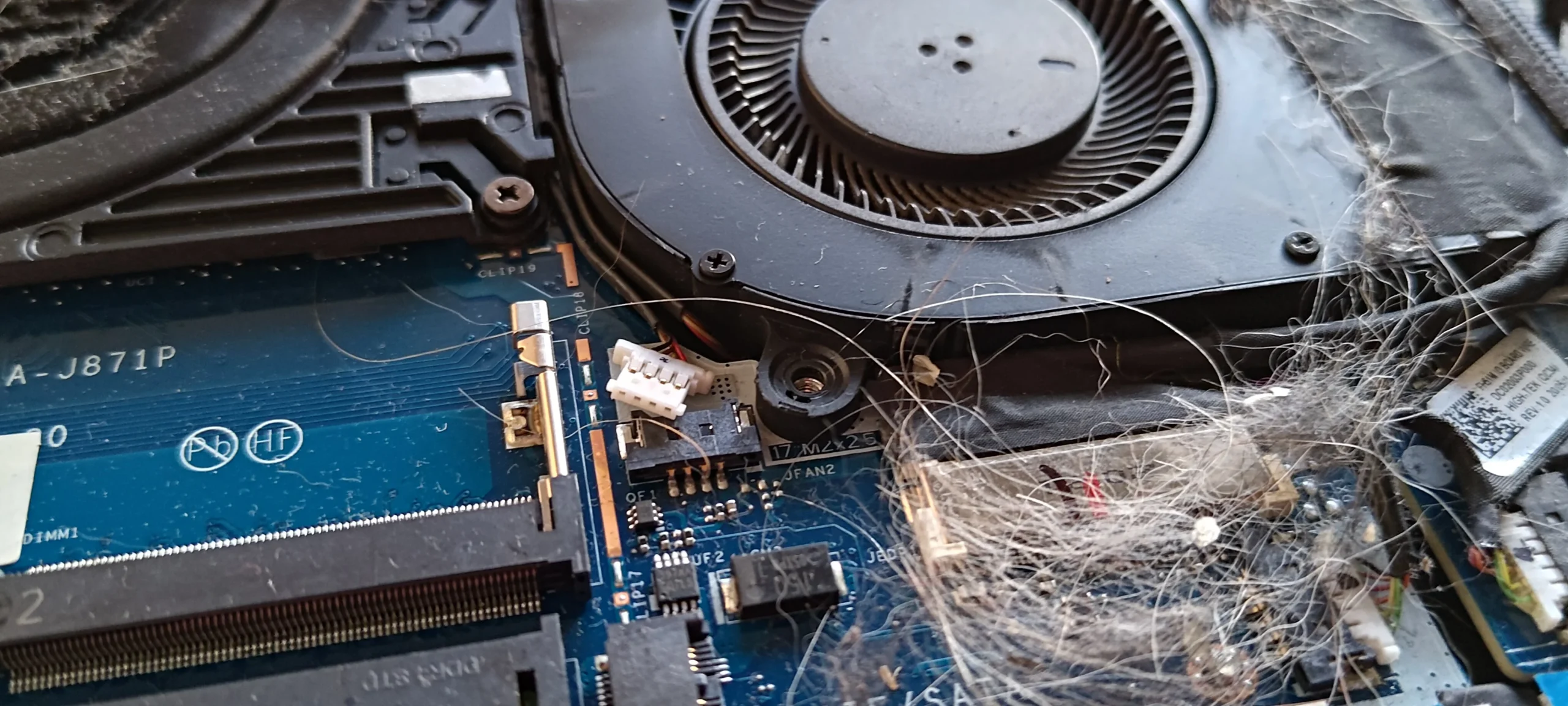
Before closing the cover, check that stray fibres are gone, both fan connectors are seated and no cable crosses a fan inlet. The second fan close-up is a reminder to inspect the quieter-looking side just as closely.
Once closed, confirm both fans spin without rubbing, both exhausts move air under load and the machine behaves normally. If you are comparing temperatures, use the same workload and ambient conditions; this archive has no matched readings to quote.
The engineer’s takeaway
The striking fibre web was beside one Nitro 5 fan, but a sound clean follows the whole route from both fan inlets through the heat pipes and outlet fins. When the cooler is lifted, its chip contacts and thermal pads become a separate reassembly task.
Before you open the laptop
Can you clean a Nitro 5 like this yourself?
Check the full model number on your own underside label before following an opening guide; Nitro 5 layouts vary. Power down, unplug, isolate the battery after access and organise the screws. Photograph fan cables and the cooler before removing anything.
The visible fibres can be collected with careful access to the fans and outlets. Lifting the heat-pipe assembly is a larger job because paste and pad contacts must be restored correctly. If you cannot identify each contact surface and the right materials, stop at a safe inspection point.
After the clean
What to verify after removing the fibre mat
Look through each exhaust fin stack, not just down into the fans. Check for trapped strands between the blades and nearby cables. Once assembled, verify the keyboard, display and charging before running a sustained cooling check.
A lower temperature should only be claimed after comparable measurements. The photographs in this case document the obstruction and access, not a numerical improvement.
Questions from owners
Acer Nitro 5 fan and fibre cleaning FAQs
Questions raised by this dual-fan cooler and the visible fibre web.
Why did fibres collect inside this Nitro 5?
Airflow draws hair and airborne lint toward fan inlets. The photos show where it accumulated here; they do not identify its original source.
Does a spinning fan mean the laptop is clean?
No. A fan can rotate while fibres or dust obstruct the narrow fin outlet that it blows into.
Should I clean both fans if only one has a visible web?
Yes, inspect both fan inlets and outlet fins. This machine has two fans sharing a cooling assembly, and the less dramatic side can still hold dust.
Do I need to remove the heat pipes just to clear the lint?
Not always. That depends on access to the fan and fin stack on your exact variant. Lifting the cooler creates a separate thermal-paste and pad reassembly task.
Can I reuse the old thermal paste after lifting the cooler?
Once a paste contact is separated, prepare and renew it appropriately before reassembly. Preserve pad placement and use material suited to the device.
How much did this cleaning lower its temperature?
The archive has no matched before-and-after temperature test, so no numerical improvement can be stated for this case.
UK Acer gaming laptop enquiries
Fibres caught in your Nitro 5 exhaust?
If you are in the UK, tell us your Nitro 5 model suffix, whether one or both vents feel weak, and what happens under gaming load. A clear photo of the vents and your postcode helps us discuss cleaning access.
We can inspect both fans and fin stacks, remove trapped debris and deal with thermal contacts where the cooler has to come off.
Read about our gaming laptop cooling and cleaning service, then use the form to tell us your computer model, symptoms and UK postcode.
Free to enquire · No obligation to book. We discuss the proposed work and price before you decide.
The workshop photos
Acer Nitro 5 dual-fan cleaning photos
Open the images to follow the fibre mat, twin-fan layout and exposed cooler contacts.