Published 20 October 2026 · ASUS R517S case study
ASUS R517S cleaning
the dust was not only in the fan.
The R517S photo set shows dust on a small Sunon cooling fan, around a Wi-Fi module and across the underside of the keyboard deck. If you open this type of laptop, the careful part is keeping loose dust away from exposed connectors and ribbon cables while reaching the places it settled.
The model
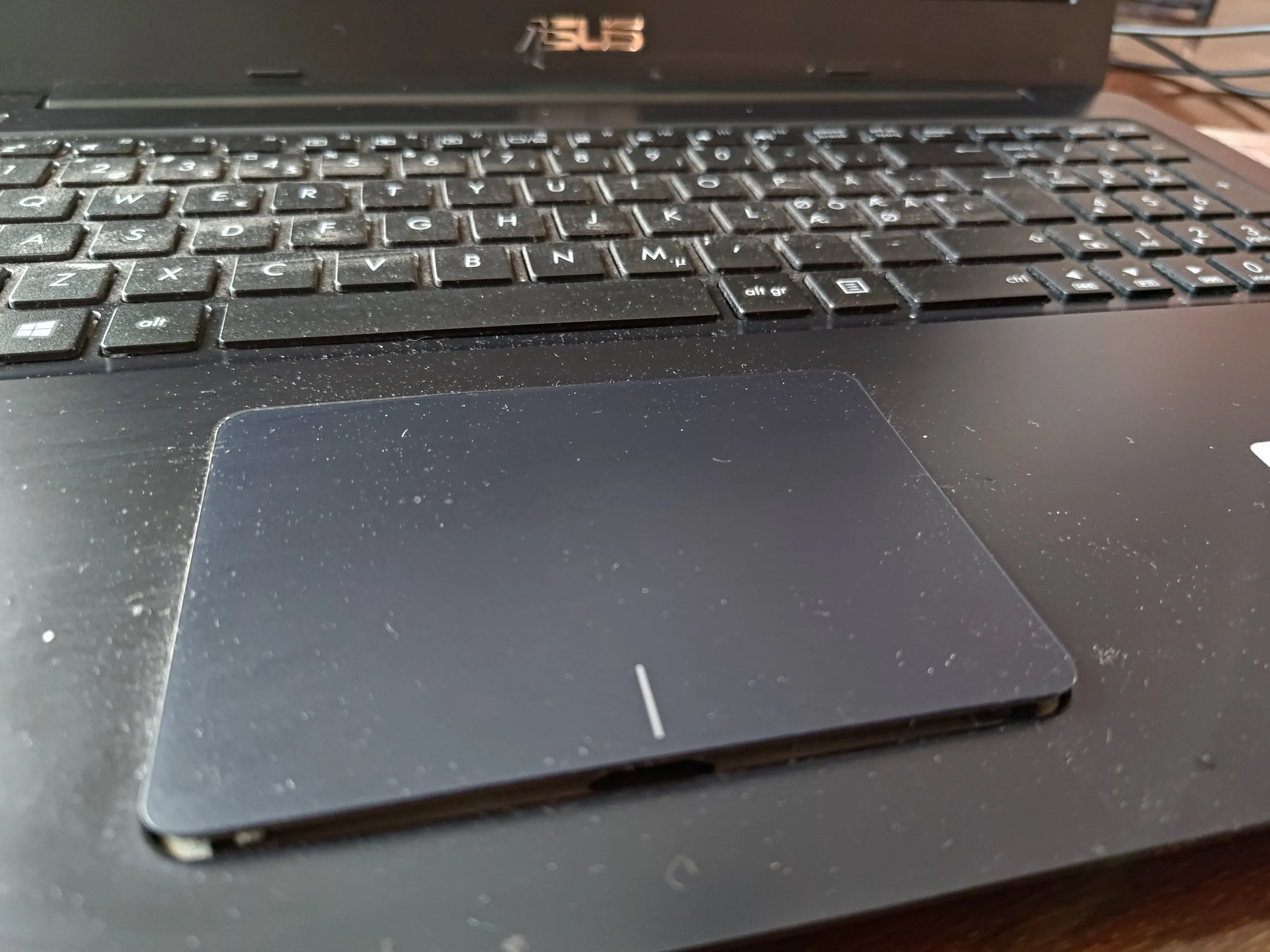
ASUS R517S from the underside label
The cooling part
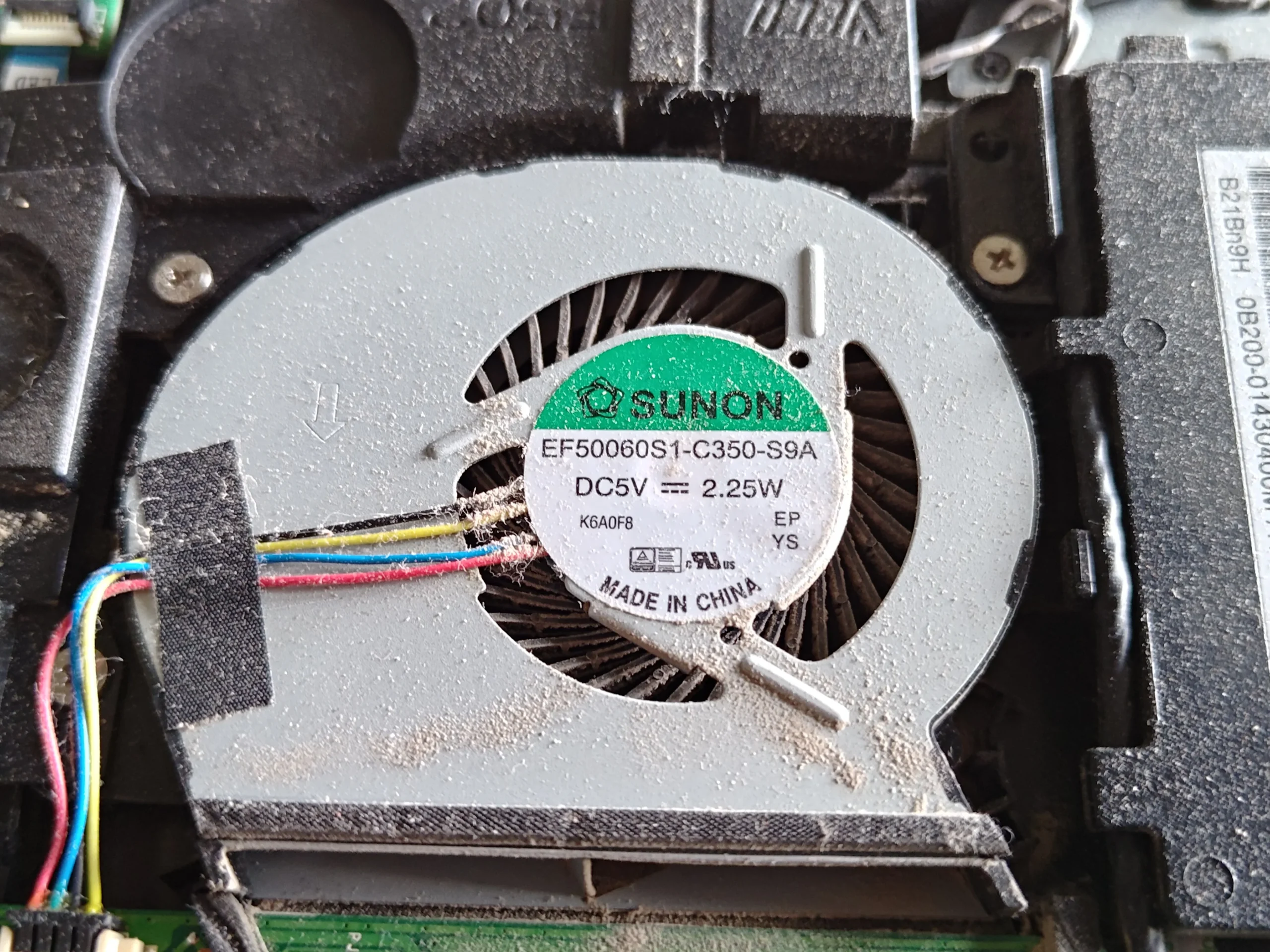
One small Sunon blower fan
The wider finding
Dust on the board and beneath the keyboard deck
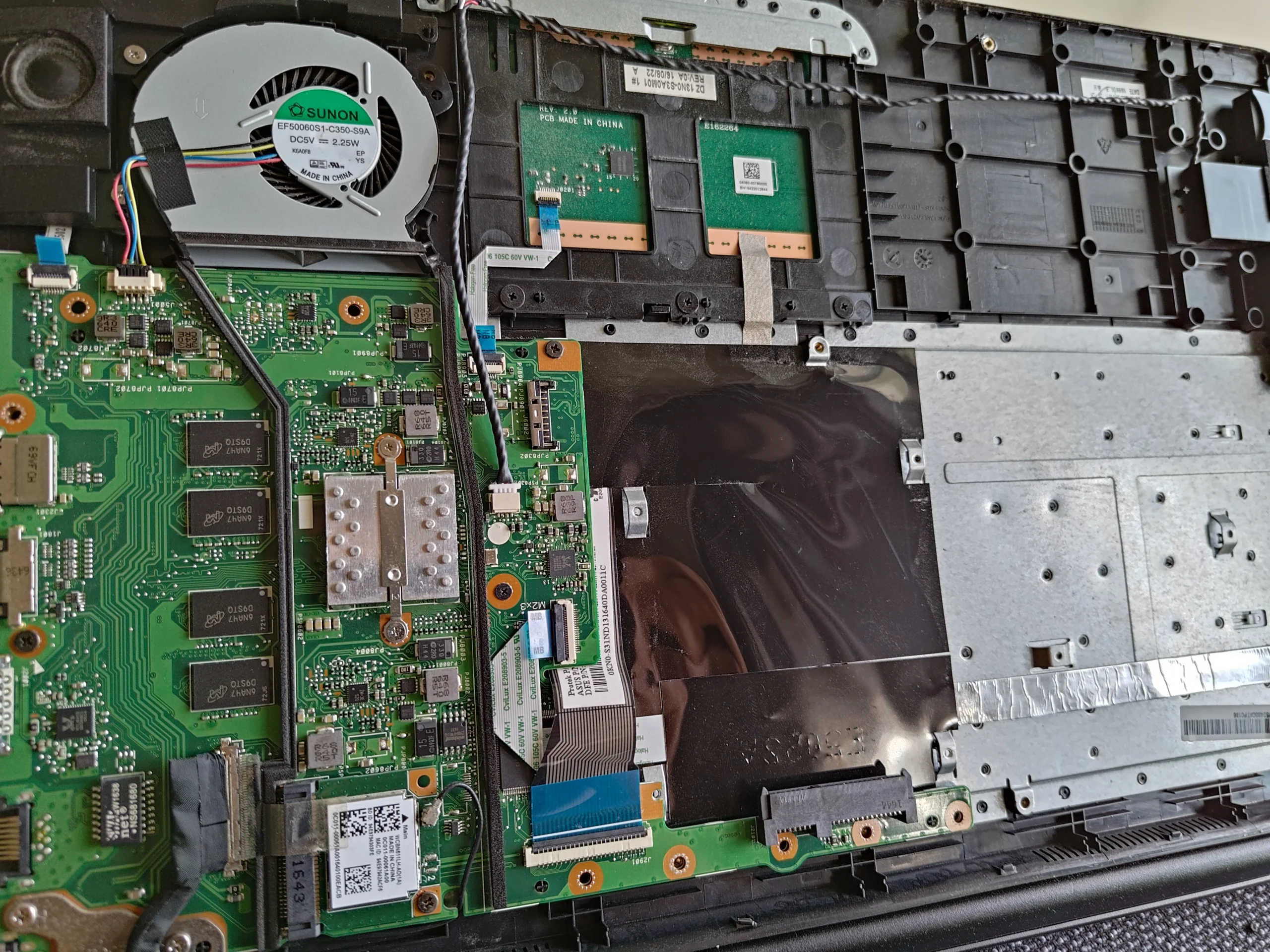
The underside label identifies this laptop as an ASUS R517S. With its casing opened, the photos show a compact motherboard, a single blower fan, several flat ribbon connections and dust across spaces that are normally hidden by the keyboard deck.
The archive is strongest as an inspection record: it shows dusty parts and access during cleaning, but it does not provide a clear paired after photo or temperature test. The article therefore explains where dust was found and how to handle this layout without inventing a measured result.
In this case study
01 / The airflow part
The R517S has a compact blower that needs direct inspection
A close-up identifies the small Sunon fan. Dust is visible on its housing and inside the inlet opening. The narrow outlet beside it should be checked as well, because a turning fan is useful only if air can leave the case.
Power the laptop down and isolate the battery before internal work. Keep the fan wheel from free-spinning under an air tool, and collect loosened material rather than blowing it across the circuit board.
02 / Beyond cooling
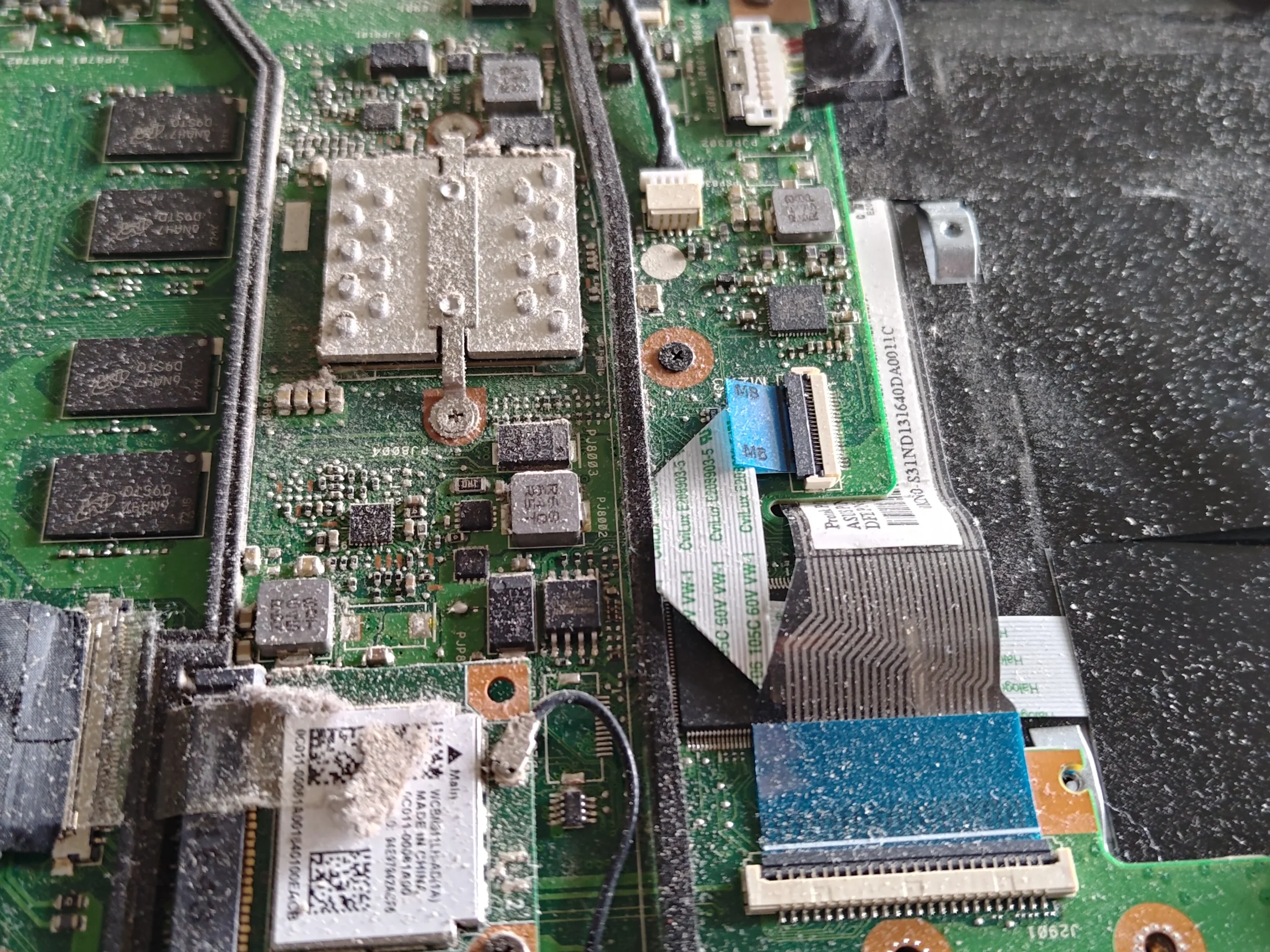
Dust had settled around the Wi-Fi module and connectors
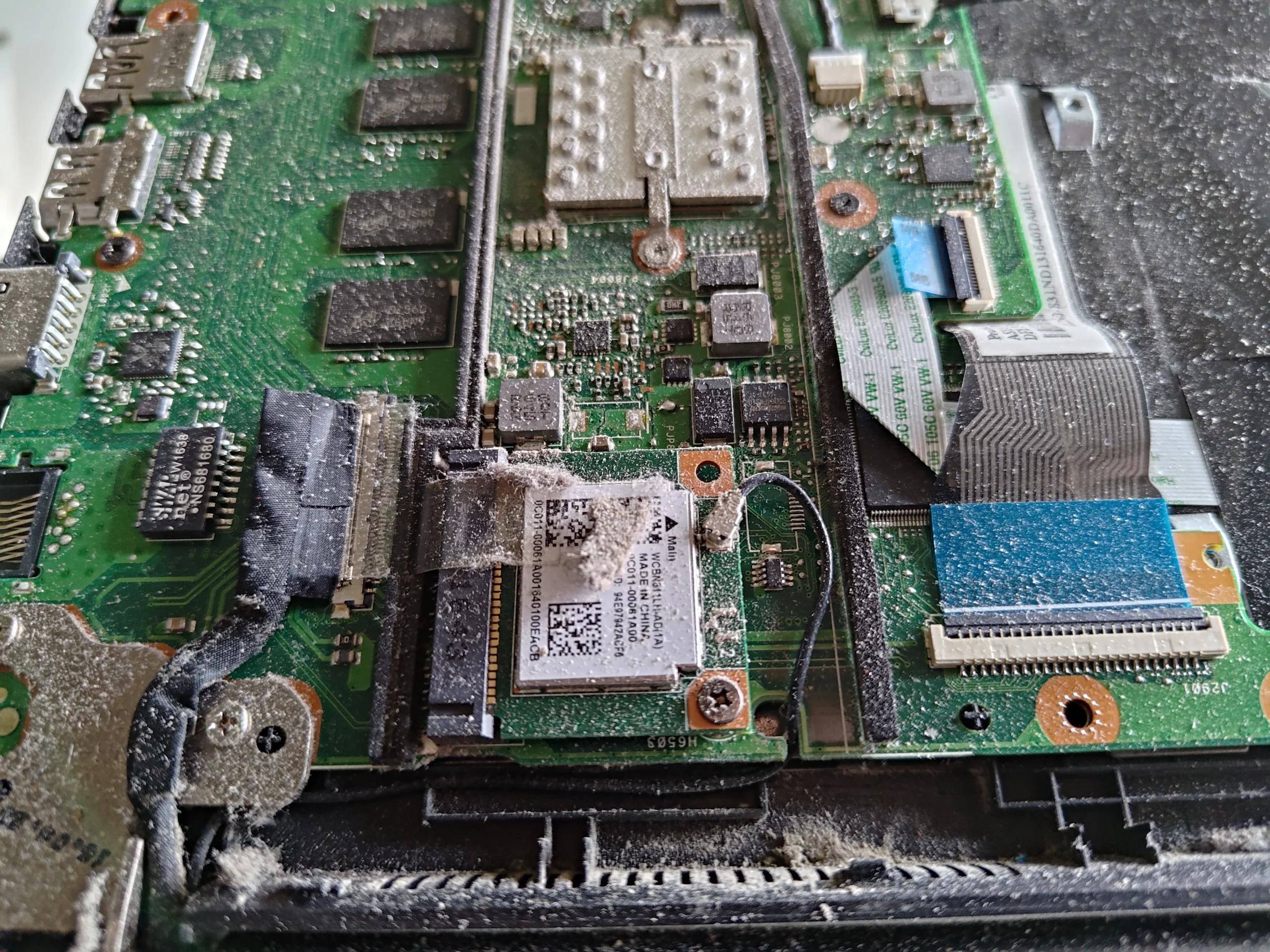
The motherboard close-up shows dust around the wireless card and nearby chips. These parts are not an intake filter; they are exposed electronics, with small antenna leads and board connectors that can be dislodged easily.
Use a gentle, controlled method to remove loose material. Do not scrape the board, pull on an antenna wire or press a household vacuum nozzle against components. This type of cleaning is about access and restraint, not force.
03 / A hidden surface
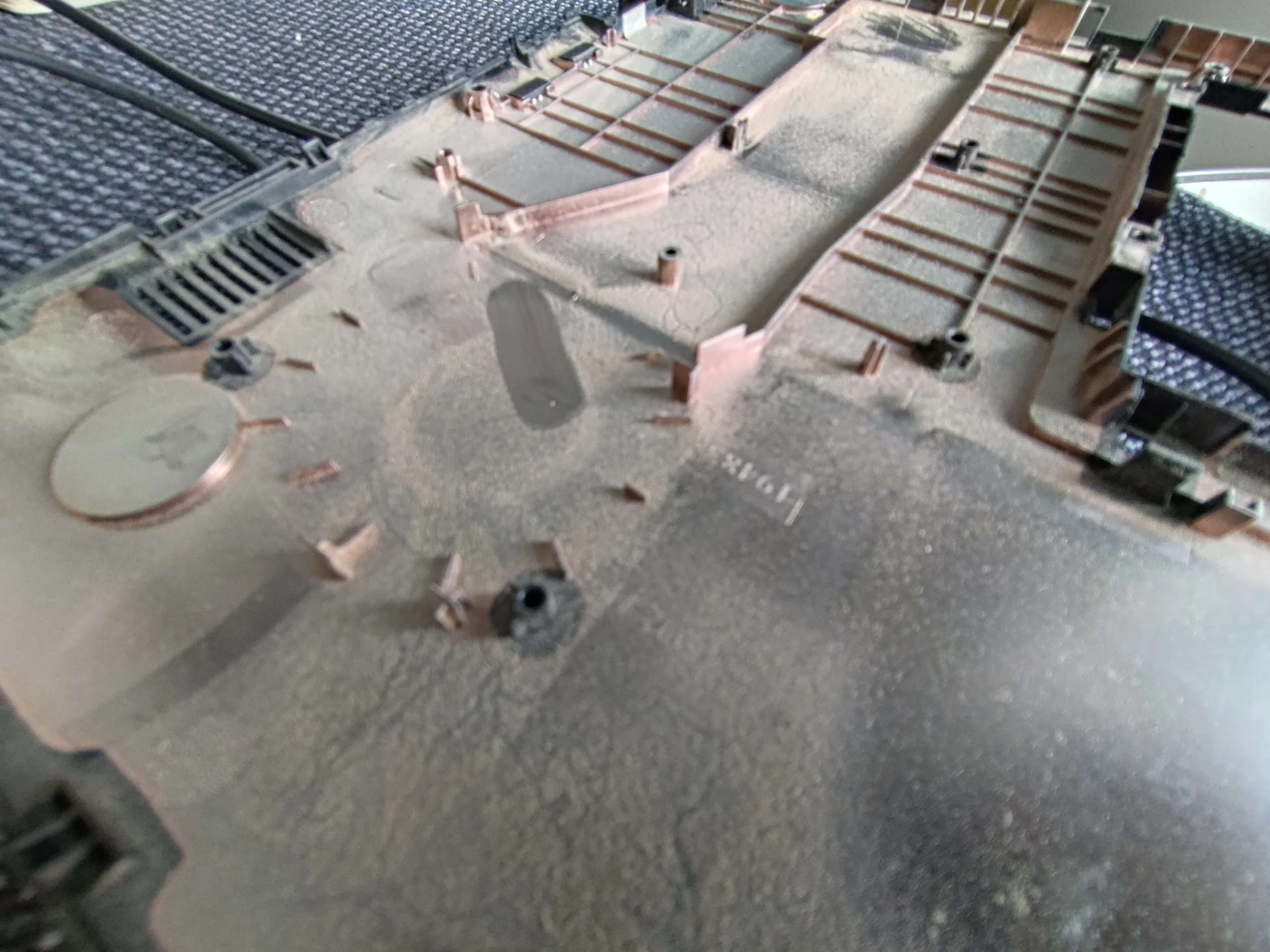
The underside of the keyboard deck also held dust
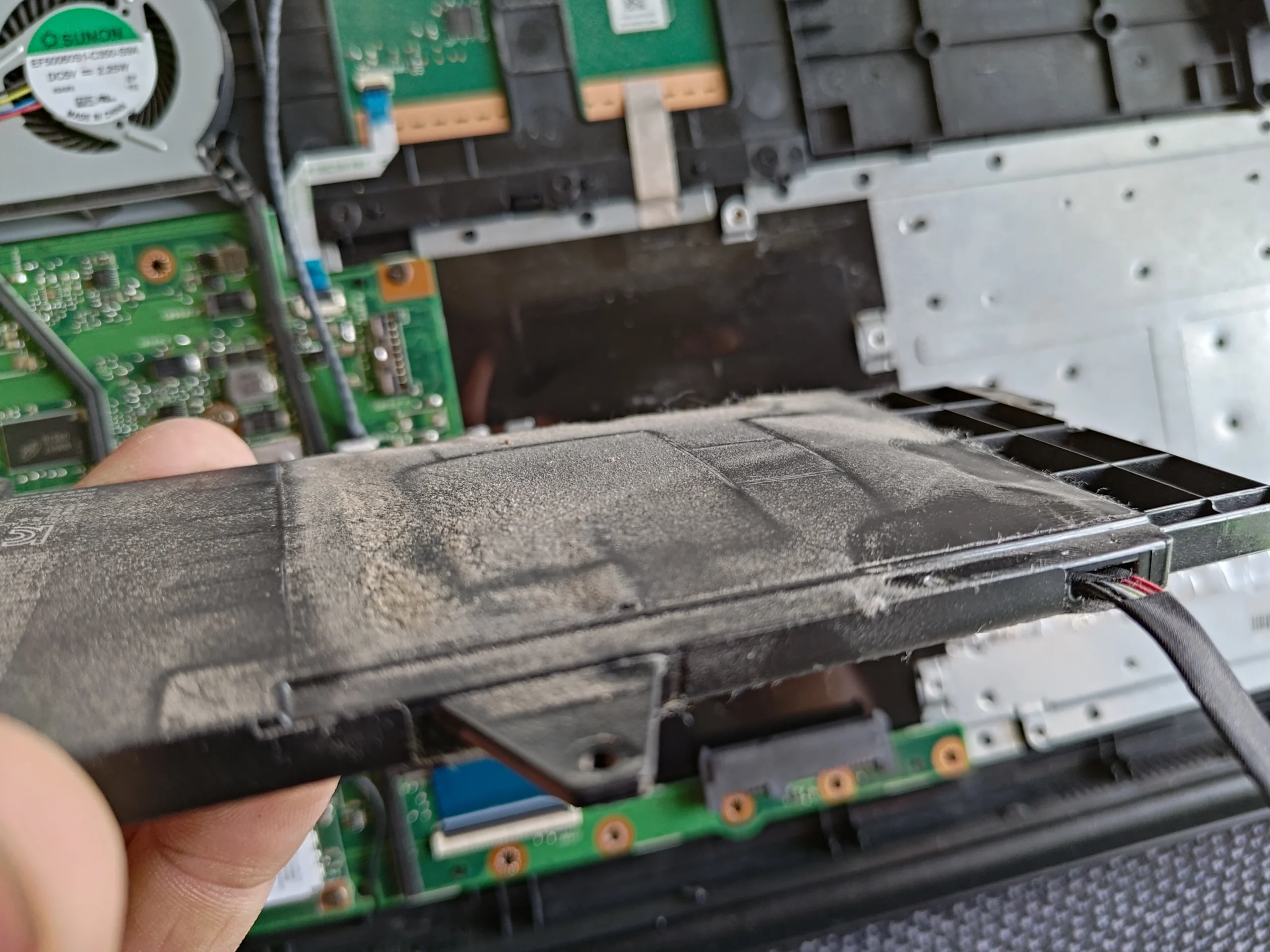
A photo of the lifted keyboard deck shows a thin dust film across the plastic ribs and support area. That material is separate from the fan, but leaving it loose could put it back on the board when the machine is closed.
The deck is linked to the motherboard by flat cables for input devices. Support it while cleaning and release each connector by its latch rather than pulling the ribbon itself. The photos show the deck lifted, not a reason to dismantle every key.
04 / Putting it together
Recheck the small connections before closing
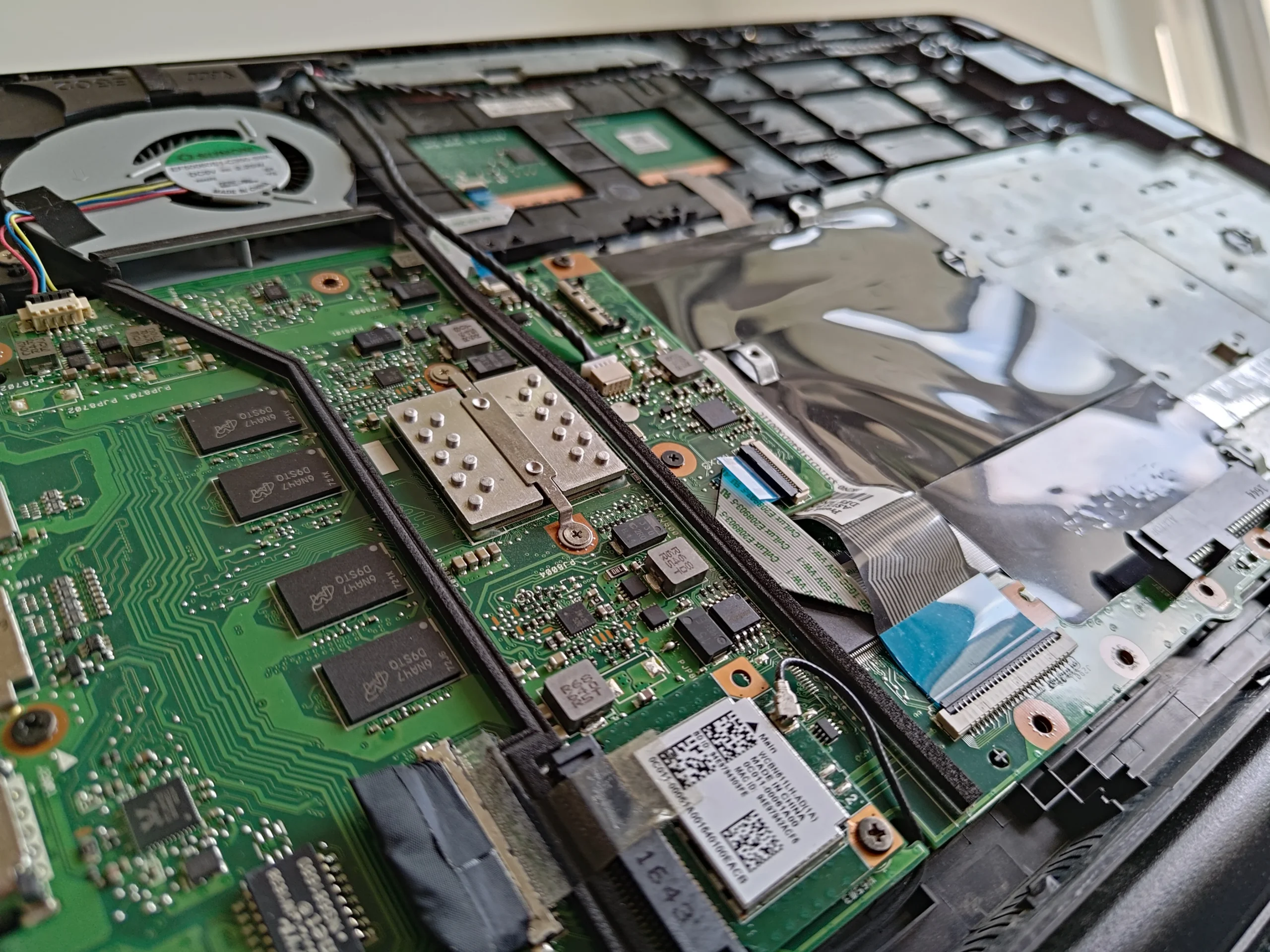
The wide interior photo shows the fan, wireless card and flat cable routes in relation to the keyboard assembly. It is a useful map for reassembly: a ribbon partly seated can cause a keyboard, trackpad or power-button fault even after the dust is gone.
After closure, confirm the fan operates, the keyboard and trackpad respond, Wi-Fi connects and the display works. There are no paired temperature readings in this case, so those functional checks should precede any cooling claim.
The engineer’s takeaway
This ASUS case shows how an internal clean can extend beyond the fan. Dust on the board and keyboard-deck underside should be collected carefully, while the fragile flat cables and antenna leads are treated as part of the job.
Before you open the laptop
Should you open an ASUS R517S for cleaning?
Identify the R517S marking on your own underside label. Shut down, unplug and use the correct opening guide for this machine. The R517S name should not be confused with similar R517MA or R517NA support pages, which may describe a different internal layout.
Once open, isolate the battery, photograph cable routes and keep screws organised. Cleaning visible fan dust is one task; lifting the keyboard deck exposes delicate ribbons and wireless leads. If you cannot release and re-seat those connectors confidently, stop before separating the deck.
After the clean
What to test after an R517S clean
With the casing closed, verify normal boot and a fan response under a suitable task. Test keys across the keyboard, both trackpad buttons, Wi-Fi, audio and charging because the access route passes several small connectors.
The photo set documents contamination and internal access but no controlled before-and-after test. Compare the same workload and conditions if temperature or noise was the original complaint.
Questions from owners
ASUS R517S internal cleaning FAQs
Answers drawn from the single fan, board dust and lifted keyboard deck in these photos.
How many cooling fans are visible in this R517S?
The opened machine in this case shows one compact Sunon blower fan. Other ASUS models may use a different layout.
Why clean under the keyboard deck if the fan is the problem?
The photos show loose dust on its underside. If the deck is already lifted, collecting that material prevents it being left over the exposed board, but the flat cables need careful handling.
Can I vacuum around the Wi-Fi card?
Avoid pressing a household vacuum nozzle against the board or antenna leads. Use a controlled cleaning method suited to electronics.
Does this case show a measured temperature improvement?
No. The archive shows dust and access, but no matched before-and-after reading or clear paired after photo.
Are R517S and R517MA the same for repair instructions?
Do not assume so. The label here says R517S. Use documents for the exact model and internal arrangement of your unit.
What should I check after putting the deck back?
Test keyboard, trackpad, Wi-Fi, display, charging and fan operation. A partly seated flat cable can create a new symptom unrelated to dust.
UK ASUS cleaning enquiries
Need the fan and hidden dust cleaned safely?
If you are in the UK and your R517S is dusty, noisy or running hot, send us the exact underside model, the symptoms and your postcode. A photo of the vents helps us discuss the likely access needed.
We can talk through fan and internal dust cleaning, and check the keyboard and wireless connections after reassembly.
Read about our laptop internal cleaning service, then use the form to tell us your computer model, symptoms and UK postcode.
Free to enquire · No obligation to book. We discuss the proposed work and price before you decide.
The workshop photos
ASUS R517S fan and keyboard-deck cleaning photos
Open the photos to see the single fan, dust near the Wi-Fi card, lifted keyboard deck and cable routes.