Published 7 November 2026 · ASUS ROG gaming desktop with ASUS GeForce GTX card case study
ROG desktop cleaning
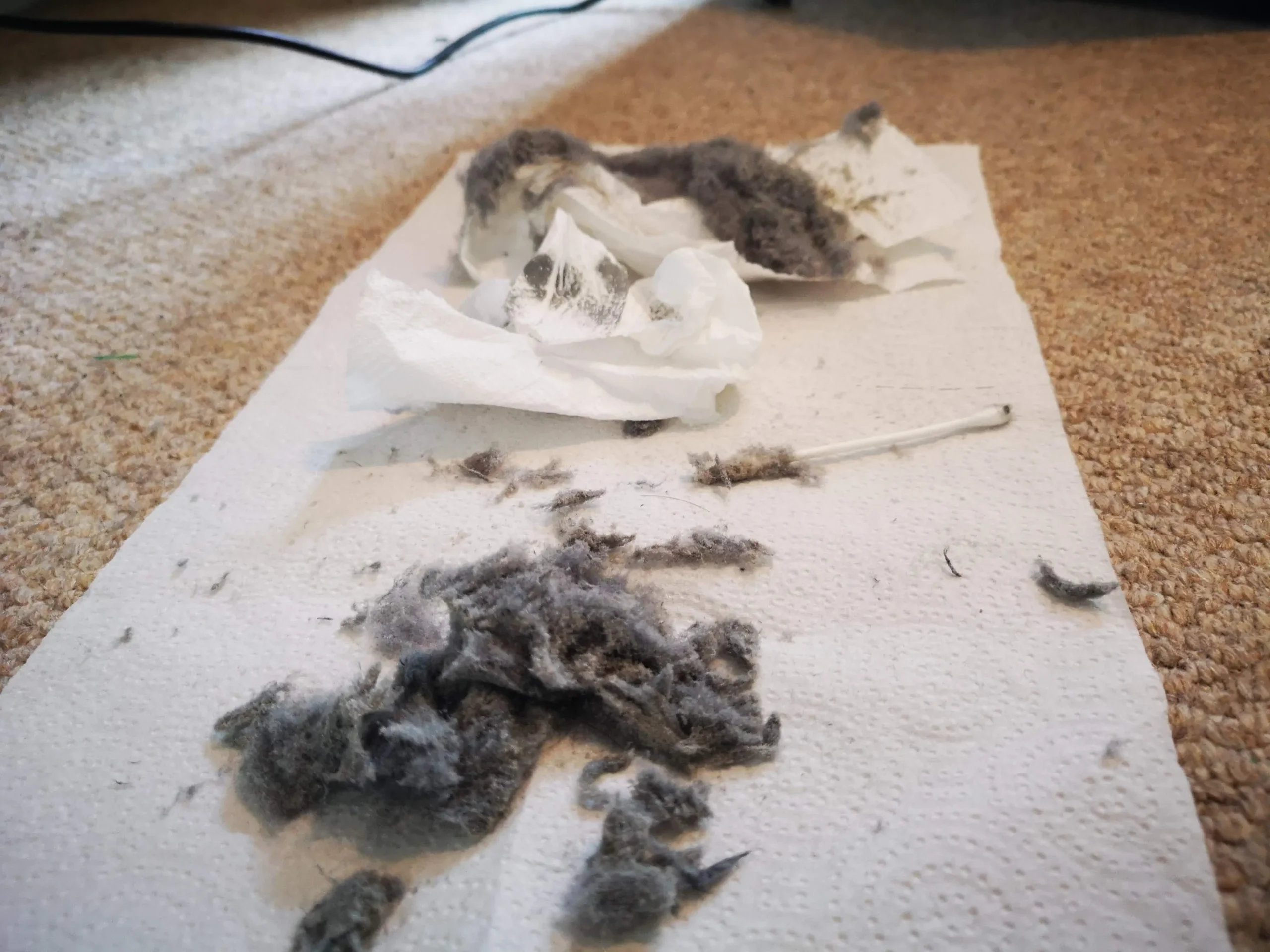
the visible fan was only part of the dust problem.
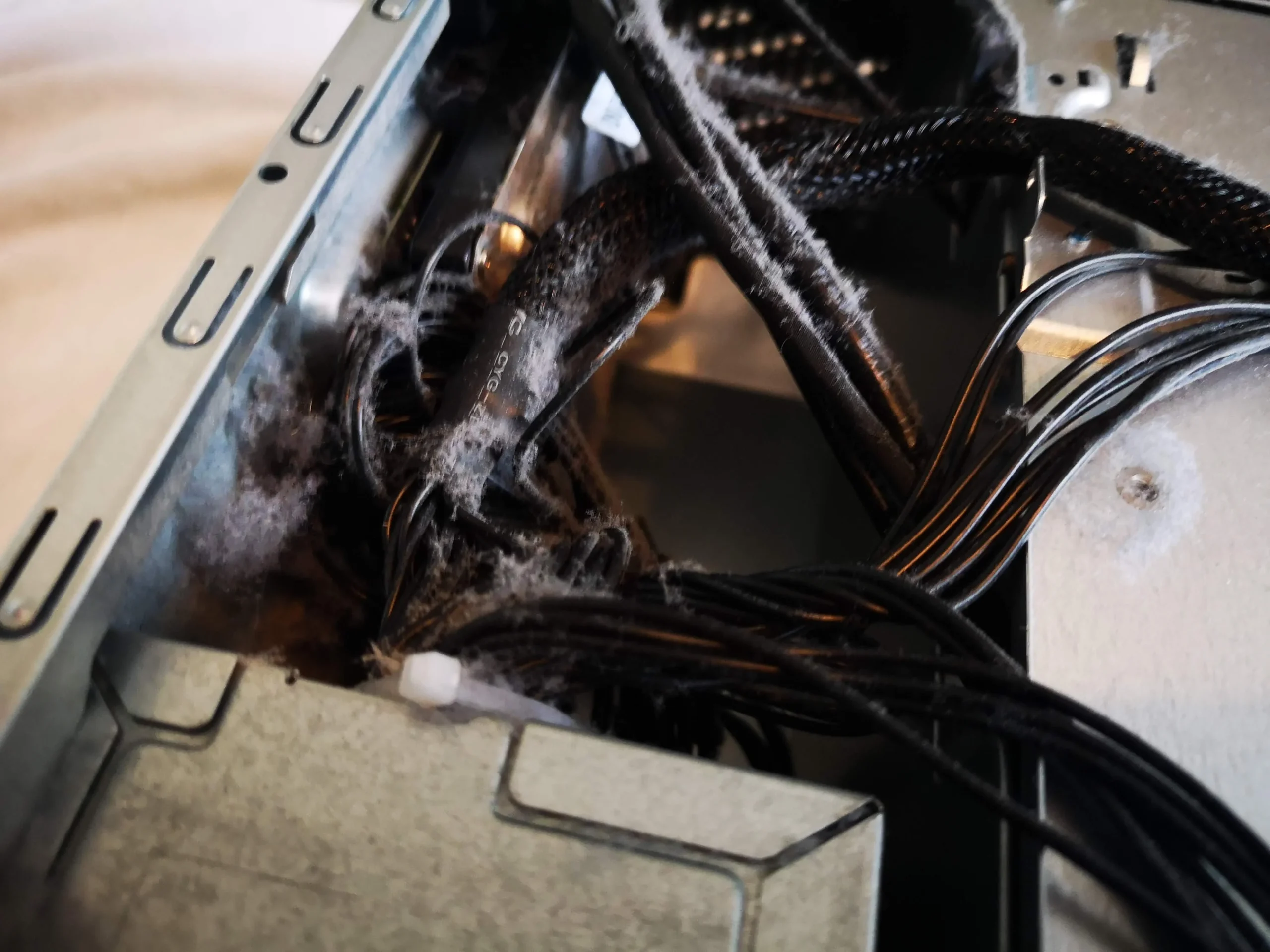
Dust lined the case floor and graphics card, fibres caught around the GPU cooling edge, and the CPU cooler needed separate attention. This case follows the three places an owner can check without treating a gaming PC as one big fan.
The PC
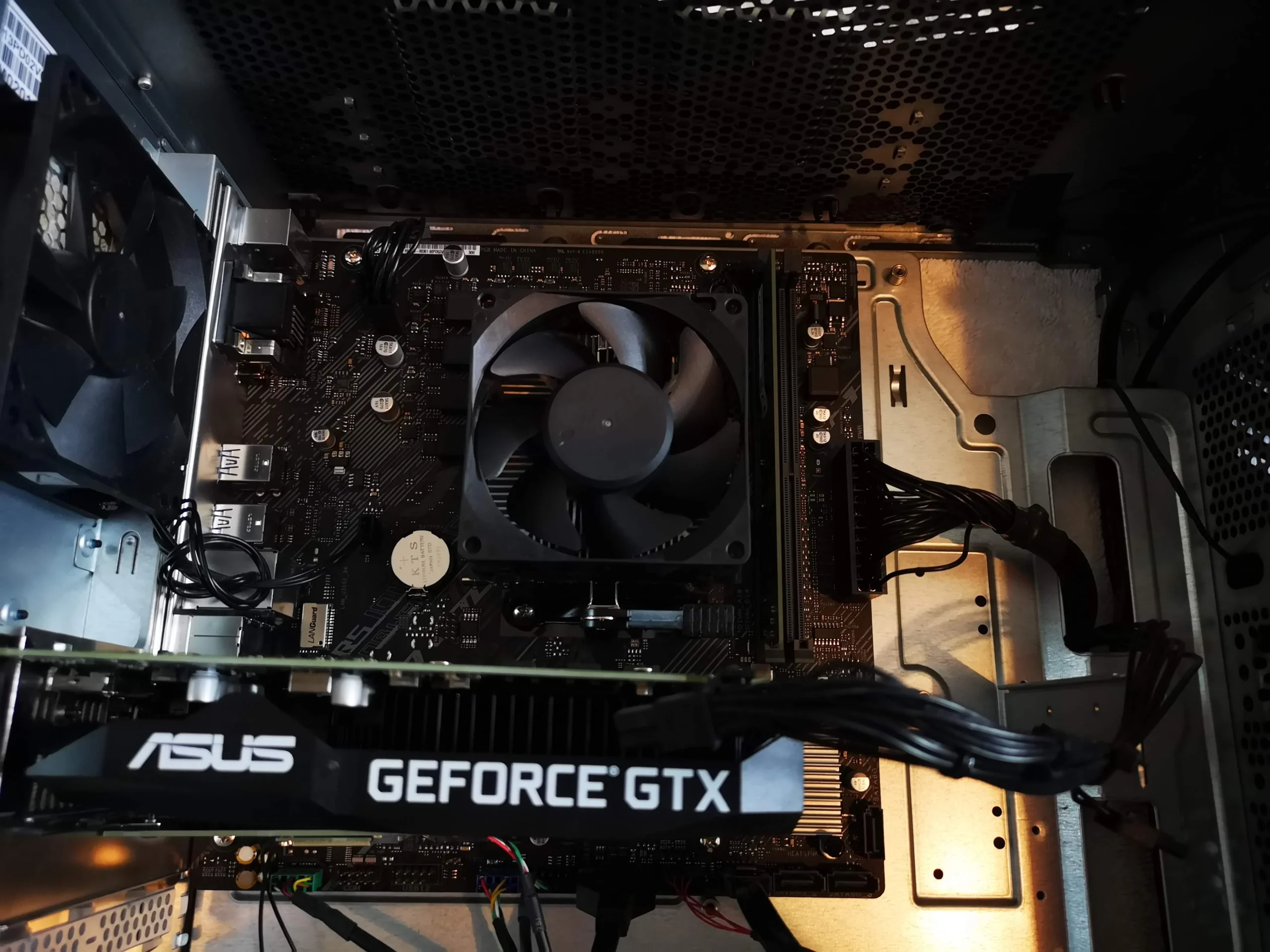
ASUS ROG tower with ASUS GeForce GTX graphics card
Visible buildup
Case floor, fan blades and GPU cooler edge
Deeper work
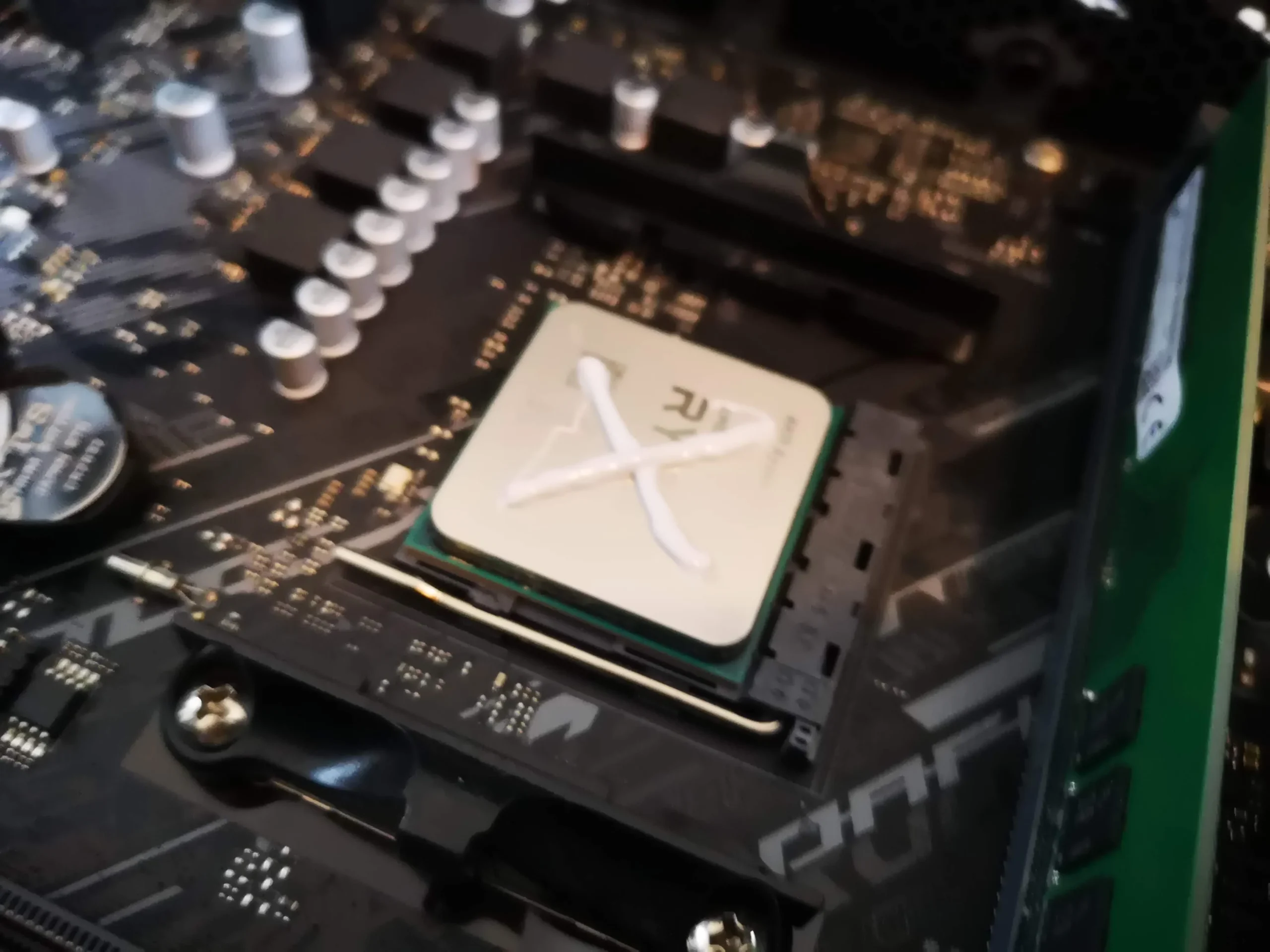
CPU cooler removed and fresh paste visible at refitting
The most obvious photograph is the dust layer on the case floor beneath the graphics card. But a desktop has several independent cooling routes. This ASUS ROG tower also had debris by the card's cooler, a dusty case fan and material in the less visible space behind the motherboard tray.
The workshop sequence shows the GTX card out of the system, the CPU cooler lifted and fresh white thermal compound on the processor before refitting. It does not provide a comparable temperature log, so the useful result here is a clear record of what was found and addressed.
In this case study
01 / First view inside
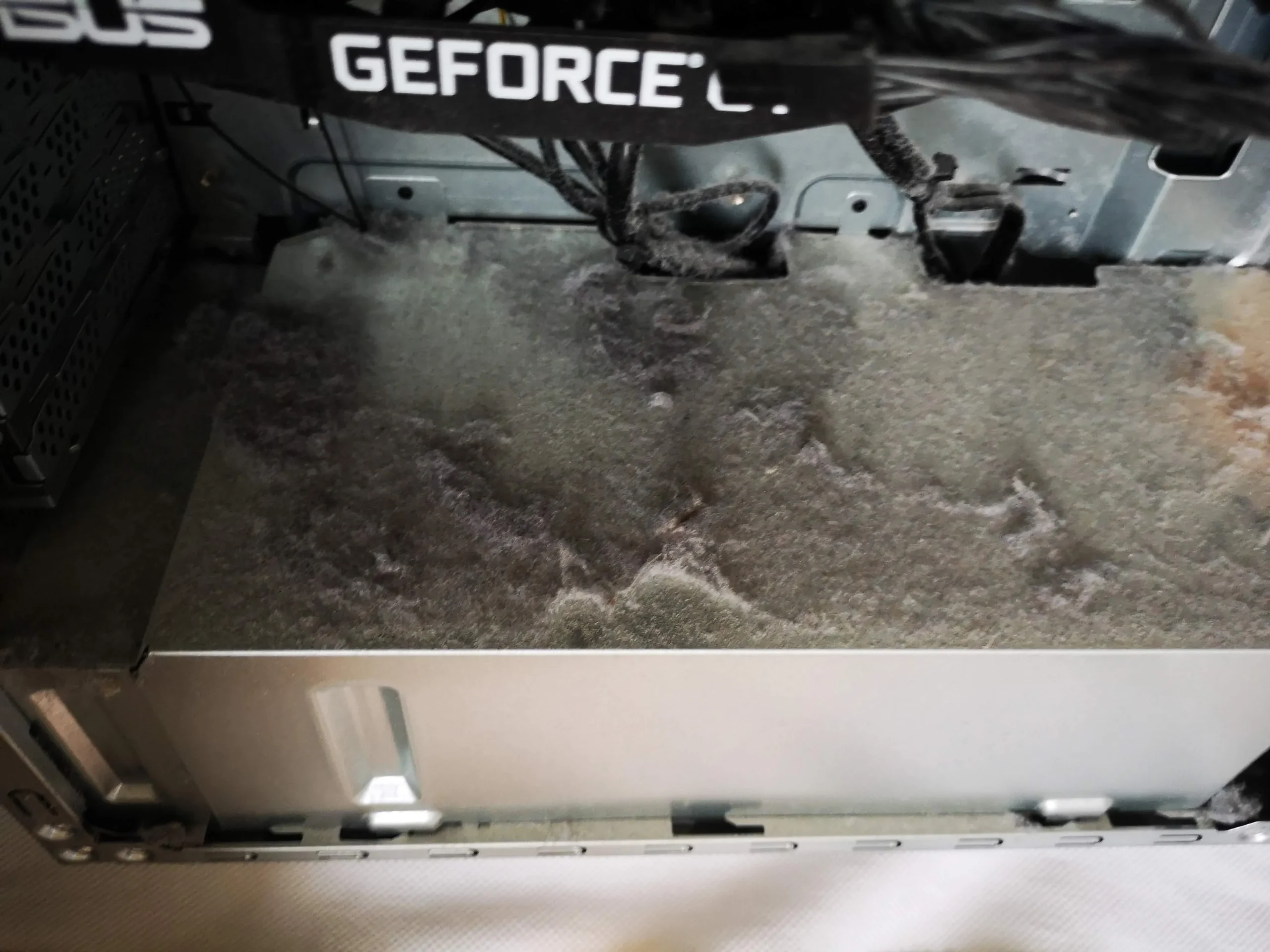
Dust had settled below the graphics card
The open-side view shows a broad grey layer on the lower case surface. Dust on a flat panel may be less restrictive than a clogged heatsink, but it tells us the computer has been moving dusty room air and invites a check of nearby intakes and fans.
Do not simply blow this loose material toward the motherboard. Remove it from the case while protecting connectors, fan bearings and the graphics-card slot.
02 / A separate cooling path
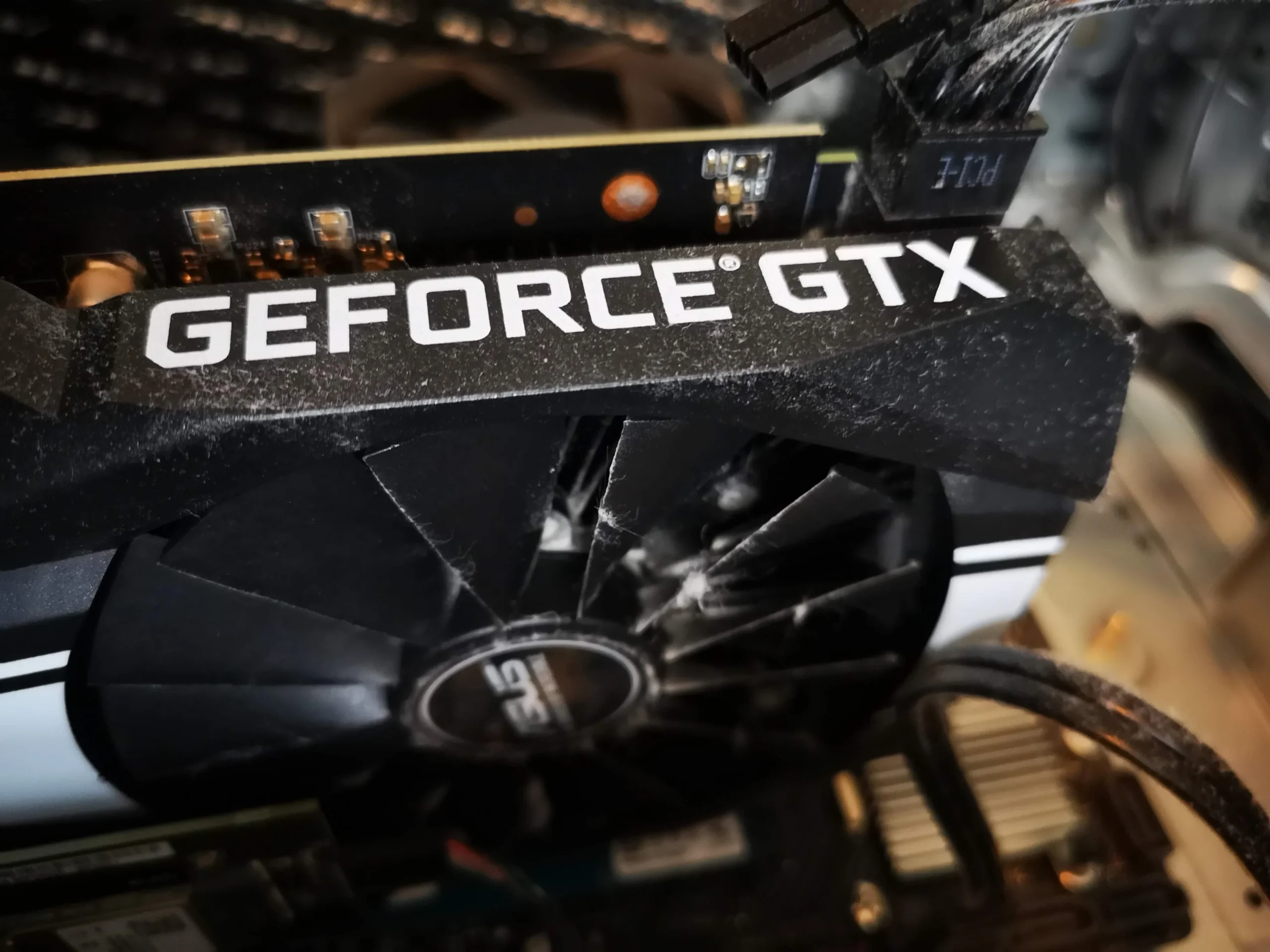
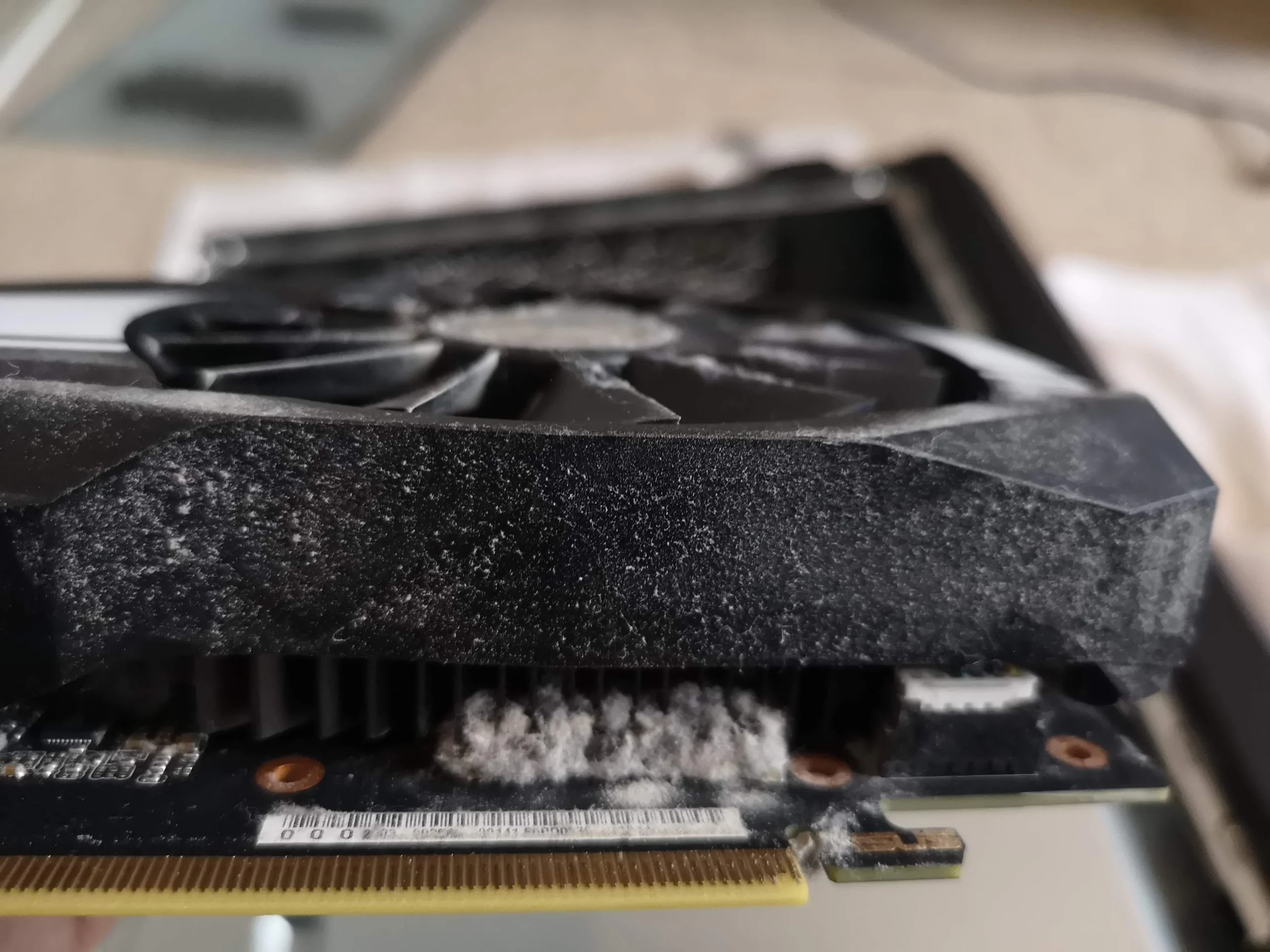
Fibres were caught at the GTX card's fan edge
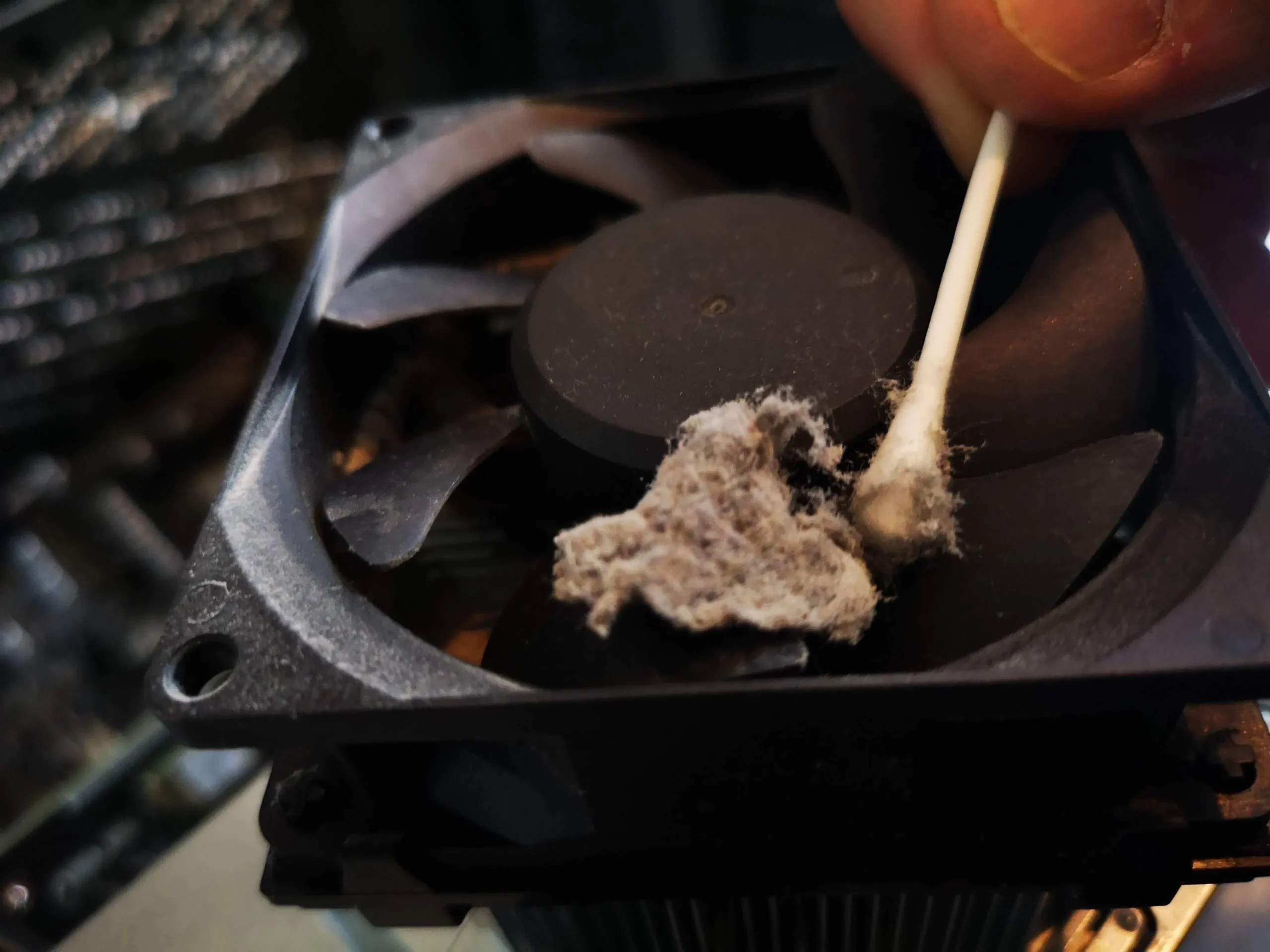
The close view of the ASUS GeForce GTX card shows a dusty fan and a pale clump at the cooler edge. Graphics cards pull air through a relatively tight fin stack, so a clean case fan alone will not clear a clogged GPU cooler.
With the card out, both fan faces and the fin openings can be inspected. Release power connectors and the PCIe latch properly, support the card's weight, and keep fingers or tools off the fan blades while cleaning.
04 / Thermal contact
The processor cooler was lifted and prepared for refitting
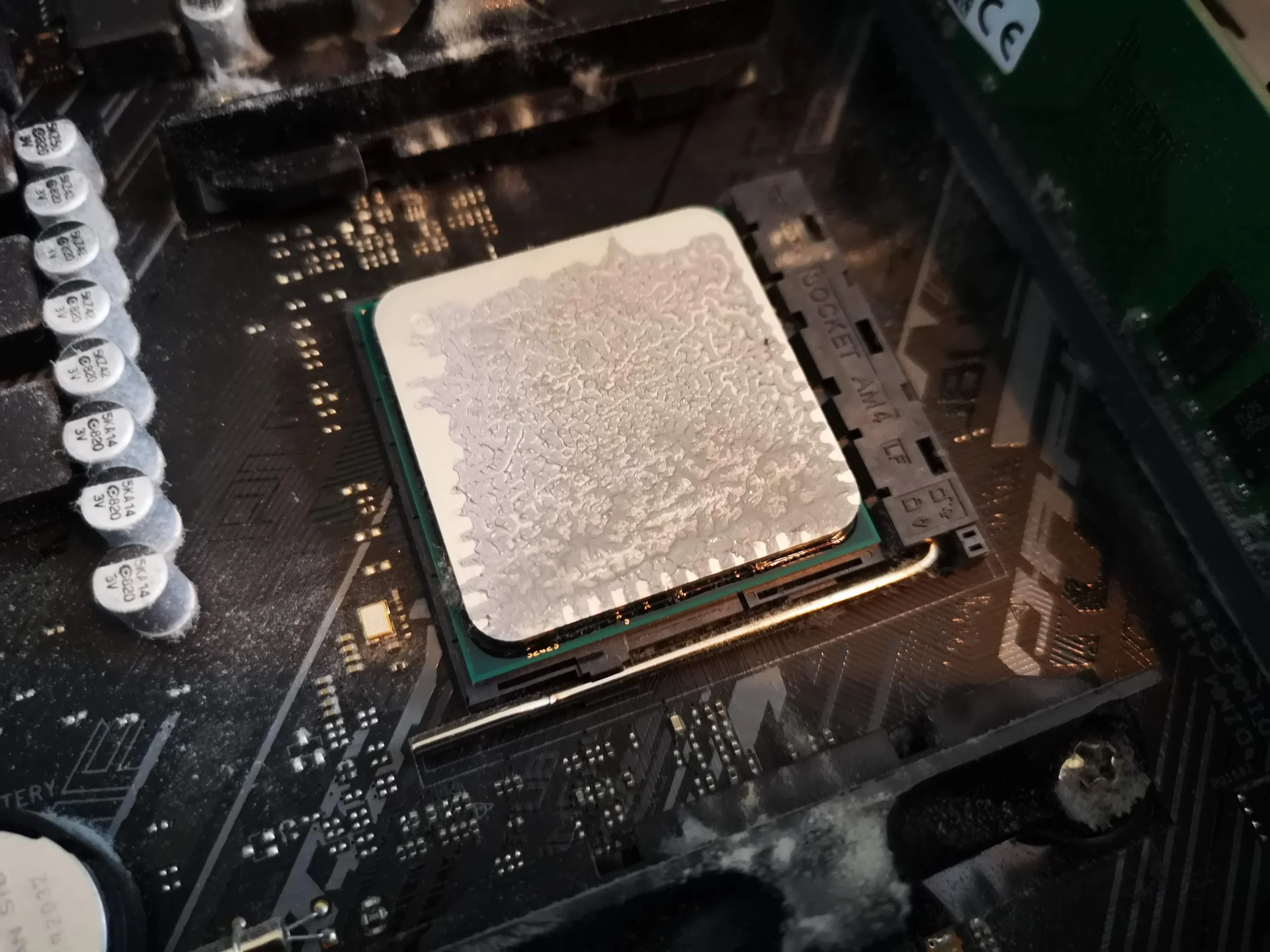
The sequence shows the CPU exposed after its cooler was removed and later shows fresh white paste on the processor. This is a different operation from dusting the fan: once the cooler's contact is broken, the old interface needs cleaning and appropriate fresh compound before even reattachment.
The final inside view shows the cooler and GTX card back in place. A power-on image shows the PC started, but lights and a boot screen are not a temperature test. Fan operation and temperatures should be checked under a comparable workload.
The engineer’s takeaway
This ROG tower had dust in the open case, at the GTX card cooler, in the cable space and on a fan. Cleaning one visible surface would have missed several cooling routes; lifting the CPU cooler also made correct thermal-interface reassembly essential.
Before you open the laptop
Can you clean a gaming tower like this yourself?
Shut down, switch off the power supply and unplug the mains lead. Remove accessible filters and the side panel, photograph the cable layout and hold fan blades still when brushing or using gentle air. Keep a vacuum nozzle away from the electronics and never open the power-supply unit.
Taking out a graphics card or CPU cooler needs more care. If you are not confident about the PCIe latch, auxiliary power leads or thermal-paste process, stop at the accessible case and filter clean and ask for service.
After the clean
Checks once the tower is assembled
Confirm the CPU and case fans spin freely and the graphics card displays normally. Some graphics cards stop their fans at low temperature, so assess GPU fan behaviour under a suitable load rather than at idle alone.
Compare CPU and GPU temperatures, noise and fan speeds with prior readings only under similar room conditions and workloads. No paired measurements are available for this case.
Questions from owners
ASUS ROG desktop cleaning FAQs
Answers based on the dust, GTX card and CPU-cooler work visible in this tower.
Why is there dust under my graphics card?
Case airflow carries room dust inside, where some settles on flat surfaces. In this ROG tower the floor was coated and the GPU cooler also needed inspection.
Can I clean only the side-panel dust?
It is a start, but inspect the intake, case fans, GPU fan and fin edge. The clump at this card's cooling edge would remain after wiping the case floor.
Should I remove my GTX card to clean it?
Only if access requires it and you can release its power connectors and PCIe latch safely. The removed card in this archive allowed closer fan and fin inspection.
Do I need new paste if I lift the CPU cooler?
Yes. Once the cooler is separated from the processor, clean the old interface and refit with suitable fresh compound and even mounting pressure.
Why are GPU fans still after cleaning?
Some cards stop their fans when cool. Check the particular card under an appropriate load before calling a stationary idle fan faulty.
Does the power-on photo prove the PC now runs cooler?
No. It shows that the machine powered on after reassembly; comparable temperature and fan readings would be needed to measure a cooling change.
UK ROG desktop cleaning enquiries
Want the GTX and case airflow checked?
If you are in the UK, send us the ROG tower and graphics-card model if known, a description of the dust or noise, and your postcode. Mention whether heat appears during gaming, at idle or both.
We can discuss cleaning the accessible intake and fans, checking the GTX cooler, and whether the CPU cooler needs a separate thermal service.
Read about our desktop fan and cooling service, then use the form to tell us your computer model, symptoms and UK postcode.
Free to enquire · No obligation to book. We discuss the proposed work and price before you decide.
The workshop photos
ASUS ROG GTX desktop cleaning gallery
Open the workshop photos for the dust-coated case, GPU cooler, fan clump, CPU paste and reassembled tower.