Published 30 October 2026 · Dell Inspiron 15 5567 case study
Inside an older Inspiron
the fan held more than surface dust.
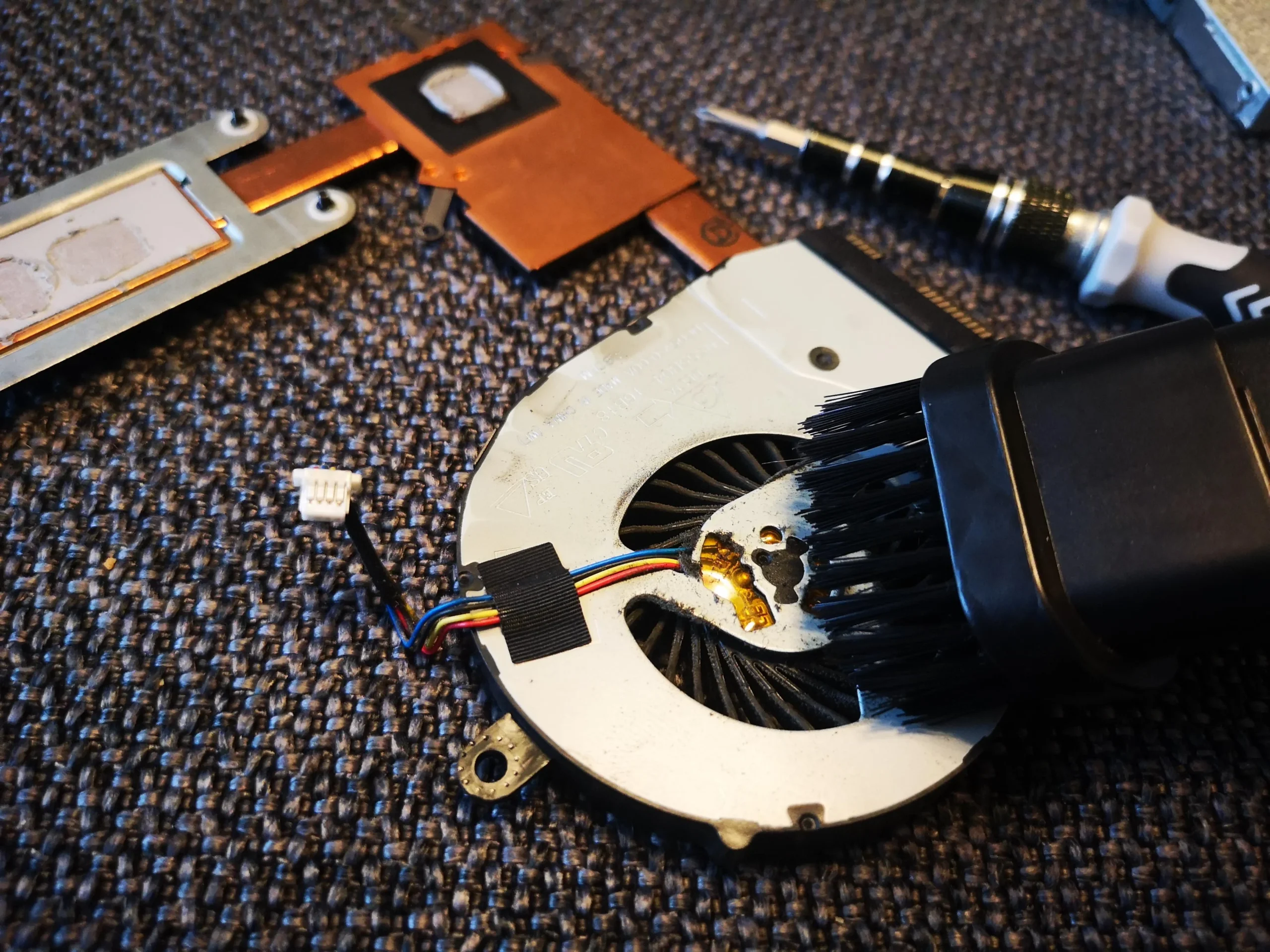
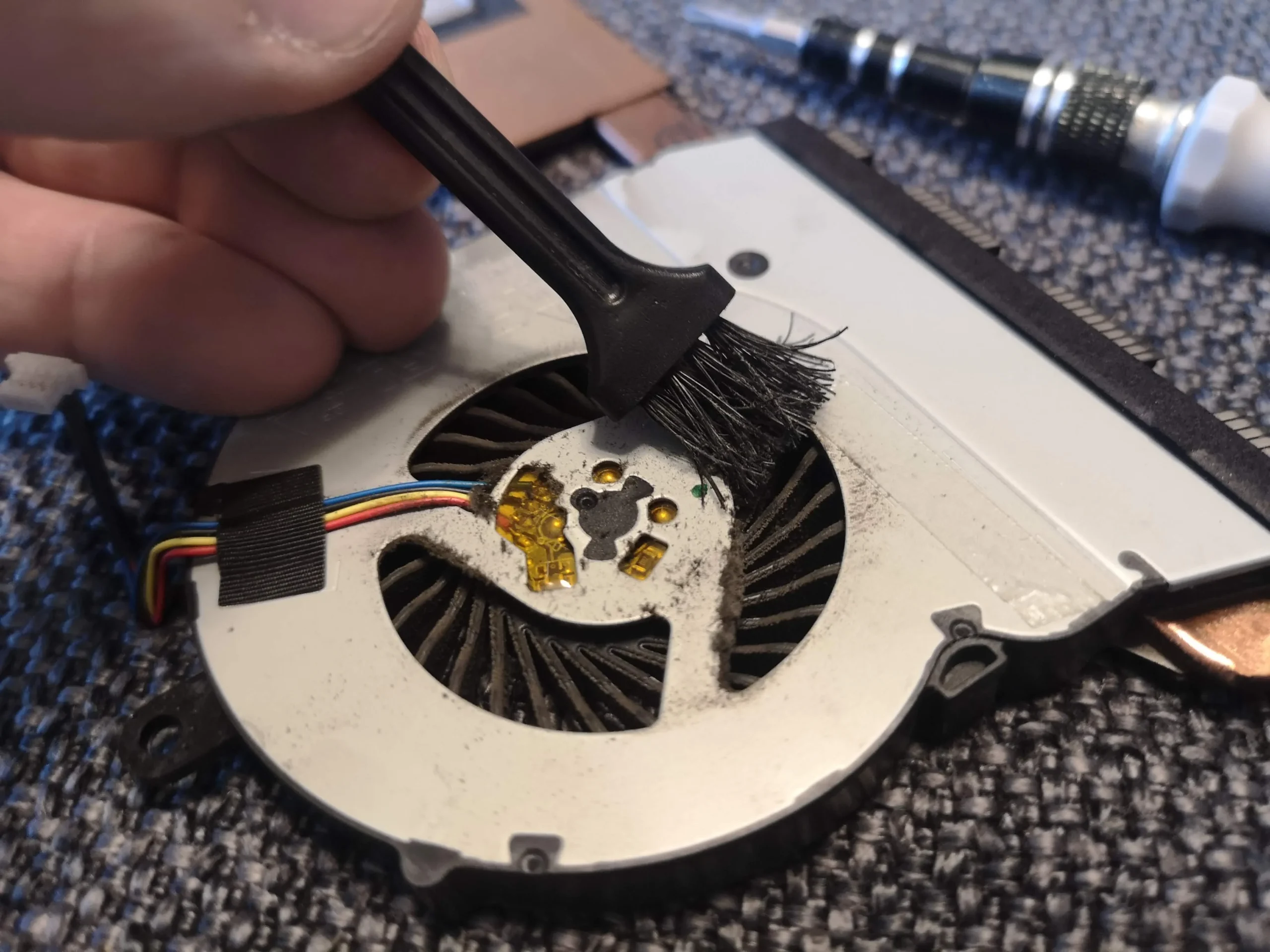
This Dell's fan looked dusty from above, but the removed blower shows debris packed on its inner blade ring. The photos also show a copper cooler lifted from the board and its contact faces being cleaned. That sequence explains why a quick wipe of the outside grille would miss much of the job.
Model identity
Inspiron 15 5567 / regulatory type P66F001
Main airflow point
One removable blower with dust inside the blade ring
Deeper access
Copper cooler and chip contact preparation
The underside label states regulatory model P66F and type P66F001. Dell associates those codes with the Inspiron 15 5567; the serial-bearing label photo is not published. The workshop archive has several copies of this same service under two folder names, which we have treated as one case.
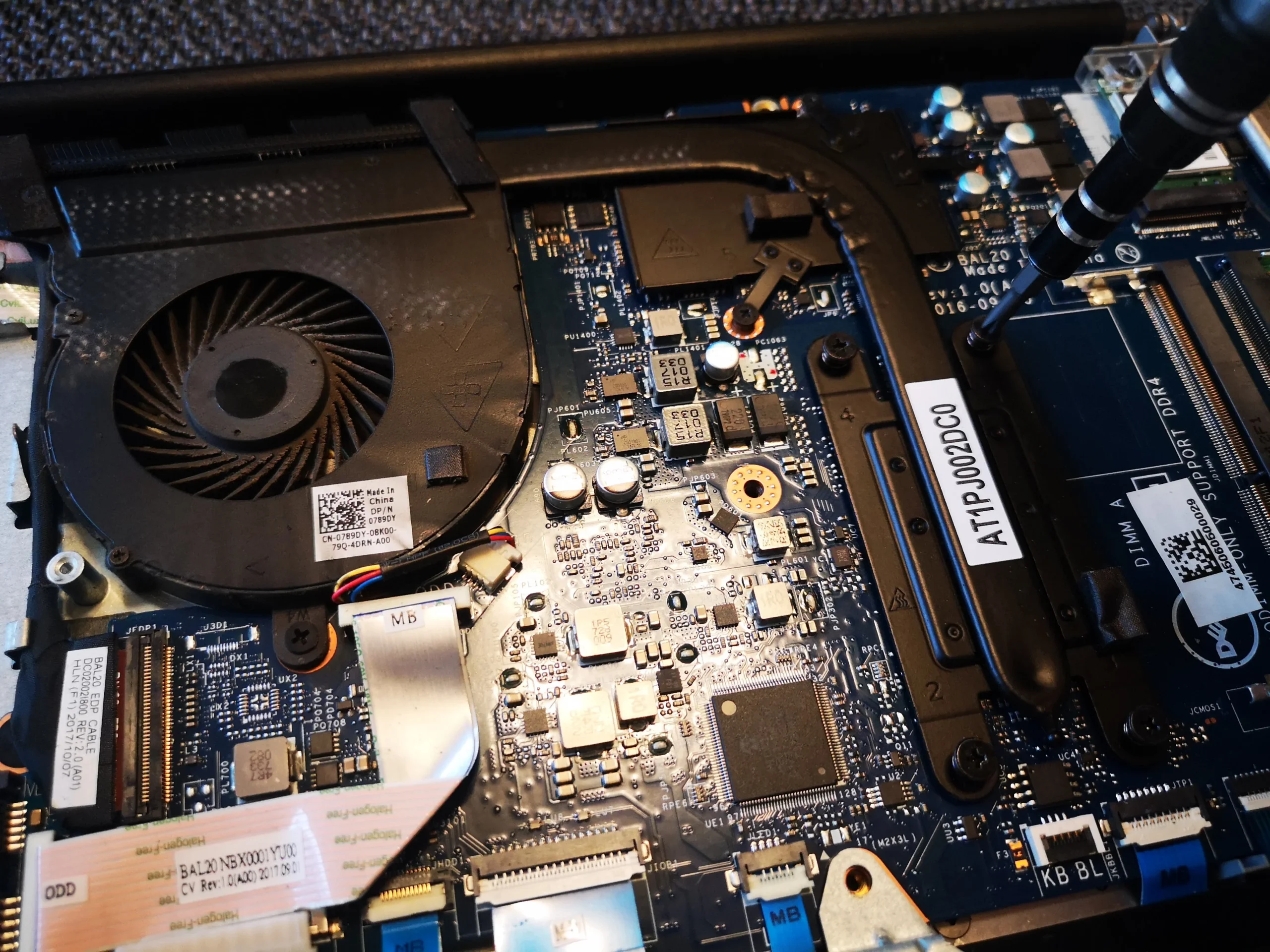
With the lower cover off, the fan sits beside a copper heat-pipe assembly. Later images show the blower removed and cleaned, and the copper contact plate separated from the chip surfaces. No matched temperature or noise readings accompany the photos, so the outcome is described only as the visible cleaning and reassembly stages.
In this case study
01 / First inspection
Dust was visible before the blower was removed
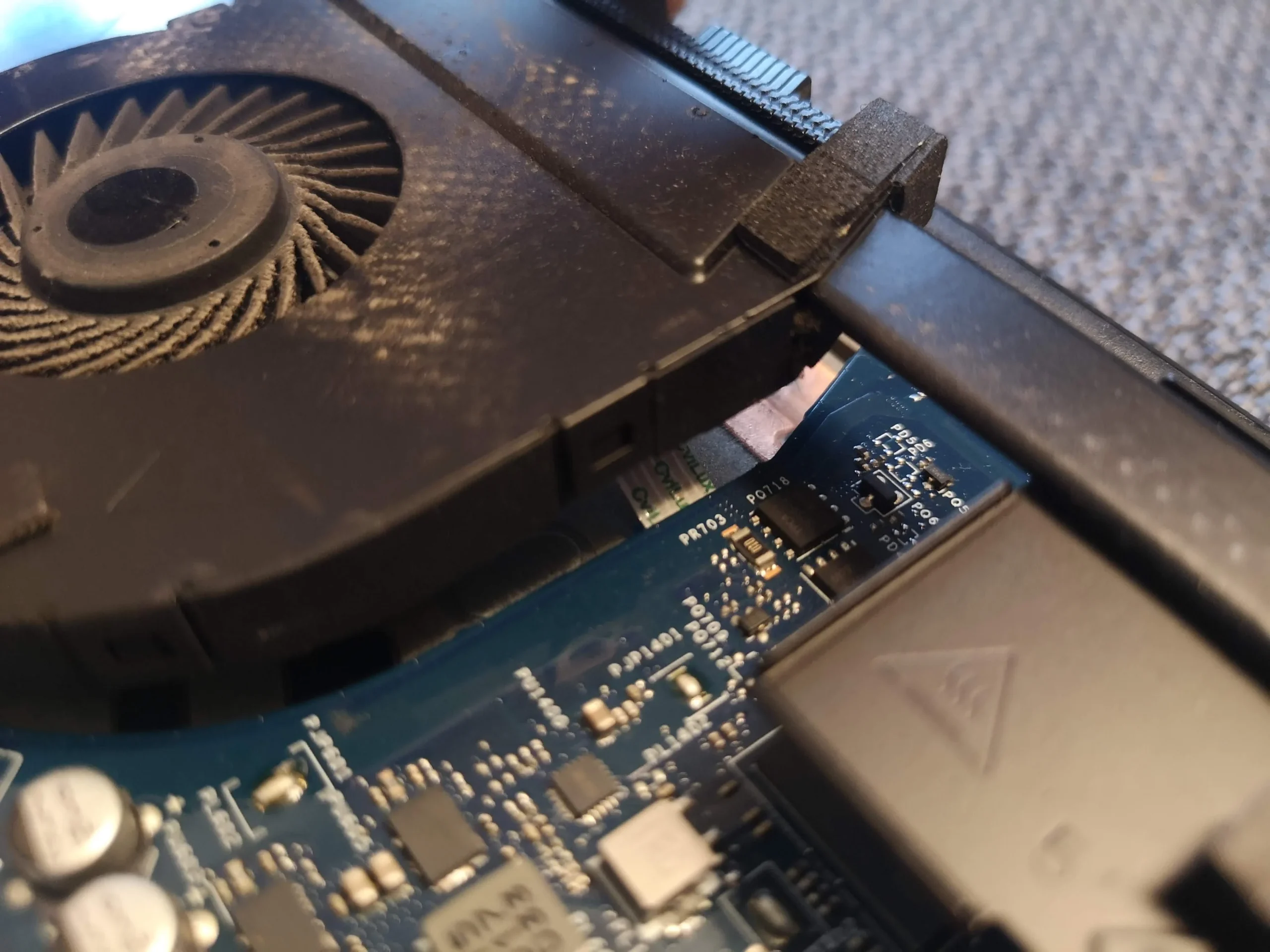
From the open base, the single fan shows grey material on the blade ring and on the neighbouring plastic shroud. The heat pipe ends at a fin outlet near the edge of the laptop. Even a fan that turns freely has to push air through that narrow exit.
On this design, the blade opening is partly hidden by the installed fan housing. Check the fin edge and exhaust as well as the visible hub; a dirty exterior grille does not tell the whole story.
02 / The hidden dust
Removing the fan exposed debris caught deeper inside
The loose fan photo shows dark dust and lint around the inside of the blade ring, where access is poor with the blower fitted. A brush appears at this area in the service sequence. This is a better example of why physical access matters than simply showing a dusty outer vent.
When handling a loose blower, keep fingers and tools clear of delicate blades and the small cable. Hold the rotor steady during air cleaning, and collect debris rather than scattering it onto the board or into the fins.
03 / Beyond airflow
The copper assembly touched more than one chip area
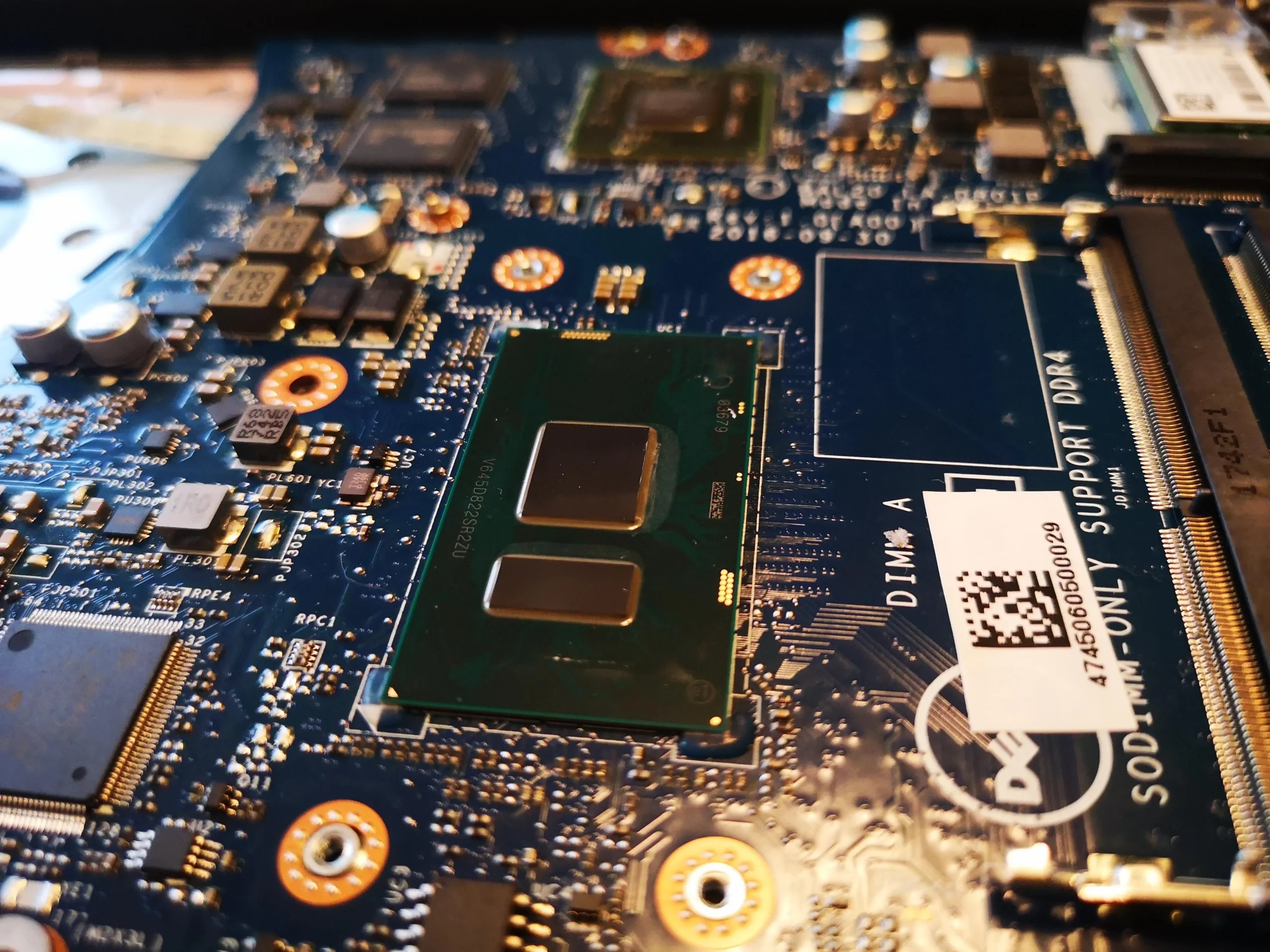
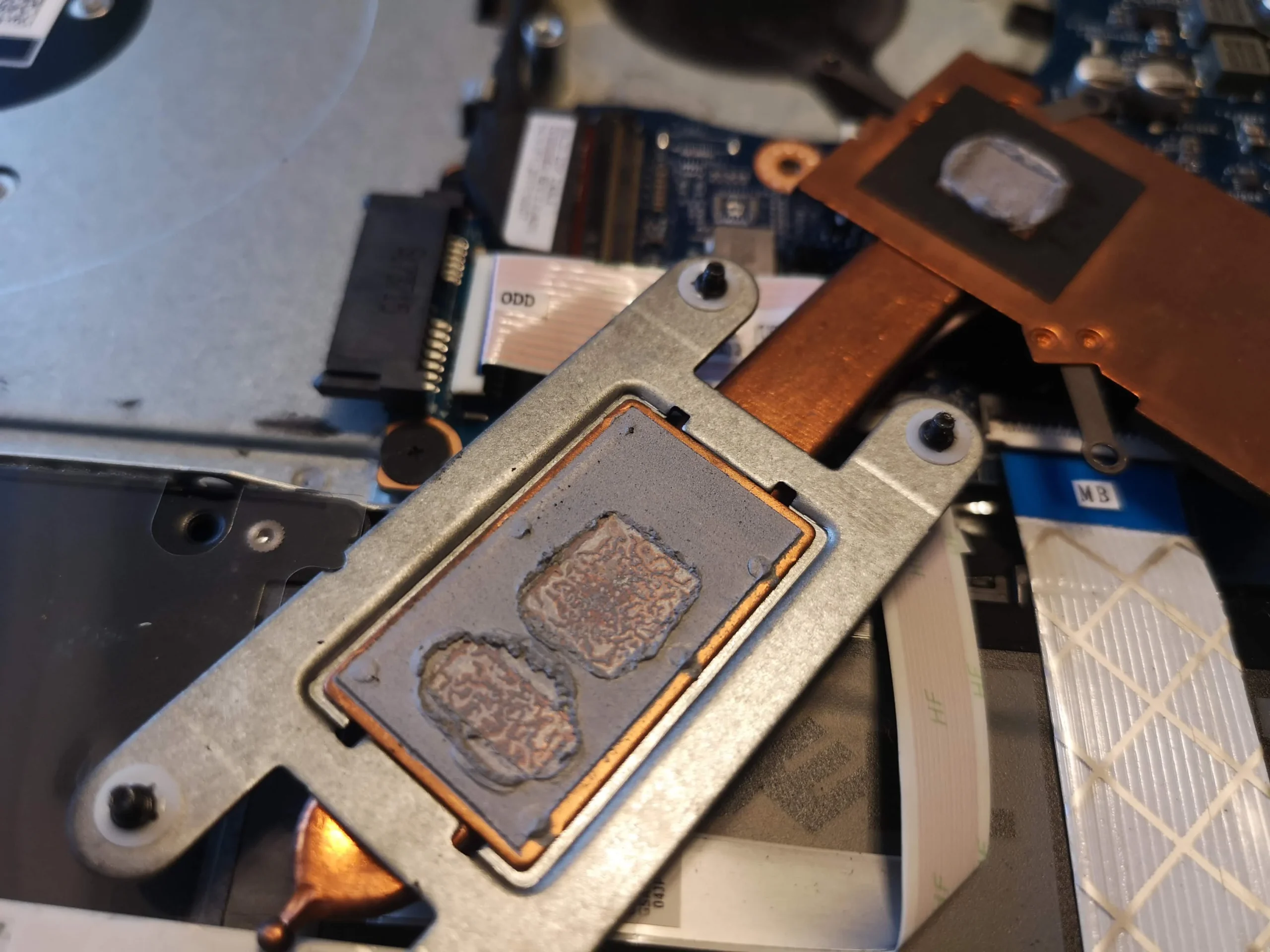
After the pipe assembly was lifted, the photos show old compound on the exposed chip areas and corresponding copper contact faces. The graphics-side package sits among memory chips, while the processor contact is elsewhere on the board. Each mating surface needs a clean, even interface on reassembly.
This is a different operation from fan dusting. Lifting the cooler breaks existing paste contact; do not simply clamp old disturbed material back down. Note any small pads and screw positions before cleaning so the assembly returns to its intended fit.
04 / Before refitting
The cooler face was cleaned before reassembly
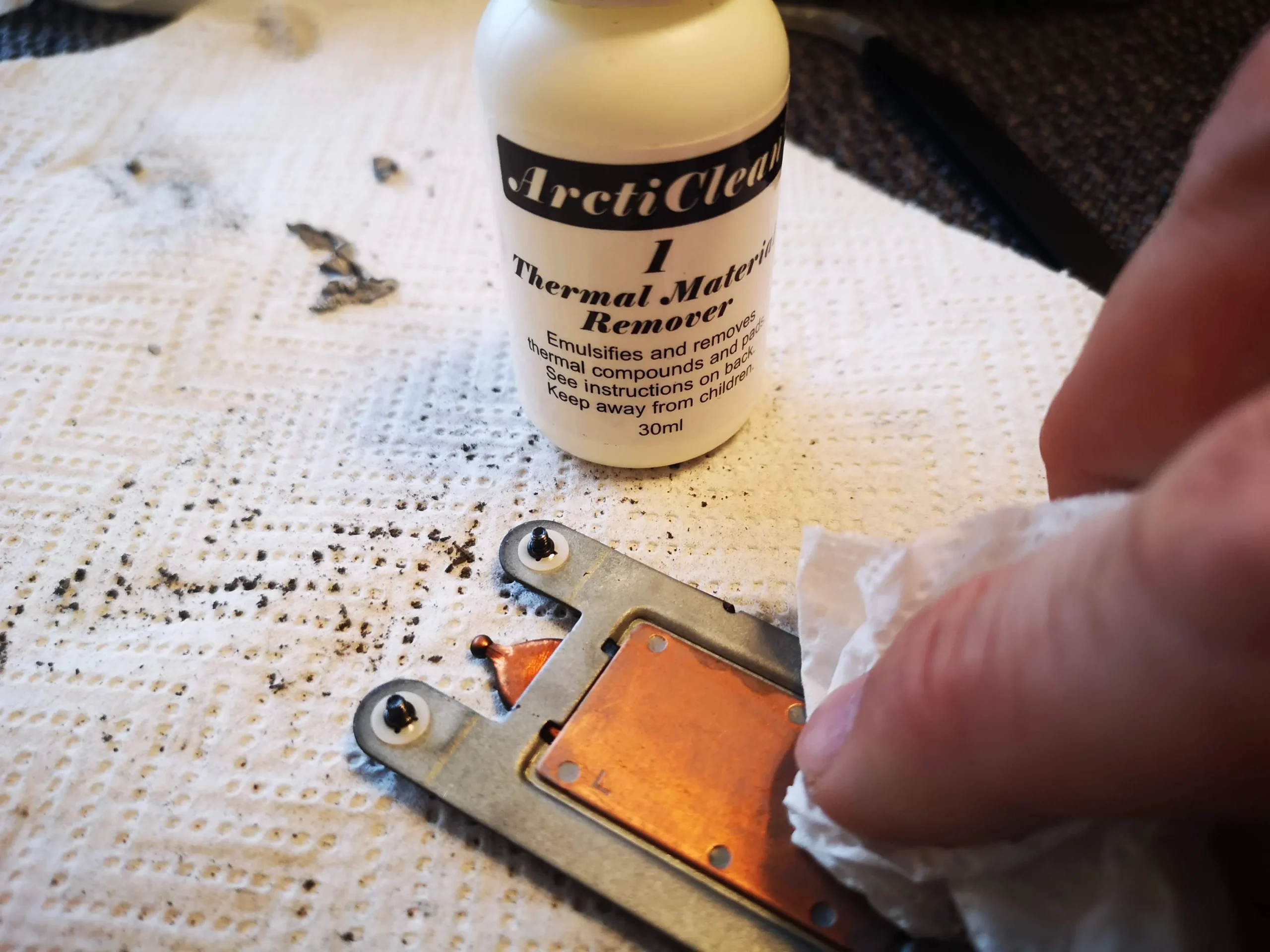
A close-up shows old material being wiped from a copper plate. Another photo shows the chip-side residue being worked away. Preparation matters because a lump of dried compound or lint can prevent flat contact when the cooler is tightened.
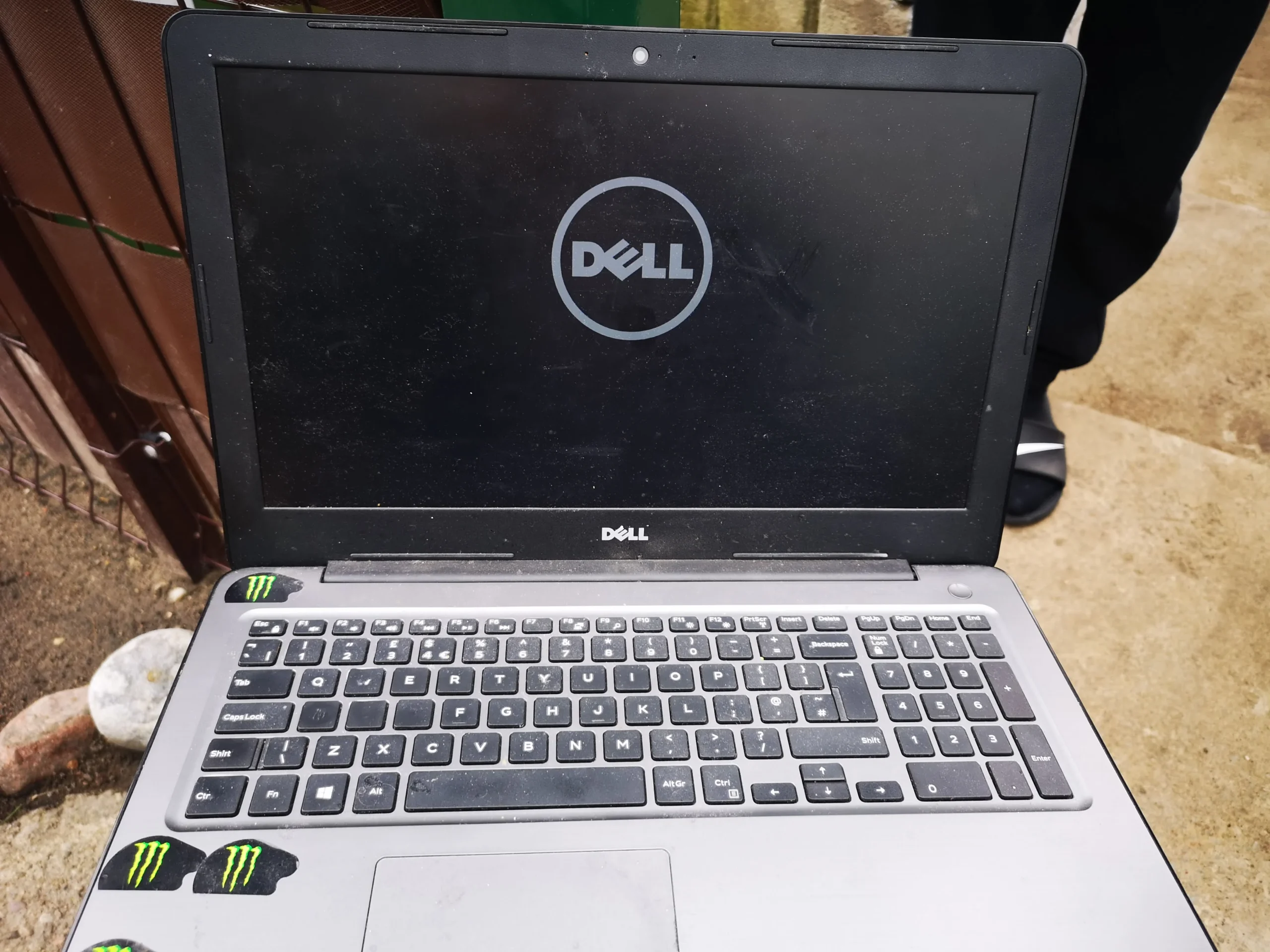
Use the correct thermal material for the exact configuration and follow Dell's fastening sequence. The final photos show the Inspiron reaching a Dell boot screen, but that screen is evidence of startup rather than proof of a temperature improvement.
The engineer’s takeaway
On this 5567, the most instructive image is the removed fan: dust was caught inside the blower, beyond a simple exterior wipe. The cooler photos show that deeper access also creates a thermal-contact reassembly job. The visible boot completes the documented sequence, but cooling performance needs a separate test.
Before you open the laptop
Can an owner clean the Inspiron 15 5567 fan?
Start with the machine off, disconnected from power and its exterior vents clear of loose dust. Before opening the base, use the Dell documentation for the 5567, not a guide for a visually similar Inspiron. The label's P66F001 code can help confirm the model, but keep its Service Tag private.
A basic internal fan inspection is less involved than lifting the copper cooler. Once that assembly comes away from the board, the chip contacts must be cleaned and restored with suitable material. If the fan cable or cooler fasteners are unfamiliar, stop before forcing either part.
For model documents, check the official manufacturer support page.
After the clean
What to check after the clean
After the fan and cooler are secure, check that the laptop starts normally and the fan has no scrape or rattle. Run a familiar sustained task and make sure warm air leaves the outlet. A fair before-and-after comparison uses the same task, power setting and similar room temperature.
The archive includes a Dell startup screen but no controlled readings. It confirms that the photographed machine reached startup after the work; it cannot establish a numerical cooling gain.
Questions from owners
Inspiron 15 5567 fan cleaning FAQs
Answers drawn from the single-blower design and cooler access shown in this service.
How was this Inspiron identified as a 15 5567?
Its label shows regulatory model P66F and type P66F001. Dell's regulatory listing maps those codes to the Inspiron 15 5567.
Why remove the fan instead of just blowing through the vent?
The removed blower photo shows debris inside the blade ring where an exterior wipe cannot reach. It also lets the fin outlet be inspected directly.
Does this 5567 have one cooling fan?
The unit in these photos has one blower beside a copper heat-pipe assembly. Check your own configuration before following a guide.
Do I need to remove the heatsink to clean the fan?
Not automatically. Fan and fin access should be assessed first. Lifting the heatsink disturbs thermal interfaces and adds a separate reassembly task.
What happened to the old thermal compound?
The archive shows old material on the exposed chip and cooler contacts, followed by cleaning of a copper plate. It does not identify the replacement compound or show a measured temperature result.
Does the Dell boot screen prove the clean worked?
It shows the laptop started after reassembly. Fan behaviour and cooling under load need their own check.
UK Inspiron cleaning enquiries
Is your 5567 fan noisy or its outlet clogged?
If you are in the UK, tell us whether the fan rattles, runs constantly or only becomes loud under load. Include Inspiron 15 5567 if that is your model, when the problem appears and your postcode. Please do not send a public photo showing your Service Tag.
We can discuss access to the removable blower, cleaning the fin outlet and whether the copper cooler needs separate thermal-contact work.
Read about our Dell laptop cleaning service, then use the form to tell us your computer model, symptoms and UK postcode.
Free to enquire · No obligation to book. We discuss the proposed work and price before you decide.
The workshop photos
Inspiron 15 5567 workshop photos
Open the images to see the installed and removed fan, the dust caught inside it, cooler contacts, copper cleaning and the visible startup check.