Published 5 November 2026 · custom gaming desktop PC case study
A dusty gaming tower
the CPU cooler was only one stop.
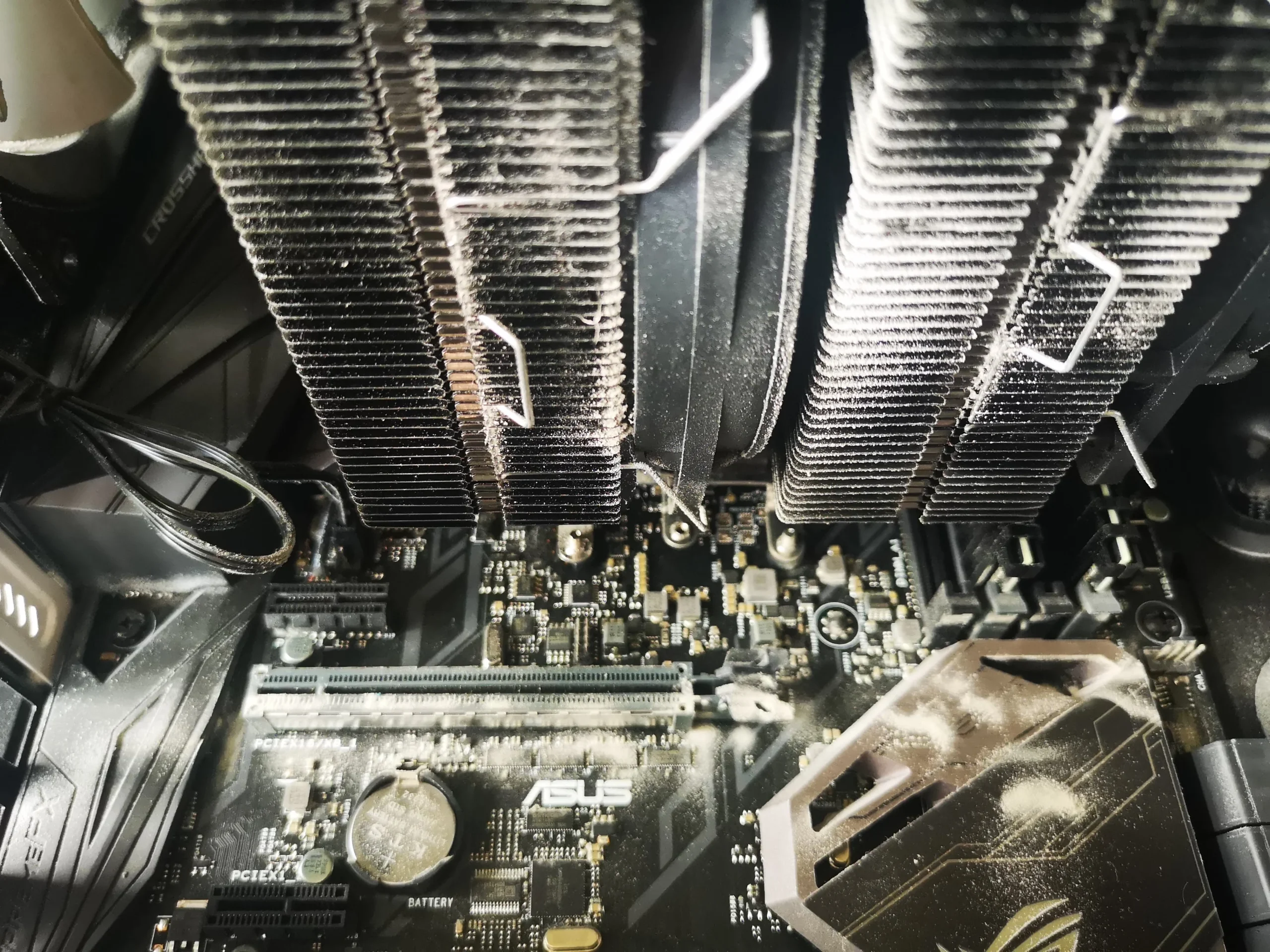
This desktop has a tall finned CPU cooler, a separate Gigabyte graphics card and several case fans. Dust is visible on the top mesh, deep between the cooler fins and around fan blades. The useful way to clean it is to follow the air from intake to exhaust, while treating the CPU and graphics card as different assemblies.
Computer type
Custom tower with Ryzen CPU and discrete graphics card
Dust locations
Top mesh, tower-cooler fins and multiple fans
Deeper work
CPU cooler lifted; graphics card inspected separately
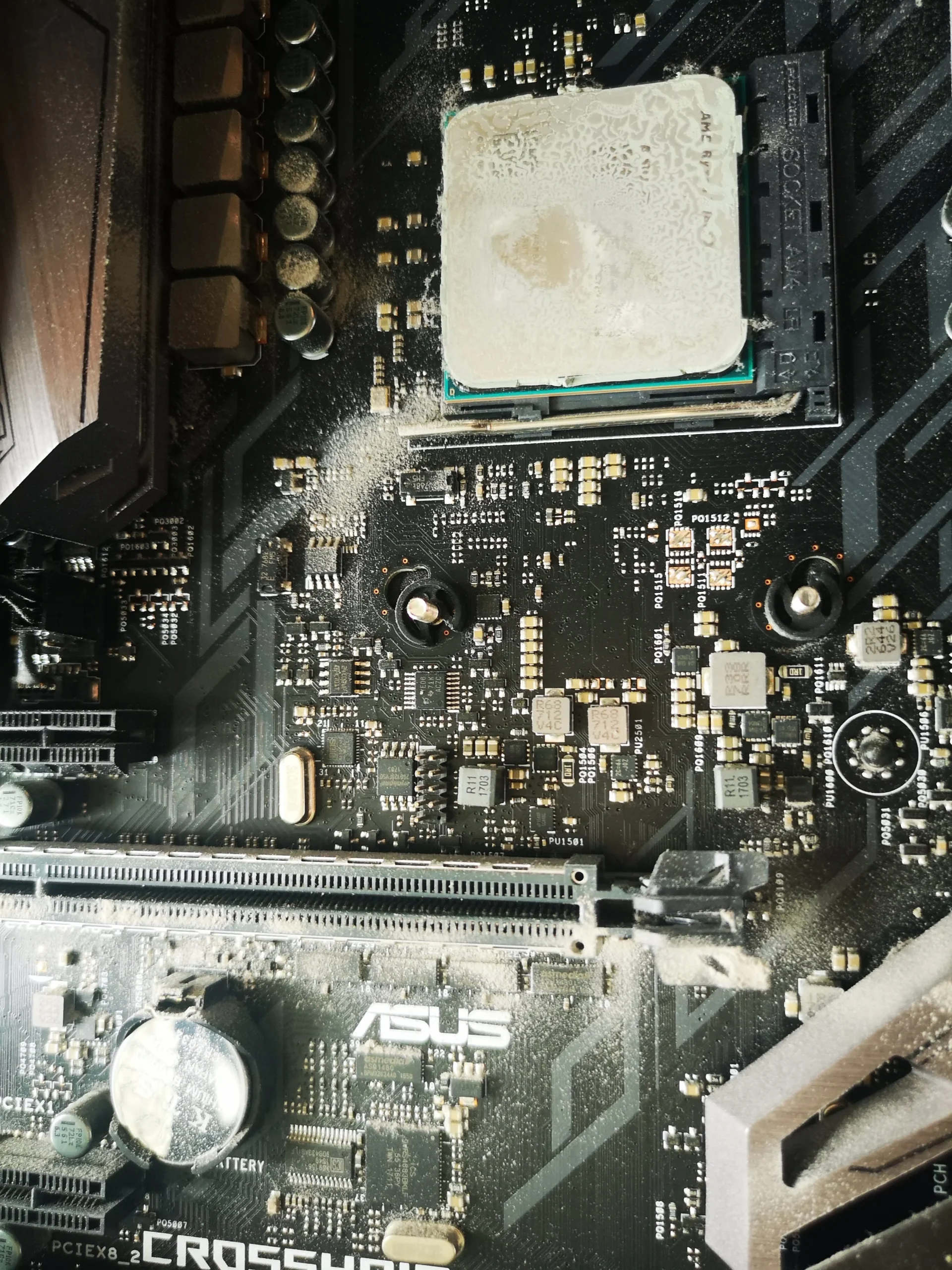
The opened PC shows a Ryzen processor under a large tower-style cooler and a Gigabyte graphics card below it. Those parts each have their own cooling surfaces. Dust on the case openings can reduce incoming air, while lint wedged in the tall cooler fins can restrict the CPU's exhaust path even if the case fans still spin.
The archive includes disassembly, dust collection, exposed CPU and cooler contacts, and later views of the refitted system. It does not provide a matched temperature test or a customer complaint, so this article describes the observed service stages rather than an invented fix or degree reduction.
In this case study
01 / First air contact
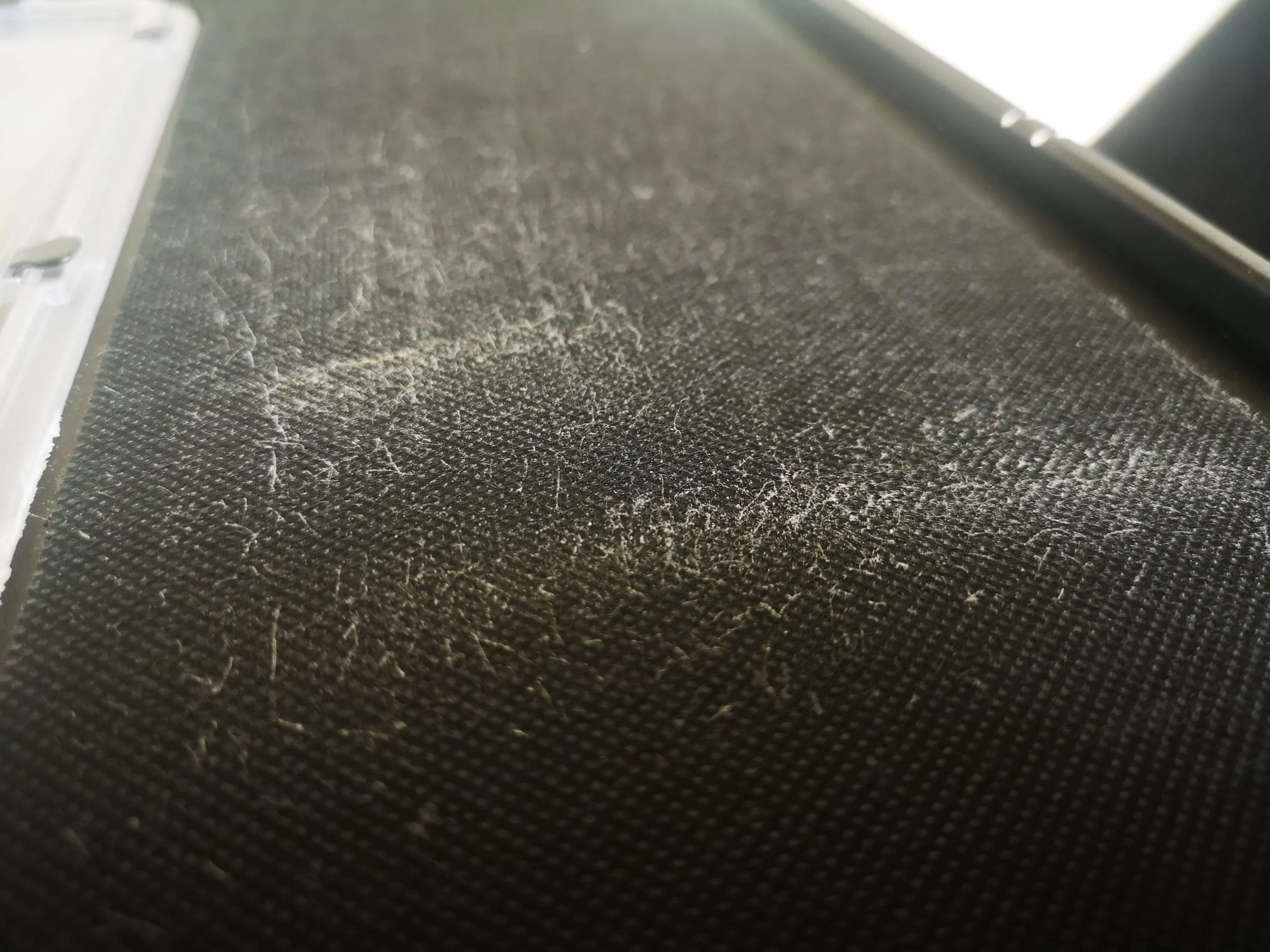
Dust had settled across the case's top mesh
The upper mesh shows a broad, uneven grey layer. Mesh is useful because it catches larger particles before they reach the components, but leaving it clogged can reduce the air available to the fans below it.
Remove the filter or panel only as the case design allows, clean both faces and let any damp-cleaned filter dry fully before refitting. The photo set does not establish the exact case model, so there is no universal clip or screw instruction here.
02 / The narrow passage
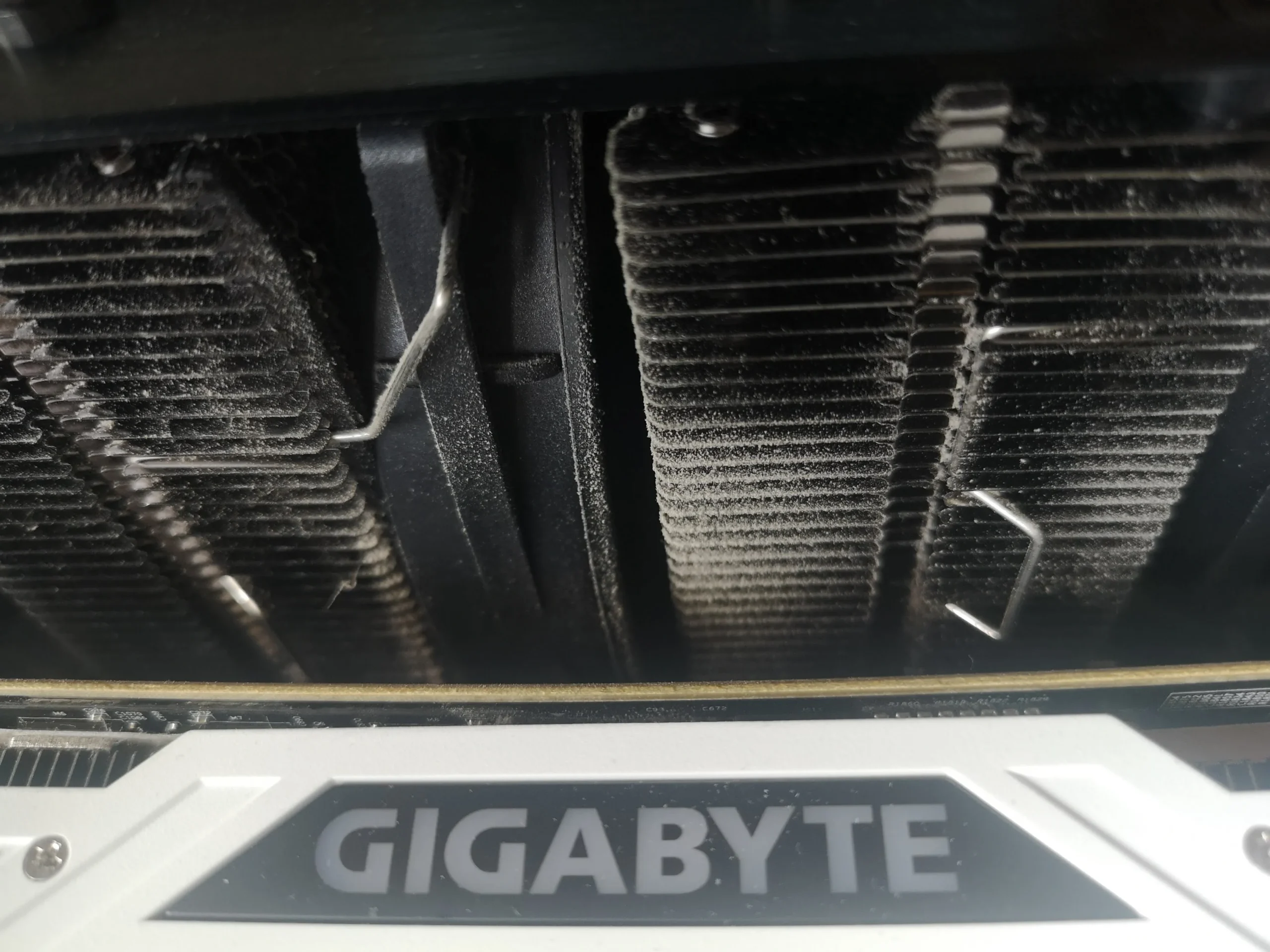
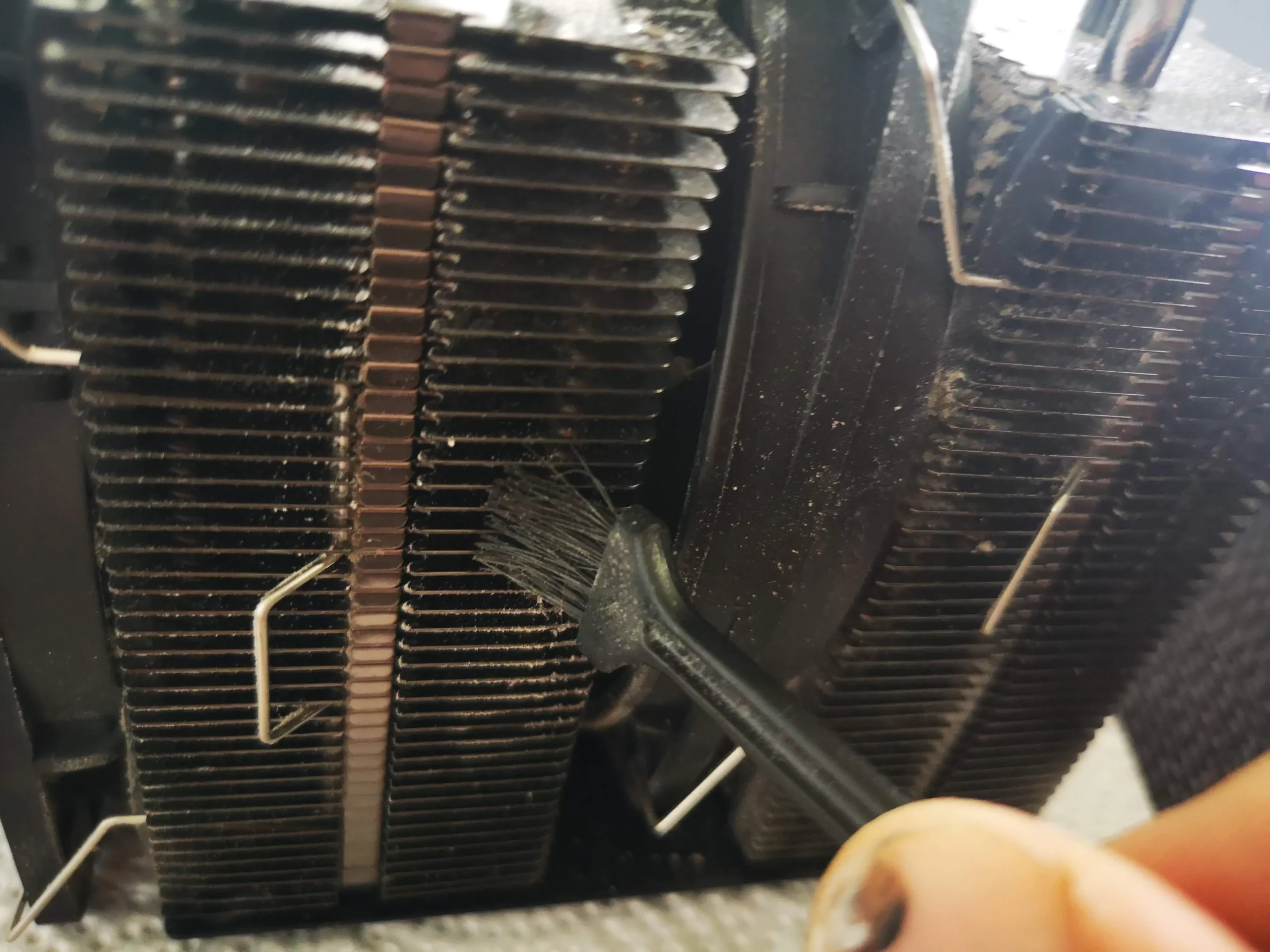
Dust was trapped between the tower-cooler's metal fins
The close-up of the tall heatsink shows dust gathered through its narrow channels. A large cooler may still look impressive from the side while the air passages between its fins are partly obstructed. That is why the fin face matters more than simply wiping the top of the metal block.
Hold the cooler fan still during controlled air cleaning and collect what comes out. Work with the fin direction to avoid bending thin leaves. If the cooler is removed from the CPU, its old paste interface must be restored properly before the machine is powered again.
03 / A separate heat source
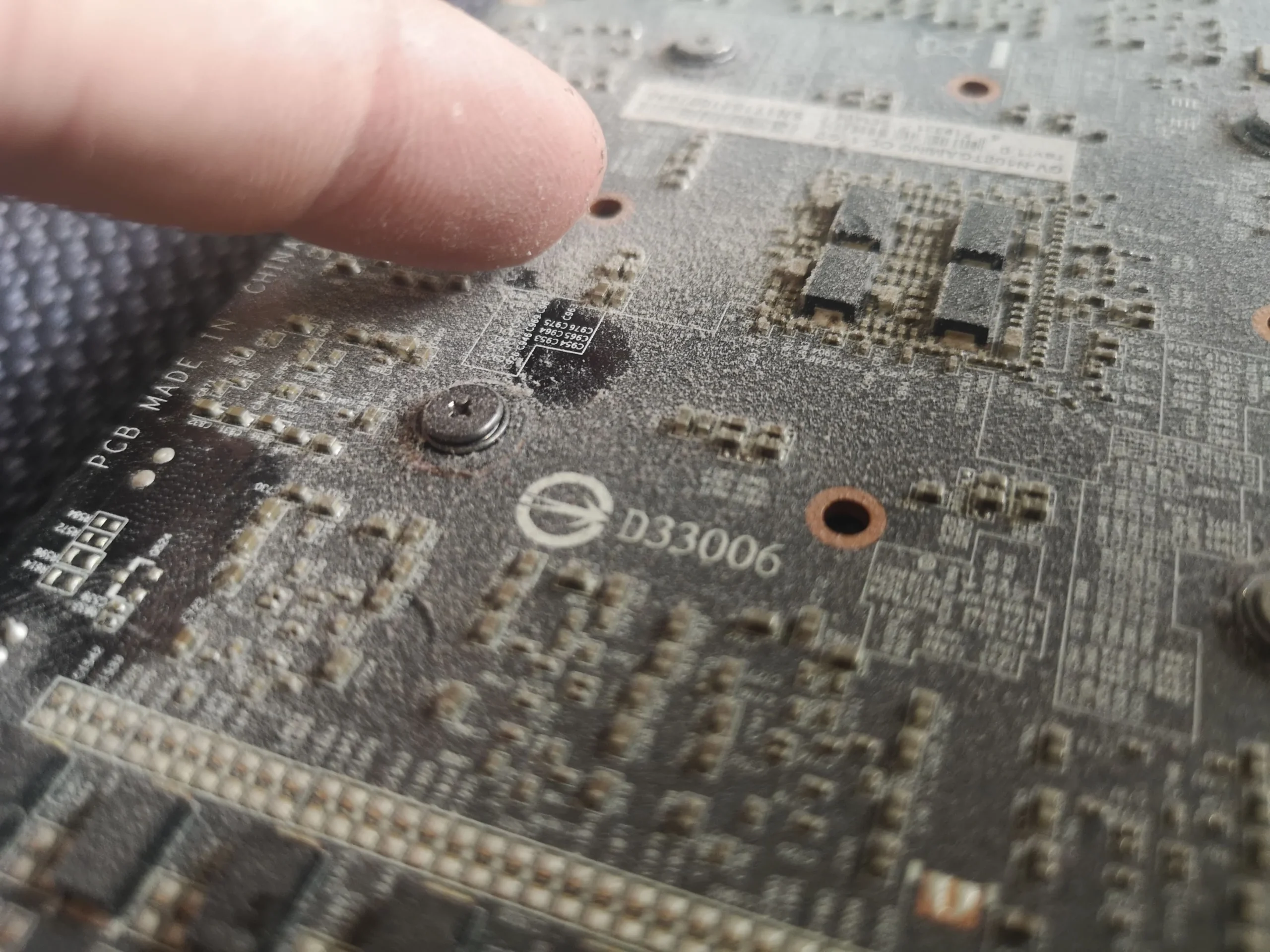
The graphics card carried dust of its own
The Gigabyte card sits below the CPU cooler and has its own fan and shroud. A board-side photo shows dust across the card surface; other frames show the fan and nearby case area being accessed. CPU cleaning does not automatically clear the graphics card's airflow path.
Brush and collect loose surface dust carefully, keeping tools away from small components. Opening a graphics-card cooler or replacing its pads is a separate task and should not be assumed just because the card looks dusty from outside.
04 / Finishing the path
Case fans and the CPU contact needed separate checks
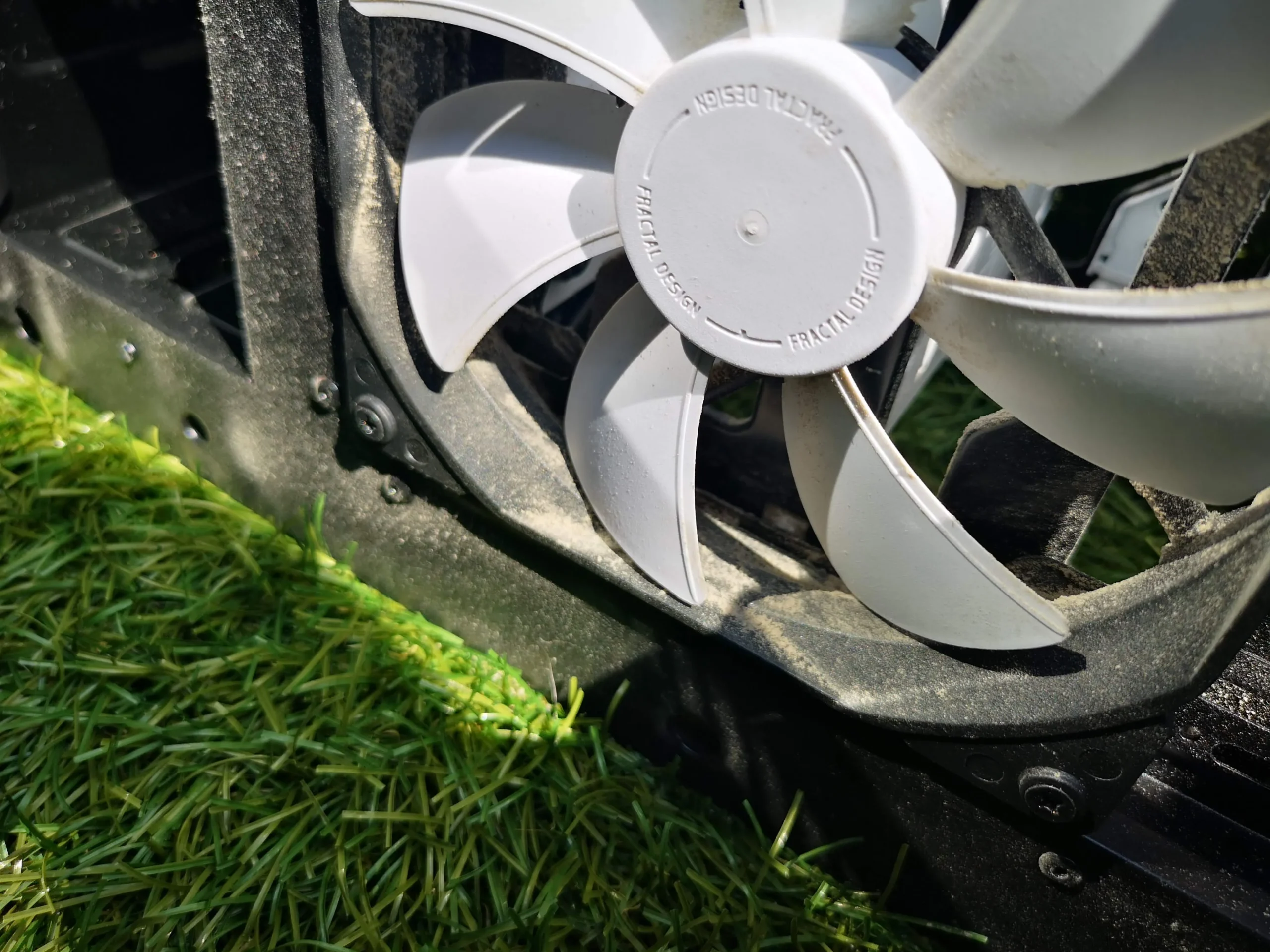
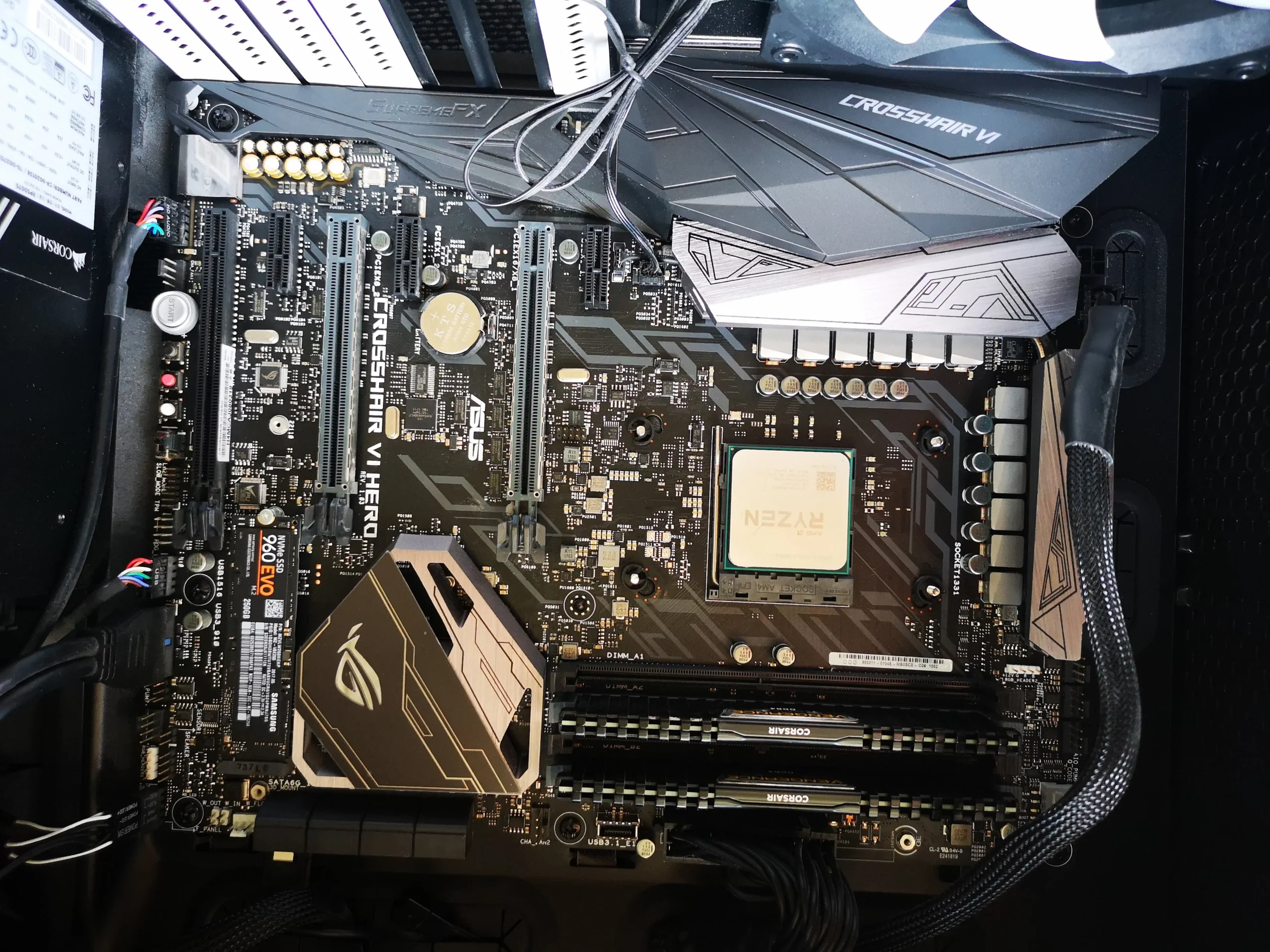
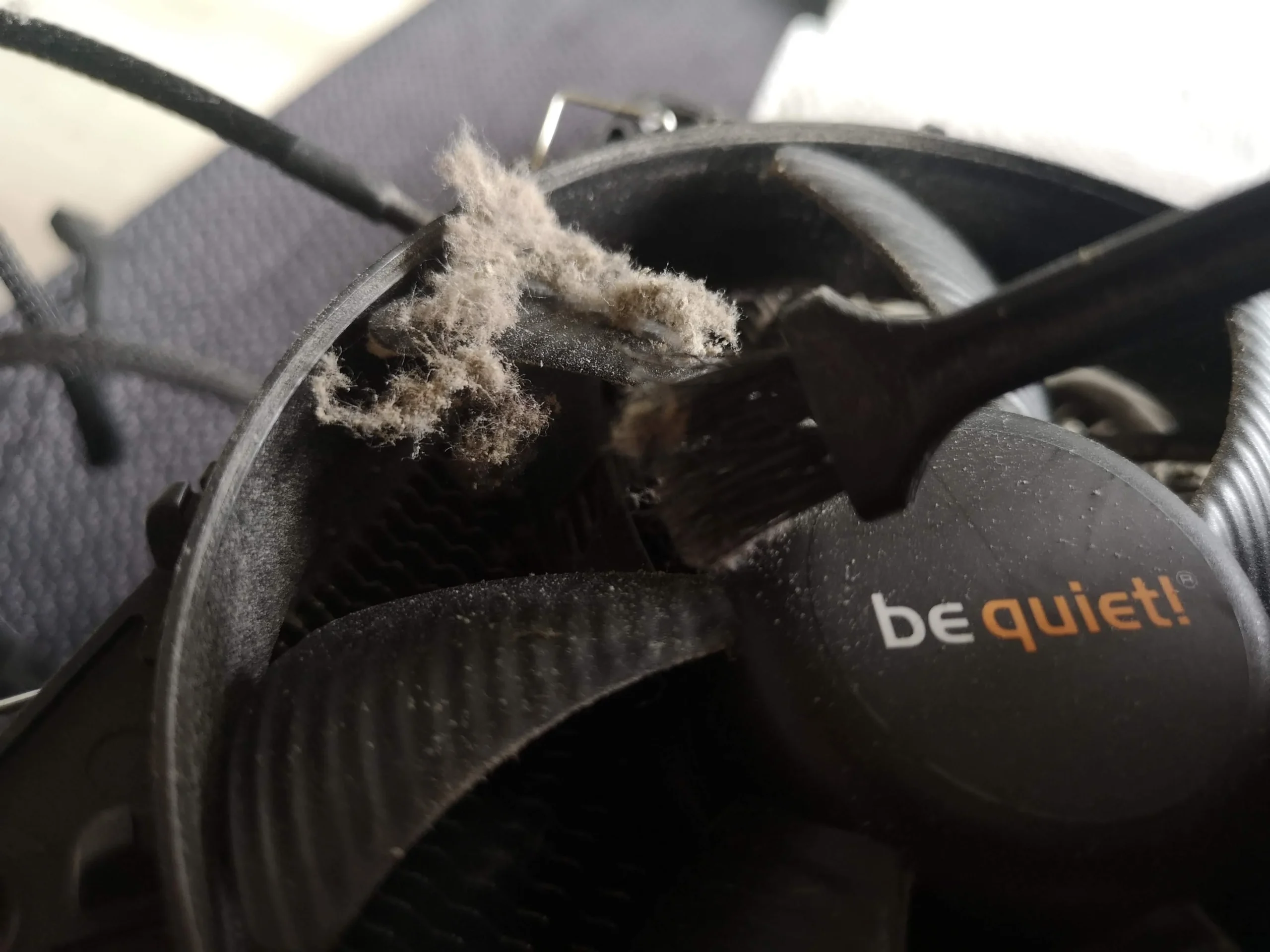
One close-up shows a loose dust clump removed from a fan; another shows the front case fans. The photos also expose the Ryzen CPU and the underside of its cooler after separation, so the processor contact needs a suitable fresh paste interface and even mounting pressure on reassembly.
After cleaning, confirm every fan spins in the intended direction without rubbing, no cable touches a blade and the case openings are clear. The archive shows a later interior view, but no controlled load readings to quantify improvement.
The engineer’s takeaway
This tower needed a route-based inspection: mesh, case fans, tall CPU fins and graphics-card airflow are connected but separate cleaning points. The photos show dust at each stage and an exposed CPU contact; any performance claim would require comparable measurements after the system is back together.
Before you open the laptop
Could you clean a similar desktop yourself?
Switch off at the wall, unplug the PC and allow it to cool before opening the side panel. Take a photo of cable routing and fan orientation. Remove accessible filters for cleaning, then inspect the CPU cooler and graphics-card fan without letting rotors free-spin under air pressure.
Keep liquid away from installed components and never open the power-supply housing. The outside PSU intake grille may be cleaned with the PC unplugged, but its internals can retain hazardous charge. Removing the CPU cooler is a separate step that requires correct paste and mounting practice.
After the clean
How to tell whether the desktop is ready
Before closing the panel, confirm filters are dry, all fans turn freely and no loose lint remains between the tower fins or at the graphics-card intake. Then boot the PC and check fan behaviour during a familiar sustained task.
The archive has no matched temperatures. A fair comparison uses the same workload, fan settings and similar room conditions, while watching both CPU and graphics readings.
Questions from owners
Gaming desktop dust cleaning FAQs
Questions prompted by the tower cooler, graphics card and case openings in this PC.
Why clean the top mesh if the CPU cooler is inside?
The mesh is part of the air supply. A dust layer there can restrict incoming air before it reaches the internal fans and fins.
Can I clean only the tall CPU cooler?
The photos show dust at the mesh, CPU fins, graphics card and case fans. Each point needs inspection for the whole airflow path to work well.
Does a dusty graphics card need repasting?
Not automatically. Start with its fan and external shroud. Opening the GPU cooler and disturbing pads is a separate decision based on diagnosis and the exact card.
Should I remove the CPU cooler to clean the fins?
Sometimes fins can be cleaned in place. If the cooler is lifted, the old paste contact must be cleaned and restored appropriately before refitting.
Can I open the power supply to remove dust?
No. Keep its casing closed. Clean only accessible external intake and exhaust surfaces with the PC unplugged; internal PSU work needs qualified handling.
Did this service lower temperatures?
The photos document dust and service stages but do not include a matched before-and-after test, so no numerical change can be claimed.
UK desktop cooling enquiries
Dust collecting across your gaming tower?
If you are in the UK, tell us whether the noise is from a case fan, CPU cooler or graphics card, and whether the PC slows or shuts down under gaming or other load. Include your postcode and, if known, the case and graphics-card models.
We can discuss cleaning filters, fans and fin stacks, and whether the CPU cooler needs a separate thermal-contact service.
Read about our desktop cooling and cleaning service, then use the form to tell us your computer model, symptoms and UK postcode.
Free to enquire · No obligation to book. We discuss the proposed work and price before you decide.
The workshop photos
Gaming tower dust-cleaning gallery
Open the photos to see the top mesh, CPU tower fins, graphics card, case fans and CPU cooler contact during the workshop service.