Published 10 November 2026 · HP desktop tower case study
HP tower dust service
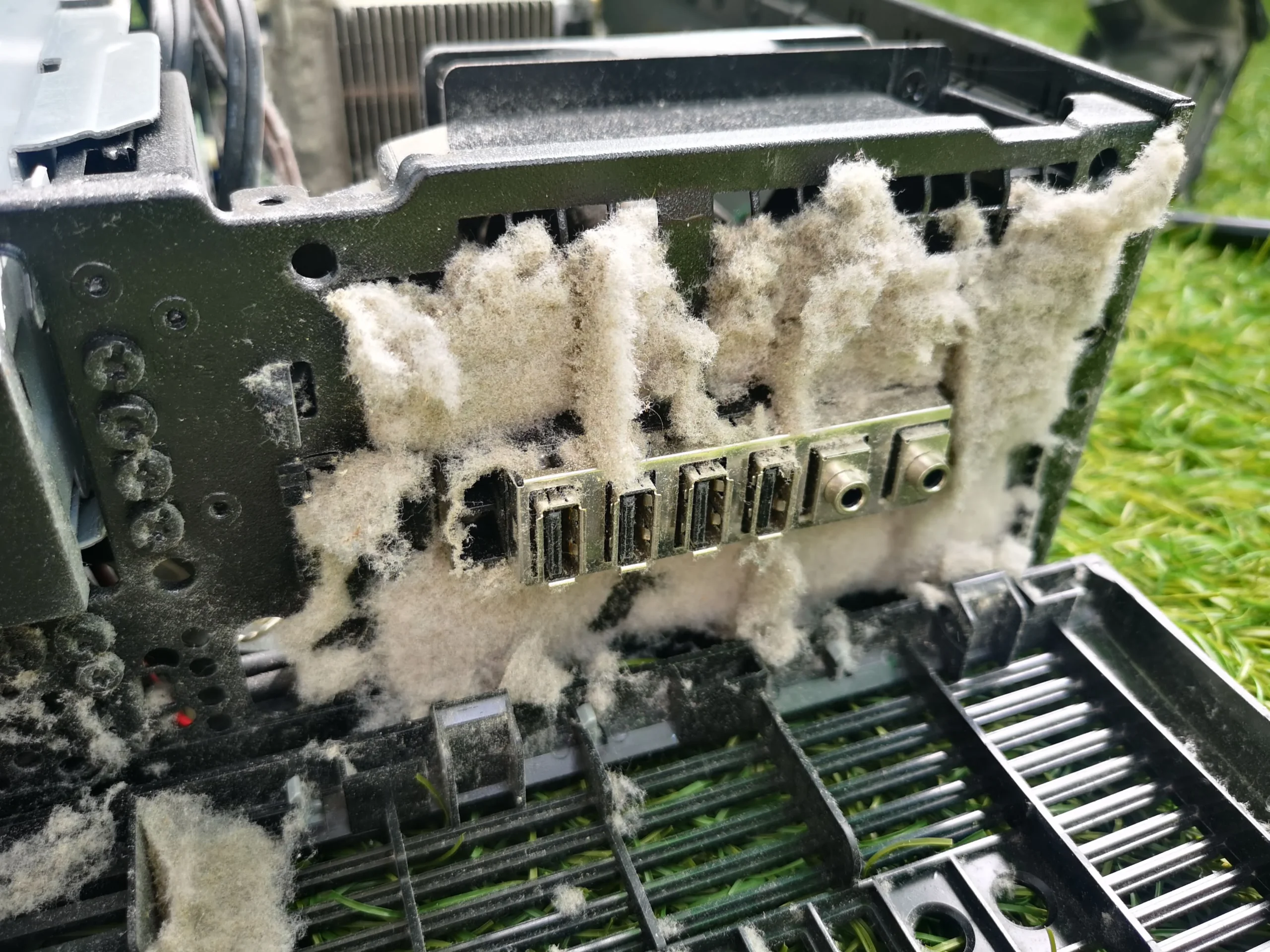
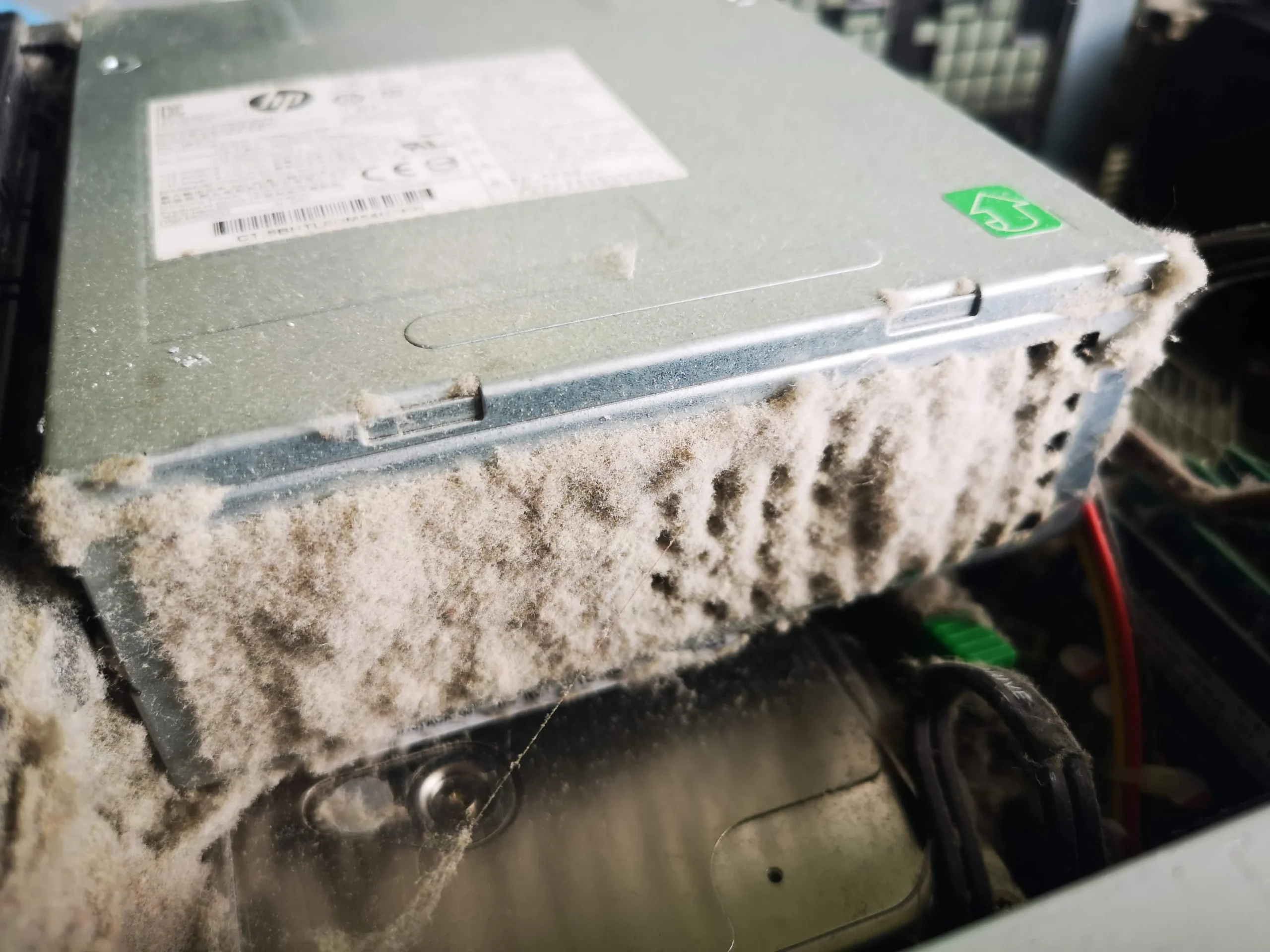
the dust was worst around the power supply.
The open HP tower showed a thick felt-like layer around the power-supply housing and nearby metal fins. The same workshop visit also included an SSD change, so this case separates the airflow work from the storage work.
The system
HP desktop tower
Dust finding
Heavy fibres around the PSU housing and internal fin surfaces
Second job
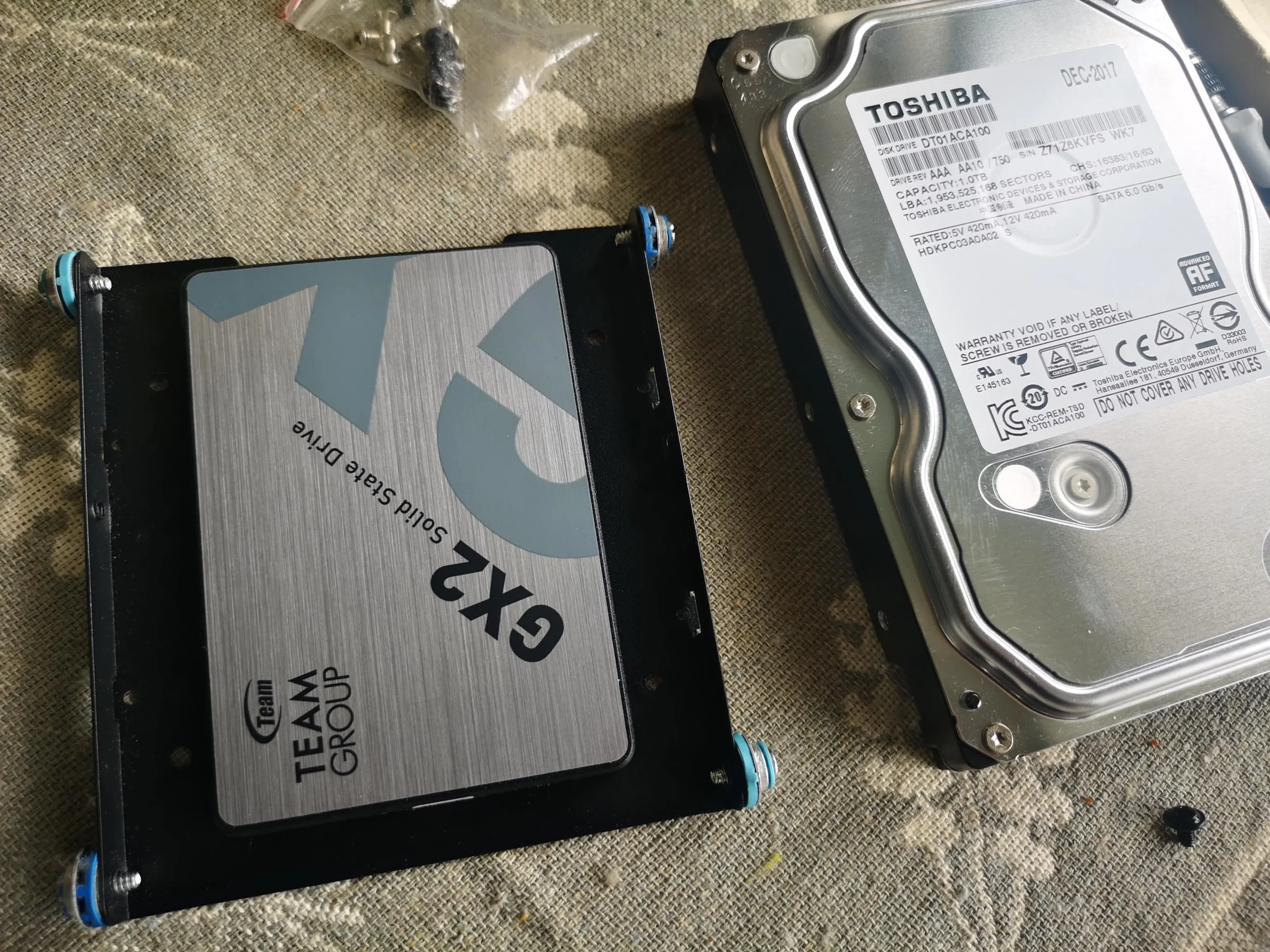
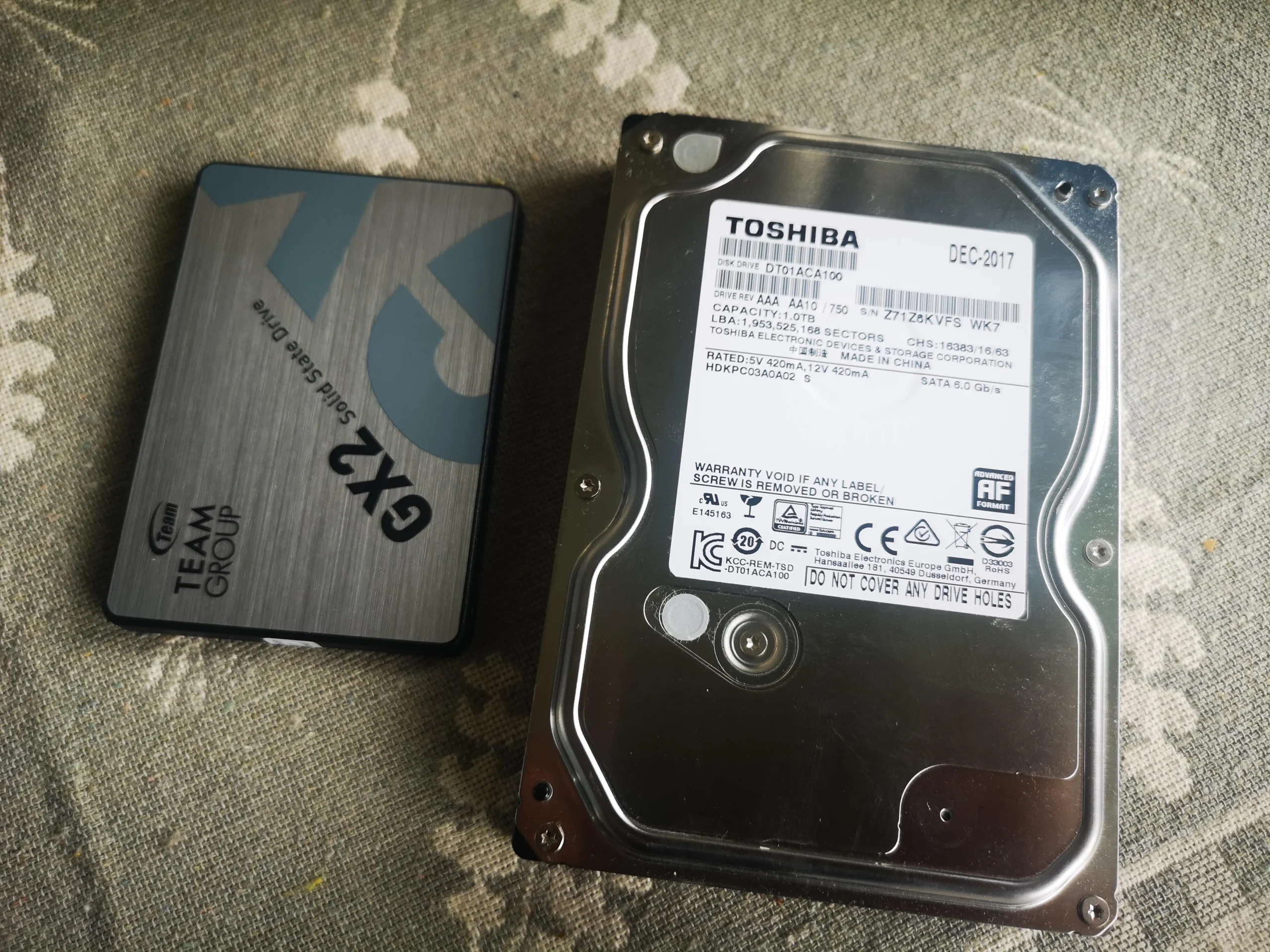
SSD installed with the original hard drive visible
Two maintenance jobs appear in this photo set. First, the tower contains a striking amount of dust around the power-supply unit and a nearby finned metal area. Second, the storage photos show an SSD next to a hard drive. Dust cleaning can help an obstructed air route; an SSD upgrade changes how the machine stores and loads data. They should not be confused as one fix.
The photographs record access, dust buildup, the drives and the assembled interior. They do not provide matched temperatures or an SSD speed test, so this case describes the physical work without inventing performance results.
In this case study
01 / The most visible finding
Fibres coated the outside of the power supply
The close-up shows a thick grey layer clinging to the power-supply housing. The PSU has its own airflow route, so external dust needs removing carefully while the machine is off and unplugged.
Never open a power-supply unit to clean inside it. Components can retain dangerous charge after unplugging. If debris is deep within the PSU or its fan has a fault, a technician should assess replacement or safe service.
02 / Where air has to pass
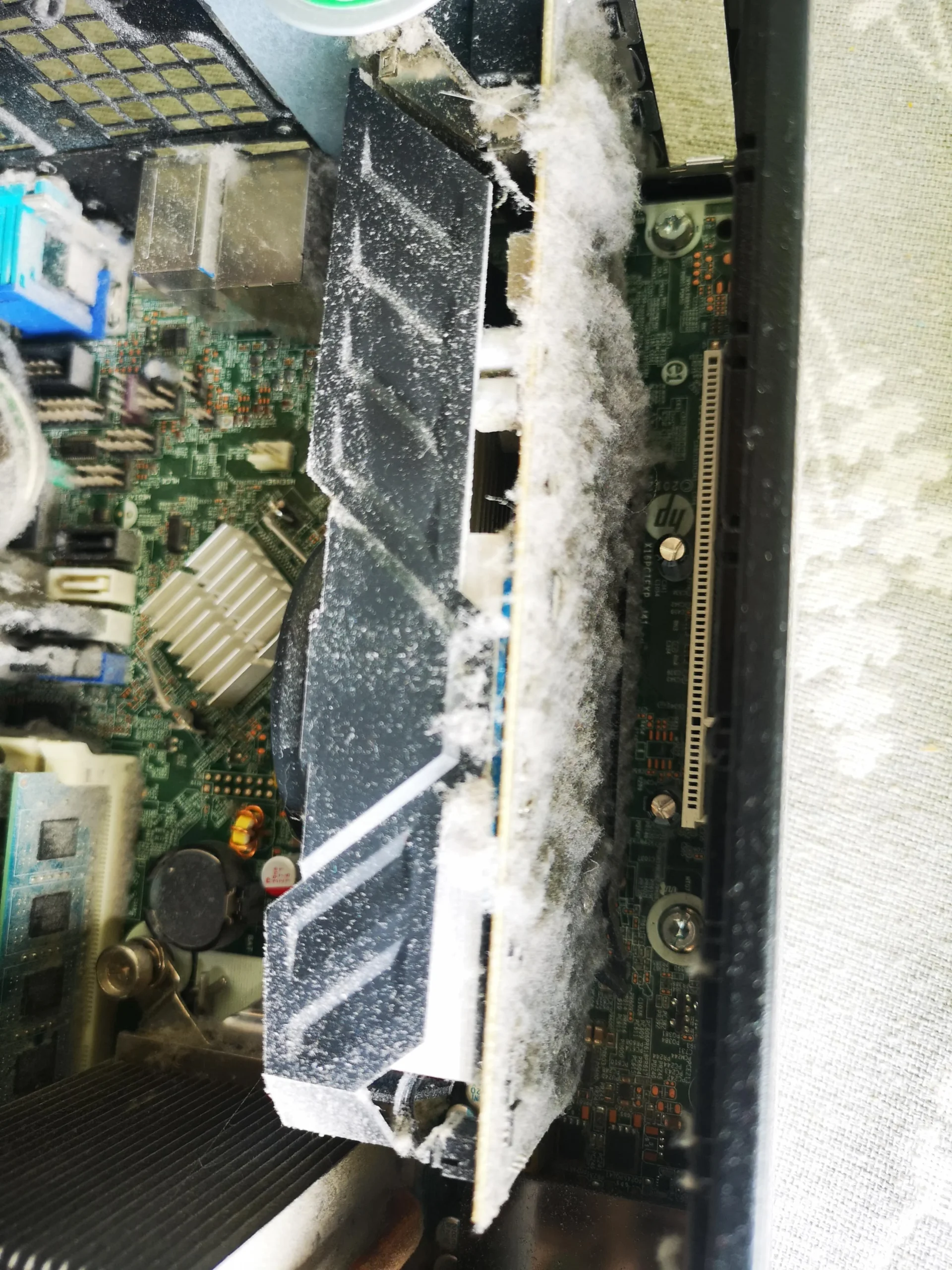
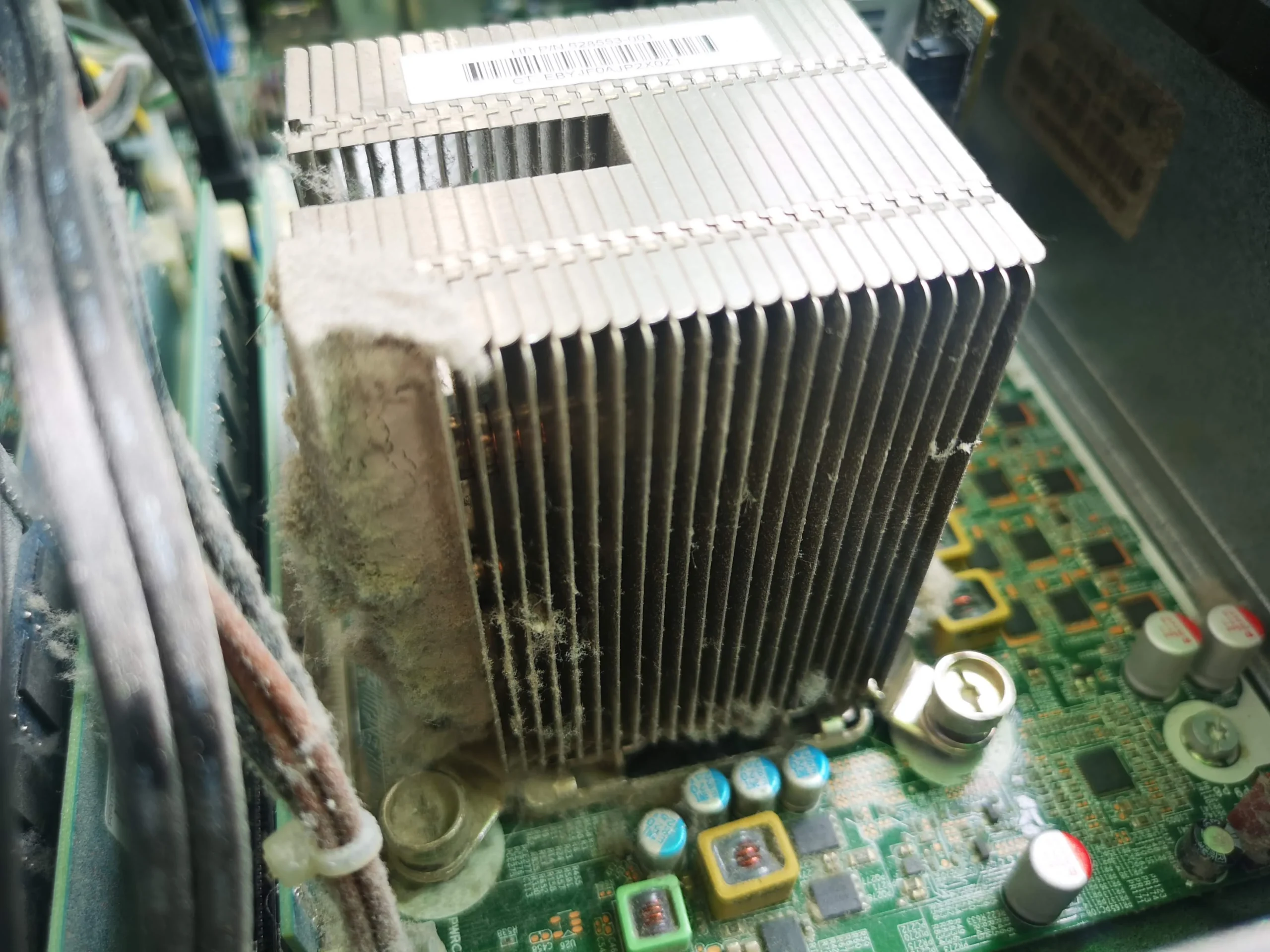
Nearby fins and case spaces collected more material
Another view shows debris along a finned metal surface and around the chassis. A dust blanket on fins can hinder heat transfer when airflow is needed through those gaps; cleaning only the open floor would miss this tighter area.
The archive shows the hardware exposed for cleaning, but it does not show a controlled fan-speed or temperature comparison. Inspect the actual cooling path before attributing any specific symptom to dust.
03 / A separate improvement
The drive work was distinct from the cleaning
The storage photo places a solid-state drive beside the original hard disk. An SSD can be used for the operating system or files depending on how it is installed, but the photos alone do not tell us which data was migrated or how the system was configured.
When changing drives, confirm a backup, the right interface and mounting, and that the machine boots from the intended device. Those checks matter independently of whether the fans and vents have been cleaned.
04 / Before closing the case
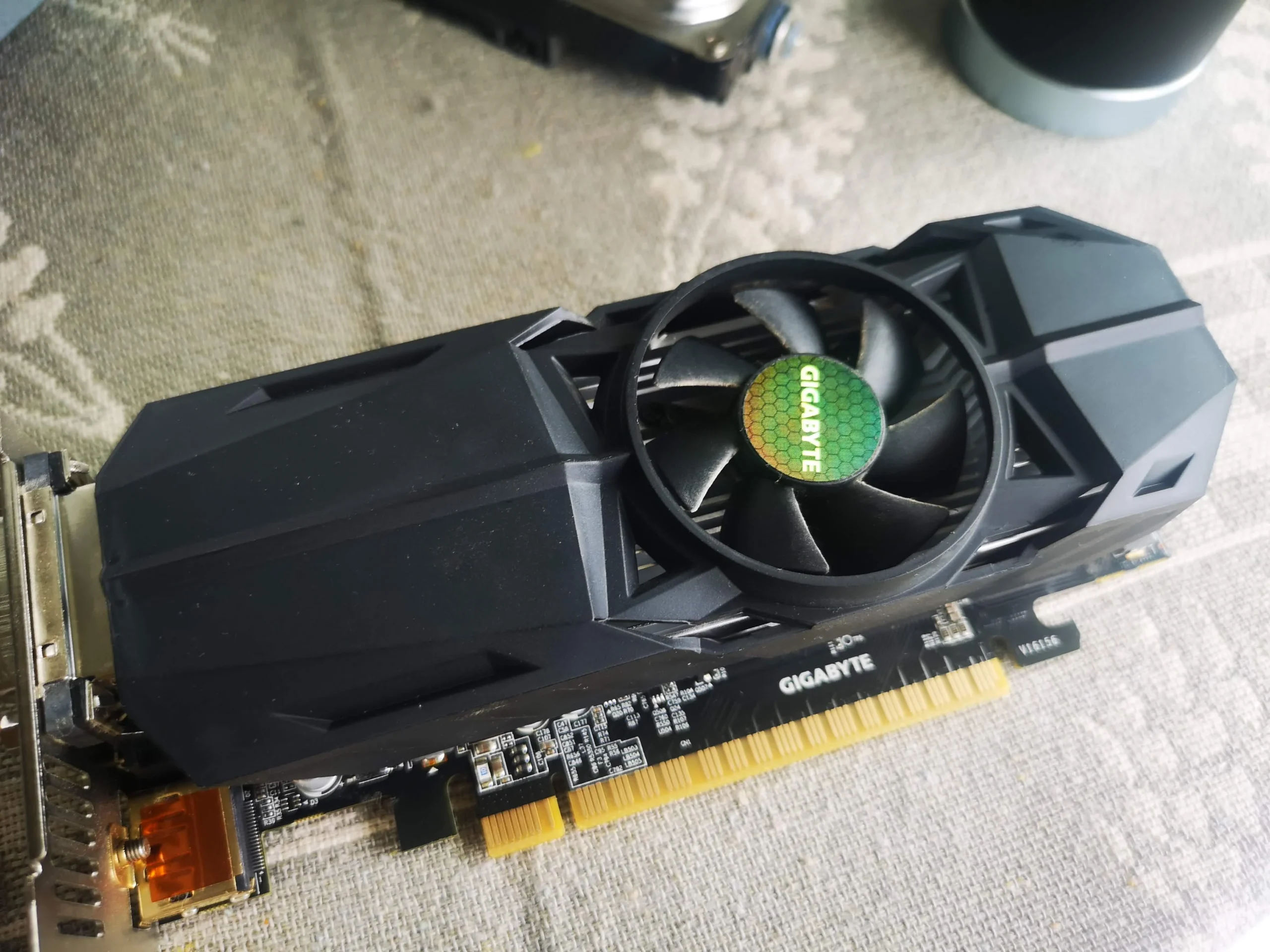
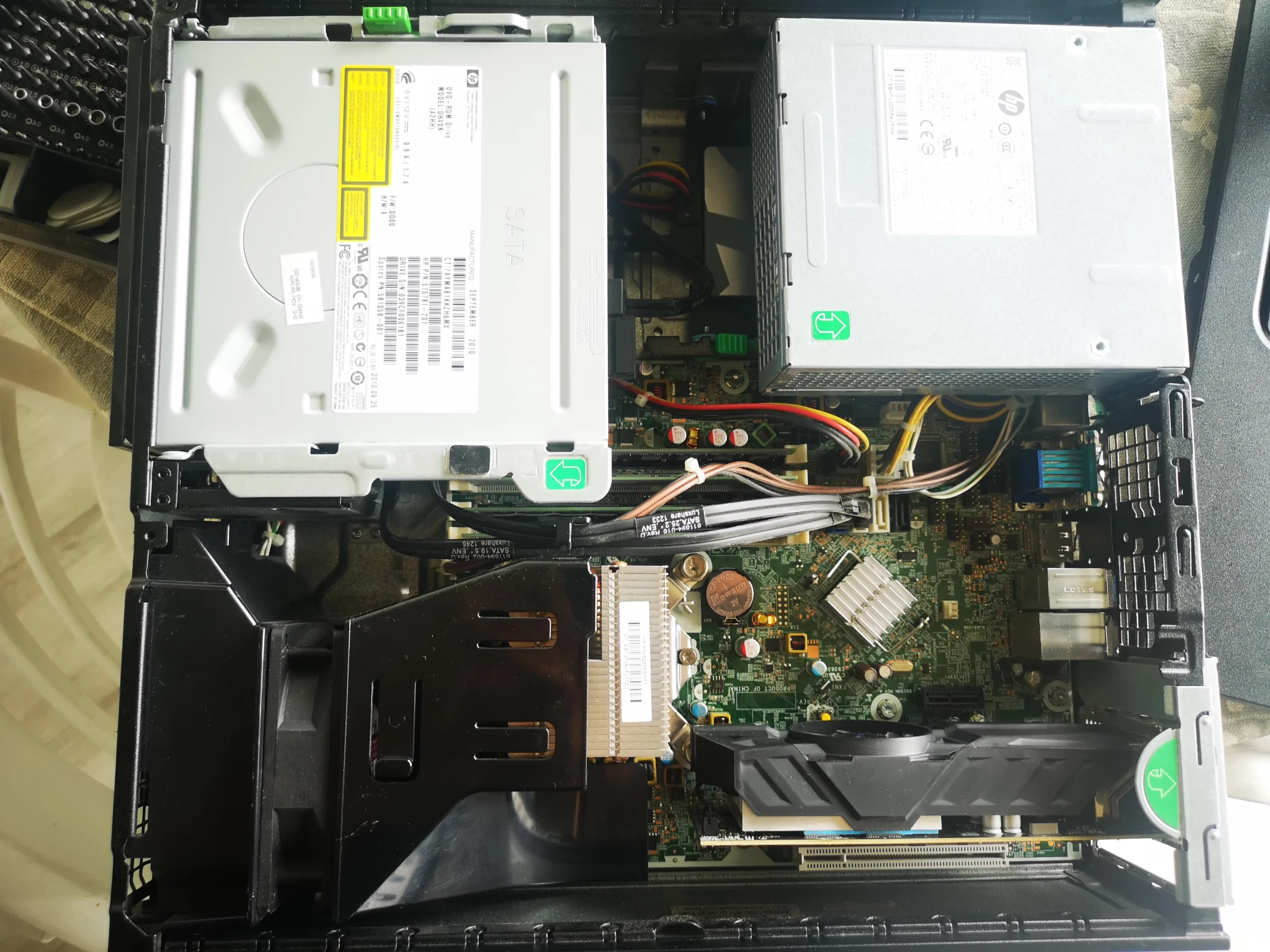
The desktop was assembled with its cables routed
The wider interior photo shows the main components and cable runs in place. Cables must stay clear of fan blades and should not block the case's intake-to-exhaust route.
After closing the case, check that fans run as expected, the storage devices appear in the firmware or operating system and the desktop boots reliably. The photographs themselves do not prove those software checks were completed.
The engineer’s takeaway
This HP tower needed attention at a particularly dusty PSU exterior and internal fin surfaces. The SSD work was a separate storage task, so any claimed benefit from either job should be checked on its own terms.
Before you open the laptop
Can you clean this type of HP desktop yourself?
Shut down, switch off at the mains and unplug the lead before removing a side panel. Clean accessible filters, external PSU vents and case dust gently while keeping fan blades still. Do not open the PSU itself or put liquid near powered electronics.
For an SSD upgrade, make a verified backup first and identify the drive interface and boot plan for your exact HP model. If the old hard drive holds the operating system, simply adding an SSD does not automatically move Windows or your files.
After the clean
What to verify afterwards
For cooling, check fan noise and airflow and compare temperatures only under similar conditions. For storage, confirm the SSD is detected, the correct disk boots and important files are present.
No paired thermal or storage benchmark appears in this archive. Visible dust removal and drive installation are the supported observations.
Questions from owners
HP desktop cleaning and SSD FAQs
Answers based on the dusty HP tower and two drives photographed here.
Can I open the PSU to remove the dust?
No. The power supply can retain dangerous electrical charge. Clean accessible external vents only and seek qualified help for internal PSU concerns.
Will an SSD make a dusty PC run cooler?
An SSD and a cooling clean solve different problems. This archive shows both jobs, but it has no data proving a temperature change from the drive.
Should I remove every cable to clean the case?
Usually not. Map and photograph connections before moving anything; focus on accessible dust and keep all fan paths clear.
Does adding an SSD move Windows automatically?
No. The operating system must be installed or migrated deliberately and the boot device checked.
How often should I inspect a tower like this?
Check filters and vents periodically, especially if the PC sits near the floor or in a dusty room. Visible buildup is a stronger guide than a universal interval.
Were temperatures or SSD speeds measured here?
The photo archive does not include matched before-and-after tests, so no numerical result is claimed.
UK HP desktop enquiries
Dusty tower and a slow hard drive?
If you are in the UK, tell us your HP tower model, where the dust is visible, and whether the main complaint is heat, noise or slow loading. Include your postcode when using the form.
If you also want an SSD, say whether you need Windows and files migrated. That lets us discuss cleaning and storage as two clear parts of the job.
Read about our desktop cooling and fan service, then use the form to tell us your computer model, symptoms and UK postcode.
Free to enquire · No obligation to book. We discuss the proposed work and price before you decide.
The workshop photos
HP desktop dust and SSD service gallery
Open the photos for the PSU dust, fin surfaces, drives and the assembled HP tower.