Published 9 November 2026 · HP Omen gaming laptop case study
HP Omen cooling clean
the intake screen and exhaust fins both needed a look.
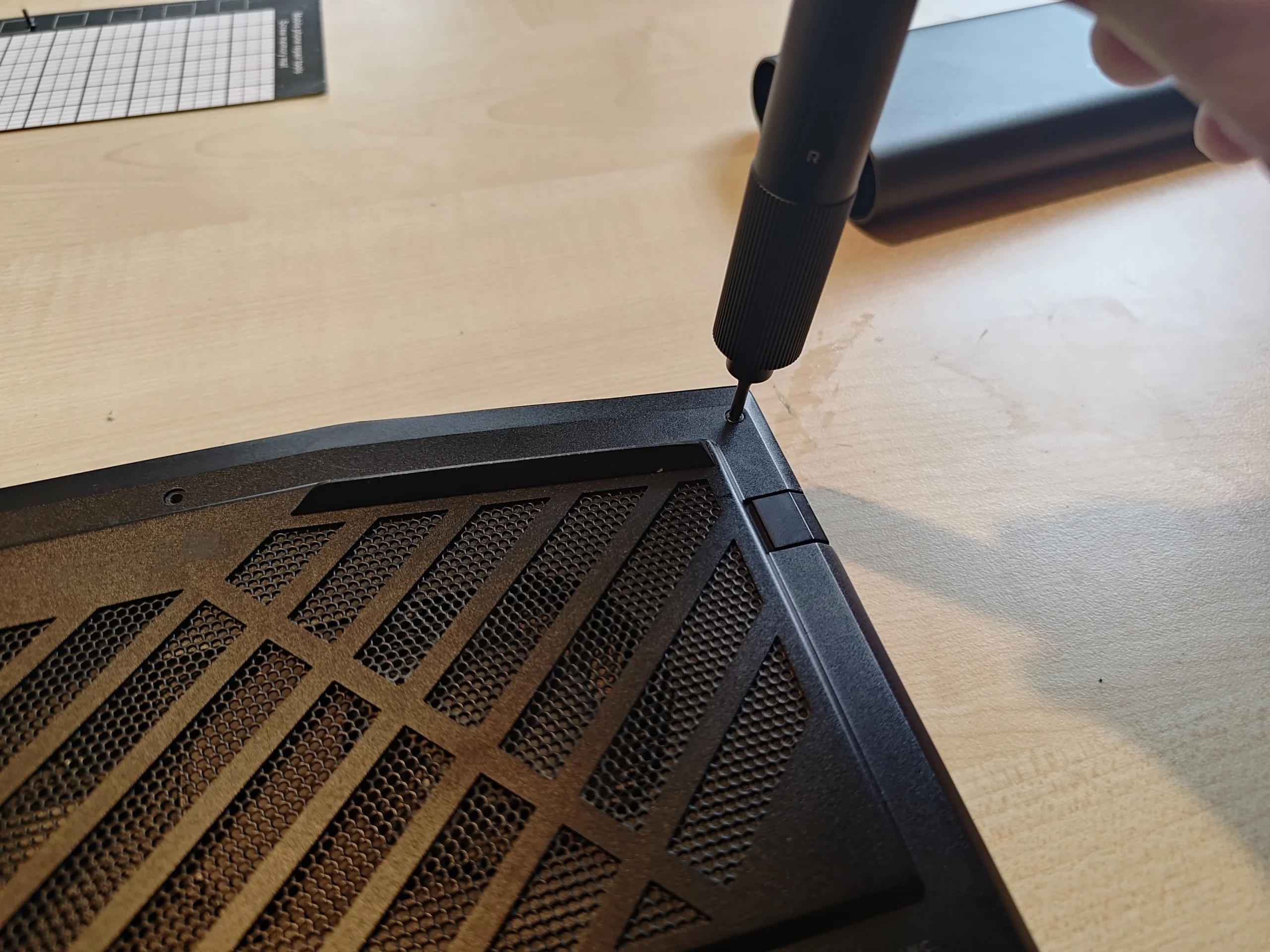
This Omen has a broad patterned intake on its base, two blowers inside and fine copper fins at the outlet. The photos trace those surfaces, then show why lifting the shared cooler adds a separate thermal-contact task.
The laptop
HP Omen with a patterned base intake and two fans
Airflow checks
Intake screen, fan chambers and copper fin edges
Cooler work
Shared assembly lifted with chip and pad contacts exposed
A laptop may look well ventilated from the outside while dust is building on the inside faces. This HP Omen has a large patterned grille in the base. Inside, the two fans and a shared heat-pipe cooler move heat toward narrow copper fin packs at the edge of the case. The workshop photos make those separate surfaces visible.
The archive also contains hardware-monitoring and stress-test screens, but they do not establish a reliable, matched before-and-after result. This article concentrates on the physical findings: the vent screen, fan dust, fin edge and thermal contacts when the cooler was removed.
In this case study
01 / Where cool air enters
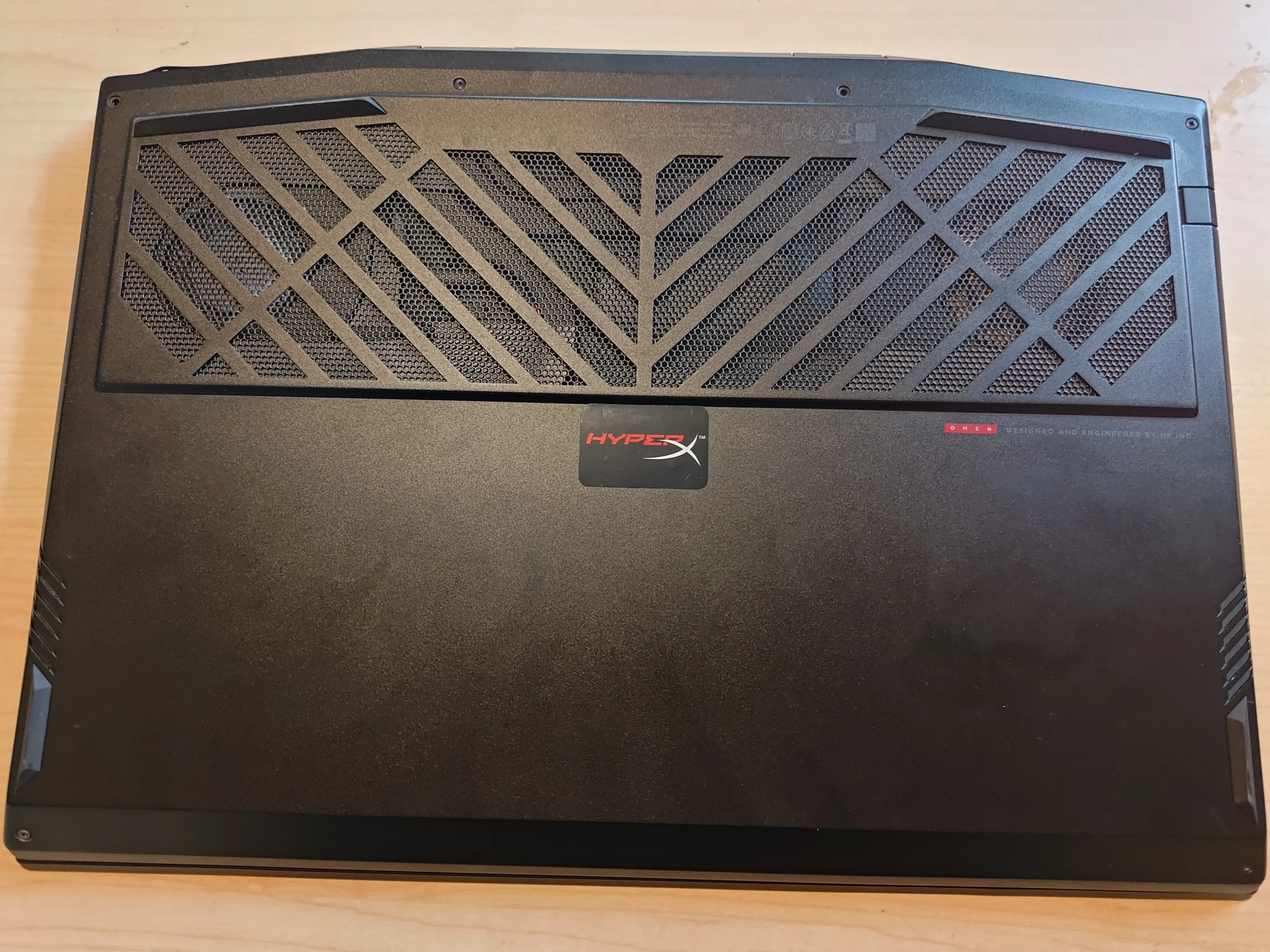
The patterned base grille feeds both fans
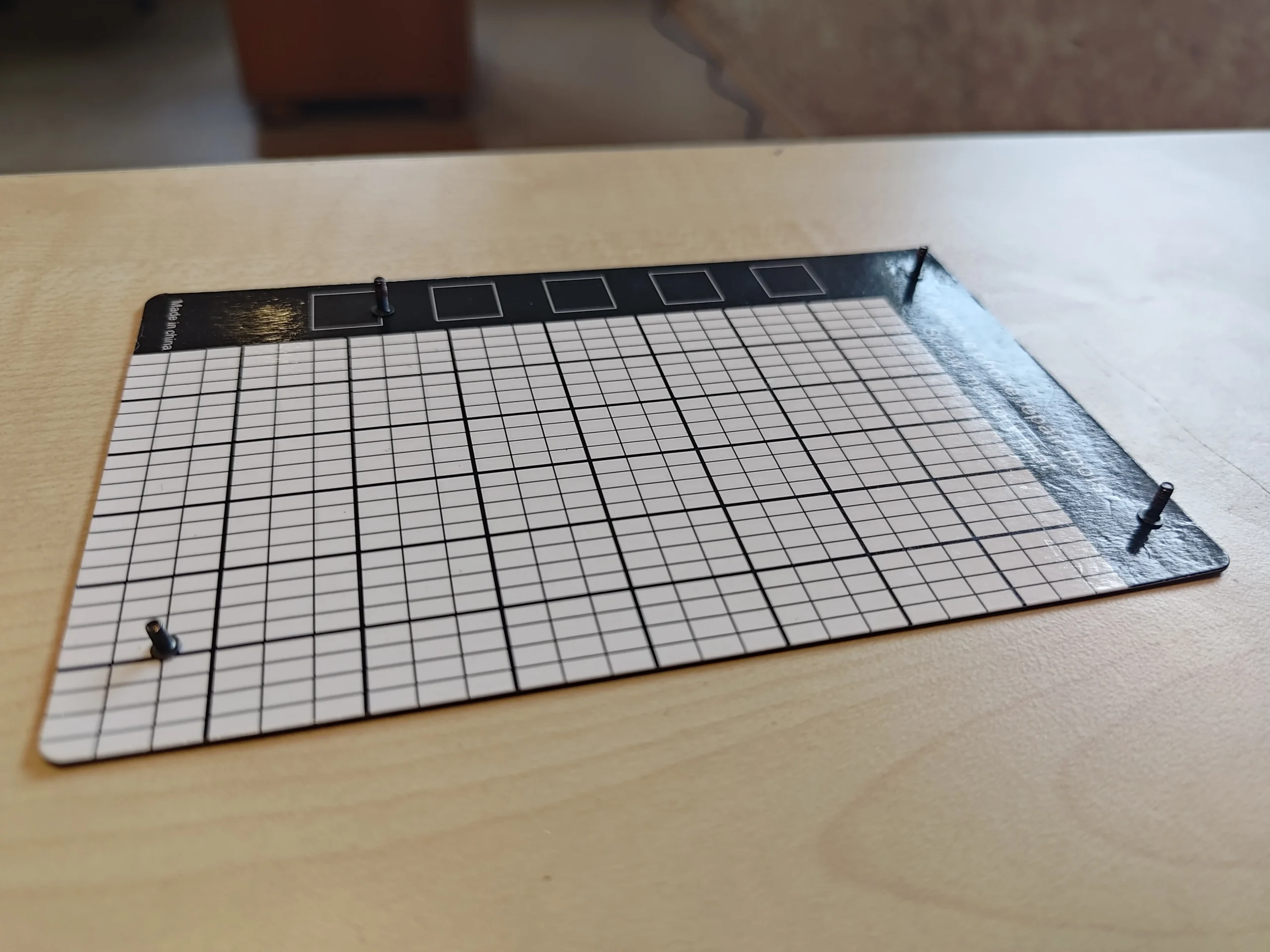
The underside has a broad geometric intake. When the base is removed, a separate mesh section is visible on its inner face. Both sides matter: wiping the outer pattern does not necessarily clear material held against the internal screen.
A removable bottom panel can be cleaned away from the electronics. If a screen is washed, it must be completely dry before refitting; avoid getting liquid on the laptop body.
02 / Inside the chassis
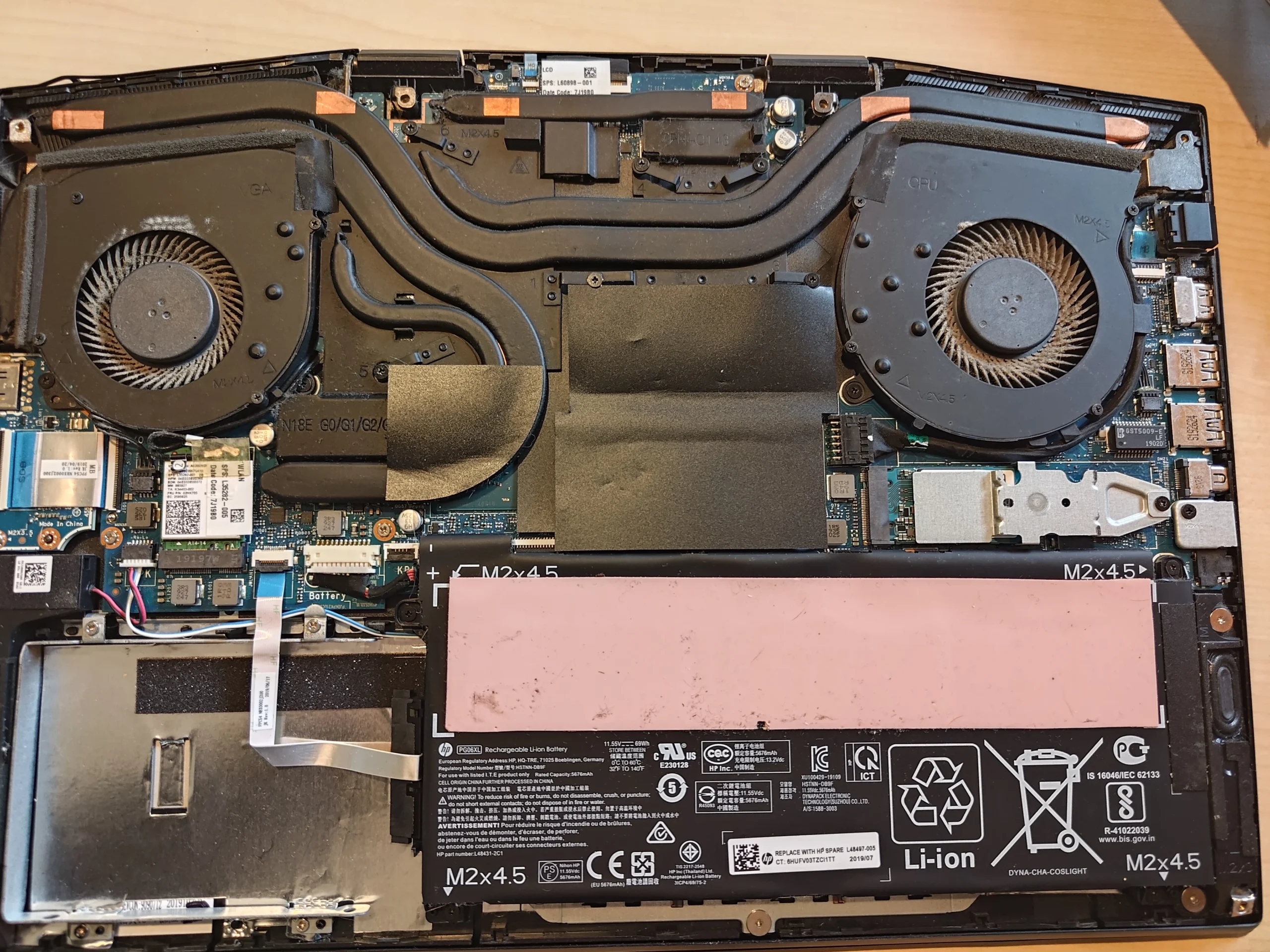
Two blowers serve the shared cooler
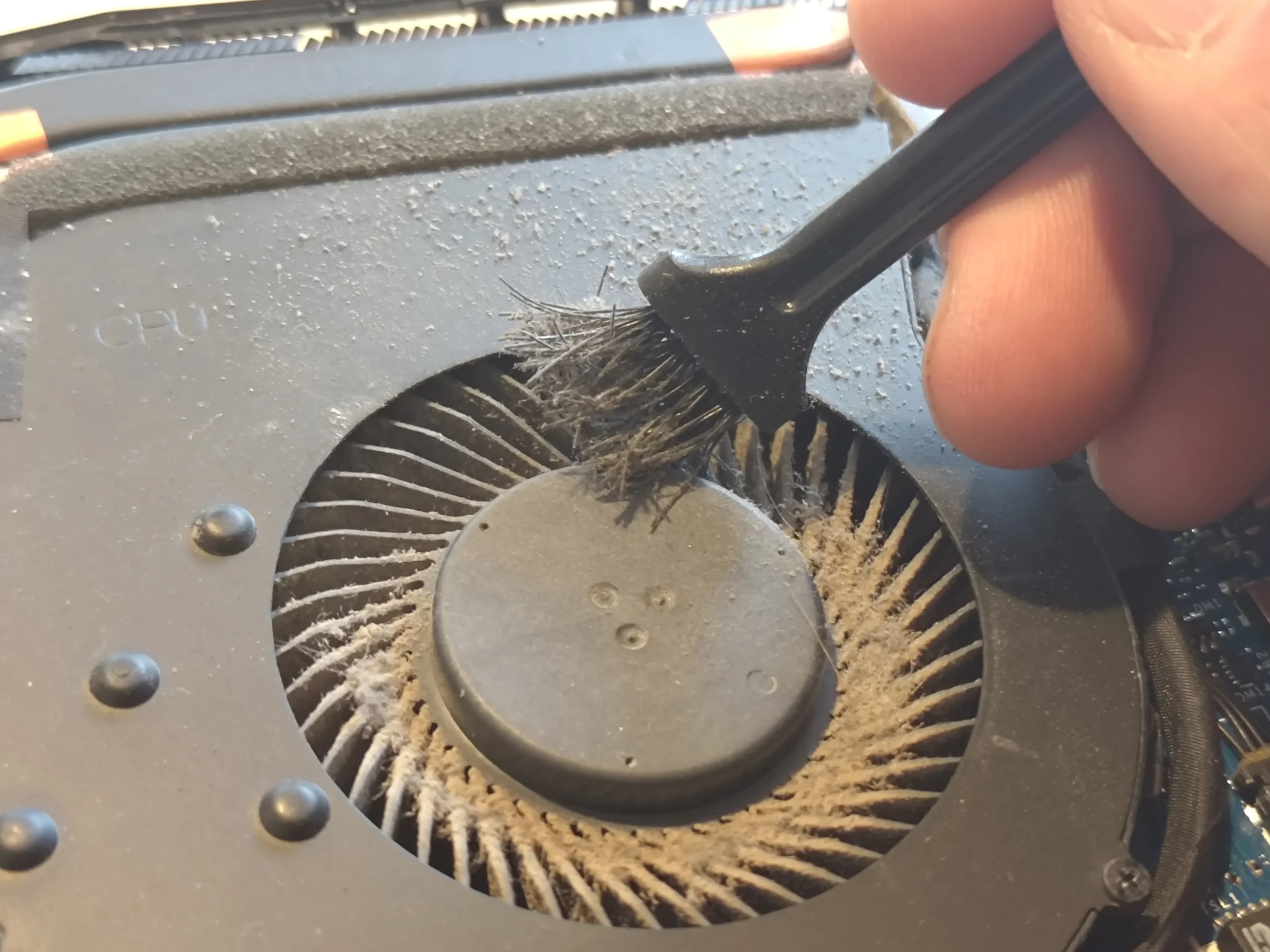
The opened laptop shows a fan at each end of the heat-pipe assembly. Their blades and nearby housings can accumulate dust unevenly, so both sides deserve inspection. A fan that spins does not prove its air path is clear.
The close-up of a fan during cleaning shows debris being lifted from its blades. Restrain the rotor while brushing or using gentle air and keep tools out of the bearing and delicate surrounding connectors.
03 / The narrow exit
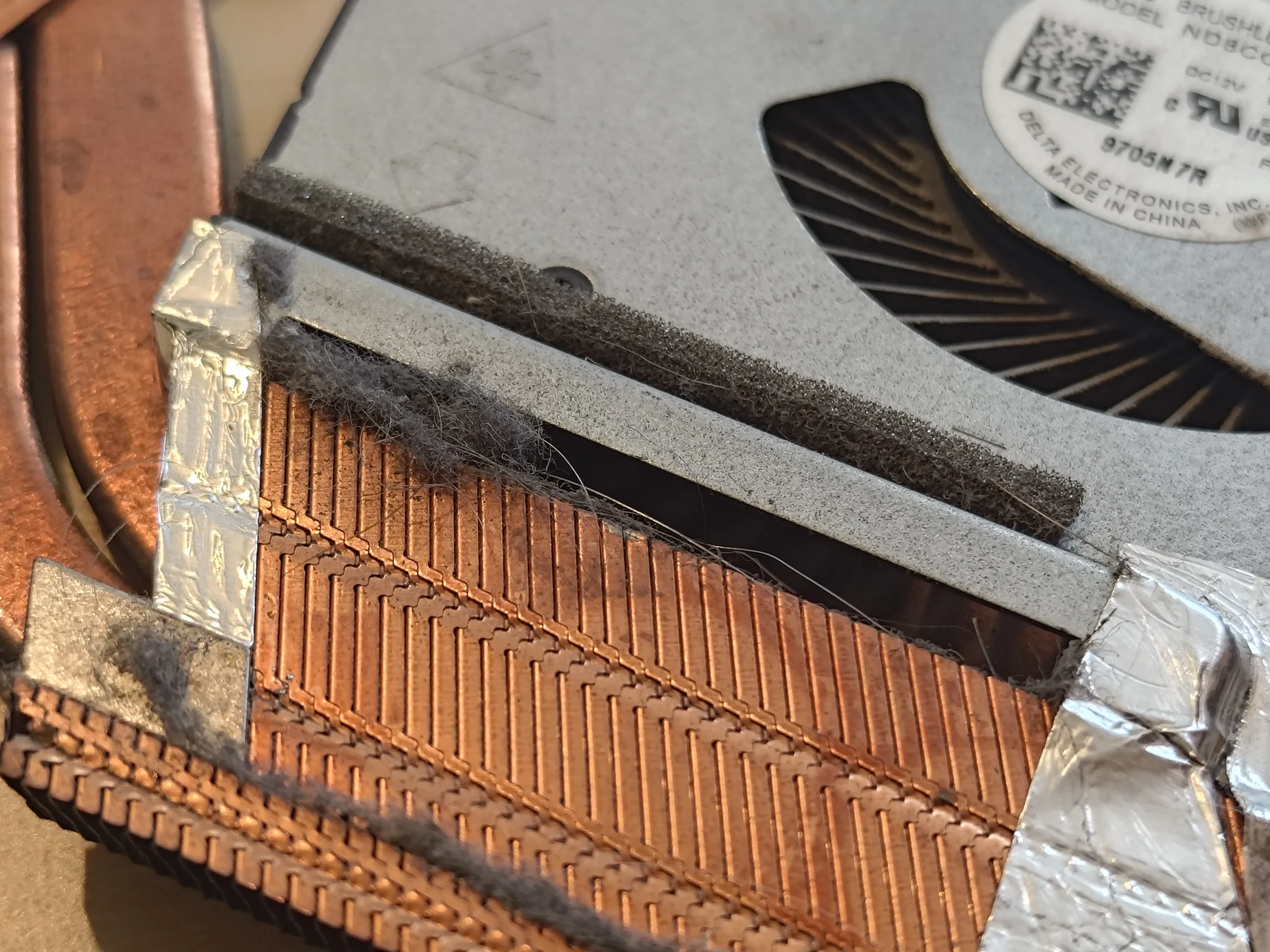
Dust gathered along a copper fin edge
The fin close-up shows dusty material along the edge of the copper stack beside a blower. This tight stack is where the fan's air must pass to take heat away, so its internal face can matter more than a light layer on a flat cover.
The fins are thin and bend easily. Work from direct access, remove material outward and avoid driving a clump deeper into the cooler. Recheck the second outlet even if one side looks worse.
04 / More than dusting
Lifting the cooler exposed chips and surrounding thermal materials
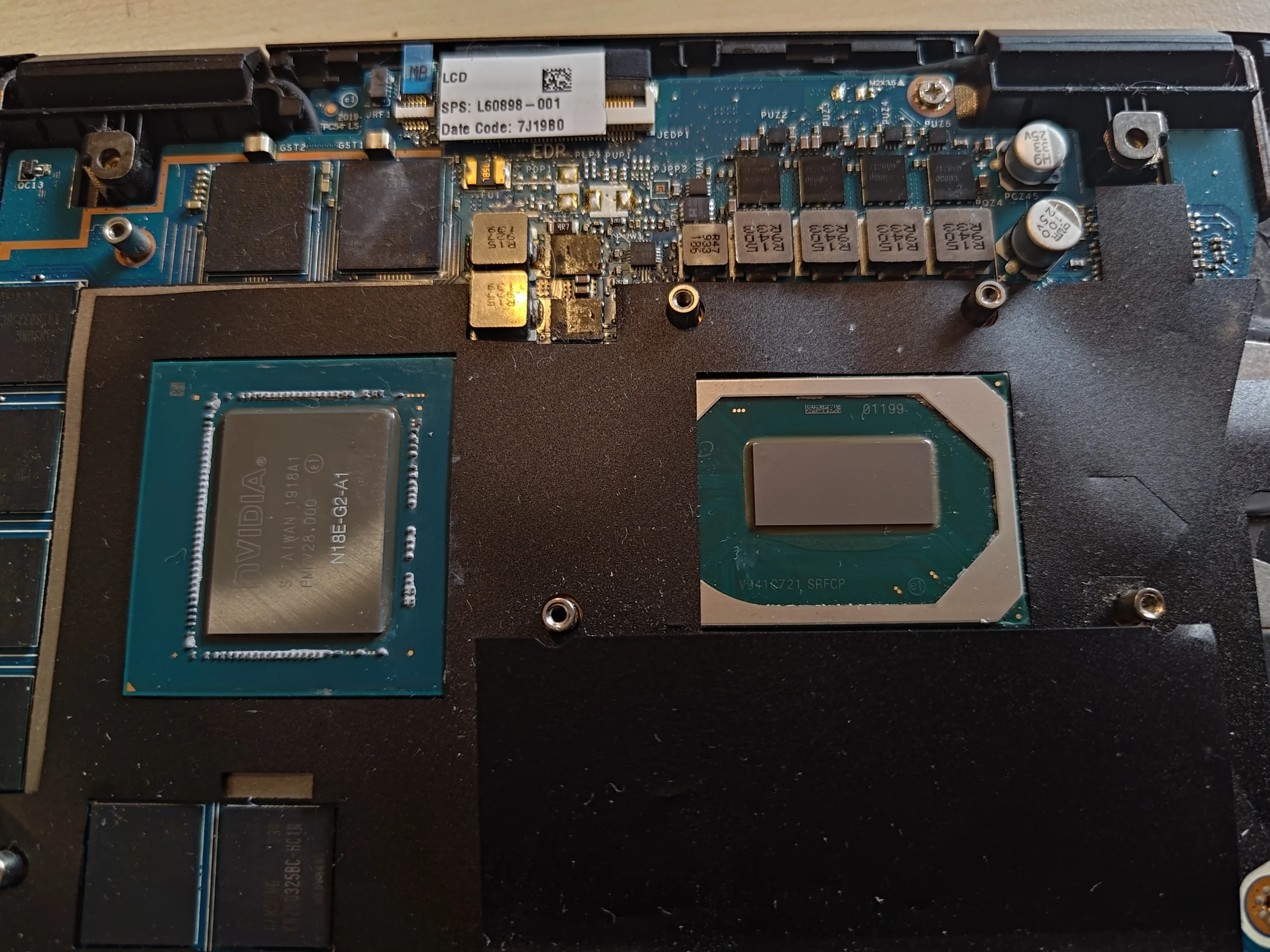
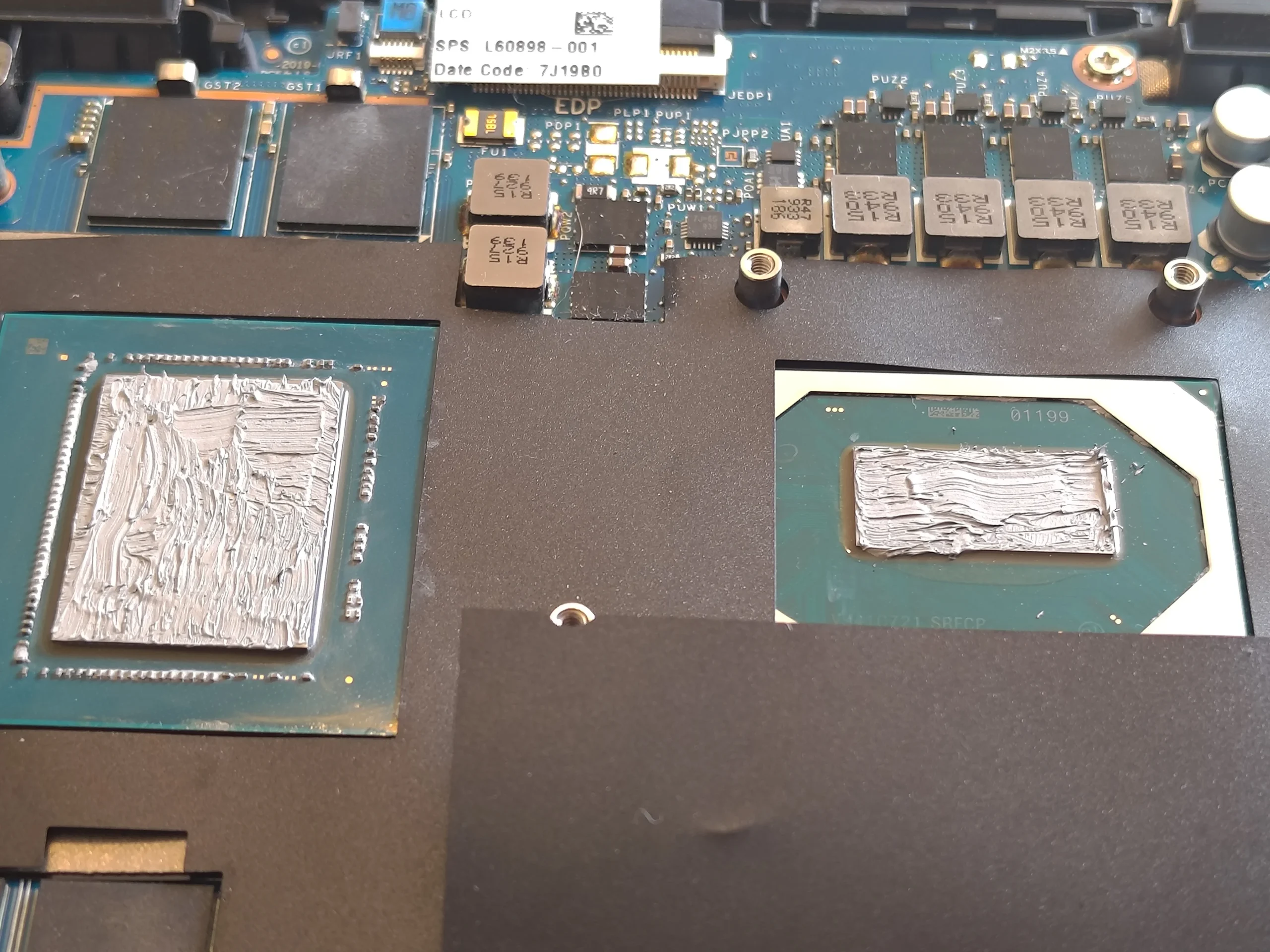
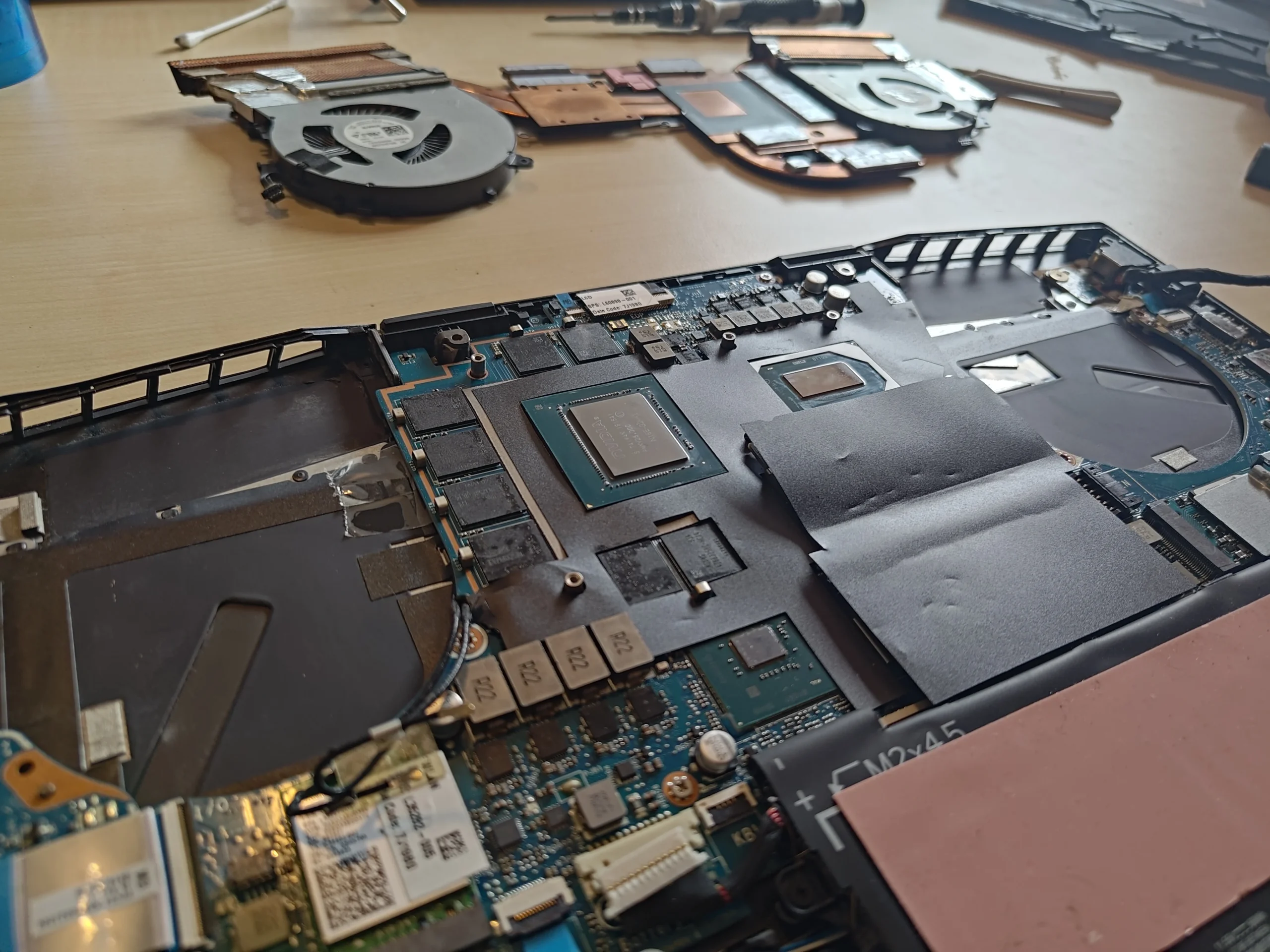
With the copper assembly off, two main chip contact areas and several smaller pad or putty contact points are visible. The separate cooler photo shows these contact pieces on its underside. Their positions are part of the machine's heat path and should be recorded before anything is removed.
When a cooler is lifted, old paste must be cleaned and the correct new material applied before it is seated evenly. Pads and other interface materials should not be replaced with random thicknesses. The archive documents access and preparation, not a measured performance gain.
The engineer’s takeaway
The Omen's patterned outer vent, inner screen, two fans and copper fin exits are four different things to check. If the shared cooler is lifted, restoring its chip and smaller component contacts accurately becomes part of the job.
Before you open the laptop
Can you clean an HP Omen yourself?
Power down, unplug the charger and find the service instructions for your exact Omen model before opening the base. HP has used the Omen name across different chassis. Photograph the screw map and connector positions, disconnect the battery as directed and avoid brushing an energised board.
Start with accessible grille and screen dust. Hold fan blades still while cleaning and inspect the fin outlets directly. Cooler removal is a separate task; if you cannot identify the original paste and pad arrangement, leave the assembly seated and ask for help.
After the clean
How to assess the Omen after cleaning
Confirm both fans can respond and there is no new scraping sound. Compare temperature and fan-speed readings during the same task and under similar room conditions only if you have reliable earlier readings.
A screen or benchmark captured at a different point in a test can mislead. The photos here do not support a numerical improvement claim; they support the physical cleaning steps.
Questions from owners
HP Omen laptop cleaning FAQs
Practical answers suggested by the Omen's base grille, twin fans and copper cooler.
Why clean both sides of the Omen base vent?
The outer grille and inner screen are different surfaces. Material can cling to the screen even when the outside has been wiped.
Can a dusty fan still spin normally?
Yes. A turning fan does not guarantee free airflow through the nearby fin stack. The copper fin edge in this case needed its own inspection.
Does this Omen have one or two fans?
This photographed machine has two. Other Omen models may differ, so check your exact product number before following a disassembly guide.
What happens if I lift the copper heat-pipe cooler?
You disturb the chip paste and possibly smaller pad or putty contacts. Their original placement and correct replacement materials matter during reassembly.
Can I wash the bottom intake screen?
Only if it can be safely separated from electronics and the model's instructions allow it. It must be completely dry before reassembly.
Did the benchmark screenshots show a cooler result?
The archive has monitoring screens, but no matched test pair sufficient to claim a specific improvement.
UK HP Omen cleaning enquiries
Want the screen, fans and fins checked together?
If you are in the UK, use the form with your Omen product number if known, your postcode, and a short description of whether the noise or heat starts at idle or during games.
Tell us if the laptop has already been opened or repasted. That helps us decide whether to focus on an obstructed air route, a fan fault or the cooler's thermal contact.
Read about our laptop fan and cooling cleaning service, then use the form to tell us your computer model, symptoms and UK postcode.
Free to enquire · No obligation to book. We discuss the proposed work and price before you decide.
The workshop photos
HP Omen vent, fan and copper cooler gallery
Open the workshop photos to inspect the patterned grille, inner screen, fan cleaning, fin edge and exposed cooler contacts.