Published 11 November 2026 · Intel desktop with Gainward graphics card case study
Desktop multi-fan clean
three fans meant three separate dust checks.
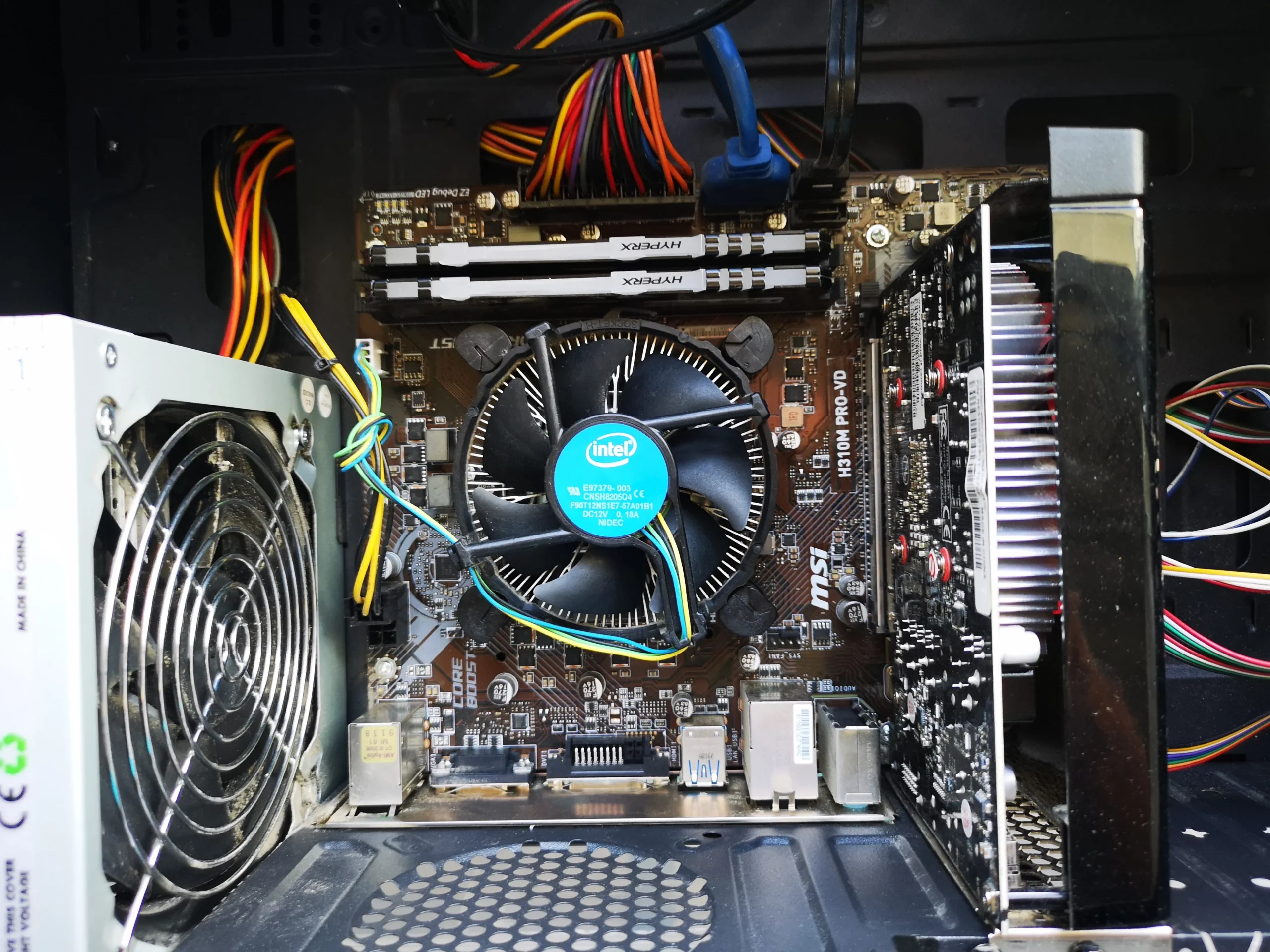
This tower's front screen, Intel processor cooler, Gainward graphics-card fan and power-supply grille all had visible dust. The photos show why a full PC clean is a route through several components, not one blast into the case.
The system
Intel CPU with a Gainward discrete graphics card
Visible dust
Front screen, CPU cooler, GPU fan and PSU grille
Cooler work
CPU cooler lifted and chip contact prepared
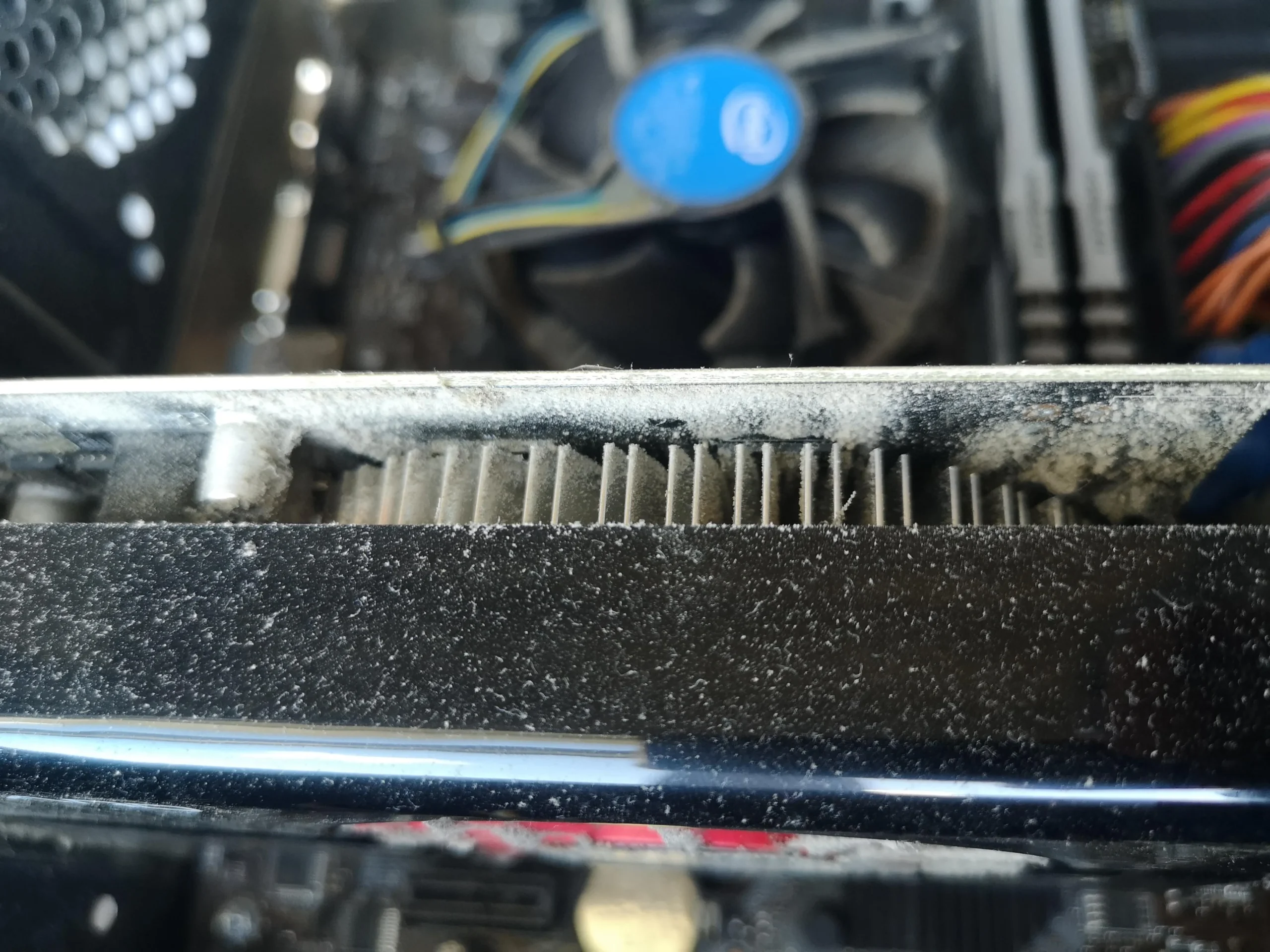
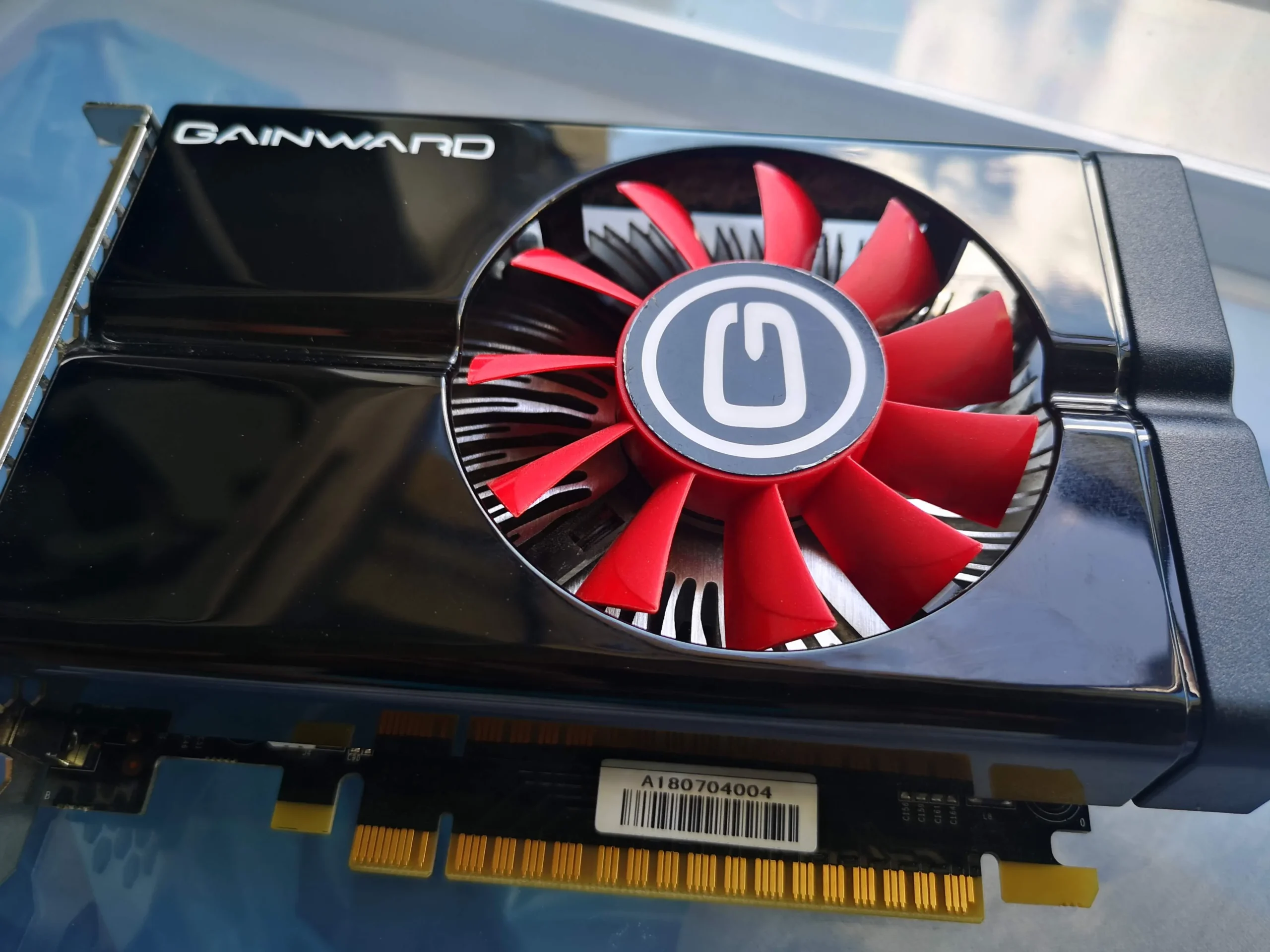
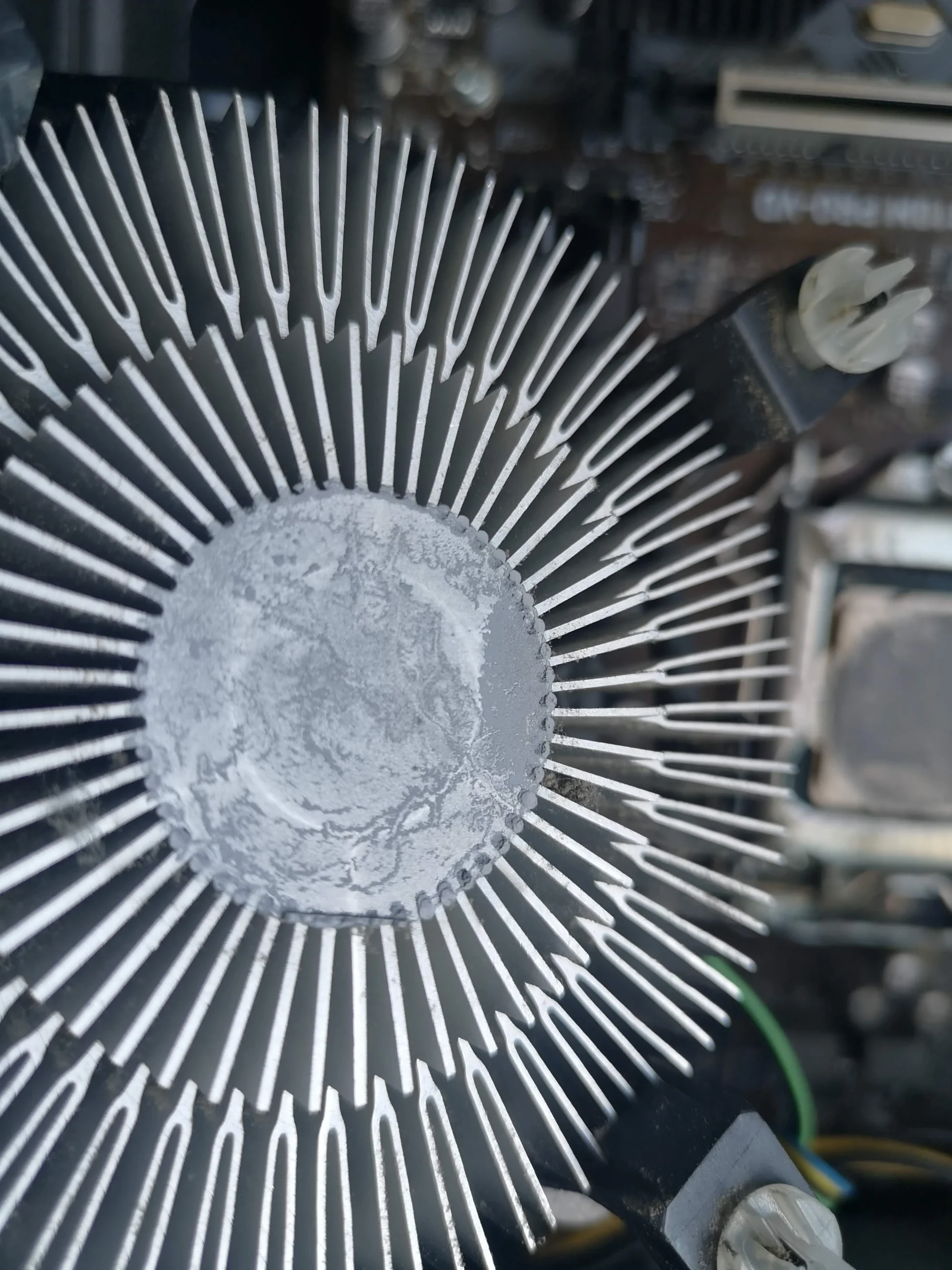
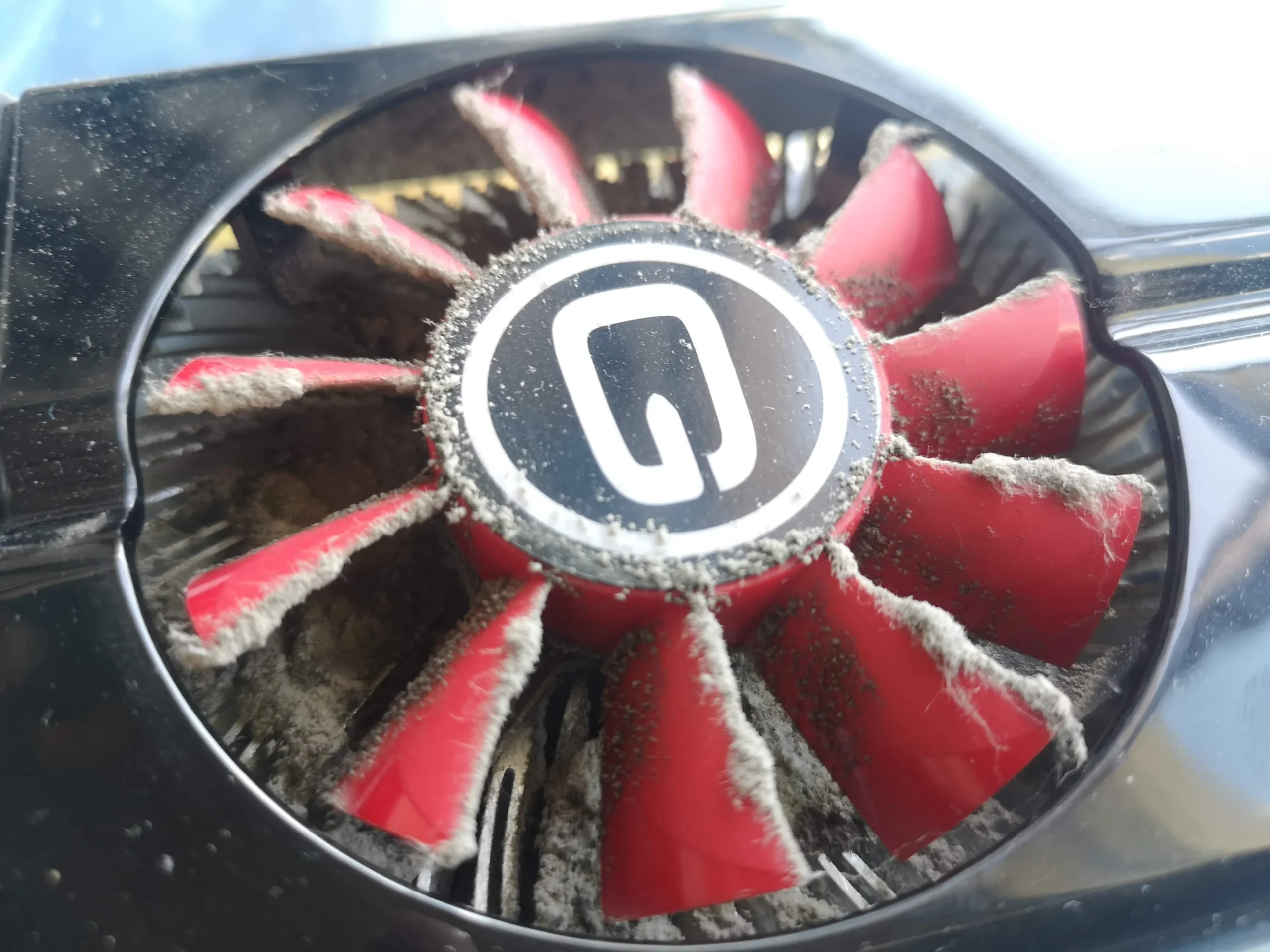
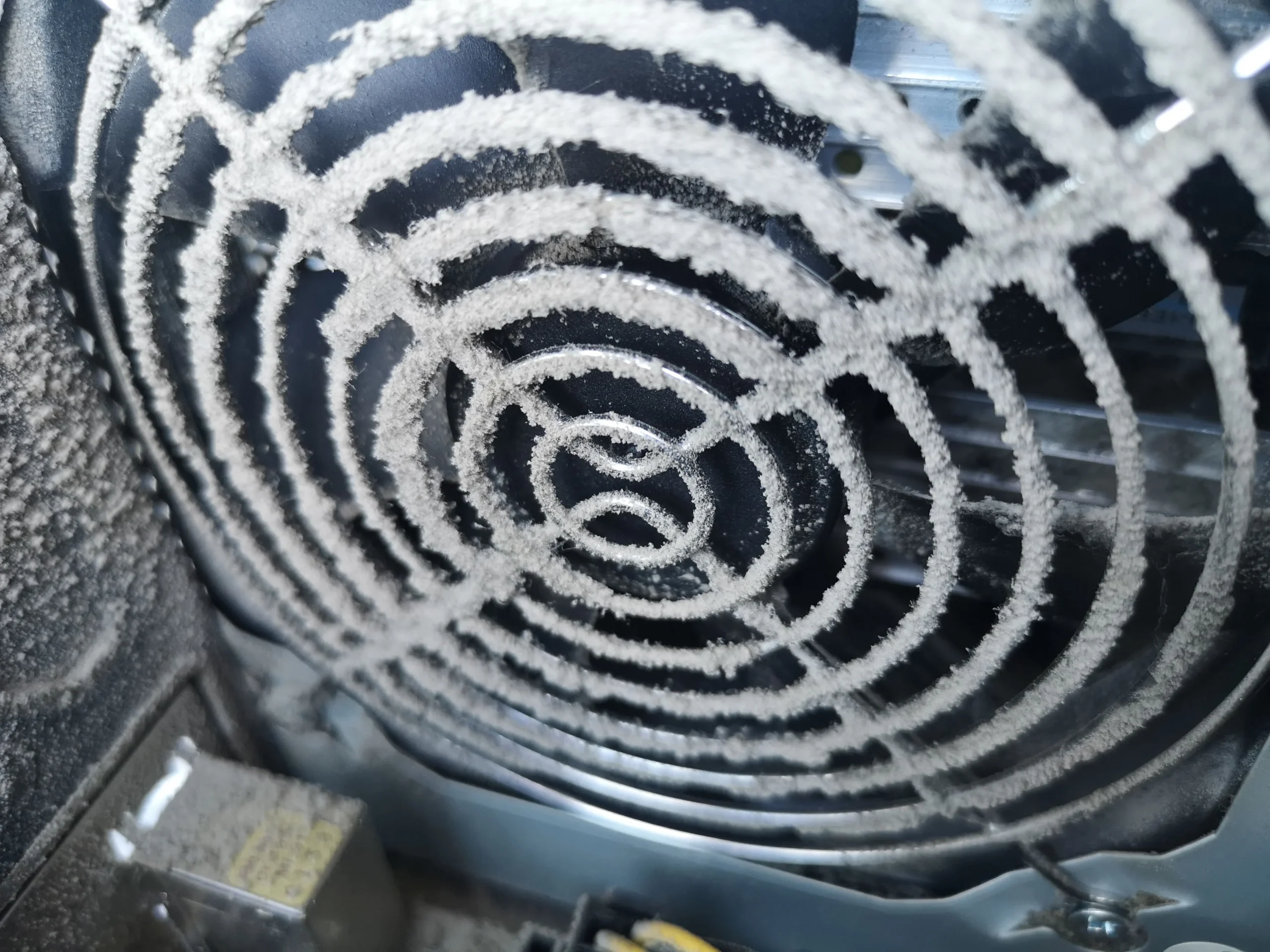
A desktop can have several fans that do different jobs. Here the red Gainward GPU fan carried dust along its blades, the Intel CPU fan and radial heatsink had their own buildup, and the power-supply grille showed a separate dust ring. The front mesh also had a broad coating.
The workshop photos show the graphics card out of the tower and the Intel cooler removed from the processor. They do not contain measured fan speeds or paired temperatures. The case therefore focuses on how to inspect and clean each air route safely.
In this case study
01 / Where dust enters
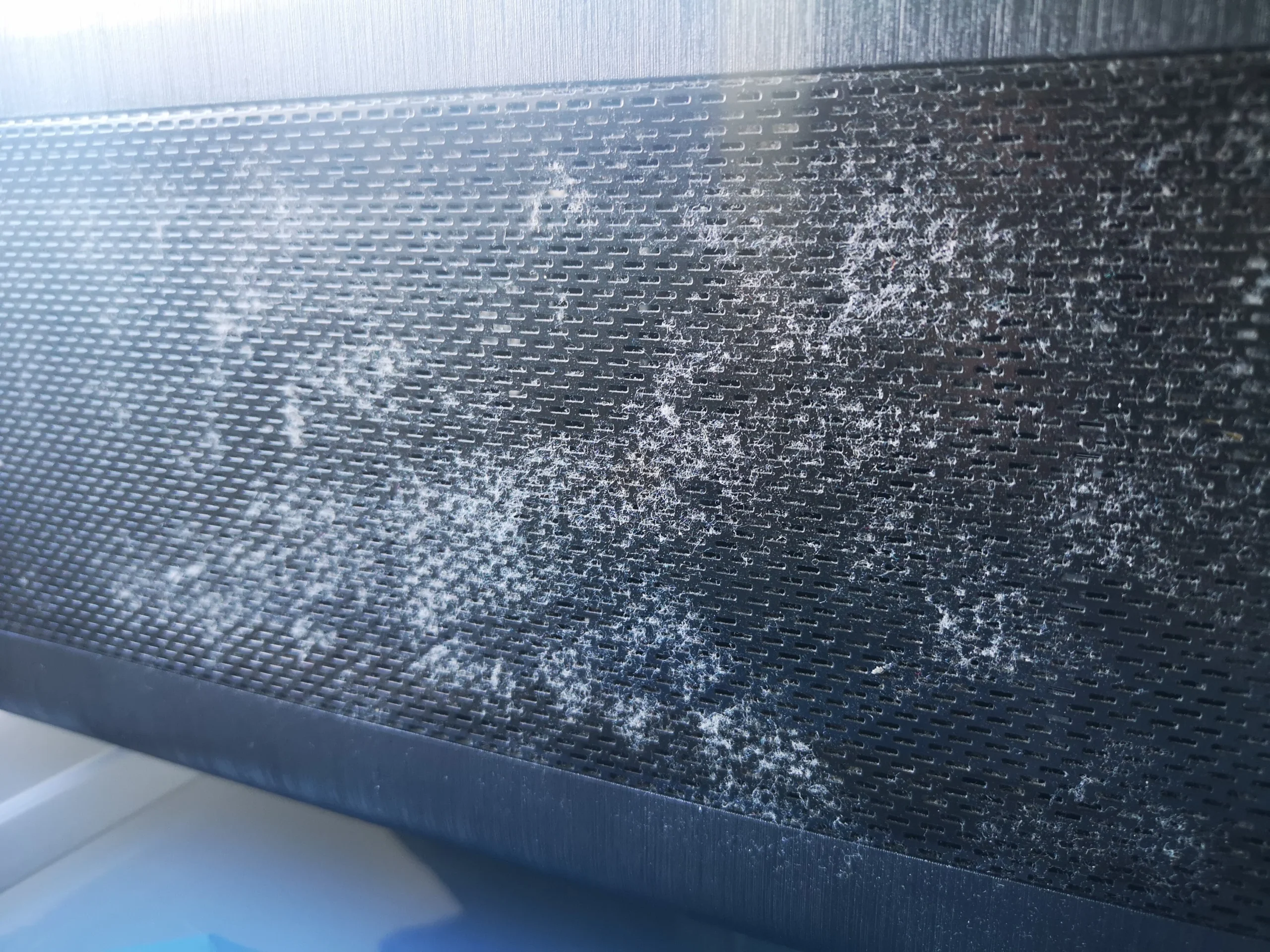
The front screen carried a wide dust coating
The front view and screen close-up show dust across the intake area. If this screen supplies the inside of the case, a restricted opening can leave the CPU and GPU fans drawing from a poorer air supply.
Clean removable panels separately, and ensure any washed mesh is fully dry before refitting. The archive does not show enough to identify a particular case filter design, so check your own tower's panel clips and screws first.
02 / The red-bladed cooler
Dust traced the Gainward card's fan blades
The close-up of the red GPU fan shows a pale line of dust along many blade edges. When the card is removed, the whole fan face and cooler edge become easier to inspect. The card has its own heat source and its own airflow needs.
Support the card, release the PCIe latch and unplug any auxiliary lead before removal. Hold the rotor steady during cleaning; never use force on the blades or push debris deeper into the heatsink.
03 / A different cooling route
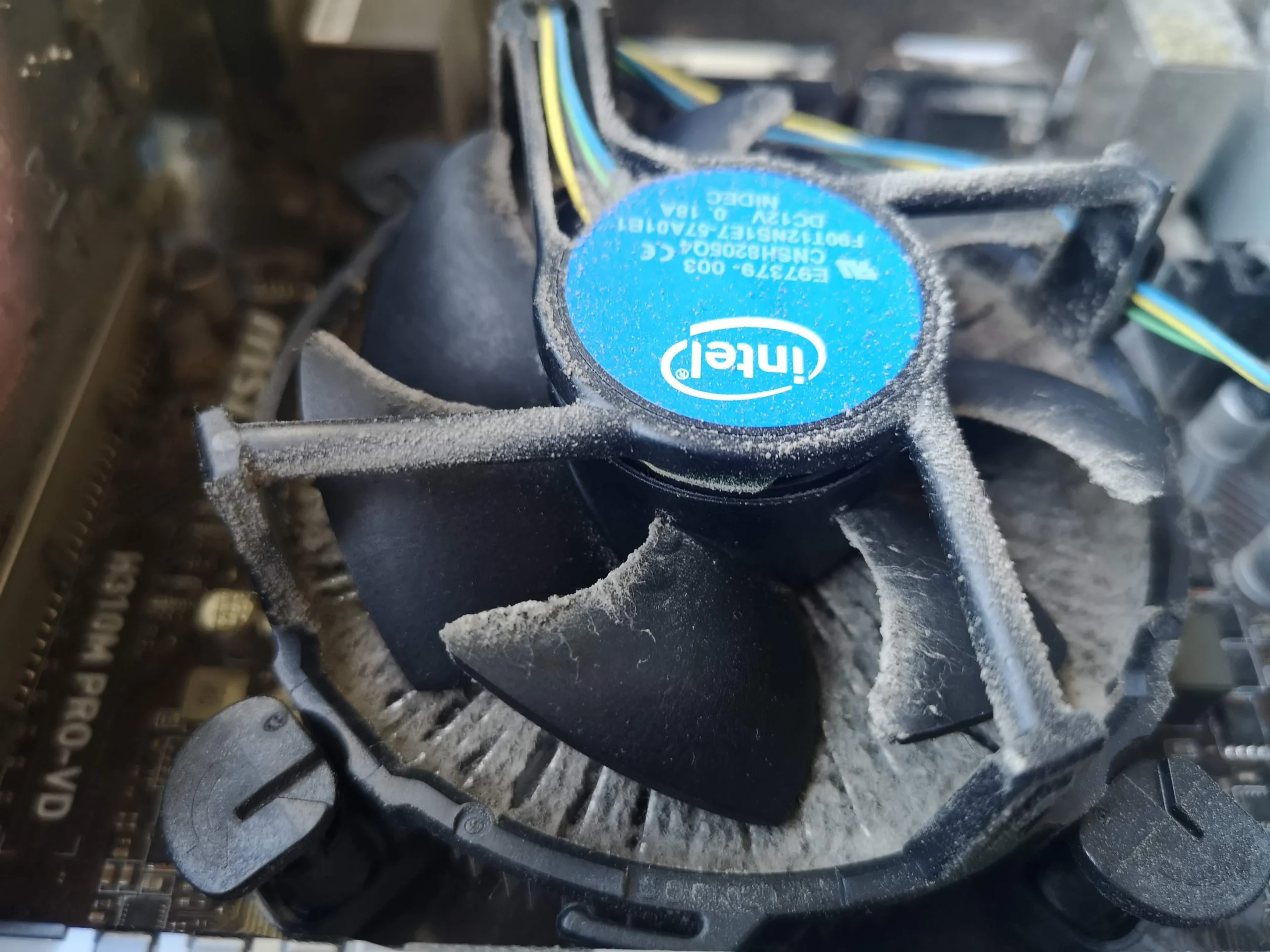
The Intel radial cooler was also dusty
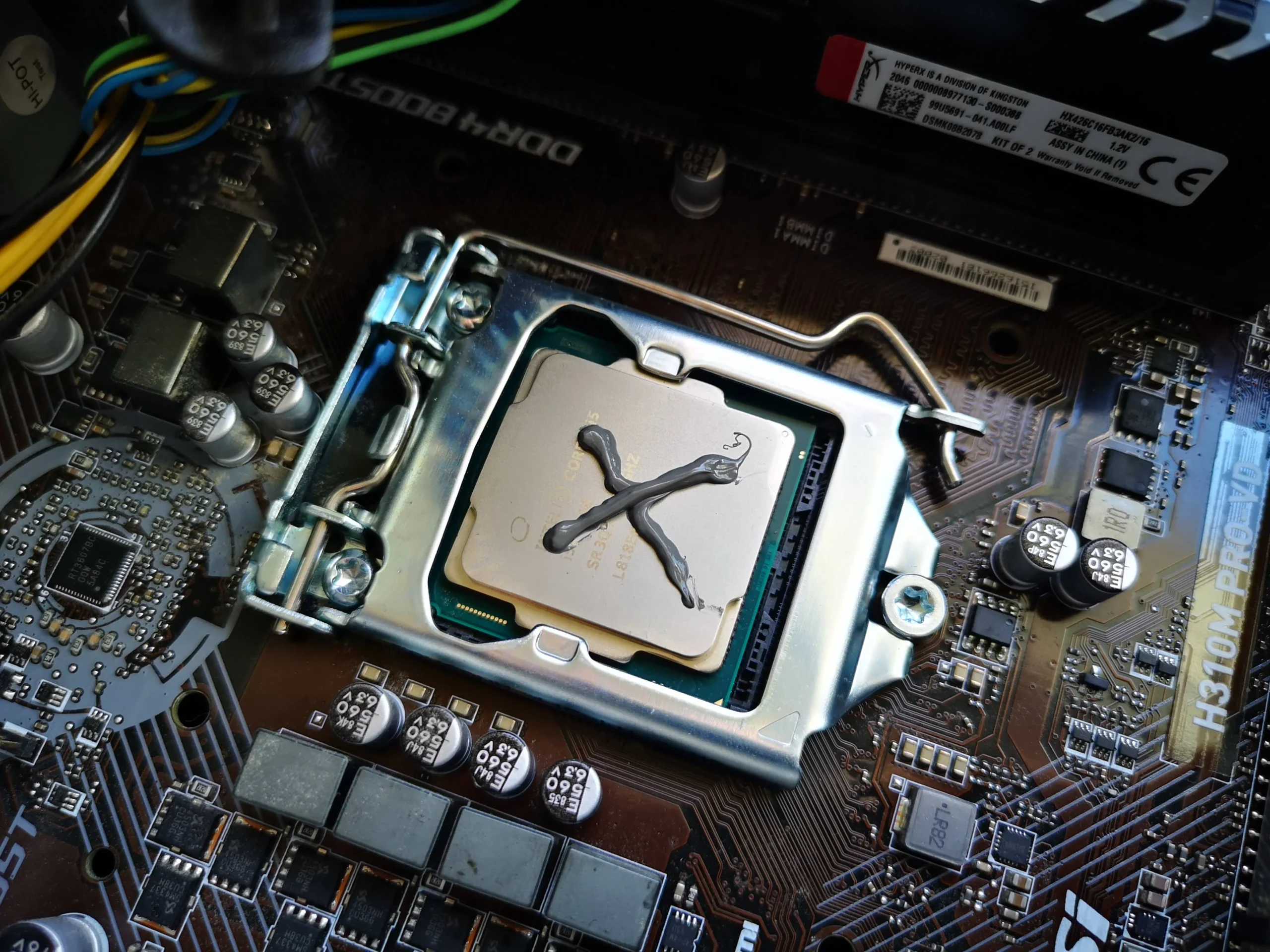
The Intel stock-style fan and round fin pack show visible dust in the opened case. Another image shows the cooler's contact face after lifting, and a later photo shows the CPU surface prepared with fresh compound.
Removing a CPU cooler breaks its thermal interface. It needs proper cleaning and suitable new paste before even refitting, plus a check that its fan lead is attached. This is more involved than wiping an accessible filter.
04 / The component to leave closed
Dust also ringed the power-supply air opening
The grille close-up shows dust caught on the PSU's external guard. That can be cleaned from outside with the PC powered down and disconnected. A PSU is an enclosed electrical component with its own fan and may retain charge; do not open its housing.
A final interior view shows the Intel cooler and graphics card installed. After reassembly, verify every fan's expected behaviour and the display output, rather than relying on appearance alone.
The engineer’s takeaway
This PC had a dusty intake plus separate CPU, GPU and PSU air paths. The case illustrates a useful inspection order and why CPU-cooler removal is a thermal-paste job while the power supply should remain closed.
Before you open the laptop
Can you clean these desktop fans yourself?
Shut down, turn off the PSU switch and unplug the mains cable. Start with accessible front mesh and case dust. Hold fan rotors still while removing loose debris, and protect connectors and the motherboard from accidental knocks.
Removing the GPU or CPU cooler requires a clear screw, cable and paste plan. Keep the PSU closed; if its fan sounds faulty or dust is deep inside, ask a technician to assess it.
After the clean
How to tell whether the clean helped
Confirm the PC boots, displays correctly and the CPU and case fans respond. Some graphics cards intentionally stop their fans at low load; check the card's behaviour under a suitable task.
Compare CPU and GPU readings only during the same workload and room conditions if you have earlier values. This photo set has no paired results to report.
Questions from owners
Intel and Gainward desktop cleaning FAQs
Answers based on the front mesh, GPU fan, CPU cooler and PSU grille shown here.
Why clean the front panel first?
It is a main path for incoming air on many towers. This panel showed broad dust coverage, so it deserved inspection before judging the internal fans.
Can a dusty GPU fan spin normally?
Yes. Dust on the blades and cooler can still obstruct airflow; this Gainward fan had a visible pale dust line.
Should I open the PSU to clean its fan?
No. Only clean accessible external vents while unplugged. An internal PSU problem needs qualified assessment.
Do I need new thermal paste if I remove the Intel cooler?
Yes. The disturbed interface needs cleaning and appropriate fresh paste before the cooler is mounted evenly.
Why does my graphics-card fan stop at idle?
Some cards use fan-stop controls when cool. Check the specific card under load before treating it as a failure.
Did this PC run cooler after cleaning?
The photos show dust and service work, but no comparable before-and-after readings are provided.
UK desktop airflow enquiries
Is one fan louder than the others?
If you are in the UK, tell us the PC make, graphics-card model if known, which fan seems noisy, and when it happens. Include your postcode and any photos of the front filter or GPU dust.
We can discuss a case-airflow clean, GPU fan inspection and whether the processor cooler needs separate removal and thermal-paste work.
Read about our desktop fan and cooling service, then use the form to tell us your computer model, symptoms and UK postcode.
Free to enquire · No obligation to book. We discuss the proposed work and price before you decide.
The workshop photos
Intel and Gainward desktop fan gallery
Open the workshop images for the front screen, red GPU fan, Intel cooler, PSU grille and reassembled desktop.