Published 31 October 2026 · Lenovo IdeaPad Gaming laptop case study
The intake looked ordinary
until the cover came off.
This IdeaPad Gaming laptop has two blower wheels in one long housing. Under its lower cover, dust was sitting on the fine intake mesh and the fan shroud. With the assembly lifted, the narrow fin stack could be cleaned directly instead of relying on air blown through the outer grille.
Identified family
Lenovo IdeaPad Gaming branding on the display bezel
Fan arrangement
Two blower wheels inside one long housing
Dust locations
Lower intake mesh, fan housing and fin stack
The screen bezel says IdeaPad Gaming, and the open-base photos show a distinctive two-wheel fan module along one edge. The underside model label is too dark to read reliably, so this case stays at the family level. Owners should check their exact model before following disassembly instructions.
This is mainly a story about the complete air path. A wide lower intake feeds two small blowers; the blowers push air through closely spaced fins. The photos show dust on the cover mesh and fan casing, direct cleaning at the fin stack, and a lifted copper cooler. They do not contain a controlled temperature comparison.
In this case study
01 / Where air enters
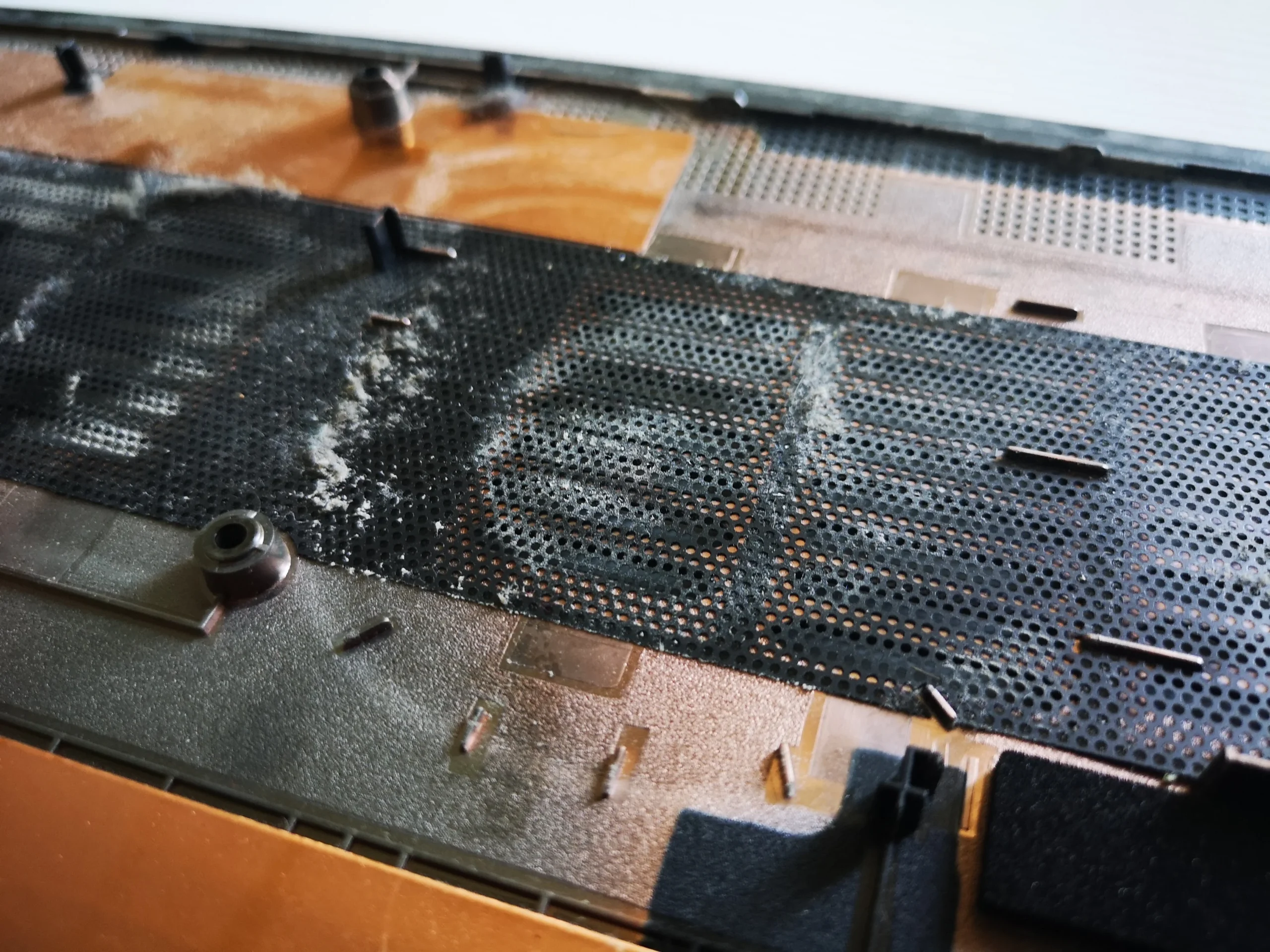
The lower cover mesh had collected a broad dust film
The inner face of the removed cover shows dust across the fine perforated mesh. That layer sits upstream of both blowers. A clean fan cannot draw as freely when its intake is coated, and loose material left inside the cover can return to the fan chamber after reassembly.
Clean the cover separately and avoid tearing or peeling any fitted mesh. The outside may look less dirty than the inner surface, so inspect both sides before deciding the intake is clear.
02 / Inside the laptop
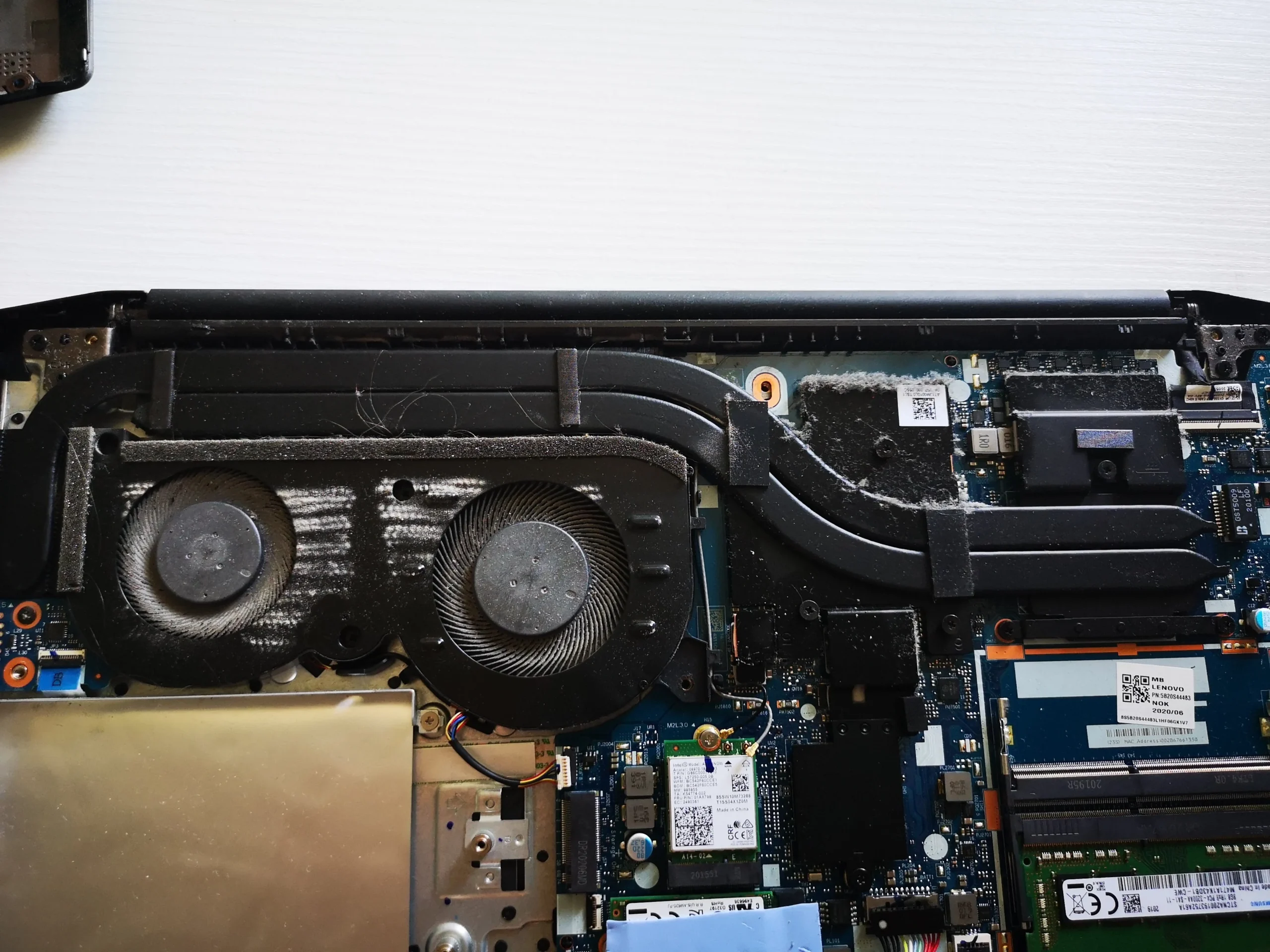
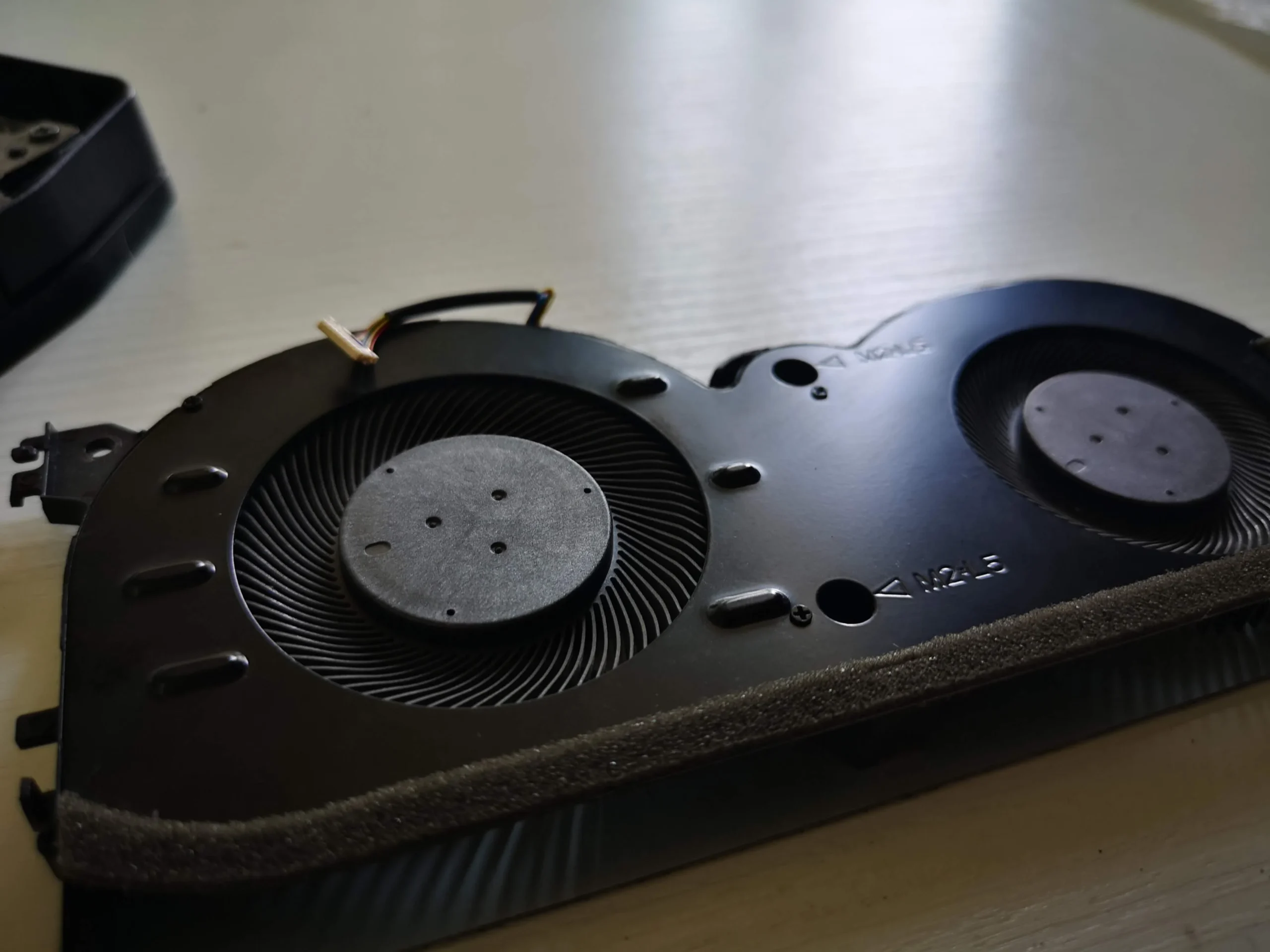
Both blower wheels share one removable enclosure
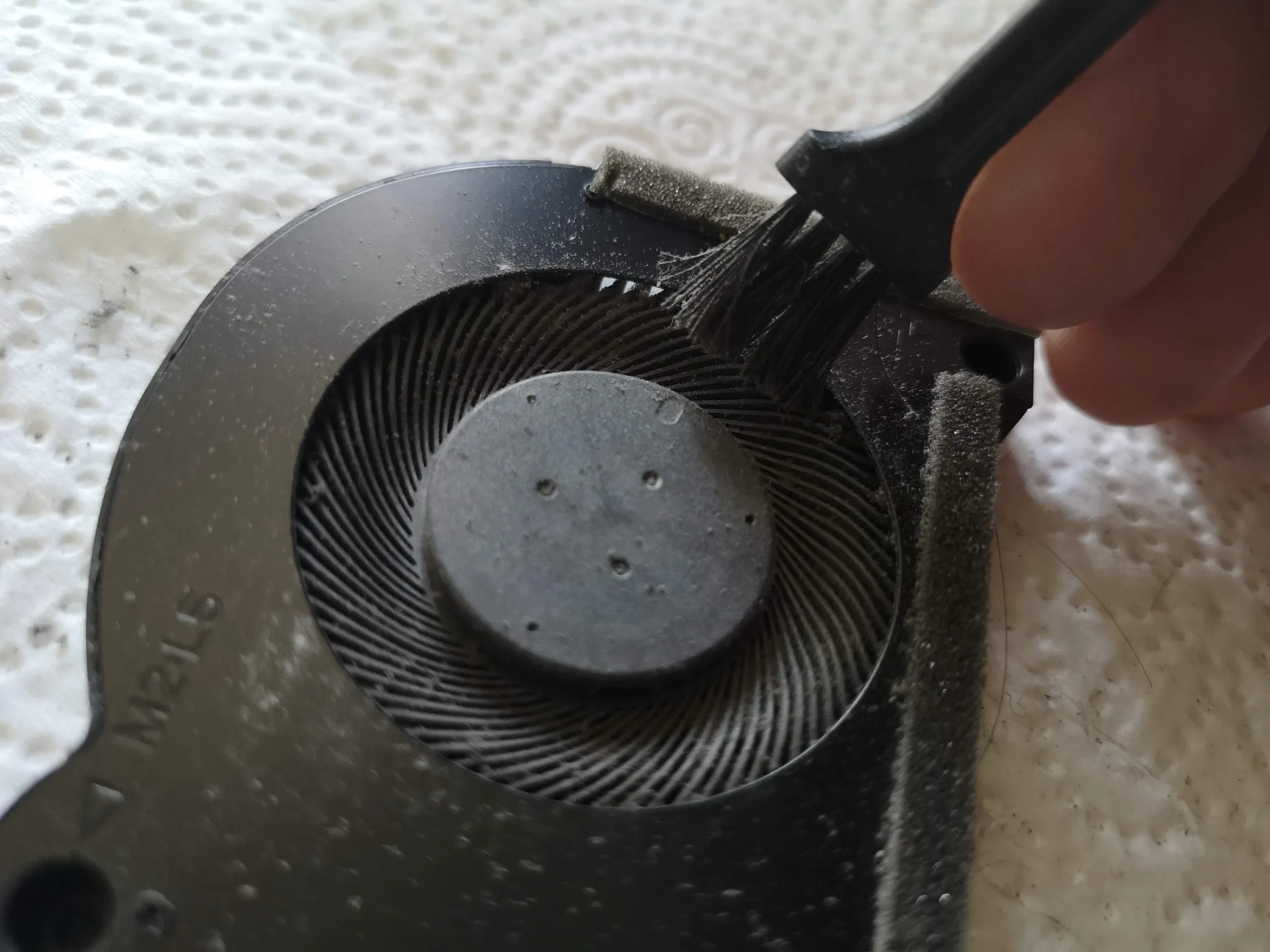
The open laptop shows two round inlets inside a single long black fan housing, with heat pipes extending toward the outlet. One wheel is smaller than the other. That is different from laptops with independent fans at opposite corners.
The removed module exposes both inlets for closer inspection. Dust around the wheel edges and casing can be collected while the rotors are held still. Keep the small fan connectors and nearby board components clear of brushes or air jets.
03 / Where heat leaves
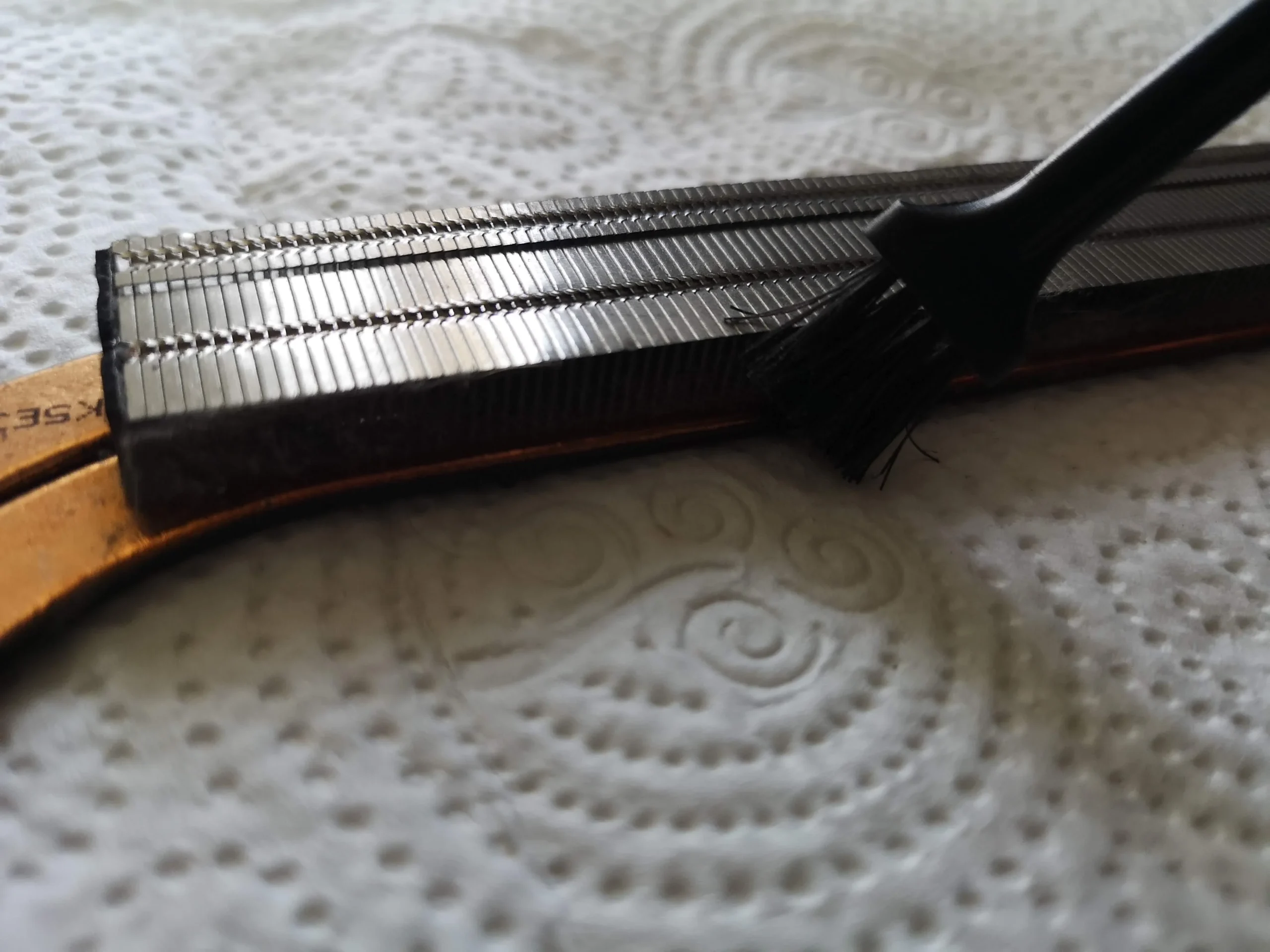
The fin stack needs its own cleaning pass
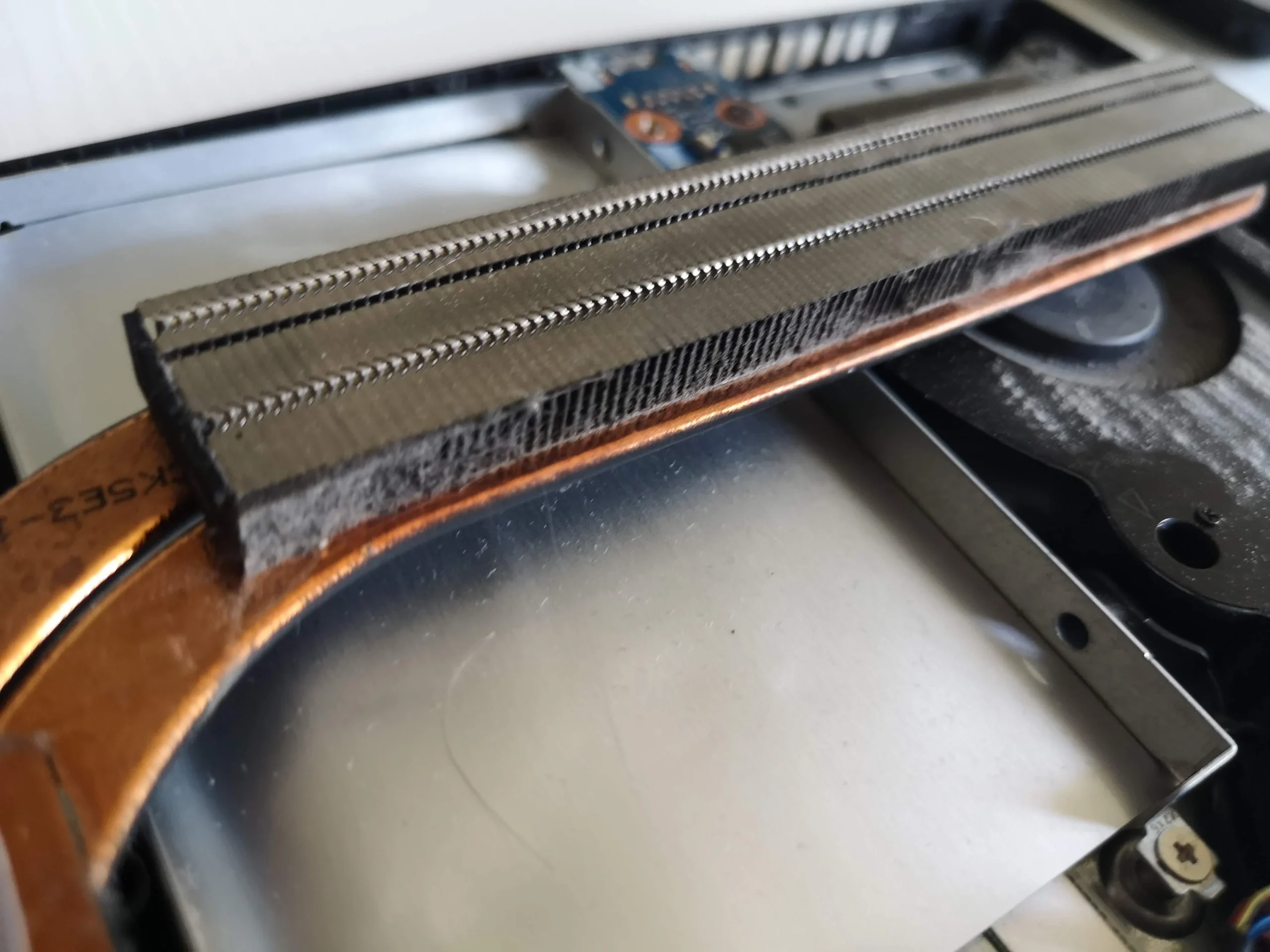
A close-up shows a brush working along the long row of metal fins after the cooling assembly was accessible. These thin channels are the last part of the airflow route. Dust trapped there can remain even when the fan blades look clean.
Brush in the direction of the fins and collect loosened lint. Do not bend the metal leaves or force a tool between them. Before closing the case, look through the outlet toward a light source to check that the channels are open.
04 / Deeper service
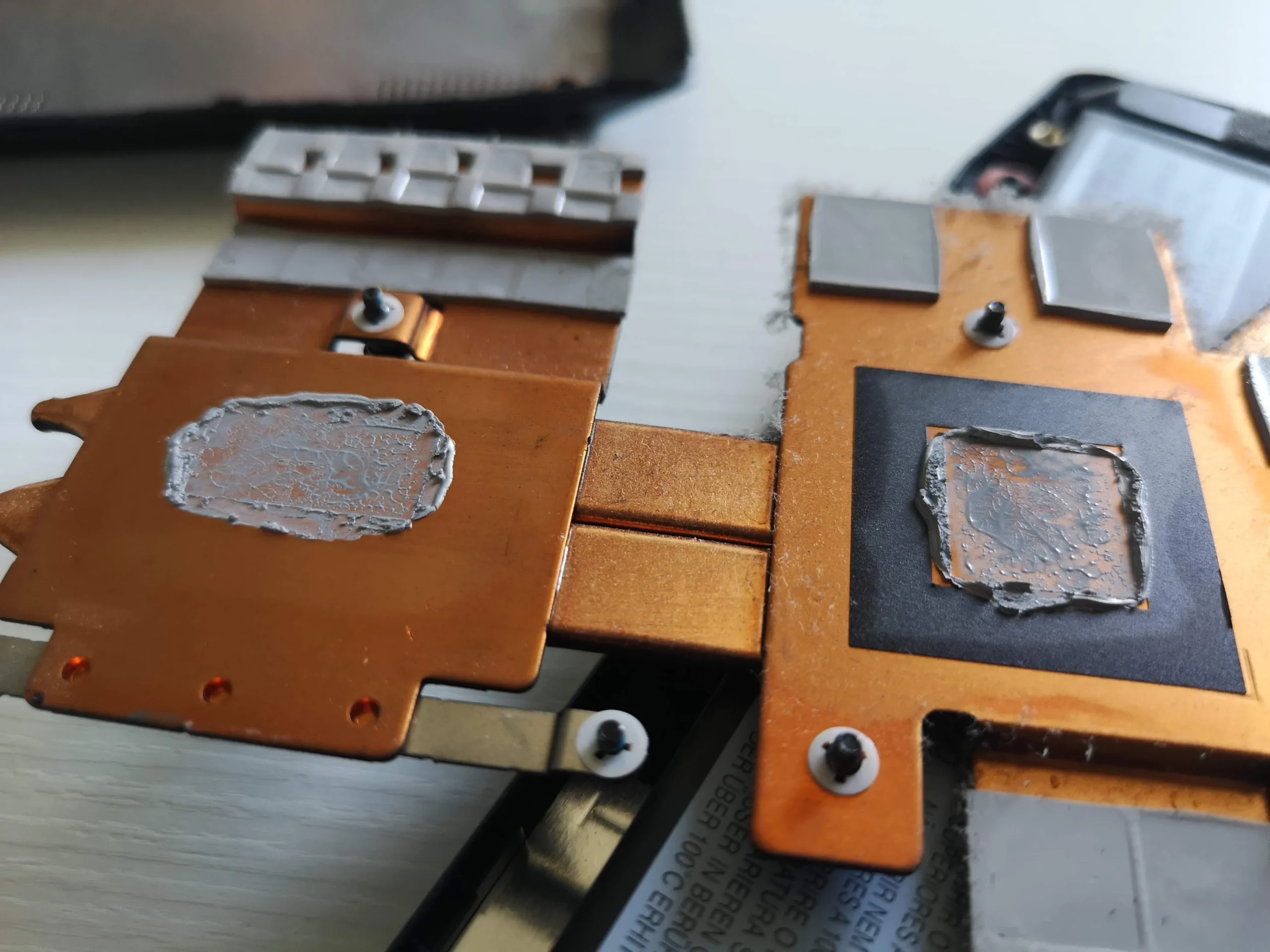
Lifting the copper assembly also exposed thermal contacts
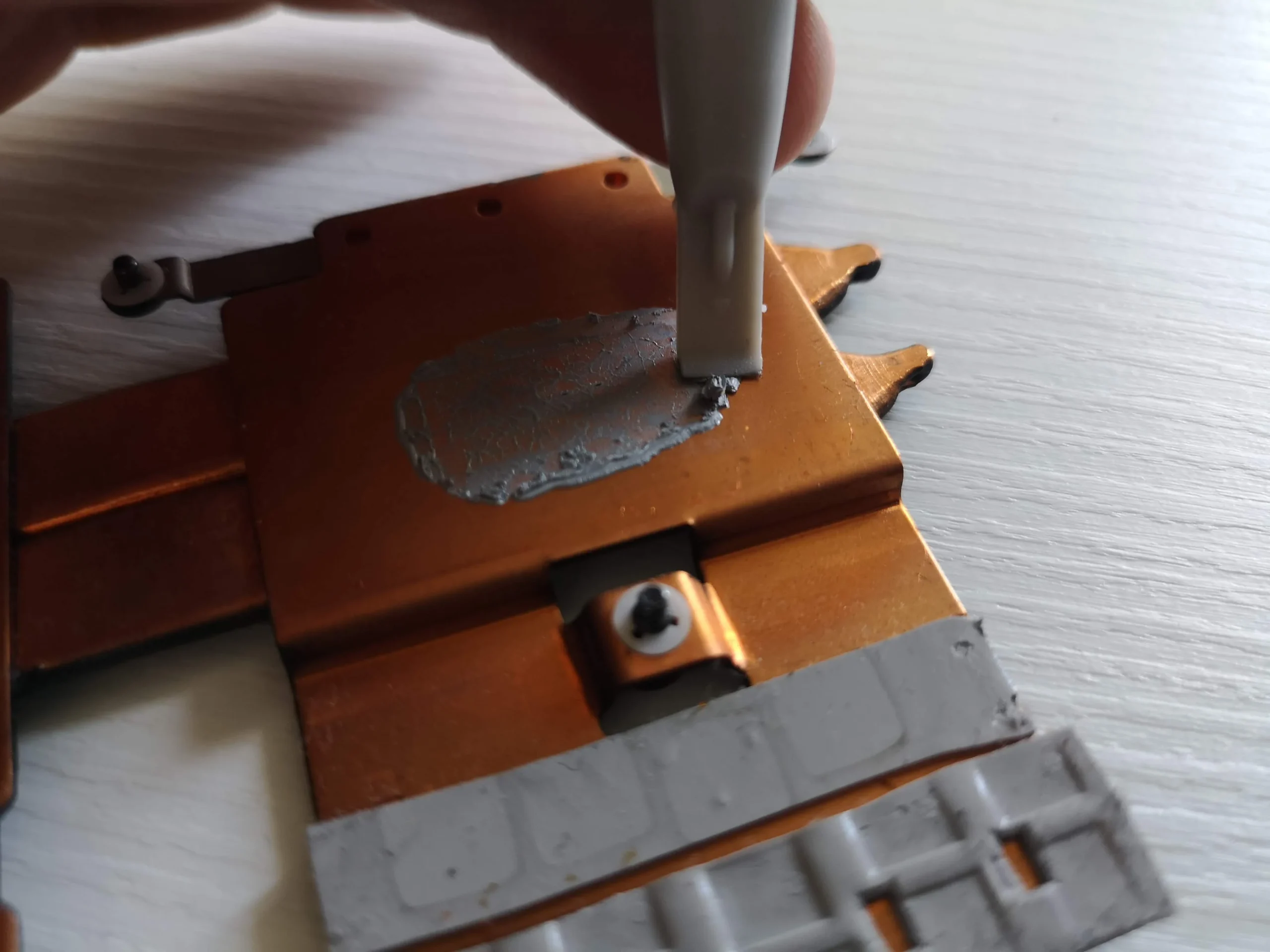
The underside of the removed cooler has two main contact plates, nearby pads and old interface material. Another image shows fresh compound being dispensed at a copper contact. This stage is separate from cleaning the fan and fin stack: once the cooler is lifted, all disturbed contact areas have to be restored appropriately.
Keep pads in their intended positions and use the right material for the exact model. The archive shows the application stage but does not establish the product used, final spread or a numerical cooling gain.
The engineer’s takeaway
The useful lesson here is the whole air route: lower-cover mesh, both wheels of the shared blower module and the fin stack all had to be considered. The cooler-contact photos show why deeper access also demands careful thermal reassembly, while performance still requires separate testing.
Before you open the laptop
Could you clean this IdeaPad Gaming laptop yourself?
With the machine off and unplugged, inspect the underside intake and rear exhaust first. If you remove the cover, confirm your exact IdeaPad Gaming model and use its own Lenovo instructions. The photos establish the family and layout, not a universally applicable screw map.
The mesh and accessible fan surface are the simpler places to start. Removing the shared fan enclosure and cooler involves connectors, screws, two chip contacts and several pads. If the exact service order or interface materials are uncertain, stop before lifting the copper assembly.
After the clean
What to verify after cleaning
Before replacing the cover, make sure both blower wheels turn freely, the fin channels are open and no cable sits against a rotor. After reassembly, confirm the laptop boots and air exits the rear outlet when a repeatable workload warms the machine.
A boot photo appears in the archive, but there are no paired measurements. Compare the same workload and power mode under similar room conditions if you want to know whether temperatures changed.
Questions from owners
IdeaPad Gaming intake and fan cleaning FAQs
Answers based on this shared two-wheel blower and dusty cover mesh.
Are there two fans in this IdeaPad Gaming laptop?
This unit has two blower wheels in one long housing. Other IdeaPad Gaming models may use a different layout, so inspect your exact machine.
Why was the lower cover cleaned?
Its inner intake mesh carried dust over a broad area. Leaving that material in place can restrict incoming air or return debris to the fan chamber.
Can clean fan blades still leave an overheating problem?
Yes. The narrow fin stack downstream can retain lint. The case photos show direct access to those fins for a separate cleaning pass.
Should I remove the copper heatsink just to clean the cover?
No. Cover and accessible fan cleaning can be assessed first. Lifting the cooler disturbs thermal compound and pads and needs a planned reassembly.
Is the exact IdeaPad Gaming model known from these photos?
The IdeaPad Gaming family branding is visible, but the underside model label is not clear enough to state a specific suffix responsibly.
Do the photos prove a temperature reduction?
No. They document dust removal and thermal work, but no matched before-and-after workload and temperature data are present.
UK Lenovo gaming laptop enquiries
Dust trapped behind your IdeaPad intake?
If you are in the UK, tell us your exact IdeaPad Gaming model, whether the issue appears during games or everyday tasks, and your postcode. A photo of the outer intake and rear vent can help; keep any serial-number label out of a public image.
We can discuss cleaning the cover mesh, checking both blower wheels and fin channels, and whether deeper cooler work is warranted for your machine.
Read about our Lenovo laptop cleaning service, then use the form to tell us your computer model, symptoms and UK postcode.
Free to enquire · No obligation to book. We discuss the proposed work and price before you decide.
The workshop photos
IdeaPad Gaming intake and cooler gallery
Open the workshop photos to follow the mesh, shared blower housing, fin stack and copper cooler contacts.