Published 15 October 2026 · Lenovo laptop (exact model unconfirmed) case study
A Lenovo laptop opened for storage work
and the fan told another story.
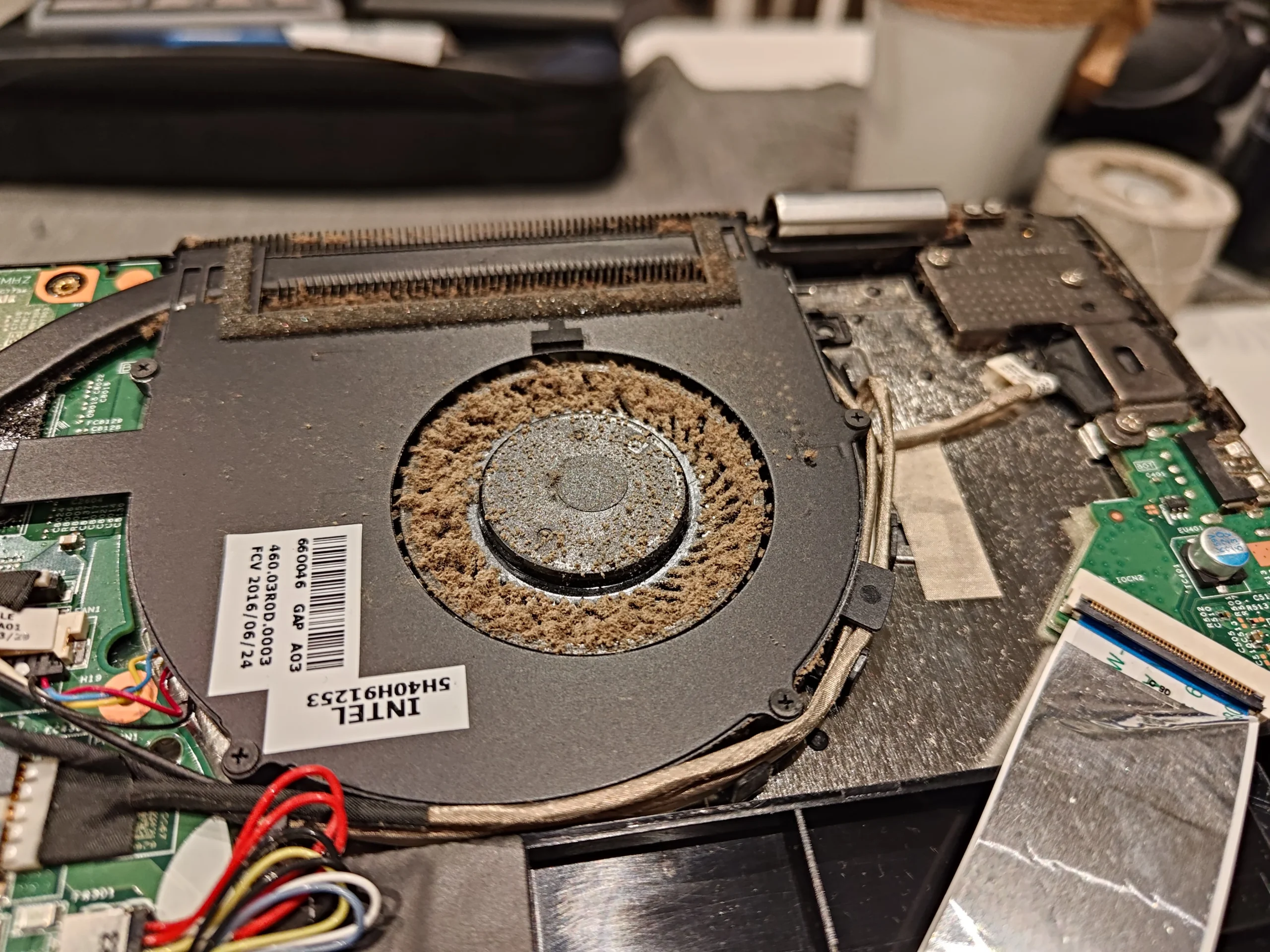
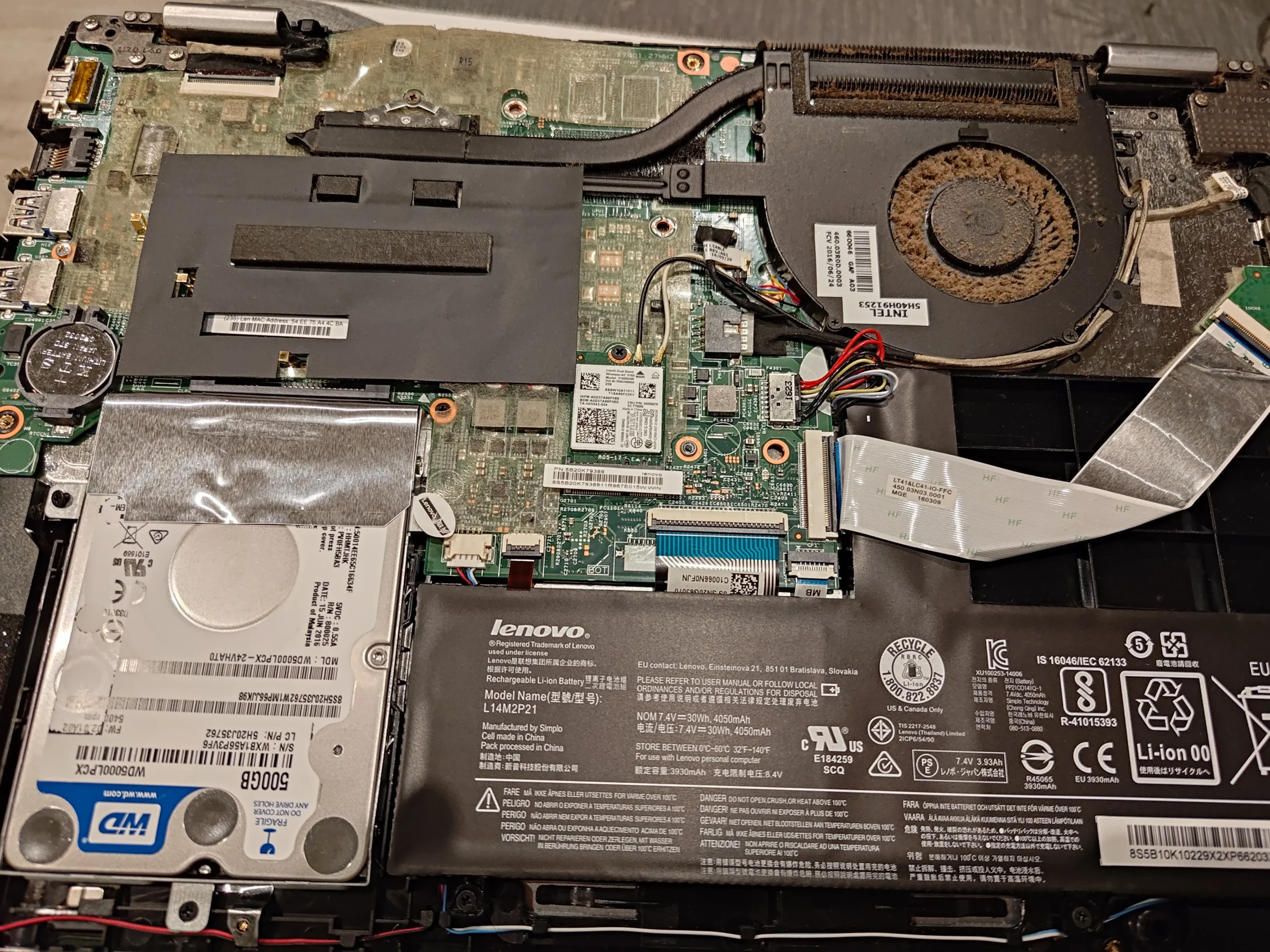
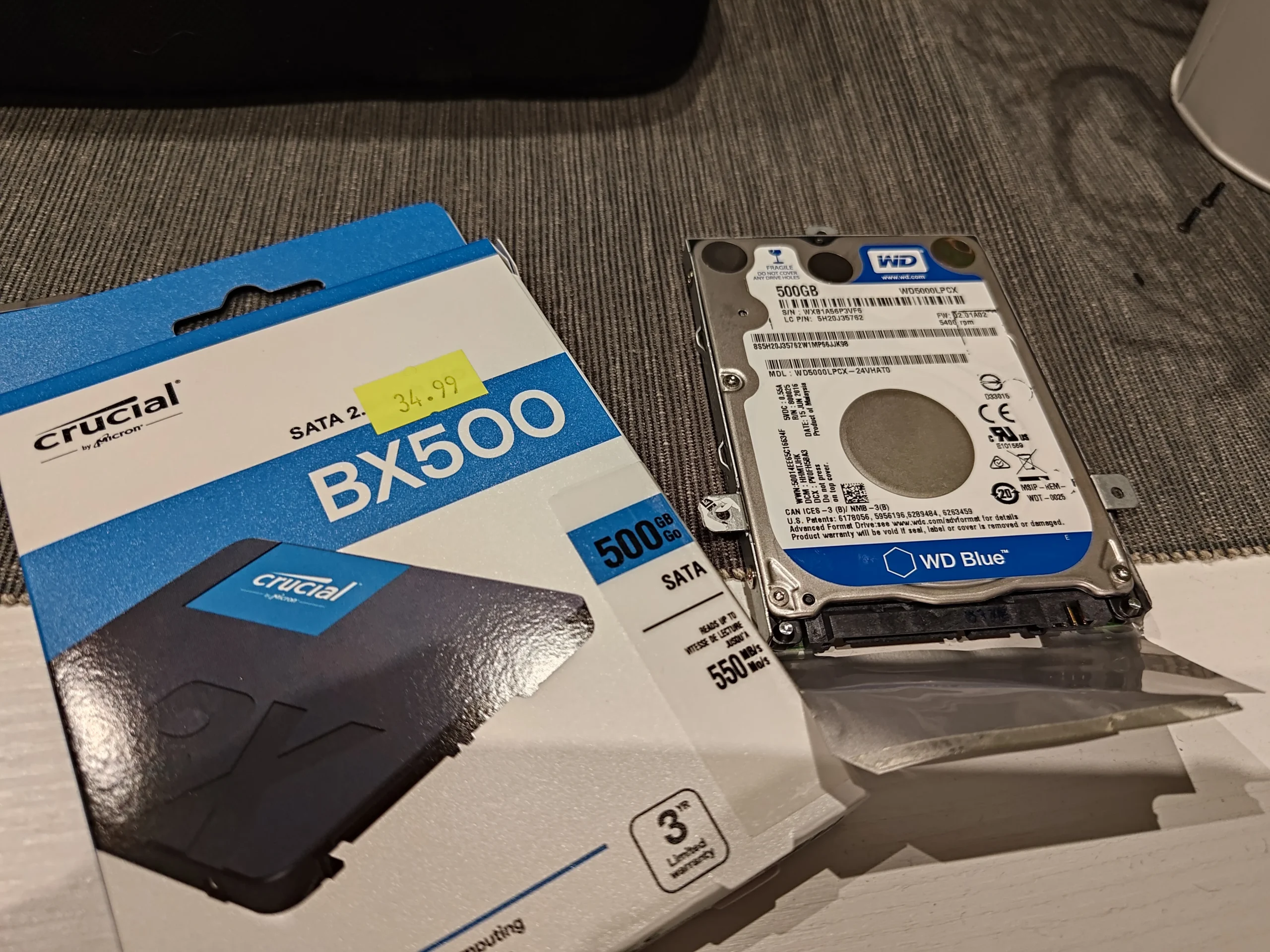
The hard drive and a Crucial SSD were on the bench, but the opened laptop revealed a thick ring of dust around the fan inlet. An SSD can make storage faster; it will not clear a blocked cooling route. This is why a good inspection follows the whole machine while it is open.
The visit
Hard-drive to SSD upgrade preparation
The cooling finding
Heavy dust ring at the fan inlet
The important distinction
Storage speed and cooling are separate systems
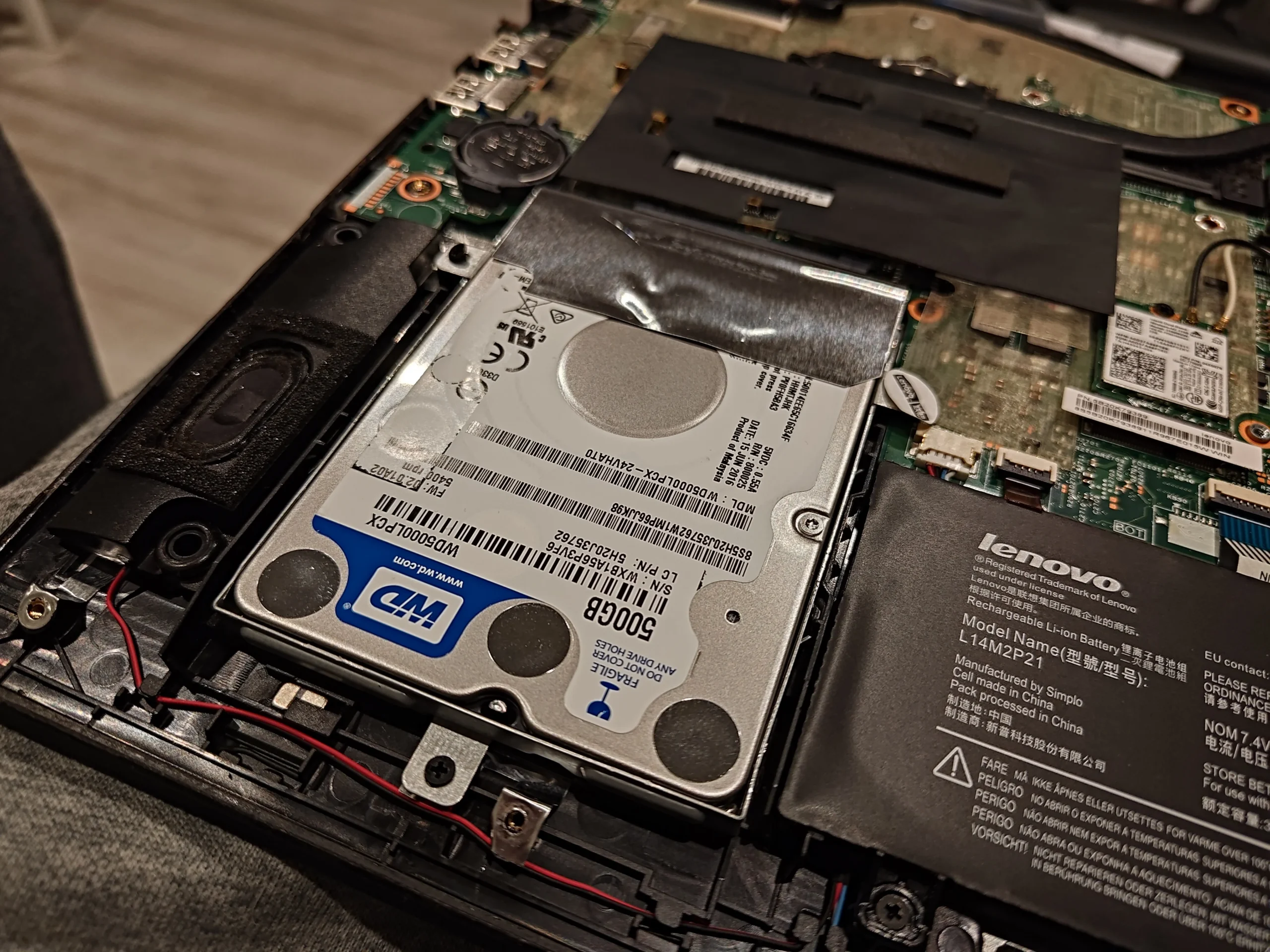
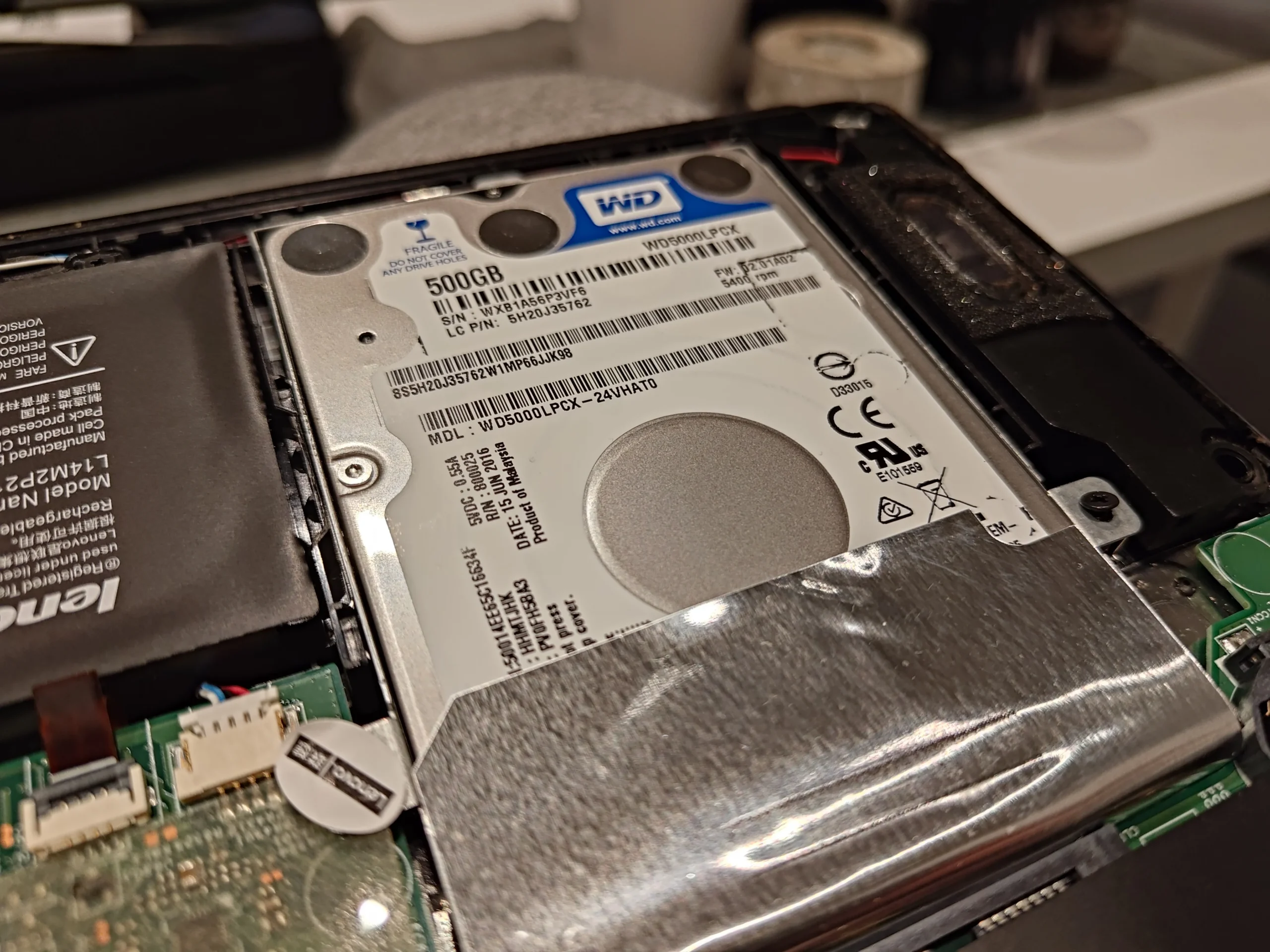
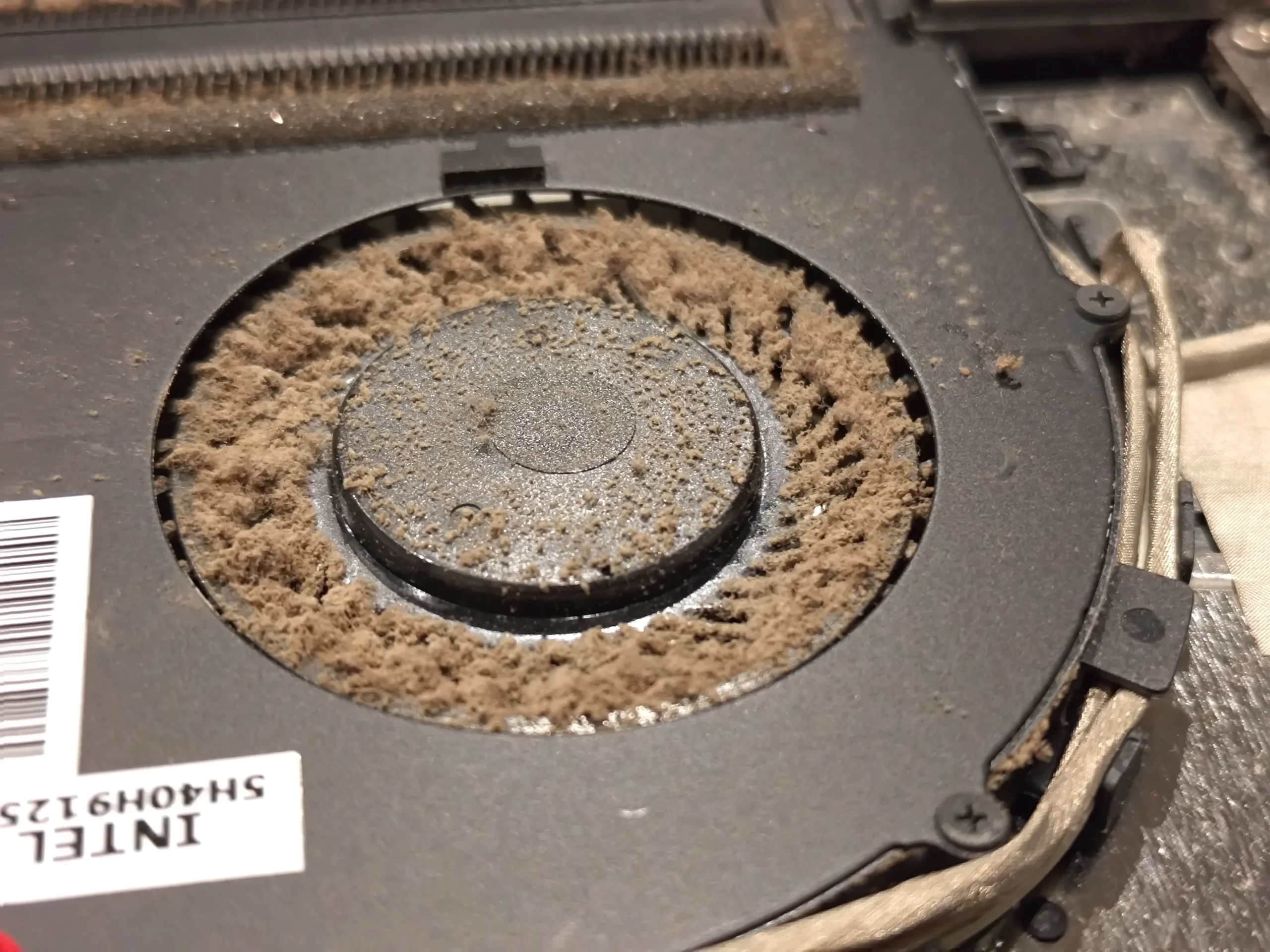
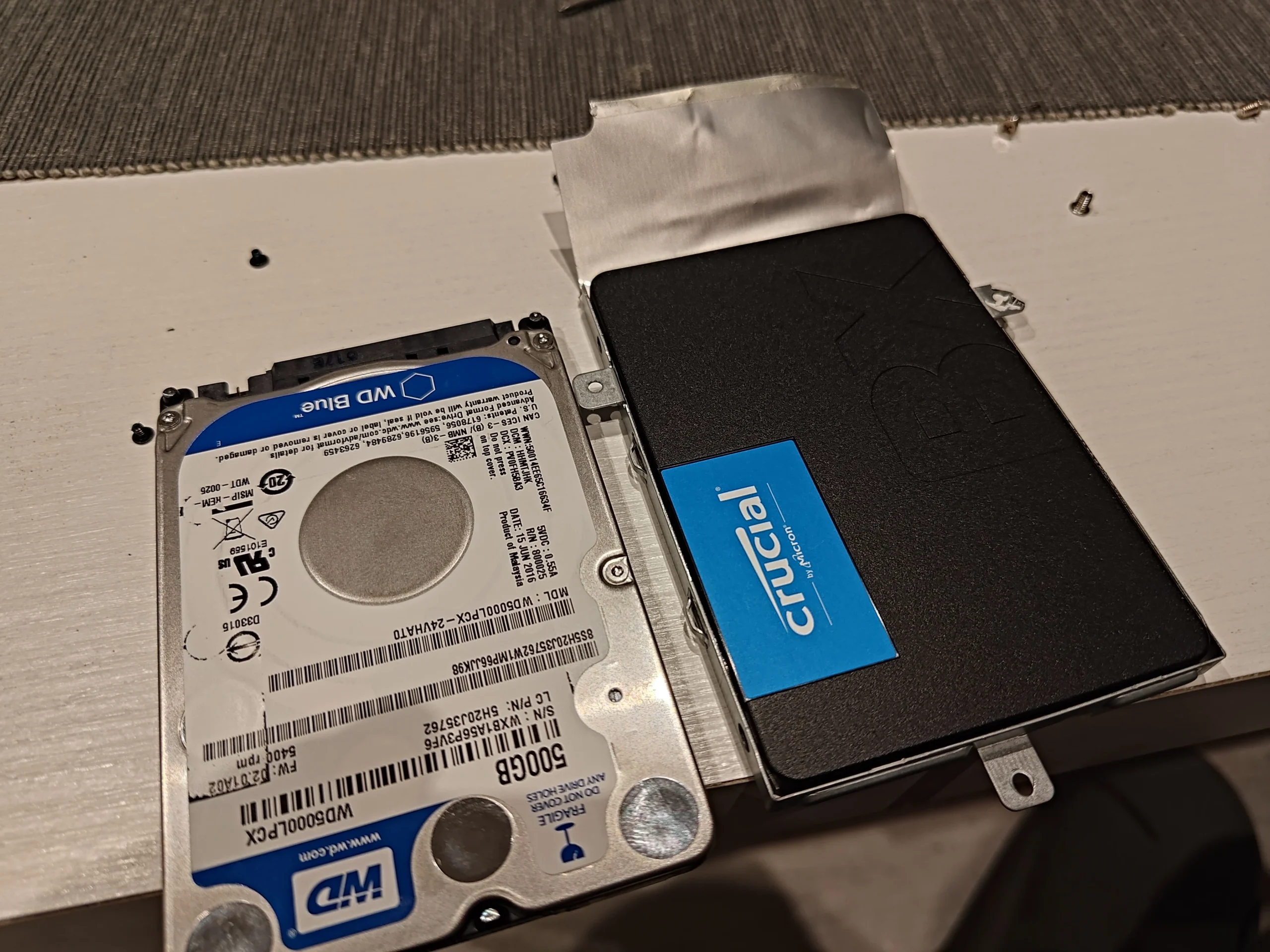
These photos were taken during work on a Lenovo laptop's storage. They show a Western Digital 2.5-inch hard drive still in the bay and a Crucial BX500 SSD beside it. With the lower cover removed, the fan was impossible to ignore: the intake blades had collected a thick, almost felt-like ring of dust.
The photos document the discovered fan condition and the storage parts, but they do not show the SSD finally installed, a completed data migration or paired temperature measurements. This case therefore concentrates on the cleaning decision and the different checks needed for storage and cooling.
In this case study
01 / The unexpected finding
Dust formed a ring around the fan's inlet
The close-up shows brown-grey dust packed along the curved impeller blades, especially around the central opening. The fan may still turn in this state, but the material occupies space where it needs to draw air in.
A quick blast from the outside vent would not show whether the ring was removed. With the base open, the technician can hold the fan still, remove accessible debris and inspect the exit fins rather than letting dust disappear deeper into the chassis.
02 / Why the laptop was open
The old hard drive sat in a separate bay
A Western Digital 2.5-inch hard drive is visible in its carrier beside the battery, while the SSD is photographed on the bench. That drive bay is a different part of the machine from the fan and heat pipe.
Replacing a mechanical drive with an SSD can improve storage responsiveness, but it does not remove dust or repair a noisy fan. Opening the computer for one job is a good opportunity to inspect the other without confusing their outcomes.
03 / Two separate checks
The Crucial BX500 and old drive were compared
The parts photo shows a Crucial BX500 2.5-inch SSD next to the removed or prepared hard drive. Matching the drive format and connector is a practical first check before any installation or data transfer.
The archive stops short of proving the final SSD install or data migration, so this is not a storage performance claim. For the cleaning case, the useful point is that fan and drive share a service visit but need separate work and separate validation.
04 / What to verify
Test cooling and storage independently
After an internal clean, check that the fan runs smoothly, the outlet is clear and the laptop does not shut down under the same workload that triggered concern. Compare temperatures and fan noise under similar conditions if earlier measurements are available.
After a storage change, check that the laptop detects the SSD, starts the intended operating system and the user's data has been transferred or backed up as agreed. A faster boot would not prove the dusty fan was fixed, just as a quieter fan would not prove the SSD was installed correctly.
The engineer’s takeaway
The thick dust ring was discovered because the Lenovo was already open for storage work. An SSD upgrade and fan cleaning are complementary opportunities, but one cannot substitute for the other or prove the other's result.
Before you open the laptop
Can you inspect the fan while upgrading a Lenovo SSD?
Identify the exact Lenovo model first; the label in this archive is too worn to read reliably. Shut down, unplug, follow its battery-disconnection procedure and keep screws and drive brackets in order.
It is reasonable to inspect visible fan blades while the base is open. Hold the rotor still, use controlled cleaning and avoid pulling on the fan lead. If replacing the drive too, plan a verified backup or migration before removing the old disk and do not discard it until the new installation has been checked.
After the clean
What this archive can and cannot prove
The photos clearly prove that the fan was heavily contaminated and show the old hard drive and proposed SSD. They do not include a cleaned-fan close-up, final SSD-in-bay photo, benchmark or temperature comparison.
A useful completed-service record would test fan sound and temperatures under a repeatable task, then confirm storage detection, boot and data separately. Those checks should be made before claiming a result.
Questions from owners
Lenovo fan cleaning during an SSD upgrade FAQs
Answers based on the dusty fan and storage parts visible in this Lenovo case.
Will fitting an SSD fix my dusty laptop fan?
No. An SSD changes storage behaviour, while the fan and heatsink handle cooling. This laptop had a thick visible dust ring that needs its own cleaning.
Can I clean the fan while the hard drive is out?
The base is open, making inspection convenient, but follow the exact model's battery precautions and protect cables and the exposed drive bay from loose debris.
Is the Lenovo model known from these photos?
The underside label is too worn to identify confidently, so this case does not assign a specific Lenovo model number.
Was the Crucial BX500 installed?
The photos show the SSD beside the old 2.5-inch hard drive and the hard drive in the laptop. They do not show the final SSD installation or a completed data transfer.
Does a thick dust ring mean the fan itself is faulty?
Not necessarily. Inspect and clean the buildup, then check that the rotor turns smoothly and the laptop's fan control works. A failing bearing is a separate fault.
How should I compare results after both jobs?
Assess cooling under the same workload and storage with detection, boot and data checks. A fast SSD cannot serve as evidence that the cooling route was cleared.
UK Lenovo cleaning enquiries
Opening your Lenovo for a drive upgrade?
If you are in the UK and have a similar dusty fan, tell us the model from a readable label, whether the machine also needs an SSD and your postcode. A fan photo helps us discuss the right cleaning access.
We can plan the storage and cooling checks together while keeping the results separate, so you know what work was actually completed.
Read about our laptop fan cleaning service, then use the form to tell us your computer model, symptoms and UK postcode.
Free to enquire · No obligation to book. We discuss the proposed work and price before you decide.
The workshop photos
Lenovo fan dust and SSD visit photo gallery
Open the photos to see the heavy fan buildup, the original 2.5-inch drive bay and the SSD being compared.