Published 29 November 2026 · Lenovo Legion 5 gaming laptop case study
Legion 5 fan clean
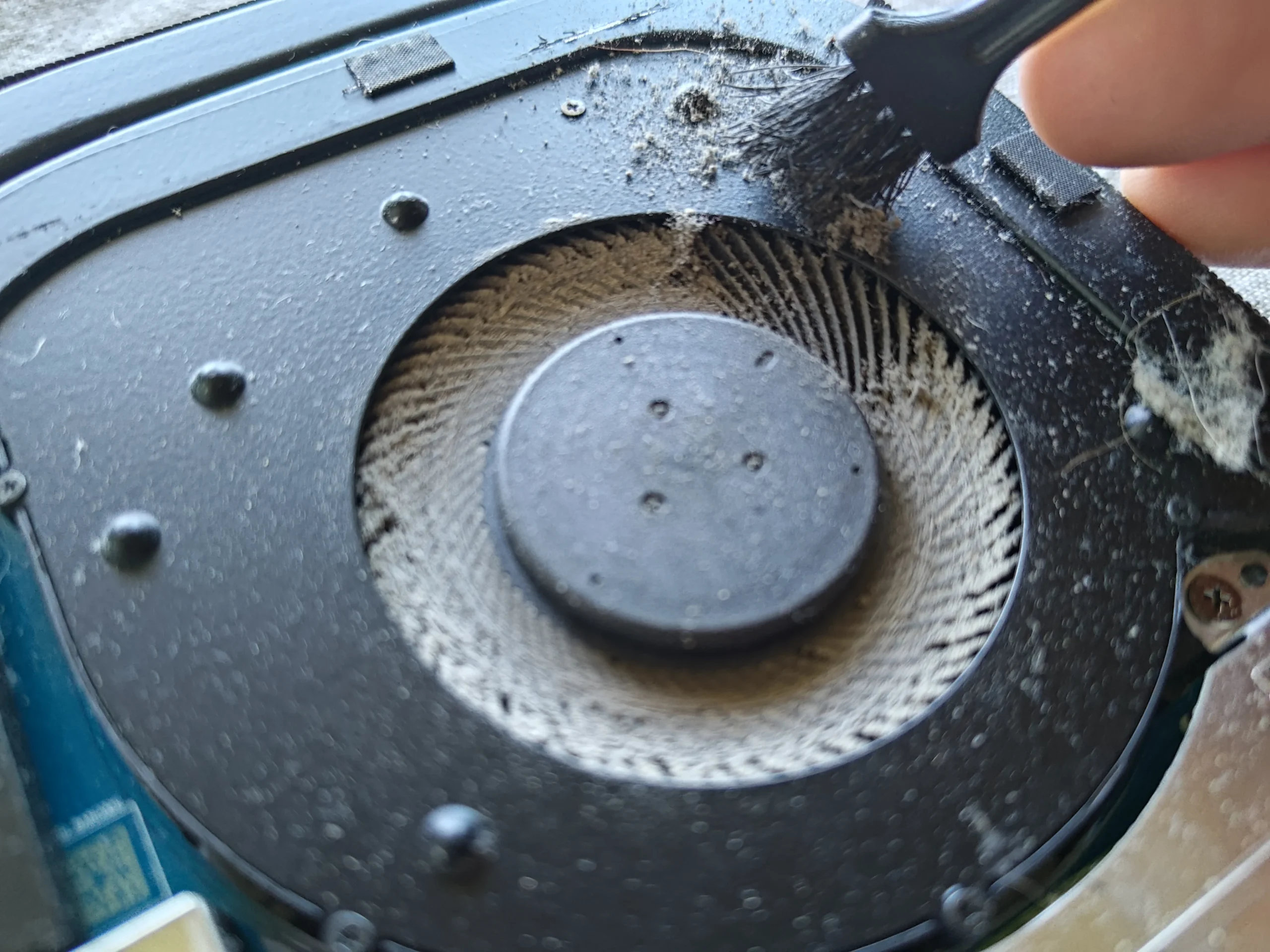
the brush reached the blades, but the fin exit still needed checking.
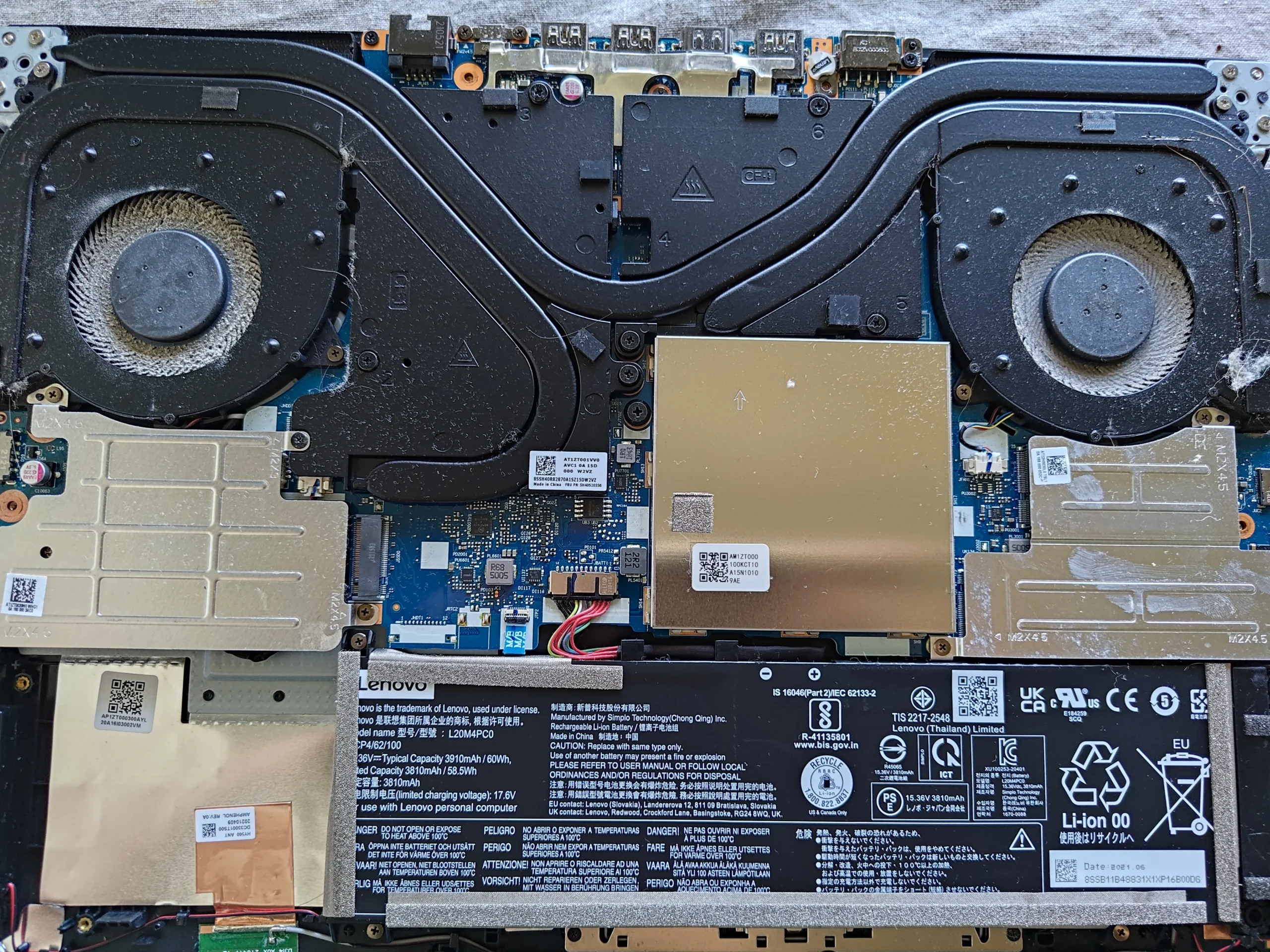
This Legion 5 archive gives unusually clear step-by-step views of one dusty blower being brushed while its housing is open. A wider view shows the second fan and shared cooler, so the clean has to extend beyond the first circular rotor.
The system
Lenovo Legion 5 with two cooling fans
Cleaning action
Dust lifted from blower blades with direct access
Additional work
Shared cooler and two chip contacts exposed
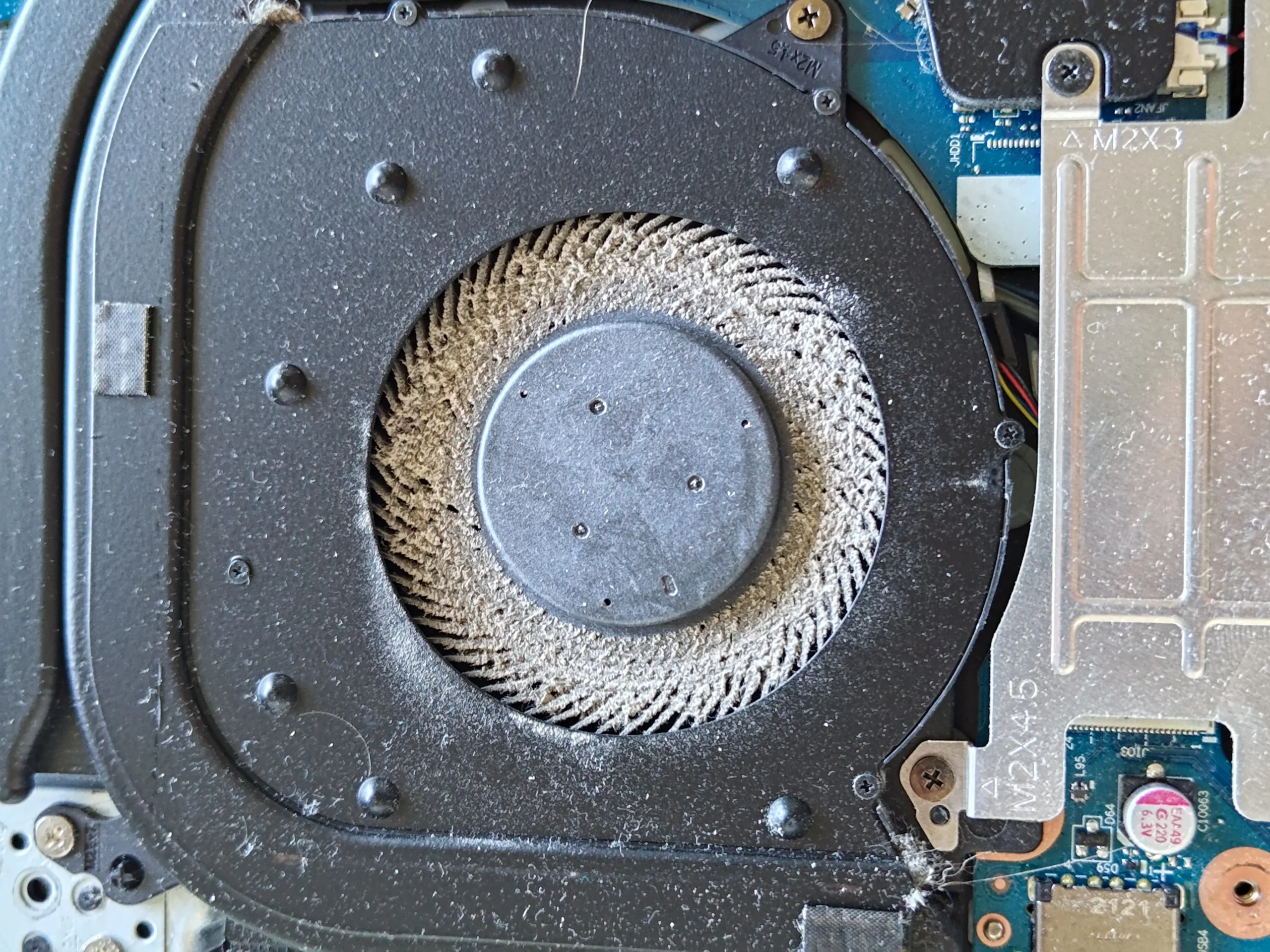
The easiest part of a laptop fan to understand is the round rotor. This Legion 5 photo set shows a brush working across it with the base removed, making the cleaning action unusually clear. The rotor had visible dust before that step. But the second fan and copper outlet fins also sit in the same cooling system.
Photos of the lifted cooler and chip surfaces record deeper thermal work. Monitoring screens appear in the folder, but they do not form a trustworthy matched test. This case shows what was physically accessed without promising a numerical result.
In this case study
01 / The direct clean
Dust was lifted from the fan with the rotor controlled
The close-up shows a soft brush working around the blades of one blower. Holding the rotor still keeps it from free-spinning while dust is loosened, and direct access helps keep material out of the bearing.
Clean around the blade roots and housing edge, then capture the loose dust. Avoid pushing a clump from the blade toward the narrow fin exit.
02 / The wider view
The other blower needed its own inspection
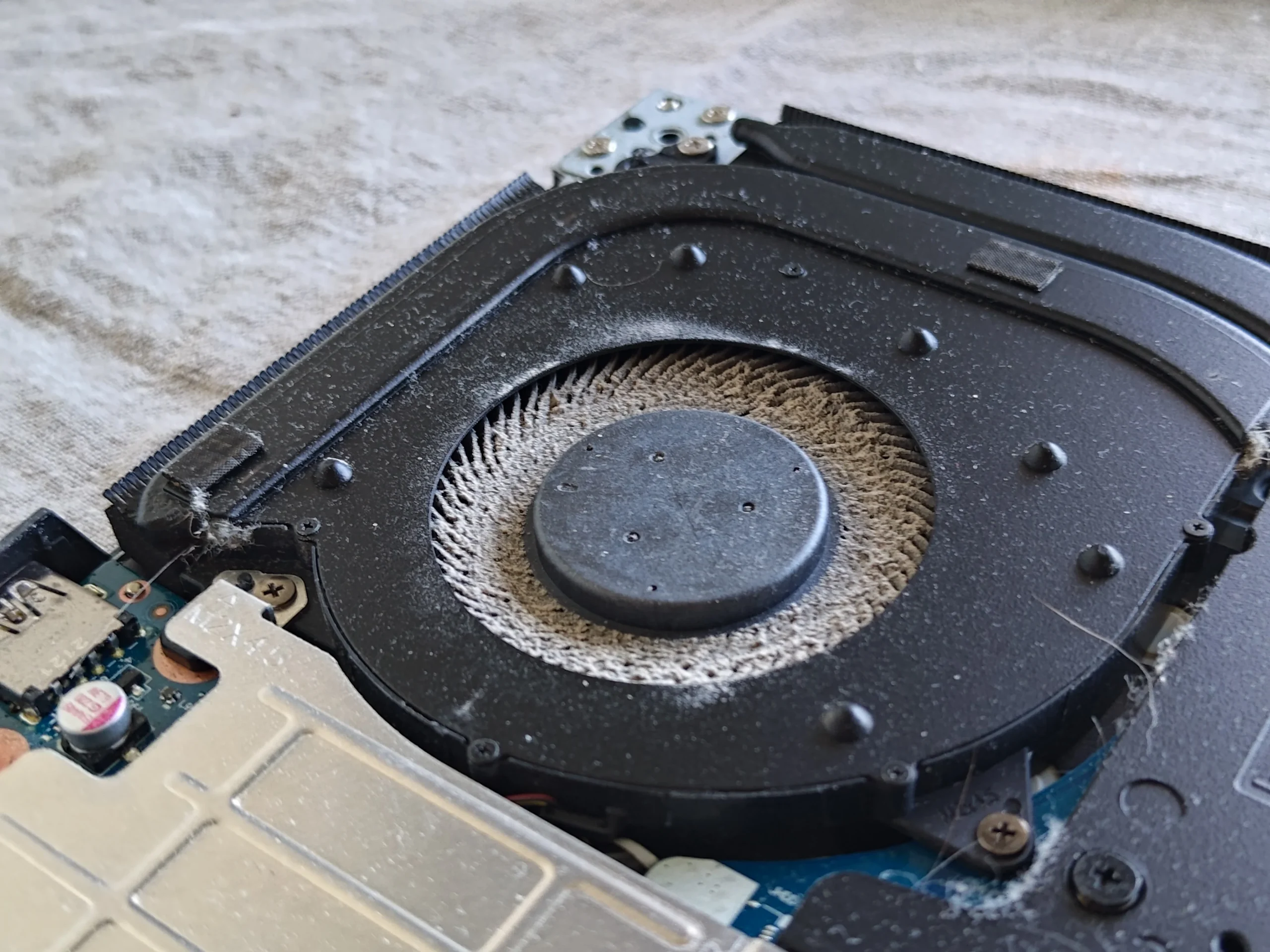
The open-chassis photo shows a fan on each side of the shared cooler. Dust loads can differ, so inspect both rotors and their outlets even when one looks worse. A cleaned left fan is not proof the right-hand fin bank is clear.
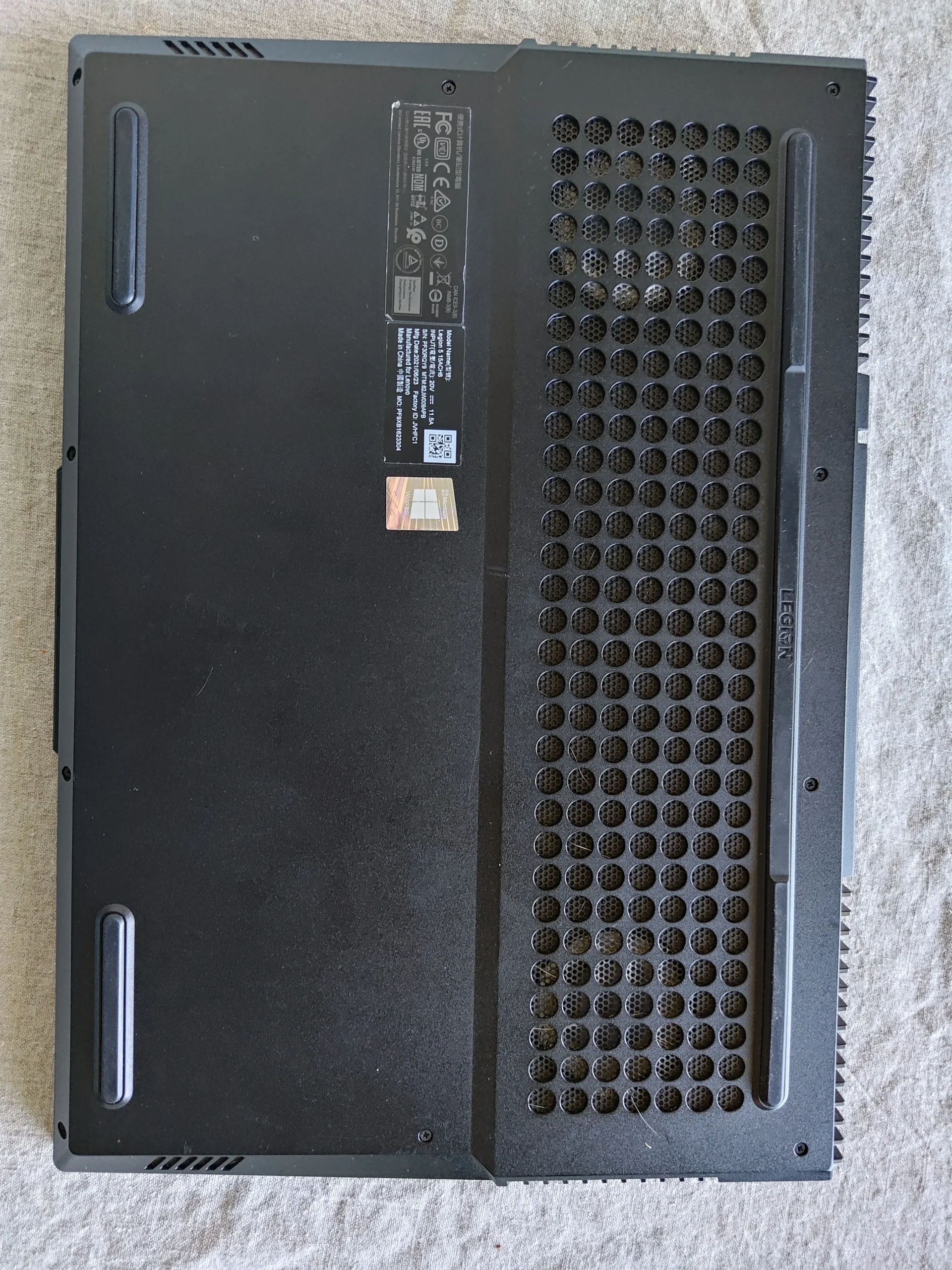
The bottom cover has a long vent strip. Check its inner face before refitting so the freshly cleaned fans have an open supply of air.
03 / Beyond the rotor
The outlet fins are the final narrow air passage
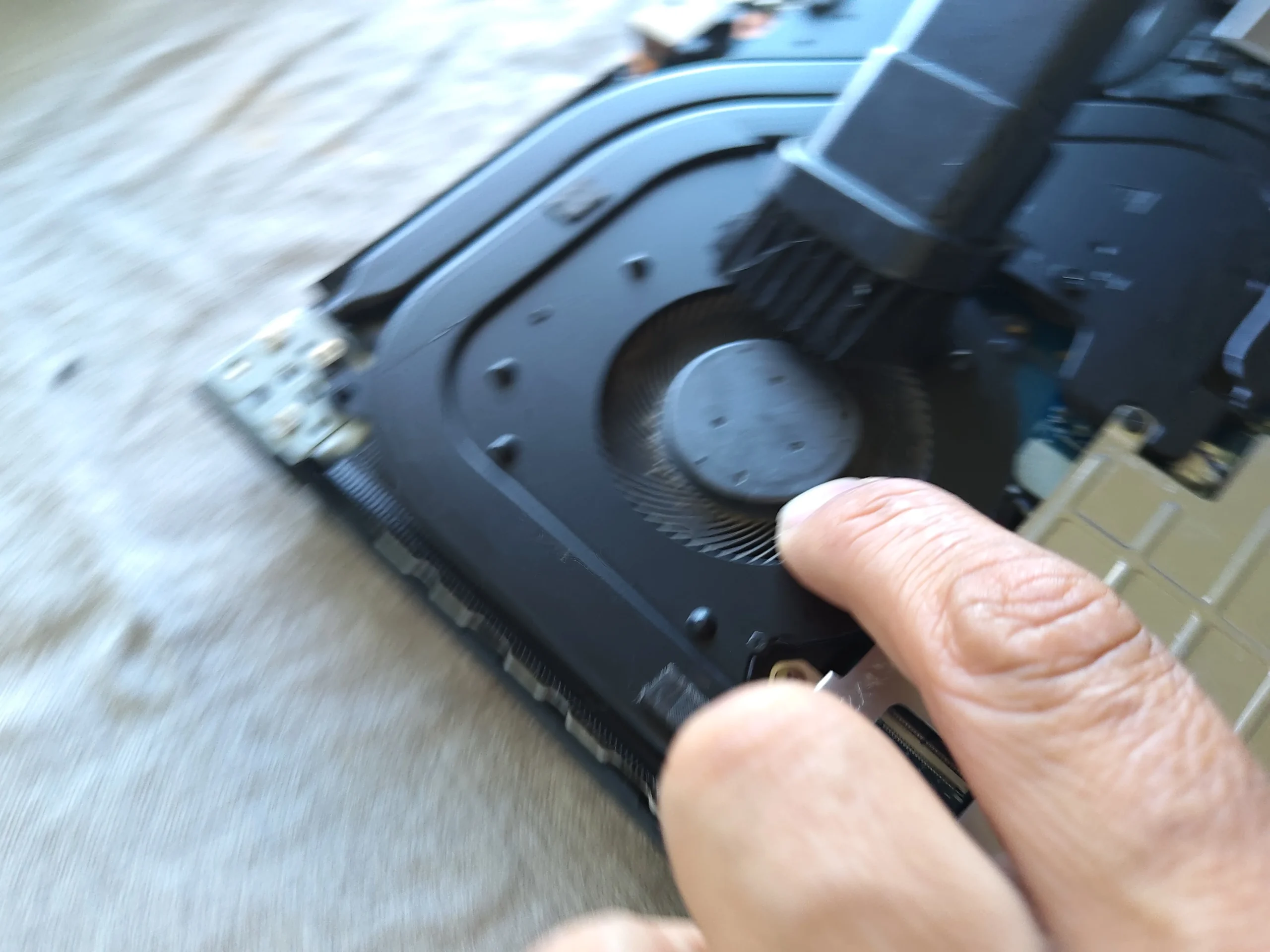
The fan-and-copper close-up shows the fin area immediately beside the blower. Any lint against that face can restrict exhaust even when the blades turn freely. Inspect it directly and avoid bending the thin metal plates.
One photo shows a cleaning nozzle nearby, but uncontrolled high pressure can overspin a fan or move dust into the board. Use controlled tools and keep the rotor restrained.
04 / A separate service
The shared cooler lift exposed two chip surfaces
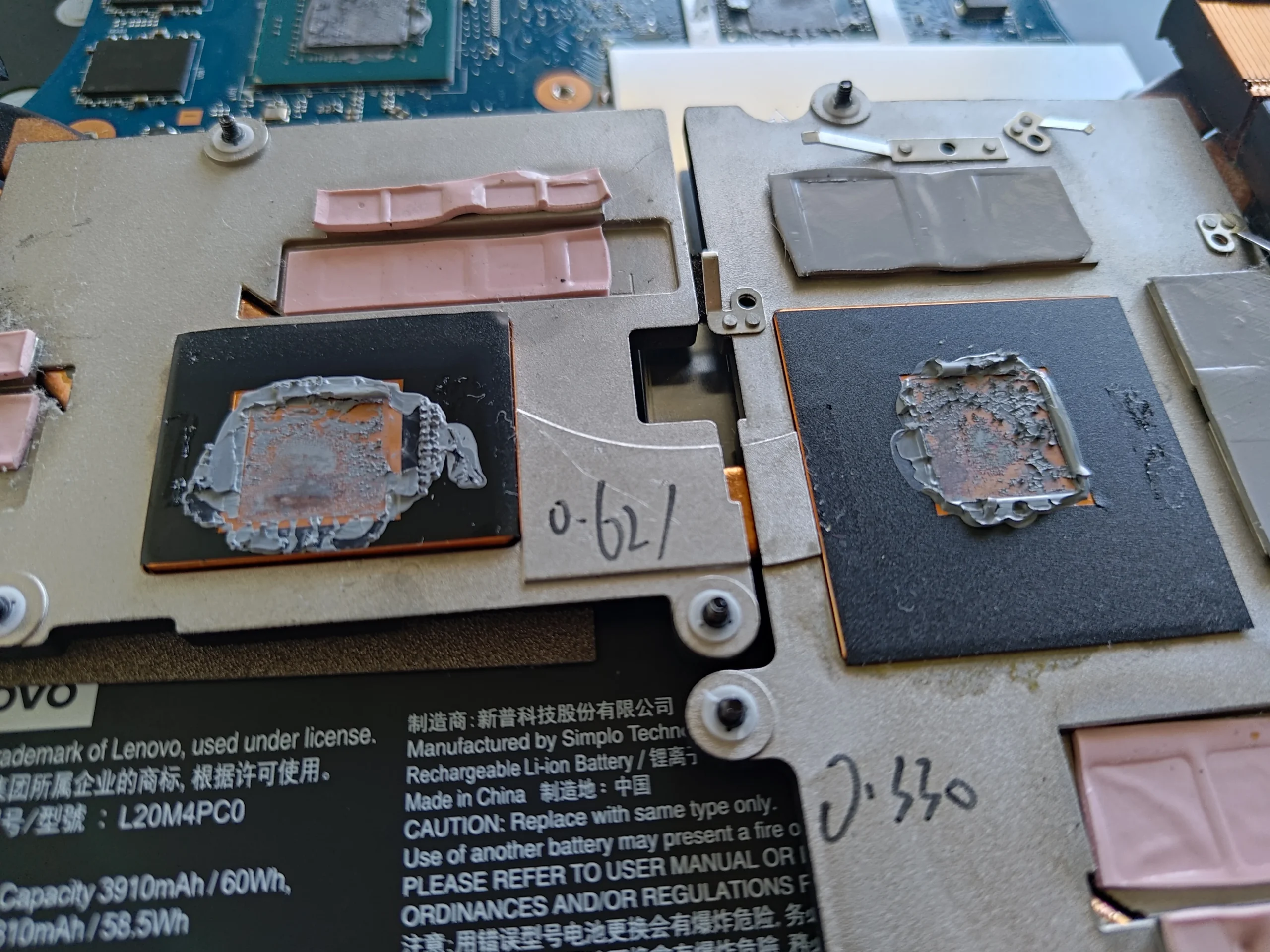
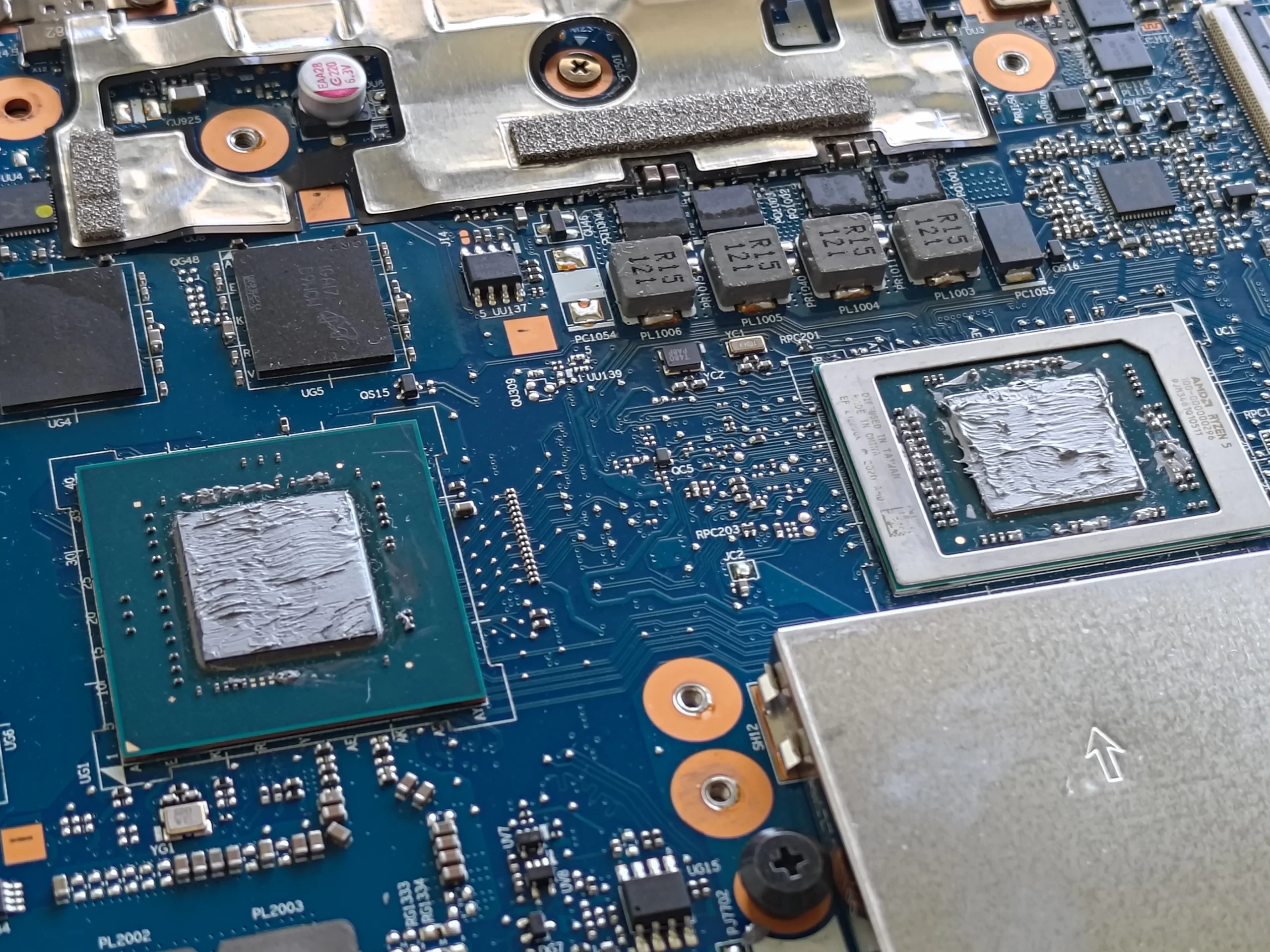
The board photo shows the processor and graphics contacts after the heat-pipe assembly was lifted. The cooler underside has matching plates and smaller thermal pieces. All disturbed materials need appropriate cleaning and restoration before even refitting.
A fan clean can often stop before this step. If the assembly has been lifted, complete the thermal-interface work and check fan leads before powering on.
The engineer’s takeaway
This Legion 5 sequence makes controlled fan brushing easy to see, but the meaningful check continues through the second fan, both fin exits and the base intake. Cooler removal adds a distinct thermal-contact task.
Before you open the laptop
Can you brush a Legion 5 fan yourself?
Power down, unplug and follow the exact machine-type service guide. Map the screws and disconnect the battery as directed. Use a soft tool, hold the fan still and avoid dragging dust over the motherboard.
Inspect both outlets after brushing. Leave the shared cooler mounted unless you are prepared to restore paste and any smaller pad or putty contacts accurately.
After the clean
How to check the result
After the base is fitted, listen for a smooth fan response and confirm both outlets pass air. If you have earlier temperature readings, compare them under the same workload and similar room conditions.
The archive's monitoring screens do not establish a matched before-and-after result.
Questions from owners
Lenovo Legion 5 fan-brushing FAQs
Answers drawn from this direct fan-cleaning sequence.
Should I let the fan spin while brushing?
No. Restrain the rotor so the blades and bearing are not stressed during cleaning.
Will brushing the blades clear a blocked heatsink?
Not necessarily. Lint can remain at the narrow fin outlet beyond the fan.
Why check both fans?
This Legion 5 has two separate blower paths, and one can be dustier than the other.
Can I clean the base vent without lifting the cooler?
Yes. Accessible intake and fan dust can often be addressed separately from thermal-contact work.
What if the shared cooler comes off?
Clean and renew disturbed paste and restore the original pad or putty arrangement before refitting evenly.
Do the monitoring photos prove lower temperatures?
No matched test pair is documented, so a numerical gain is not claimed.
UK Legion 5 fan enquiries
Still noisy after brushing the visible fan?
If you are in the UK, tell us the exact Legion 5 machine type, postcode and which side sounds louder. Describe whether you have cleaned the blades, the fins or only the outer vents.
We can discuss checking both fan chambers and outlets, with a separate thermal-contact assessment if the cooler has been moved.
Read about our Lenovo laptop fan cleaning service, then use the form to tell us your computer model, symptoms and UK postcode.
Free to enquire · No obligation to book. We discuss the proposed work and price before you decide.
The workshop photos
Legion 5 fan brushing and fin gallery
Open the workshop photos to see the brush on the blades, second fan, fin exit and cooler contacts.