Published 24 November 2026 · Lenovo Legion 5 gaming laptop case study
Legion 5 fan clean
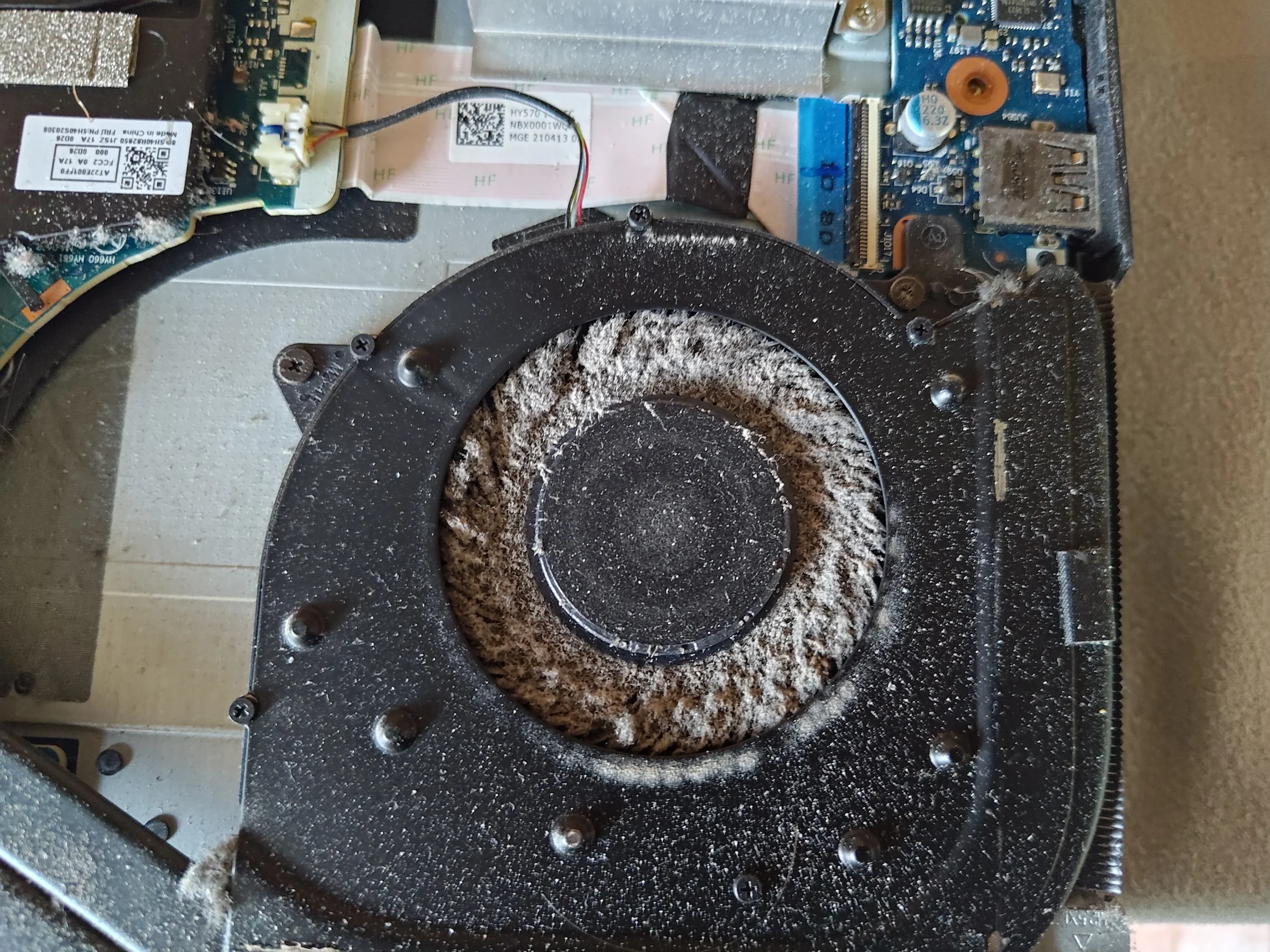
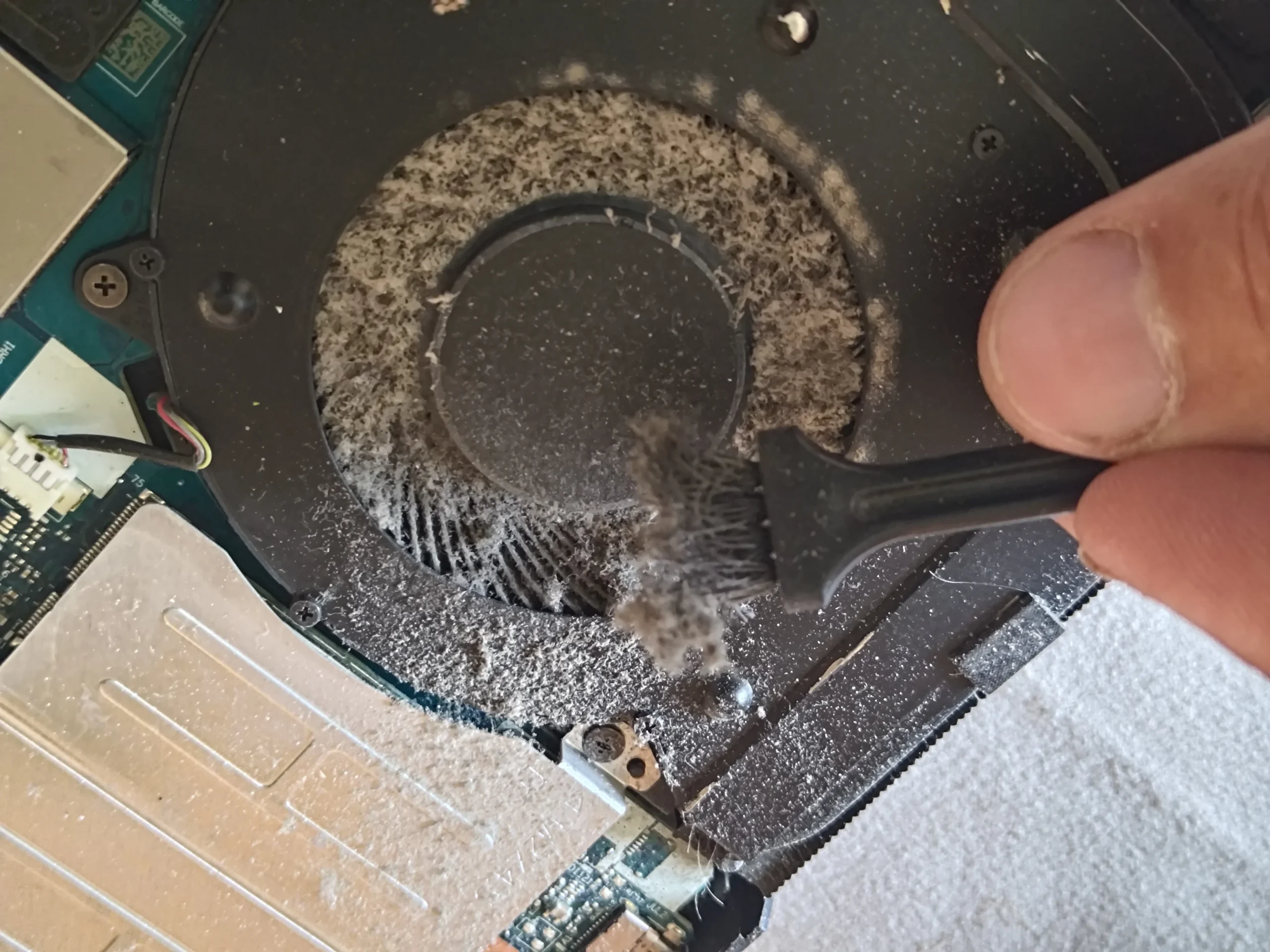
a visible dust ring traced the fan's working edge.
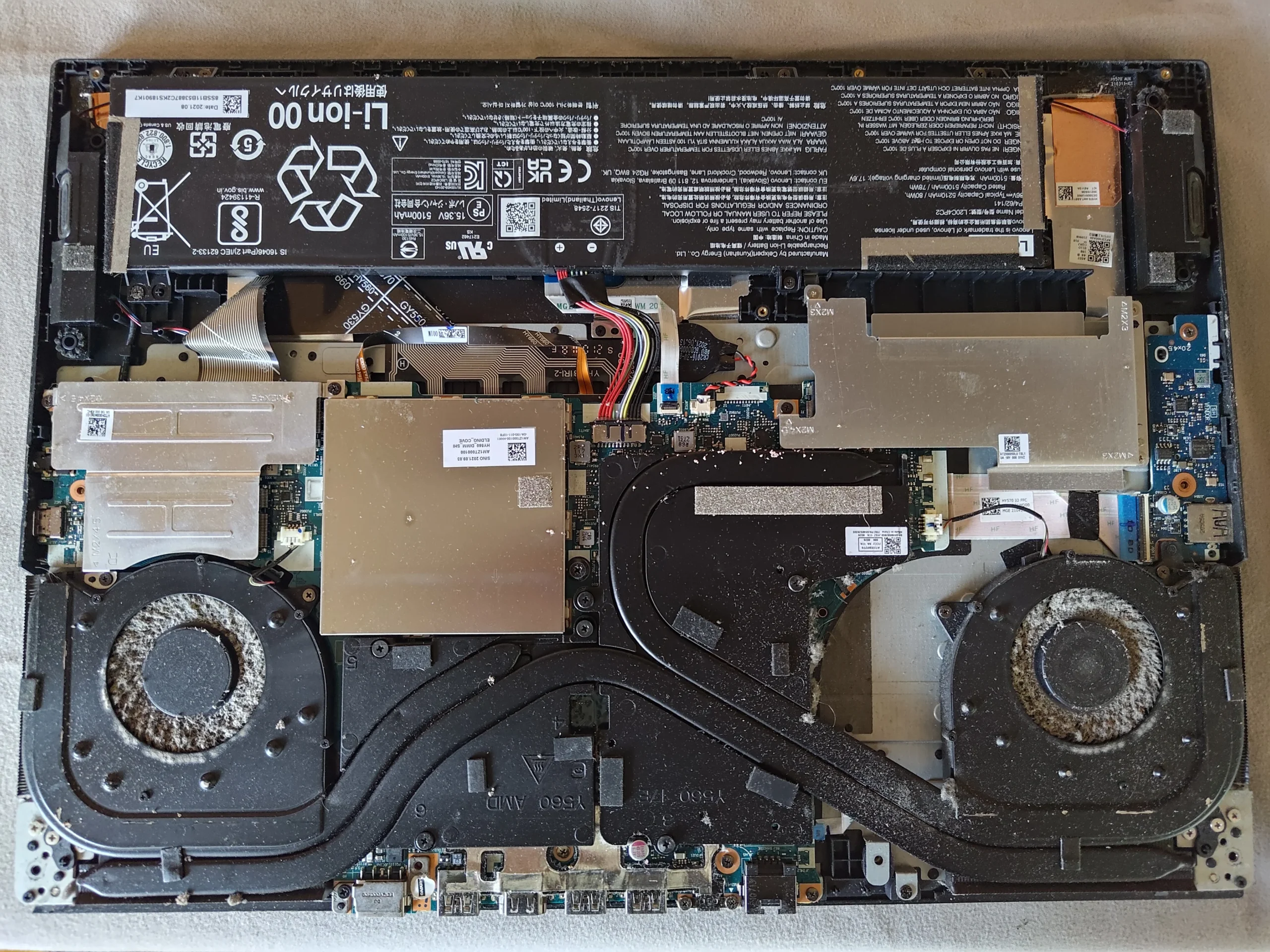
One blower in this Legion 5 had a heavy ring of dust and lint around its intake side. The photos then show the full two-fan assembly, removed cooler contacts and chip surfaces, making the airflow and thermal jobs easy to separate.
The laptop
Lenovo Legion 5 with two blowers
Visible dust
Thick ring around one fan intake
Deeper work
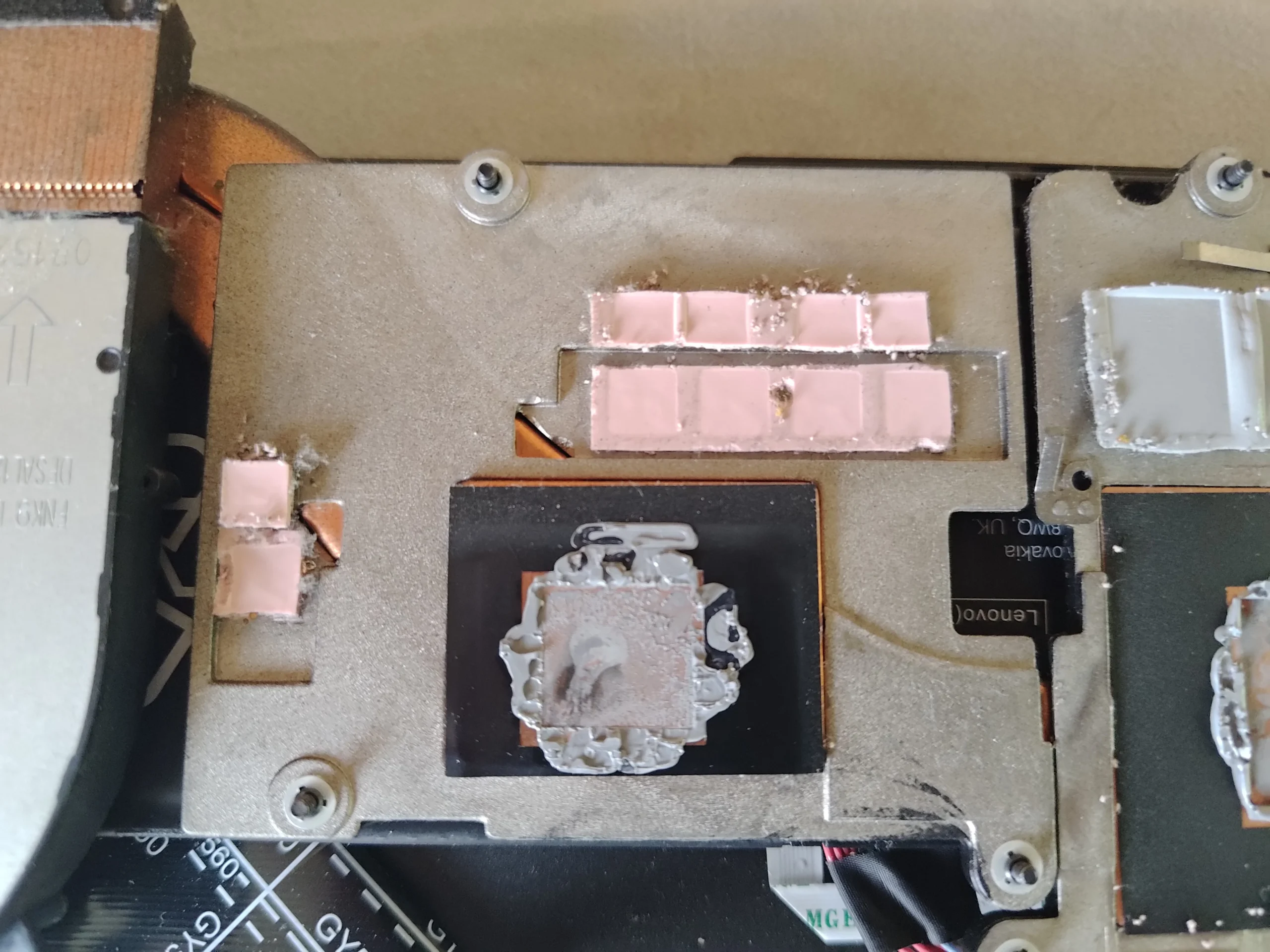
Shared cooler lifted from two main chips
A fan can spin while a ring of lint builds around its intake and blade roots. The close-up of this Lenovo Legion 5 shows exactly that kind of coating on one blower. A wider photograph shows the second fan and shared copper cooler, so the dusty fan is only one part of the system to inspect.
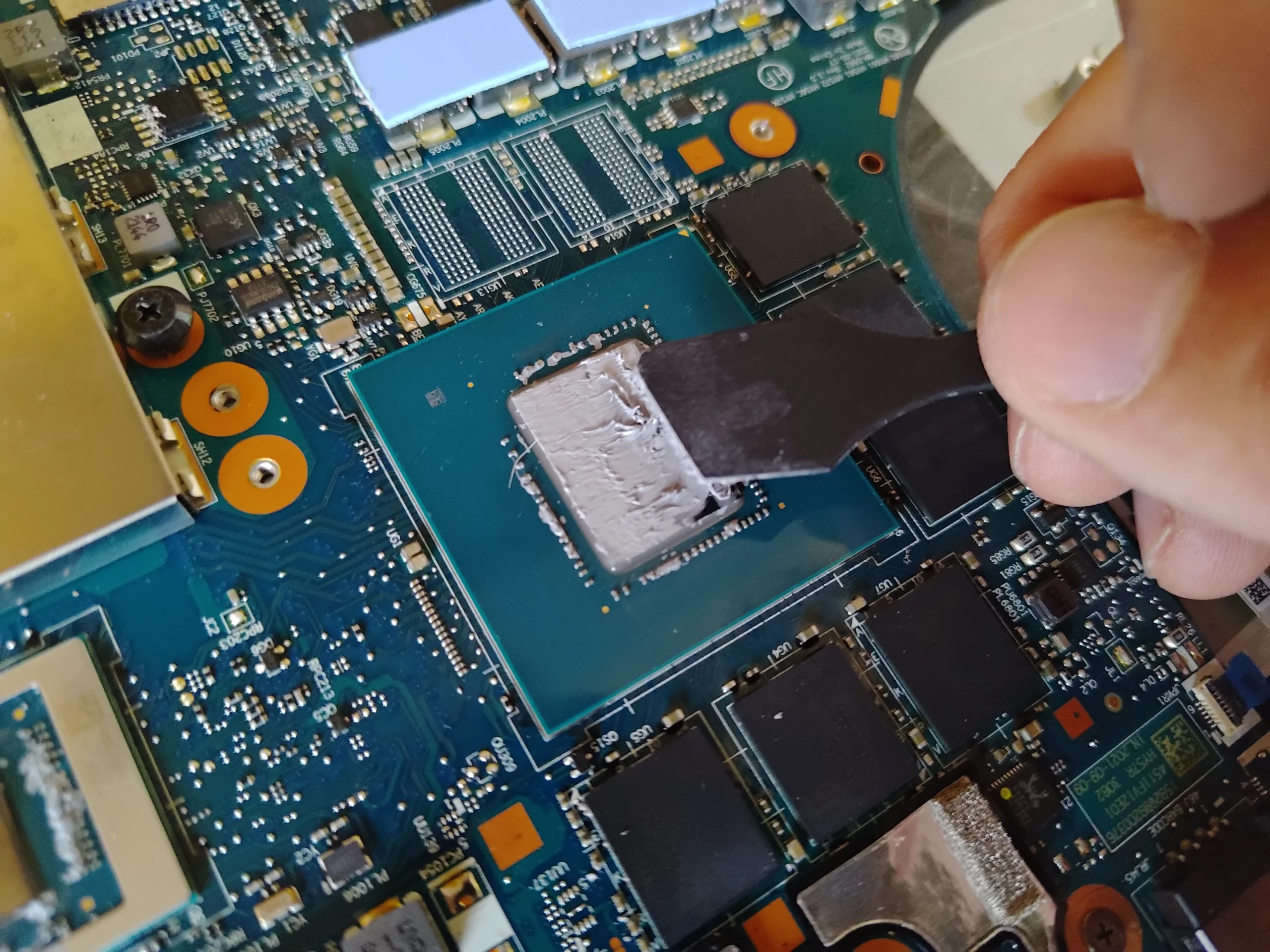
The folder also shows the cooler underside and chip surfaces while thermal material was handled. It does not include a reliable before-and-after temperature test, so the article reports the visible dust and service steps rather than a measured cooling gain.
In this case study
01 / The clear finding
Lint coated the fan intake and blade roots
The fan close-up has a pale, thick ring around the rotor and inner housing. That material can interfere with clean airflow and should be lifted carefully rather than blown across the motherboard.
Hold the rotor still while brushing. Work around the whole circle, then inspect the fin exit beyond the fan; a clean rotor does not prove the outlet is open.
02 / The complete route
The second fan still needed a separate check
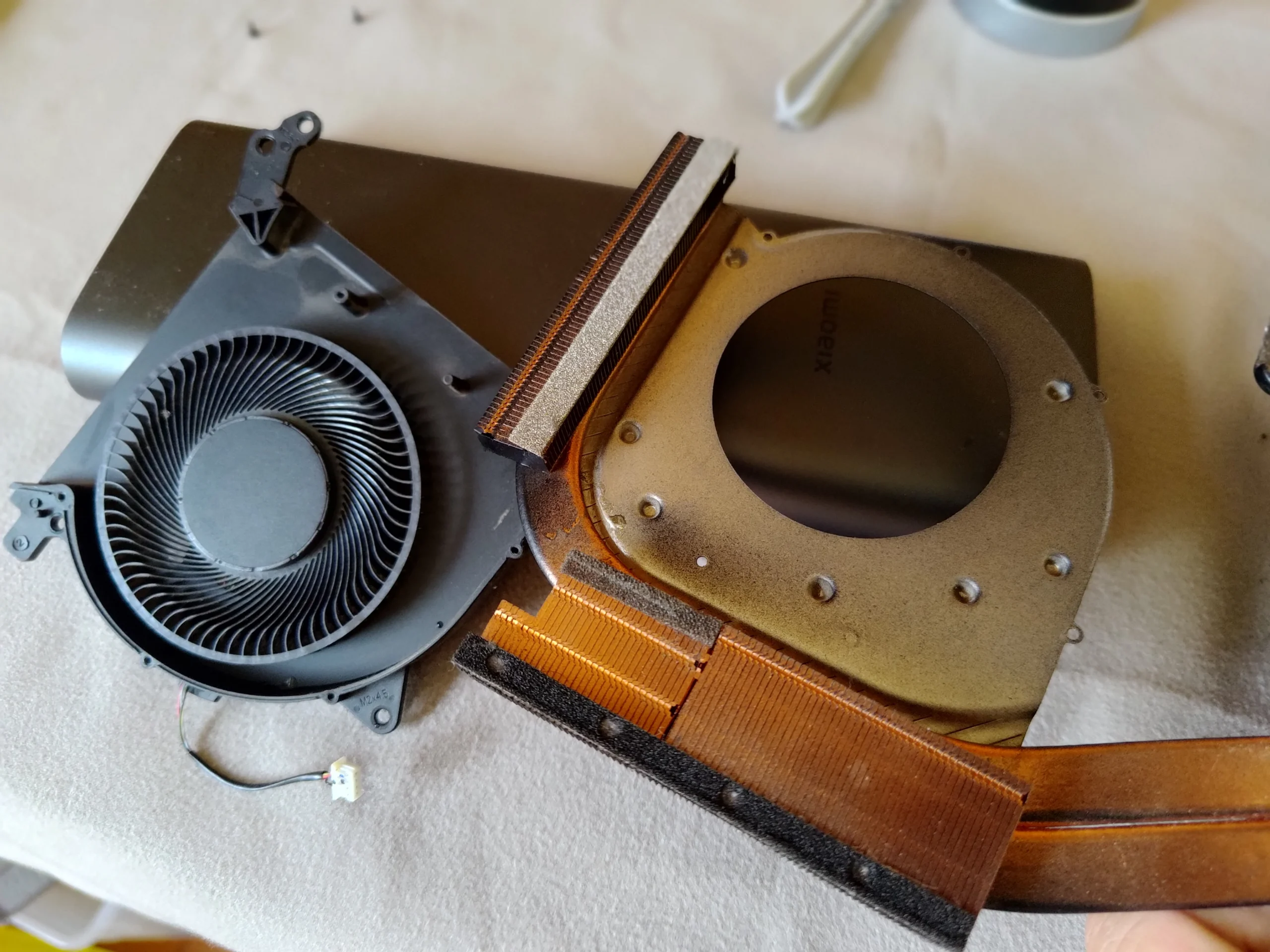
The chassis overview shows two fans and a broad shared cooler. Dust can accumulate unevenly. The photos emphasise one dirty fan, but both fan chambers and their fin outlets should be inspected before closing the laptop.
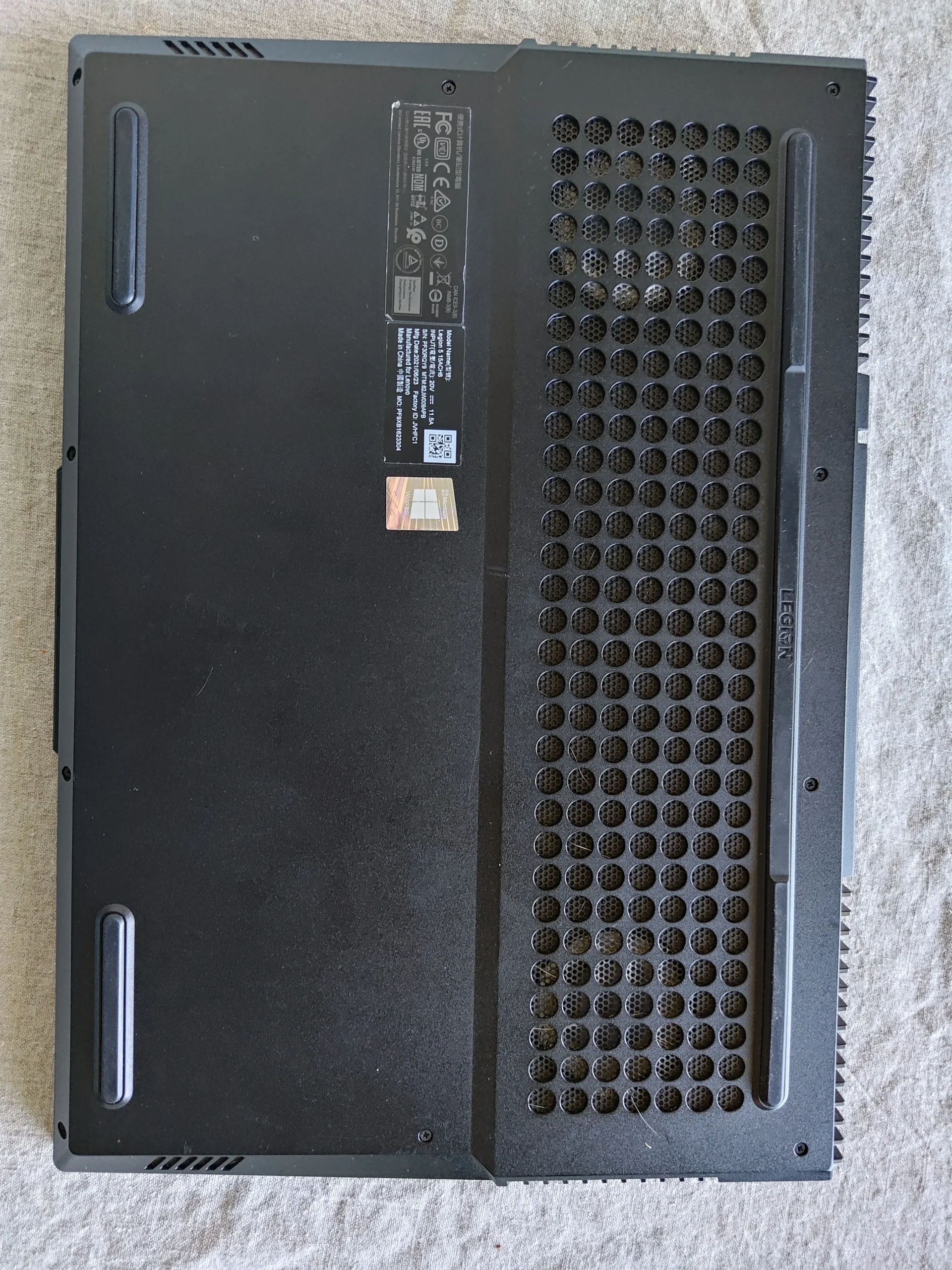
The long underside grille supplies air to these fans. Clean both sides of its removable cover if accessible, and keep it fully dry if any detached filter has been washed.
03 / When heat pipes are lifted
The cooler has two main chip plates and smaller contacts
The removed assembly shows large processor and graphics plates along with smaller pink thermal pieces. Their original locations matter. The main plates need to seat evenly after cleaning and renewing any disturbed compound.
A random thicker pad can hold the cooler away from a chip, so preserve the correct material type and thickness rather than treating every contact alike.
04 / The board-side surfaces
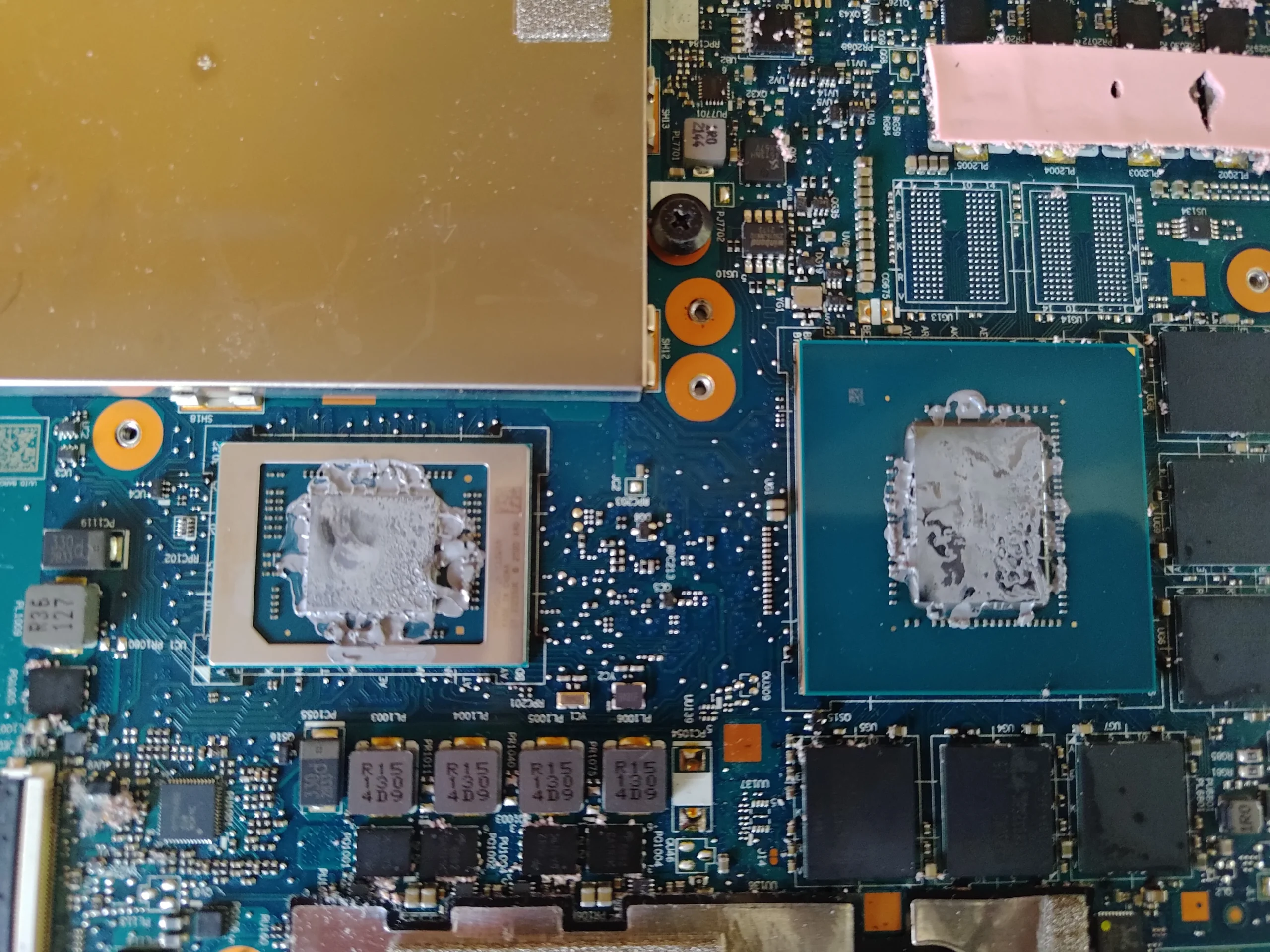
Old compound was worked off the exposed chips
The chip close-ups show old grey material and a tool working on one surface. Remove residue gently and keep cleaning fluid away from board connectors. The contacts should be ready before the shared cooler is refitted in its specified screw order.
After assembly, check both fans and temperatures under a comparable workload. The photographs do not document that measured outcome.
The engineer’s takeaway
The thick fan dust ring is the distinctive warning in this case. It invites a full check of both fan routes, while cooler removal commits the repairer to accurate paste and pad restoration.
Before you open the laptop
Can you clean a Legion 5 fan ring yourself?
Power off, unplug the charger and follow the exact Legion 5 machine-type service guide. Map the base screws and disconnect the battery as directed. Restrain each fan while removing loose dust with a soft tool.
Do not lift the copper assembly just to reach accessible fan dust. If deeper access is needed, photograph screw order and all pad or putty positions and prepare suitable replacement materials.
After the clean
What to check after cleaning
Listen for smooth fan response and ensure no cable touches a blade. Compare CPU and GPU temperatures during the same task and room conditions if you have a baseline.
No matched readings appear in this archive, so a specific temperature reduction cannot be inferred from the photos.
Questions from owners
Lenovo Legion 5 dust-ring FAQs
Answers based on the ring-coated blower and lifted cooler photographed here.
Can a fan work with a dust ring around it?
Yes, it may still spin while dust occupies part of the air path. This fan had a thick visible ring.
Should the second fan be cleaned too?
Inspect it and its outlet. Dust can collect unevenly across the two sides.
Can I brush the fan while the laptop is on?
No. Shut down, unplug and follow the service procedure before opening it; hold the rotor still during cleaning.
What happens if I lift the cooler?
You disturb paste and possibly smaller pad or putty contacts. Restore them accurately and seat the cooler evenly.
Is this the same as every Legion 5?
No. Legion 5 machine types can use different layouts and screws. Check the label on your own device.
Was a temperature improvement measured?
No comparable test is recorded in this photo archive.
UK Legion 5 cleaning enquiries
A visible ring around your Legion fan?
If you are in the UK, tell us your exact Legion 5 machine type, postcode, and whether the dust is visible at one or both fans. Describe when heat or noise appears.
If someone has already lifted the cooler, mention it. That helps us plan the fan clean and any separate thermal-contact assessment.
Read about our Lenovo laptop fan cleaning service, then use the form to tell us your computer model, symptoms and UK postcode.
Free to enquire · No obligation to book. We discuss the proposed work and price before you decide.
The workshop photos
Legion 5 fan dust-ring gallery
Open the workshop photos for the dusty blower, two-fan layout, cooler plates and chip preparation.