Published 28 October 2026 · Lenovo Legion 5 Pro 16ITH6H case study
A dusty Legion fan
and the work beneath its cooler.
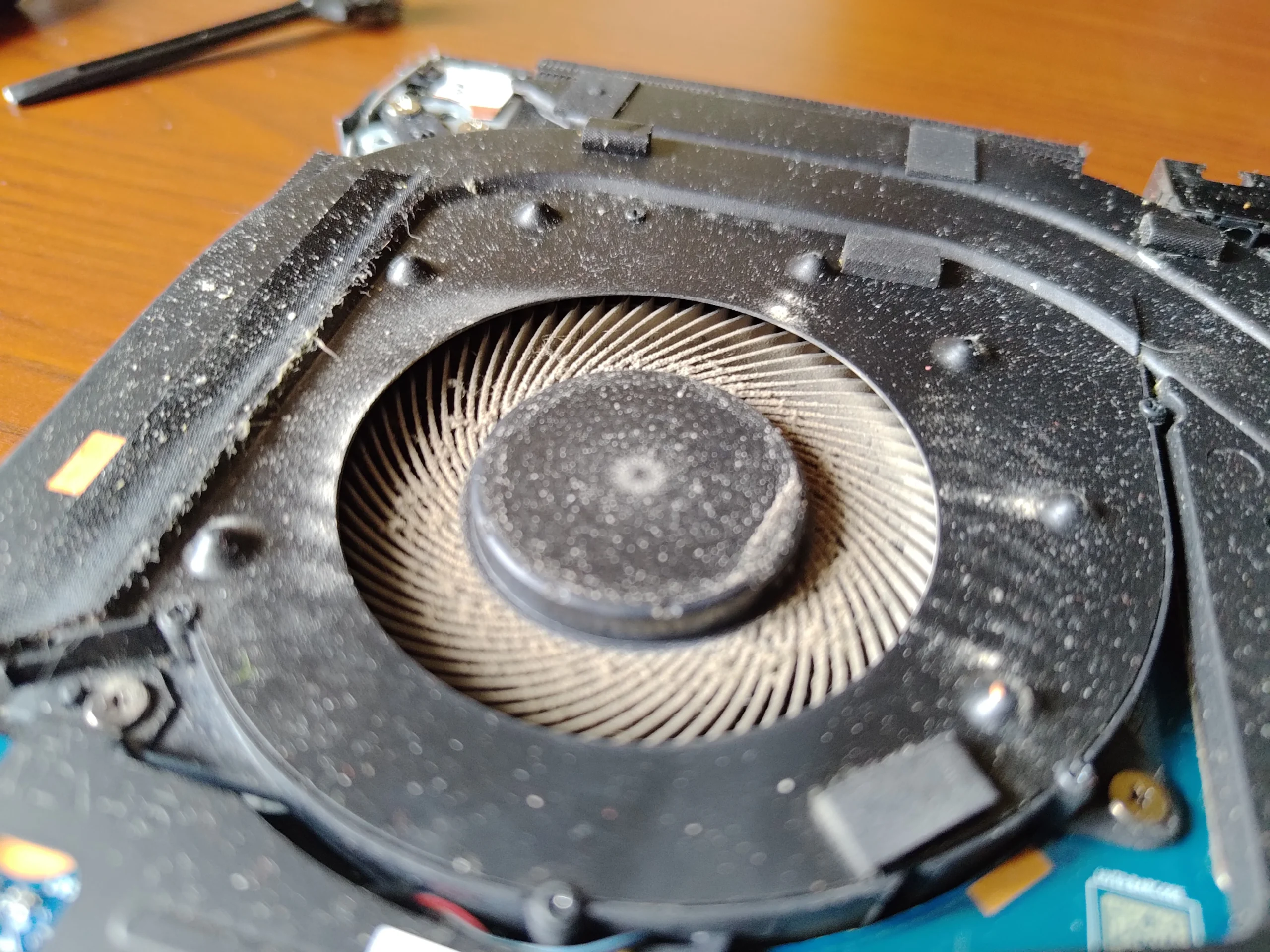
The close-ups of this Legion 5 Pro show pale dust coating a fan and collecting along its housing. Later photos show a cleaner fan and fresh thermal compound being dispensed onto the two main chips. The stages are related, but they solve different parts of the cooling path.
The machine
Legion 5 Pro 16ITH6H / Type 82JD
Visible fan work
Dusty blades followed by a cleaner view
Thermal work
Fresh compound shown on two chip surfaces
This is a different Legion 5 Pro 16ITH6H from the one in our earlier cooler-and-pad case study. Here the photos are particularly useful because the same fan area appears dusty and later much cleaner. The lifted cooler also exposes the two chip contacts, and separate close-ups show compound being applied to each.
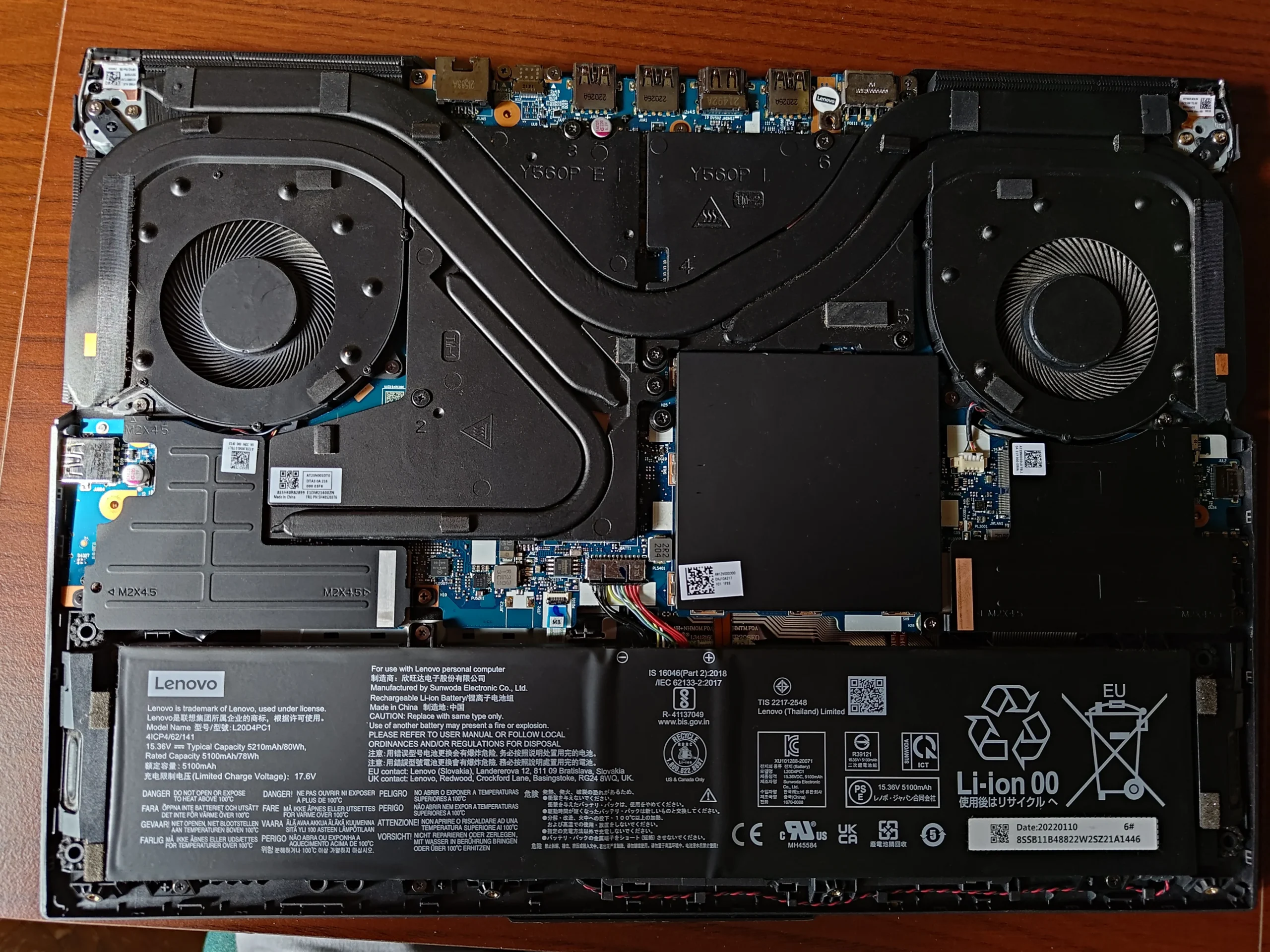
The model and machine type were checked from the underside marking; its identifying image is deliberately left out of the gallery. We have no before-and-after temperature readings or reported customer symptom in this archive, so this article describes the visible work rather than promising a numerical improvement.
In this case study
01 / The visible obstruction
Dust was sitting on the fan blades and housing
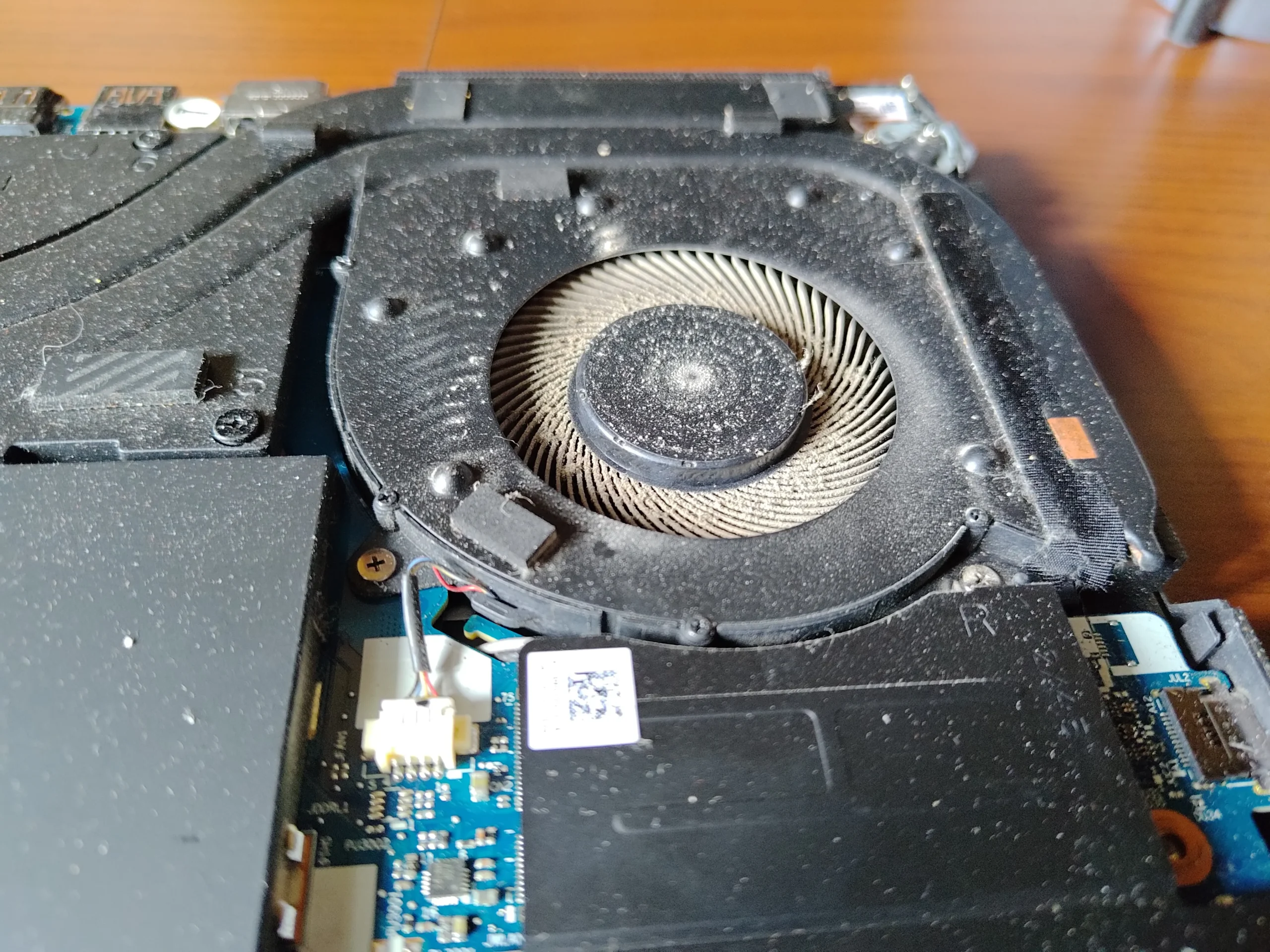
The first close-up shows a light-coloured coating on the curved fan blades, the centre hub and the surrounding plastic. Dust on a spinning fan can reduce the clean edge that moves air, while debris around the outlet can also restrict the route through the fins.
A laptop can still make a normal fan noise when the airflow route is dirty. That is why we look at the blade ring and outlet, rather than treating a spinning fan as proof that the cooler is clear.
02 / After access
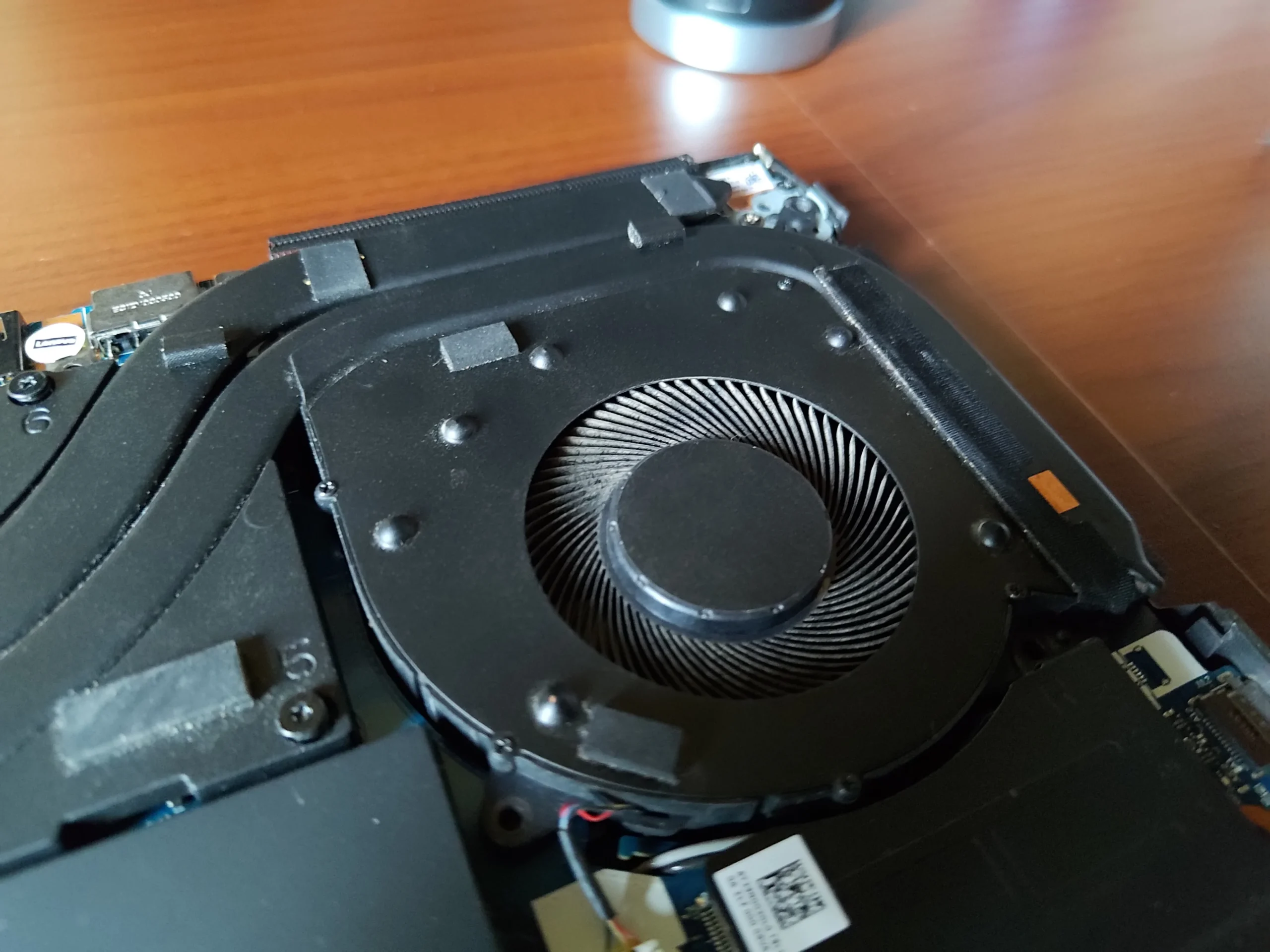
The later view makes the fan clean-up easy to see
A later photo from the same side shows dark, distinct blade edges and much less loose dust on the housing. Both fans sit on the shared cooling assembly, so each side and its exhaust channel deserves inspection.
When cleaning a fan, keep the rotor from free-spinning under compressed air and remove dislodged material from the case. Dust blown deeper into the machine can end up back in the fin stack. The photo sequence documents a visibly cleaner fan; it does not show a measured airflow test.
03 / A second cooling task
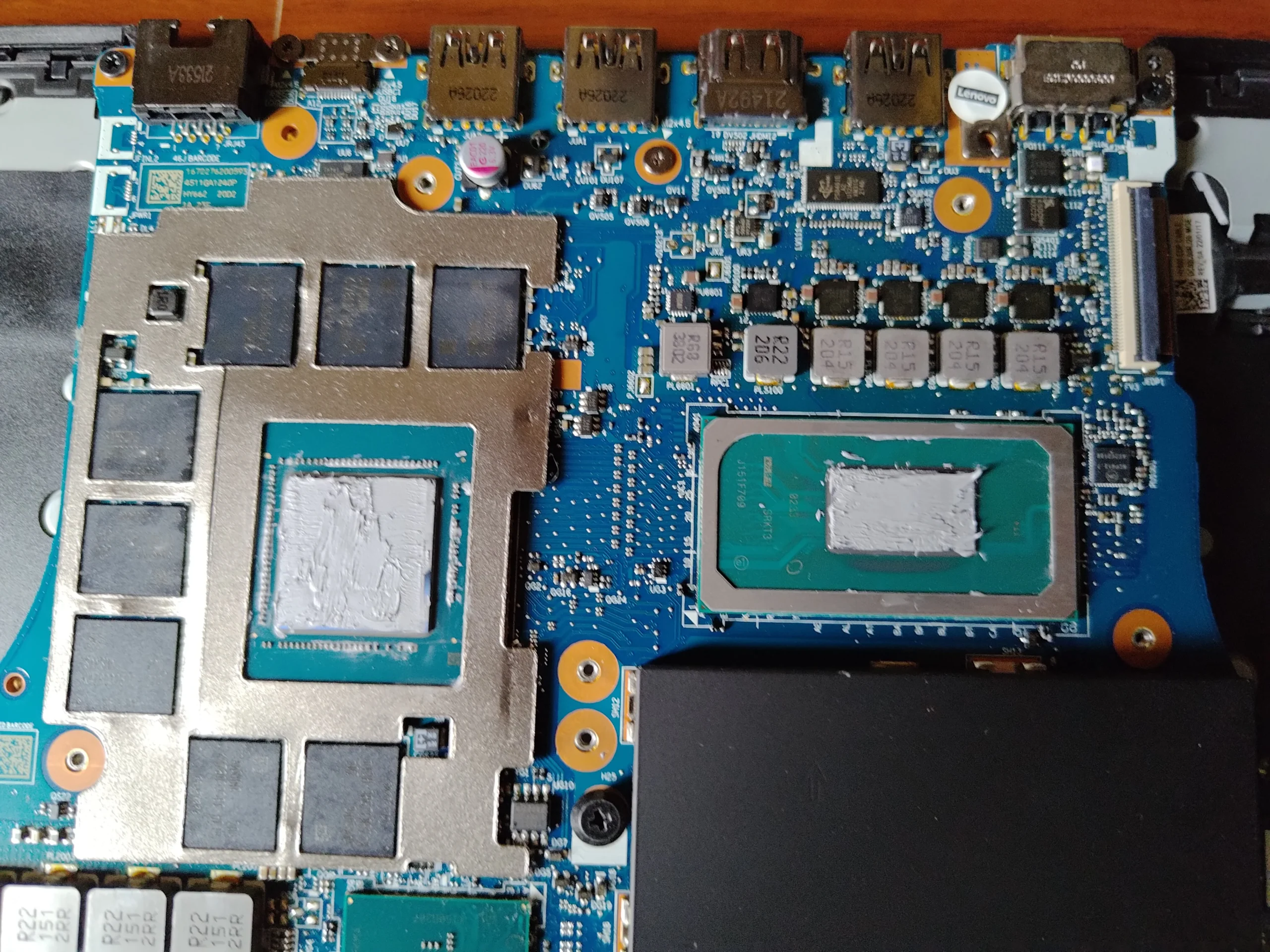
Lifting the cooler exposed two chip contacts
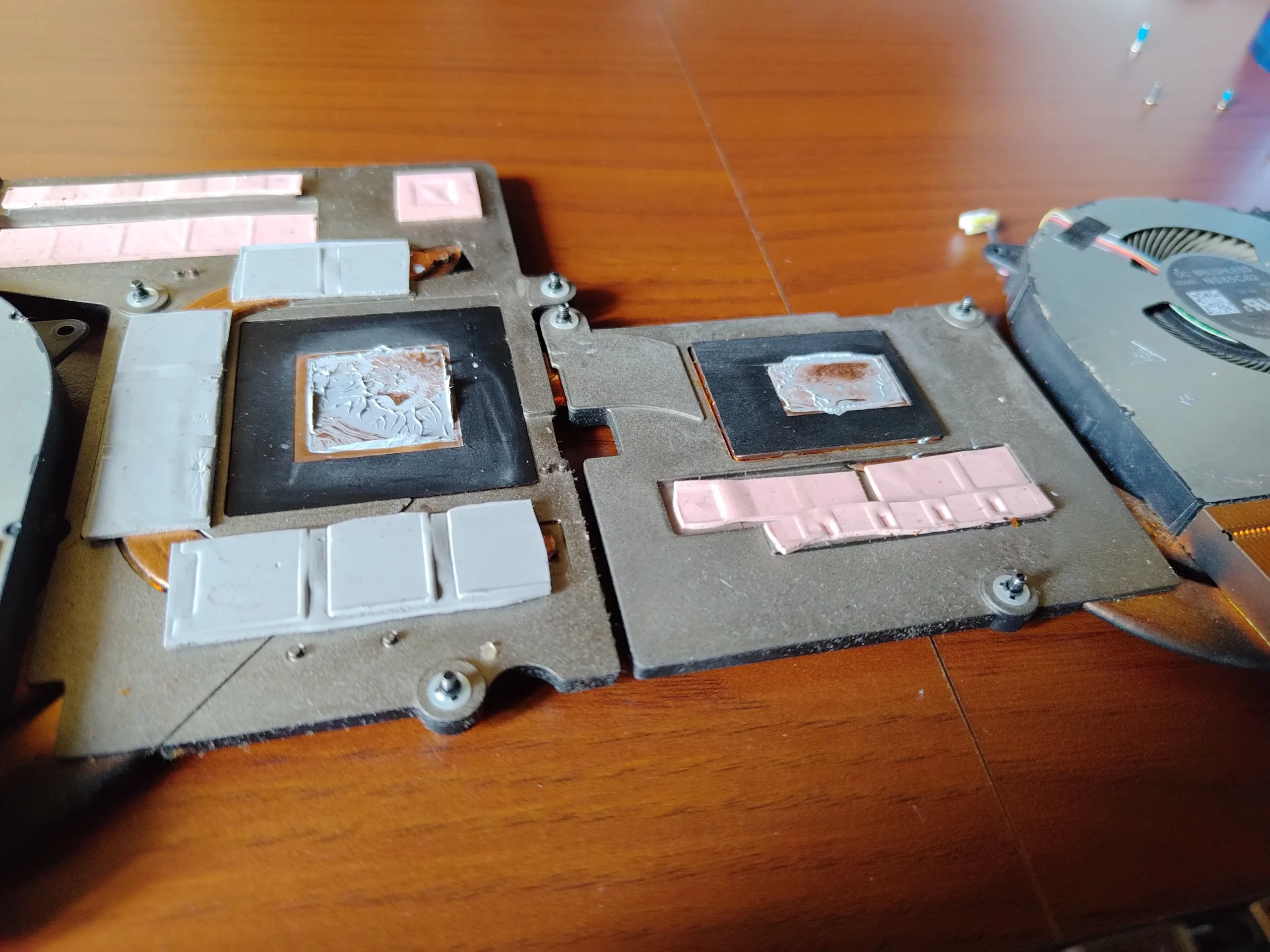
With the shared heatsink removed, the photos show old compound on two different chip packages. The larger graphics package has smaller memory components around it; the other contact belongs to the processor. The cooler underside shows matching contact plates and several pads for nearby components.
These contacts are separate from the dusty fan. Once a cooler is lifted, disturbed old interface material cannot simply be ignored. The mating surfaces need to be prepared and the correct material reapplied while the surrounding pads retain their intended position and fit.
04 / Documented application
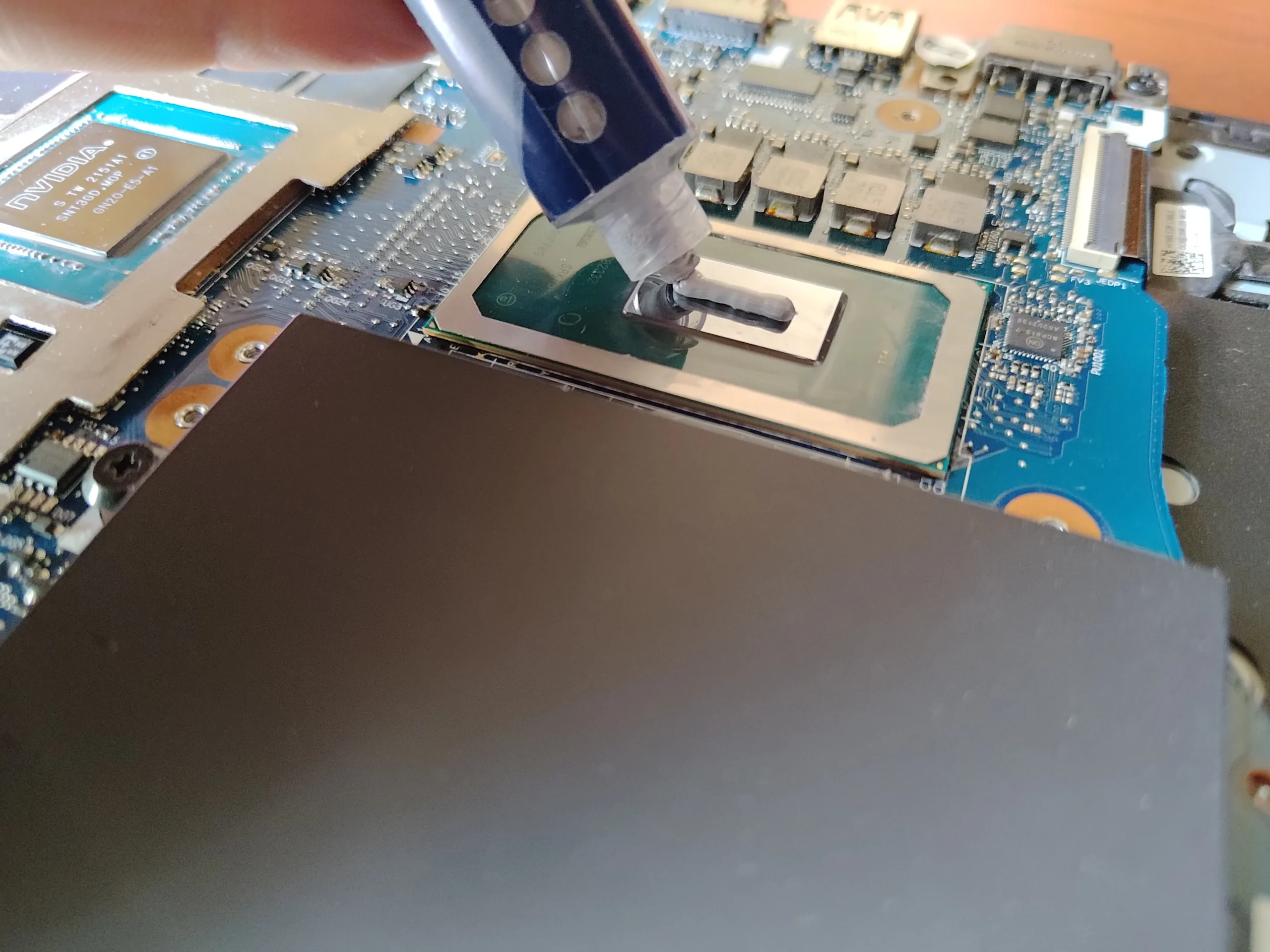
Fresh compound was applied to both main chips
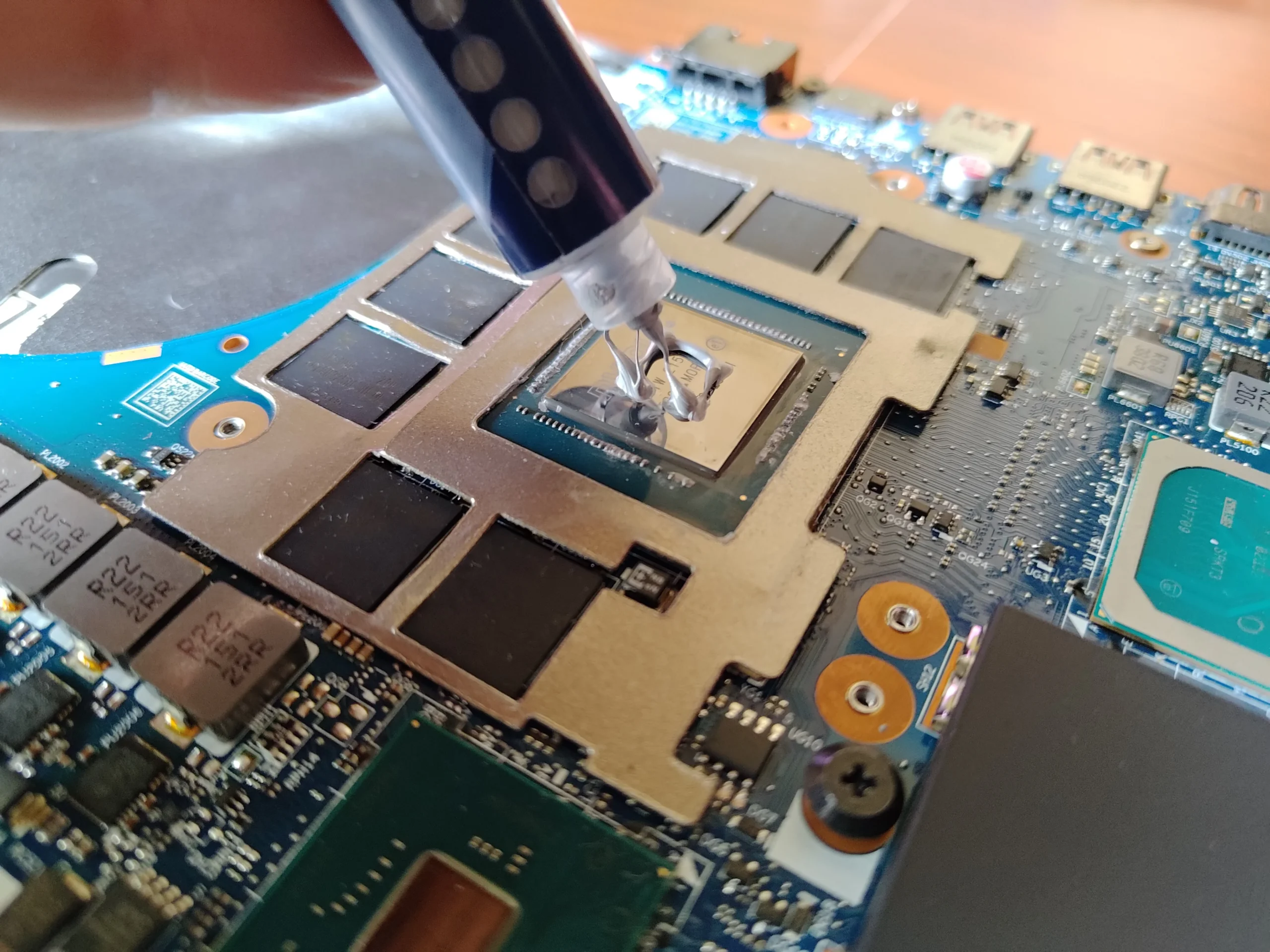
One photo shows a dispenser over the graphics chip, and another shows it over the processor. That is stronger evidence for a repaste than a photo of an opened laptop alone. It still does not tell us the compound brand or prove its final spread after the cooler was tightened.
The cooler has to sit evenly on both primary contacts while the smaller pads remain correctly placed. Follow the exact model's screw sequence and thermal-interface requirements; an arbitrary pad thickness or an unevenly seated cooler can create a new heat problem.
The engineer’s takeaway
This visit shows two jobs that often get lumped together as a laptop clean: removing dust from the fan and renewing the disturbed chip interfaces after cooler removal. The photos demonstrate both stages, while a temperature claim would need separate comparable measurements.
Before you open the laptop
Could you clean this Legion 5 Pro yourself?
An owner can start with the machine switched off, charger removed and external vents checked for surface dust. If you remove the base, follow Lenovo's instructions for this exact 16ITH6H configuration and isolate power before touching connectors or the cooling assembly.
Cleaning visible fan dust is more approachable than lifting the linked cooler. Cooler removal exposes two chip contacts and several pads whose positions and thickness matter. If you do not have the correct interface materials and screw sequence, stop before disturbing the heatsink.
For model documents, check the official manufacturer support page.
After the clean
How to check the result properly
Once reassembled, confirm the laptop boots and both fans can respond without scraping or rattling. Then repeat the same game or sustained workload under similar power and room conditions, watching CPU and GPU temperatures and fan behaviour.
The archive contains the cleaning and paste application stages but no paired readings. A visibly clean fan is worthwhile evidence of the work done; it is not, by itself, a temperature benchmark.
Questions from owners
Legion 5 Pro fan cleaning and repaste FAQs
These answers relate to the dust and fresh-compound stages visible in this particular 16ITH6H.
Does this photo set show the fan before and after cleaning?
Yes. The early fan close-up has pale dust across its blades and housing; a later view of the same side shows much cleaner blade edges.
Why repaste if the problem is dusty fans?
The two tasks address different parts of the heat path. In this case the cooler was removed, exposing old material at two chip contacts, and the photos show fresh compound being dispensed before reassembly.
Was compound applied to the CPU and GPU?
The archive includes a dispenser over each of the two main chip packages. It does not identify the product used or show a controlled temperature comparison.
Can thermal paste replace the nearby pads?
No. Those pads bridge different gaps to smaller components. The correct material and thickness for each contact must be maintained so the cooler seats properly.
Can I blow air through the fan without opening the laptop?
You may shift surface dust, but you cannot confirm the internal fin path is clear. Avoid overspinning the fan and follow the manufacturer's guidance before opening the base.
Did this service lower temperatures?
The photos do not include matched temperature readings. A fair comparison needs the same workload, power mode and similar room conditions before and after.
UK Legion cooling help
Is your Legion fan dusty or loud?
If you are in the UK, tell us whether the fan noise is constant or mainly happens during games, which side feels warm and whether the machine slows down or shuts off. Include the 16ITH6H model if it matches yours and your postcode; you do not need to send a serial number.
We can discuss fan and exhaust cleaning, whether the cooler needs to be lifted, and a sensible way to check the machine after service.
Read about our gaming laptop cleaning service, then use the form to tell us your computer model, symptoms and UK postcode.
Free to enquire · No obligation to book. We discuss the proposed work and price before you decide.
The workshop photos
The 2024 Legion 5 Pro cleaning photos
Follow the dusty and cleaner fan views, exposed chip contacts, cooler underside and the documented application of fresh compound.