Published 7 October 2026 · MacBook Pro 16-inch (A2141) case study
MacBook Pro 16-inch cleaning
follow the dust past both fans.
This A2141 MacBook has two cooling fans, but the photo that explains the job is the clump lifted from a narrow exhaust channel. Dust on a fan is easy to spot; dust in the air's exit route is easier to miss.
The model
MacBook Pro 16-inch, A2141 / EMC 3347
The layout
Two fans and rear exhaust channels
The visible work
Dust removed from fans, vents and lower cover
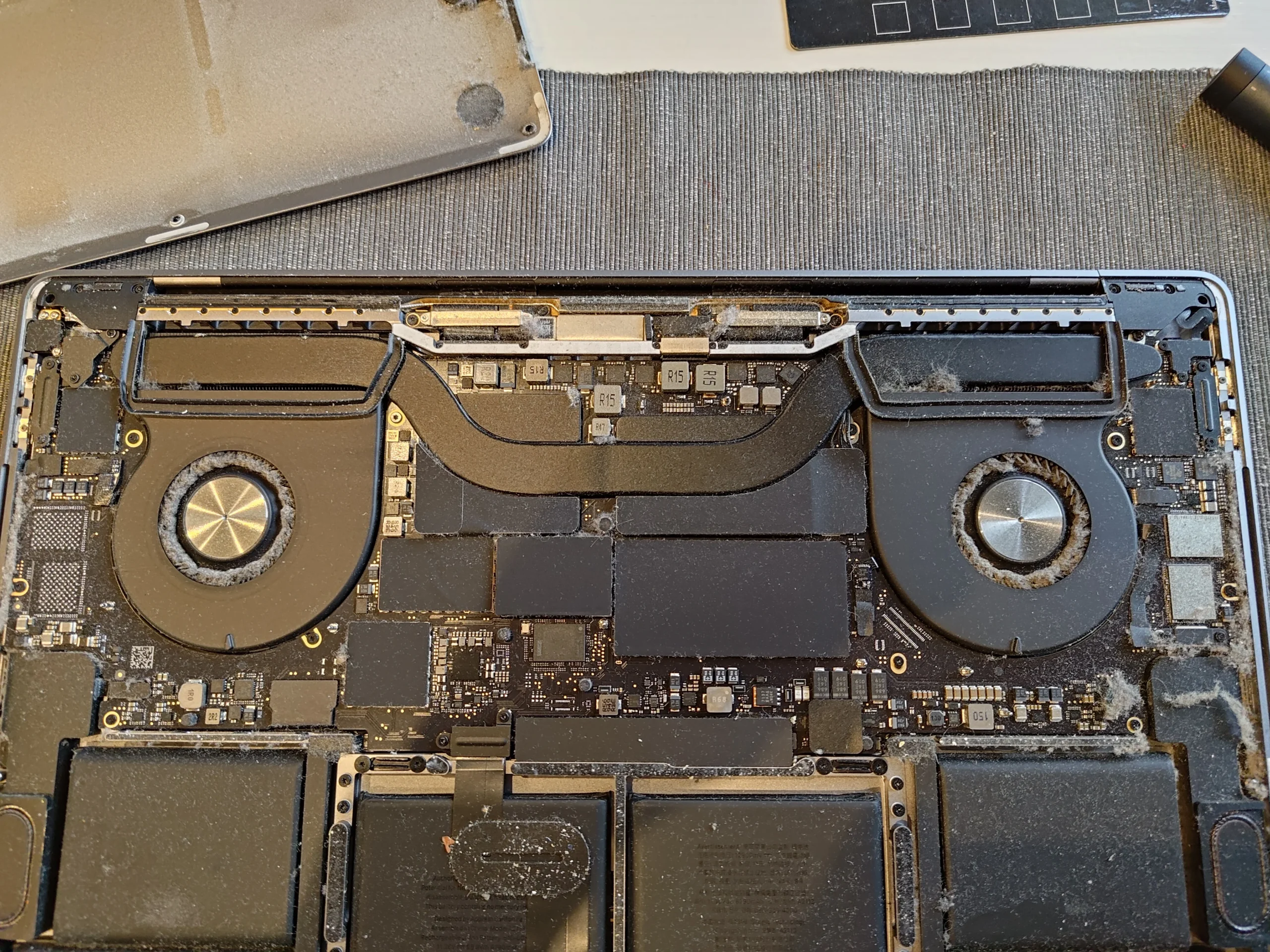
The underside marking identifies this machine as model A2141, EMC 3347. With its lower cover off, the two fans sit on either side of the central cooling assembly. The photos show a familiar problem: lint around the fan inlets, dust along the rear air path and debris gathered inside the cover.
This is a cleaning record, not a benchmark. There are no before-and-after temperature or fan-speed readings in this photo set, and the heatsink was not shown being removed. We can explain where the dust was and what was cleaned without promising a particular temperature change or claiming a repaste.
In this case study
01 / Finding the air route
Why two fans mean two places to inspect
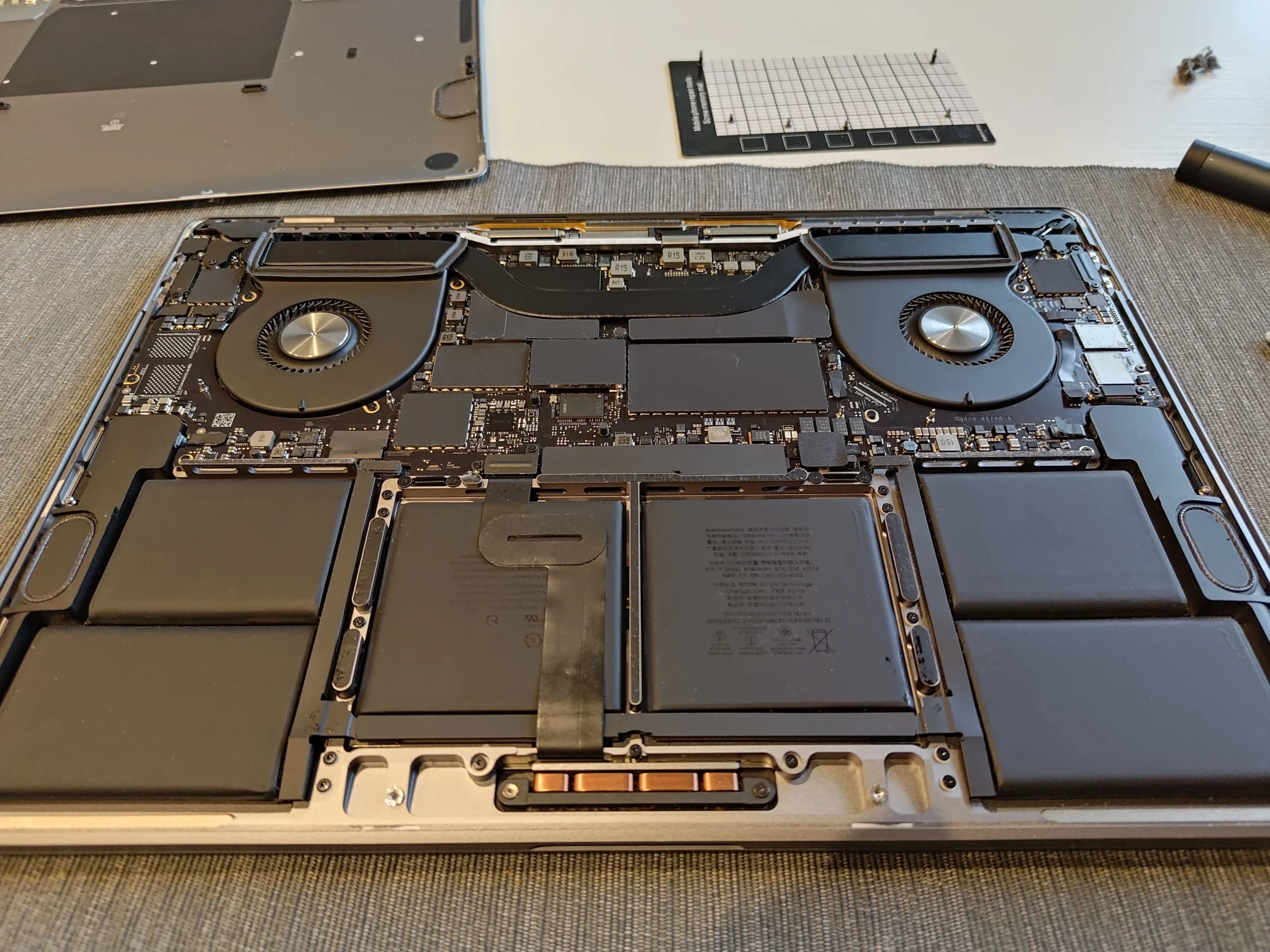
The open MacBook shows one fan on each side of the cooling assembly. Each fan must draw air in and push it toward the rear. If you clean just the fan nearest you, the other side and the narrow outlets can still hold debris.
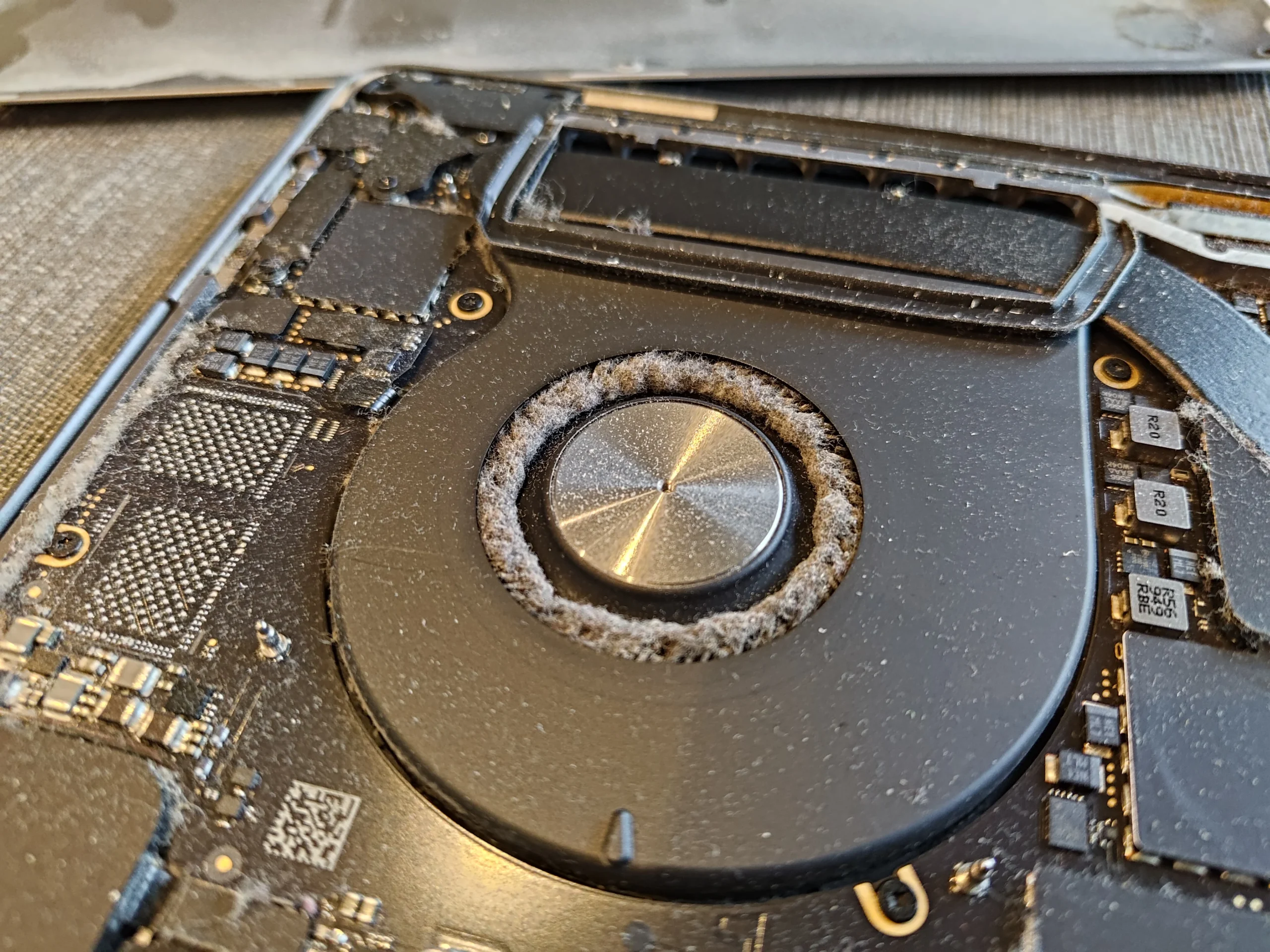
The close-up shows a grey ring of lint around a fan inlet. That material is sitting where air needs to enter the blower. A quick look through the outside vent would not reveal all of it.
02 / A hidden dust shelf
The lower cover had become a dust collector
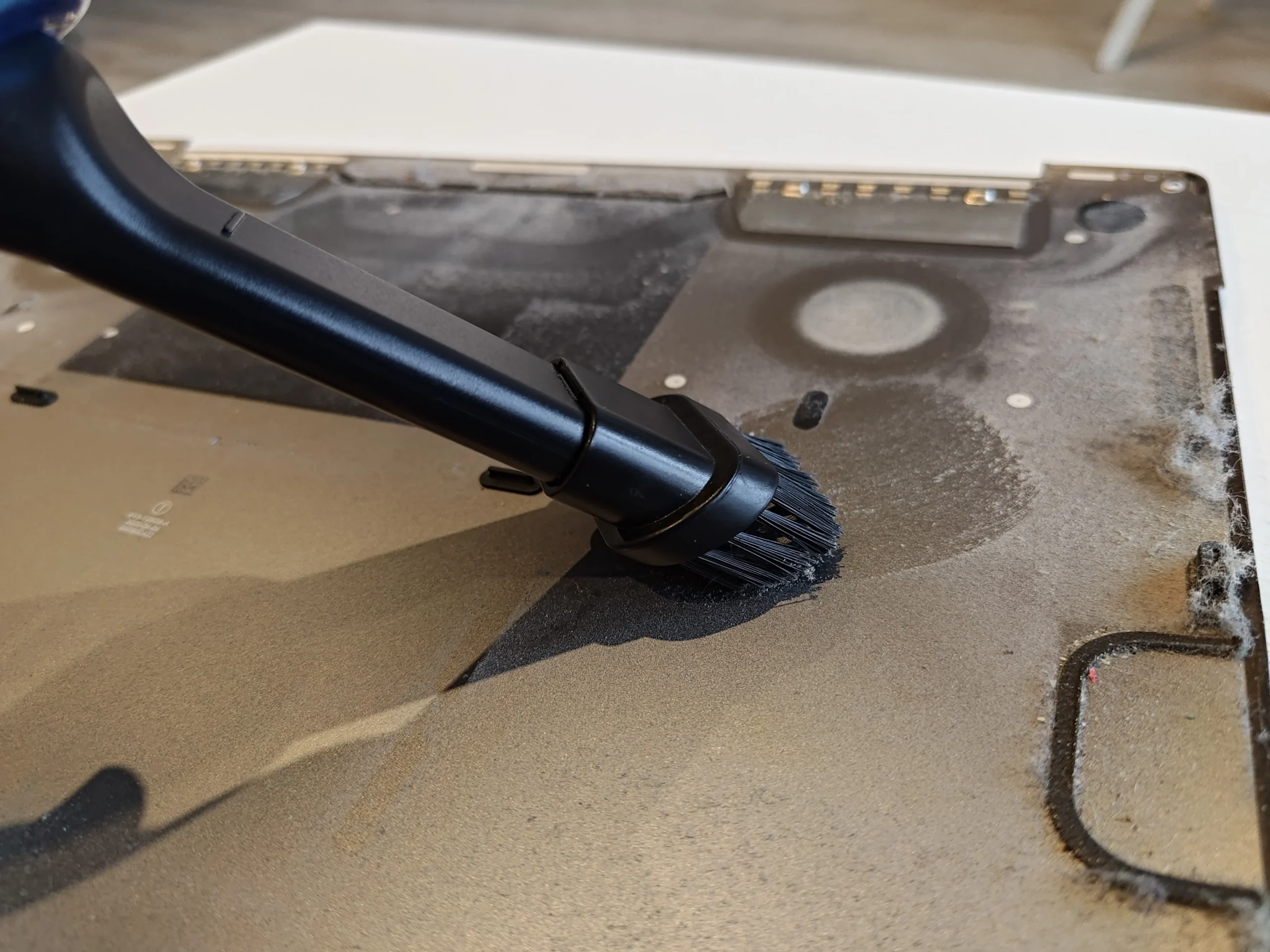
The inside of the removed aluminium cover shows broad dust patches and concentrated deposits near its edge. Those deposits matter because the cover closes the space around the fans and vents; loose fibres can be drawn back into the airflow path after reassembly.
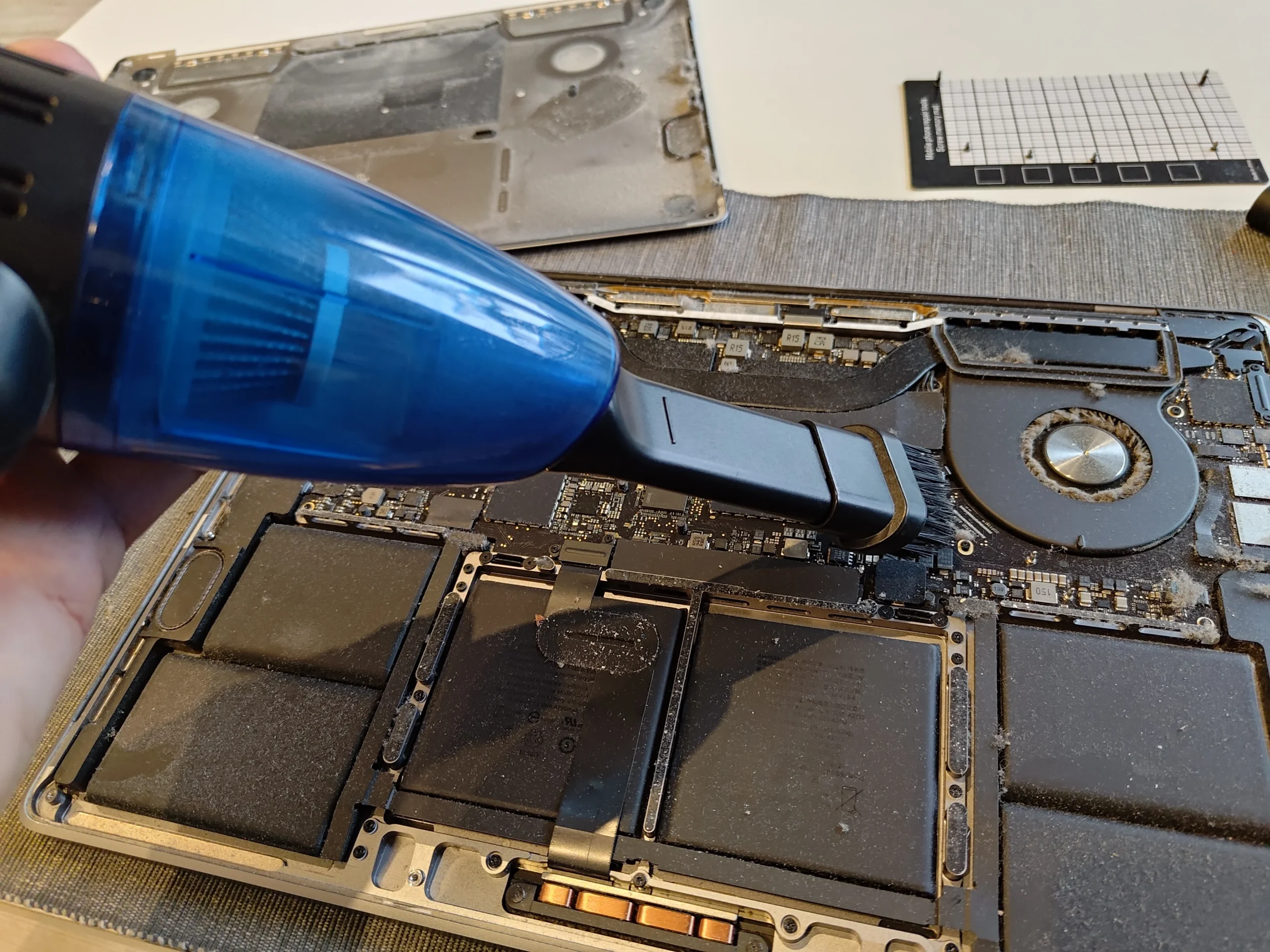
The brush attachment in the photo is cleaning the cover while it is off the computer. That is different from placing a household vacuum nozzle against an exposed logic board, where contact and static are avoidable risks.
03 / The narrow exit
A small clump can sit where warm air should leave
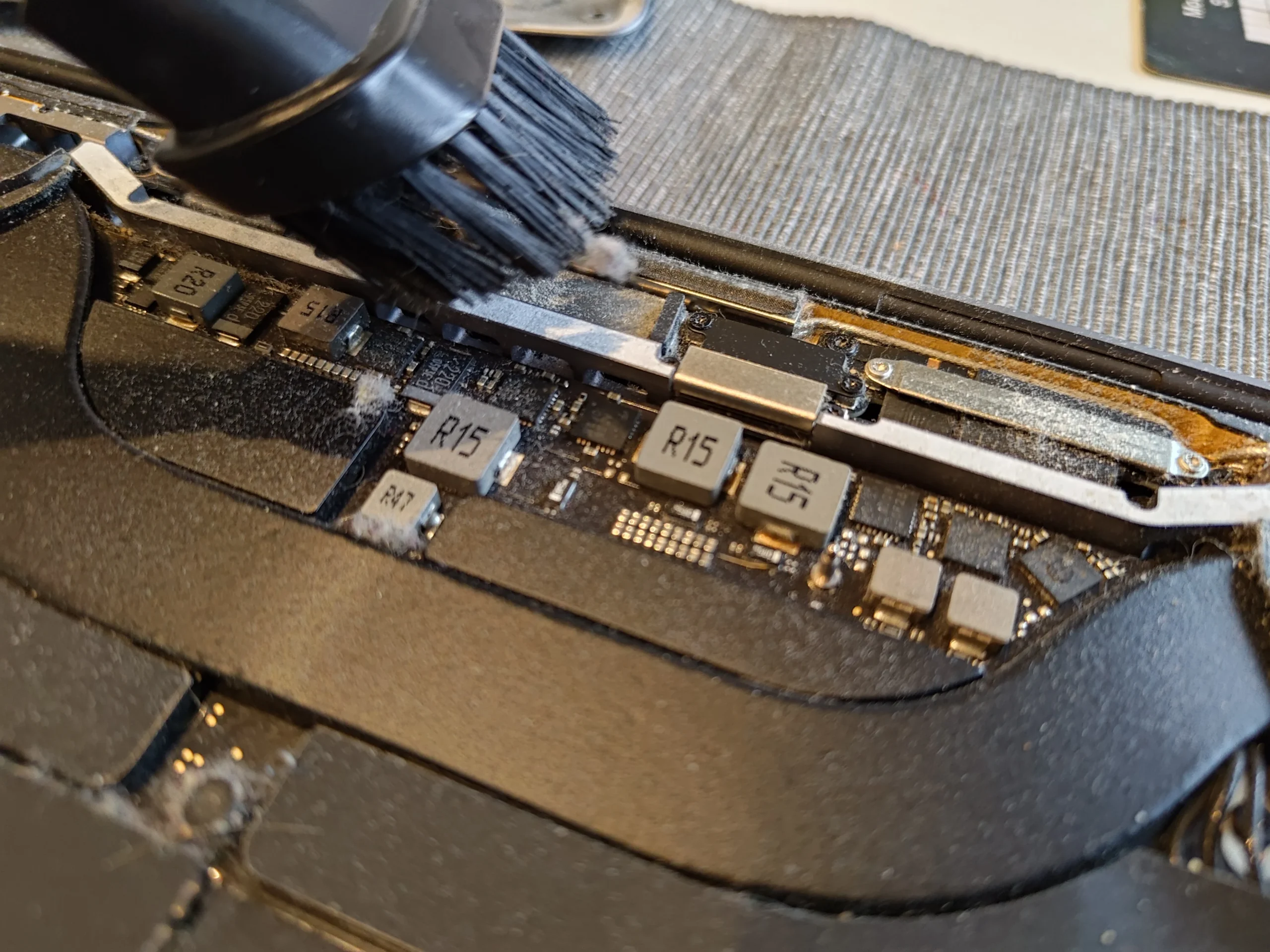
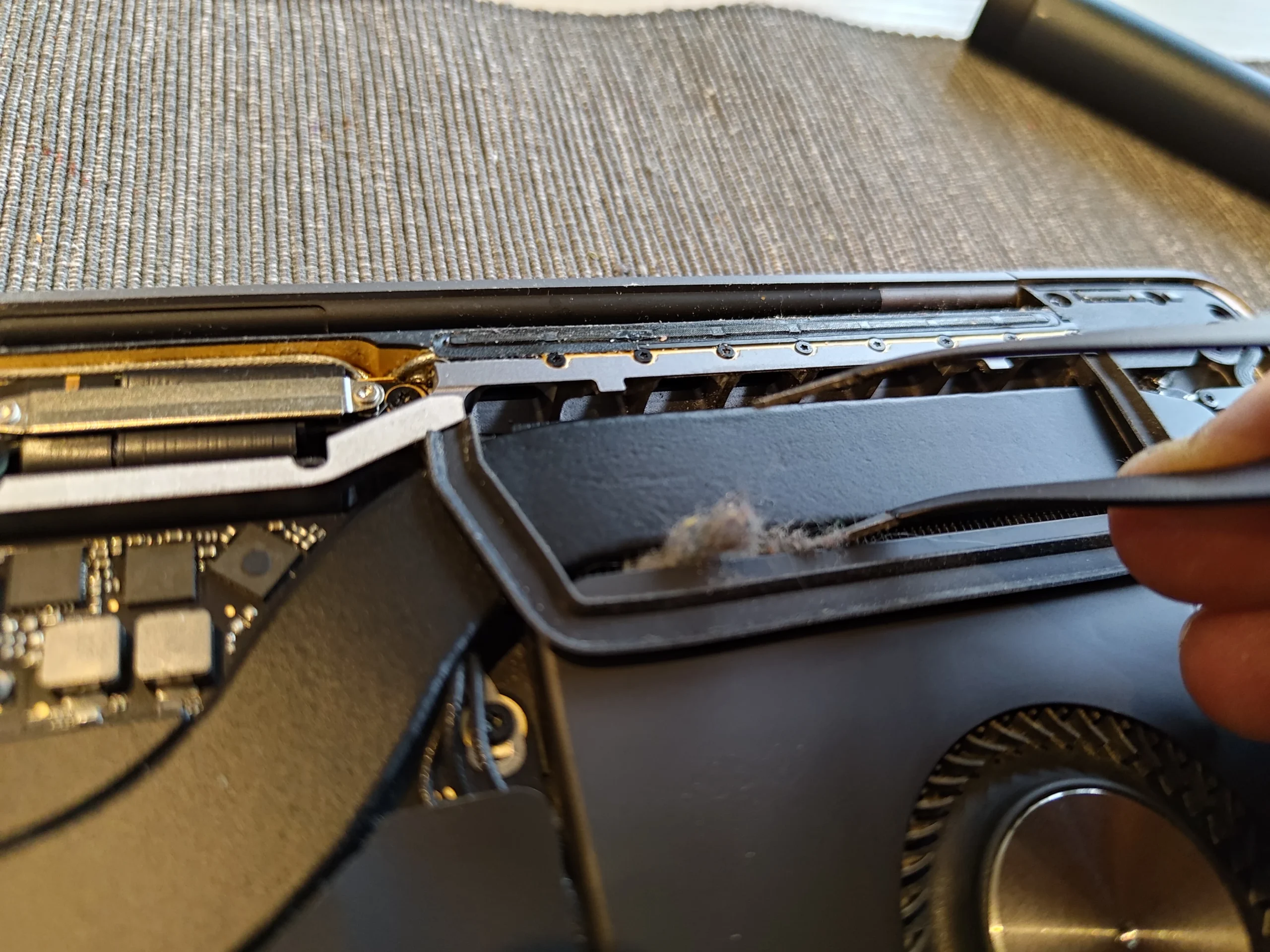
A brush was worked along the rear opening, and another photo shows a visible clump being lifted from the narrow channel beside a fan. This is the most instructive part of the set: a fan can rotate normally while its exit route is partly obstructed.
The aim is to remove the material, not push it farther under the cooling assembly. After clearing the outlet, inspect both ends of the channel and collect any loose dust before closing the cover.
04 / The visible result
Both fan areas look clearer before reassembly
The later overview shows cleaner fan rings and less loose dust along the rear edge. The photos also show an air tool being used with a brush, which helps dislodge material while access is open.
A visual clean is only one check. After the cover is fitted, the MacBook should start normally and both fans should respond to a sustained workload. If it still becomes unusually hot or loud, the cause could involve a fan fault, blocked internal fins or something unrelated to dust; those need separate diagnosis.
The engineer’s takeaway
On this A2141, the useful clue was not simply that the fans looked dusty. The cover, both fan inlets and the narrow rear outlet each held material. Follow the whole air route when judging whether a cleaning job is complete.
Before you open the laptop
Should you open an A2141 MacBook yourself?
Start with simple external checks: shut the MacBook down, disconnect power, inspect the vent openings and use it on a firm surface. Note whether the fans rise during an ordinary task or only under a demanding one.
Opening the lower case uses specific screws and care around delicate internal parts and the battery. If you have the proper guide and tools, keep screws mapped, avoid touching the logic board with an ordinary vacuum nozzle, and do not let a fan free-spin under a blast of air. Stop if a clip, connector or cover resists.
For model documents, check the official manufacturer support page.
After the clean
How to judge the result
Once reassembled, check that the MacBook boots, charges and has no new fan rattle or scraping sound. A comparable test means the same task, power settings and room conditions before and after, ideally after the machine has warmed up.
This archive shows a visibly cleaner air path but no controlled readings. A lower fan pitch in one short test is useful feedback, yet it is not proof that every thermal issue has been solved.
Questions from owners
MacBook Pro 16-inch A2141 cleaning FAQs
Practical answers for the dual-fan layout and dust seen in this specific machine.
How many fans does this A2141 MacBook Pro have?
The machine in these photos has two cooling fans, one on each side of the central cooling assembly. Inspect both fan inlets and their rear outlets during a clean.
Can dust in the lower cover matter?
Yes. The removed cover in this case held broad dust patches and deposits near the air path. Loose material can remain inside the closed case if only the visible fan tops are cleaned.
Will blowing air into the external vent remove this clump?
It might shift some dust, but the photo shows a clump lifted from a narrow internal channel. Blowing from outside cannot confirm where it has gone or whether the passage is clear.
Does this cleaning include replacing thermal paste?
The photos show fan, cover and outlet cleaning. They do not show the heatsink being lifted or thermal compound replaced, so this case does not claim a repaste.
Could a loud fan mean it needs replacing?
Possibly, but loud operation can also be a response to heat or restricted airflow. First check for dust and then test fan behaviour; a scraping bearing or non-spinning fan is a separate fault.
How often should I clean this model?
There is no reliable fixed interval for every home. Room dust, pets and usage change buildup. Check the vents and fan behaviour periodically, and consider internal cleaning when symptoms or visible contamination justify it.
UK MacBook cleaning enquiries
Prefer someone to clean both air paths?
If you are in the UK and your 16-inch MacBook Pro is getting loud, hot or clogged with visible dust, send us the model marking and describe when it happens. A photo of the vents and your postcode help us discuss the next step.
We can talk through a careful internal fan and exhaust clean, then decide whether any remaining cooling symptom needs its own diagnosis.
Read about our MacBook and laptop cleaning service, then use the form to tell us your computer model, symptoms and UK postcode.
Free to enquire · No obligation to book. We discuss the proposed work and price before you decide.
The workshop photos
A2141 dual-fan cleaning photo gallery
Open the images to compare the two-fan layout, dusty inlet, lower cover, cleaning tools, outlet clump and later overview.