Published 16 October 2026 · older Intel desktop PC case study
Older Intel desktop cleaning
know which heatsink you are touching.
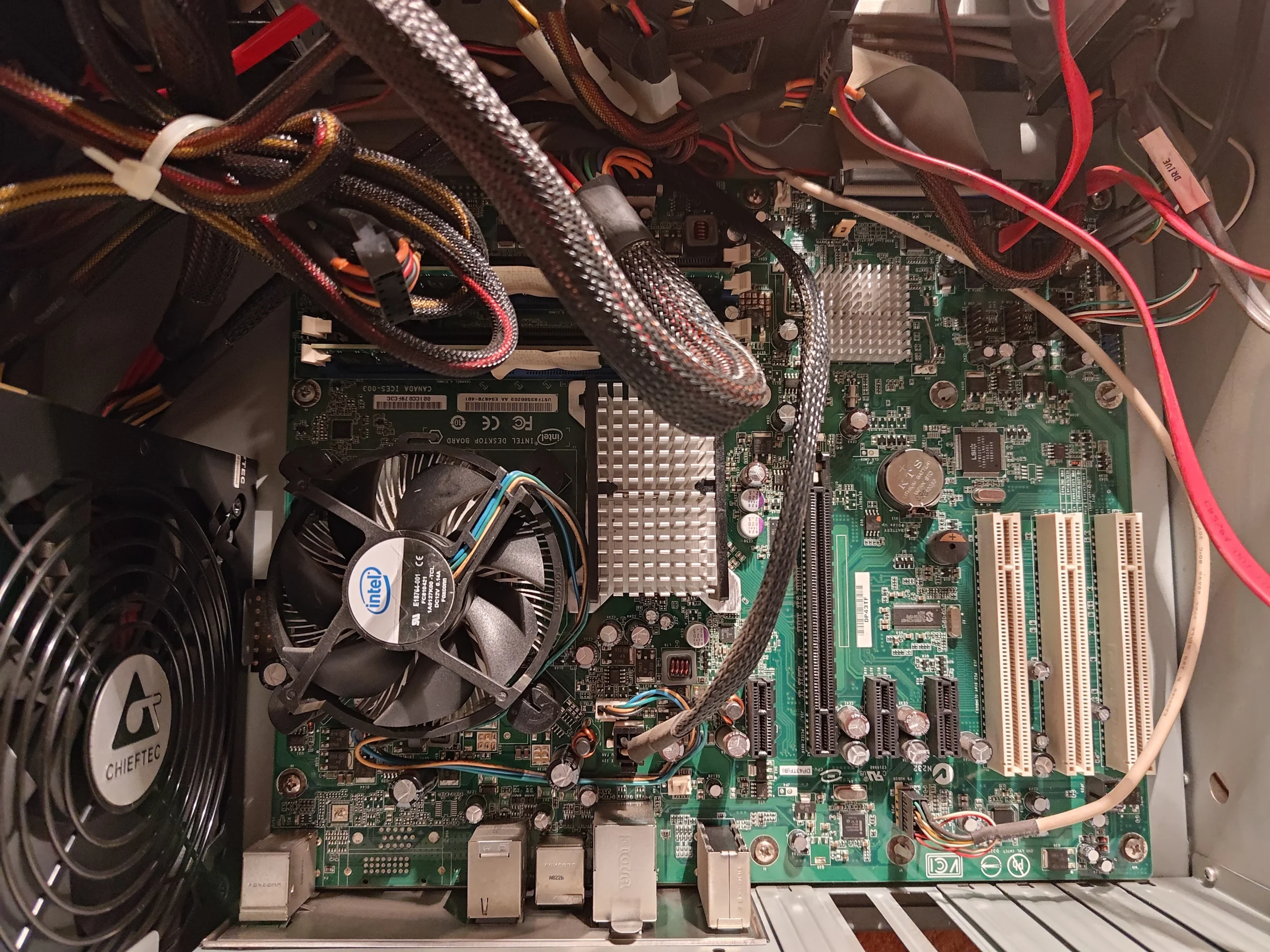
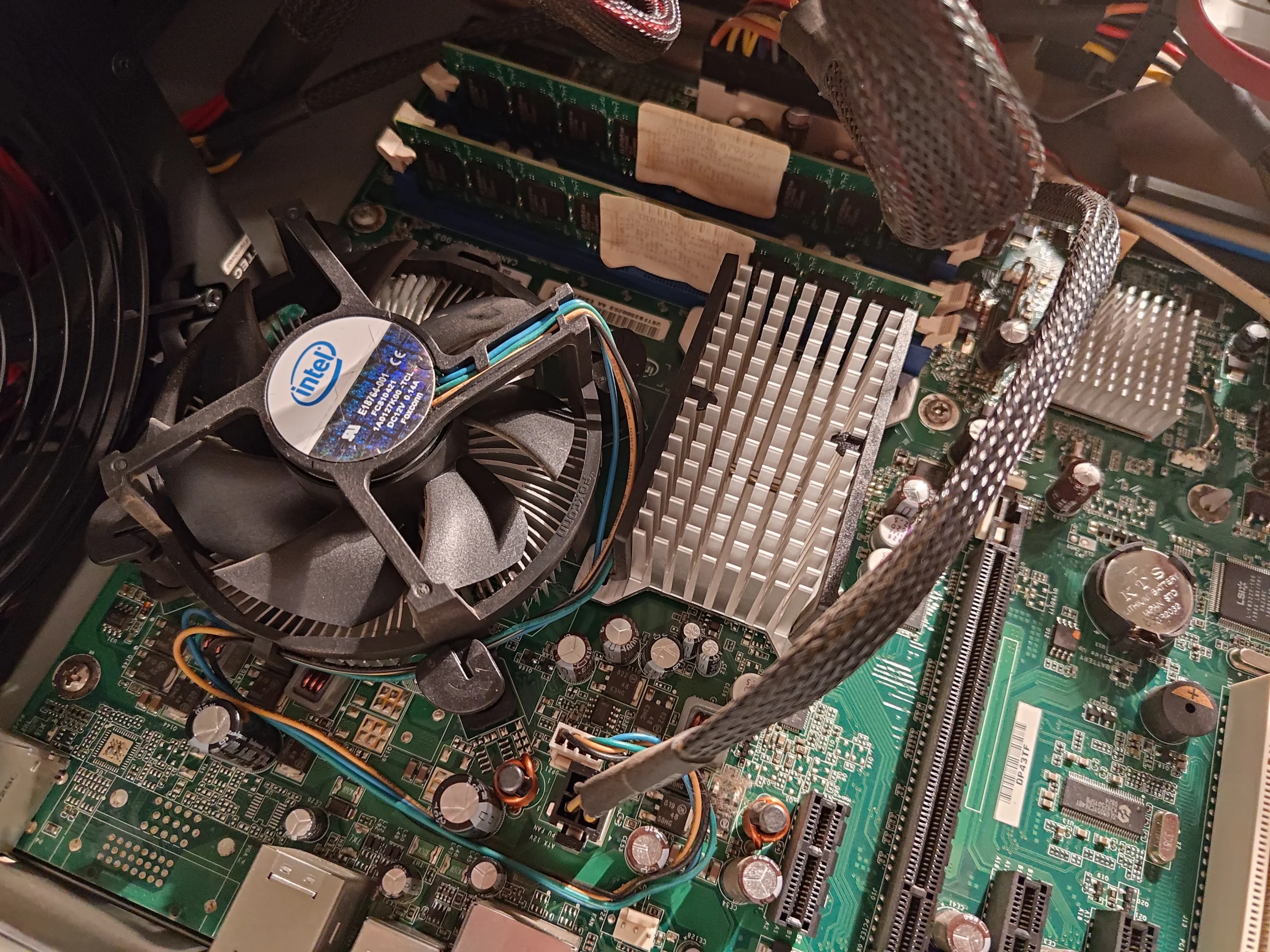
Inside this older tower, an Intel fan cools the processor while a smaller finned block cools a separate board component without a fan. The graphics card has its own dusty surfaces. The photos also show why lifting the CPU cooler creates a thermal-paste task.
The system
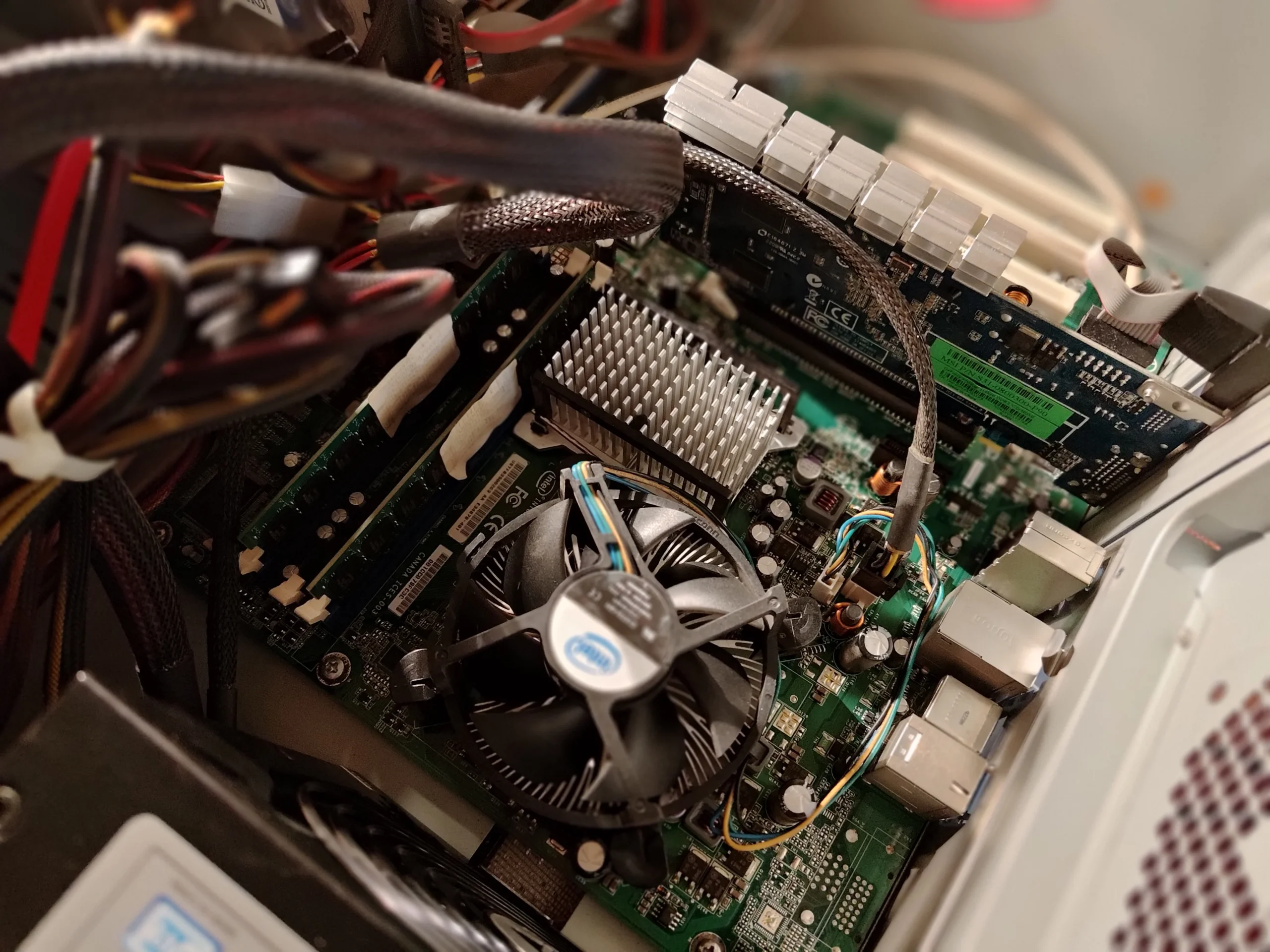
Older Intel desktop with a separate graphics card
The cooler layout
Radial CPU fan plus passive motherboard heatsink
The chip contact
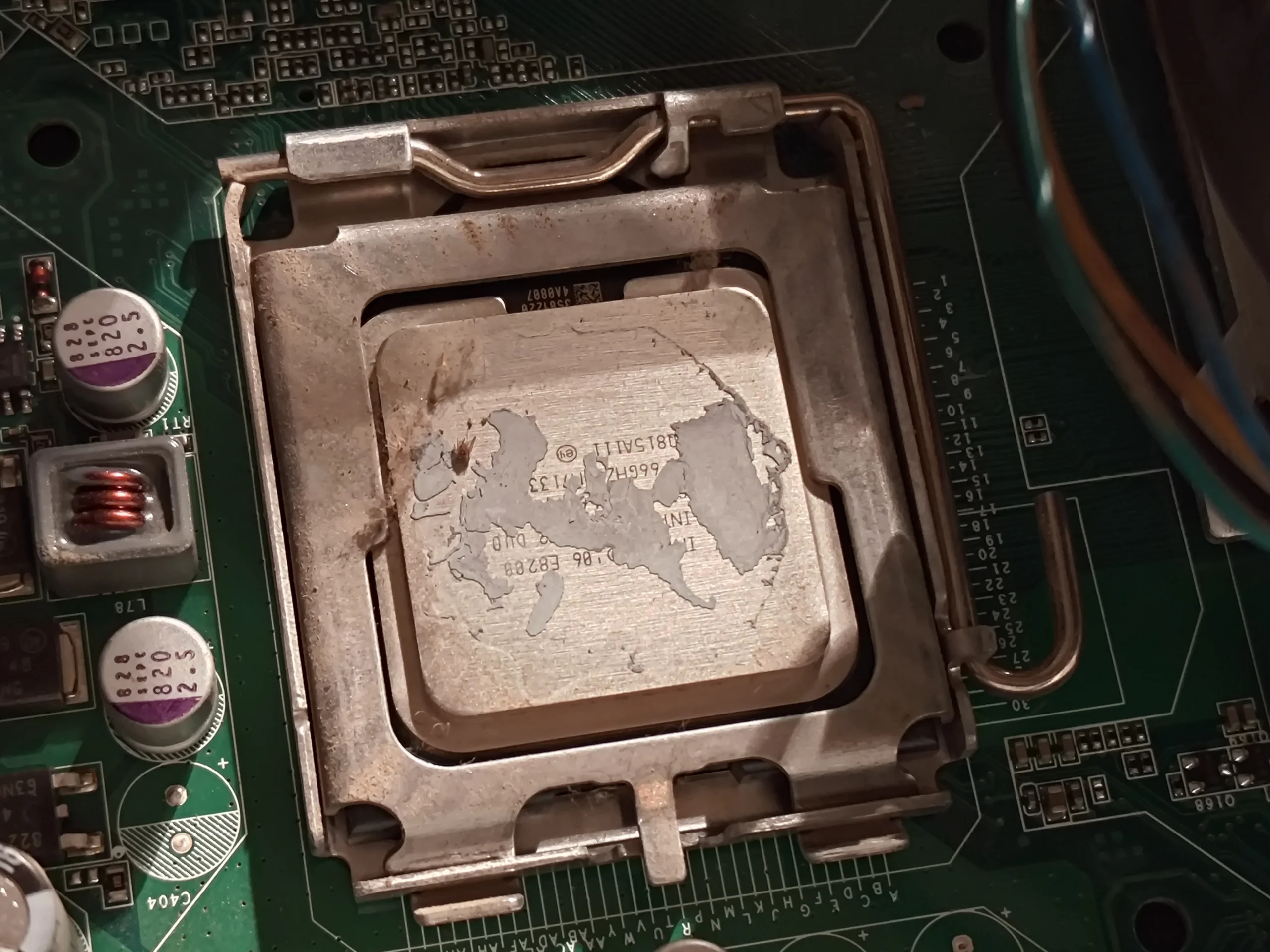
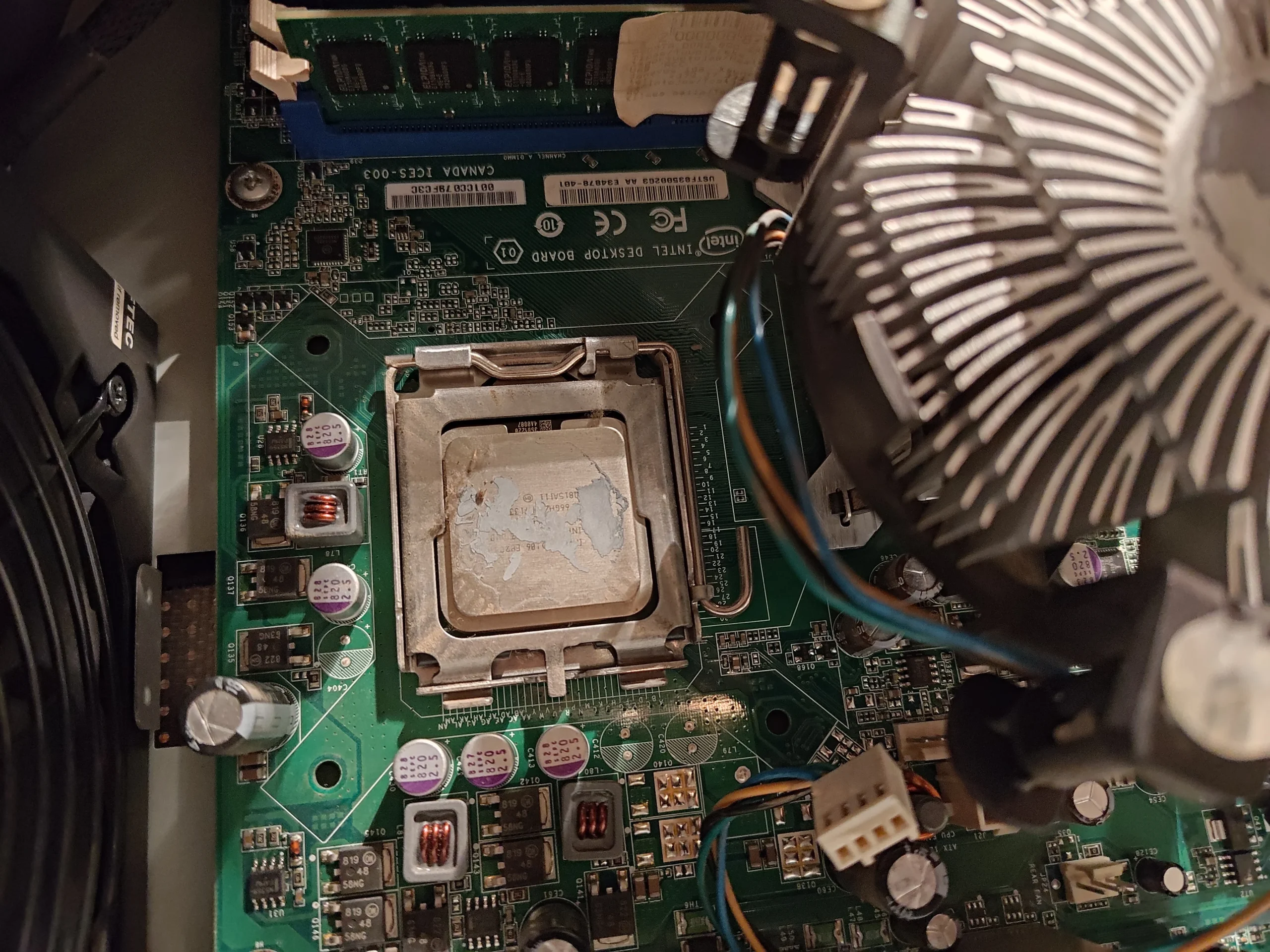
Old compound visible; new compound placed on CPU
Older desktops often look spacious, but their cooling parts can be easy to confuse. In this tower, the black Intel fan sits over a round aluminium fin stack for the processor. Nearby, a silver block of straight fins has no fan of its own. A graphics card was also removed, revealing dust on its board side.
The photos show the CPU cooler lifted, residue on its base and processor, and a later application of fresh compound on the chip. They do not show controlled temperature measurements or a model label, so this is an older Intel desktop case rather than a claim about a specific PC model or a numerical cooling improvement.
In this case study
01 / Recognising the parts
The Intel CPU fan and passive board heatsink do different jobs
The main black fan pushes air through radial fins around the processor. The separate silver finned block nearby has no attached rotor; it relies on case airflow to carry heat away from a board component.
Clean the CPU fan and its fins while leaving delicate board parts undisturbed. Make sure the case has a working airflow route past the passive heatsink too; a clean CPU fan cannot compensate for a stagnant cabinet.
02 / The chip contact
Lifting the radial cooler exposed dry old material
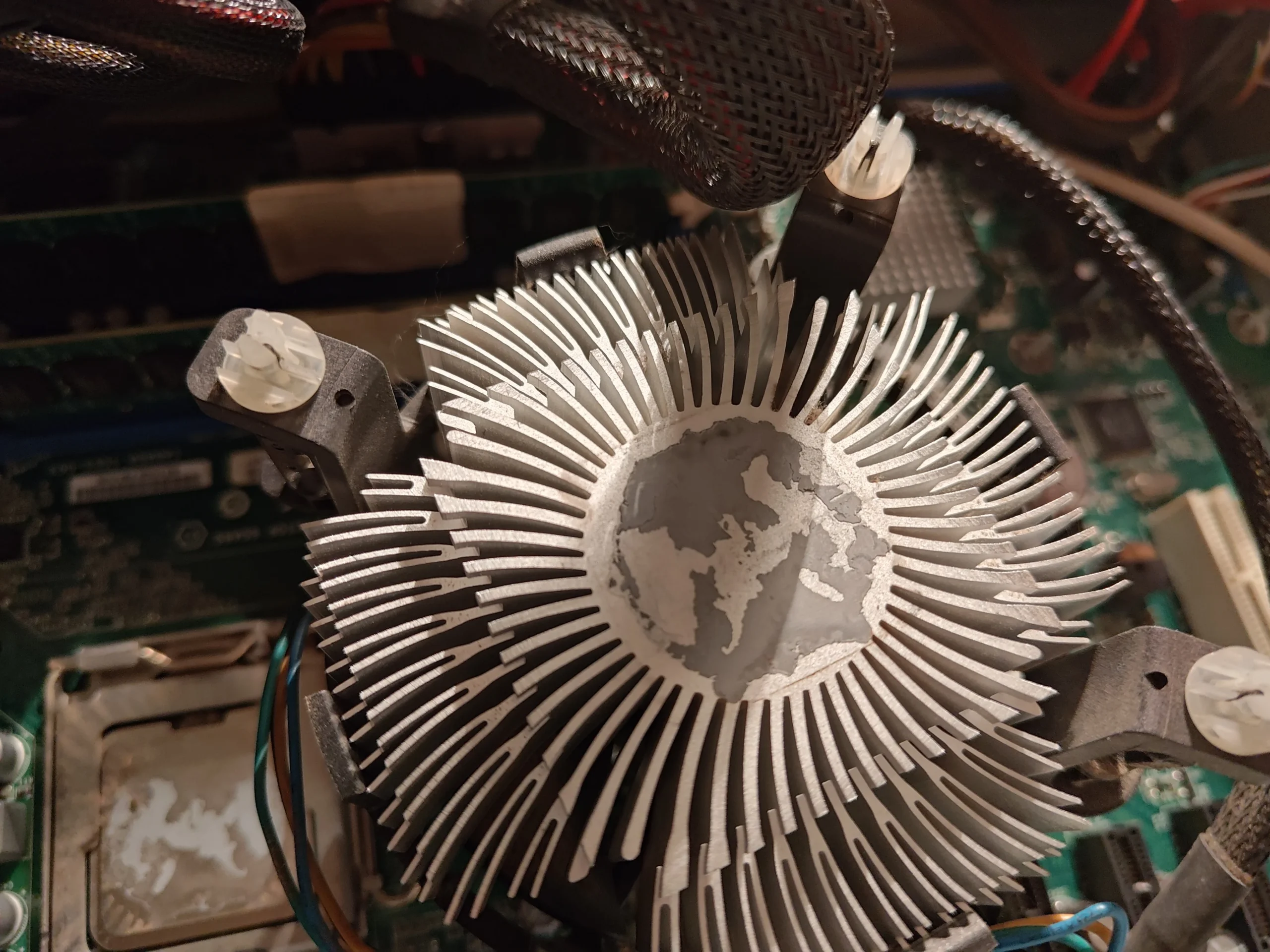
The cooler's underside shows a patchy old imprint on its metal base. The processor surface has matching residue. That is the thermal interface between the chip and the aluminium fin stack.
Once this contact is broken, clean both mating surfaces properly. A later photo shows new compound placed on the processor before the cooler is returned. Even seating matters as much as the paste itself.
03 / Before refitting
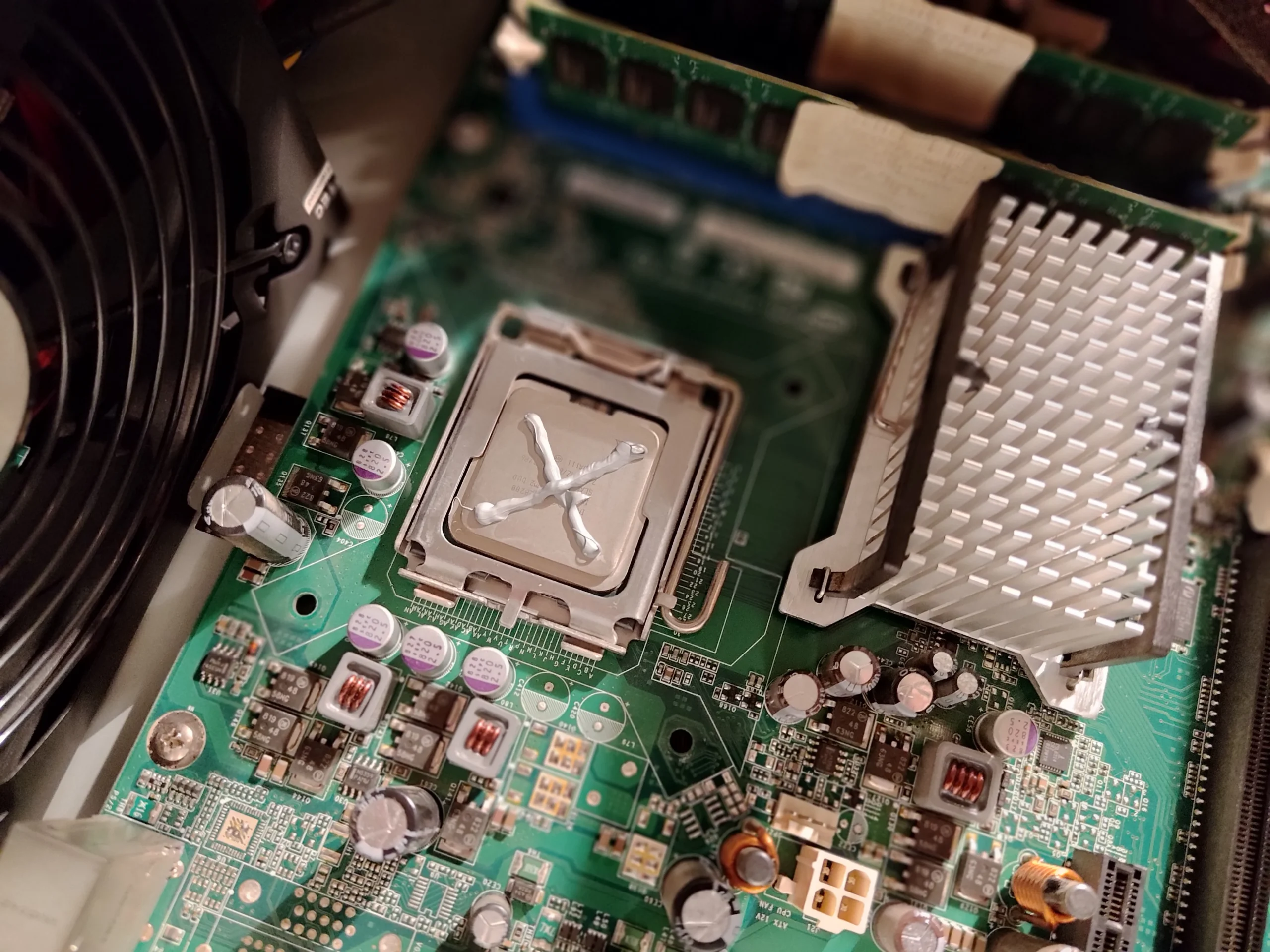
Fresh compound was visible on the CPU
The application photo shows new paste laid across the chip. When the cooler is seated and secured, pressure spreads the material into the microscopic gaps; it should not be used to bridge a loose or tilted mount.
Check the fan connector before powering on. An older cooler can be awkward to remount if its fasteners have aged, so stop and inspect the mounting method rather than forcing a pin or screw.
04 / Another dusty component
The removed graphics card needed its own inspection
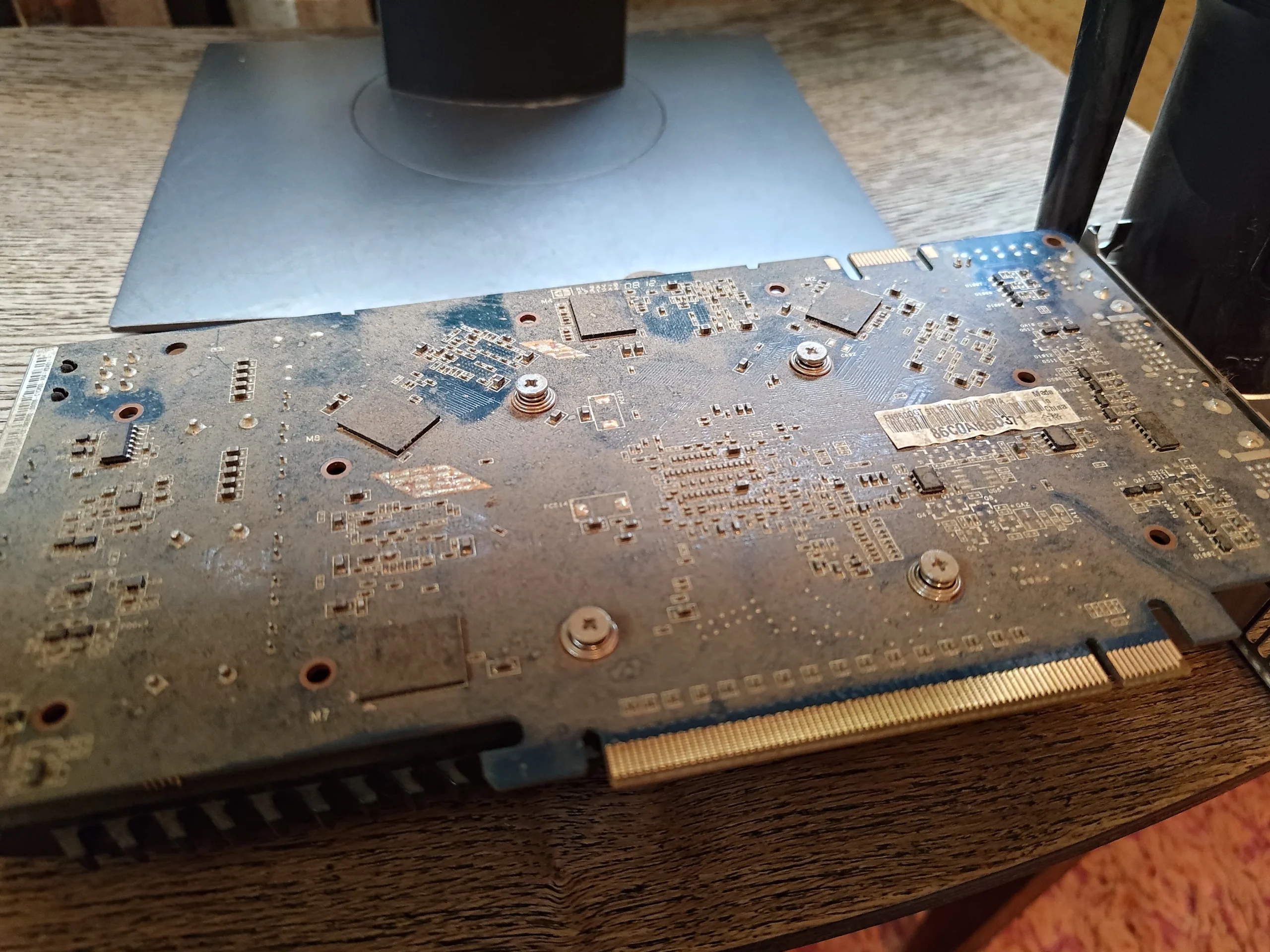
A photo of the card outside the case shows dust across its board side and around its cooler edge. The GPU has a separate heat route from the CPU, so its condition should be checked even when the Intel fan has been serviced.
After reassembly, confirm the card is fully seated, its display works and no cable obstructs the CPU or case fans. Appearance alone cannot tell you whether the graphics-card cooler runs within its normal temperature range.
The engineer’s takeaway
This tower contains multiple cooling jobs, not a single 'PC fan'. The CPU cooler, passive heatsink and graphics card each need an inspection, and lifting the CPU cooler makes proper thermal-contact renewal necessary.
Before you open the laptop
Can you clean an older Intel desktop yourself?
Shut down, switch off the power supply and unplug the mains cable. Photograph cable routing before moving parts, then clear accessible dust from fans, fins and filters with the fan blades held still.
If removing the CPU cooler, identify its mounting mechanism and have suitable compound ready. Clean both contact faces and seat the cooler evenly. Support the graphics card if removing it, release its latch gently, and never open the power-supply housing.
After the clean
How to validate reassembly
Check that the CPU fan starts, the display works through the graphics card and no cable touches a blade. Let the system warm up under a repeatable CPU task, then check temperature and fan noise.
The photo set does not provide paired readings, so this case documents the cleaning and paste steps without claiming an exact drop in degrees.
Questions from owners
Older Intel desktop cleaning FAQs
Answers based on the radial cooler, passive block and graphics card shown in this PC.
Is the silver finned block another CPU cooler?
No. The processor sits under the larger round Intel fan and radial fin stack. The nearby silver block is a passive heatsink for another board component.
Why was thermal paste applied during a dust clean?
The CPU cooler was lifted, exposing old material on both its base and the processor. That disturbed contact needs cleaning and fresh compound before refitting.
Can dust on the graphics card matter if the CPU fan is clean?
Yes. The card has its own cooler. The removed card in this case had dust on its board side and needs separate inspection.
Should I remove the passive heatsink to clean it?
Usually not for ordinary surface dust. Clean accessible fin spaces carefully and maintain case airflow; removing a board heatsink can disturb its own thermal interface.
Does fresh paste guarantee lower temperatures?
No. The cooler must sit evenly, the fan must work and the case needs airflow. This archive has no measured before-and-after result.
Can I vacuum inside an older PC?
Avoid touching boards with a household vacuum nozzle. Remove accessible filters separately and use controlled methods around electronics and fans.
UK older desktop enquiries
Need an older PC cleaned carefully?
If you are in the UK and your desktop is noisy or hot, send us a clear interior photo, any known model details and your postcode. Tell us whether the CPU cooler or graphics card has been removed before.
We can discuss fan and fin cleaning, safe cooler contact work and checks for the separate graphics-card and case airflow routes.
Read about our desktop fan and cooling service, then use the form to tell us your computer model, symptoms and UK postcode.
Free to enquire · No obligation to book. We discuss the proposed work and price before you decide.
The workshop photos
Older Intel desktop cleaning photo gallery
Open the images to see the Intel radial fan, passive heatsink, old CPU contact, fresh compound and removed graphics card.