Published 26 October 2026 · ROG Strix G513RW-HF052W case study
ROG Strix G513RW-HF052W cleaning
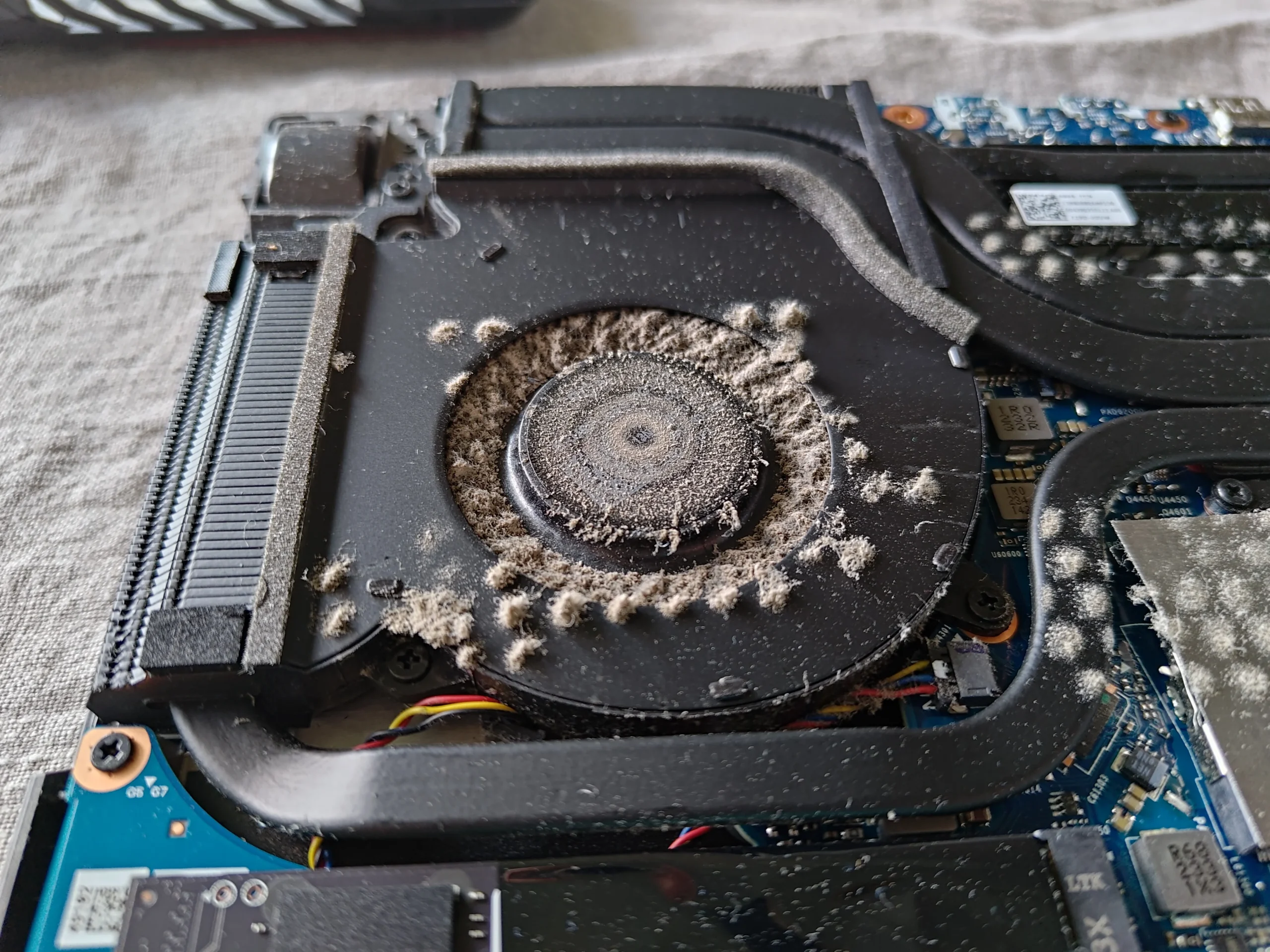
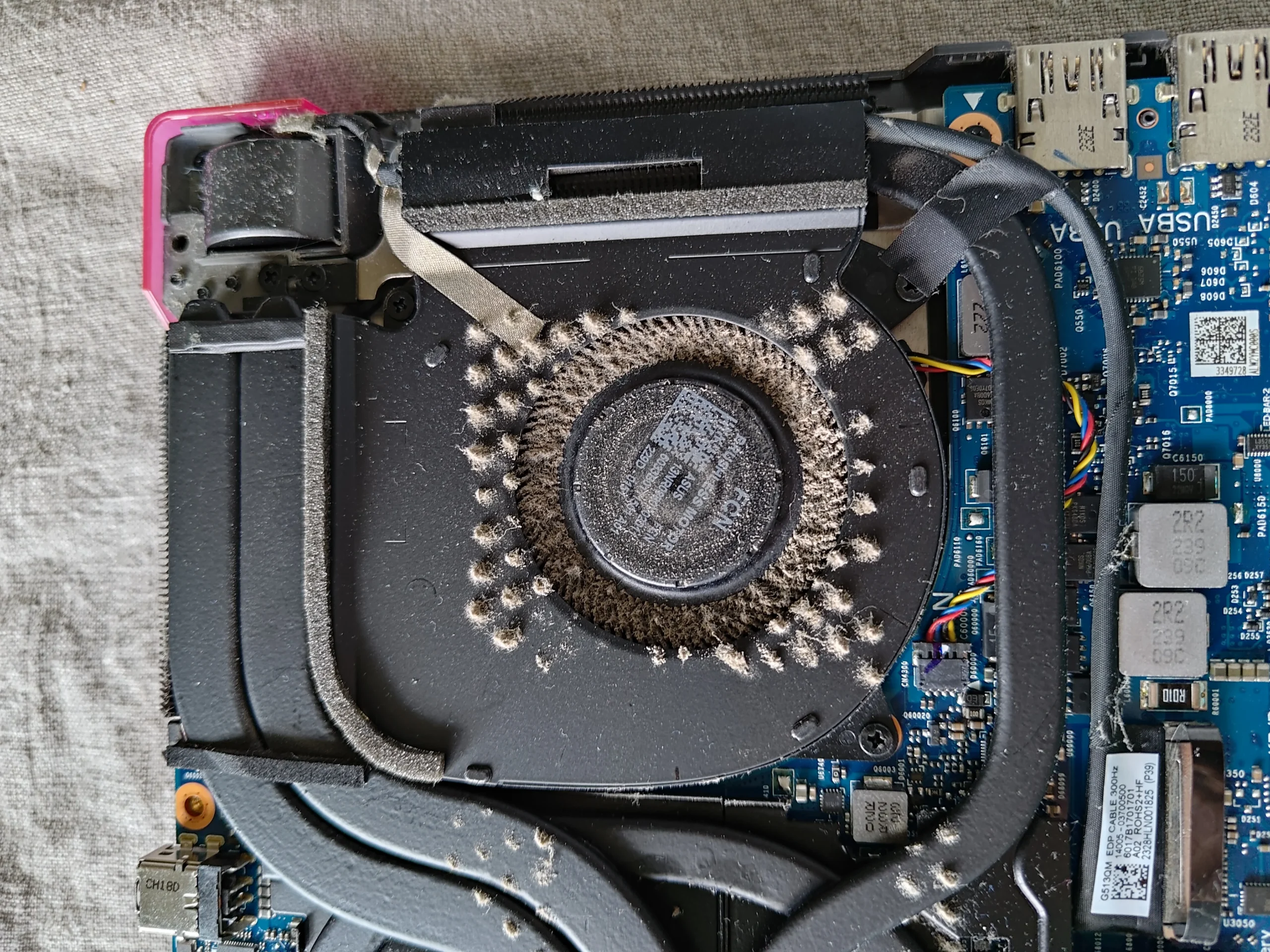
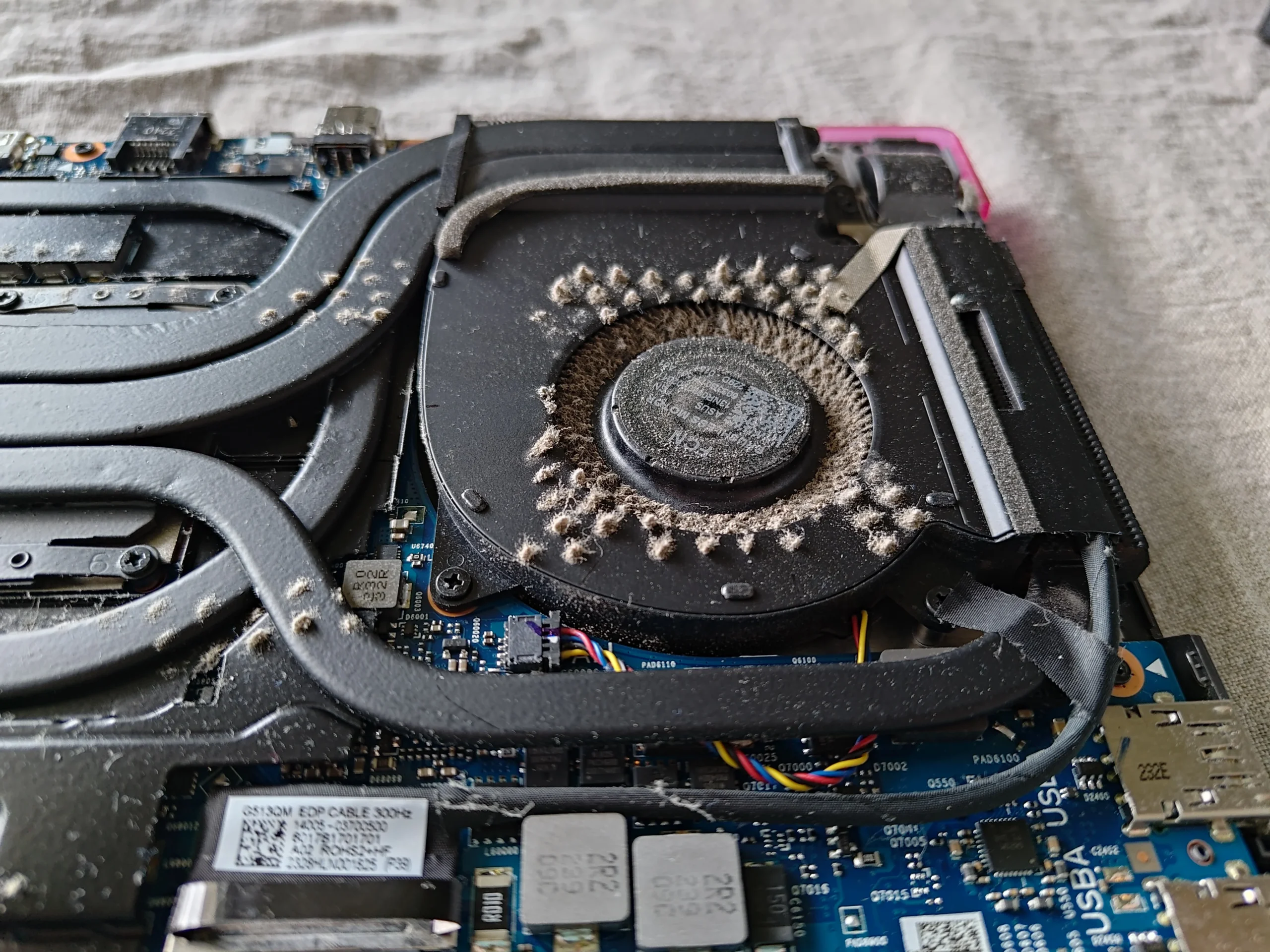
both fan inlets had grown rings of fluff.
In the open-case photos, each blower has a pale halo of compressed lint around its inlet. The close-ups make a useful point for anyone cleaning this model: the fluffy ring is loose contamination, but the dark foam strips around the outlet are fitted airflow seals and should stay in place.
Exact variant
G513RW-HF052W on the underside label
Cooling layout
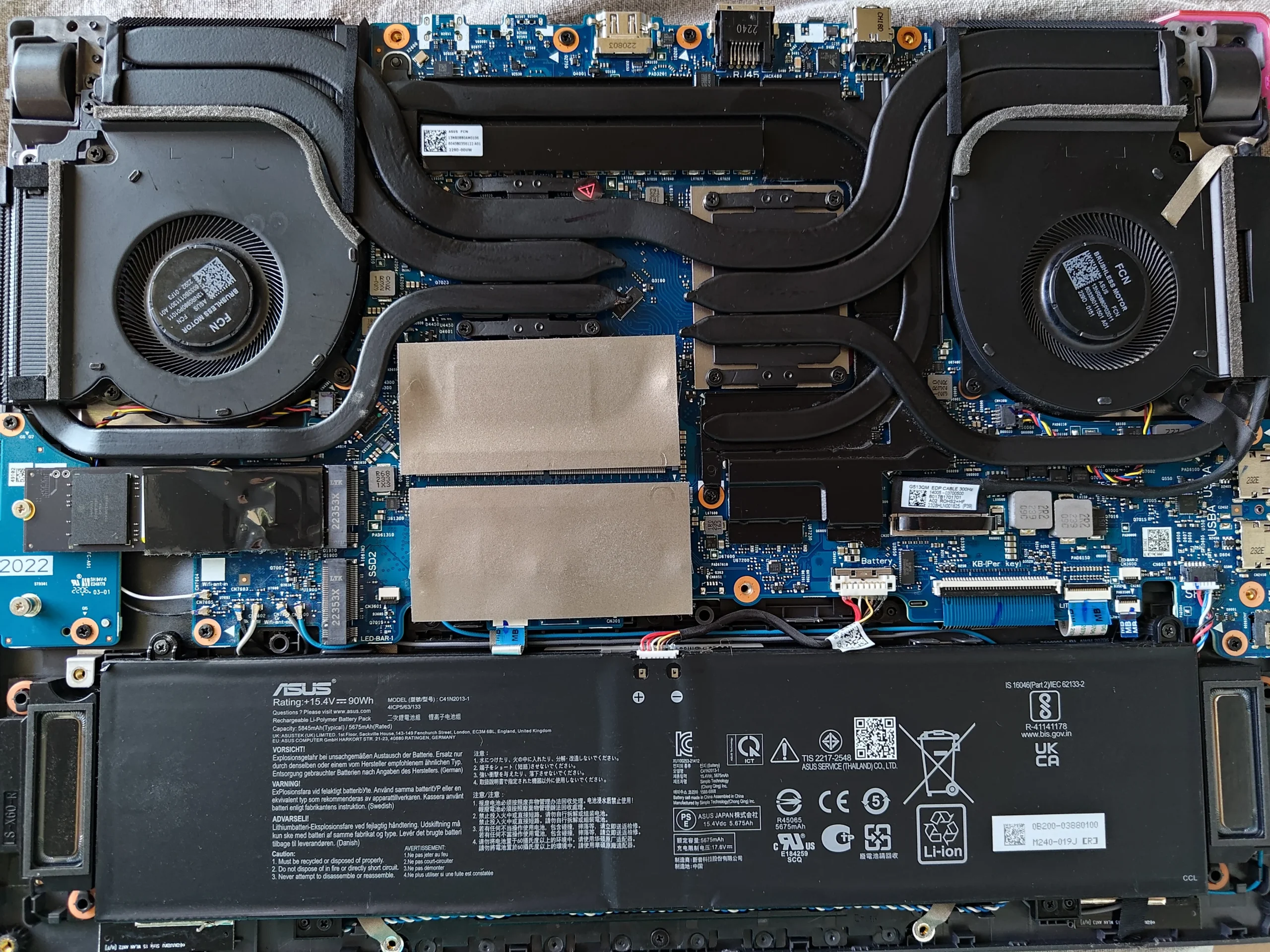
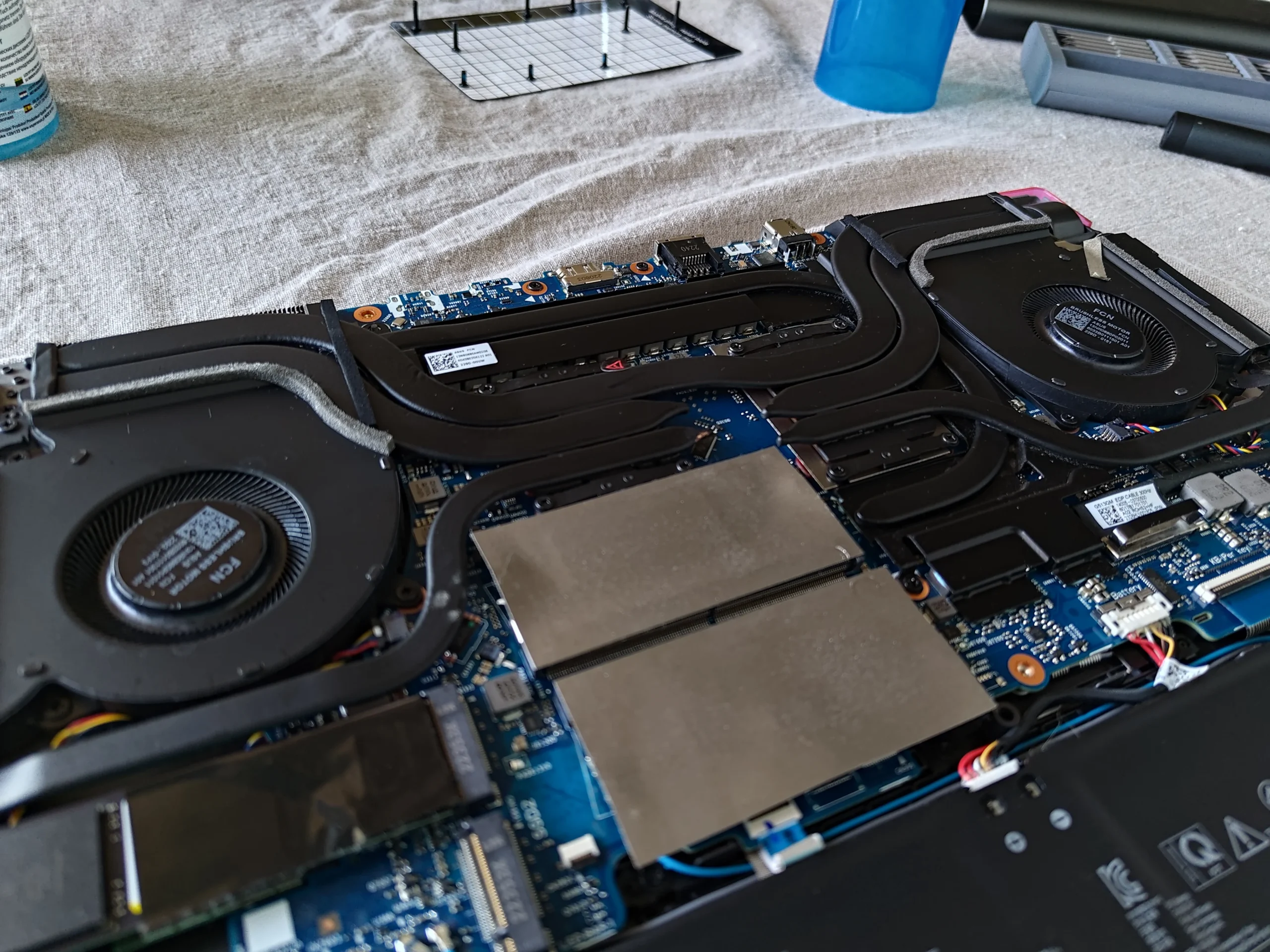
Two fans linked by multiple heat pipes
Documented result
Fan inlets photographed with fluff, then clear after cleaning
The underside label identifies this as a ROG Strix G513RW-HF052W. That label also includes a serial number, so its photo is not published. The opened laptop shows two blower fans, a heat-pipe network and narrow side and rear exhaust areas.
The striking material is lint packed around both fan inlets. The photo set includes the same fan area before and after the visible fluff was removed. It does not include a comparable temperature measurement, so the outcome here is a documented physical clean rather than a degree claim.
In this case study
01 / The main finding
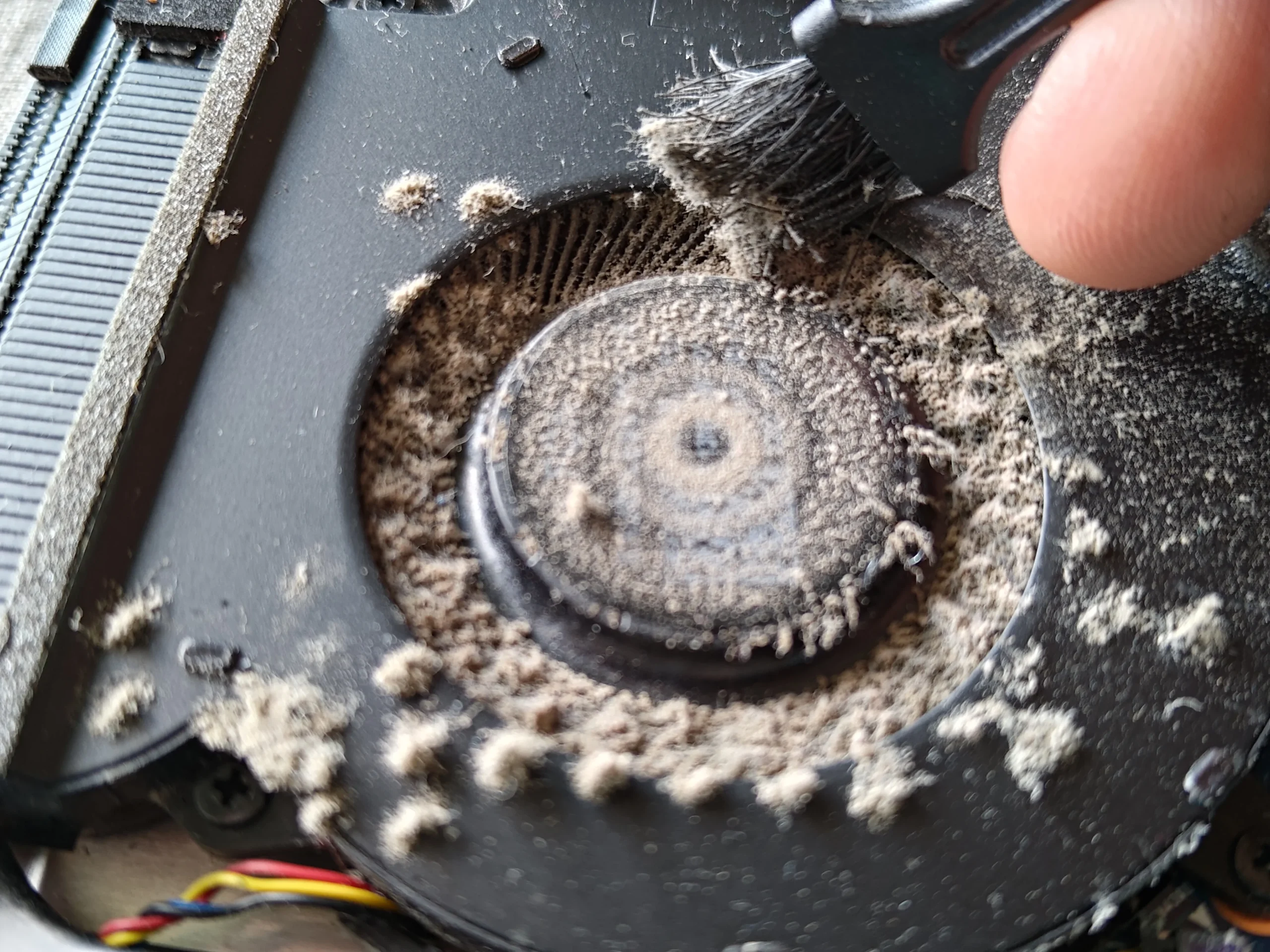
The fan inlet had a dense ring of loose fibres
The close-up shows material clinging to the blade openings and scattered on the fan housing. This can limit the air reaching the blower even before any lint reaches the exhaust fins. A spinning wheel is not enough to show that the inlet is clear.
With power disconnected and the battery isolated, hold the wheel still and collect the tufts rather than blasting them deeper into the case. Keep the cleaning tool away from the small wires at the fan edge.
02 / The whole cooler
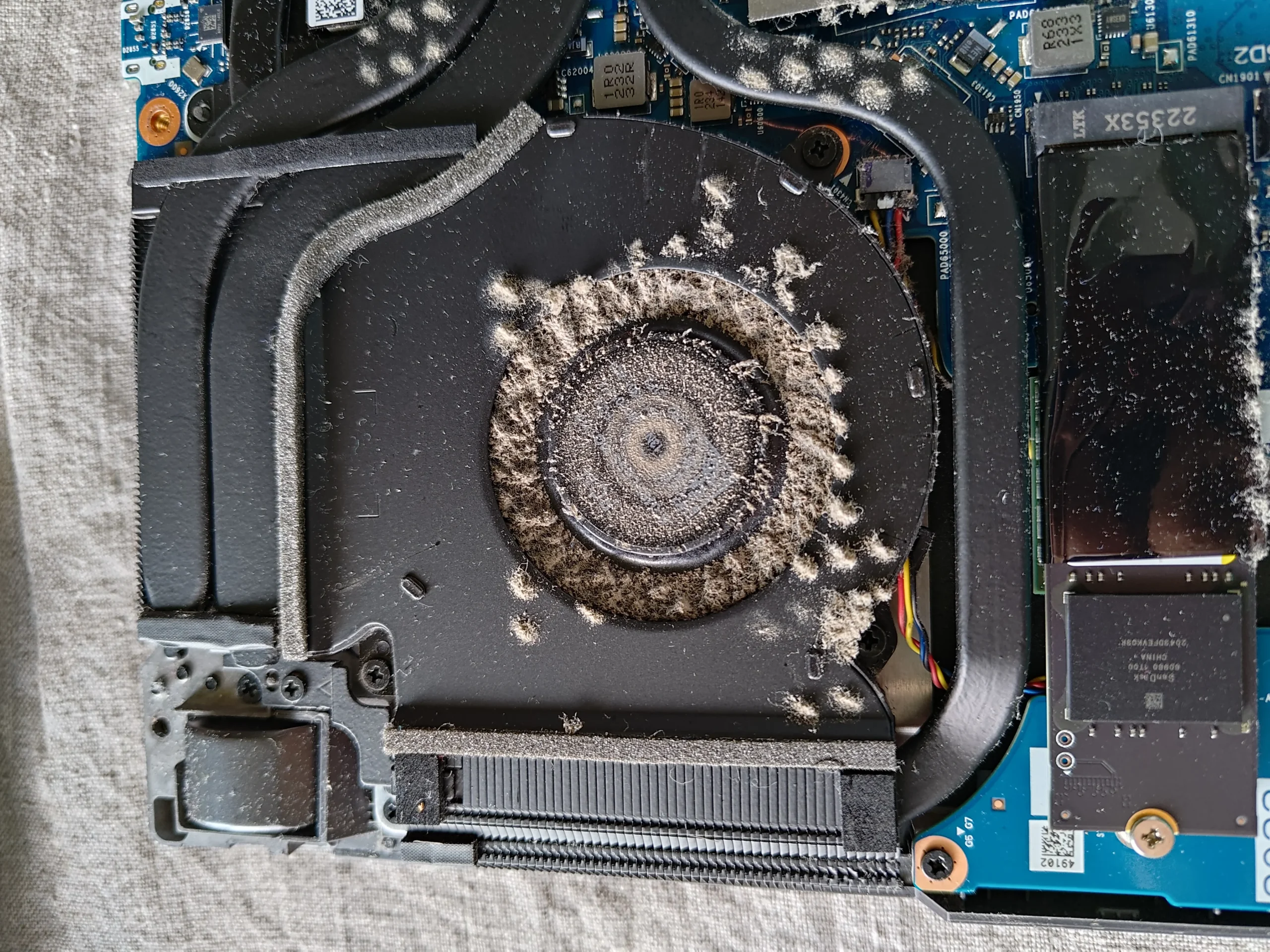
The second blower had the same problem
A wider view shows the two fans at opposite sides of the heat-pipe assembly. The other fan close-up also has lint around its inlet. Clean both sides and inspect each fin outlet, because one clear fan cannot make up for a restricted partner.
The silver-grey and black foam pieces fitted along the fan and fin housings guide air through the intended route. They are different from the loose pale fluff. Leave sound fitted seals in place when cleaning and check that they return to their original positions.
03 / What the photos prove
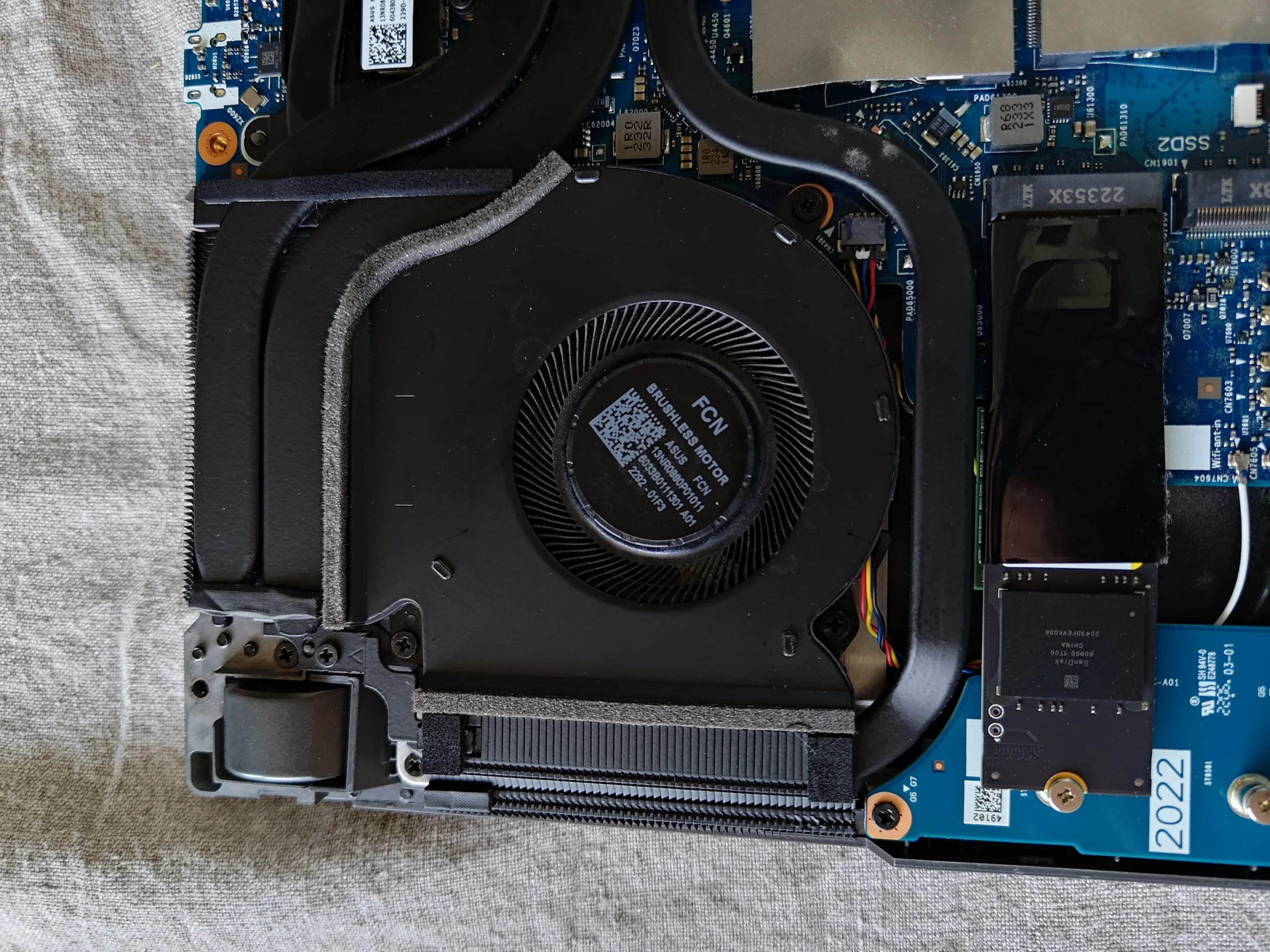
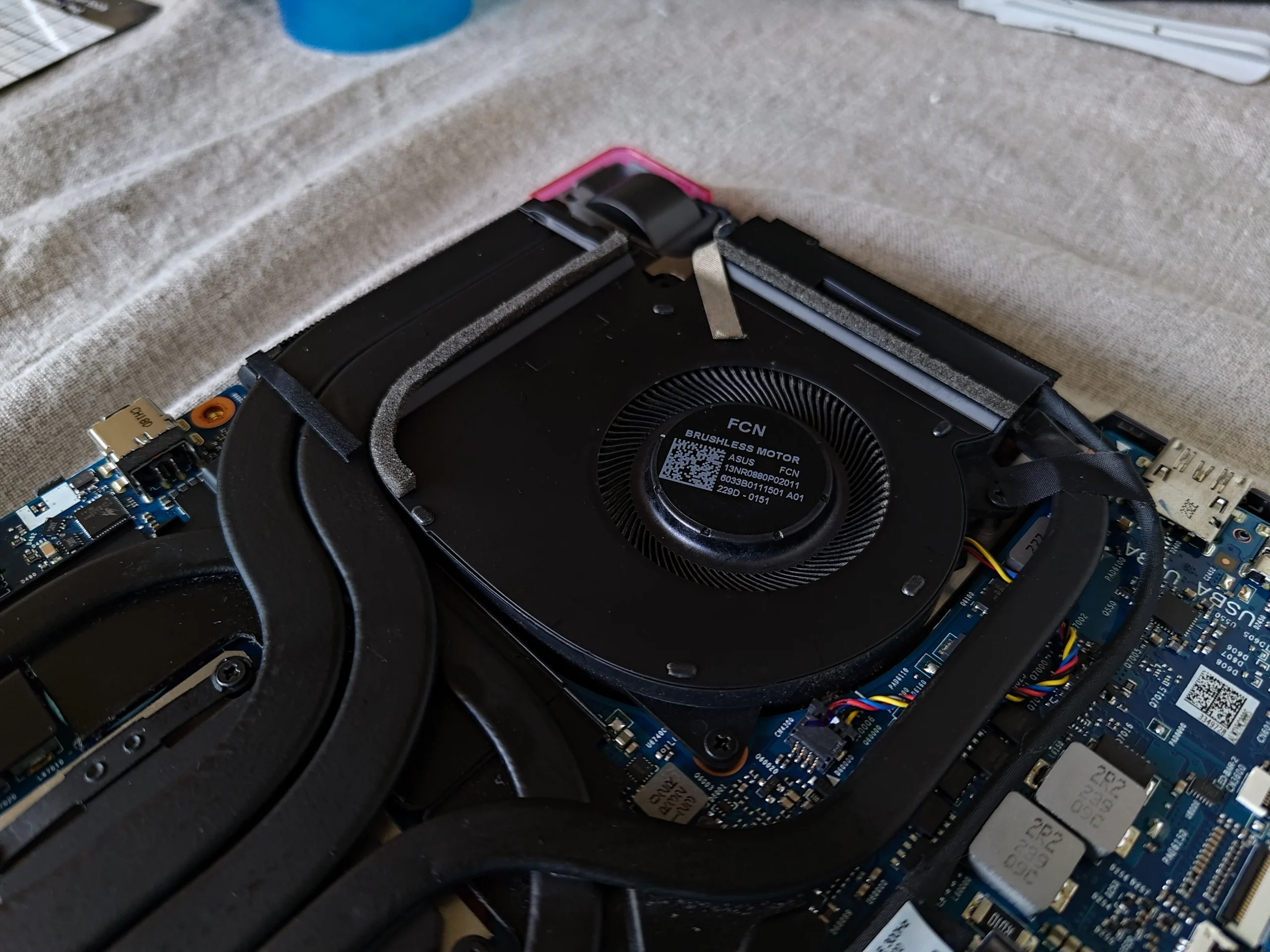
The same inlet is visibly clear after the clean
The later close-up of the right-hand fan shows the blade openings and housing without the thick ring that was present earlier. This is a useful before-and-after comparison of the physical debris, not a temperature benchmark.
Before closing, look through the narrow fin stack beside this fan and check that no tufts were left at the outlet. The foam strip along its edge should still make the designed seal.
04 / Back in service
Check both fan paths without disturbing the heat pipes
The cleaned overview shows both fans and the shared heat-pipe layout in place. The photos do not show the cooler lifted from the chips, so this case does not claim a repaste. Fan and outlet cleaning can be a distinct task when the chip contacts are left seated.
After the cover goes back, confirm both blowers run without rubbing, both outlets move air and normal keyboard, display and charging functions remain. If temperature was the original concern, compare the same workload and fan mode separately.
The engineer’s takeaway
On this G513RW, the obvious obstruction was a fluff ring around both fan inlets. The photographed after view shows the visible debris cleared. A good clean also checks the fin exits and preserves the fitted foam seals that direct airflow.
Before you open the laptop
Can you clean a G513RW fan safely yourself?
Confirm the exact G513RW-HF052W variant on your own label and follow the right opening instructions. Shut down, unplug, isolate the battery and keep the cover screws organised. Photograph the fan area before moving cables or tape.
Lift loose lint gently while holding the fan wheel still. Do not peel away the factory foam as if it were dust, and do not force an air nozzle into a fin stack. If the fan connector or outlet cannot be reached safely, stop before pulling on the heat-pipe assembly.
After the clean
What to check once the Strix is closed
Look for clear airflow from both sides under a consistent task, and listen for scraping or a new rattle. Check the foam seals are seated and that the bottom cover fits flush.
The photos prove visible material was removed from a fan inlet; they do not establish a temperature change. Record comparable readings if you need to assess a heat complaint.
Questions from owners
ROG Strix G513RW-HF052W fan-cleaning FAQs
Answers drawn from the two fluffy inlets and the photographed clean fan.
Is the pale ring around the fan supposed to be there?
No. The pale clumps in these photos are loose lint caught at the inlet. The fitted foam strips along the housing are separate airflow seals.
Why clean both fans if one looks worse?
The photographs show accumulation at both blowers. Each fan has its own inlet and exhaust path, so both need inspection.
Can I remove the foam strip to reach the outlet?
Do not treat it as disposable dust. It helps seal the fan-to-fin path and should stay in its intended position unless the correct service procedure calls for removal and refitting.
Does a fan need replacing because it collected lint?
Lint alone does not prove a failed motor. Clean the inlet and outlet, then check for free rotation, scraping or an electrical fault before deciding on replacement.
Was the thermal paste changed in this case?
The photos show fan and airflow cleaning, with the heat-pipe assembly remaining over the chips. They do not establish a repaste.
How many degrees did the clean improve the laptop?
There are no matched before-and-after readings in this archive. The visible fan clean is documented, but no numerical temperature claim is made.
UK ROG Strix cleaning enquiries
Fluff gathering around your Strix fan inlets?
If you are in the UK, send us the exact ROG model, which vent seems weak or noisy, and your postcode. A photo through the lower intake can help us discuss the likely fan access needed.
We can inspect both blower paths, clear trapped lint and check that the outlet seals and fan connections are seated after cleaning.
Read about our ROG gaming laptop fan-cleaning service, then use the form to tell us your computer model, symptoms and UK postcode.
Free to enquire · No obligation to book. We discuss the proposed work and price before you decide.
The workshop photos
ROG Strix G513RW fan cleaning photos
Open the pictures to compare the fluffy fan inlets with the cleaned blower and inspect the dual-fan layout.