Published 8 October 2026 · AMD Ryzen / MSI gaming desktop case study
Gaming PC cleaning
the GPU fans were wearing lint.
This desktop had more than a dusty case. Fibres stretched across a graphics-card fan, the intake mesh carried a heavy layer, and the AMD CPU cooler needed separate inspection. The photos show why a gaming PC has several cooling routes to follow.
The system
AMD Ryzen CPU with MSI dual-fan graphics card
The striking finding
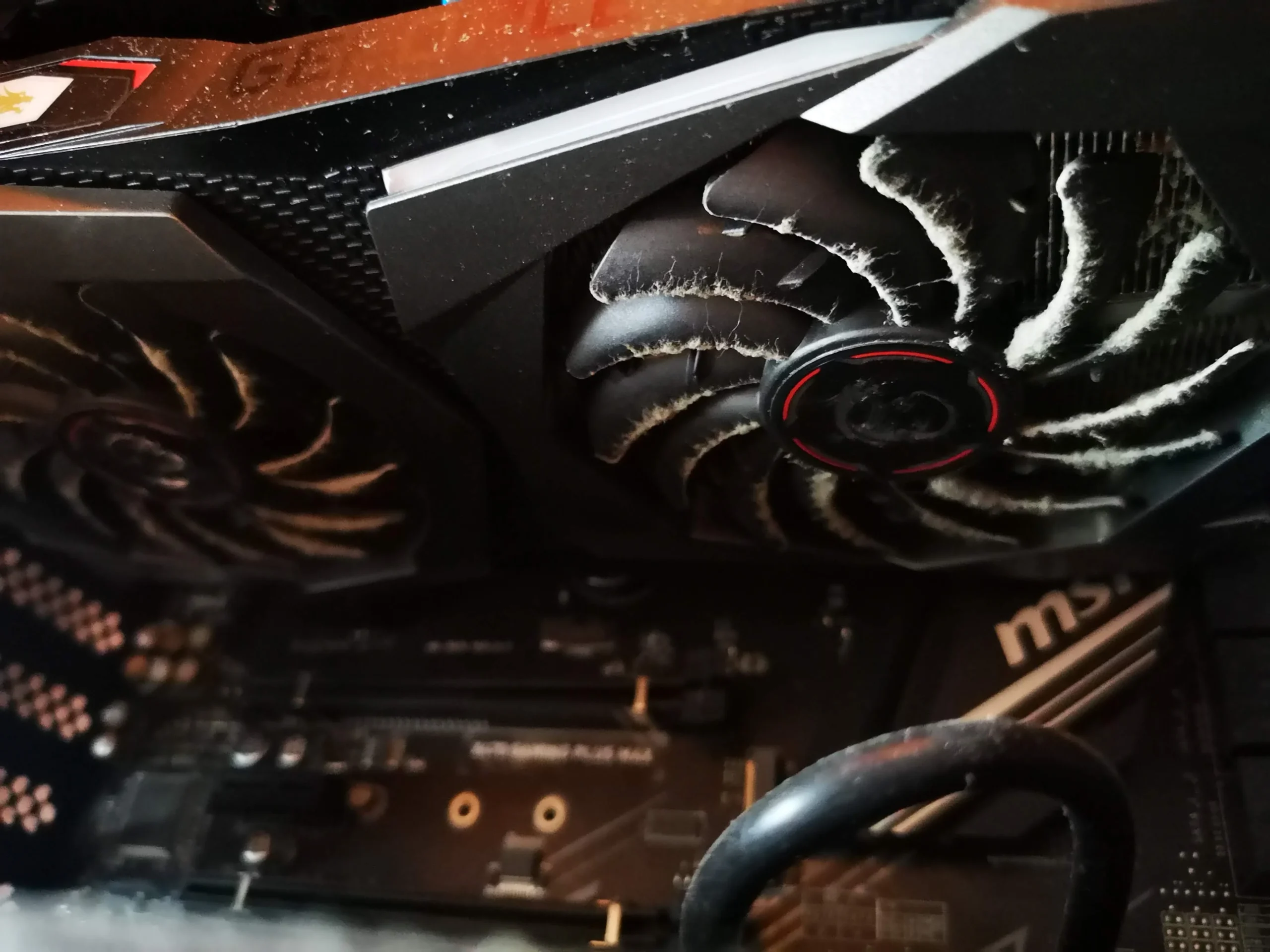
Fibres caught on GPU fan blades and hub
Other air route
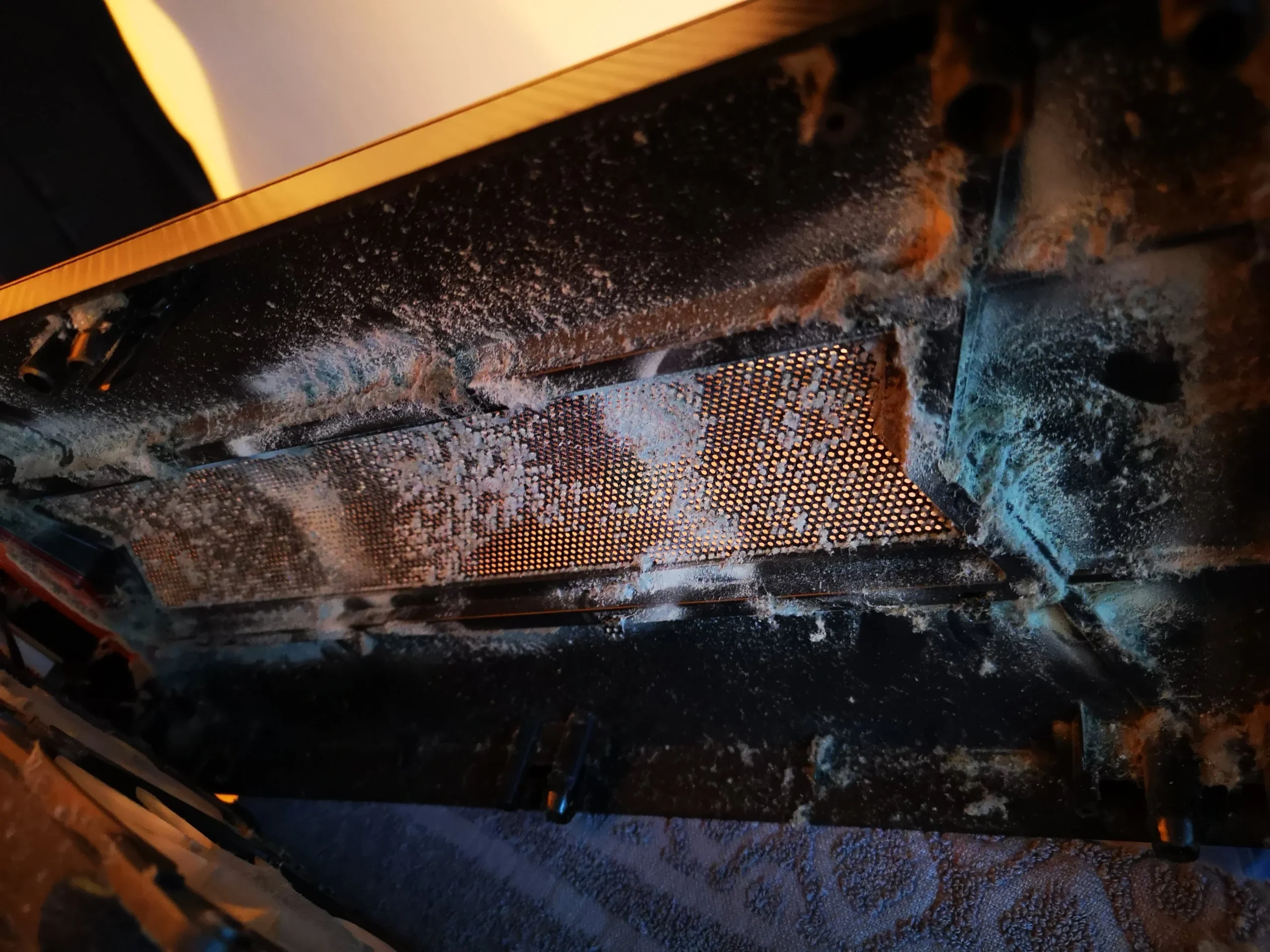
Dust and lint across the case intake mesh
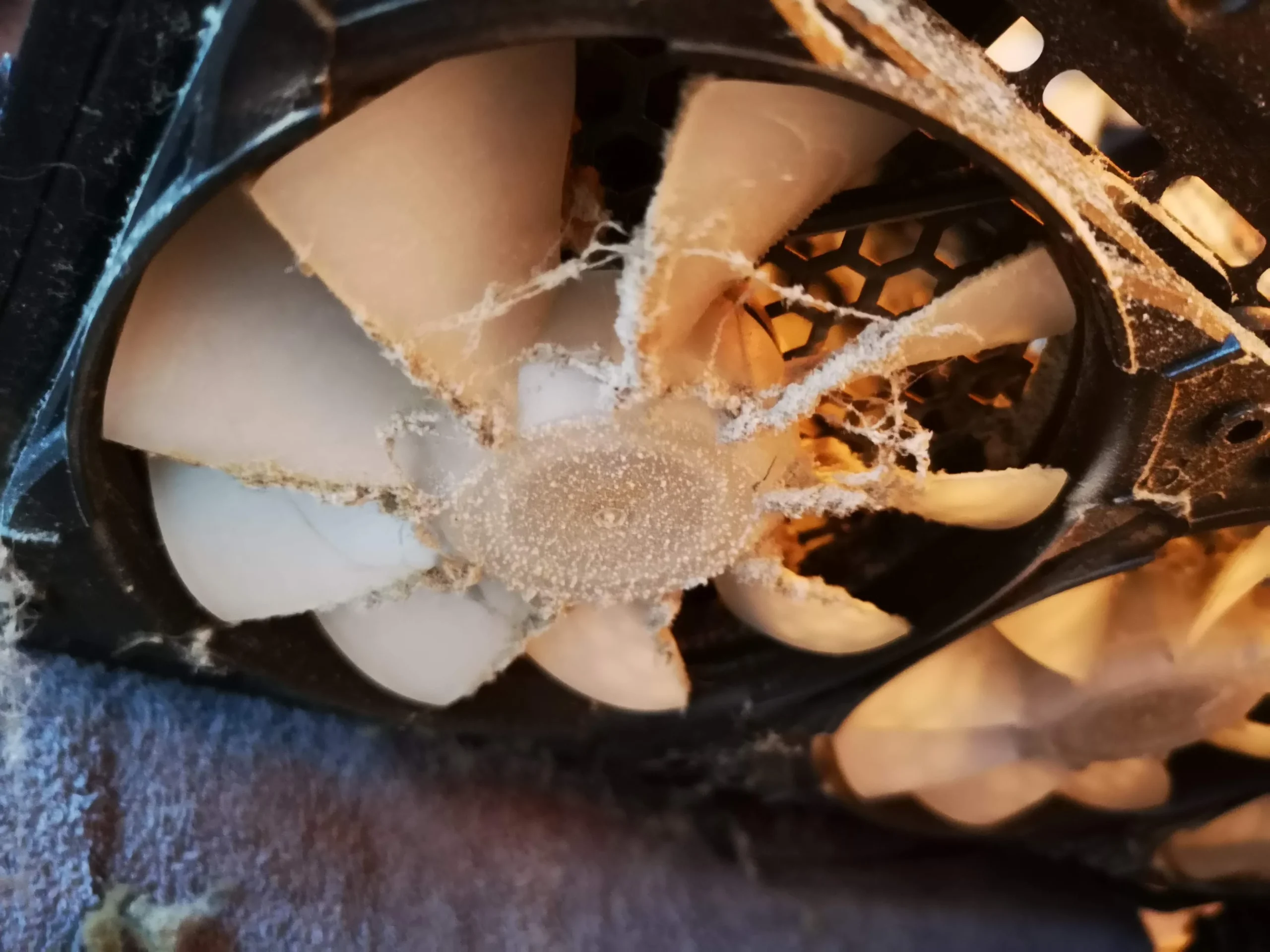
A graphics card can have its own fans while the processor has a separate cooler, and both depend on the case supplying reasonably clear air. On this desktop, the MSI card's blades had caught wispy fibres. A removed case panel shows dust across a broad mesh opening; another image shows the accumulated material taken out of the machine.
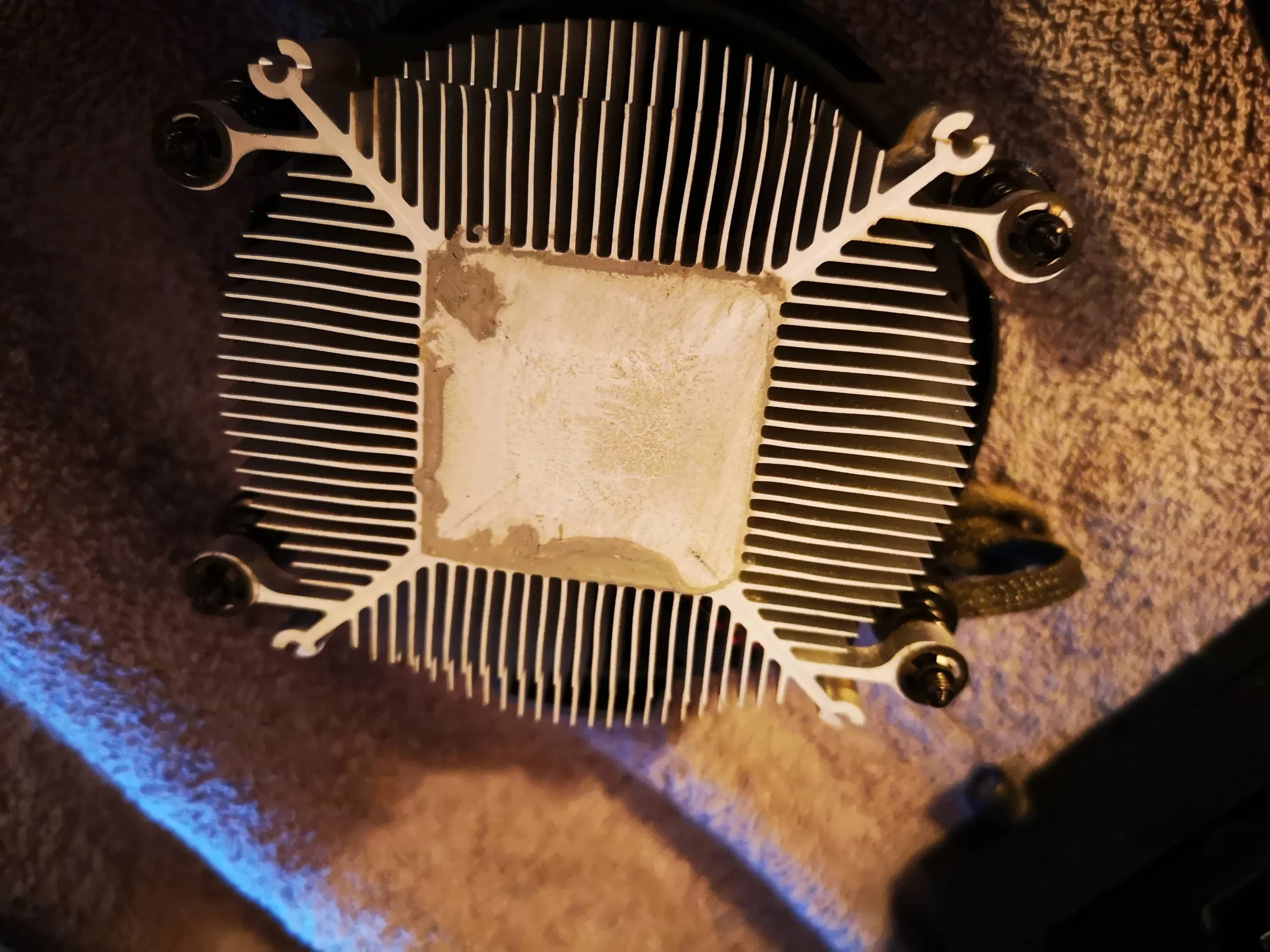
The photo set also shows the AMD stock cooler off the Ryzen processor, with old compound on its contact plate and the CPU surface cleaned. It does not document a controlled temperature test or a close-up of fresh compound being applied. This case describes the visible steps and gives the right checks, without inventing a result.
In this case study
01 / The obvious warning
Fibres were caught across the MSI graphics-card fan
The first close-up shows a web of fibres on one GPU fan's blades and hub. A fan in that condition may still turn, but the material can upset airflow and needs removing without tugging on the blades or forcing debris through the cooler.
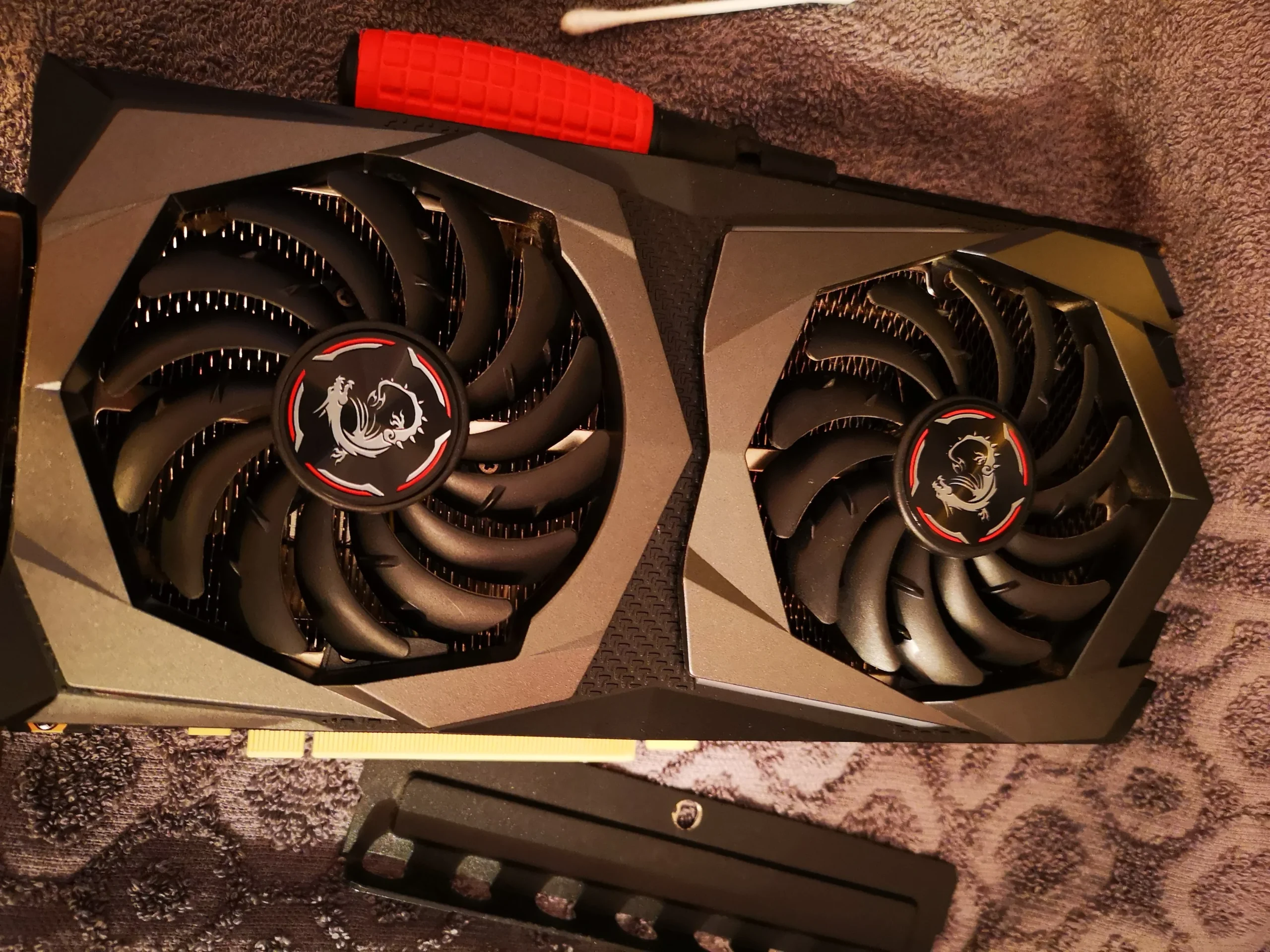
The later photo of the removed dual-fan card gives a clearer view of both fans. That is a useful reminder to inspect both sides of a graphics card's cooling system rather than cleaning the one fan visible through a side window.
02 / Where the dust entered
The case mesh held a thick dust layer
The removed case panel has dust across its mesh and heavy buildup near the edge. This is where incoming air is screened before it reaches the CPU and GPU. If the opening is restricted, clean fans inside the case will not have the same supply of air.
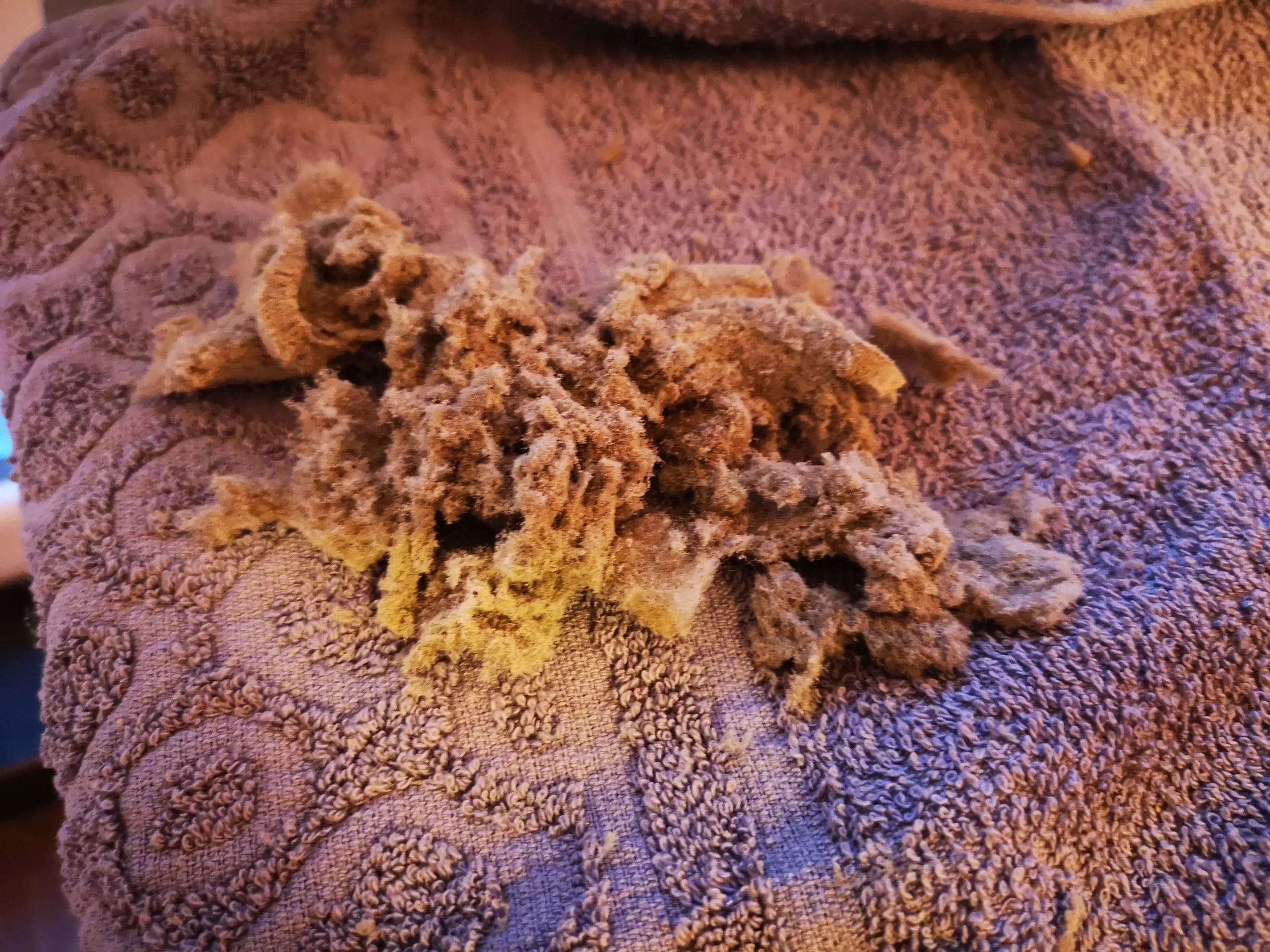
The photo of dust collected on a towel shows how much loose material came out. Removable panels and filters can be cleaned separately, dried fully if washed, and fitted again only when clear. Keep wet cleaning away from powered components.
03 / A separate cooling loop
The AMD CPU cooler had its own maintenance job
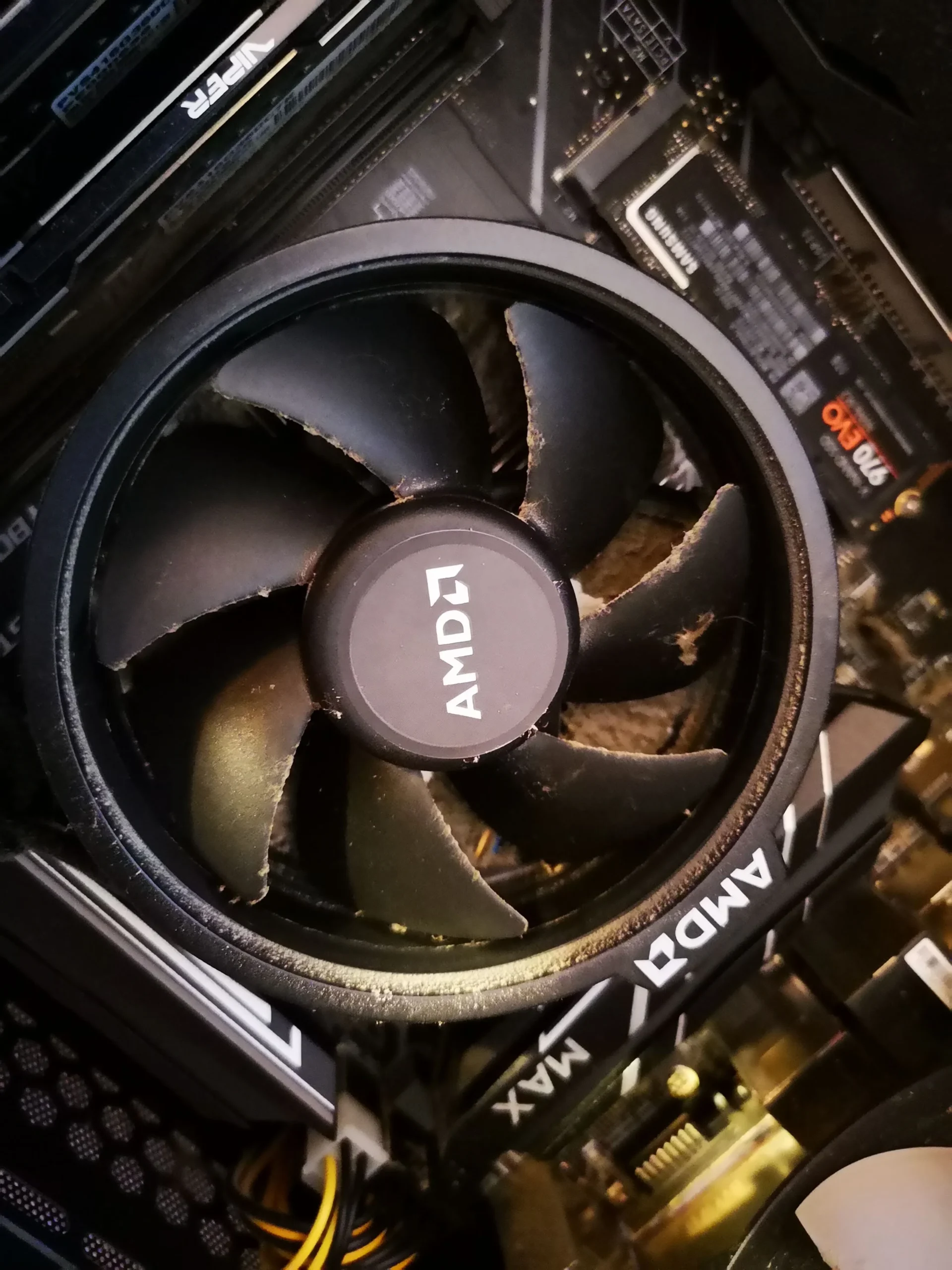
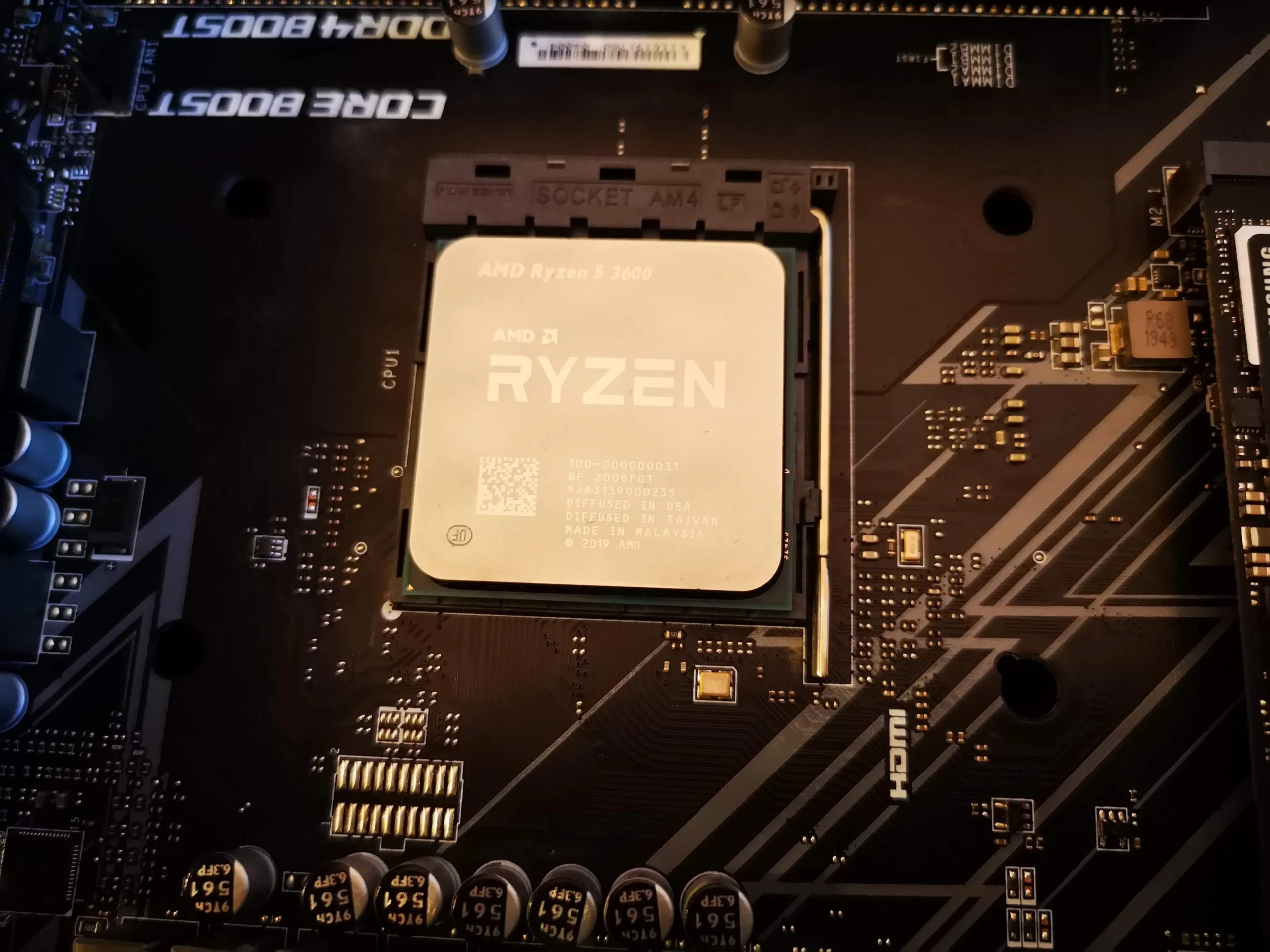
An overview shows the AMD stock fan in place. Another photo shows the cooler removed: its metal contact plate still carries old thermal compound, while the Ryzen chip is shown cleaned. That contact is part of the processor's heat route, separate from the graphics card's fans.
Once a CPU cooler is lifted, its old compound should be cleaned from both mating surfaces and fresh paste applied before it is refitted evenly. The archive does not show the fresh application itself, so the photo evidence supports cooler removal and surface preparation, not a measured repaste outcome.
04 / Putting the routes together
The PC is back together, but checks still matter
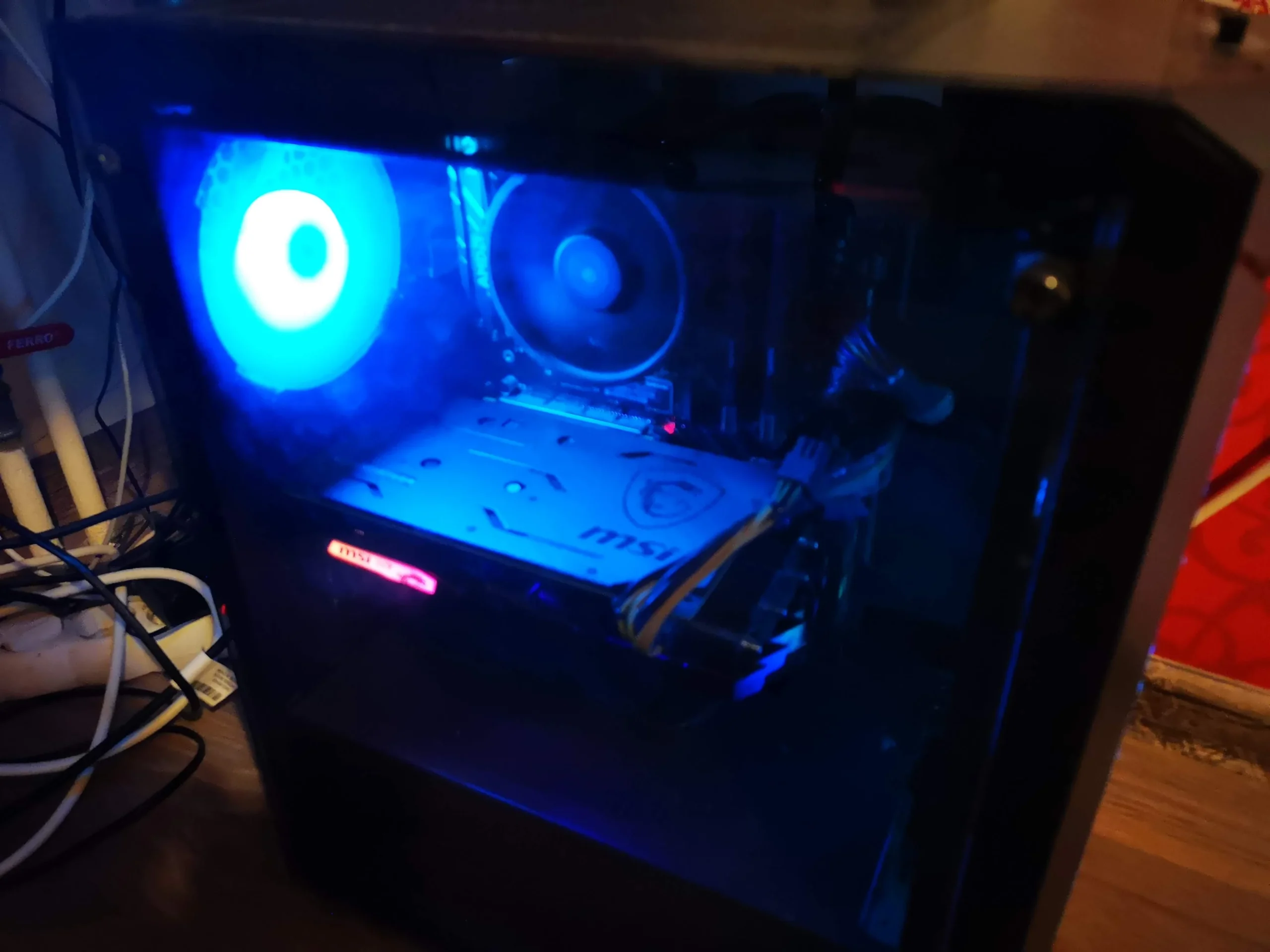
The final lit-up case photo shows the graphics card and CPU cooler installed. It demonstrates reassembly, but lights alone cannot prove cooling performance or that every fan is spinning correctly.
After cleaning, confirm the CPU fan, case fans and both GPU fans behave as expected. Some graphics cards intentionally keep their fans stopped at low load, so compare behaviour under a suitable task rather than assuming an idle fan has failed. Watch temperatures and noise under similar room conditions.
The engineer’s takeaway
This gaming PC had three visible places to investigate: the case intake, the GPU's two fans and the CPU cooler. Treating the whole computer as one dusty box would miss the separate cooling paths and the disturbed CPU thermal interface.
Before you open the laptop
Can you clean a Ryzen gaming desktop yourself?
Shut down, switch off at the PSU and unplug the mains lead before removing a case panel. Start with removable dust filters and the case mesh; photograph cable routes before moving anything. Hold fan blades still while removing dust and support a graphics card if you take it out.
CPU cooler removal is a different level of work. If you lift it, check the correct mounting method for your Ryzen socket, clean the old compound properly and use fresh paste during even reattachment. Never open a power-supply unit: it can retain dangerous charge.
After the clean
How to tell whether the clean helped
Check the machine boots, all expected fans can run, and no new rubbing noise comes from a blade. Compare CPU and GPU temperature and fan speed during the same workload, with similar room temperature and case panels fitted.
The photographs record dust removal and reassembly, but there is no paired benchmark. If one component still runs hot, test its cooling route and fan control independently instead of assuming that a clean case filter solved it.
Questions from owners
Ryzen and MSI gaming PC cleaning FAQs
Answers based on the graphics card, case mesh and CPU cooler shown in this desktop.
Can lint on a GPU fan cause trouble even if it spins?
Yes. Fibres caught across the blades can obstruct airflow and may cause noise or imbalance. This card had visible lint on a fan, so it needed direct inspection.
Should I remove the graphics card to clean it?
Only if access is poor and you can release the PCIe latch and power connectors safely. In this case the card was photographed outside the system, making both fans easier to inspect.
Why clean the case intake before the fans?
The intake mesh feeds air to components inside. The panel here had a thick layer of dust; leaving it blocked can restrict air even after the fan blades look clean.
Was the Ryzen CPU repasted?
The photos show the cooler removed, old compound on its base and a cleaned CPU surface. A fresh-paste application is not pictured; any cooler lifted for service must be refitted with a properly prepared thermal interface.
Why are my GPU fans stopped at idle?
Some modern cards stop their fans when cool. Check the particular card's fan behaviour under a suitable load before treating an idle fan as faulty.
How often should I clean a gaming PC like this?
Inspect filters and vents regularly. The right cleaning interval depends on floor placement, pets, room dust and use; visible restriction or increased heat and noise are better prompts than a universal calendar date.
UK gaming PC cleaning enquiries
Want your GPU and case airflow checked?
If your UK gaming desktop has lint around the GPU fans or a blocked intake, tell us the case, CPU and graphics-card models if you know them. Describe when the noise or heat appears and include your postcode.
We can discuss a full airflow clean and separate diagnosis for a faulty fan or a CPU cooler that needs careful removal and refitting.
Read about our desktop fan and cooling service, then use the form to tell us your computer model, symptoms and UK postcode.
Free to enquire · No obligation to book. We discuss the proposed work and price before you decide.
The workshop photos
Ryzen and MSI desktop cleaning photo gallery
Open the photos for the lint-covered GPU fan, dusty panel mesh, removed material, Ryzen cooler contact and reassembled PC.