Understanding your laptop’s exact model number is not just about technical know-how; it’s a necessity for effective laptop repairs. Whether you’re planning upgrades, seeking support, or replacing parts, knowing the precise model of your laptop is crucial.
This guide offers straightforward methods to accurately determine your laptop’s brand and model number, ensuring you have the essential information needed for any laptop repair or maintenance task.
You don’t need to install anything or type any commands for this. Just grab your laptop and have a look – the model number is almost always printed somewhere on the machine itself. This is by far the quickest method, and it works even if your laptop won’t turn on.
This is the first thing to try, and honestly it works about 80% of the time.
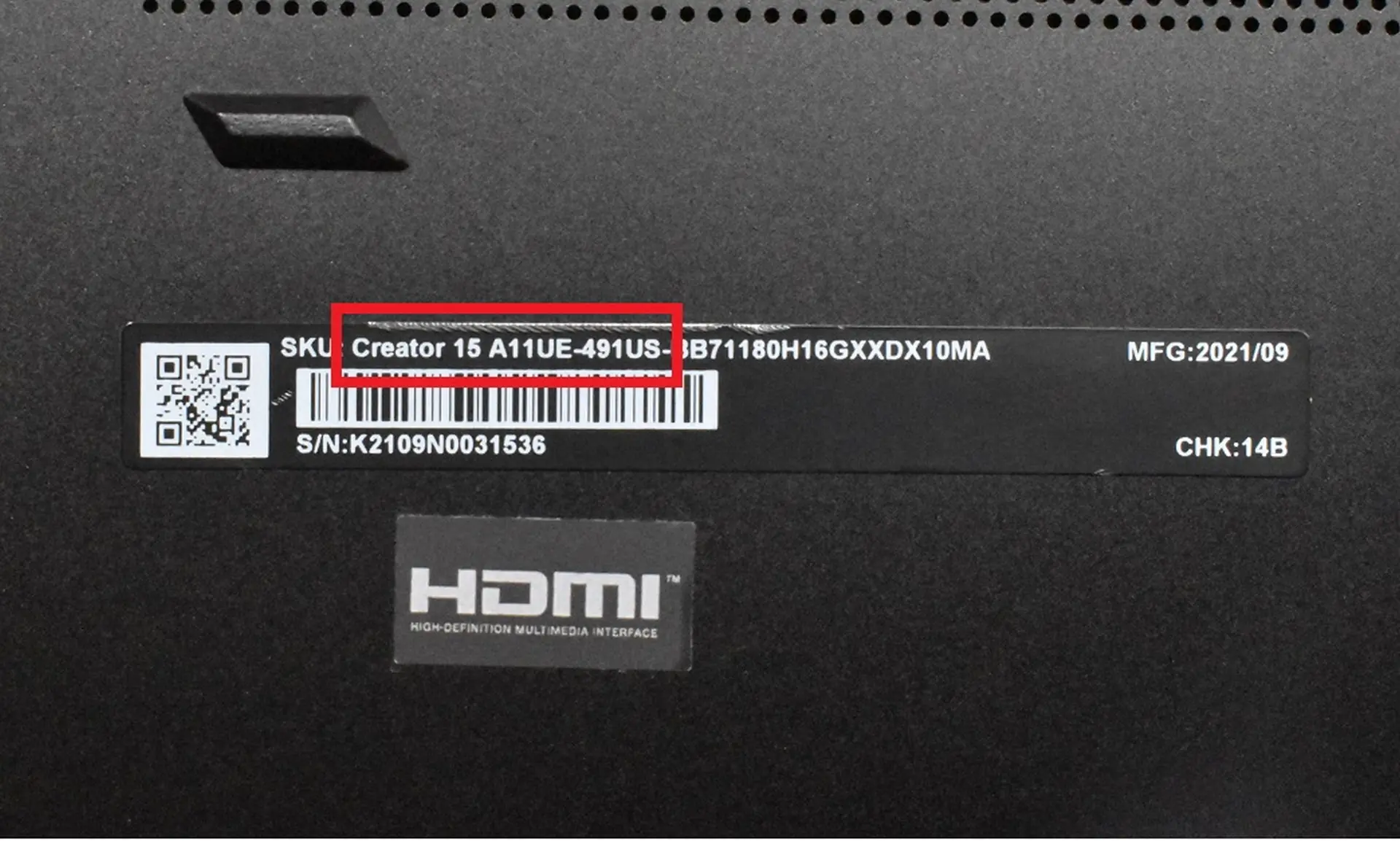
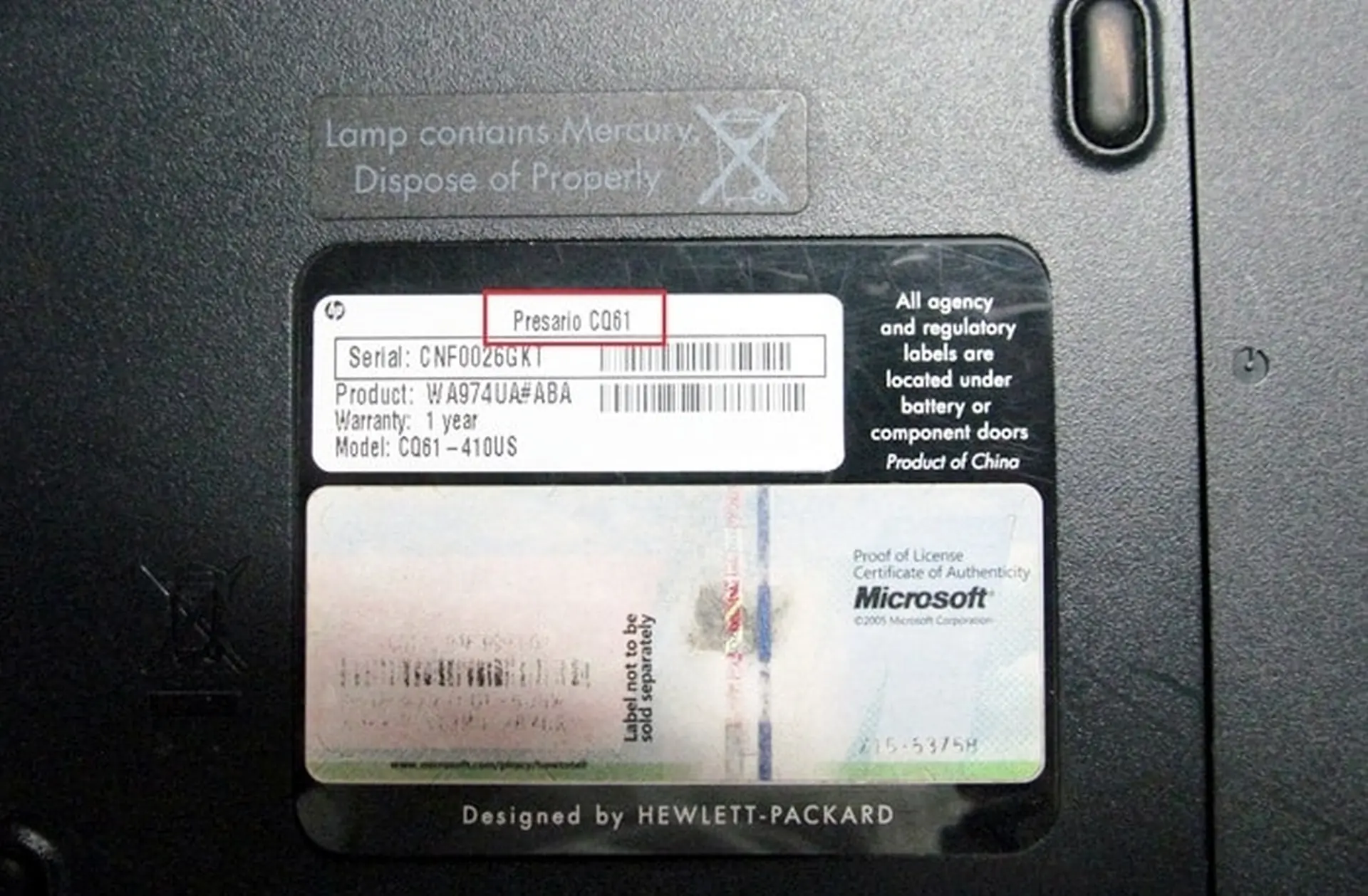
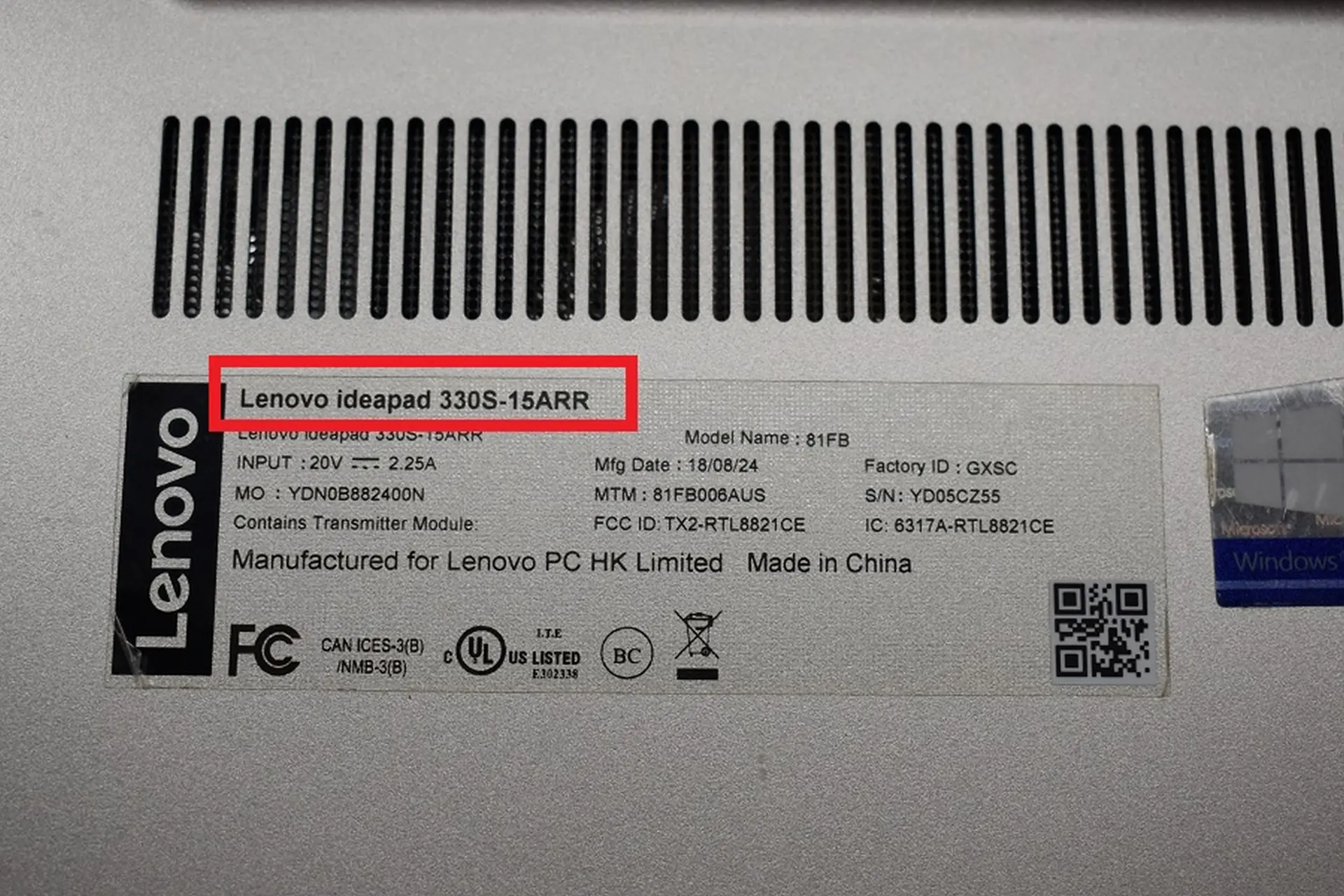
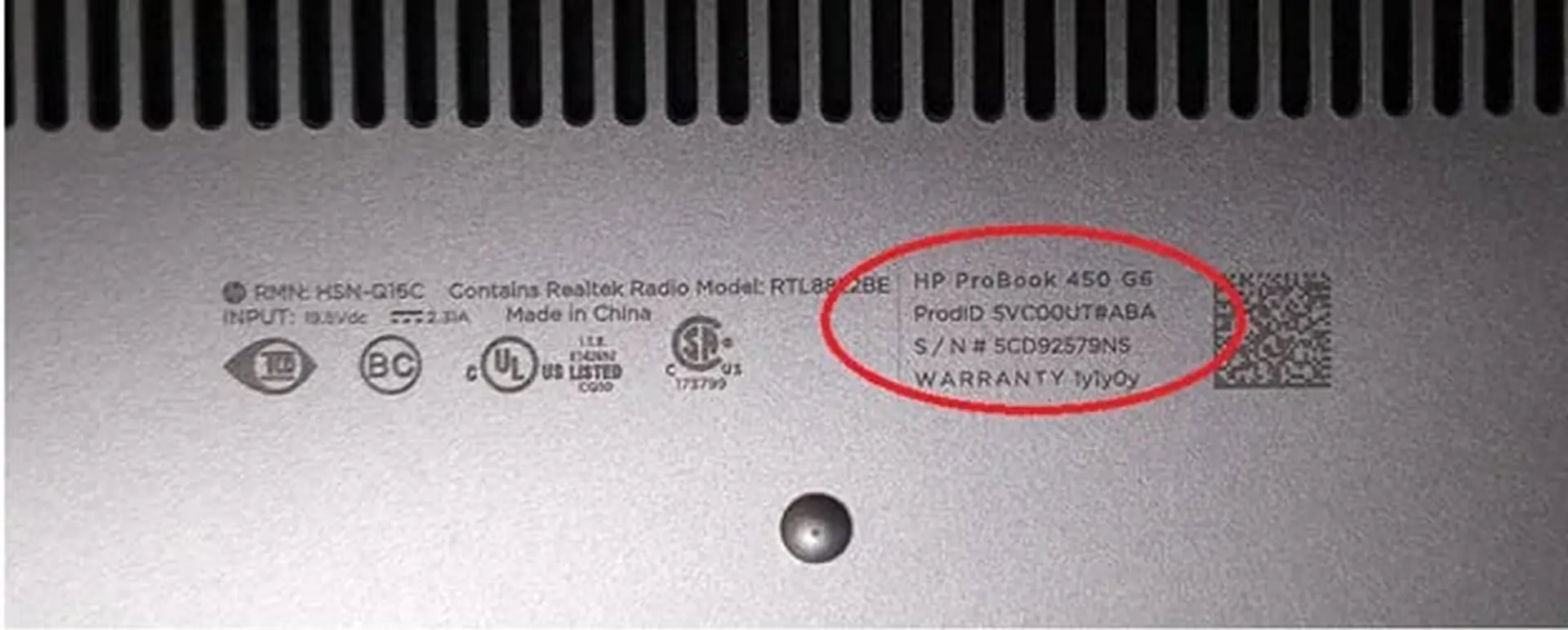
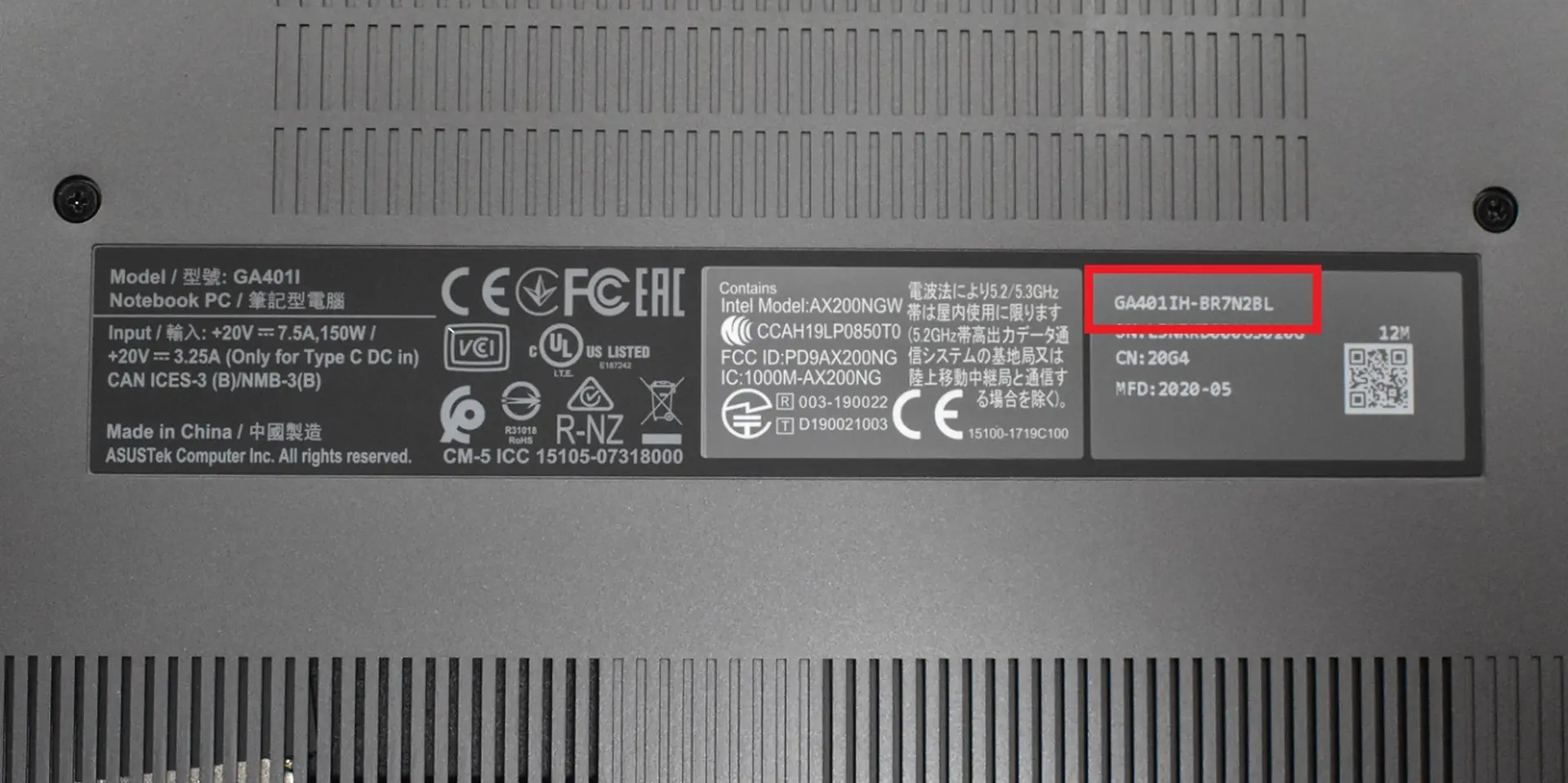
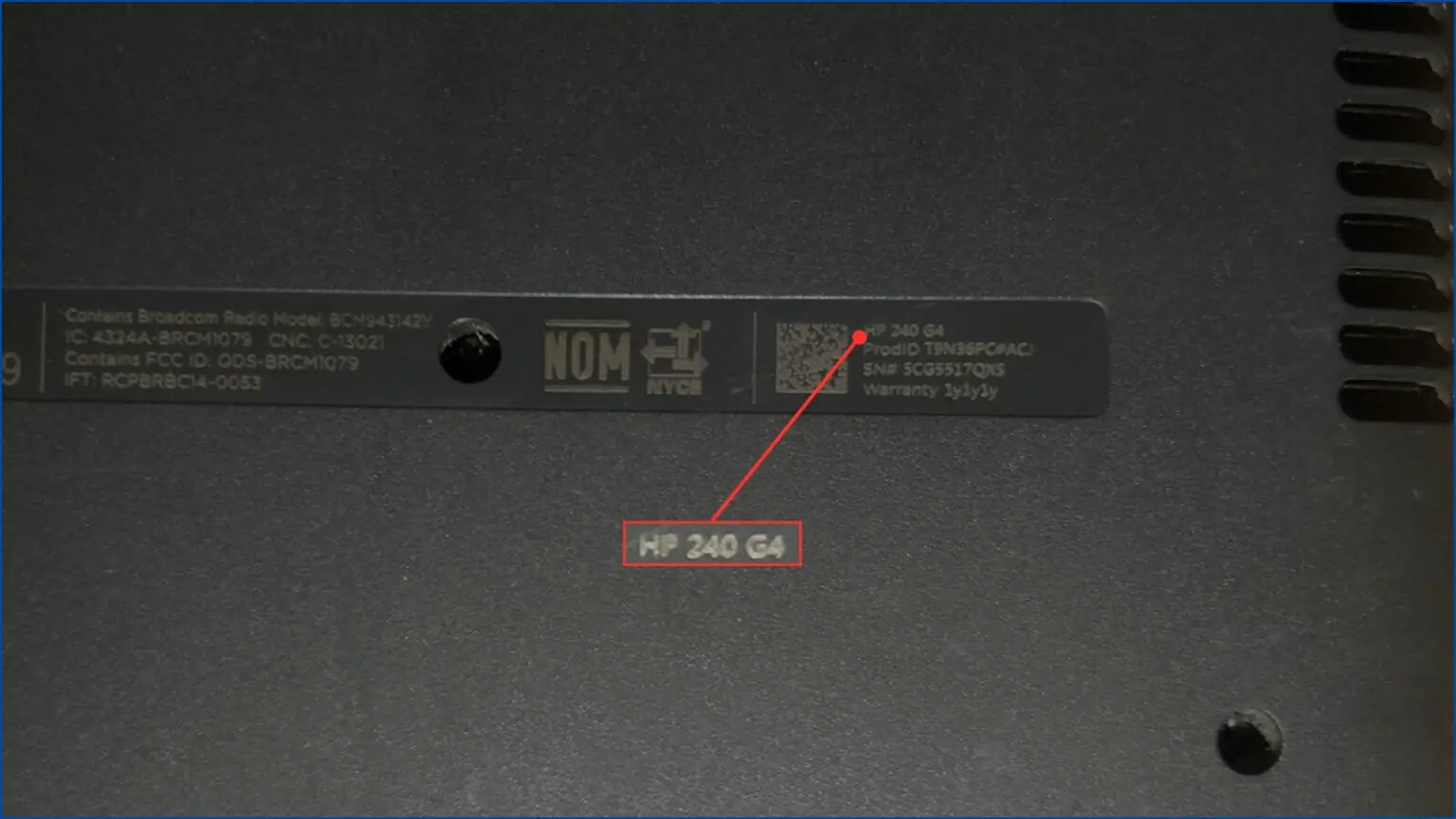
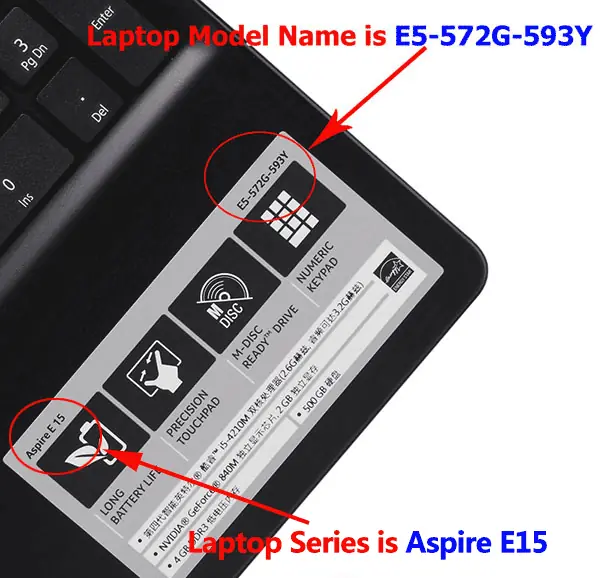
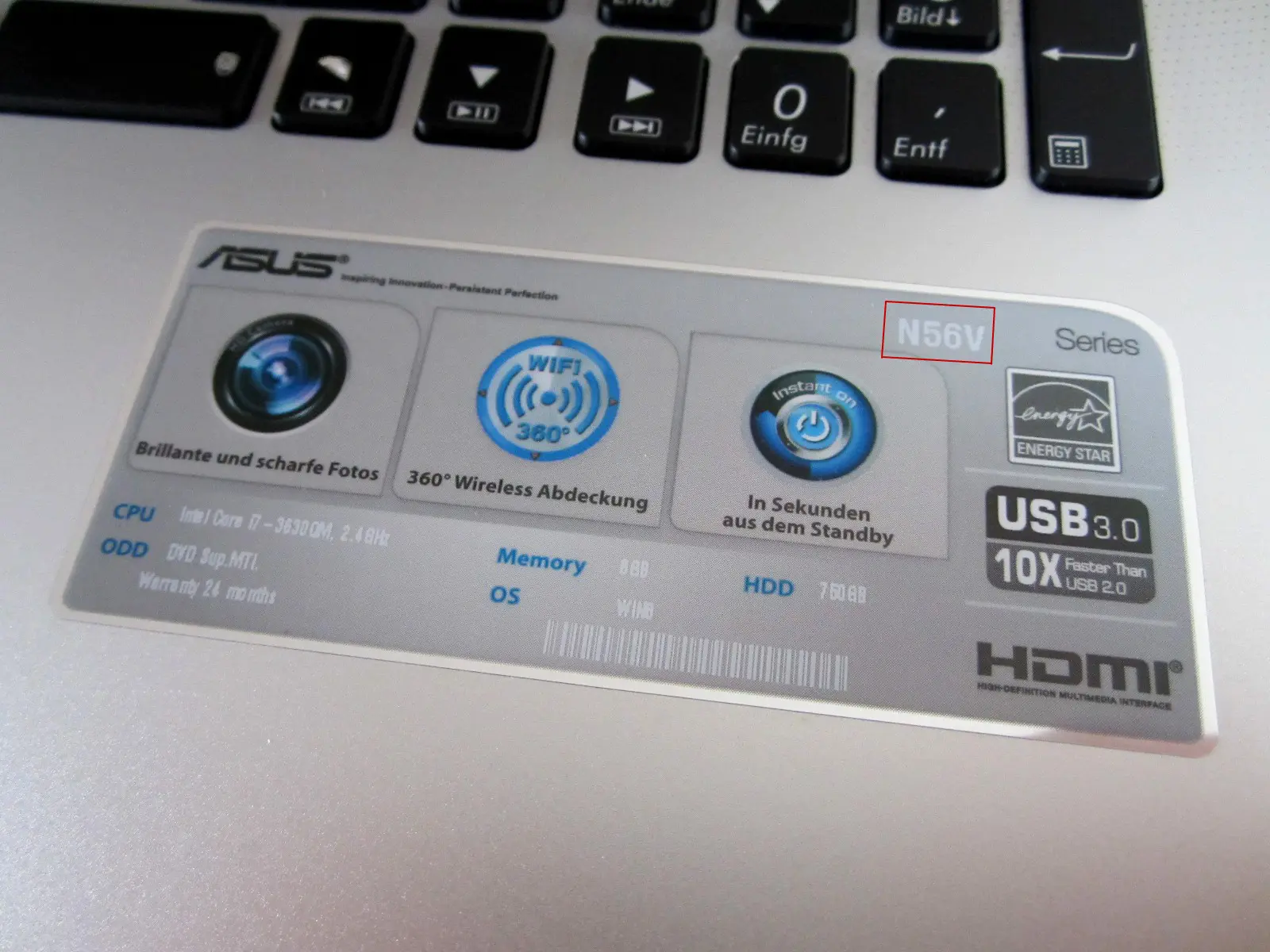
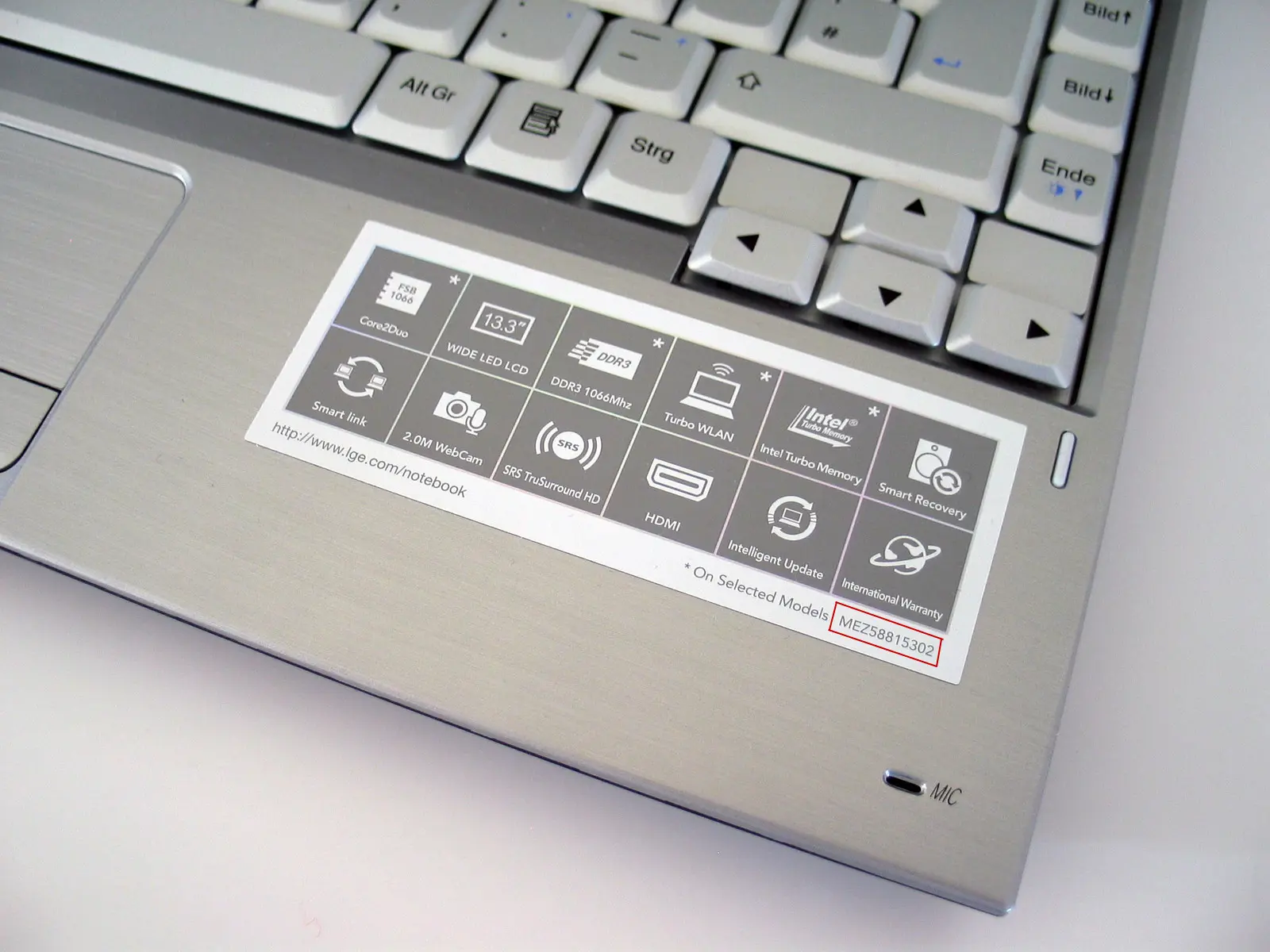
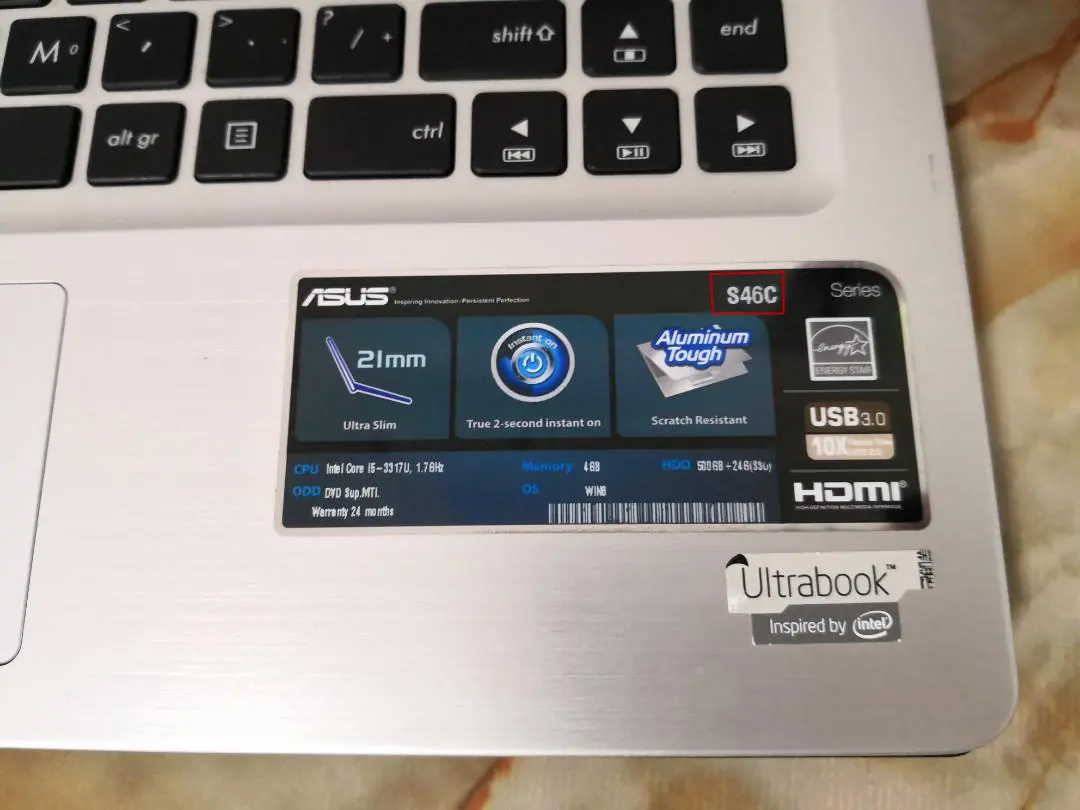
Shut your laptop, turn it upside down, and have a look at the bottom panel. Most manufacturers stick a label somewhere down there with a bunch of information on it – the model number, serial number, regulatory stuff, and sometimes a barcode or QR code.
The label is usually a white or silver sticker, though on some newer laptops the information is laser-etched directly into the casing (which looks cleaner but can be harder to read in certain light – try tilting the laptop under a lamp if you’re struggling).
Now here’s where people often get confused. The label will typically have several numbers on it, and they’re not always clearly marked. You might see things like:
A quick way to tell the difference: if you Google the number and get thousands of results about a specific laptop (reviews, specs, driver downloads), that’s the model number. If you get basically nothing back, you’ve probably found the serial number instead.
A couple of things worth mentioning – on some laptops, especially older ones, the sticker can be partially worn off or the print has faded to the point where you can barely read it. A torch on your phone and a bit of patience usually helps. Magnifying glasses too, if the text is tiny. And if the sticker is properly gone or covered in grime, don’t worry – there are other places to look.
This one only applies if your laptop has a removable battery – which is less common these days, but still around on plenty of business laptops and older models.
If your battery slides or clicks out (there’s usually a latch or two on the bottom), remove it carefully and check the area underneath. Some manufacturers put the model information inside the battery bay rather than on the outside of the laptop. Dell and Lenovo used to do this quite a bit.
While you’re at it, the battery itself sometimes has a part number printed on it that can help narrow down the laptop model if you search for it online.
Obviously, if your laptop has a sealed battery (most modern ultrabooks and all MacBooks), skip this step. You don’t want to be prying anything open.
Not as common, but worth a quick check if the bottom of the laptop didn’t help.
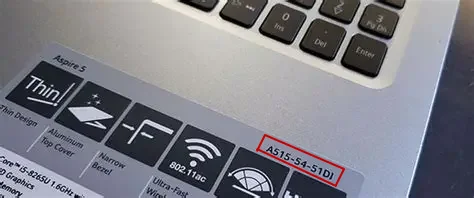
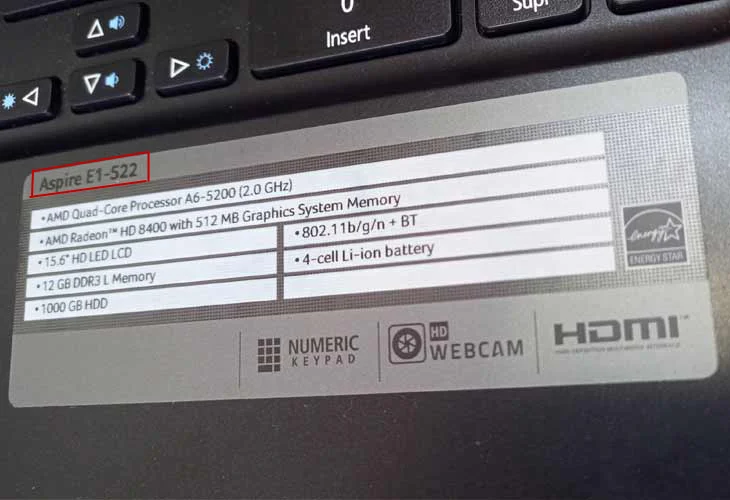
Some manufacturers print or engrave the model name near the screen hinge, on the bezel below the display, or on the palmrest area next to the keyboard. This is more of a branding thing – you’ll often see something like “Inspiron 15” or “ThinkPad T480” rather than a full model number, but it’s usually enough to get you started.
Sony used to put model details on the inside edge of the screen bezel. Some Toshiba (now Dynabook) laptops have it printed near the keyboard. It’s a bit of a lucky dip depending on the brand and age of the machine, but it takes two seconds to look so it’s worth doing.
One more spot that people miss – some laptops have the model printed on a small strip along the front edge (the bit facing you when it’s open). You might need to close the lid slightly and look at the narrow edge between the screen and the keyboard deck.
If you still have the box your laptop came in, the model number will be printed on it – usually on one of the side panels along with a barcode. Same goes for any paperwork, invoices, or receipts that came with it.
Bought it online? Even easier. Check your order history on Amazon, Currys, John Lewis, or wherever you got it from. The product listing should have the exact model number in the title or description.
This is also worth doing if you’ve found something on the laptop sticker but aren’t 100% sure you’ve got the right number. Cross-referencing with the receipt or online listing can clear things up quickly.