
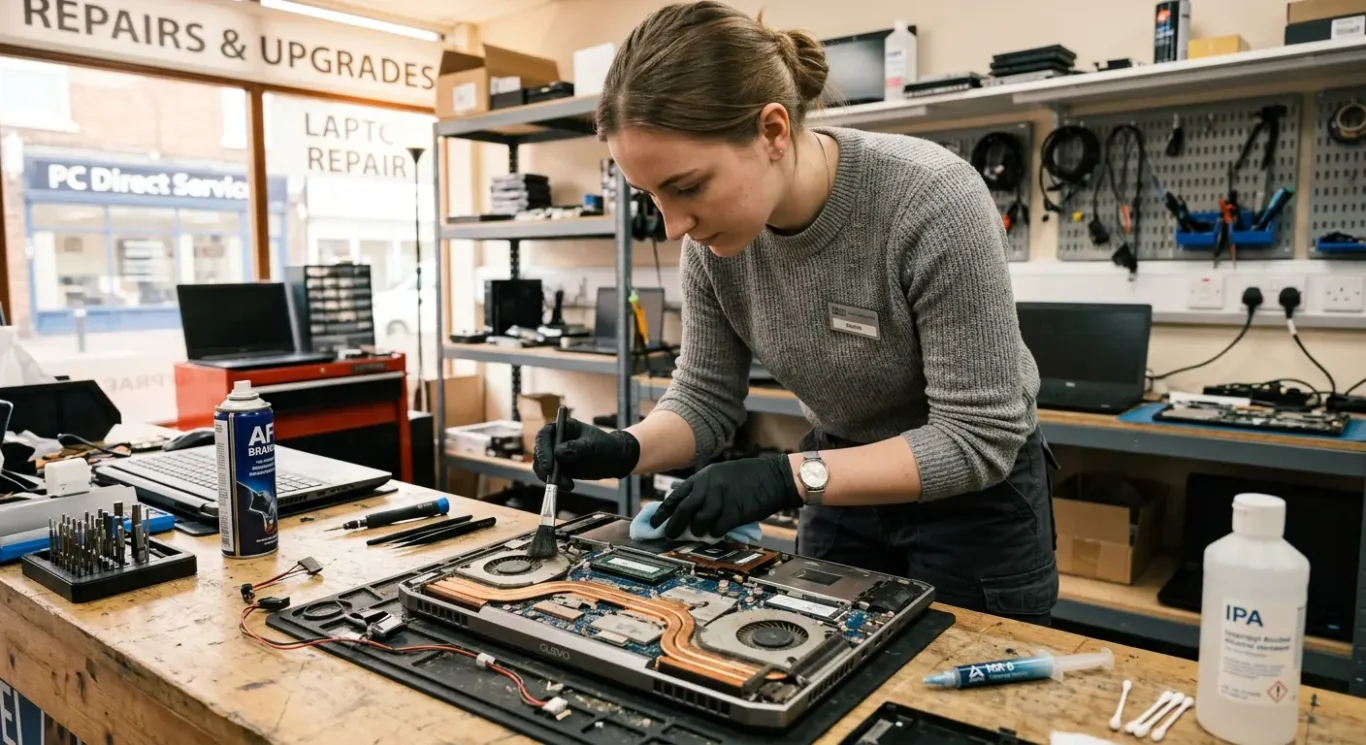
Gaming laptops and workstations – cleaning and repasting intervals
High-load machines run hotter than ordinary laptops and office PCs, so they usually need cooling maintenance sooner. That includes gaming laptops, mobile workstations, and systems used for video editing, 3D work, or AI jobs that keep the processor and graphics chip working hard for long stretches. In real use, that often means the fan gets loud only when gaming or rendering, the machine feels fine at the desktop, and the problem is missed until performance drops or it starts shutting itself down.
This article answers the questions people actually ask when the machine starts sounding strained – whether gaming laptops need more frequent cleaning, why overheating shows up under load rather than all the time, and whether dust removal and fresh thermal paste can improve performance. There is no fixed calendar that suits every model, because the sensible interval depends on how it is used, how the cooling system was designed, and where the machine lives day to day. A laptop used on a clean desk will age differently from one pulling in fluff from a carpeted floor. We see that a lot.
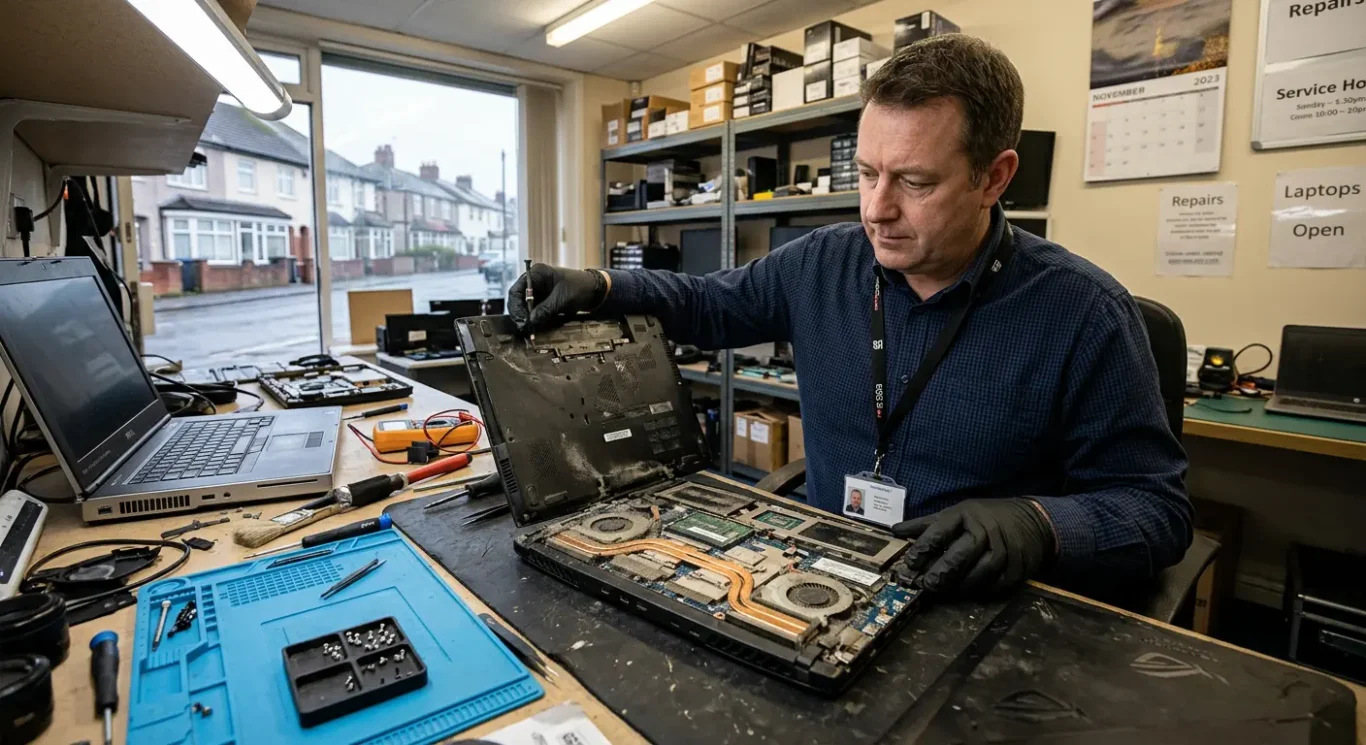
Why gaming laptops and workstations need more frequent cooling service
Heavy jobs keep the processor and graphics chip hot for longer, and compact cooling parts have less room for dust, blocked airflow, and rising room heat.
What matters most is not the badge on the lid. It is how hard the machine works, for how long, and how tightly everything is packed inside.
Gaming laptops, mobile workstations, and high-spec desktops often spend long periods with both the main processor and graphics chip under proper load. That is very different from checking email, using Word, or browsing a few websites, where the machine gets little breaks between short bursts of work.
When you are gaming, rendering video, exporting audio, compiling code, running CAD, or pushing AI workloads, heat builds up and stays there.
That sustained heat is why some machines seem fine at the desktop but get noisy, slow, or unstable once a game starts or a project begins exporting. Under light use, the cooling system can just about cope. Under heavier use, any weakness shows up quickly.
Thin laptops are usually less forgiving.
Many modern high-performance models use small heatsinks, very fine fan vents, and tightly packed internal layouts. They can work well when clean, but once dust starts lining the fins or the fan blades pick up a layer of grime, airflow drops faster than most people expect. There is not much spare cooling capacity to hide the problem.
A laptop used mainly for email and web browsing will usually need less frequent internal cleaning than one used every evening for gaming or every day for rendering. Same age does not mean same condition. I see that quite a lot with machines from the same household or office.
Desktops generally have more breathing space, but high-spec ones are not exempt. A powerful tower used for editing, 3D work, simulation, or local AI jobs can still clog up, especially if it lives under a desk pulling dust from carpet level.
The room it lives in makes a real difference as well.
Homes with pets, rooms where people smoke, carpeted floors, warm loft rooms, and dusty work areas all shorten sensible service intervals. Pet hair mats up around vents. Smoke residue turns dust sticky. In summer, or in a warm office with poor airflow, a machine that was borderline already can start running noticeably hotter.
If I had to make one practical judgement call, I would pay closer attention to a hard-worked gaming laptop than to a similar-age office laptop, even if neither is showing faults yet. Once these hotter-running machines start throttling or cooking themselves daily, the service is no longer just preventive.
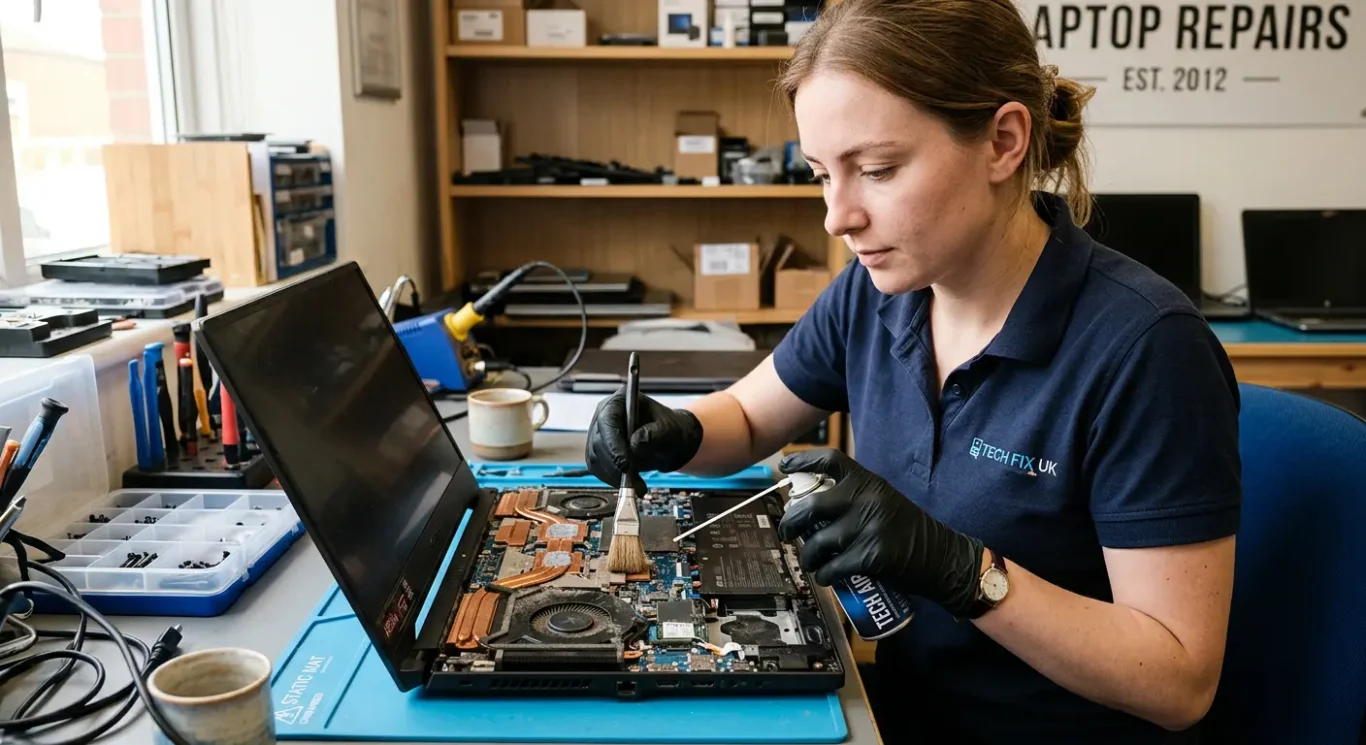
How often should cleaning and repasting be done?
There is no single timetable, so it makes more sense to judge by workload, heat, fan noise, age, and what the inside of the machine actually looks like.
Dust cleaning and thermal paste replacement are related, but they are not the same job.
Internal dust cleaning often needs doing more often than repasting. Fans, vents, and heatsink fins can clog up quite quickly on a hard-worked gaming laptop, especially if it is used daily, lives on soft surfaces, or spends time in a warm room.
As a broad guide, I would usually want a high-load laptop checked about once a year. That does not mean it will always need both jobs every year, but yearly inspection is sensible on machines used for gaming, video work, 3D, or AI tasks.
Repasting is usually less frequent. On many gaming laptops and mobile workstations, it is often something to consider every 1 to 3 years, depending on temperatures, fan behaviour, how heavily it is used, and the particular model.
Some systems hold up well for longer. Others plainly do not. I see laptops of the same age in very different condition just because one has been pushed hard every evening and the other has mostly done light office work.
Desktops with larger coolers and better airflow can often go longer between major cooling work. Even so, a powerful tower under a desk pulling in carpet dust all day may still need cleaning sooner than people expect.
What matters most is not the calendar by itself. The right interval depends on running temperatures, whether the fans are suddenly louder or staying at high speed for longer, how dusty the internals are, and how forgiving the device design is in the first place.
If a machine only overheats during gaming or exporting, that is often the point where an inspection is worth doing. Under light use it may seem fine, but heavy load exposes reduced airflow or poor heat transfer very quickly.
My usual judgement call is this – if a gaming laptop is more than a year old, used hard, and clearly running hotter or noisier than it used to, I would not wait for crashes before checking it. Cleaning may be enough. Sometimes repasting is justified. Sometimes it is not.
An inspection is also a good idea when buying a used gaming laptop or workstation. On the outside they can look tidy, while inside the cooling system may already be choked with dust or showing signs of long-term heat stress.
That is one reason I prefer diagnosis over automatic add-ons. Not every machine needs repasting on a fixed schedule, but high-load systems do need someone to look at the cooling properly rather than guess.
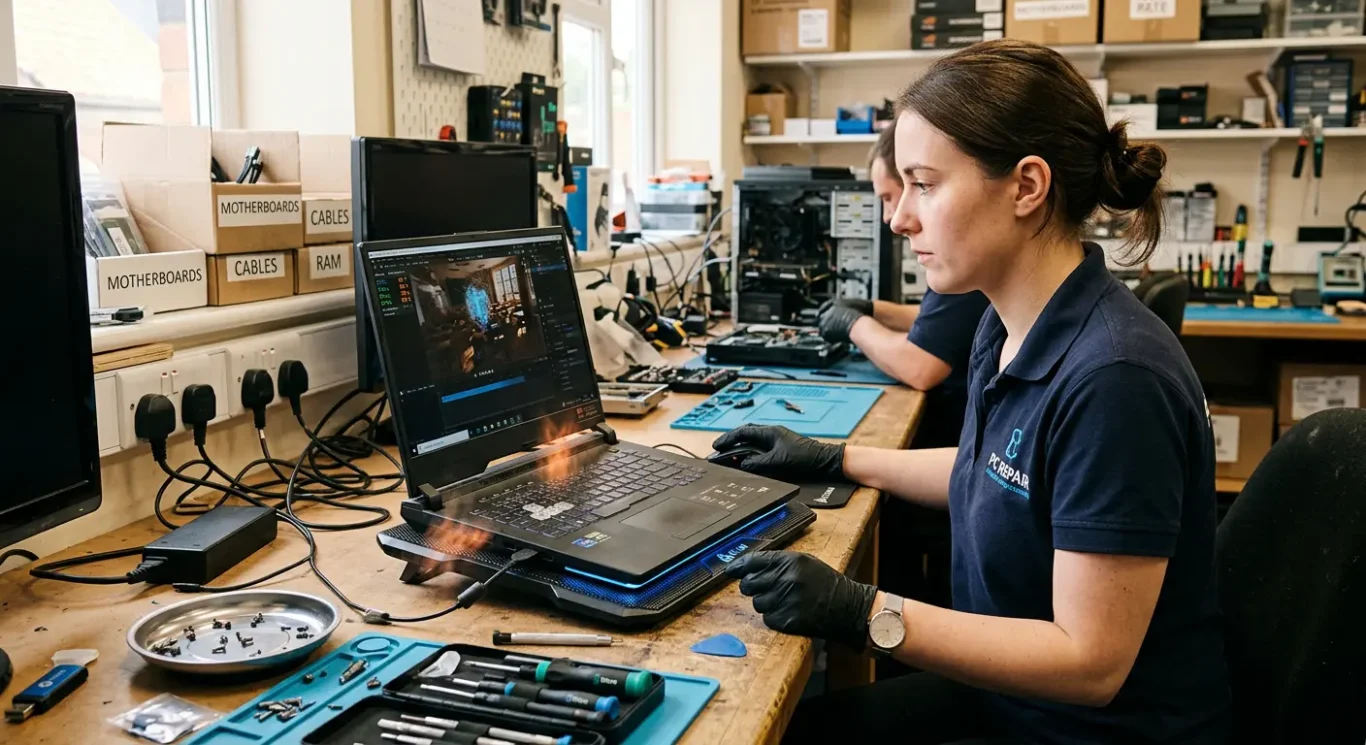
Why overheating often shows up only during gaming or heavy work
Light jobs barely trouble the processor or graphics chip, but games, editing, rendering, and AI work can push both hard for long enough to expose cooling problems.
A laptop can browse the web, play YouTube, open emails, and edit documents quite happily while still having a cooling problem.
That catches people out all the time. Under light use, the processor and graphics chip are doing short, easy bursts of work. Heat builds slowly, and the cooling system has a much easier job keeping up.
Gaming, video editing, 3D work, large exports, and AI workloads are different. They keep the machine working hard for longer, so heat output rises fast and stays high instead of dropping back down after a few seconds.
That is why the problem may seem to appear only when a game starts, when a render begins, or when a workstation is under a proper load.
The signs are usually fairly consistent. Fans suddenly ramp up and stay loud. Frame rates drop after ten or fifteen minutes. Games start stuttering. Video exports slow down. In some cases the machine cuts its own speed to protect itself from heat, which is why performance can fall off a cliff even though nothing has actually crashed yet.
Sometimes it gets more obvious than that. Random shutdowns can happen. The keyboard deck can feel unusually hot. You may also notice that the fan noise is high but the airflow at the vent feels weak, which often points to dust build-up, blocked fins, or a fan that is spinning badly.
None of this automatically means a major hardware failure.
Quite often the cause is more basic – dust packed into the heatsink, thermal paste that has dried out, vents blocked by fluff, a fan starting to fail, or poor contact where the cooling assembly sits against the chips. I see plenty of machines where the temperature problem is real, but the fix is still straightforward once the cause is checked properly.
It is also worth being careful with assumptions. Stuttering under load can be heat related, but it can also come from driver issues, power problems, failing storage, memory faults, or a graphics fault. Random shutdowns are another one people jump on, and sometimes they are heat related, sometimes they are not.
My usual judgement call is this – if the machine is stable for light tasks but becomes noisy, hot, and slow only under sustained load, the cooling system is high on the list and worth checking before assuming the worst.
That is why diagnosis matters more than guesswork. On gaming laptops, mobile workstations, and creator machines especially, a proper inspection tells you whether it needs cleaning, repasting, fan work, or something else entirely.
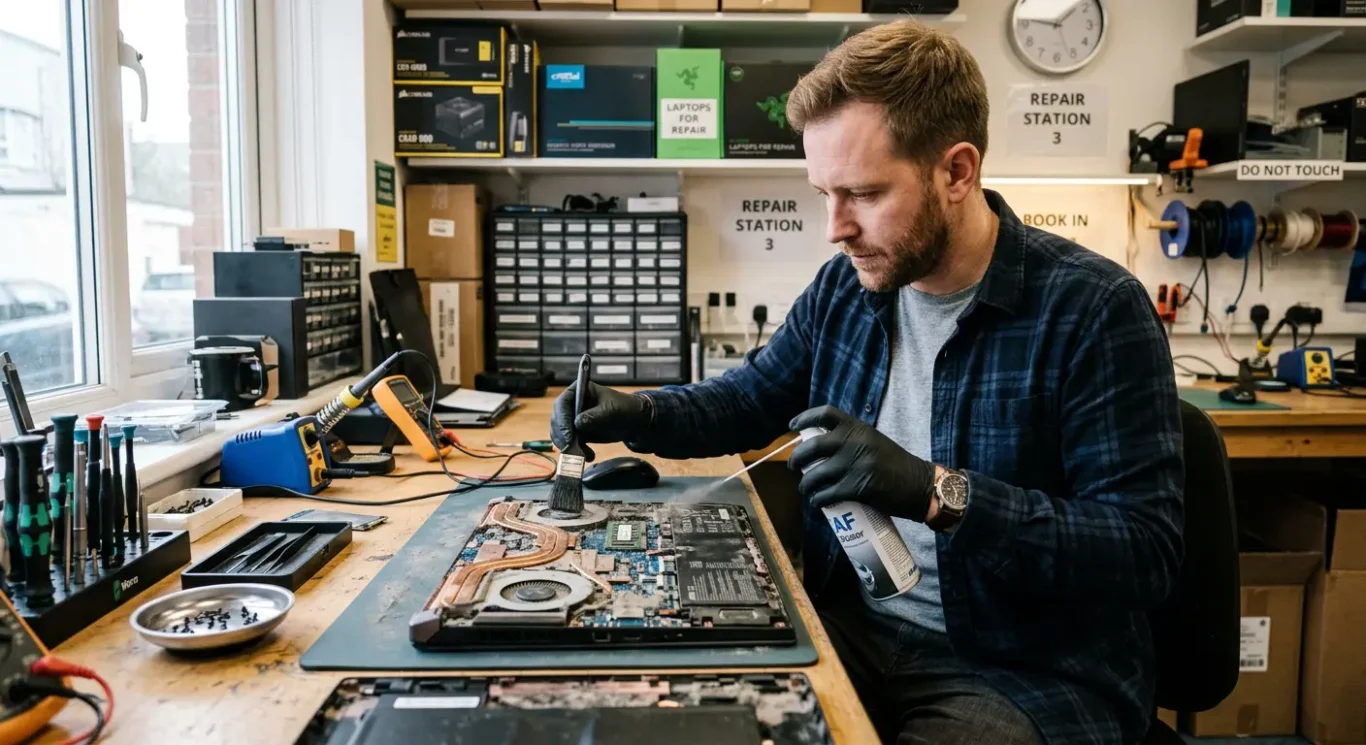
Does cleaning improve gaming performance?
It can bring back lost speed when heat is holding the machine back, but it will not turn a normal system into a faster one.
If a gaming laptop or workstation is overheating, a proper cooling service can make a real difference. That usually means better stability, less fan noise, and improved performance where the processor or graphics chip has been slowing itself down to control heat.
That slowdown is often what people notice as stutter, sudden frame drops, or a game that runs well for ten minutes and then feels rough.
In plain terms, the machine is not being made more powerful. It is just being brought back closer to how it should have been running in the first place.
Computer cleaning and repasting help most when dust has clogged the heatsink, airflow is poor, or the old thermal paste is no longer transferring heat properly. On high load machines, that is common enough to be worth checking rather than guessing.
If temperatures were already normal before the work, the gains may be small or not noticeable at all. You might still get quieter fans or lower surface heat, but not a meaningful jump in gaming performance.
That is why I do not treat this as a tuning service. It is maintenance and fault correction, not an upgrade.
It is also worth saying that performance complaints are not always cooling related. I see plenty of machines where the real cause is software running badly in the background, a tired SSD or hard drive, not enough memory for the workload, driver problems, or hardware starting to fail.
A game hitching every few seconds, for example, can be heat. It can also be storage delays, memory pressure, or a graphics problem. Same symptom, different fix.
My usual judgement call is simple – if the machine gets very hot, very loud, and worse under sustained load, internal computer cleaning is a sensible place to start. If it runs at normal temperatures and still performs badly, I would be looking elsewhere before promising any result from repasting.
Diagnosis should come first. That is the only honest way to say whether cleaning will help, whether repasting is justified, or whether the fault sits somewhere else entirely.

Signs your machine is due for attention
What people usually notice at home or at work before a gaming laptop or workstation needs cleaning or repasting
One of the first things people mention is that the fans are much louder than before, even on jobs the machine used to handle without making a fuss.
That does not automatically mean the fan itself is faulty. Quite often it means the cooling system is working harder because heat is building up, airflow is restricted, or the heat is not being transferred away properly anymore.
Another common sign is the base or keyboard area getting unusually hot.
On gaming laptops especially, some warmth is normal under load. What is not so normal is when the heat becomes excessive, uncomfortable, or noticeably worse than it used to be during the same games or editing work.
A pattern I hear a lot is this – it starts off fine, then after 10 to 20 minutes of gaming, video editing, rendering, or exporting, performance drops off.
That can show up as frame rate dips, stutter, lag in the timeline, or exports slowing down once the machine has been under strain for a while. When the problem appears only after it has warmed up, cooling is a sensible thing to check, though it is not the only possible cause.
If the machine is shutting down, freezing, or crashing under load, I would take that more seriously.
Overheating can cause that, but so can failing parts, power issues, memory faults, or graphics problems. In other words, the symptom matters, but it still needs proper diagnosis rather than guessing from one clue.
Sometimes the strongest sign is simply age and use. If it is a desktop or laptop that has not been opened in years despite heavy gaming, design work, AI jobs, or long export sessions, maintenance is often overdue whether or not it has fully failed yet.
That is especially true for machines used on desks, carpets, sofas, or in busy office rooms where dust builds up faster than people realise. I see plenty that still switch on and sort of work, but the cooling path is half blocked and the paste has clearly gone past its best.
A burning dust smell or very weak airflow from the vents is also worth paying attention to.
That stale hot smell is often dust heating up inside the heatsink area, and weak airflow can mean the fan is spinning but not actually moving much air through the machine. If I had to make one practical judgement call, that is the point where I would stop putting it off and get it inspected before it turns into shutdowns or board damage.
None of these signs prove the exact fault on their own, but they are real-world reasons to have the cooling system checked properly rather than waiting for a full failure.
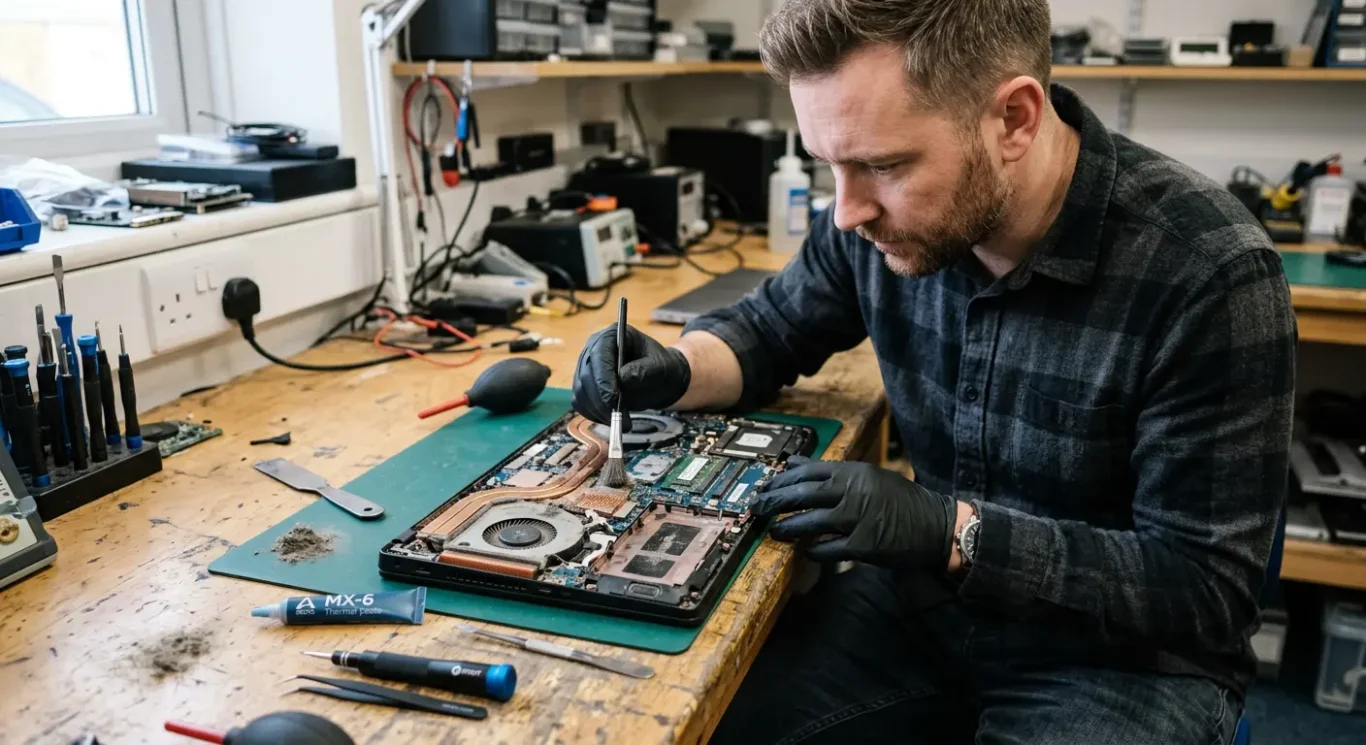
Cleaning versus repasting – what each repair actually does
One clears blocked airflow, the other helps heat move out of the chip properly, and some machines need one job while others benefit from both in the same visit.
These are related jobs, but they are not the same thing.
Dust cleaning means opening the machine and removing the build-up from inside the cooling system itself. That usually means packed dust around the fans, the heatsink fins, and the vent path where hot air is meant to escape. It is not the same as blowing a bit of air through the outside and hoping for the best.
On gaming laptops and workstations, the worst dust is often hidden deep in the fins, where you cannot see it from the outside.
Repasting is a different job. That means removing the heatsink, cleaning off the old thermal compound from the chip and the heatsink contact surface, then applying fresh compound correctly before reassembly. The point of that paste is to help heat transfer from the processor or graphics chip into the heatsink efficiently.
If the paste has dried out, spread poorly, or shifted over time, temperatures can climb even when the fans are clean and spinning normally.
Sometimes cleaning alone is enough. If the fan and heatsink are choked with dust but the paste is still doing its job, restoring airflow can make a noticeable difference on its own. In other cases, especially on older high-load machines, doing both at the same time is the sensible option because the system is already apart.
A proper service may also include checking whether the fans are actually working as they should, whether the heatsink is sitting down evenly, and whether any thermal pads or other cooling parts are damaged or out of place.
That matters more than people think. I have seen machines where the dust was not even the main issue – the fan was weak, a pad had torn, or the heatsink was not making good contact after a previous computer repair.
Labour depends a lot on the design. Some desktops are straightforward. Some gaming laptops and slim work machines need a careful strip-down just to reach the cooling assembly, and that is why the time and cost depend on the model rather than being exactly the same every time.
If I had to make one practical call, I would not pay for repasting on guesswork alone if the real problem turns out to be a failing fan or a badly blocked exhaust. Diagnosis first is usually the better use of money.
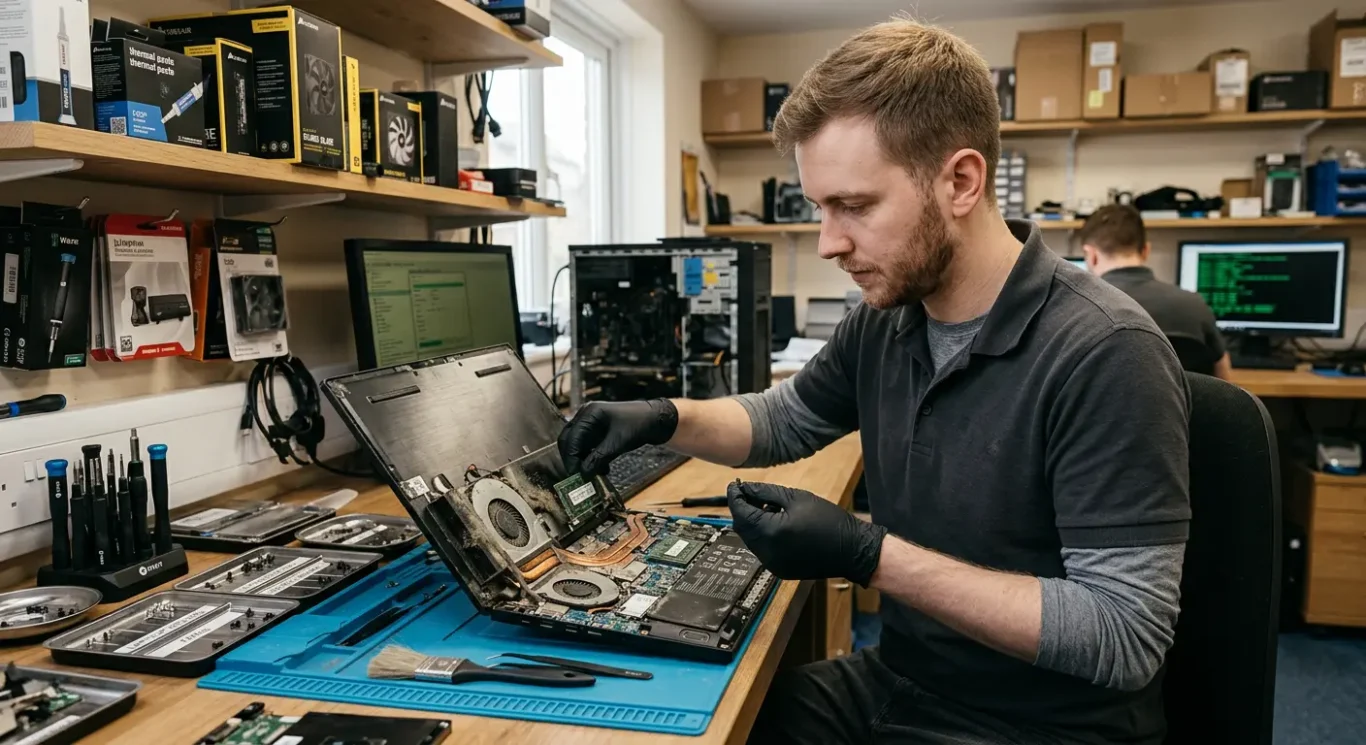
What affects cost and turnaround
If you need the machine back quickly, the main variables are how the model is built, what fault is actually found inside, and whether the work is best done in the workshop or at your home or office.
The quote usually depends on four things – the type of machine, how awkward it is to open properly, whether it needs cleaning only or cleaning and repasting, and whether any parts turn out to be faulty.
A desktop with easy access is one thing. A thin gaming laptop or mobile workstation with the cooling buried under the board is another. On some models, a simple maintenance job takes sensible bench time. On others, most of the labour is getting to the cooling system without causing damage.
That is why two machines with the same overheating symptom can have very different repair costs.
Turnaround works the same way. It depends on the fault, the model complexity, current booking load, and whether further diagnosis is needed after opening it up.
Sometimes it is straightforward maintenance. The fans are working, the heatsink is intact, the issue is dust build-up or tired thermal paste, and the job stays exactly where you expect it to. Those are the cleaner cases.
Other machines tell a different story once opened. A fan may have started failing, there may be signs of liquid damage, or a previous laptop repair may have left screws missing, poor paste spread, damaged pads, or parts fitted badly. That changes both the quote and the timescale because the fault is no longer just a clean-out.
For London customers, the practical option depends on the job. Collection and workshop service often make more sense for internal gaming laptop work, because the machine may need a careful strip-down, testing under load, and time to check temperatures properly afterwards.
Home or office visits can still be useful in the right case, especially for desktops, basic checks, or when travelling with the machine is difficult. But not every internal cooling job is best done on-site. If a model is fiddly, or there is any chance the problem goes beyond dust and paste, workshop handling is usually the safer call.
My general view is simple – if a high-load machine is crashing, throttling hard, or ramping the fans constantly, it is better to allow for proper diagnosis than book it in as a quick clean on assumption alone. That usually saves time, not wastes it.
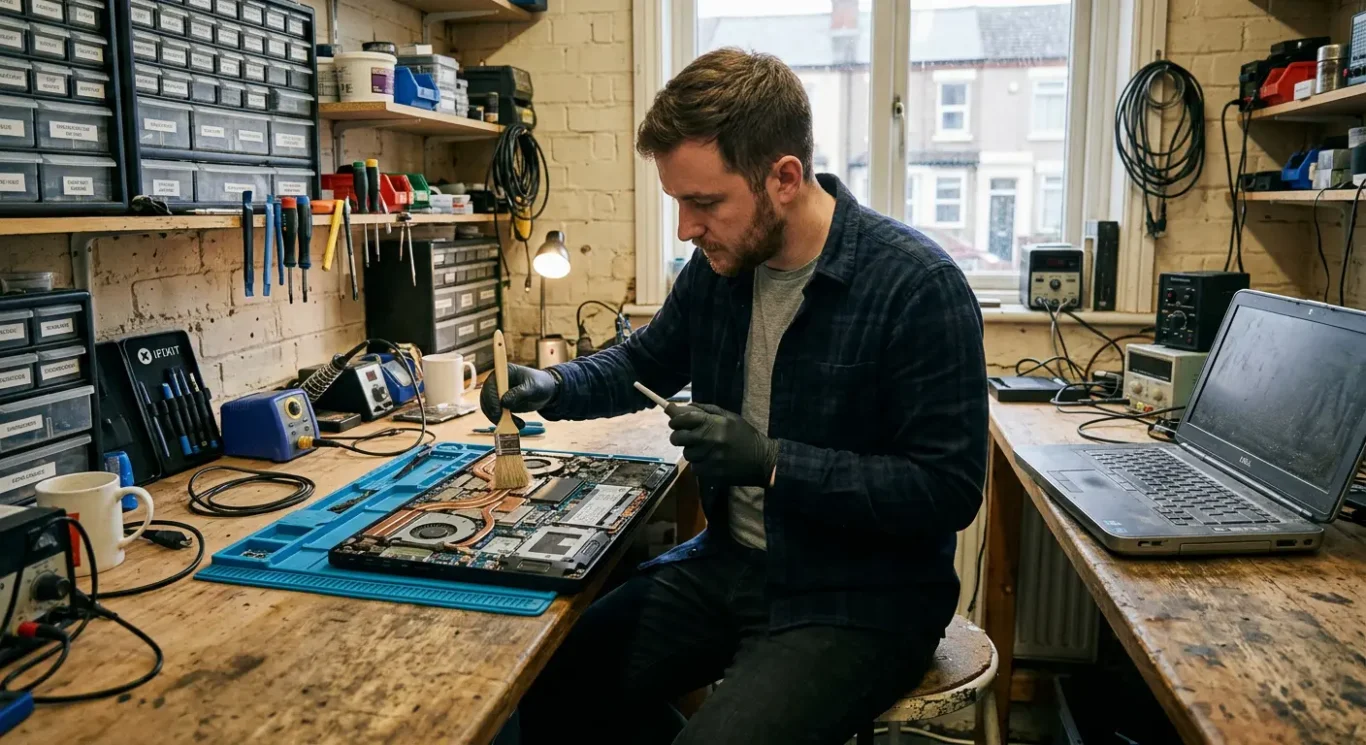
When maintenance is worth doing – and when it may not be
Some machines clearly benefit from a proper clean and thermal service. Others have bigger faults first, or are simply hard to justify on value.
If a good gaming laptop or workstation is overheating, getting very loud, or slowing down badly under load, cleaning is often money well spent.
That is especially true on machines used for gaming, video editing, 3D work, music production, or AI jobs that keep the CPU and GPU busy for long periods. These systems run hotter than a basic home laptop by design, so dust build-up and restricted airflow tend to show up faster and more obviously.
Repasting can also be sensible when the machine is otherwise sound and the temperature pattern suggests the heat is not moving properly from the chips into the heatsink.
In plain terms, if the fans are working, the vents are not fully blocked, but the machine still spikes in temperature, throttles during games, or ramps the fans far too aggressively, poor heat transfer becomes a realistic possibility. That needs checking properly rather than guessed at, but it is a fair reason to consider thermal paste replacement.
Where I am more cautious is when overheating sits alongside broader faults.
If there are signs of failing power circuits, a swollen battery, severe liquid damage, charging problems, burnt components, or motherboard instability, the priority may be different. In those cases, cleaning and repasting may still be useful later, but they are not the first thing I would spend your budget on.
It is the same if the machine has random shut-offs that do not behave like a normal heat issue, or if it only runs properly on charger or battery but not both. Those symptoms can point somewhere else entirely.
For very low-value devices, the cost-benefit needs weighing before major labour is approved.
Some older laptops are so awkward to strip that most of the job is careful disassembly, not the cleaning itself. If the machine is already slow for other reasons, has a weak battery, a poor screen, worn hinges, or limited upgrade options, a deep service may not be the best use of money. That is not me talking work away – it is just the honest calculation.
My usual judgement call is simple. If it is a decent machine you want to keep, and the problem shows up mainly during heavy use, maintenance is often worth serious consideration. If the laptop has multiple faults and low resale or working value, I would usually want diagnosis first and a clear quote before authorising deeper labour.
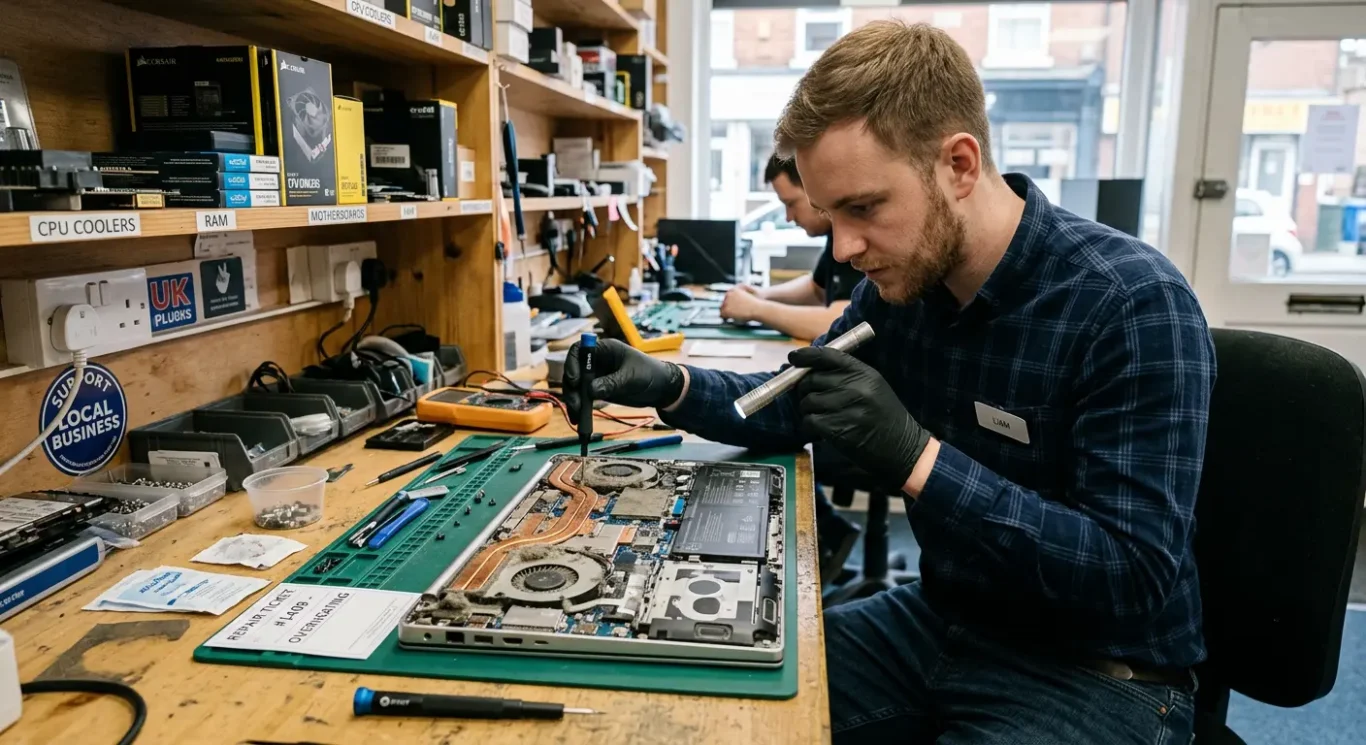
What a proper diagnosis should check before any cooling work is approved
Heat problems can come from more than one place, so the machine needs checking properly before anyone can quote with confidence.
A decent computer cleaning starts with what the machine is actually doing, not with a stock answer like “it needs repasting”.
The first checks are basic but important. Fan operation needs confirming, vents need checking for blockage, and the inside needs looking at for dust build-up around the heatsink and fan blades. On some gaming laptops, a fairly small mat of dust is enough to choke airflow under load while the machine still seems almost normal at idle.
The heatsink itself also matters.
If it is bent, loose, poorly seated or not pulling heat away evenly, a clean alone will not sort it. The same goes for dried thermal compound, bad heatsink contact, or signs that somebody has been in before and done a rushed job. I see that more often than people think – too much paste, too little, missing screws, or pressure not sitting evenly across the chip.
That is why cooling work should be based on inspection, not assumption.
There is also the software side. If a laptop suddenly starts running hot after an update, a driver change, a firmware change, or a new background task, the cause may not be dirt alone. Sometimes the fans are fine and the cooling system is physically clear, but the processor is being kept busy in the background or the fan control is behaving differently than it was before.
That does not mean the problem is “just software”. It means a sensible engineer should notice the pattern before recommending parts and labour that may only fix half the issue.
On workstations and heavy-use laptops, I would usually rather spend a bit longer checking the full cooling path than guess and have the same machine back a week later. It is the better call, especially when the device is needed for work and downtime costs more than the repair itself.
If the quote is confident before the machine has been opened or tested properly, I would be cautious. A proper answer should come from what is found inside the laptop or desktop, how the fans behave, and whether the heat is being created, trapped, or simply not moved away as it should be.
Questions we get every day
What our engineers actually say
We often see gaming laptops and workstations that behave perfectly well for everyday use, then get far too hot the moment a game, render or AI job starts. A common problem is that the cooling system is already right on the limit, so once the machine is under sustained load it has no spare capacity. One practical check we rely on is load behaviour, because that usually shows far more than idle temperatures ever do.
If a high load machine is used hard most days, waiting until it is noisy, throttling or crashing is usually leaving it too late. In that situation, more frequent cleaning and repasting can be sensible, but only if diagnosis shows the heat problem is actually in the cooling path and not somewhere else.