
Computer overheating explained – real causes and real fixes
Computer overheating is a symptom, not a diagnosis. Some heat is normal, especially when you are doing heavy work like video calls all day, exporting files, running accounts software, or gaming after hours. What is not normal is the machine getting hot very quickly, the fan screaming all the time, the system slowing down to protect itself (that is thermal throttling), or random shutdowns and crashes. In this article I will show you how to judge your temperatures in a sensible way by comparing idle (when you are doing very little) versus load (when you are actually working), and I will cover the real physical causes I see in laptop repairs every week: dust build-up, blocked airflow, dried thermal paste, and worn fans. You will also get a clear idea of which fixes are worth doing yourself, and when it makes more sense to book it in and stop losing time to an unreliable machine.
What overheating actually means
And what it looks like in real life
This is about the signs you can feel and hear, and what changes in how the machine behaves, not just chasing a single number.
Most computers run warm. That is normal. A thin laptop doing a video call on a summer day will feel warmer than a chunky desktop in an air-conditioned office. Warmth becomes overheating when the machine cannot get rid of heat fast enough, so it starts protecting itself or becomes unstable. The easiest way to think about it is this: running warm is consistent and predictable.
True overheating is a change in behaviour. It ramps up fast, it stays hot, and it starts causing knock-on problems. These are the common symptoms I see when a client says “it’s overheating”: Fan noise that is louder than it used to be, or runs hard even when you are not doing much. Hot chassis in specific areas, often near the exhaust, keyboard, or underside. On laptops it can make using it on your lap uncomfortable.
Performance drops where the machine feels slow during simple tasks or stutters under load. Thermal throttling – the computer deliberately slows the CPU or GPU to reduce heat. Crashes and random shutdowns, especially during gaming, exporting, large spreadsheets, or long meetings. Battery drain on laptops, because higher power draw and constant fan use take a toll even when it is plugged in.
One point that catches people out is that the same temperature can be fine on one machine and a problem on another. Cooling design varies a lot. So does workload. A workstation with a big heatsink has more headroom than an ultra thin laptop. Ambient temperature matters too. A warm office, direct sunlight, or a laptop used on a soft surface can push it over the edge.
Do not concentrate on a single number you saw in an app. Look for patterns.
Does it stay quiet at idle but struggle under load? Does it get hot and noisy within a minute of opening your email? Does performance drop off after 10-15 minutes of work?
Those clues tell you more than a screenshot. If the machine is stable, performs normally, and only gets warm during heavy work, I would call that running warm and keep an eye on it. If you are seeing throttling, crashes, shutdowns, or constant high fan noise, treat it as a fault that needs proper diagnosis, not guesswork.
Idle vs load temperatures: how to judge if it is really too hot
A simple way to compare “doing very little” versus “doing real work”, without getting lost in benchmark charts
Most overheating conversations go wrong because people look at one temperature reading with no context. What matters is the pattern. How fast it climbs, how long it stays high, and what the computer does while it is hot.
Start by separating idle from load. You do not need specialist tests for this. You just need to observe the machine during your normal day.
Idle in practice means: you are not actively making it work hard. But it is rarely “doing nothing”. Windows and macOS will run background updates, indexing, and security scans. Cloud sync tools (OneDrive, Google Drive, Dropbox) can churn away. Browsers can be busy too, even when you are not touching them, especially with lots of tabs open or web apps running. So idle is really “light use plus background housekeeping”.
Load means you are actually asking for sustained performance. Gaming is the obvious one, but it is not the only one. Rendering and exporting video, compiling code, running analysis in heavy spreadsheets, and having many browser tabs plus Teams or Zoom can all push a laptop hard. On modern machines, a few “normal business” apps can add up to a proper workload.
When you check temperatures, you will often see short spikes. That can be normal. CPUs and GPUs boost for a moment to get a task done quickly. Opening an app, loading a web page, or starting a call can cause a quick jump, then it should settle.
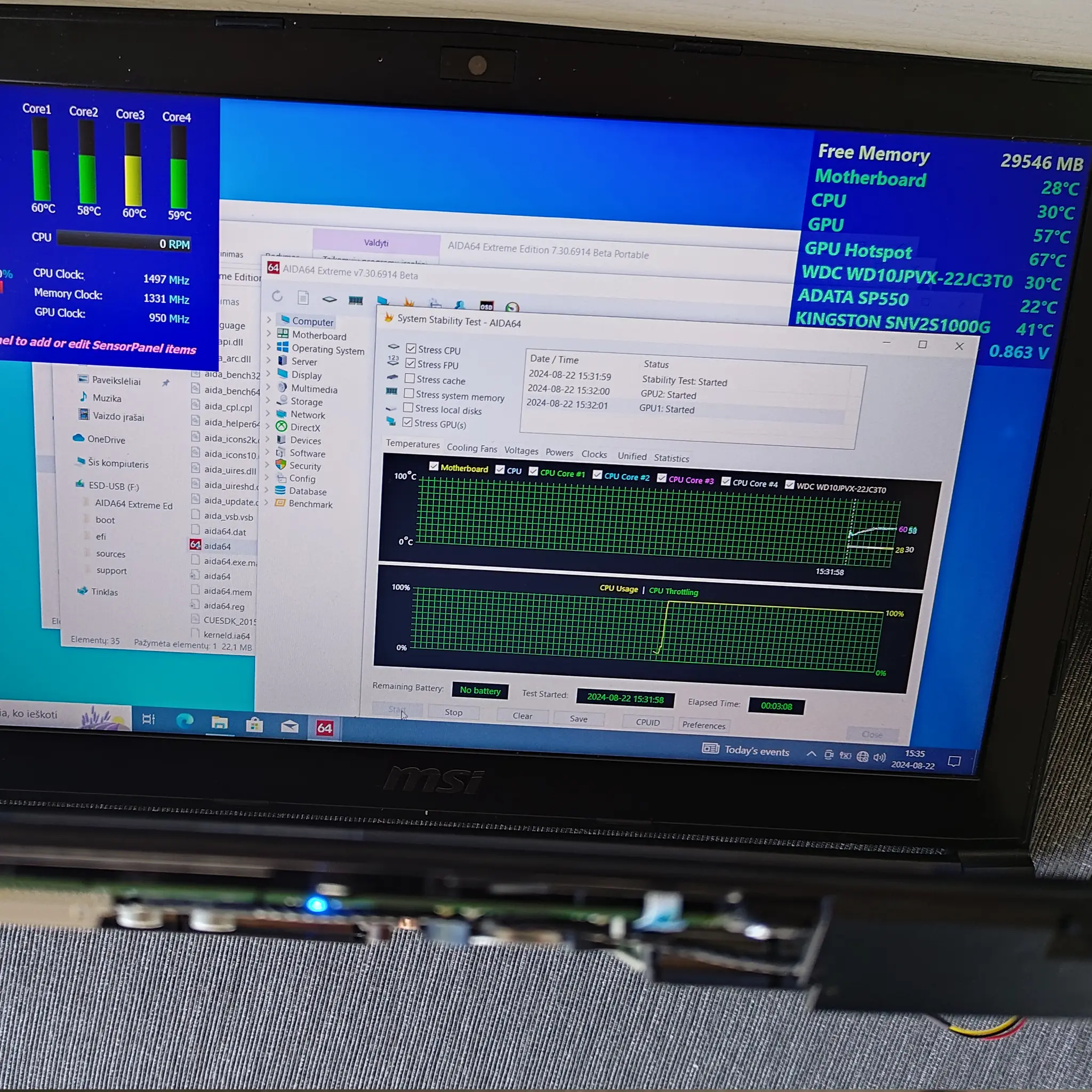
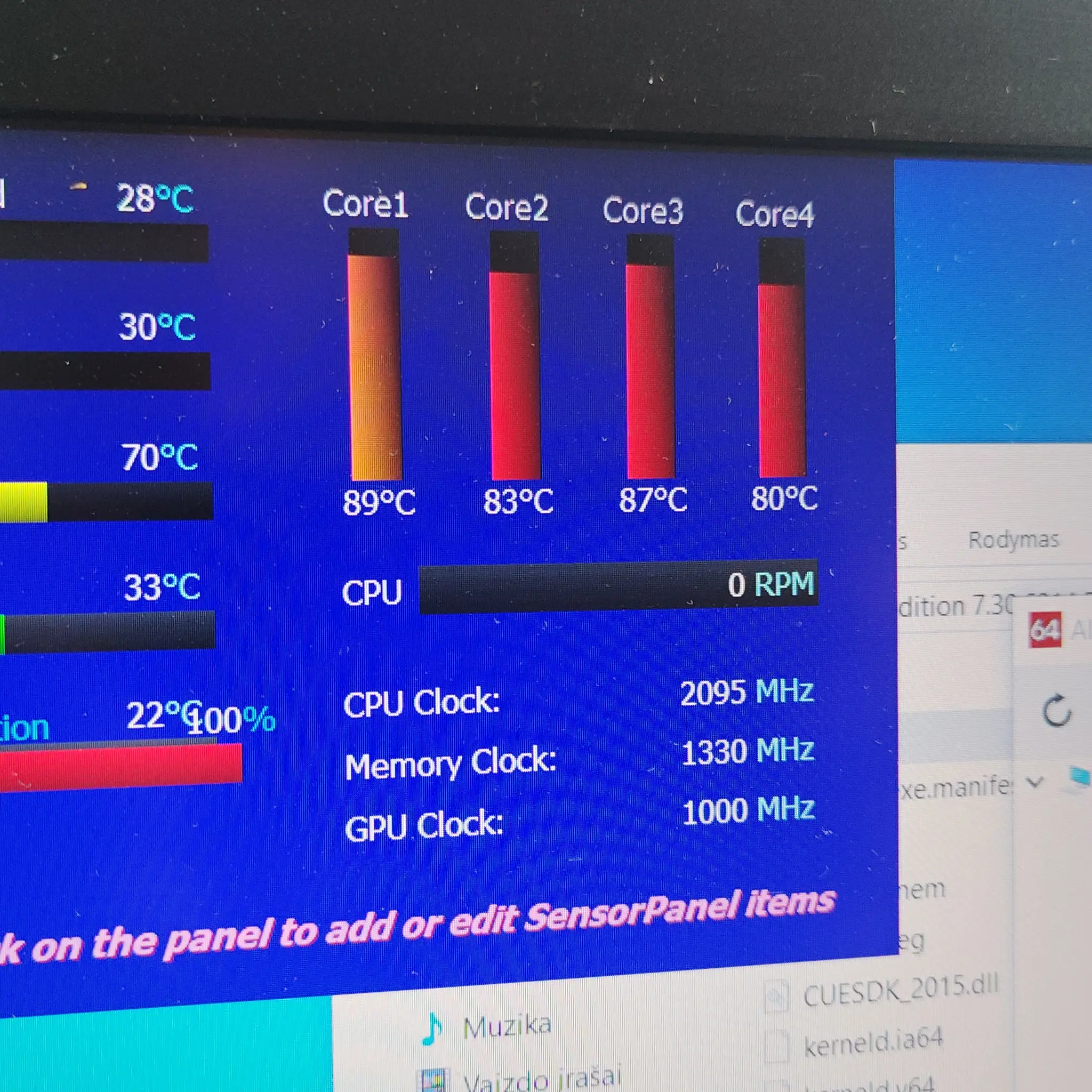
What I pay attention to in repairs is sustained heat. If the temperature climbs and stays high while the fan runs flat out, that is when you see knock-on problems. Performance drops (thermal throttling), stuttering, or the system becoming unstable. Thermal throttling is the computer deliberately slowing itself to reduce heat.
A practical method is to do two short checks on a typical day. First, let the machine sit for 10 minutes after you have signed in, with your usual apps open, but not actively working. That gives you an “everyday idle” baseline. Second, do 10 to 15 minutes of your real workload, like a video call plus a browser and documents, or the game you actually play, or the export you actually run. Then compare behaviour, not just numbers.
If it is quiet at idle and only gets warm under load, that is usually just the cooling system doing its job. If it gets hot fast at idle, or gets noisy and stays noisy during ordinary work, I start suspecting a physical cooling issue like dust, poor airflow, tired fans, or old thermal paste.
Before you ask for help, note a few specifics. This saves time and stops people guessing.
- When it happens – first thing in the morning, after lunch, only on charge, only on battery, only in a warm room.
- How quickly it happens – instant fan ramp, or only after 10-20 minutes.
- What you were doing – the exact app or task (Teams call, Chrome with 30 tabs, QuickBooks, game title, export in Premiere, large Excel file).
- What else was running – background sync, updates, antivirus scans, anything that might be chewing through CPU in the background.
- What the computer does – does it slow down, freeze, crash, or shut down, or is it just warm and loud.
One small judgement call: if the machine is stable and fast, and the fan only ramps during heavy tasks, I would monitor it rather than chasing lower temperatures. If you are seeing performance drops, shutdowns, or heat appearing during light use, that is when it is worth treating as a fault and getting it assessed properly.
Why laptops overheat more often than desktops
Laptops have tighter cooling spaces, so small restrictions turn into big temperature rises
A desktop case has room to breathe. Big fans. Big heatsinks. More open space for air to move through. A laptop is the opposite. Everything is packed into a thin shell, and the cooling system is working closer to its limits even when the machine is healthy.
The first constraint is simple: small heatsinks and thin airflow paths. The heatsink is the metal radiator that moves heat into the air. In a laptop it is compact, with fine fins and narrow channels. That design can work well, but it is less forgiving. A light layer of dust, or a partially blocked vent, reduces airflow fast. When airflow drops, temperatures rise, and the fan has to spin harder to compensate.
Many laptops also use shared cooling for the CPU and GPU. The CPU is the main processor. The GPU is the graphics processor, used heavily for gaming and some creative work. On a lot of designs they share heatpipes and one set of fans. That means heat from one chip affects the other. A game, a video export, or even a heavy video call can load both at once, and the whole cooling system gets saturated sooner than you would expect.
Placement matters too. Laptop air intakes are often on the underside, with the exhaust on the side or the hinge area. This is why soft surfaces cause trouble. A duvet, sofa, or even a laptop sleeve underneath can block the intake without you noticing. Then the fan is trying to pull air through a gap that is no longer there. You are not doing anything wrong. It is just an easy design to accidentally choke.
A simple habit helps: use the laptop on a hard, flat surface when you are doing anything sustained. If you need it on your lap, a firm lap desk is usually enough. Also check the rear and side vents are not pushed tight against a wall or a stack of papers.
Heat also links to battery and power limits. Laptops constantly adjust their performance to stay within safe power and temperature limits. You might see this as the machine getting slower when it is hot, even if nothing has crashed. This is performance scaling, and it is normal behaviour. On mains power, many laptops are allowed to draw more power, so they run faster and also create more heat. On battery, they often limit power to protect the battery and extend runtime, which can reduce heat but also reduce performance.
One small judgement call I use in real repairs: if a laptop only gets hot and loud during heavy work, and it stays stable, that is usually design constraints rather than a fault. If it gets hot quickly on light use, or the fan is constantly at high speed for ordinary email and browsing, it is worth checking for blocked airflow, dust build-up, a tired fan, or dried thermal paste.
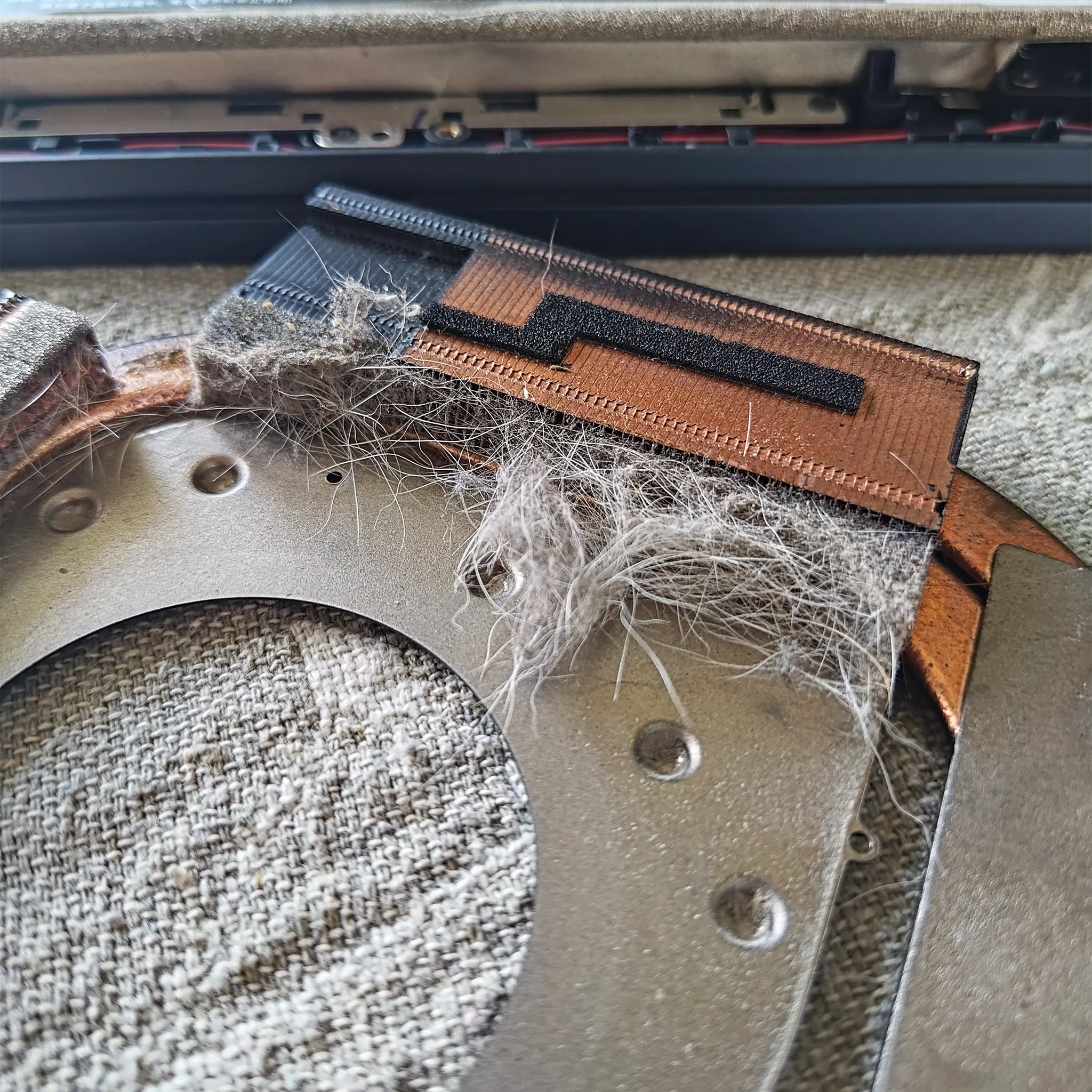
Dust and blocked airflow: the most common real-world cause
Dust causes overheating by choking the cooling system, and a real clean means clearing the blockage, not just blowing at the vents.
In day to day repairs, plain dust is still the number one reason a healthy laptop or small desktop starts running hotter. Not overnight. Gradually. It is also one of the most misunderstood fixes, because people often “clean” the outside and expect the temperatures to drop.
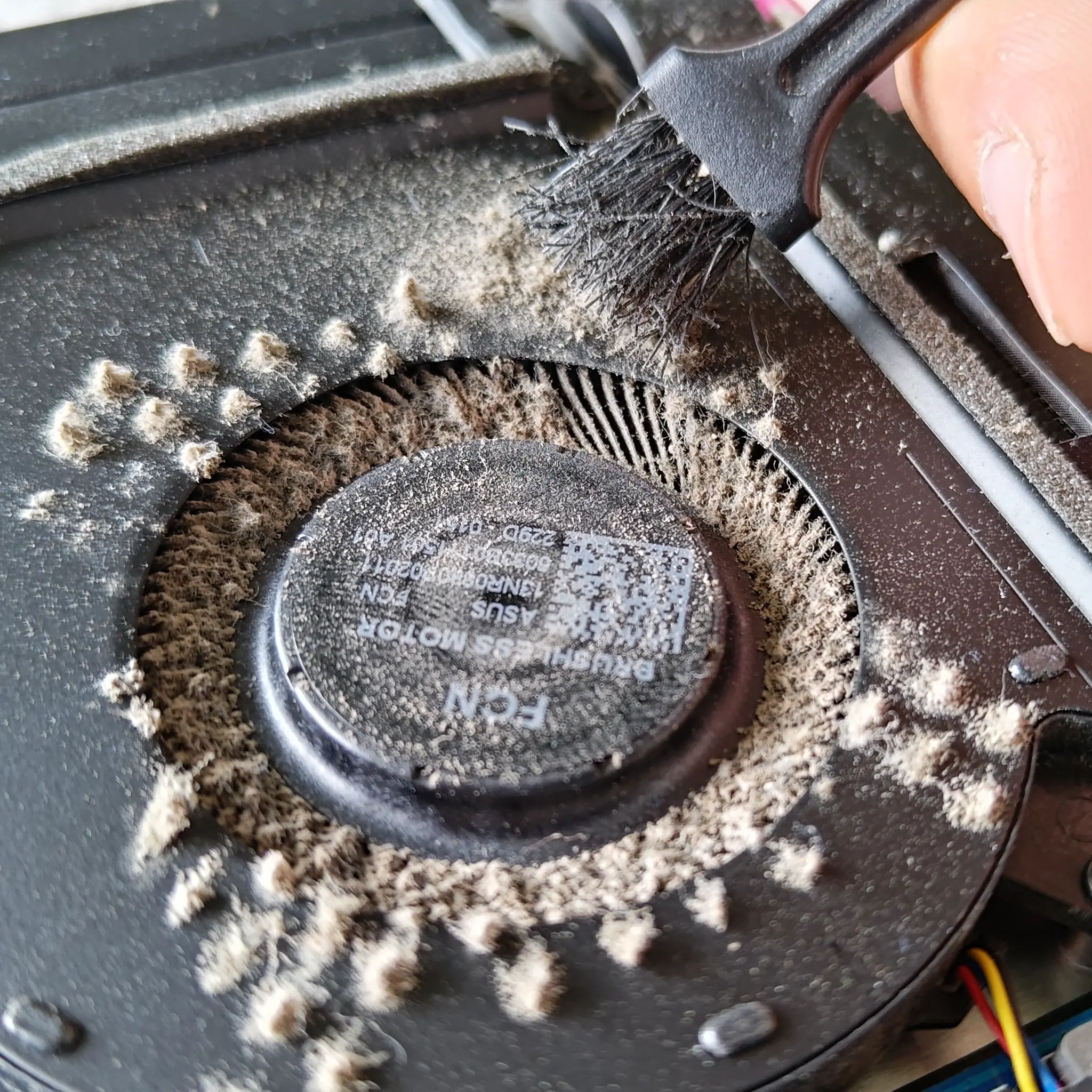
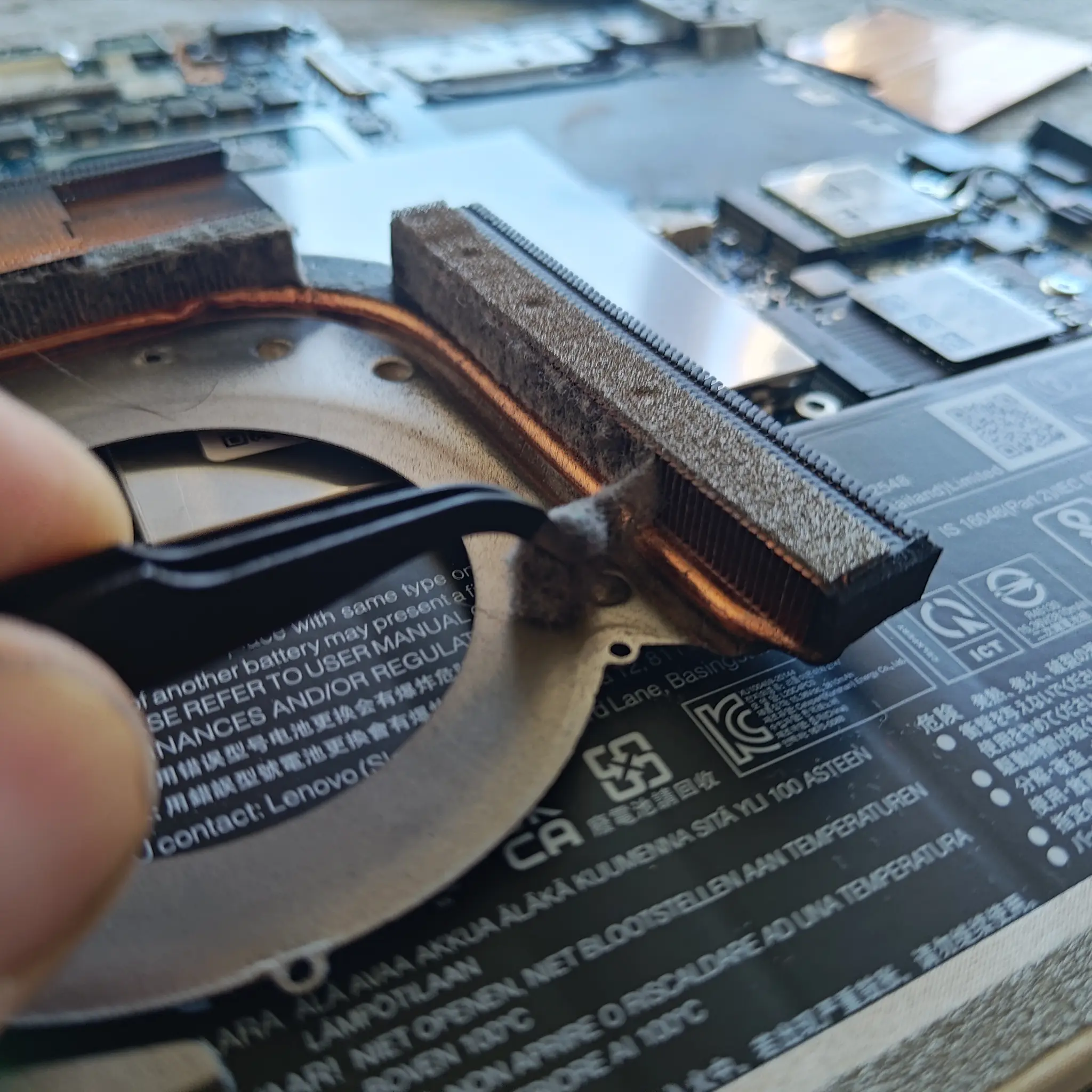
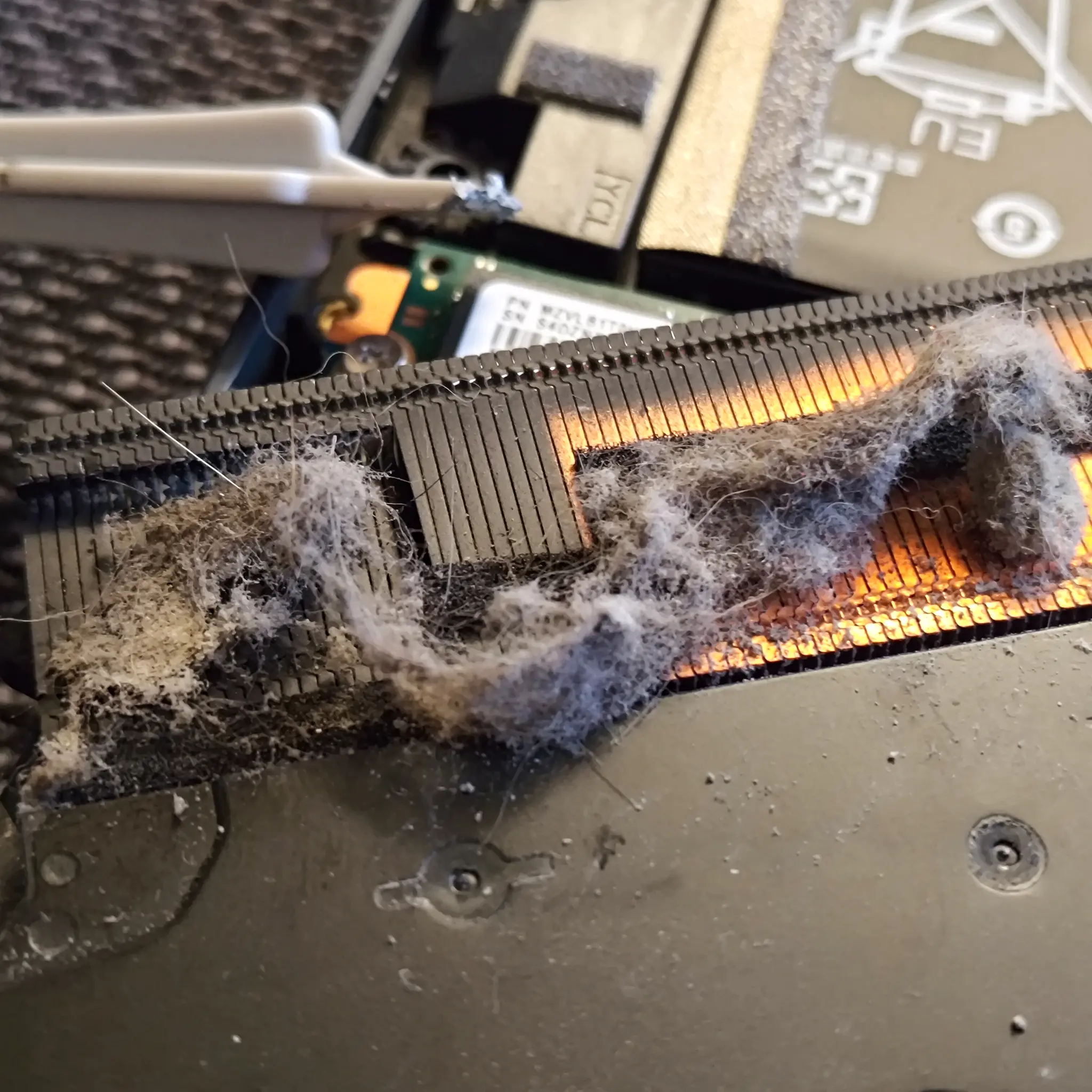
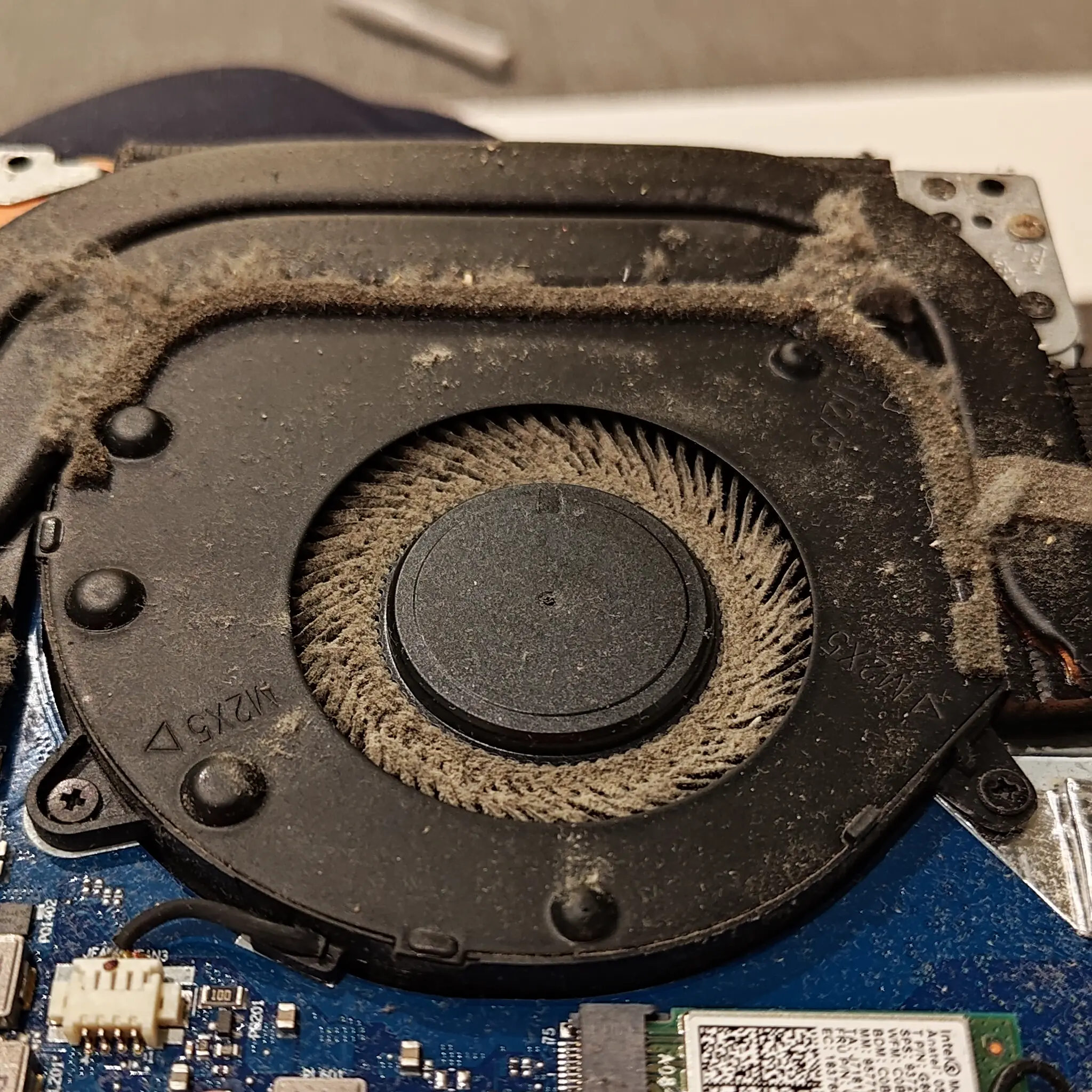
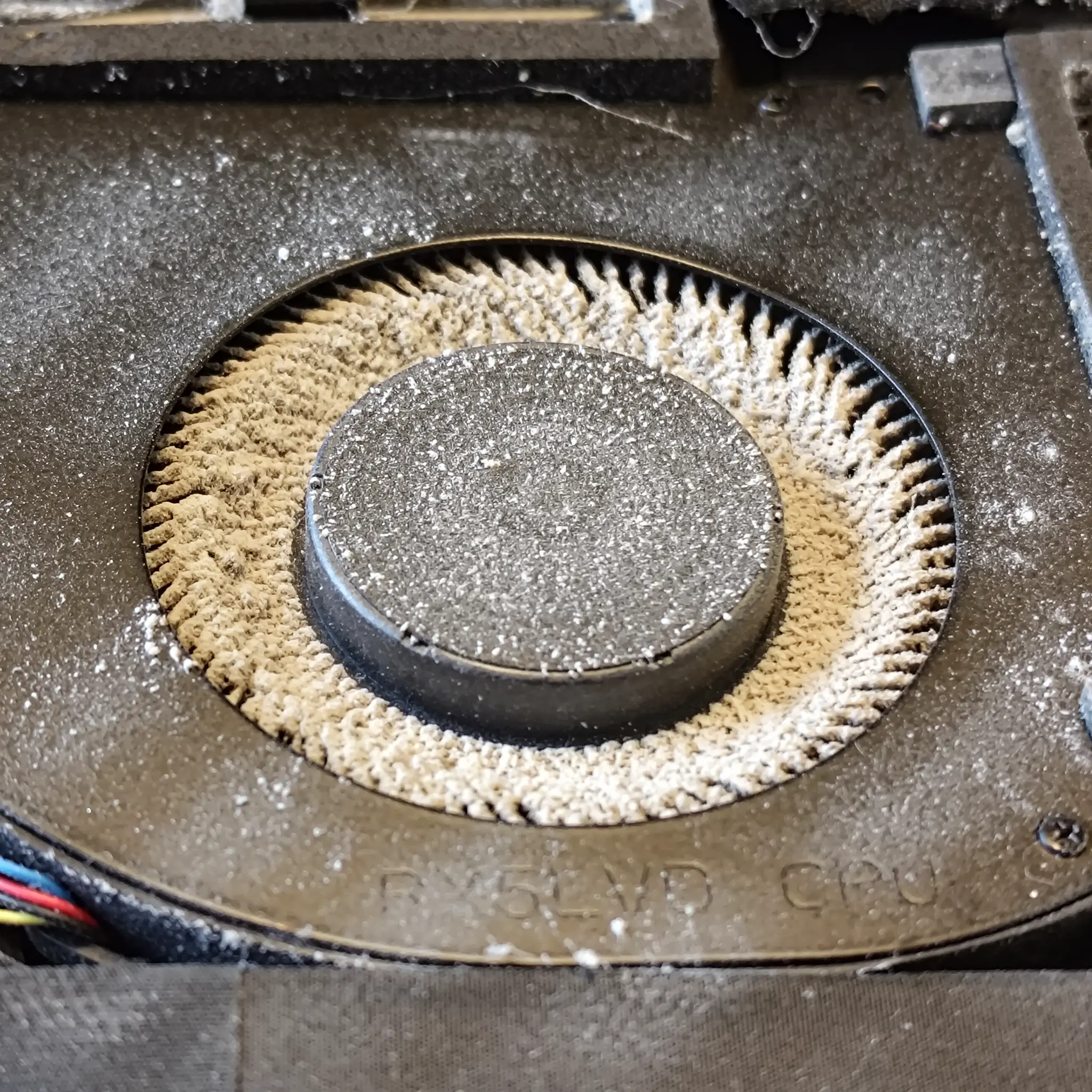
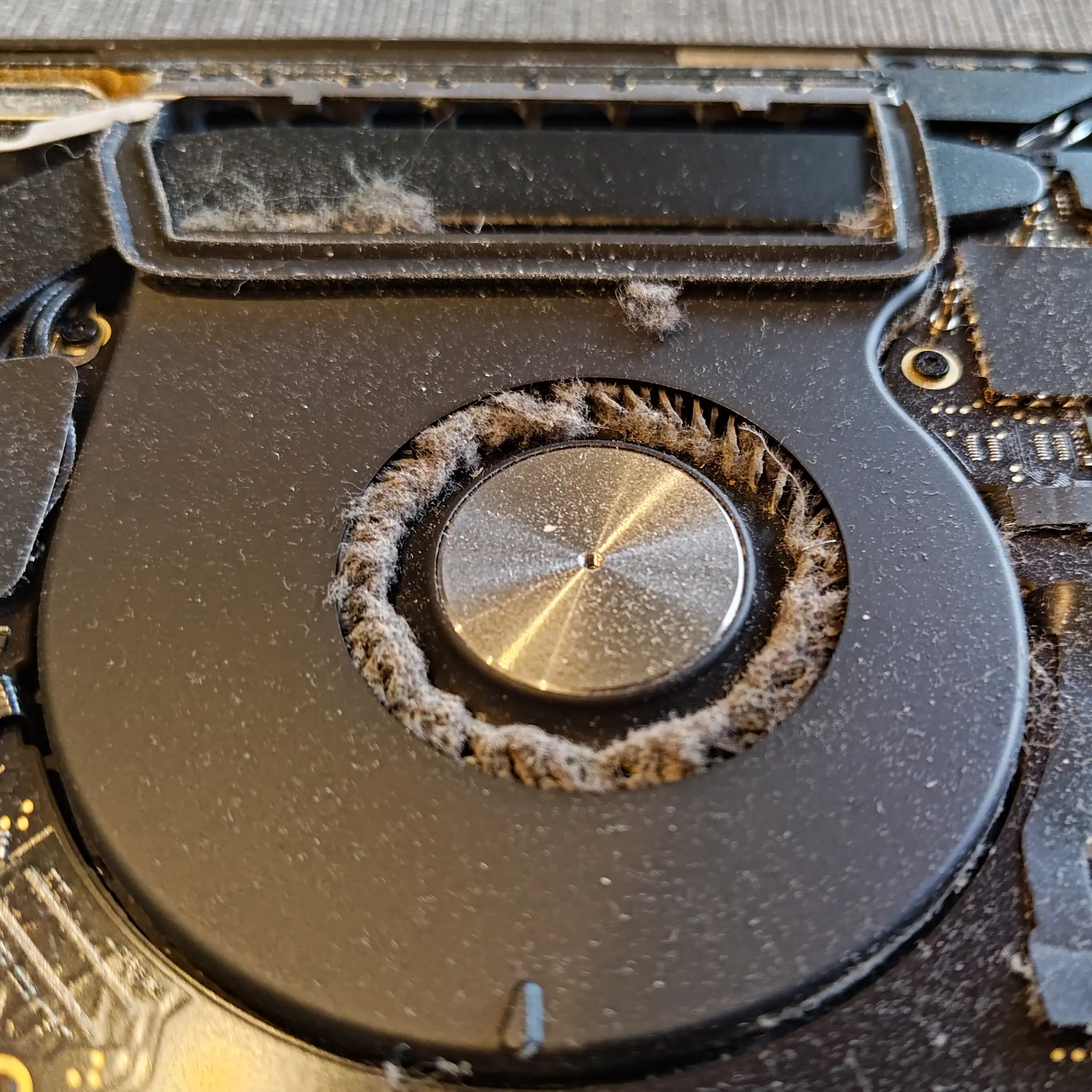
Here is what usually happens inside. Air is pulled in through the intake vents, through a fan, and then pushed through the heatsink. The heatsink is the finned metal radiator that transfers heat into moving air. Those fins are thin and closely spaced. Over time, dust and fibres build up on the intake side of the fins and form a felt-like mat. Once that mat forms, airflow drops sharply. The fan can still spin fast, but it is pushing against a blockage, so less air actually makes it through.
This is why the machine gets louder but not cooler. The fan ramps up to compensate, temperatures still climb under load, and performance may start to dip as the system limits itself to protect the CPU or GPU.
External vent blasting often does not remove that mat. Sometimes it loosens it, but it does not pull it out. In plenty of designs you can also push dust deeper into the fan housing or pack it tighter into the fins, which makes the restriction worse. It can also overspin the fan if you hit it hard with air, which is not great for the bearings. A quick blast is fine as a basic tidy-up, but I would not treat it as the full solution when overheating is the complaint.
Signs it is likely dust and restricted airflow:
- Temperatures and fan noise have been steadily getting worse over months, not days.
- The fan is louder during normal work that used to be quiet, like email and browsing.
- The exhaust vents feel weak, even when the fan sounds busy.
- You can sometimes see dust around the intake grills or the hinge exhaust area.
A proper internal clean is simple in concept, but it needs access. The machine is opened, the fan and heatsink area are exposed, and the fins are cleared from the correct side so the dust mat comes out rather than being pushed further in. Fan blades are cleaned so they can move air properly and stay balanced. While it is apart, the cooling assembly is checked for loose screws, damaged ducting, or anything that stops the fan from sealing to the heatsink. On some models, the heatsink is removed and re-seated. That is where thermal paste comes in, but that is a separate cause and not always needed.
One judgement call that helps: if the laptop is several years old, has lived in a dusty room, or has been used on soft surfaces, an internal clean is often worthwhile even before you chase deeper causes. If it overheats from new, or it is clean inside but still runs hot, the problem is usually elsewhere, like dried thermal paste, a worn fan, or power settings that are pushing the hardware hard.
Worn or failing fans: when airflow is there, but not enough
How to spot when the fan itself is the problem, not just dust or “normal” heat
A laptop or desktop can look clean and still overheat if the fan is not moving enough air. Fans wear out. They also get damaged. And sometimes they are fine mechanically, but the control side is not driving them properly.
The giveaway is often the sound. A healthy fan tends to be a smooth whoosh that rises and falls. A worn fan often changes character. You might hear rattling, grinding, a ticking, or a pulsing noise where it repeatedly surges and drops. That is usually bearing wear, or the fan wobbling slightly as it spins. Bearings are the tiny parts that let the fan spin smoothly.
Some failing fans still spin, but not at the right speed. Under light use you may not notice much. Then the moment you start a video call, open a big spreadsheet, or load a game, temperatures jump quickly because the cooling system cannot ramp up properly. That can look like “sudden overheating”, even if the machine was fine five minutes earlier.
This is also why fan faults can be misread as “thermal paste” or “the laptop is old”. Age matters, but the pattern matters more. If you get sharp temperature spikes under load, and the fan sound does not scale up in a controlled way, the fan becomes a prime suspect.
Another pattern I see is the fan constantly hunting. It speeds up, slows down, speeds up again, even though the workload is steady. That can be a fan that cannot reach target speed, or a control issue where the system is getting a bad speed reading and keeps correcting itself.
What a technician will check is fairly practical:
- Fan RPM behaviour under idle and load. RPM means revolutions per minute, basically fan speed.
- Does the fan ramp smoothly as temperatures rise, or does it stall, surge, or top out early.
- Obstruction such as a cable, tape, or warped ducting touching the blades.
- Wobble and bearing play once the fan is exposed. A fan that rocks on its shaft will never move air properly for long.
- Connector and cable issues, including a loose plug or damaged wires that cause intermittent control.
A small judgement call: if the fan is noisy in a mechanical way (grinding, rattling, repeated pulsing) it is usually not worth trying to “live with it”. It tends to get worse, and it can become an overheating issue at the worst time. The sensible fix is replacement with the right part, then confirm temperatures under load.
What I would not recommend is oiling laptop fans. It is a short-term patch at best, and it often makes a mess or hides the real fault. If the noise and speed behaviour point to wear, fixing it properly saves time later.
If you are unsure whether it is the fan, the next sections to consider are thermal paste condition and how the machine is being driven under load (power settings and workload). Those can all stack together, so proper diagnosis matters.
Dried thermal paste and poor heat transfer
Thermal paste is a thin bridge between the chip and the cooler, and it fails when it dries out or was applied badly.
Thermal paste sits between the processor (CPU) or graphics chip (GPU) and the metal heatsink. Its job is not to act like glue. It is there to fill microscopic gaps in the surfaces so heat can pass across properly.
Even when two metal surfaces look flat, they are not perfect. Without paste, tiny air pockets form, and air is a poor conductor of heat. With the right amount of paste, those gaps get filled and the heatsink can actually carry heat away.
Over time, paste can stop doing that job. It can dry out and go chalky. It can also “pump out” over many hot-cold cycles, where expansion and contraction slowly pushes the paste away from the centre of the chip. And I often see uneven application after a previous repair, where someone used too much, too little, or left contamination in the middle. Any of these can leave parts of the chip making poor contact.
The typical symptom is fast temperature rise under load. You open a heavy spreadsheet, start a video call, or launch a game, and temperatures spike within seconds. The fans ramp up hard, but the heat does not move into the heatsink efficiently, so the system still climbs towards throttling.
Throttling means the computer intentionally slows the CPU or GPU to protect itself. You feel it as sudden lag, stuttering, or clock speeds dropping while the fans are already loud.
This is one area where “it runs hot” is not the same as “it is overheating”. A thin laptop under sustained load will run warm, and the fans will be obvious. What is less normal is sharp spikes and rapid throttling from workloads that used to be fine, especially when the vents are clear and the fan is behaving properly.
There is also a related issue I see after sloppy servicing: thermal pads. Pads are the soft, slightly rubbery strips that transfer heat from VRAM or VRM components to the heatsink. VRAM is the graphics memory, and VRM is the power circuitry that feeds the CPU or GPU. If pads are torn, missing, the wrong thickness, or stuck in the wrong place, those parts can overheat even if the CPU paste is perfect.
Practically, the best advice is to treat paste and pads as a diagnosis step, not a routine ritual. If the pattern matches poor heat transfer, it is worth having a technician inspect the contact surfaces, paste condition, and pad placement at the same time. My judgement call: if you have had the machine cleaned before and it came back noisier or hotter, it is worth checking the pad situation specifically. That is an easy thing to get wrong, and it can create new problems.
If paste and pads check out, the next things to look at are blocked fins inside the heatsink, power limits, and whether the workload is driving the CPU or GPU harder than expected. Those can all produce similar symptoms, so it helps to test properly rather than guessing.

Gaming and heavy work: why overheating shows up there first
It often looks “fine” on email and browsing because the cooling problem only shows itself when the CPU and GPU are pushed for long enough to build real heat.
Most laptops and many desktops can hide cooling weakness during light tasks. Email, web, and documents tend to use the CPU in short bursts, and the GPU might be doing very little. The system has time to cool between spikes.
Gaming, video editing, CAD, large spreadsheets, and other heavy work are different. They load the CPU and GPU for minutes or hours, not seconds. That means sustained power draw, and power draw turns into heat inside the chassis.
It also explains why you can say “it only overheats when gaming” and still have a real fault. Gaming is one of the first everyday workloads that can keep both the CPU and GPU busy at the same time, which is the worst case for heat.
Modern systems are designed to boost. They will raise clock speed and voltage automatically to give you more performance, then settle back when they hit a limit. Those limits are usually power limits (what the design can safely supply) or thermal limits (what the cooling can carry away).
So a laptop can start a game at high performance, then gradually slow down as the heat soaks into the heatsink and surrounding parts. That change over time is an important clue. A machine that is healthy still warms up, but it should reach a stable point rather than constantly climbing until it has to back off hard.
When it does back off, that is thermal throttling. Thermal throttling is the system deliberately reducing performance to stop temperatures going beyond safe levels. You notice it as sudden stutter, FPS drops, lag, or fan noise that stays high while performance falls.
Dust, dried thermal paste, and worn fans all reduce “headroom”. Headroom is the spare cooling capacity you have before the system hits its thermal limit. If the heatsink fins are clogged, airflow is restricted, or a fan is not moving enough air, the same workload reaches the limit sooner. If paste is dried out or contact is poor, heat does not transfer into the heatsink quickly, so temperatures spike fast and throttling kicks in earlier.
This is why “it only happens in games” is not reassurance. It often just means you have only found the one workload that actually stresses the cooling system enough to expose the weakness.
Practical advice: watch the pattern, not just the peak number. If performance drops after 5 to 15 minutes, fans are at full speed, and the chassis feels hotter than it used to, that is usually a cooling headroom issue rather than “normal laptop heat”. My judgement call is that sudden stuttering that improves when you pause the game for a minute is a strong sign throttling is doing its job because the cooling cannot keep up.
If you want to take it further, log CPU and GPU temperatures, clock speeds, and power draw during a typical session. That helps separate a cooling fault from a software or driver issue, but it is a different diagnostic step and worth doing properly rather than guessing.
When overheating is normal (and when it is not)
Look at the pattern and the impact on performance, not one scary-looking number.
Computers get hot. That is not automatically a fault. The useful question is whether the cooling system can keep up and settle at a stable temperature during the kind of work you actually do.
Usually normal: fans ramping up during demanding tasks, warm air coming out of the vents, and the odd brief temperature spike when an app opens or a task starts. Modern CPUs and GPUs boost for short bursts. That can create quick spikes, then it drops back once the workload steadies.
If the machine gets loud under load but stays consistent, that is often just it doing its job. You are converting power into heat and pushing it out of a small box. Laptops especially have limited room for airflow.
Not normal: unexpected shutdowns, crashes that line up with heavy work, or repeated thermal throttling during moderate loads. Thermal throttling is when the system slows itself down to avoid going beyond its safe temperature limit. If you are only on a Teams call, a few browser tabs, or light office work and it is already throttling, something is usually wrong with cooling headroom.
Another clear red flag is being hot at idle. “Idle” means you are doing almost nothing and the system should be mostly relaxed. If the fans are constantly roaring on the desktop and the chassis is hot while you are not running anything heavy, that points to blocked airflow, dried thermal paste, a worn fan, or sometimes a background task that is pinning the CPU.
Smells matter. A burning or acrid smell is not normal and should not be ignored. It can be dust scorching on a hot heatsink, an electrical fault, or a failing component. Also watch for signs of a swollen battery on laptops: a trackpad that stops clicking properly, a wobbling base, a case that looks slightly split, or the bottom cover bulging. Do not press on it or “see if it goes away”. Get it checked.
Sudden new behaviour is often more important than absolute temperatures. If it used to stay stable and now it ramps hard, throttles after a few minutes, or the exhaust air feels noticeably hotter than before on the same workload, treat that as a change worth investigating. Dust build-up, fan wear, and thermal paste drying happen gradually, so the symptoms can creep up until you finally notice them.
Seasonal conditions can make a healthy machine look worse. In summer, a hot room, direct sun on the chassis, and poor ventilation around the vents can push temperatures up. In winter, laptops are often used on soft furnishings, and office desktops can end up tucked near radiators or inside tighter furniture layouts. Even a small restriction around the intake or exhaust can reduce airflow enough to tip a borderline system into throttling.
Why it matters: repeated overheating is long-term stress. It does not mean the device will die quickly, but running near limits more often tends to mean more fan wear, more dried-out paste over time, and more heat cycling on components and solder joints. You also lose performance when it throttles, which is usually the problem people feel day to day.
Practical advice: if you want one simple check, compare idle behaviour with a known load (a normal work task you can repeat). If it is hot and loud at idle, start with basic causes like blocked vents and background tasks. If it is fine at idle but falls apart after 5 to 15 minutes of steady work, that is more consistent with airflow restriction, poor heatsink contact, or a fan that is not moving enough air.
My judgement call: if you are getting shutdowns, burning smells, battery swelling signs, or throttling in everyday office use, stop treating it as “just a warm laptop”. At that point it is worth proper diagnosis rather than guessing, because the fix might be simple, but only if it is caught before heat has caused secondary issues.
Real fixes that address the cause (and what they do not solve)
These are the main repair categories that improve airflow and heat transfer, plus the limits of what each one can realistically change.
If a machine is overheating, the fixes that last tend to be the ones that restore the cooling system back to how it was meant to work. That usually means getting air through the chassis properly and getting heat off the chips and into the heatsink properly. It does not mean trying random software tweaks and hoping the laws of physics change.
Below are the practical fix categories we use in workshop diagnostics, with clear boundaries on what each one is good for.
1) Internal dust clean and cooling path restoration
Dust does cause overheating, but not because a laptop is a bit dusty in general. The real problem is when dust builds up in the fins of the heatsink and turns into a felt-like mat that blocks the exit. That stops airflow, so heat stays inside.
What it helps: high temperatures under load, fans getting very loud, and “it gets worse after 10 minutes” behaviour. It can also reduce noise because the fan does not need to spin as hard once the air can move again.
What it will not fix: a system that is slow because it is underpowered for the job, or a laptop that is heating up because something is hammering the CPU in the background. Laptop cleaning improves cooling headroom. It does not create extra computing power.
2) Fan replacement when mechanical wear is present
Fans are mechanical parts. Bearings wear. Blades crack. Some fans also develop play and start scraping the shroud.
What it helps: grinding or rattling noises, fans that surge up and down, and cases where diagnostics show the fan is not reaching proper speed even though the system is calling for it. If the fan cannot move air, it does not matter how clean the heatsink is.
What it will not fix: poor heatsink contact or dried thermal paste. A new fan moving air over a heatsink that is not picking up heat properly still leaves you with an overheating CPU or GPU.
3) Thermal paste (and pads where applicable) replacement
Thermal paste is the thin compound between the chip and the heatsink. Its job is to fill microscopic gaps so heat transfers efficiently. Thermal pads do a similar job for parts that sit at a slightly different height, often memory or power components.
What it helps: temperature spikes, fast throttling as soon as a workload starts, and situations where the fan is working but the heat is not being pulled into the heatsink quickly enough. In repair work, you sometimes see paste that has dried out, pumped out, or was applied poorly during an earlier service.
What it will not fix: blocked heatsink fins or a failing fan. Paste helps heat transfer into the cooling system. It does not help if the cooling system cannot then get that heat out of the machine.
4) Checking heatsink mounting pressure and contact issues after past repairs
Heatsinks rely on even pressure across the chip. If screws are missing, in the wrong order, over-tightened, or the heatsink is slightly warped, you can end up with poor contact on one corner. That can cause stubborn overheating that looks “mysterious” until you physically inspect it.
What it helps: machines that started overheating after a screen repair, a battery replacement, a fan change, or any work where the cooling assembly was removed and refitted. Also useful when temps are oddly uneven, like one core running much hotter than the rest.
What it will not fix: genuine workload demand. If you are rendering video, running CAD, or gaming on a thin laptop, it may still run hot by design, even when everything is correctly fitted. It should be stable and controlled though, not crashing or throttling instantly.
Setting expectations
These fixes are about airflow and heat transfer. They reduce throttling, stabilise performance, and cut the risk of heat-related shutdowns. They do not turn a three-year-old ultrabook into a workstation, and they do not make heavy workloads “free”. If your business use has changed, for example more Teams calls, multiple screens, or heavier software, part of the answer can be matching the hardware to the job.
My judgement call: if the laptop is overheating under fairly normal office use, it is usually worth doing the proper cooling diagnosis rather than living with it. If it only runs hot during a known heavy task and stays stable, the better conversation is often about workload, ventilation, and whether the machine is the right class for that work long-term.
Other things that look like overheating (but are different problems)
This is about avoiding the wrong fix when the symptom is heat, noise, slowdowns, or sudden shut-downs.
In the workshop we see a lot of “overheating” jobs that turn out to be something next to overheating. The laptop is hot and the fan is loud, so it feels obvious. But if you treat every case as a cooling failure, you can spend money on cleaning and repaste and still have the same problem.
Below are the common lookalikes. I am not going deep here. The point is to help you recognise when you need a different kind of diagnosis.
1) Malware or runaway background processes (constant load)
If the CPU is busy all the time, the machine will run hot even if the cooling system is fine. CPU just means the main processor. The clue is constant fan noise and poor battery life even when you are not doing anything heavy.
This can be malware, or it can be a legitimate app stuck in a loop, a sync client re-indexing, or a browser tab misbehaving. In these cases, cleaning helps a bit, but it does not remove the underlying load. If you suspect this, it is usually better value to start with a performance and virus check rather than opening the machine first.
2) Driver issues causing high GPU usage or crashes
A driver is the software that lets Windows talk to the hardware. When graphics drivers misbehave you can see high GPU usage, odd stuttering, fans ramping during simple tasks, or crashes that get blamed on “heat”. Gaming and video work make this more obvious because they lean hard on the GPU.
If the machine is only “overheating” in one game, one app, or after an update, that leans more towards a software diagnostics job than a cooling rebuild. It might still run hot under load, but it should be stable and predictable.
3) Power and charging faults that increase heat
Charging circuits can create heat. Some heat around the charger area is normal. What is not normal is excessive heat at the DC jack (the power socket), a hot plug, burning smells, or charging that cuts in and out.
A poor connection can force higher resistance, which creates more heat, and it can make the laptop behave oddly as power drops and returns. If heat is concentrated near the charging port, or the issue happens mostly while charging, it is worth booking charger and DC jack diagnostics rather than assuming it is dust.
4) Battery swelling or failure (heat plus safety risk)
A failing battery can run warm during charge and discharge. A swollen battery is different. It can press on the trackpad, bow the bottom cover, or make the laptop rock on a desk. It is also a safety risk.
If you see any swelling, stop using it and do not keep charging it “to see if it settles”. That is one of the few cases where I am blunt: battery replacement is the correct next step, not more troubleshooting.
If you are not sure which category you are in, the best approach is a short, structured diagnosis first. Cooling work is great when it is the real cause. When it is not, the right fix is usually found faster by checking load, software stability, and power health in parallel.
What we check in a proper overheating diagnosis (laptop and desktop)
We follow the evidence and test the behaviour, rather than assuming it is “just dust”.
Overheating is not one single fault. It is a symptom. The quickest way to get a reliable fix is to look at how the machine behaves, then match that to what we can physically see inside.
We start with temperature and frequency at idle and under load. “Frequency” is simply how fast the CPU or GPU is running. A healthy system will usually sit calm at idle, then warm up in a predictable way when you actually give it work to do.
What we are watching for is the pattern. Does it spike to a high temperature instantly? Does it throttle hard (slow itself down) even in light tasks? Does it settle once the fans catch up? These details tell you if you have a cooling problem, a workload problem, or something else entirely.
Next is fan operation and airflow. We check that the fans spin up smoothly, do not grind, and do not hunt up and down for no reason. We also check airflow strength at the exhaust. If a fan is loud but the air coming out is weak, something is blocking the path or the fan is not doing its job.
Then we do a physical inspection of vents and heatsink fins. The fins are the thin metal “radiator” the fan blows through. On laptops especially, it only takes a compacted dust mat at the fins to turn a good cooling system into a bad one, even if the external vents look clean.
We also look for evidence of prior repair or a half-fix. Missing screws, stripped threads, bent covers, torn tape seals, or heatsinks that have been removed and refitted badly all matter. Inside, we sometimes find incorrect thermal paste (too much, too little, or the wrong type) and damaged thermal pads that no longer touch the components they are meant to cool.
Thermal paste is the compound between the chip and the heatsink. Its job is to fill microscopic gaps, not to act as glue. If it is dried out or applied poorly, temperatures can climb fast even with a clean fan and clean fins.
For desktops, we add checks that are easy to miss if you only focus on the CPU cooler. We look at case airflow direction, fan orientation, and whether the case filters are clogged. We check the CPU cooler mounting pressure and alignment, because a cooler that is slightly loose can behave fine at idle but fall apart under sustained load.
We also inspect the GPU cooler condition. Gaming and creative work usually load the GPU hard, so a dusty or worn GPU cooler can be the real source of “CPU overheating” complaints. It all ends up as heat inside the same case.
Once those checks are done, the outcome should be clear. If dust and blocked fins are the issue, the fix is a proper internal fan clean, not just a quick blast at the vents. If the paste and pads are the problem, it is a repaste and correct pad replacement. If a fan is weak, noisy, or intermittent, it is a fan replacement, not more cleaning.
And if the symptoms do not match cooling issues, we stop and move to further fault finding. That might mean checking for constant background load, driver problems, power issues, or stability faults that look like “heat” from the outside. A small judgement call here: it is better to pay for diagnosis than to keep doing cooling work that does not fit the evidence.
FAQ

Words from the laptop cleaning experts
In day to day repairs, we often see the same overheating patterns repeat, especially on laptops that have had a few years of regular use. A common problem is airflow restriction that slowly builds up, and one practical check we rely on is comparing idle vs load temperatures rather than guessing from a single reading.
If your machine only runs hot during gaming or heavy work but stays stable and responsive, that can be normal behaviour within its design. If it is getting hot at idle, throttling early, or shutting down, treat it as a fault condition and focus on the real cause, not quick workarounds that just mask the symptoms.