
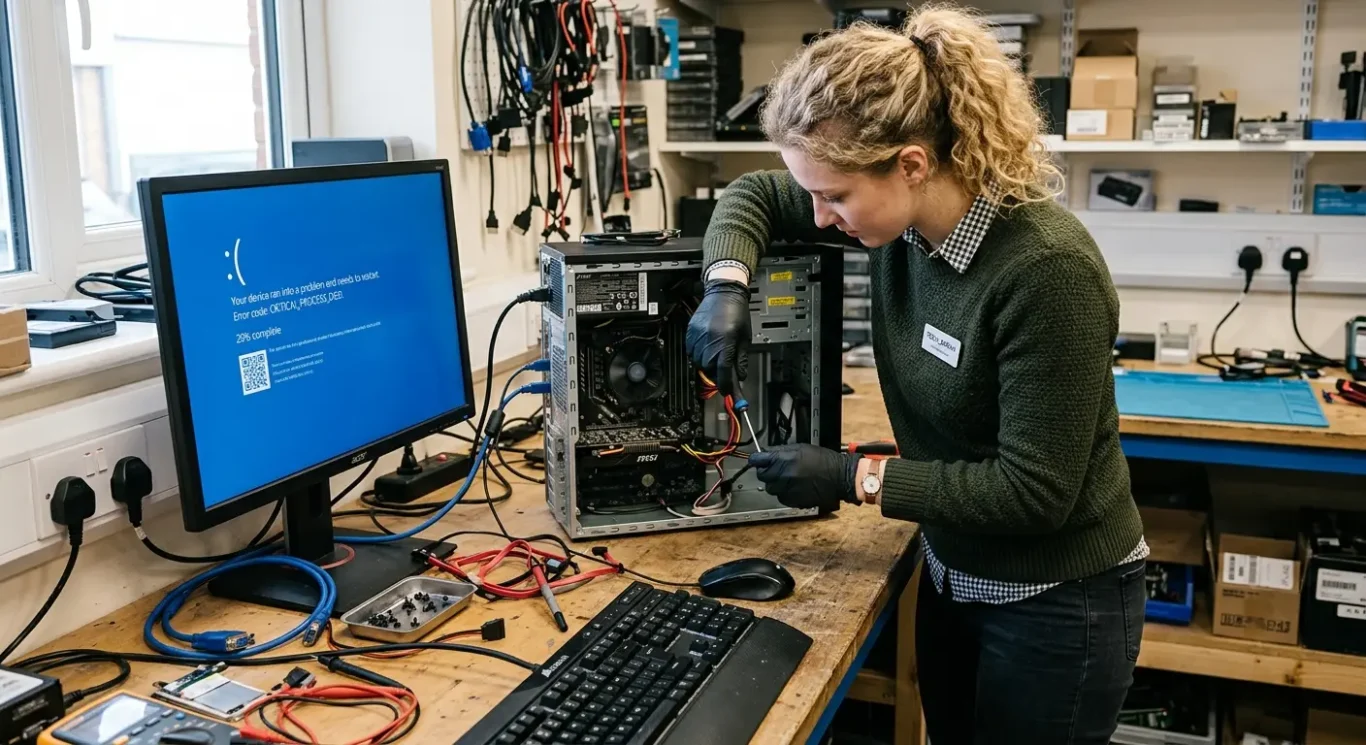
Random crashes, freezes, and instability
An unstable computer is one of the most frustrating faults to deal with because it still switches on, but you cannot rely on it. One minute it works, the next it freezes, restarts, throws up a blue screen, or drops things like USB or audio for no obvious reason – and yes, these are often the jobs that waste the most time if someone starts guessing.
This page is about systems that have power but behave badly, not machines that are completely dead or will not turn on at all. Random crashes and instability can come from more than one place, including the motherboard, cooling problems, failing storage, memory faults, or software issues, so the computer repair cost and timescale depend on what testing finds first.
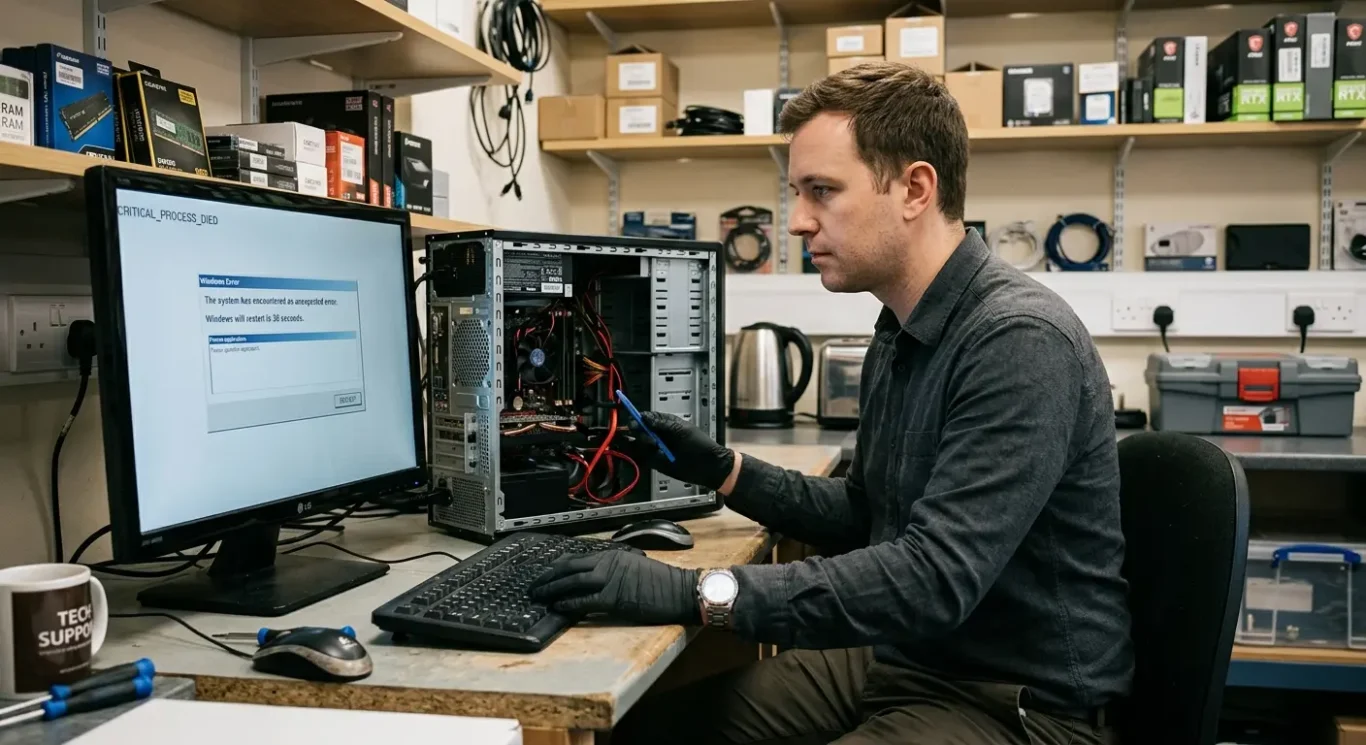
What counts as a stability problem
These are the faults where the machine still powers on, but starts behaving unpredictably while you are using it.
Typical examples are random restarts during normal use, blue screen errors, sudden warning messages just before a reboot, or the whole system freezing while you are working. It can also show up during updates, gaming, or video calls, where the computer seems fine at first and then locks up once it has to do more.
Intermittent faults still count
Not every problem is a full crash. Sometimes apps close on their own when the machine is under load, or things like USB ports, audio sockets, or other connections work on and off rather than being completely dead. That sort of stop-start behaviour often points to an instability issue rather than one simple broken part.
This is different from a no power fault
If the computer will not turn on at all, shows no signs of life, or only has a charging problem, that sits in a different category. A stability fault means it does start up, but you cannot trust it to stay running properly.
One restart on its own does not automatically mean the motherboard is faulty. In real repair work, the same symptoms can come from overheating, memory issues, storage faults, damaged software, or a board-level problem, so the job starts with proper testing rather than guesswork.
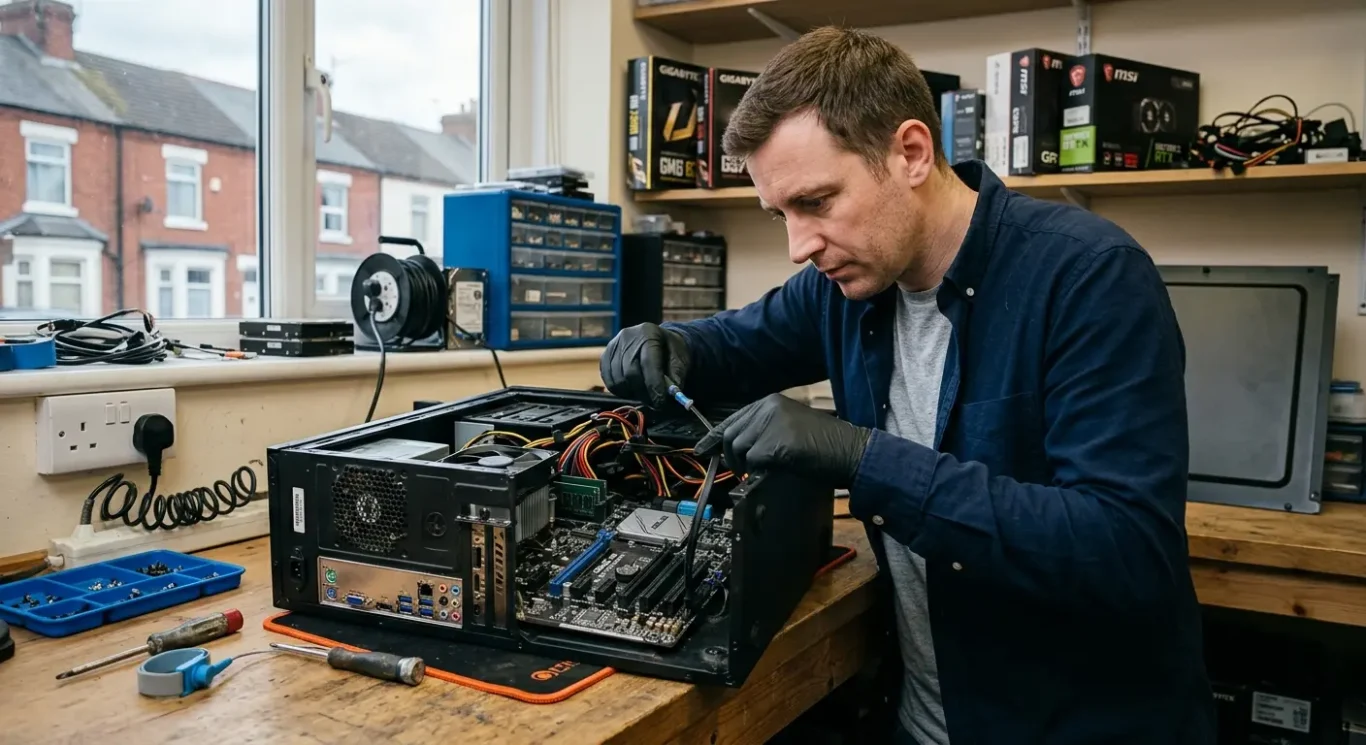
Common signs the motherboard may be at fault
When crashes, ports, storage and other odd faults overlap, the main board is often one of the first things worth checking properly.
The motherboard is the part that links together power delivery, USB and audio ports, storage, memory, and communication with the processor. When that link starts misbehaving, the symptoms can look scattered and unrelated. You might see freezing one day, a blue screen the next, then a USB device dropping out for no obvious reason.
Mixed faults often point back to one shared area
That does not mean the motherboard is always the cause, because memory, storage, cooling and software can all create instability as well. But when different parts of the machine start acting up at the same time, it is often a sign that the common connection between them needs testing rather than replacing random parts and hoping for the best.
Intermittent USB or audio problems are a good example. If ports work on and off, disconnect under light movement, or vanish after the machine has warmed up, that can be part of a board fault rather than a problem with the accessory you plugged in. I see this a lot on laptops where the machine still boots, but starts losing smaller functions before anything fails completely.
Crashes under load can also fit the same pattern. If the system is stable while idling but freezes during updates, gaming, video calls or heavier work, it can point to a failing component on the board or a heat related issue affecting the board. Instability often shows up before total failure because electronic faults do not always go from working to dead in one step – they often start as occasional glitches first.
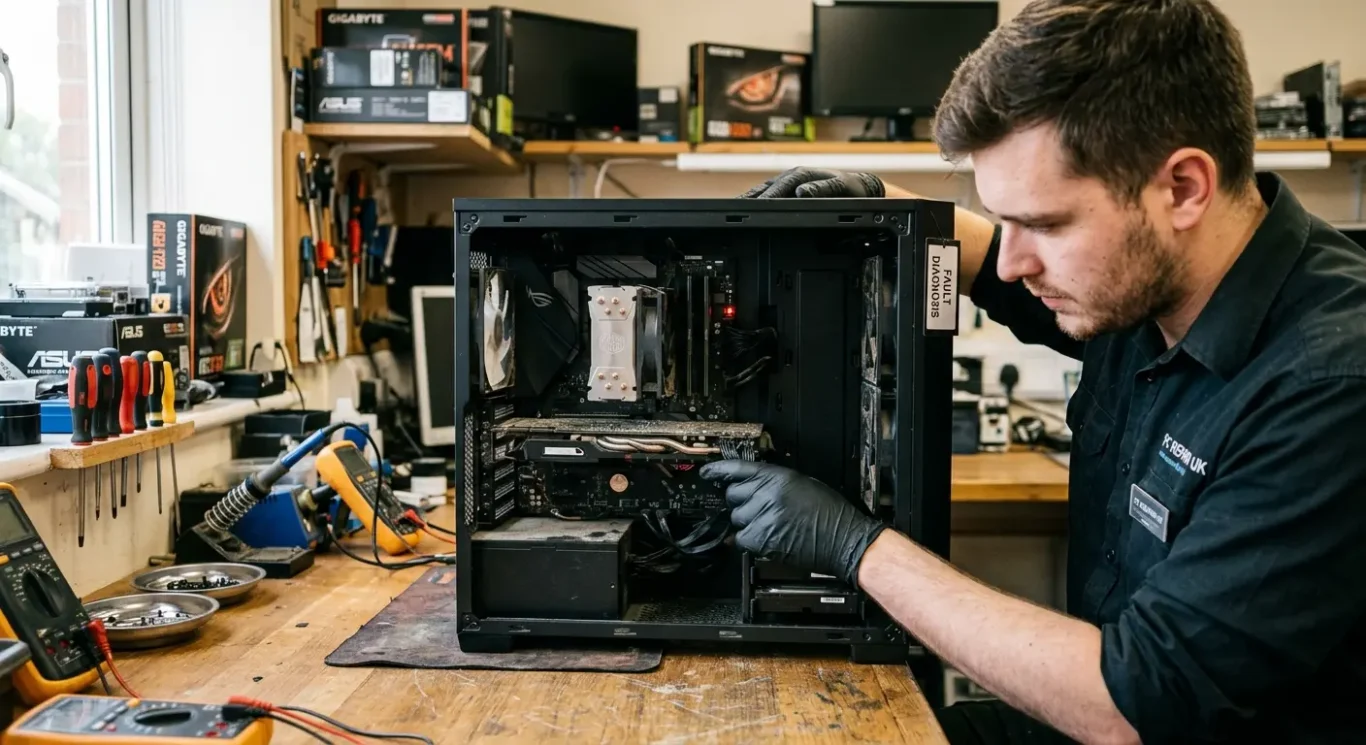
Other faults that can look similar
Unstable behaviour is not always a motherboard problem, so the right starting point is proper diagnosis.
Quite a few faults can mimic motherboard instability. Overheating is a common one. Dust build-up, blocked vents, dried thermal paste, or a weak fan can make a laptop or desktop freeze, restart, or crash when it gets busy. It often behaves normally at first, then starts failing once the heat builds up.
Storage and memory faults can look messy
A failing SSD or hard drive can cause freezing, file errors, slow booting, failed updates, and sudden crashes. Faulty RAM can do the same sort of thing in a different way, especially blue screen errors, random restarts, and programs closing for no clear reason. In day to day computer repair work, these problems can look very similar to a board fault until the machine is tested properly.
Software corruption, damaged system files, driver problems, or a bad update can also make a computer seem unreliable. Sometimes the machine crashes only when using certain hardware, after waking from sleep, or during updates, which can send people in the wrong direction. Some software faults are straightforward, some are not, and it is better to confirm the cause than assume it is a quick fix.
Power input problems can be misleading on laptops
On some laptops, a failing power adapter, damaged charging circuit, or unstable battery connection can mimic random crashes and restarts. I see this now and then where the laptop works on mains for a while, then cuts out under load, or becomes erratic depending on how it is powered. That is why stability faults and power faults have to be separated carefully before any repair is approved.
How the fault is diagnosed properly
This is the part where the problem is checked step by step, so you know what is actually wrong before any repair is agreed.
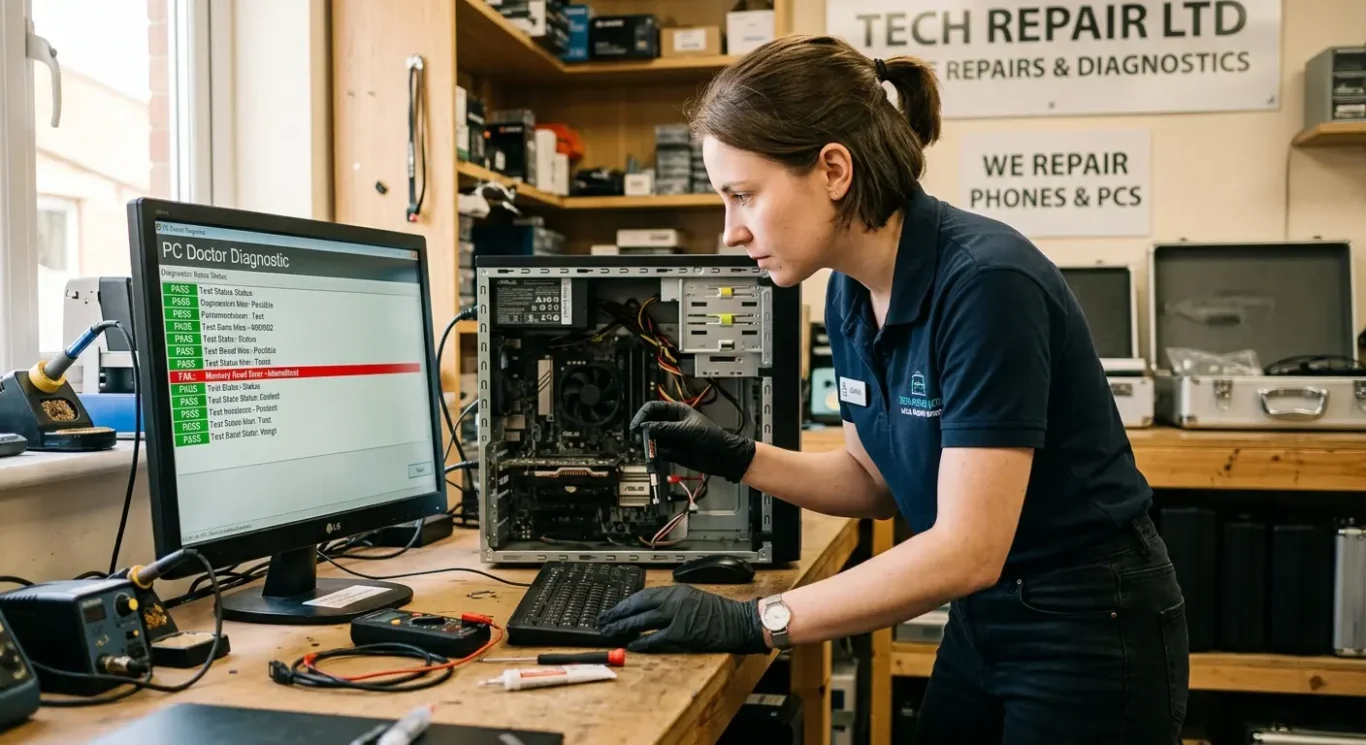
The first job is to see whether the fault can be reproduced on demand. If a machine crashes during video calls, freezes when several programs are open, or throws blue screen errors after warming up, the aim is to trigger that behaviour safely and watch what changes. That matters because random crashes, freezes, and instability can come from several different causes, and they do not all need the same repair.
What gets checked
Checks usually include temperature, memory, storage, power behaviour, and whether USB or audio ports work properly under normal use. If the system becomes unstable only under load, that points the diagnosis in a different direction from a machine that crashes at idle or only on battery power. I also look for simple but important clues such as failed charging behaviour, dropped devices, or ports cutting in and out.
A proper inspection also includes looking inside for liquid damage, corrosion, overheating marks, burnt areas, broken connectors, or other signs of board damage. Sometimes the cause is obvious once opened. Other times everything looks clean and the fault only shows itself during testing, which is why visual checks and live testing both matter.
Why some faults take longer
Intermittent faults are the awkward ones. A laptop might behave normally for an hour, then freeze once, or a desktop may restart only when a certain port is used or when it has been running long enough to heat up. In those cases, diagnosis can take longer because the problem has to be confirmed before any repair is approved, otherwise you end up paying for guesswork rather than the right fix.
Why crashes under load matter
Faults often show up when the computer is working harder, and that helps pinpoint what to check
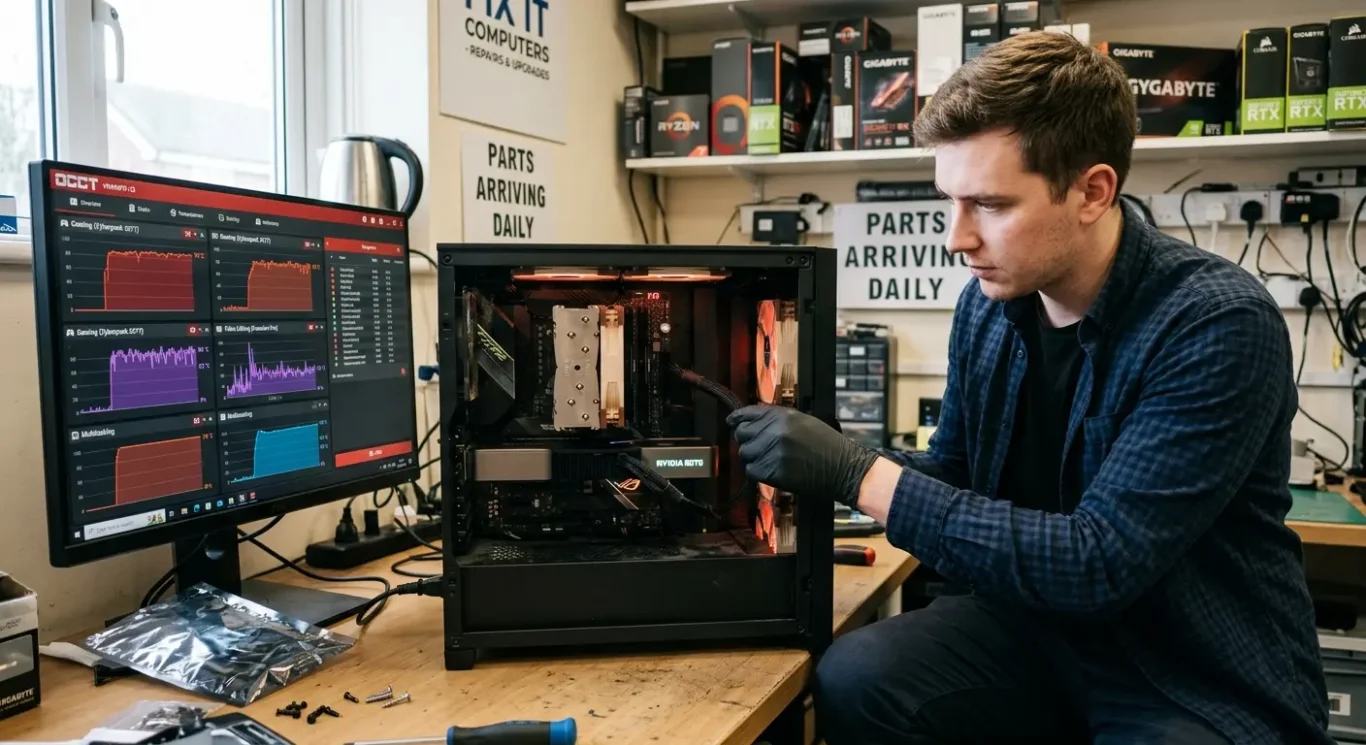
A machine that seems fine on the desktop can still fail once you ask more of it. I often see crashes during gaming, video exporting, large spreadsheets, video calls, or when several programs are open at once, because those jobs raise heat and power demand at the same time.
Heat and power both matter
That does not automatically mean the cooling is the only problem. Extra load can expose a weak motherboard fault, unstable power delivery, failing memory, storage trouble, or a charging issue on a laptop, and some of those only show themselves once the system is under strain.
This is why a computer may sit idle for hours, then freeze or restart halfway through proper work. At idle, the demand is low and the fault may stay hidden, but once the processor, graphics, ports, or charging circuit are used more heavily, the unstable part starts misbehaving. You would be surprised how often a machine passes a quick check, then falls over the moment it has to do something useful.
What to tell us
If you can say when it happens, that saves time. Useful details are whether it crashes during Teams or Zoom calls, while exporting photos or video, when opening a big Excel file, after plugging in USB devices, or only once it has warmed up. Those patterns help separate random crashes, freezes, and instability from a general power fault and point the diagnosis in the right direction.
When USB ports, audio jacks or other connections stop behaving properly
Small connection faults often belong to the same instability problem, not a separate computer port repair
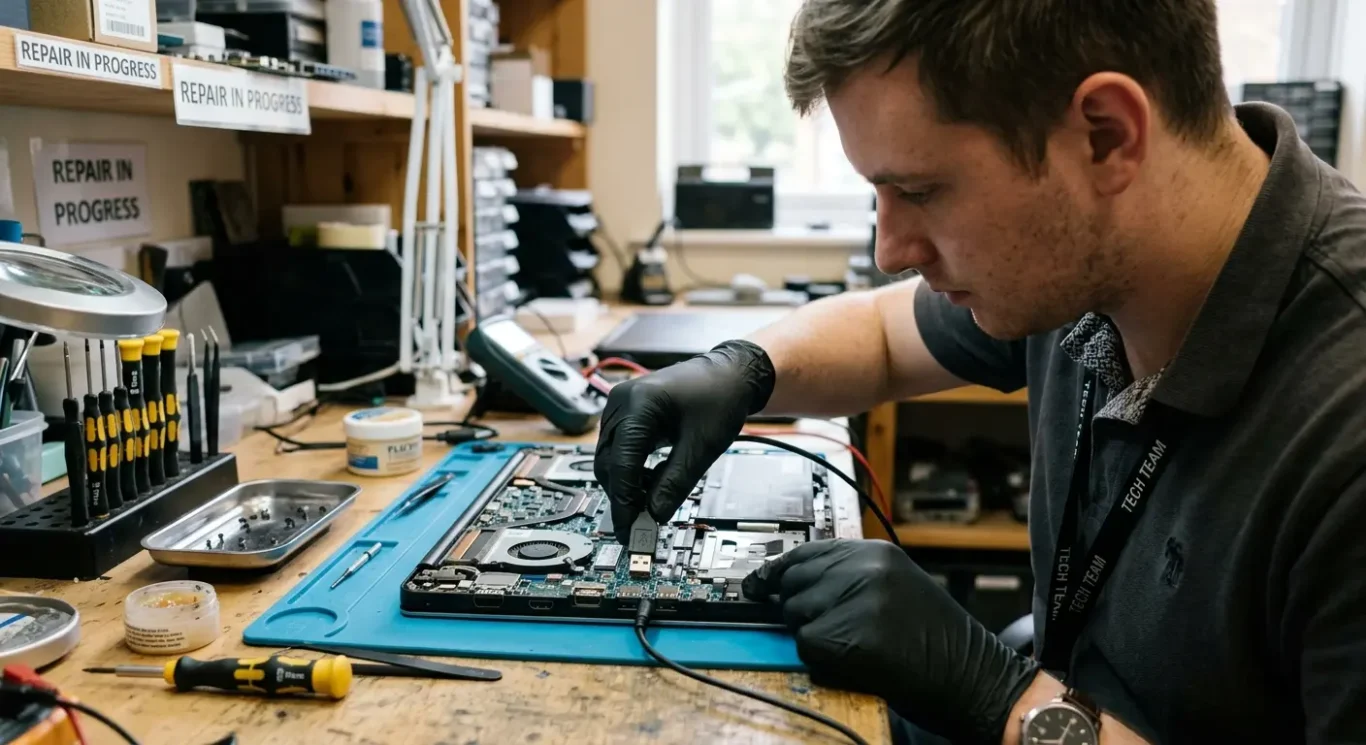
If a USB device keeps disconnecting, a headphone jack only works when the plug is held a certain way, or an external drive cuts out mid-use, I do not assume the socket itself is the whole problem. Those faults can come from wear or impact damage, but they can also happen when the motherboard is not handling communication properly. That is why random crashes, freezes and instability sometimes show up alongside awkward port behaviour.
Physical damage and board faults are not the same thing
A physically damaged port is usually fairly obvious once checked closely. The socket may be loose, bent, cracked, pushed in, or only make contact in one position because the connector itself is damaged. A motherboard-related fault is different. The port can look fine, but devices still disconnect, fail to detect properly, or work one day and not the next because the fault sits deeper on the board.
Audio faults can be the same story. If sound is distorted, keeps dropping to one side, switches between speakers and headphones on its own, or disappears even with known good headphones or speakers, the problem may be on the board rather than in the speakers, jack, or software settings. I see this now and then after liquid exposure, impact, or general board instability.
Several little faults usually matter
One bad port can be just one bad port. But when USB is unreliable, audio is intermittent, Bluetooth drops out, charging is fussy, or the machine also freezes under load, that pattern usually points to a wider hardware issue rather than a list of unrelated small problems. In those cases, replacing a socket without proper diagnosis can waste time and money, because the deeper fault is still there.
What repair options depend on the fault
After diagnosis, the next step is usually fairly straightforward – clean it, replace the failed part, repair the motherboard, or say honestly when it is not worth doing.
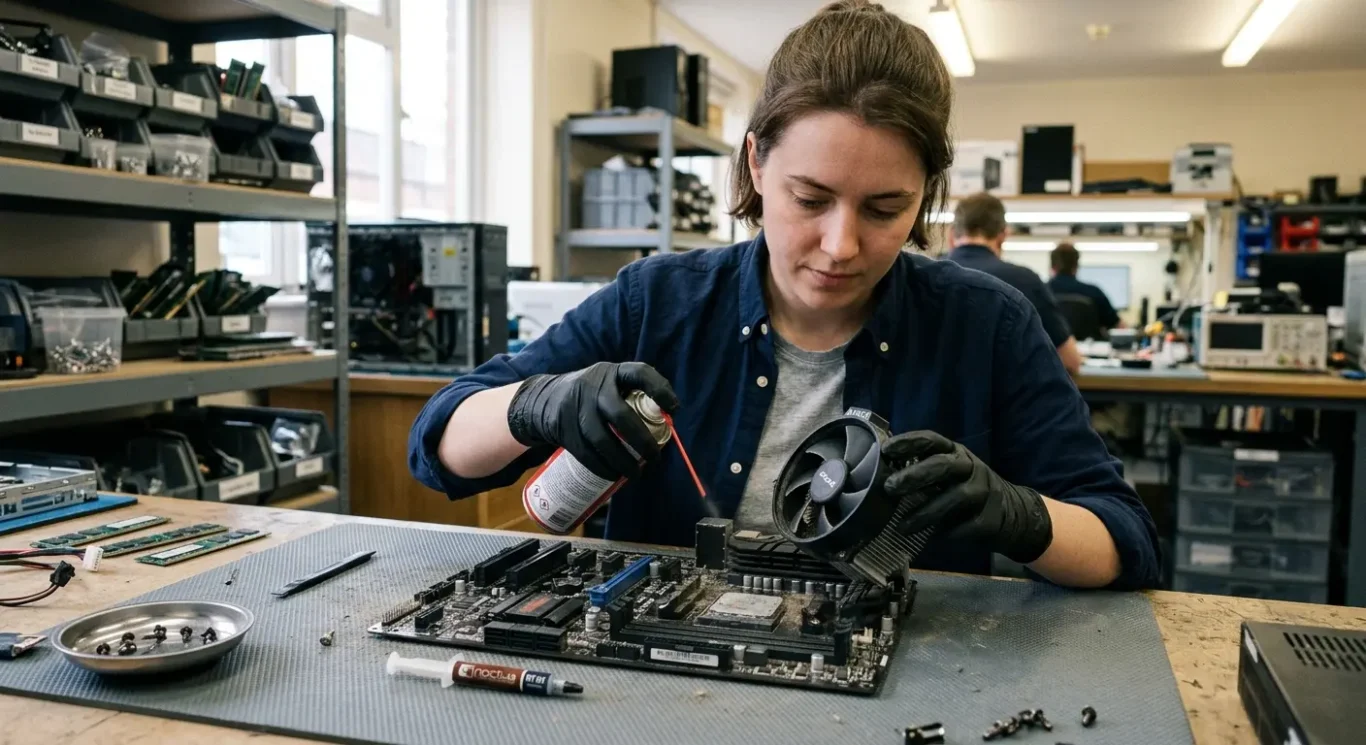
If heat is the main cause, the fix is often cleaning and cooling work rather than a major parts repair. That can mean clearing out dust, cleaning fans and heatsinks, replacing dried thermal paste, and checking the cooling system is actually doing its job properly under load. I see plenty of machines with random crashes, freezes and instability that settle down once the heat issue is sorted properly.
When a single part has failed
If testing points to a bad memory module, failing SSD or hard drive, or a damaged USB or audio port, replacing that part is usually the sensible route. That is often more predictable than chasing software settings when the fault is clearly physical. Cost and timing depend on the fault and parts availability, but the job is normally simpler than board-level work.
When the motherboard itself is unstable, repair may still be possible if the fault is localised and the board is otherwise worth saving. That is more involved, and it is not something I would promise blindly before testing, because some board faults are repairable and some are not. Data safety can also depend on the fault – if the storage drive is healthy, your files may be unaffected, but if the crash problem involves the drive or there has been liquid damage, recovery is less certain.
When replacement makes more sense
Sometimes the honest answer is that replacement is the better use of money. That tends to be the case when the board is badly damaged, parts are poor value, or the machine has several faults at once and would still be unreliable after one repair. That does not mean replacement is the default answer – it just means there are jobs where spending more on repair is hard to justify.

What affects cost and repair time
The main questions are usually price, timescale, and whether it can be checked at your home or needs proper bench testing.
Cost depends on what is actually causing the instability. A software fix is very different from replacing a failed SSD, sorting out a cooling problem, or doing motherboard-level repair. Some jobs can be quoted once diagnosis is done, but others still depend on parts prices and how involved the fault turns out to be.
Diagnosis first, then a proper quote
With random crashes, freezes and instability, the awkward part is that the same symptom can come from several different faults. If the machine only fails under load, only after warming up, or only with certain ports in use, it can take time to reproduce it properly. In some cases the first step is simply diagnosis from £60, then the repair cost depends on the fault.
Home visit or workshop
A home visit can suit some checks, especially if the problem may be linked to your setup, power, peripherals, or network. But not every instability fault is sensible to diagnose on site. If stress testing, strip-down work, board inspection, or parts swapping are needed, a workshop assessment is usually the more reliable route.
Turnaround depends on how quickly the fault shows itself and whether parts are needed. A clear cooling issue or a bad replaceable part is often more straightforward than an intermittent motherboard fault that behaves for hours and then crashes once. That is why honest timing usually depends on the fault, not just the symptom you first notice.
What to do before booking a computer repair
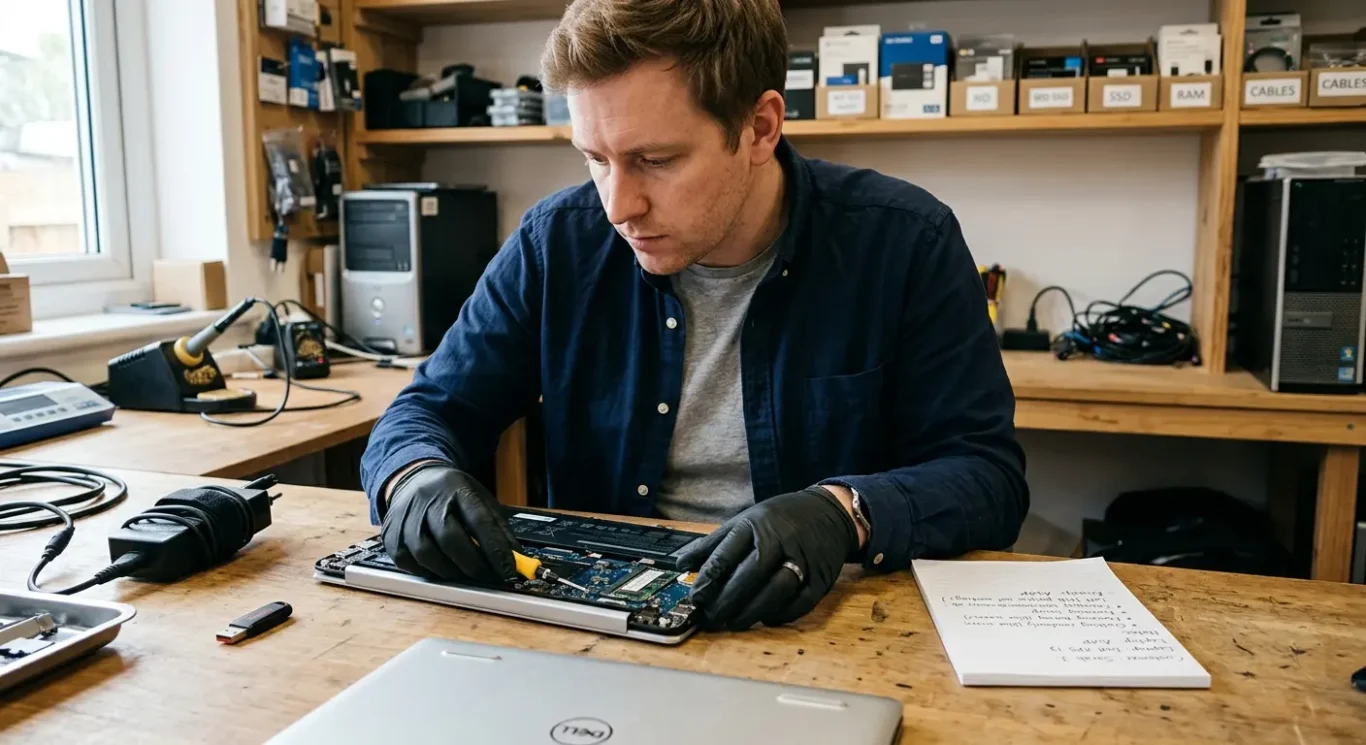
A few simple checks can make the fault easier to trace and help avoid making things worse.
If the computer is still turning on, make a note of what you were doing when it crashed, froze, restarted or showed an error. That could be during startup, while charging, when using a USB device, in a video call, or only when the machine is working hard. Small details like that often save time because random crashes and instability are not always truly random.
Keep any error message
If you see a blue screen, warning, or any odd message, write it down or take a clear photo on your phone. Even a partial message can help point to whether the issue is more likely to be software, storage, memory, overheating, or a motherboard fault. If the problem may involve power behaviour, bring the charger or power supply with the machine, because a bad adaptor can sometimes mimic deeper faults.
Back up anything important if the computer is still usable, but keep it simple. Copy your key files to cloud storage or an external drive if it will do so normally, and do not start opening the machine, running advanced fixes, or poking around with settings you are not comfortable with. I see plenty of jobs where the original fault was manageable, but home troubleshooting muddied the picture.
Know when to stop using it
If it is getting unusually hot, crashing more often, cutting out under load, or behaving worse by the day, stop using it and get it checked. Pushing an unstable machine can increase the chance of data loss or turn a smaller hardware fault into a bigger one.
When the problem needs urgent attention
Signs you should stop relying on it for work or important files and get it checked soon
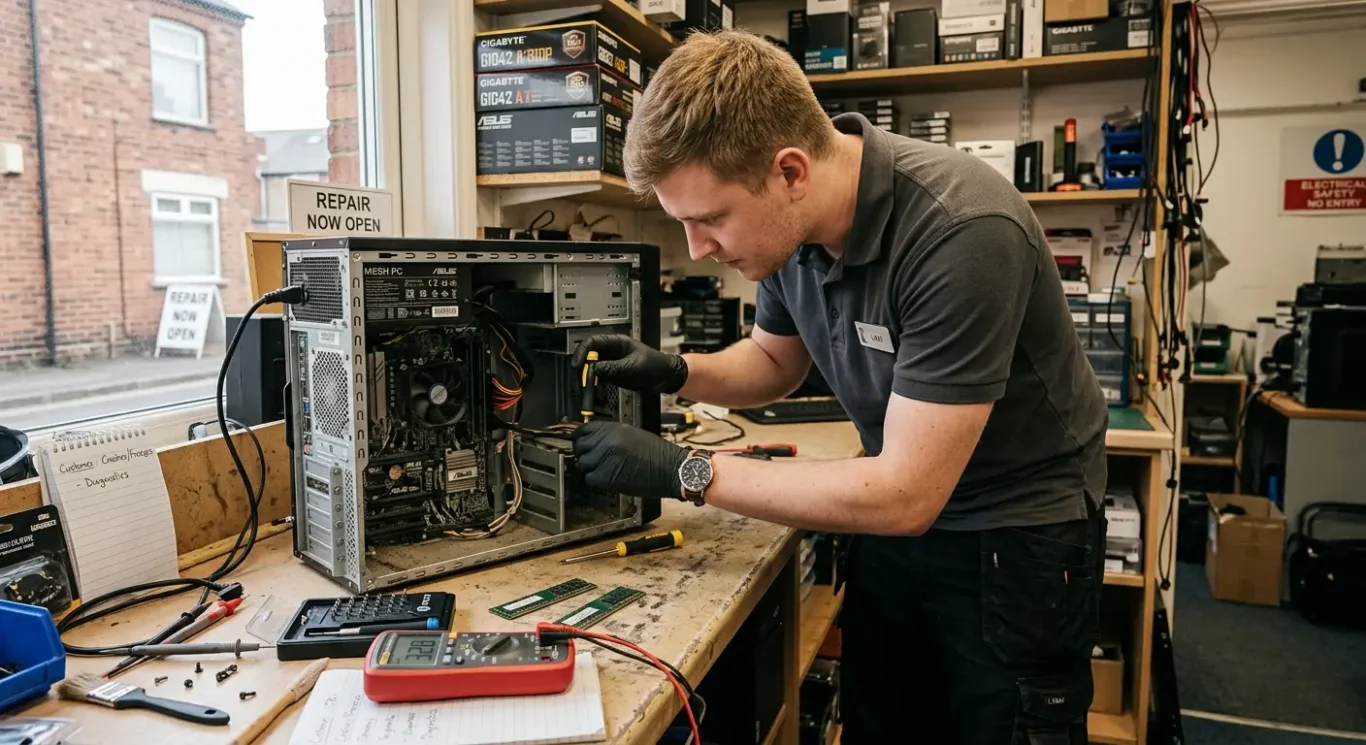
If you are getting frequent blue screens, random restarts during work, or crashes several times a day, stop treating it as a minor annoyance. That kind of instability often means the fault is becoming easier to trigger, and it needs proper diagnosis rather than guesswork.
Freezing at the wrong moment matters
A machine that freezes during updates, while saving files, or part way through shutting down is one I would want checked quickly. Sometimes the cause is software, but it can also point to storage trouble, memory faults, overheating, or motherboard issues, and continued use can sometimes worsen damage or increase data risk.
If the crashes come with a burning smell, unusual heat, or fan noise that has clearly changed, leave it off and get advice before carrying on. In day to day repair work, that combination can mean the machine is struggling with cooling, power delivery, or a failing component, and it is not worth pushing it just to squeeze out another afternoon of use.
Ports failing at the same time
New USB, audio, or charging port problems appearing alongside crashes are also worth taking seriously. When separate features start misbehaving together, it can point to a deeper board level fault rather than a single bad socket or a simple software glitch.
Questions we get every day
What our engineers actually say
We often see machines with random crashes, freezing, or odd port faults where the first guess is wrong. A common problem is assuming it must be Windows, the charger, or a single bad part when the board itself is unstable. In practice, we usually leave the machine running under load for a while, because plenty of faults only show up properly once the system has warmed through.
If a computer is restarting, blue screening, freezing under load, and also dropping USB or audio intermittently, I would take motherboard trouble seriously rather than treating each symptom as a separate little issue. That does not always mean the repair is worth doing, but it usually means proper diagnosis matters more than swapping parts and hoping for the best.