
Laptop fan cleaning – when cleaning alone is enough
This article is only about cleaning dust out of a laptop’s cooling system: the fan, the heatsink fins (the thin metal slats), and the air path from the intake to the exhaust. The aim is simple – get air moving again and let heat leave the laptop properly. In day-to-day computer repairs in London I often see overheating and loud fan noise caused by a build-up of fluff and dust, especially in machines used on desks near carpets or in busy offices. But cleaning is not a cure for everything. Sometimes the fan is worn, a sensor is reading badly, or the thermal paste between the processor and heatsink has dried out. I will flag when repasting is likely needed, but that is a separate job and I am not explaining the repasting process here.
What “laptop fan cleaning” actually means (and what it does not)
This is about restoring proper airflow through the cooling system, not just making the outside look tidy.
When people say “clean the fan”, they often mean very different things. In a laptop, the fan, the heatsink fins (the thin metal slats), and the exhaust vent work as one airflow path. Air has to get in, pass through the fins, and leave through the exhaust. If any part of that path is blocked, the fan can spin faster and louder but still fail to shift enough air.
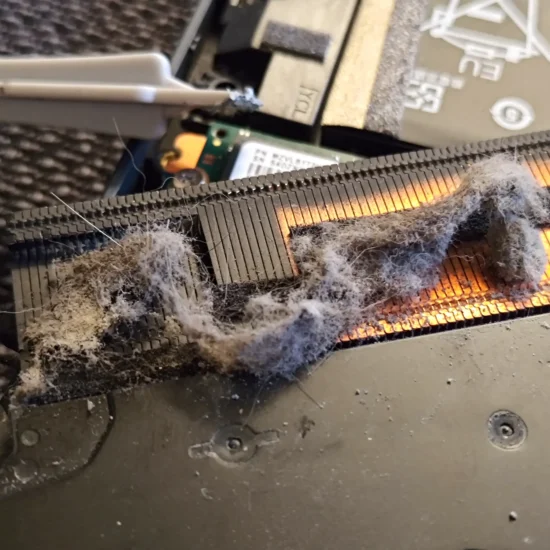
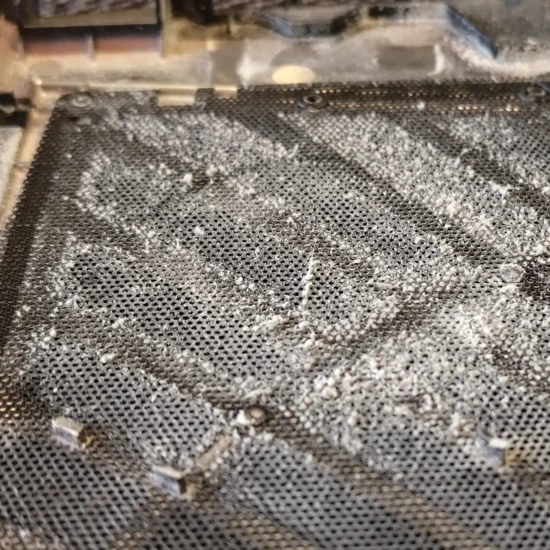
Cleaning from the outside usually means blowing air into the vent or brushing what you can see. That can help a little if the dust is loose and near the edge. But it does not reliably remove the dust mat that forms deeper in the fins. A dust mat is exactly what it sounds like – a felt-like layer that blocks the gaps between the fins and turns the heatsink into a blanket.
A proper clean usually involves opening the laptop so you can see the fan and the heatsink. The goal is to remove dust mats, clear the fins properly, and clean the fan blades and housing so the fan can move air efficiently again. It is also about clearing the whole air path, including the exhaust vent, not just the bit you can reach.
In practical terms, if the laptop is already overheating or ramping the fan constantly, an external clean is often a quick test, not a final fix. If the vents are visibly clogged or the machine lives in a dusty office, it is usually worth doing the internal clean rather than repeating half-measures.
This article stays tightly focused on dust cleaning. It will not cover thermal paste replacement steps, liquid metal, or undervolting. Repasting is sometimes needed, and I will point out when it is likely, but it is a separate job with its own risks and checks.
Common signs dust is the main problem
How to spot when the cooling system is probably blocked, rather than the laptop having a deeper fault
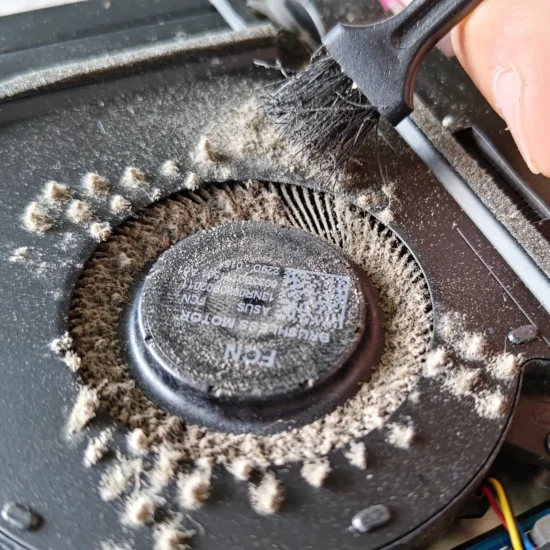
Dust blockages tend to give a very specific pattern. The laptop is trying to cool itself, but air cannot get through the heatsink fins. The fan responds by spinning faster, which adds noise, but temperatures still climb.
A common early sign is the fan getting loud quickly under light tasks. Things like a few browser tabs, a video call, or opening a spreadsheet should not send most business laptops straight to “hairdryer mode”. If it does, and it used to be quieter, restricted airflow is high on the list.
Another clue is the laptop running hot but performance being otherwise normal until it throttles. Throttling is when the processor slows itself down to stop overheating. In real use this feels like the machine is fine, then suddenly becomes sluggish after a few minutes, especially during meetings, screen sharing, or bigger emails with attachments.
Pay attention to the exhaust vent. If airflow feels weak at the exhaust even when the fan is clearly spinning, dust is a likely cause. You can often hear the fan speed change, but you do not feel much warm air coming out. That mismatch usually means the fan is working but it is pushing against a blockage.
Usage conditions matter. If the device has been used on soft furnishings (sofas, duvets, carpets) or in dusty environments, the intake vents pick up fluff quickly. Offices are not always “clean” from a cooling point of view either. Fibre from carpets, paper dust, and general building dust all add up.
Time is the other big factor. If it has been a long time since the last internal clean, it is reasonable to suspect a dust mat in the fins. Most people only think about cleaning once the fan noise becomes annoying, which is usually after the restriction has built up.
A small judgement call: if you have two or three of the signs above, an internal fan and heatsink clean is often a sensible first step before chasing software fixes. It is not a guaranteed diagnosis, but it is one of the more common, straightforward causes we see day to day.
Will cleaning the fan stop overheating? When it usually does
Cleaning helps most when the laptop is overheating because it cannot move air through the heatsink properly
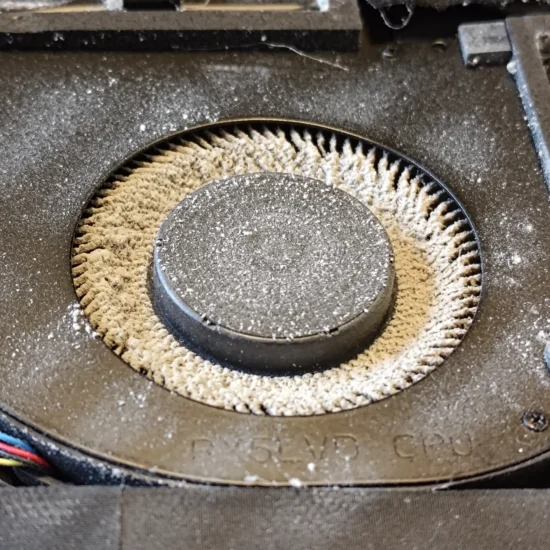
Yes, fan and heatsink cleaning often stops overheating when the real issue is restricted airflow. The classic cause is clogged heatsink fins. The fan can spin all it likes, but if the exhaust side is blocked, the hot air has nowhere to go.
Inside many laptops, dust does not just sit loosely. It builds into a dense mat on the heatsink fins. Think of it like a blanket stuck to a radiator. Heat gets trapped, the metal saturates with heat, and temperatures keep rising. That gradual build-up is what people often describe as “it gets hot after a few minutes”, even on normal work tasks.
When you remove that dust mat properly and clear the whole air path (fan intake, fan housing, heatsink fins, exhaust vent), the usual outcome is straightforward. Temperatures are lower under load, throttling happens less or later, and the fan does not ramp as aggressively. Throttling just means the laptop slows itself down to protect the processor when it gets too hot.
It is most noticeable on devices that used to be quiet, then became noisy and hot over time. It is also common on laptops used on soft surfaces, or in offices with lots of carpet dust and fibres. In those cases, cleaning is not a “nice to have”. It is basic maintenance that restores the cooling system to how it was meant to work.
Results still depend on what you ask the laptop to do and the room it is in. A video call plus screen sharing is a heavier load than most people expect. And a laptop will always run warmer in a hot office or in direct sunlight. Laptop cleaning improves the cooling headroom, but it cannot change physics.
A small judgement call: if the fan is loud but you can barely feel warm air coming out of the exhaust, cleaning is usually the first thing worth doing. If airflow is strong and it still overheats quickly, dust might not be the main cause, and you are more likely looking at a different issue (including thermal paste condition, which I will flag later).
Does fan cleaning reduce noise? What changes and what does not
Some noise is the fan working harder than it needs to. Other noise is the fan itself wearing out.
Cleaning the fan and heatsink often reduces noise, but only in the right scenario. If dust has restricted airflow, the laptop runs hotter. Then the fan ramps up to a higher RPM to try to keep temperatures under control. RPM just means how fast the fan is spinning.
When we remove the dust mat from the heatsink fins and clear the air path, the same workload usually needs less fan speed. The change people notice is simpler than they expect. The fan still spins, but it does not sit at a constant high pitch, and it tends to ramp up later and calm down sooner.
That said, cleaning does not fix mechanical fan noise. If the fan bearings are worn, the fan can whine, grind, or rattle even when the laptop is cool. If the fan is imbalanced, you can get a buzzing vibration, sometimes felt through the palm rest. Cracked or chipped fan blades can also cause a ticking or clicking noise as the fan spins. Those are replacement jobs, not cleaning jobs.
Practical rule: a smooth “whoosh” that rises and falls with workload often improves after cleaning. Rattling, grinding, ticking, or a rough scrape sound should be treated as a fault. Do not ignore it and hope it settles. A failing fan can seize, and then you are straight back to overheating.
One more thing we see a lot: coil whine. That is an electrical noise from power components, not the fan. It can sound like a high-pitched squeal or chirp, and it may change with screen brightness, charging, or CPU load. Cleaning the cooling system will not affect coil whine, so it is worth separating the two before you chase the wrong fix.
Even with a clean fan and heatsink, some laptops will still get loud under heavy work. Gaming, video editing, and large spreadsheets can push the CPU and GPU hard for long periods. The cooling system then has to move a lot of heat, and that needs airflow. In those cases the fan noise is not a symptom of dust, it is just the machine doing its job within its design limits.
If the fan is clean, airflow feels strong, and it still runs hot and loud during ordinary office tasks, that is when we start thinking beyond dust. One common next step is checking the thermal paste condition. Thermal paste is the thin layer that helps transfer heat from the chip into the heatsink. This article will flag when repasting is likely needed, but the how-to comes later.
How often should laptop fans be cleaned? Practical intervals
A sensible cleaning interval depends on where and how the laptop actually lives
There is no single interval that fits everyone. Some laptops go a long time with very little dust build-up. Others clog up quickly, even if they look clean from the outside.
The biggest drivers are the environment and the workload. Pets shed hair and fine dander that mats up in the heatsink fins. Smoking and vaping can leave a sticky residue that makes dust cling, so it blocks airflow faster and is harder to shift. Building dust matters too, especially near roads, building work, or older properties with more airborne fluff.
How you use the laptop changes things as well. Using it on soft surfaces like beds and sofas restricts the air intake and pulls in fibres, so the cooling path loads up sooner. Long daily use means the fan moves more air, so it has more chance to collect debris. Gaming and workstation loads keep the CPU and GPU hot for longer, which often means higher fan speeds and more air through the system. That can translate to more dust accumulation over time.
In plain terms, do not watch the calendar. Watch the behaviour. If the fan ramps up more than it used to for the same kind of work, or it stays louder for longer after you close things down, it is worth checking. Same if the exhaust airflow feels weaker than you remember. A healthy system usually pushes a steady stream of warm air under load, not a faint puff.
Business laptops in cleaner offices often need less frequent cleaning than gaming laptops used on beds or sofas. In a tidy office with hard desks and decent air quality, the cooling system can stay clear for quite a while. A gaming laptop used in the living room, on fabric, with longer sessions, tends to need attention sooner.
Small judgement call that helps in practice: if you are relying on the laptop every day for work, it is worth taking a quick look inside before it becomes a problem, especially if you have pets or you smoke or vape indoors. It is a simple preventative job when it is just dust. If you wait until it is throttling (slowing itself down to reduce heat), you are already losing performance and risking random shutdowns.
When fan cleaning is not enough: the clear warning signs
These are the situations where dust removal will not stop overheating, throttling, or surprise shutdowns.
A clean fan and heatsink is a good start, but it is not the whole cooling story. If the airflow is clearly moving and the vents are not blocked, yet temperatures still shoot up or the machine still shuts down, something else is going on. Below are the patterns we see in day-to-day computer repair work where cleaning alone does not fix it.
1) Thermal paste has dried out or pumped out
Thermal paste is the thin layer between the chip and the heatsink that helps heat transfer. Over time it can dry out, crack, or squeeze out from the centre after many heat cycles.
The typical sign is this: the laptop starts from cold, then the temperature spikes very quickly as soon as you open a meeting, browser tabs, or anything that uses the CPU. The fan ramps hard, but it feels like it is always chasing the heat rather than controlling it. Airflow can seem fine, and the exhaust can be hot, yet the system still hits high temperatures fast.
Cleaning can reduce noise a bit, but it will not fix poor heat transfer from the chip into the heatsink. That is when we start thinking about repasting, rather than more dust work.
2) The heatsink is not making proper contact
This is less common, but it is a clear one when it happens. If the heatsink is not pressed evenly onto the CPU or GPU, heat cannot move out properly.
Causes we see include a drop or knock, a bent heatsink, missing screws, or a bracket that has warped. Sometimes it is simply that the wrong screws were used during a previous laptop repair, or one was left out. The result is similar to failed thermal paste, but often more sudden and more extreme.
Practical check: if the laptop was recently opened by someone, or it started overheating right after a physical impact, put “poor heatsink contact” higher on the list than “needs another clean”.
3) The fan spins, but does not reach proper speed
A fan can look like it is working but still be the problem. Bearings wear. Blades can wobble. The motor can weaken. In some cases the control side has trouble driving the fan properly.
The clue is performance under load. You hear the fan, but it never really ramps, and the laptop heats up anyway. Or it pulses up and down strangely. Another sign is a new noise, like scraping or ticking, even after cleaning.
Cleaning helps only if dust was physically jamming the blades. If it is a speed or control issue, the fix is diagnosis first, then fan replacement or control-side repair depending on what we find.
4) High temperatures at idle with clean airflow
If the laptop is hot and loud when you are doing very little, do not assume it is a cooling hardware problem. “Idle” should be a calm state, with low fan activity most of the time.
High idle temperatures with good airflow often points to software load. Background processes, stuck updates, cloud sync tools, malware, or driver issues can keep the CPU busy without you realising. You can end up trying to solve a workload problem with a screwdriver.
Practical advice: open Task Manager and sort by CPU usage for a minute or two. If something is consistently chewing through CPU at rest, deal with that first. If it is a work laptop, I would rather confirm it is not a software cause before booking it in for hardware work, because it saves time and avoids unnecessary parts.
5) Advanced cases we occasionally see
Some overheating problems sit beyond fan, dust, and paste. They are not common, but they do happen.
A failing heatpipe (the sealed tube that moves heat from the chip area to the fin stack) can lose effectiveness, so the heatsink stays oddly cool while the CPU runs hot. On some designs, a vapour chamber can become internally restricted. In both cases, air is flowing, the fan is doing its job, but the heat is not being carried to where it can be exhausted.
We also see sensor or firmware issues where the laptop reports the wrong temperature or controls the fan badly. That can look like random fan behaviour, sudden throttling, or shutdowns that do not match the actual load.
If you have already had a proper clean, the airflow is strong, and the laptop still overheats quickly or shuts down, it is worth treating it as a diagnosis job rather than repeating the same cleaning step. That is usually the fastest route back to a stable, quiet machine.
How to tell whether repasting is likely needed (without opening everything twice)
Use a few simple checks to separate an airflow problem from a heat-transfer problem, so you only open the machine when there is a good reason.
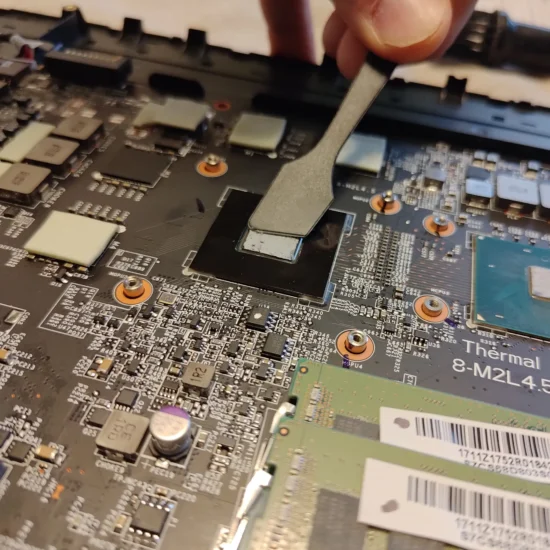
Fan and heatsink cleaning is about airflow. Repasting is about heat transfer from the chip into the heatsink. Thermal paste is the thin layer between the processor and the metal heatsink that helps heat move across the contact surface.
If the fins and fan are clean and the airflow is strong, but the CPU or GPU still throttles quickly under load, then paste or heatsink contact becomes a sensible suspect. Throttling means the laptop slows itself down to avoid overheating.
A practical way to think about it is timing. Airflow issues usually show up as heat building up more gradually, because hot air cannot escape properly. Heat-transfer issues tend to show up fast, because the heat cannot leave the chip area efficiently in the first place.
So watch what happens from a cold start. If temperatures rise very fast within the first minute or two of a proper load (for example, opening a heavy app or starting a call with screen sharing), that points more towards heat transfer than airflow. The fan can be roaring and the vents can be clear, but the heat is still stuck at the source.
Age is another useful clue, but it is not a verdict on its own. If the laptop is several years old and has never been serviced, paste ageing is common. It can dry out, pump out from repeated heating and cooling, or simply stop making good contact. That said, I would not repaste on age alone if the behaviour does not match, because it is extra disassembly for no clear benefit.
Try to avoid the trap of opening it, cleaning it, then opening it again immediately because it is still warm. If you have already confirmed good airflow and the machine still ramps hard and throttles quickly, it is usually better to treat repasting as a separate, planned procedure rather than repeated poking around.
Clear line in the sand: laptop repasting is a separate procedure and should be done when the evidence supports it. If the symptoms point towards poor heat transfer or poor heatsink contact, that is when it makes sense to book it as repaste work, not as “another clean”.

Cleaning approach in a repair shop (what you are paying for)
It is a careful, targeted clean of the cooling path, plus checks that the cooling system is actually working as intended.
A proper fan and heatsink clean is not just blowing air into the vents. The goal is to clear the whole airflow path so heat can leave the laptop, then confirm it behaves normally when it is back together.
It starts with safe disassembly. That means opening the machine without snapping clips, stripping screws, or stressing cables, and then removing the parts that block access to the fan and heatsink. On some laptops that is straightforward. On others you have to lift the motherboard or remove the keyboard deck to reach the cooling assembly properly.
Where needed, the fan is removed from the heatsink so the housing and blades can be cleaned properly. Dust sticks to the blade edges and packs into the scroll shaped housing. If you cannot see and reach that area, the fan can still be noisy and weak even after a surface clean.
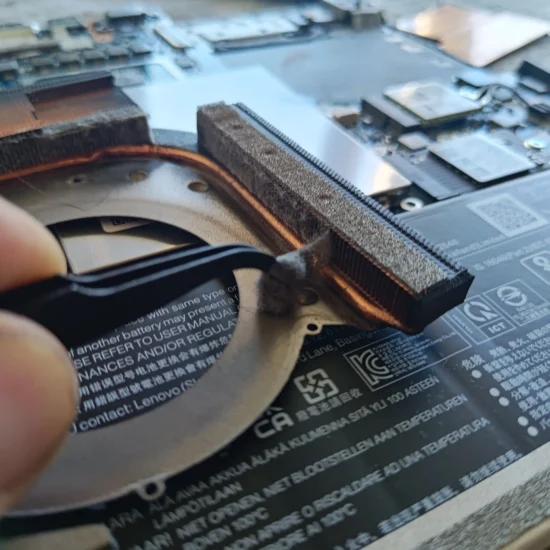
The heatsink fins are cleaned from the correct side. This matters because many laptops form a felt-like dust mat on the intake side of the fins. If you blow from the wrong direction you often just compact it further or move it deeper into the fins. Cleaning from the right side lifts the blockage out rather than rearranging it.
After reassembly, the fan is checked for operation, noise, and airflow. In plain terms, it should spin smoothly, ramp up and down sensibly, and push a consistent stream of warm air when the machine is under load. If it still rattles, pulses, or struggles to move air, cleaning alone might not be the full answer.
A decent clean also includes a quick look for related issues that change the outcome. Missing screws can stop panels sealing properly and reduce airflow. A loose heatsink can cause poor contact and fast overheating. Any signs of liquid damage matter too, because corrosion and residue can affect fan control and sensors, and it is better to spot that early than to keep chasing “overheating” as a single problem.
One judgement call I make a lot: if a laptop is already opened for cleaning and the fan bearings feel rough or the fan is clearly out of balance, it is usually worth discussing a replacement rather than hoping it quietens down later. That is not about upselling. It is about avoiding a repeat visit for the same noise complaint.
After cleaning: what to monitor to confirm the fix
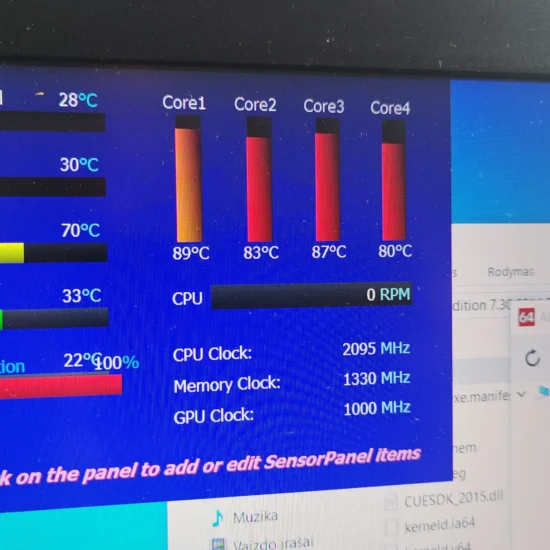
A few quick checks to confirm the cooling path is clear, and to spot the cases that still need diagnosis.
Once the laptop is back together, the goal is simple. It should take longer to get hot, it should stay steadier under normal work, and it should sound more predictable when it does need to cool itself.
Do your checks from a cold start. If you test it right after it has already been running, it is easy to misread the results because heat is still soaked into the metalwork.
Fan behaviour is often the first clue. After a proper clean, the fan usually ramps less aggressively and stabilises sooner. In normal office use you may still hear it spin up, but it should not surge up and down every few seconds without any obvious reason. A steadier fan curve usually means the heatsink is shedding heat properly.
Airflow is the next check. Put your hand near the exhaust vent and run something that normally makes the laptop work a bit harder, like a video call, a few browser tabs, or a large spreadsheet. Under load, stronger airflow is good, and warmer air is normal. Warm air out of the vent usually means heat is moving from the processor to the heatsink and then out of the case, which is the whole point of the cooling system.
Performance is what most people notice day to day. If dust was the main issue, you should see fewer slowdowns when the machine is busy. You should also see fewer thermal shutdowns. That is when the laptop turns itself off to protect hardware because it cannot cool fast enough.
A small judgement call that helps: if the laptop is only just acceptable when it is propped up or used on a hard desk, but still struggles on a normal lap or soft surface, it may still be marginal on cooling. That can be a design limitation, or it can be a sign there is another issue in the cooling stack that cleaning did not fix.
When to escalate and book diagnosis rather than “another clean”:
- Temperatures still jump fast within a minute or two of load, even though airflow feels clear. This often points to poor heat transfer inside, not a blocked vent.
- The noise is mechanical. Grinding, clicking, rattling, or a rough pulsing sound usually means a fan bearing issue or an unbalanced fan, not just dust.
- Crashes, freezes, or sudden restarts continue. Overheating can cause them, but so can power, RAM, storage, or motherboard faults, so it needs proper fault finding.
If you hit any of those, it is time to stop chasing airflow alone. At that point thermal paste replacement may be needed, but it should be decided based on symptoms and inspection, not guesswork.
FAQ
Words from the laptop repair experts
We often see the same pattern in real machines across London – the fan is working, but a dust mat has formed in the heatsink fins and the airflow is choked. A common problem is that it sounds like the laptop is “trying harder” for no reason, when it is really fighting a blockage. One practical check we do every day is to feel the exhaust vent airflow under load, because it quickly tells you whether the heat is getting carried out of the case.
If a proper fan and heatsink clean restores normal airflow and the machine stops throttling, cleaning alone is usually enough and repasting can wait. If airflow is decent but temperatures still spike quickly, that is when it is sensible to stop chasing dust and look towards a heat transfer issue instead, which often means repasting after inspection rather than guesswork.