Liquid damage to laptops – what can and cannot be repaired

Liquid spills on laptops happen all the time in real workplaces. A knocked-over coffee, a bottle in a bag, a wet desk after cleaning. The frustrating bit is that the outcome varies a lot. Some machines recover with the right cleaning and a few parts. Others do not, even if they look fine at first. Early actions matter, but there are no guarantees. A proper diagnosis comes first, because the same spill can affect two identical laptops in very different ways.
Liquid damage is usually a mix of two problems. The first is a short circuit when power is present, which can kill components quickly. The second is corrosion, which is a slow chemical reaction that starts once moisture and residues sit on the board, then keeps causing faults later. Whether a laptop can be saved depends on what actually got wet, how far it travelled inside, how long it stayed there, and whether it was powered on or charged afterwards.

What counts as “liquid damage” (it is not just water)
It helps to think in terms of electricity plus contamination, not just “it got wet”.
In a workshop we use “liquid damage” to mean any spill that gets inside the laptop and affects the electronics. It is not limited to water. What matters is how the liquid conducts electricity while it is wet, and what it leaves behind when it dries.
Pure water sounds harmless, but it can still cause a short circuit if power is present. A short circuit is an unintended path for electricity. Even a thin film of moisture can bridge two points that should never touch electrically, especially on a tightly packed motherboard. Tap water is rarely “pure” in the lab sense anyway, so it usually carries some minerals.
Sugary drinks (fizzy drinks, juice, energy drinks) are a different problem. They dry into sticky residue that keeps attracting moisture from the air and keeps current leaking in places it should not. That is why a laptop can appear to work after it dries, then start doing odd things later like phantom key presses, trackpad issues, random shutdowns, or charging faults.
Coffee and tea sit somewhere in the middle. They are mostly water, but they contain acids, tannins, and often milk and sugar. Those extras leave residue and can speed up corrosion. Milk is particularly unhelpful once it warms up inside a laptop, because it dries into a film that is hard to clean properly without opening the machine.
Alcohol-based liquids vary a lot. Some people assume they “evaporate so they are safe”, but that depends on what else is mixed in. Higher-purity isopropyl alcohol used for electronics cleaning behaves very differently from spirits, perfume, cleaning sprays, or hand sanitiser, which can include water, oils, gels, and fragrances. Those additives can leave residue or creep under components before they evaporate.
The “sticky” part is worth stressing. Residue does not just make things messy. It creates a conductive and corrosive layer that sits on connectors and components. Corrosion is a chemical reaction that slowly eats at metal contacts. It can keep going long after the laptop feels dry to the touch.
Most spills enter through predictable routes. The keyboard is the big one, because it is effectively an open grille above the motherboard in many designs. Liquids also get in through vents, around the trackpad area, and straight into ports on the sides. Ports are awkward because they are connected to power and data lines, so a spill there can cause faults even if the keyboard stayed mostly dry.
If you want one practical judgement call: treat any spill other than plain water as a “needs internal cleaning” job, not a wait-and-see. Drying the outside is fine, but residue inside is what tends to turn a simple rescue into a later, more complex fault.

What actually happens inside a laptop after a spill
Most failures come from three things: an immediate short, contamination left behind, and corrosion that grows over time.
The first risk is immediate. If the laptop is powered when liquid gets in, electricity can take paths it should not. That is a short circuit. It can happen even with a small amount of moisture because the gaps on a motherboard are tiny.
“Powered” does not just mean switched on. If the charger is connected, or the internal battery is still connected, parts of the board are live. Some circuits stay energised even in sleep mode. That is why the same spill can be minor in one case and fatal in another.
The second risk is what the liquid leaves behind. Sugary drinks, coffee with milk, and many cleaners dry into residue. Residue can stay slightly conductive, which means it lets a small current leak across the surface of the board. It also attracts moisture from the air, so the problem can keep reappearing.
Liquid also travels further than people expect. It wicks along cables, under connectors, and between layers of the keyboard. This is capillary action, basically the same “soaking” effect you see in a paper towel. It is why the wet patch you can see on top is not a reliable guide to what is happening underneath.
The third risk is delayed corrosion. Corrosion is metal slowly being eaten away by a chemical reaction. You can see it as green, white, or dull grey deposits on pins and components, but the more serious damage is often under chips and inside connectors where you cannot see it without stripping the board.
Moisture plus voltage makes this worse. A common mechanism is electrolysis, where an electrical potential in the presence of moisture helps move metal ions around and speeds up damage. You do not need to know the chemistry to understand the consequence: leaving power connected while a board is damp tends to turn a clean-up job into a track repair or a dead circuit.
This is also why symptoms can change. A laptop might boot once, or work for a day, then start failing later. As residue dries, it can become more conductive in certain spots. As corrosion grows, a connector that was “just about making contact” stops doing so. You can go from minor odd behaviour to no power, no charging, or random restarts with no obvious new event.
One practical judgement call: if there was any spill while the charger was connected, or if it was anything other than plain water, assume there is a real risk inside even if it seems fine after drying. At that point a proper internal inspection and cleaning is usually the sensible next step, because waiting often only tells you about the damage after it has progressed.

First actions after a liquid spill: what helps and what makes it worse
Simple steps that reduce the chance of a short circuit and slow down corrosion before it gets to a bench
The aim is not to “fix it” on the spot. It is to stop electricity meeting moisture and to avoid pushing liquid deeper inside. Small choices in the first few minutes can make the difference between a clean-up job and a board repair.
Power it off properly. If it is on, shut it down. If it will not respond, hold the power button until it turns off. Then unplug the charger straight away. Do not keep trying to turn it back on to “see if it still works”. Each attempt can create new damage if there is liquid on the board.
Disconnect or disable the battery if you can do it safely. Many modern laptops have an internal battery you cannot remove from the outside. If yours has a removable battery, take it out. If it does not, do not start peeling the machine apart unless you are comfortable doing so without snapping clips or tearing cables. In a workshop we usually disconnect the battery early because it removes power from circuits that can stay live even when the laptop looks “off”.
Do not leave it running to “dry out”. Running it warms the machine and can evaporate moisture into places it would not otherwise reach. More importantly, it keeps voltage present, which accelerates corrosion and can cause intermittent shorts.
Avoid aggressive heat. Hair dryers, ovens, and heaters tend to cause problems. They can soften key mats, warp plastics, and drive liquid further under chips and connectors. Fast surface drying also bakes residue in place, which makes proper cleaning harder later. Gentle room-temperature drying on the outside is fine, but heat is not a substitute for internal cleaning.
Do not press keys or click the trackpad. It sounds minor, but squeezing the keyboard area can pump liquid through the key layers and into the machine. If you need to move it, pick it up by the edges and keep it as level as you can.
If you need to transport it, keep it stable and bring it in sooner rather than later. Put it in a bag or case where it will not flex. Keep it flat. Avoid stuffing it tightly alongside heavy items. The judgement call I give clients is this: if the spill was anything other than plain water, or it was powered at the time, it is usually worth treating it as time-sensitive and getting it looked at promptly. Not because it will definitely die, but because cleaning early is often simpler than chasing corrosion later.

What can often be repaired
When the spill is small, power is removed quickly, and cleaning happens early, we can often fix the affected parts without chasing knock-on faults.
Not every spill turns into a write-off. If the liquid stayed near the surface, or it was dealt with before corrosion had time to spread, the repair is often about replacing the parts that got wet and cleaning what sits underneath.
A common successful outcome is a keyboard and trackpad replacement when liquid entered through the top case. The keyboard is basically a layered membrane, so once liquid gets into it, it tends to keep causing sticky keys, repeats, or random input. Even after drying. Replacing the keyboard and checking the trackpad and its cable is usually more reliable than trying to “revive” them.
We also regularly clean and replace affected connectors and cables. A connector is the small plug socket on the board that a cable clicks into. Spills love these areas because the pins are close together. If a cable has residue on it, it can wick moisture back in later, so sometimes the sensible move is a new cable as well as cleaning the socket.
On some models, the charging socket is on a separate small board, or on a short cable. In those cases, replacing the charging port or a small daughterboard can be the entire job. A daughterboard is a small secondary circuit board for things like power input, USB, or audio. If the main board is clean and the damage is localised, swapping that module plus cleaning the area is a neat, reliable fix.
Even when the motherboard is badly affected, SSD and data salvage is often possible. If your data is on a removable SSD, we can usually take it out and check it in another system. If it is a soldered storage chip, it gets more model-specific, but the first step is still the same: identify where the data lives and avoid repeated power-on attempts that can make recovery harder.
There are also cases where motherboard-level repair is realistic. That means working on the board itself, not just swapping parts. Typical work includes replacing damaged components and repairing shorted rails. A rail is a power line on the board that feeds a group of circuits. When liquid causes a short circuit, we track down the affected area, remove the failed part(s), clean properly, then retest power behaviour before the laptop is reassembled.
One practical judgement call: if the laptop is otherwise in good condition and the issue is clearly localised (for example, keyboard spill with clean internals), targeted repair is usually worth doing. If the spill reached multiple areas and the machine is older, it can still be repairable, but it is sensible to treat it as a diagnosis first and decide based on what we find rather than assuming it will be economical.

What sometimes cannot be repaired (or is not worth repairing)
The limits are usually about hidden corrosion, damaged board material, or a repair that costs more than the laptop is worth.
Some liquid damage jobs fail for very practical reasons. Not because anyone did anything wrong. It is usually down to where the liquid travelled, how long it sat there, and what it left behind.
One hard limit is severe corrosion under BGA chips like the CPU, GPU, or PCH. BGA means the chip is soldered down with hundreds of tiny solder balls underneath it, so you cannot properly see or clean what is going on without specialised rework. If corrosion has crept under the chip, it can eat pads and tracks, and you end up with intermittent faults that come and go with heat, time, or flex. Even if the laptop boots after a clean, it can drop out again later because the damage is literally under the part.
Another problem is burnt PCB layers or carbonised areas. The PCB is the motherboard material with copper layers inside it. When a short has created heat and burned the board, the charred area can become slightly conductive. That means it can keep shorting even after you replace the obvious failed component, because the board itself is now part of the fault.
We also see repeated failures after cleaning because residue remains under components. Sugary drinks and coffee are common culprits. You can clean what you can reach, but if residue sits under chips, coils, or connectors, it can keep pulling in moisture from the air and slowly corroding again. The laptop might work for a while, then the same rail fails again. At that point the only reliable route can be deeper board work, which is not always sensible on an older machine.
Sometimes it is not one fault. It is several at once. If the spill has taken out multiple subsystems like the motherboard plus the screen plus the battery plus the keyboard, the total becomes the issue. Each part might be replaceable, but the combined labour and parts cost can overtake the value of the laptop, especially if it is a model with a lot of glued or integrated parts.
Parts availability matters too. Some keyboards, top cases, and boards are simply hard to source in the UK, or only available as expensive assemblies. On other models, the time required to strip the machine safely is a big chunk of the job, even before any board-level diagnosis starts. Labour is real work, and sometimes the honest answer is that a replacement laptop is the better business decision.
A practical judgement call we often make is this: if the laptop is mission-critical, it can still be worth attempting a stabilising repair for data access or short-term use, even when a long-term guarantee is unrealistic. If it is a secondary machine, or already near the end of its useful life, it is usually better to focus on data recovery and put the budget into something more reliable.

Why corrosion is the long-term concern
It can seem fine after a spill, then act up later if residue is still sitting inside.
A laptop can power on and look “saved” after liquid damage, but still be at risk. The reason is usually corrosion. Corrosion is a slow chemical reaction that eats metal contacts and copper tracks over time.
Corrosion can continue if residue remains. Water on its own often dries without leaving much behind, but real-world spills are rarely just clean water. Coffee, tea, sugary drinks, juice, and even tap water can leave minerals or sticky deposits. That residue can stay slightly conductive, and it can also pull moisture from the air. Both can keep the process going long after the laptop feels dry.
This is why “airing it out” is not a repair. Drying deals with the wet part, not the contamination. If liquid has reached the keyboard, trackpad, connectors, or the motherboard, it can leave a film in places you cannot see. The machine might behave until that film causes a poor connection or a small short on a power line.
The awkward thing about corrosion-related faults is how they present. They are often intermittent. Common signs we see include intermittent charging, random shutdowns, missing keys or trackpad clicks, and Wi‑Fi dropouts. Any one of those can have other causes too, but after a spill they are worth taking seriously.
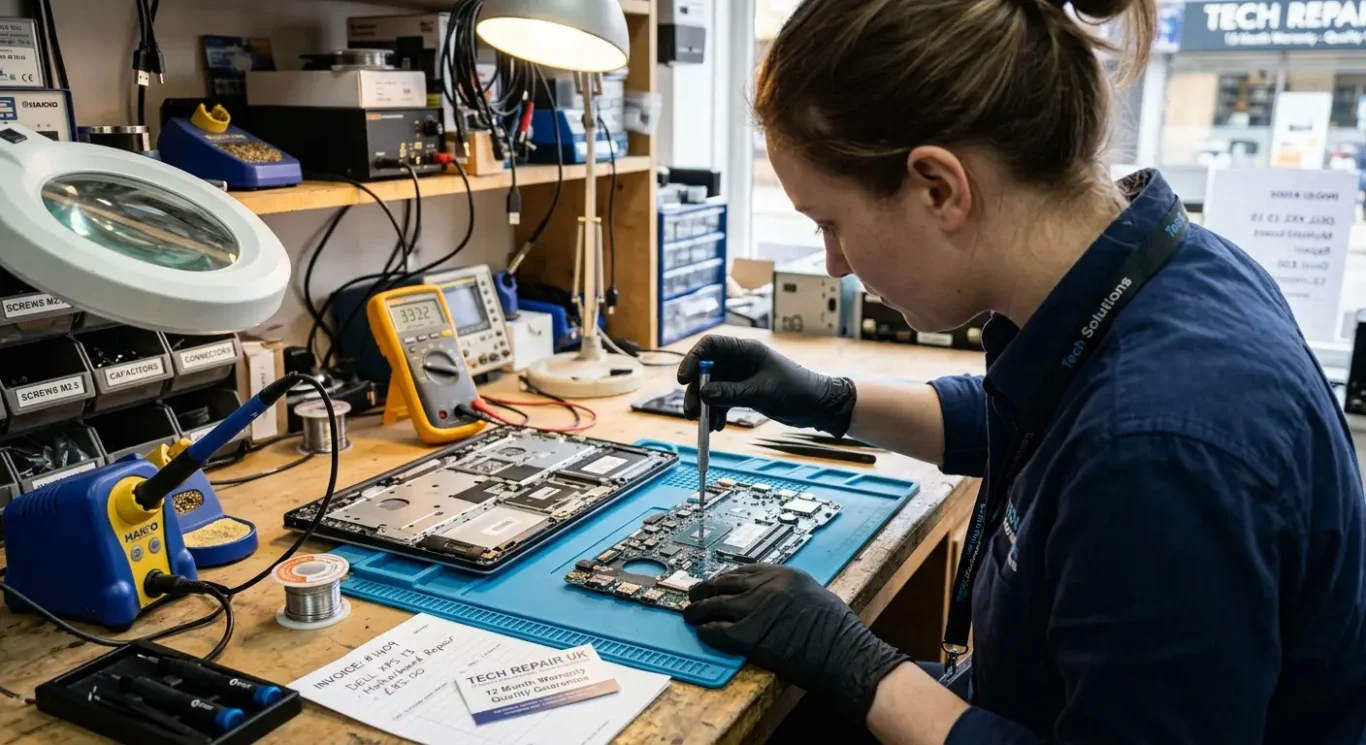
Proper cleaning is inspection plus targeted work. In practice that means opening the laptop, checking where the liquid travelled, and cleaning the affected areas rather than guessing. It can include removing shields, disconnecting and inspecting cables, cleaning or replacing contaminated connectors, and dealing with any corrosion on the board before it spreads. Sometimes the keyboard and trackpad are the main issue. Other times it is on the motherboard around power and charging circuits, which are sensitive to small changes.
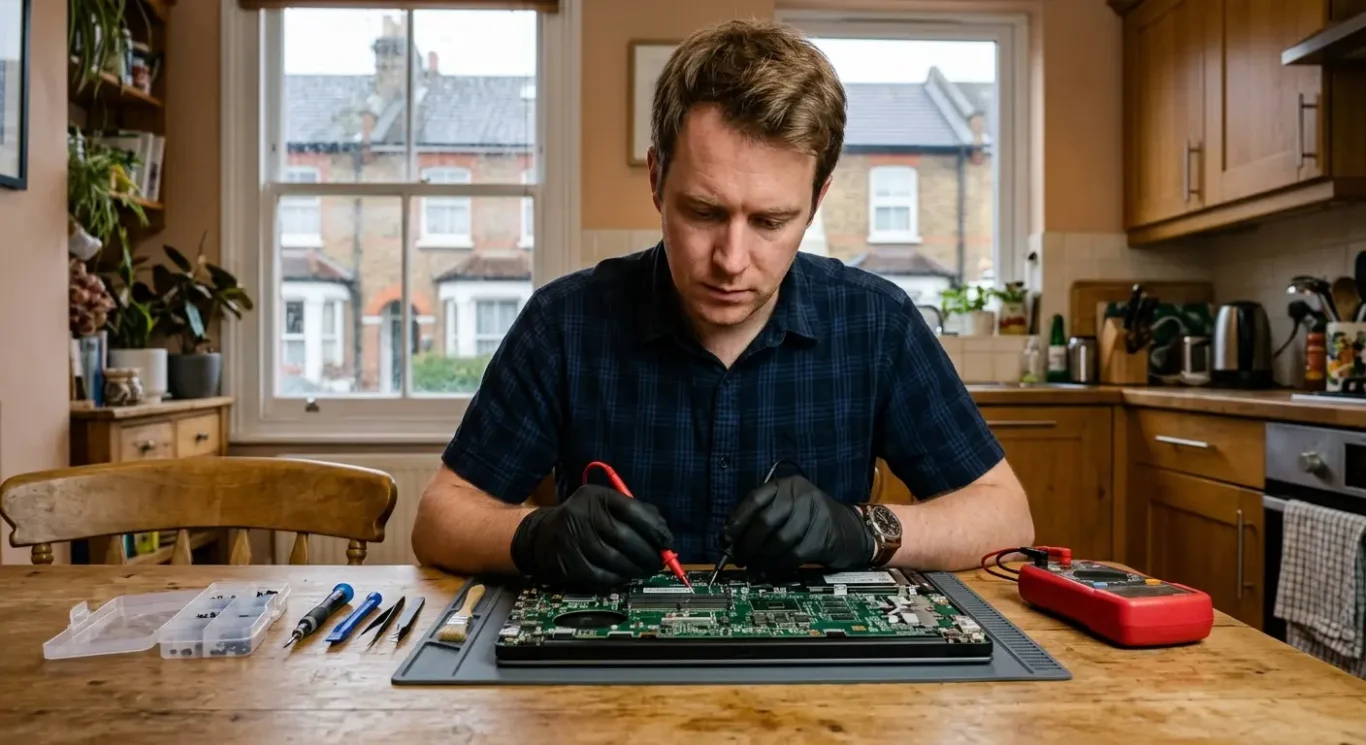
Engineers assess severity in a few practical ways. First is careful visual inspection for staining, green or white corrosion, and heat marks. Then we use a microscope for the fine stuff around small components and connectors, where damage hides. We also take measurements with a meter, for example checking for shorts on power rails and confirming that key voltages and signals are behaving normally. Those checks tell us whether we are looking at surface contamination, or a deeper fault that is likely to keep returning.
Practical advice: if you have had a spill and the laptop “works”, still back up your data and get it looked at sooner rather than later. Not because it will definitely fail, but because early inspection usually gives the best options. If the machine is business-critical, it is often worth paying for a proper assessment even if you decide not to proceed with a full repair, because it turns guesswork into a clear decision.

How a professional diagnosis is usually done
A proper liquid-damage assessment is a structured check, not a quick look from the outside.
When a spill comes in, the first job is to work out what happened and how far it travelled. That sets expectations on what is realistically repairable and what is just a gamble. It also keeps the work focused. Time matters, but guessing costs more in the long run.
We normally start with triage. That means looking for obvious signs like staining, sticky residue, and corrosion on ports and seams. Smell matters too. Sweet drinks, beer, and coffee often leave a distinctive residue even when the outside looks clean. Some devices also have liquid contact indicators inside. They are small markers that change colour when exposed to moisture, and they help confirm where liquid reached, but they are not a full map of damage.
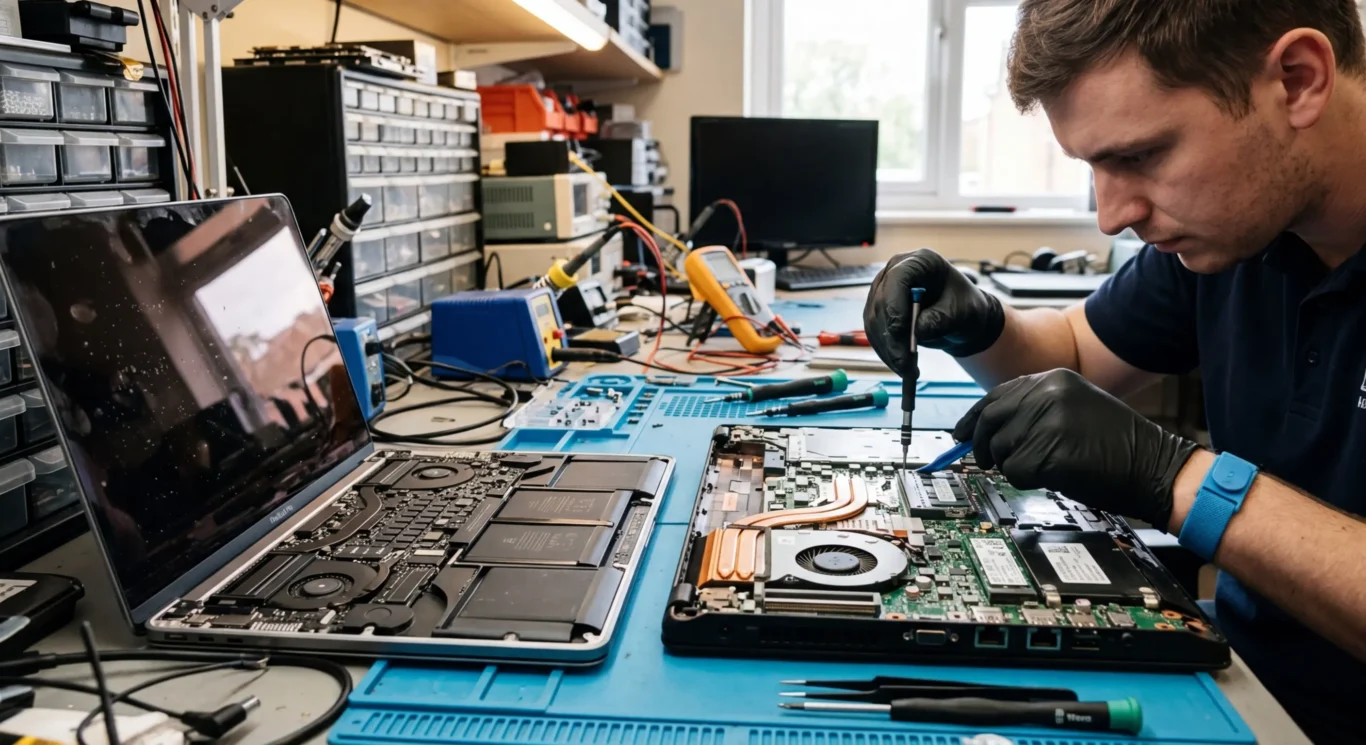
Next is disassembly. You cannot assess liquid damage properly without opening the laptop. The goal is to expose the areas that usually get hit first: keyboard area, trackpad, battery connector, charging circuitry, and any low points where liquid pools. At this stage we are looking for the path the liquid took, not just the worst-looking patch.
If there are signs the liquid reached the motherboard, the diagnosis moves to board checks. These are not a repair tutorial, but the idea is simple. We check for short-to-ground on key power lines. A short-to-ground is where a power line is effectively connected to ground, which can stop a laptop powering on or cause overheating. We also look at power rail behaviour, meaning whether the expected voltages appear in the right order. Current draw is another clue. A healthy board usually pulls power in a predictable way, while a damaged one may draw too much, too early, or almost nothing at all.
It is worth separating the cleaning stage from the repair stage, because they are not the same thing. Cleaning is about removing contamination so corrosion and leakage paths stop getting worse. Repair is about fixing what has already failed, like a damaged connector, a dead keyboard, or a faulty component on the board. Sometimes a proper clean resolves the fault because the problem was residue causing a poor connection. Other times cleaning simply reveals the real damage underneath, and then you decide whether the liquid damage repair is worth doing.
After any cleaning or repair work, we test like it is going back into daily use. That includes ports, keyboard and trackpad functions, speakers and microphone if affected, and Wi‑Fi stability if the spill reached that area. We also check charging behaviour and battery detection, because liquid often causes issues around the charging circuit or its connectors. Thermals matter too. If a fan connector or sensor area has been affected, a laptop can run hot or throttle under load, so we confirm it can stay stable without unexpected shutdowns.
A small judgement call that helps: if the machine is business-critical, do not settle for a “it turns on” check. Ask for an internal inspection and post-work testing, even if you choose a minimal repair. It costs more than a quick clean, but it is usually the difference between a sensible decision and a surprise failure two weeks later.
Repair outcomes: what determines whether a laptop can be saved
The aim here is to show what we look at when deciding if a repair is sensible, risky, or not worth pursuing.
Liquid damage is not one fault. It is a chain of events. The same spill can be a quick clean and a keyboard, or a full motherboard repair, depending on a few key variables.
The first variable is time since the spill, and whether power was applied. A laptop can be “wet but fine” until electricity is involved. Power plus contamination can create a short circuit, which is when electricity takes an unintended path and damages parts. Even if it was unplugged, corrosion can start as the moisture dries and leaves residue behind. The sooner it is assessed, the fewer unknowns we are dealing with.
Next is what the liquid actually was, and how much there was. Plain water tends to evaporate and can sometimes be cleaned up with less ongoing residue, but it still causes corrosion and shorts if it hits the wrong place. Sugary drinks, coffee with milk, beer, and anything sticky are harder because they dry into a conductive film and attract moisture again later. Amount matters too. A few drops are very different to a full mug that floods the keyboard and pools inside the base.
Where it entered, and what it reached, usually decides the scale of the job. Keyboard-only spills can sometimes be contained to the top case, especially on machines with decent separation between keyboard and internal components. If liquid reaches the motherboard, the risk jumps. The motherboard is the main circuit board, and it carries power across lots of small components and connectors. Once contamination gets onto it, you are not just replacing a part, you are stopping corrosion and checking for damaged circuits.
Device design plays a bigger part than most people expect. Some laptops have keyboards that can be removed and replaced as a separate unit. Others have the keyboard riveted into the top case, which turns a “keyboard job” into a larger strip-down and rebuild. A few designs have spill barriers or drainage paths. Many do not. Board layout matters as well. If the charging circuitry and main power rails sit under likely spill points, damage is more common and repairs are more involved.
Previous DIY attempts can complicate repair, even when they were well meant. The usual problems are trapped moisture, residue smeared across the board, and damage from incorrect cleaning products. Another common one is powering it on “just to check” after it has been left to dry. Drying does not remove contamination. It just turns liquid into a film that can keep causing electrical leakage and corrosion. We also see stripped screws, torn connectors, and missing shields, which slows down proper fault finding and can make the final result less reliable.
One practical judgement call: if the laptop holds business-critical data or you need it for work this week, prioritise getting the data safe and getting a clear diagnosis before authorising a big repair. A machine can look promising at first and still have long-term corrosion risk in hidden areas, so decisions are best made from internal inspection and measured tests, not symptoms alone.
Common questions after a spill (real-world scenarios)
The answers below are based on what we see on the bench, and they focus on what is likely happening inside the laptop and what to do next.
“It turned on once, is it fine?”
Not necessarily. Liquid damage often comes in two phases. The first is the immediate short circuit risk. A short circuit is when power goes where it should not. The second is corrosion, which can start hours or days later as residue sits on the board. A laptop that boots once can still fail later, or develop odd faults like random shutdowns, no charging, or keyboard issues.
Practical advice: if it powered on after a spill, treat that as a warning rather than a green light. If you need something urgently for work, back up your data as soon as you can, then stop using it until it has been checked internally.
“I dried it for two days, can I use it now?”
Drying helps with moisture, but it does not remove contamination. Coffee, tea, sugary drinks, and even tap water can leave minerals behind. That residue can conduct a small amount of electricity and keep corrosion going, especially in warm areas near power circuitry.
If you have already left it to dry, that is better than running it wet, but it is not the same as a proper clean and inspection. The sensible next step is to have it opened up, checked for residue, and cleaned where needed, rather than “testing it” repeatedly.
“Only the keyboard stopped working, is that good news?”
Sometimes, yes. It can mean the spill stayed mostly in the keyboard area. Keyboards are also one of the first things to fail because they are directly in the path of the liquid. But it is not proof the motherboard is fine. Liquid can travel along the keyboard ribbon cable into the laptop, and corrosion can start around the connector.
In practice, we treat a keyboard-only symptom as “promising but unconfirmed”. If the device is worth keeping long term, it is usually worth opening it and checking the board around the keyboard and trackpad connectors before simply fitting parts.
“It will not charge after a spill, what does that suggest?”
This often points to liquid reaching the power input area. Depending on the model, that could be the charging port itself, the cable connector on the motherboard, or the charging circuitry on the board. Charging circuits handle higher current, so they are less forgiving of contamination.
It can still be repairable, but it needs proper diagnosis rather than guesswork. The wrong next step is usually trying multiple chargers and “seeing if it wakes up”, because repeated attempts can worsen damage if a short is present.
“Can you repair liquid damage in London and how quickly should I bring it in?”
Yes, this is a common job for a London repair workshop, but the key is how soon it is assessed. Earlier inspection usually means fewer unknowns, less corrosion, and a clearer decision on whether it is worth repairing. That said, I would rather you bring it in safely than rush it in while it is powered on and hot in a bag.
If it has been spilled on, switch it off, unplug it, and avoid charging it. If you can, get your data backed up only if it is already stable and you are not seeing new faults, then stop. A small judgement call here: if the laptop is business-critical, prioritise data and a proper assessment over “keeping it going”. You can often save a lot of time and cost later by not gambling on it in the first 24-48 hours.
Data first: when to prioritise backup and recovery
How to decide whether to save your files now, or stop and protect the device
After a spill, there are two things you might be trying to save: the laptop and the data. Sometimes you can do both. Sometimes the sensible call is to focus on the files first and accept that the machine may need deeper work, or may not be worth repairing.
If the laptop is still running, the safest choice depends on what you are seeing right now. If it is stable, not getting unusually hot, and you are not seeing new faults appearing, a quick backup can be reasonable. If it starts to flicker, shut down, show charging problems, smell odd, or behave unpredictably, stopping is often safer than pushing your luck.
This is why it depends. Every extra minute powered on is another minute current is flowing across a board that may have contamination on it. Liquid itself is not always the main issue. The residue left behind can become slightly conductive and help corrosion along, especially around power circuits.
A practical judgement call: if the laptop is business-critical and the data is not fully backed up elsewhere, prioritise the data. But do it calmly. Repeated power-on attempts, lots of restarts, or trying different chargers can reduce the odds of both board repair and data safety. It can turn a cleanable problem into burnt components, and it can also damage the storage or make it harder to read safely later.
Storage type matters too. Many modern laptops use an SSD (solid state drive). It has no moving parts, so it is less vulnerable to physical shock, and it can often be removed and read in another system if the rest of the laptop is damaged. Older machines may have an HDD (hard disk drive) which uses spinning platters and a moving head. HDDs do not like knocks, and if they start failing you can make things worse by continuing to power them on and off.
In typical spill scenarios, the drive itself is often not the first thing to get wet, but it is connected to the same power system. If the motherboard has a short, it can feed unstable power to the drive. That is another reason we avoid “just try turning it on again”.
If the laptop will not boot, or you do not trust it to stay stable, there are safer options than forcing it to run. One is moving the SSD into another machine or into a proper USB enclosure so files can be copied without powering the original motherboard. That can work well, but the details vary by drive type and laptop design, so it is usually best handled during a workshop assessment rather than improvised at home.
When the data is especially important, or the storage shows signs of failure, professional data recovery support is the right next step. That is not just for “completely dead” drives. It is also for cases where the laptop suffered a power event after the spill, the drive is not detected reliably, or you can hear an HDD behaving unusually. The goal is to read the data in the least stressful way for the hardware.
One final point that surprises people: the laptop “working” does not mean it is safe to keep using while you decide. If you need to make a call, make it early. Either do a short, focused backup while it is clearly stable, or shut it down and move to an inspection and recovery plan. Both are valid. What usually causes the worst outcomes is the middle ground of repeated testing over several days.
FAQ

Words from the laptop repair experts
With liquid damage, we often see the same pattern: the laptop seems fine at first, then odd faults show up later as residue and corrosion do their slow work around connectors and power circuits. One practical step that actually helps is opening the machine and doing a careful internal clean and dry-out before residue has time to harden and spread.
If the spill was sugary or sticky and it reached the motherboard, it is usually worth treating it as time-sensitive and focusing on cleaning and assessment first, rather than repeatedly powering it on to “see if it still works”. That approach does not guarantee a save, but it often keeps a small incident from turning into a wider, harder-to-repair fault.