
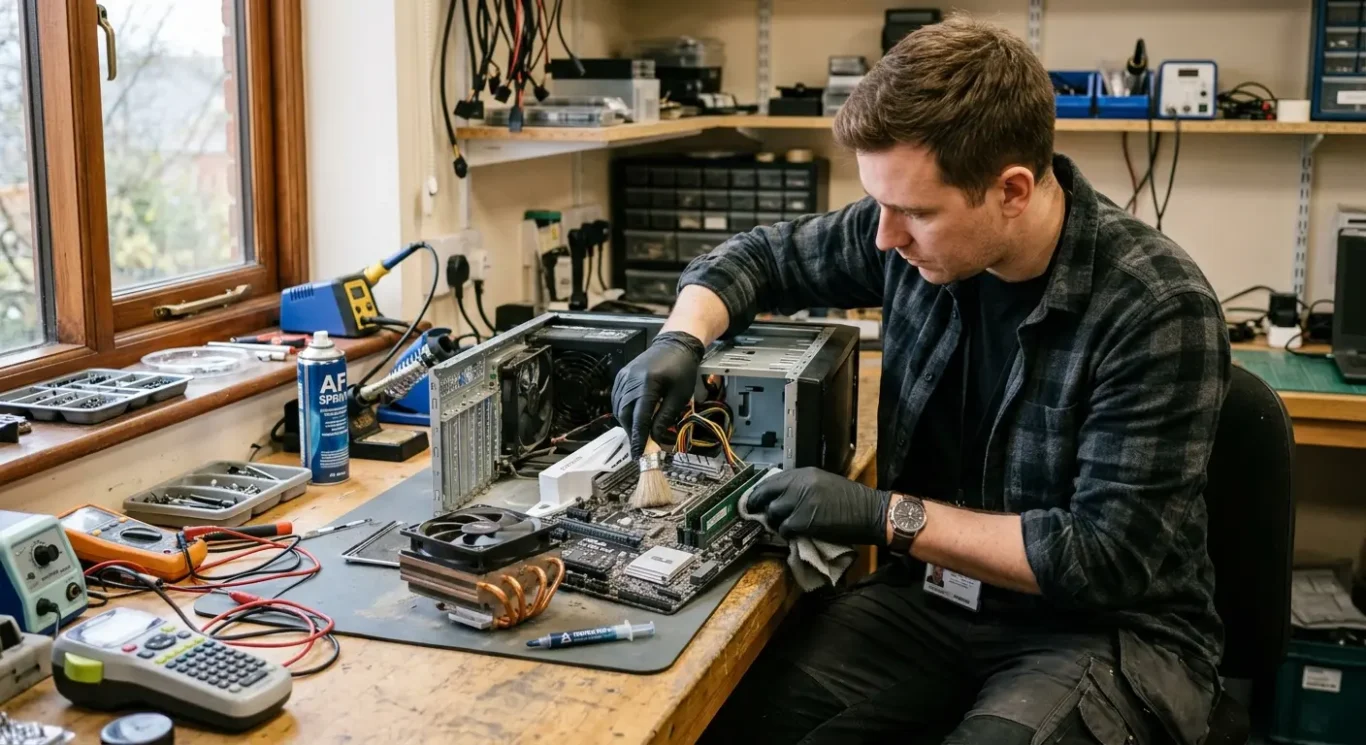
How often should computers be cleaned and repasted
Most people do not think about internal cleaning or thermal paste until the computer starts running hot, the fan gets noisy, or everything feels slower than it should. That is usually when it lands on the bench, to be honest. There is no single timetable that suits every machine, because a lightly used office PC in a clean room ages very differently from a gaming laptop, a family computer on the floor, or a work machine in a dusty shop or studio. This guide keeps it simple and practical, with sensible intervals based on how the computer is used, where it lives, and when the signs point to booking a proper service rather than leaving it any longer.
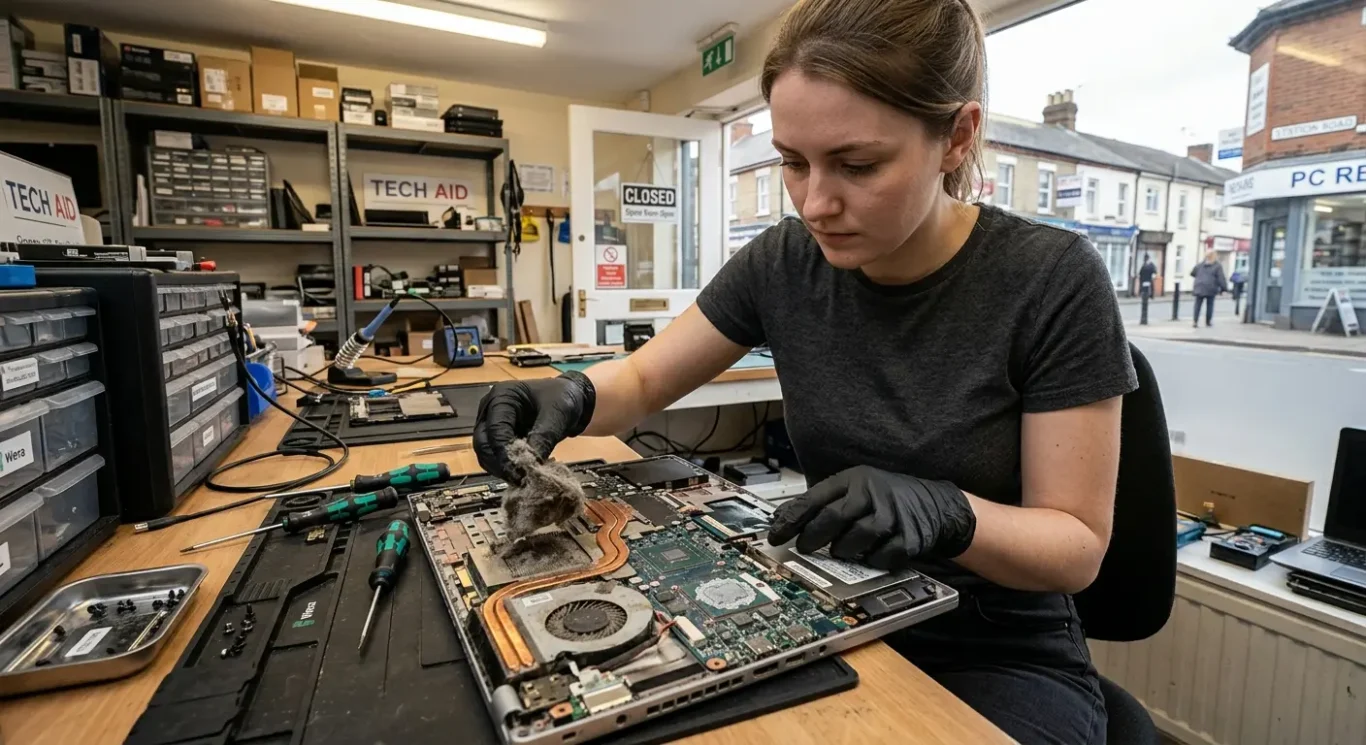
Why cleaning and repasting matter
Dust removal and thermal paste replacement are different jobs, and people often mix them up
Dust builds up in fans, vents and heatsinks, and that blocks the air the machine needs to cool itself properly. Once airflow drops, temperatures rise, the fan works harder, and the computer often gets louder. On laptops especially, a fairly small amount of compacted dust can make a big difference.
What the paste is actually doing
Thermal paste is the material between the processor and the metal cooler sitting on top of it. Its job is to help that contact work properly so heat can move away from the chip. It does not replace cleaning, and it is not the same thing as clearing dust from the cooling system.
Cleaning is usually needed more often than repasting because dust keeps entering the machine as it pulls air through. Paste tends to age more slowly, and whether it needs replacing depends on the machine, its age, how hot it runs, and whether there are clear signs the cooling contact has deteriorated. In real computer repair work, plenty of noisy computers just need a proper internal clean, not fresh paste straight away.
Do not assume paste is the answer
A hot or noisy computer can also be caused by a failing fan, blocked vents, heavy background software, poor airflow around the machine, or a heatsink problem. That is why diagnosis comes first. Repasting can help in the right case, but it is not the automatic fix every time.
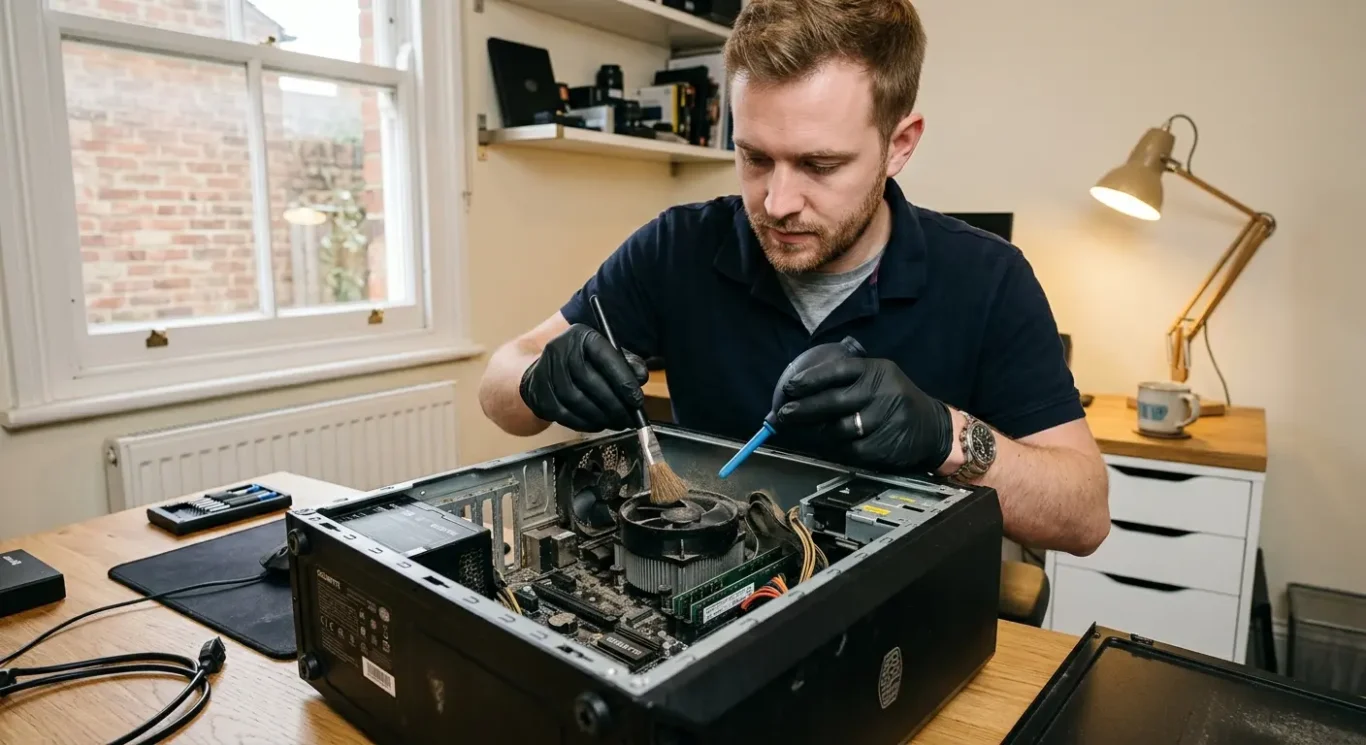
How often should computers be cleaned
Use these intervals as a sensible starting point, then adjust them based on where the machine lives and how hard it works.
For a typical home computer or office PC in a fairly clean room, an internal clean about once every 12 to 18 months is usually reasonable. If it spends most of its time on a desk, gets light to moderate use, and the fan is not getting louder, there is often no need to do it more often than that.
Heavier use usually means shorter intervals
Gaming systems, workstations, and machines left running for long hours most days are a different story. Those often make sense to check every 6 to 12 months, especially if they run hot by design or pull a lot of air through the case. I see this quite a lot with gaming laptops in particular, where the fans and heatsinks do not have much room to spare.
If you have pets, smoke indoors, live with building dust, or keep the computer in a tight space with poor airflow, clean it more often. In those environments, every 6 months is not unusual, and sometimes sooner if the fan noise climbs quickly or the vents start looking clogged.
Laptops often block up faster than desktops because the cooling system is smaller and more tightly packed. A desktop can still get filthy, especially on the floor under a desk, but a laptop used on soft surfaces or carried around London day to day tends to show the effects sooner.
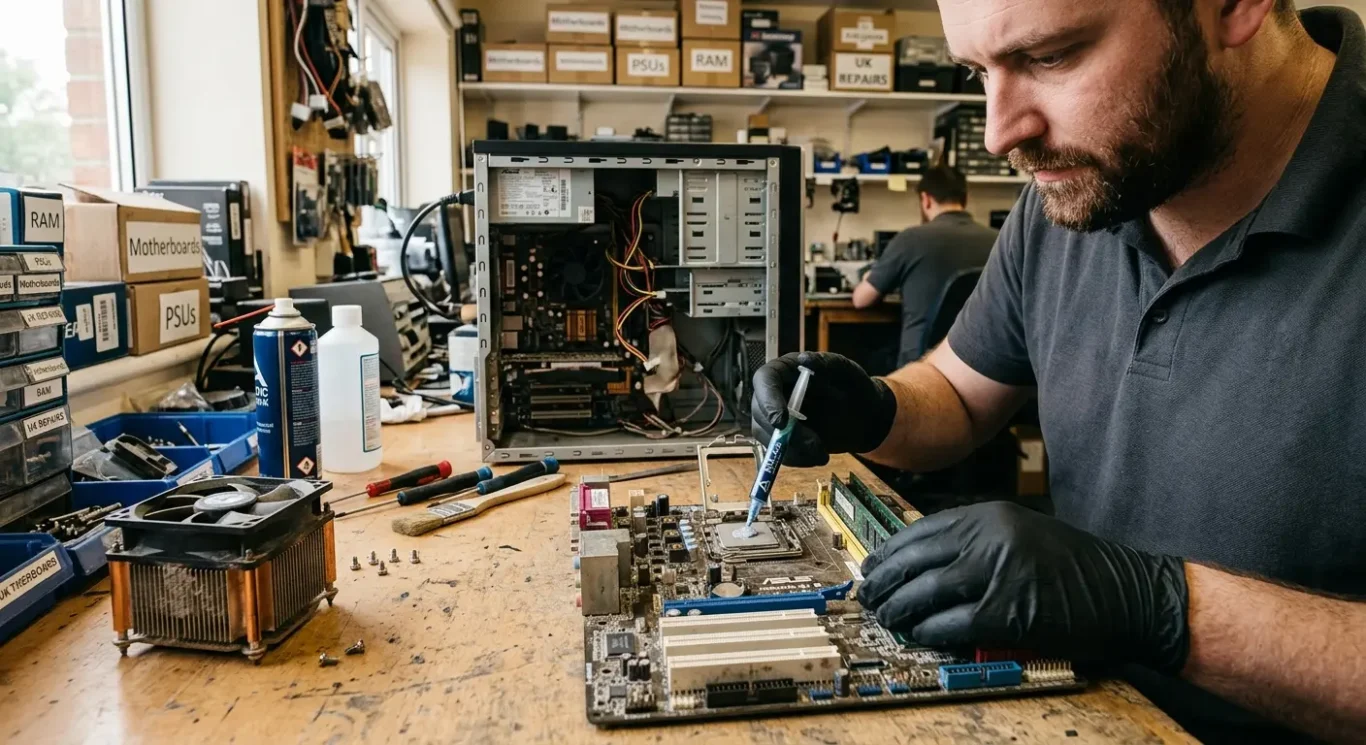
How often should thermal paste be replaced
Use temperature behaviour and age as your guide, not a fixed calendar reminder.
Thermal paste usually lasts longer than the layer of dust that builds up in fans and heatsinks, so it normally does not need attention as often as cleaning. In day to day repair work, I would expect to clean many machines before I would automatically suggest repasting them.
When repasting is worth doing
It makes sense more often on older machines, on systems that are overheating, or where the fan is working hard all the time even after the dust has been cleared properly. It is also sensible when a machine is already apart for cooling work and the old paste has clearly dried out, gone crusty, or stopped spreading evenly across the chip and cooler.
Newer computers with steady temperatures and normal fan behaviour may not need routine repasting yet. If the cooling system is clean, the temperatures stay where they should, and there are no heat-related crashes, throttling, or constant fan noise, changing the paste just because a certain number of months has passed is often unnecessary.
Different machines age differently
Macs, laptops, desktops, and gaming machines do not all age in the same way because the heat load and cooler design vary so much. A slim laptop or Mac that runs warm in a compact chassis can show cooling wear sooner than a larger desktop with more airflow, while a gaming system that spends hours under heavy load may need repasting earlier than a lightly used office machine.
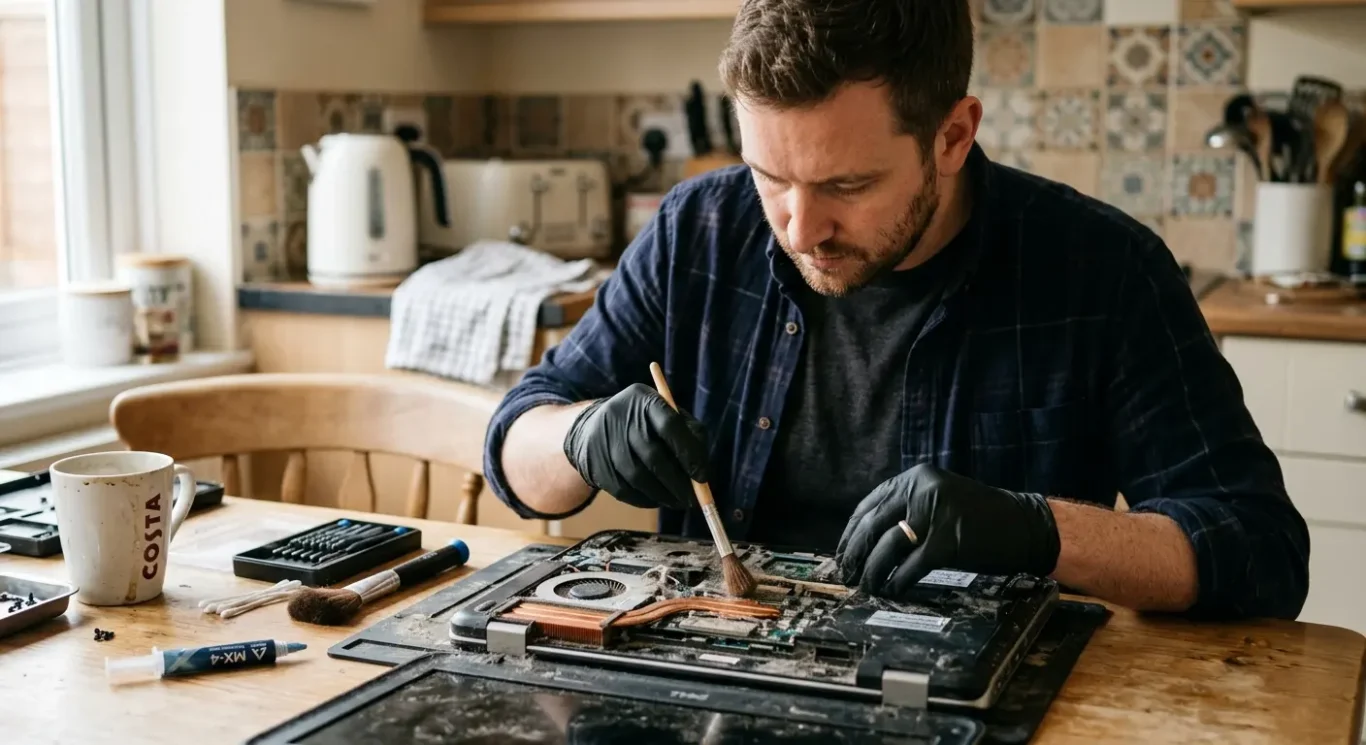
Recommended computer cleaning and repasting intervals by machine type
Use the setup, the room, and the way the machine works each day to judge how often it needs attention.
An office desktop in a clean room normally only needs internal cleaning about every 12 to 24 months, and repasting is often left longer unless temperatures have started creeping up or the machine is already apart for cooling work. A home laptop used on sofas, beds, or kitchen tables usually needs checking sooner because fluff, dust, and crumbs get pulled straight into very small vents. In practice, those often make sense to clean every 6 to 12 months, with thermal paste looked at more on condition than on age alone.
Heavier use usually means shorter intervals
A gaming laptop or gaming desktop under heavy load is worth checking every 6 to 12 months, especially if it runs hot, gets loud quickly, or is used for long sessions most days. Gaming laptops tend to need the closest watch because the cooling parts are tightly packed and there is not much room for dust before temperatures climb. Repasting on these systems is more common than on basic office machines, but I would still base it on heat, fan behaviour, and the state of the old paste once opened up.
A MacBook or iMac used for work every day often sits somewhere in the middle. If it is used for office tasks in a fairly clean space, cleaning roughly every 12 months is reasonable, but slimmer models that run warm or spend all day on charge can benefit from earlier inspection if the fan noise changes or the casing starts feeling hotter than usual. Dusty shops, workshops, and shared business spaces are harder on any computer, so 3 to 6 month cleaning intervals are common there, and sometimes sooner if vents block up fast.
When to stop guessing and book it in
If the fan is suddenly louder, the machine is getting hot doing simple jobs, performance drops when it warms up, or it is shutting down, that is the point to book a professional service rather than wait for the next planned clean. Same goes for Macs, laptops, or business machines where opening it safely is not straightforward. Fairly often, what looks like “it just needs a clean” turns out to be a worn fan, a blocked heatsink, or old paste that has properly dried out.
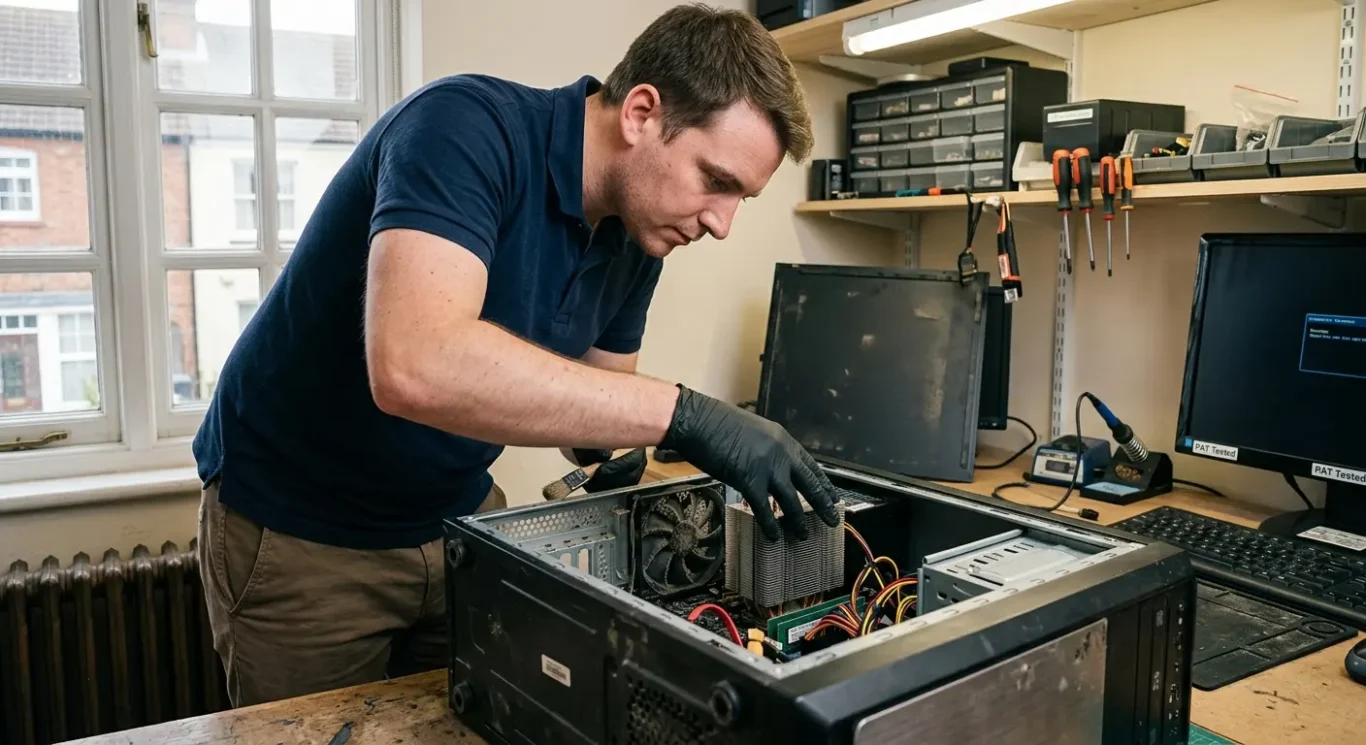
Signs your computer needs attention sooner
Simple warning signs most people notice before heat starts causing bigger performance problems
A sudden change in fan noise is one of the clearest signs. If the fans are getting louder much earlier than usual, running hard during basic jobs, or staying noisy for longer after you close things down, the cooling system may be struggling with dust build-up, ageing thermal paste, or poor airflow.
Another common clue is the machine feeling hotter than normal. That might mean the keyboard area is warm on a laptop, the base gets uncomfortable on your lap, or the case and air coming out of the vents feel much hotter than you are used to. You do not need to measure exact temperatures to notice when something has clearly changed.
Performance drops can be heat related
If a computer starts slowing down during simple tasks, or suddenly loses speed under load, heat can be part of the reason. In plain English, thermal throttling means the machine deliberately reduces its own speed to stop itself getting too hot. That can show up as lag, stuttering, apps taking longer to open, or games and heavier work becoming choppy after a few minutes.
Cleaning is not always the whole answer
Random shutdowns and crashes can also happen when a machine overheats, but I would not assume that is the only cause. Similar symptoms can come from a failing fan, a battery problem, a power fault, bad memory, software issues, or something on the motherboard. That is why a proper check matters – sometimes it does just need cleaning and repasting, and sometimes heat symptoms are overlapping with a different fault.
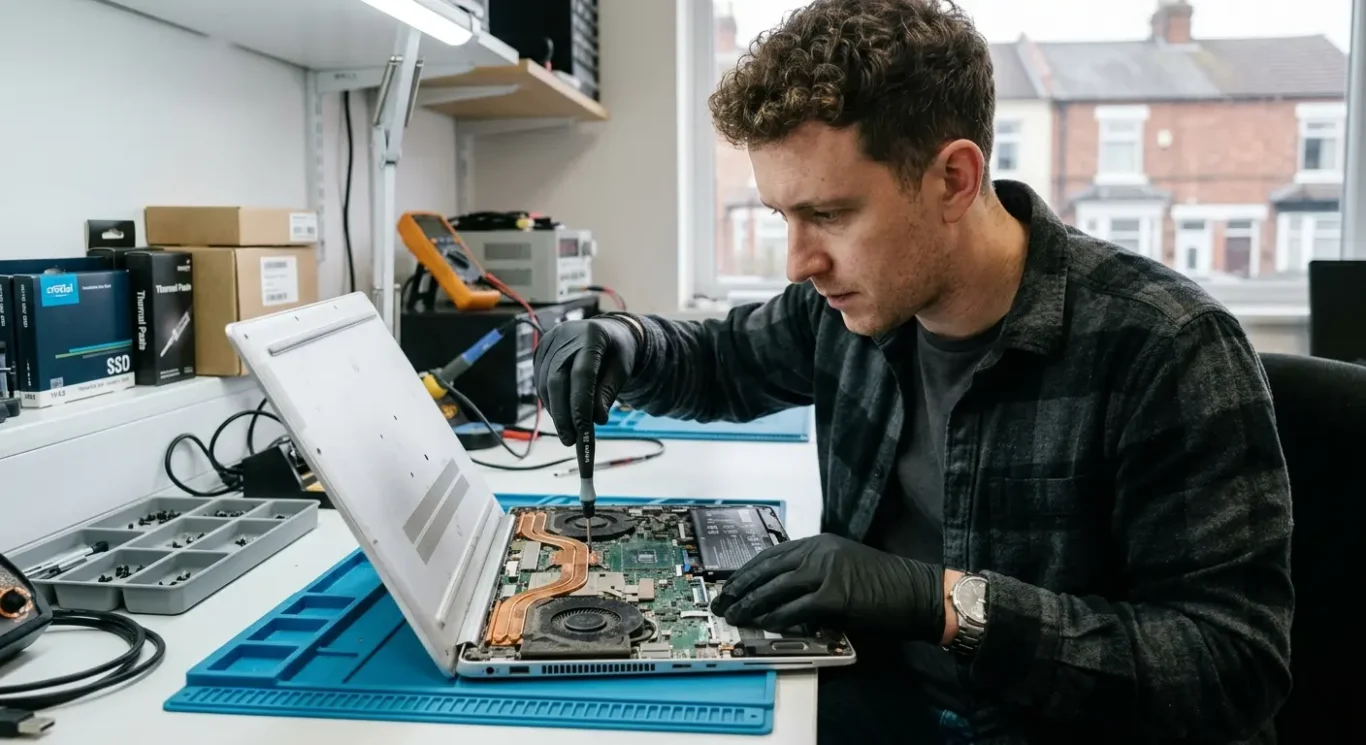
When professional laptop cleaning is the better choice
Book a computer repair service when access is awkward, the symptoms point to damage, or guessing could lead to the wrong fix
Some machines are simple enough to inspect safely, but plenty are not. If the cooling system sits deep inside and the whole machine has to be opened to reach the fan and heatsink properly, it makes more sense to have it done as a repair job than treat it like basic cleaning.
Awkward laptops, Macs and all-in-ones
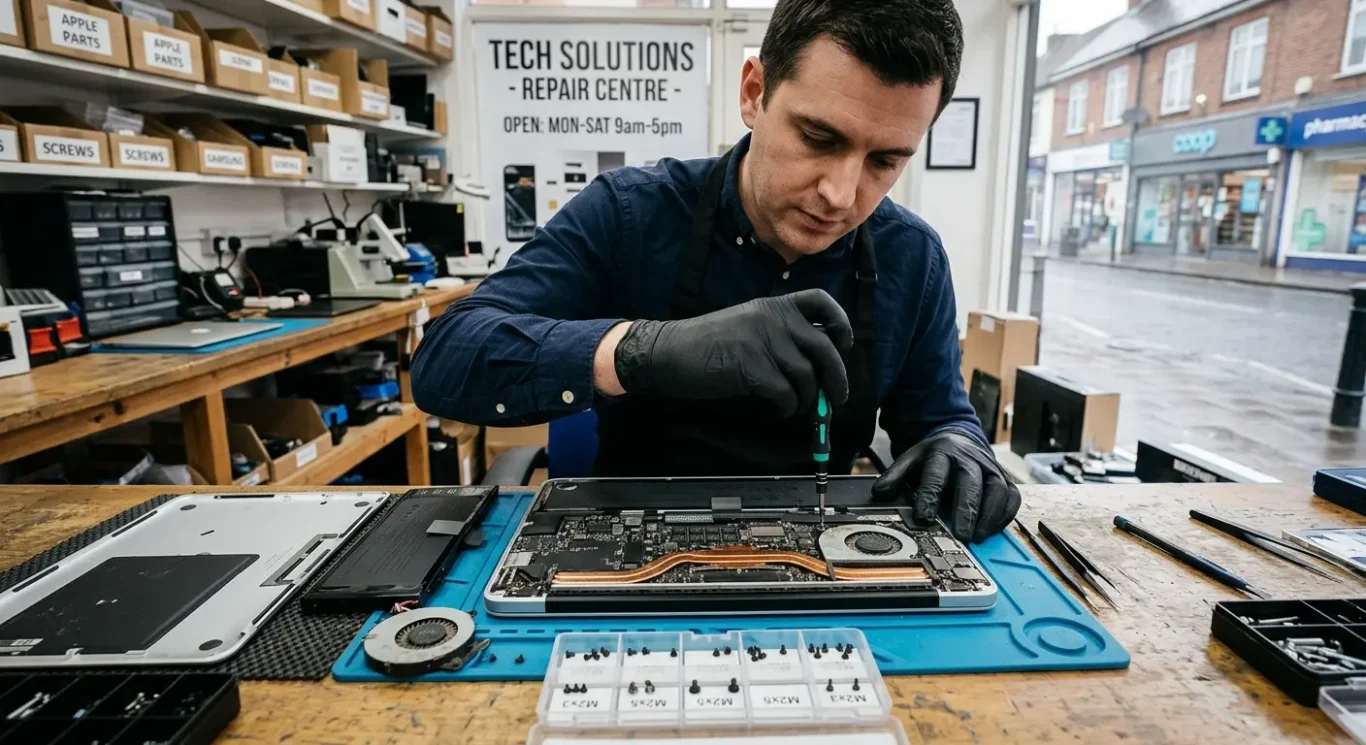
Thin laptops, Macs and all-in-one desktops are often fiddly to dismantle without causing other problems. Cables can be delicate, batteries may need disconnecting before anything else, and on some models the cooling parts are buried under other components. I see this a lot – someone starts with good intentions, then ends up with a torn connector, a cracked clip, or screws mixed up.
When the symptoms suggest more than dust
If there are signs of overheating, repeated shutdowns, liquid exposure, or a fan that is rattling, grinding or not spinning properly, do not assume fresh thermal paste will sort it. Those symptoms can point to several faults at once, and sometimes the heat issue is only part of the story.
Proper diagnosis matters because replacing paste or ordering parts without checking the machine first can waste time and money. A blocked heatsink, failing fan, warped cooling assembly, liquid damage, battery swelling, or a board fault can all mimic the same basic complaint of running hot or switching off. That is why a decent laptop repair service checks what is actually causing the problem before doing the work.
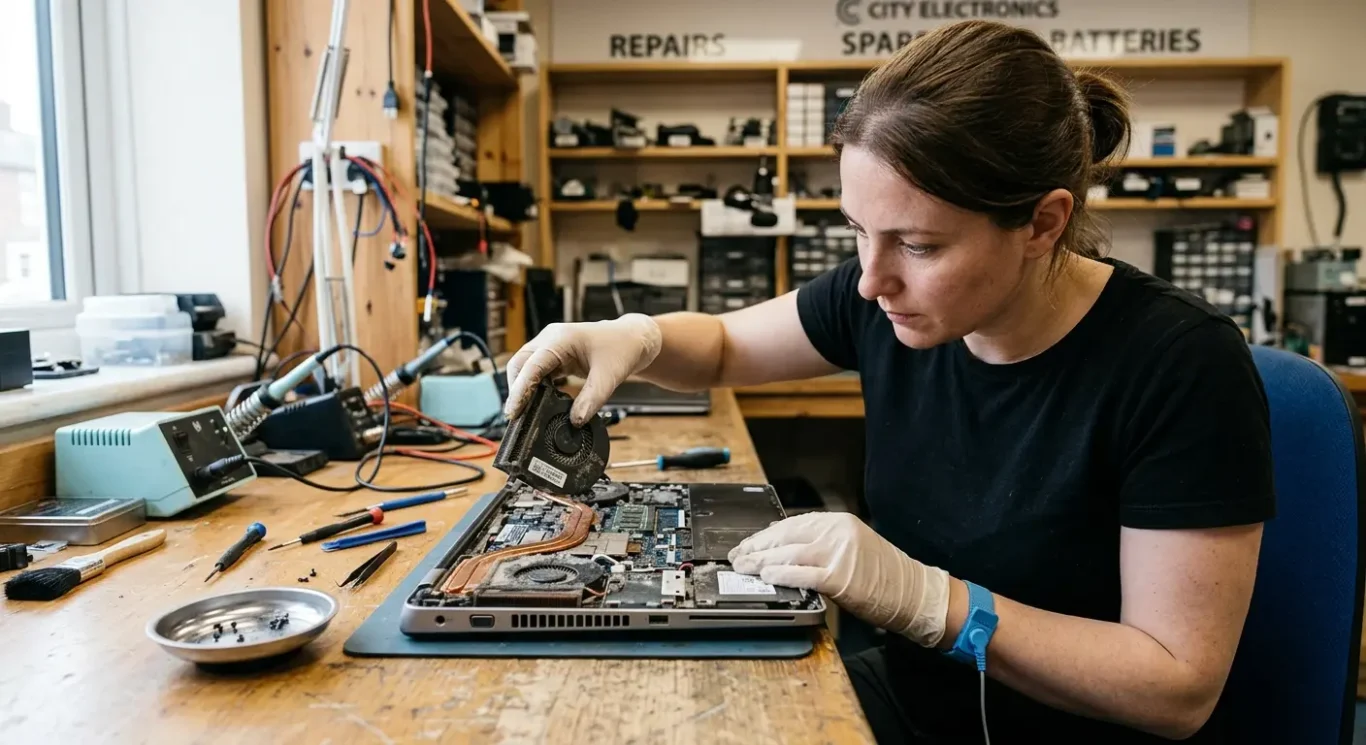
What a professional service should include
You should expect more than a quick blow through with compressed air and a guess about the paste.
A proper job starts with checking the fan condition, the air vents, and whether the heatsink is blocked with packed dust. That matters because a noisy or worn fan will not be fixed by cleaning alone, and a machine can still overheat if the dust is trapped deep in the cooling fins rather than sitting near the outer vents.
Internal cleaning, not just the outside
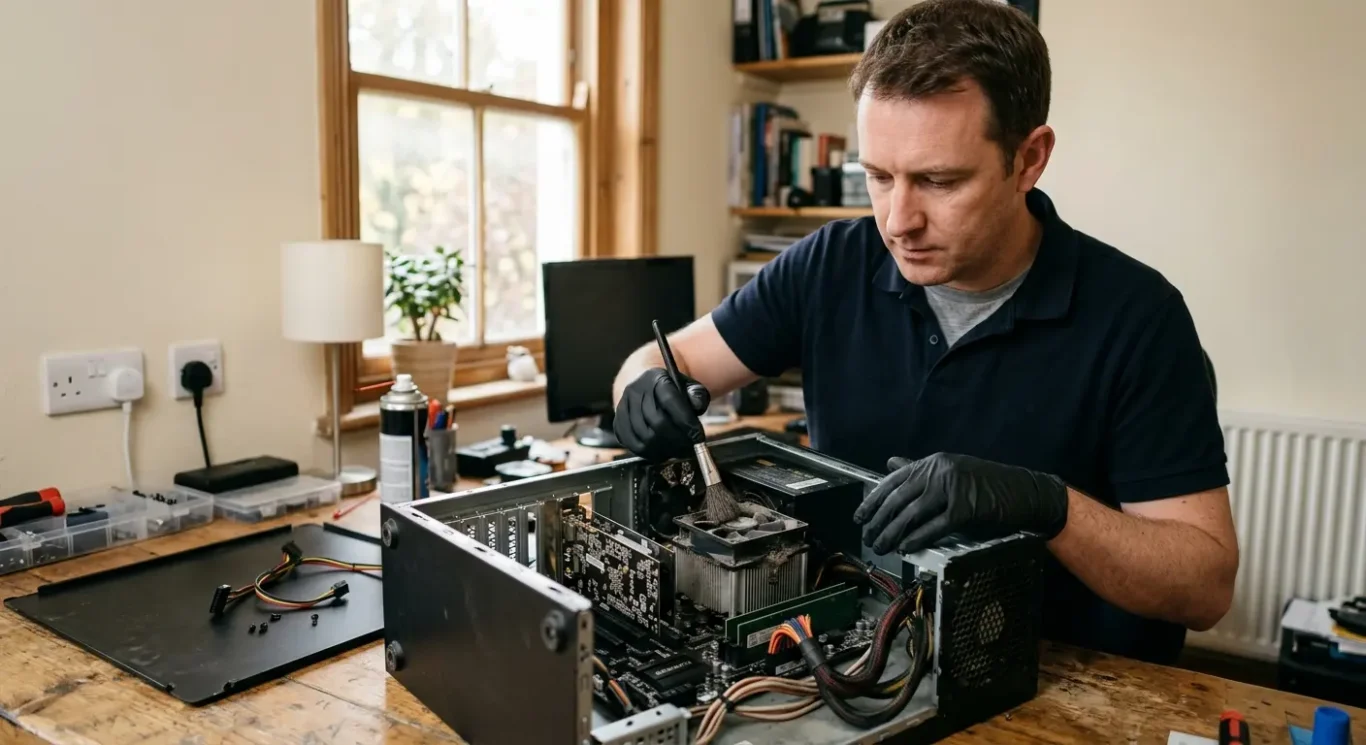
The cooling system needs to be cleaned properly inside the machine, not just wiped around the case or vent openings. On plenty of laptops and Macs, the dust mat forms behind the fan or in the heatsink, so unless that area is reached and cleared, the airflow is still restricted. I see that a lot.
Thermal paste should be checked as part of the inspection, but it does not always need replacing. If it is dry, uneven, contaminated, or clearly no longer transferring heat properly, repasting makes sense. If it is still in decent condition and the real problem is a blocked heatsink or failing fan, that should be said plainly.
When the job changes
Sometimes a clean and repaste turns into a different repair once the machine is opened. Worn fans, damaged screws, liquid residue, warped cooling parts, or heat-damaged components can all change what is needed, and that may affect cost and whether the repair is worth doing. That is normal – it depends on what is found during inspection, not on assumptions made beforehand.
Cost and time – what affects the job
What you pay and how long it takes usually comes down to how the machine is built, what has to be opened, and what is actually found inside.
The cost depends on the machine type, how difficult it is to access the cooling system, and whether repasting is needed as part of the work. A basic clean on an easy-to-open desktop is very different from a thin laptop or Mac where the fan, heatsink, battery, and other parts may all need to come out first. That is why a sensible quote depends on the fault and the machine, not just the symptom.
Some machines simply take longer to strip
Business laptops, gaming laptops, compact desktops, and some Apple models can take longer because the dismantling is more involved. On those, getting to the dust and paste safely is often most of the job. I see plenty where the actual cleaning is quick, but the careful strip-down and rebuild takes time.
Extra faults change the job
If a fan is failing, screws are damaged, the heatsink is warped, or there are signs of liquid or heat damage, both cost and repair time can change. At that point it stops being just a clean and repaste. It depends on the fault, and sometimes the right answer is to fix the cooling issue and a second problem at the same time rather than reopening the machine later.
If you need the computer back quickly, ask whether the job is likely to be straightforward or whether the model is one that usually takes longer once opened. A decent computer repair service should be able to explain what affects the time without guessing, and should tell you plainly if the final work depends on what is found during inspection.
A simple rule of thumb for most users
Use a basic interval as a starting point, then let heat, noise, and daily use decide what happens next.
For a typical home or office machine in a fairly clean room, I would treat an internal clean every 1 to 2 years as a sensible starting point, not a strict rule. Thermal paste usually does not need changing that often on every machine, but it is worth checking around that point if the computer is already being opened for cooling work.
Shorten the gap if the machine works hard
If it is a gaming laptop, a powerful desktop, a machine used all day for work, or it lives somewhere dusty, furry, or warm, I would usually think in terms of 6 to 12 months instead. That also applies to homes with pets, workshops, shop floors, and anywhere the fans are pulling in more dirt than normal.
The calendar matters less once the computer starts running hotter than usual, the fan stays loud, or the case feels unusually warm. At that point, do not wait just because it was cleaned recently – ask for diagnosis, because the problem may be dust, dried paste, a weak fan, or something else in the cooling system.
If the machine is important for work and losing it for a day or two would cause a headache, get it checked before it becomes urgent. I say that a lot to small business owners and people working from home, because planned maintenance is usually easier to deal with than a sudden shutdown in the middle of the week.
Questions we get every day
What our engineers actually say
We often see machines left too long because they are still turning on, even though the fan has been getting louder for months. A common problem is that people assume all overheating means the paste is bad, when quite a few systems just have airflow blocked with dust. In practice, we open the machine and check the cooling path before deciding whether repasting is actually needed.
If a computer lives in a clean office and stays quiet and stable, forcing a repaste on a fixed schedule is usually not the best call. If it is a gaming machine, runs hot most days, or sits in a dusty room, cleaning matters sooner, and thermal paste replacement makes sense when the symptoms and inspection point that way.