
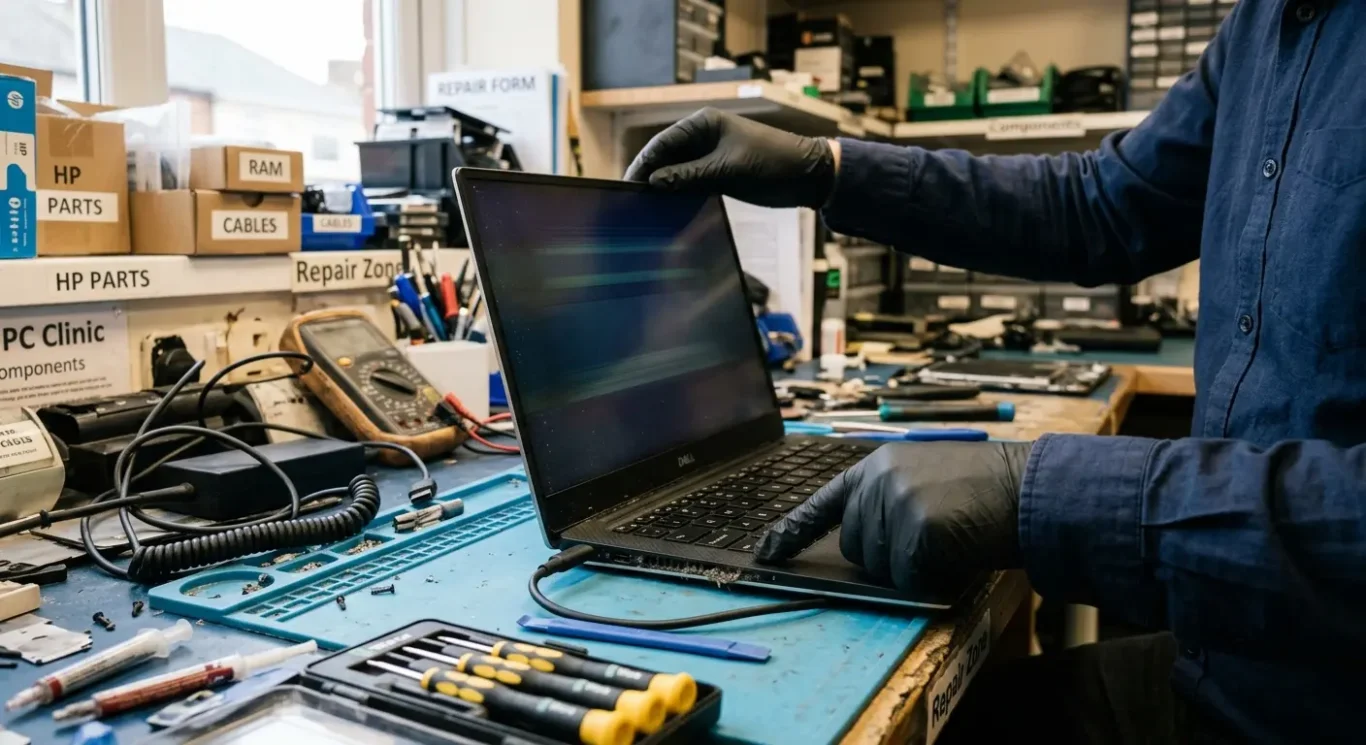
Common laptop problems explained – symptoms, causes, solutions
Most people do not see a failed part or a software fault – they see a laptop that will not charge, a screen that flickers, a fan that suddenly sounds like it is taking off, or a machine that has become painfully slow for no obvious reason. That is normal. This guide starts with the symptoms you actually notice in day to day use, then explains the common causes behind them in plain English, with hardware faults and software issues kept separate so it is easier to make sense of what may be going on.
One thing I see all the time is the same symptom being caused by completely different faults. A laptop that keeps crashing could have a failing drive, overheating inside, damaged system files, or something else entirely. So this is here to help you understand what a problem usually means, not to guess the answer from a distance, and to show when a proper diagnosis is the sensible next step.
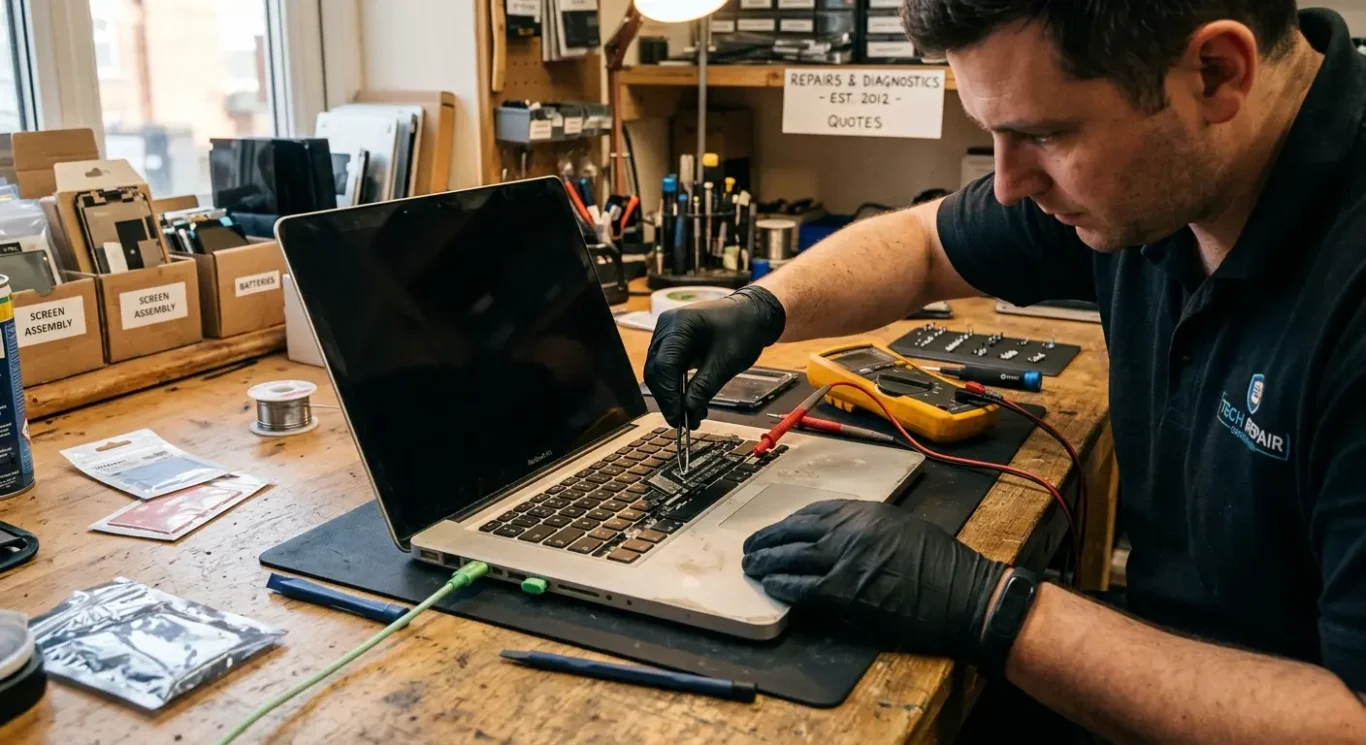
How to read laptop symptoms without guessing the fault
Start with what the machine is actually doing, when it happens, and whether the problem is staying the same or getting worse.
The useful starting point is the symptom, not the theory. If a laptop is slow, crashing, running hot, refusing to charge, or showing a black screen, that tells you more than jumping straight to “the battery is dead” or “it just needs an update”. I say this a lot at the bench because the first guess is often wrong.
One symptom can point to very different faults
A noisy fan is a good example. It might mean the cooling system is clogged with dust or the fan itself is wearing out, which is a hardware issue. It can also happen because software in the background is pushing the processor hard for long periods, so the laptop is working flat out even though nothing obvious is open on screen. The same goes for freezing – sometimes that is caused by a failing storage drive or bad memory, and sometimes it comes from damaged system files, driver problems, or security software behaving badly.
Changes over time matter more than people realise. A sudden failure after a drop, spill, charger spark, or failed update often points in a different direction from a problem that has been creeping in for weeks. Gradual decline usually means wear, heat, dust build-up, battery ageing, or software clutter building up in the background. Sudden and complete loss of power, on the other hand, tends to need proper testing rather than guesswork.
Why remote guessing only goes so far
Descriptions help, but they never show the full picture. Two laptops can both “not turn on” while one has a dead charger, another has a damaged charging circuit, and a third is actually turning on but not showing an image. Without seeing the pattern of lights, fan behaviour, display response, battery condition, startup behaviour, and any error messages, remote advice is limited. It can narrow things down, but it cannot replace proper diagnosis when the cause is uncertain.
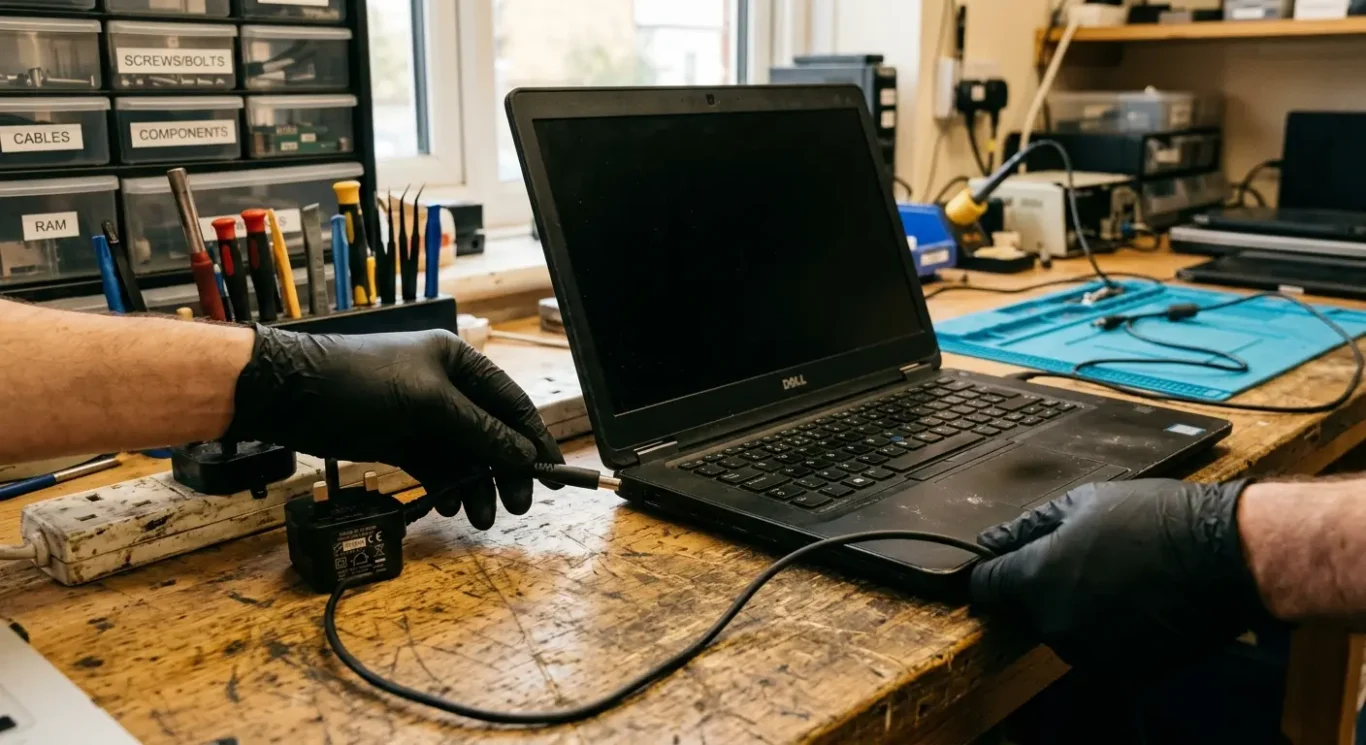
Laptop will not turn on – what that usually means
The important first split is between a machine that is completely dead, one that reacts a bit, and one that powers up but never gets properly into Windows or macOS.
If there are no lights, no fan noise, no charging light, and nothing at all on screen, that usually points to a power problem rather than a startup problem. In real jobs, that can mean a faulty charger, a worn battery, a damaged charging port, a bad power button, or an internal board fault. Those faults can look very similar from the outside, which is why a laptop that appears fully dead often needs testing rather than guesswork.
Signs of life change the picture
If a light comes on, the fan spins, the keyboard lights up, or you hear startup sounds, power is getting into the machine in some form. That does not automatically mean the battery is fine or the charger is fine, but it does suggest the fault may be further along the startup chain. Sometimes the screen is not showing an image even though the laptop is on, and sometimes the machine is stuck before the operating system loads.
When power is present but Windows or macOS does not load properly, the cause is often different from a pure charging fault. I see this with damaged system files, failed updates, drive problems, login loops, and machines that freeze on the logo screen or keep restarting. That sort of behaviour can still involve hardware in the background, especially a failing storage drive or memory fault, so it is not safe to assume it is “just software” without proper diagnosis.
When not to sit on it
If the problem started after a liquid spill, a drop, a charger spark, or there is any burning smell or unusual heat, professional diagnosis is usually the sensible next step. Those cases can involve hidden damage around the charging area or main board, and the outcome depends on what testing shows.
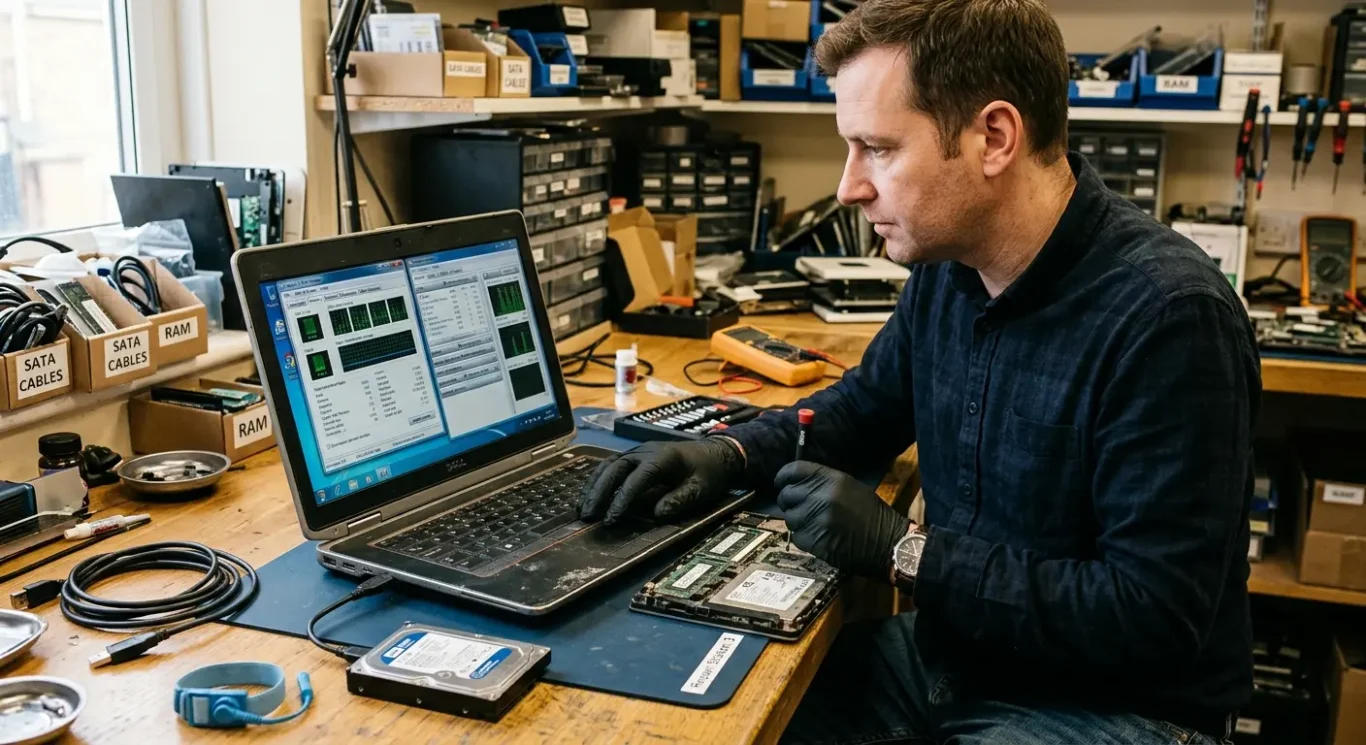
Slow laptop performance – hardware cause or software problem?
Slowness means different things depending on whether it has always felt underpowered, has changed suddenly, or only shows up during certain jobs.
One of the first things I look at is whether the machine has always been a bit sluggish or whether the change was sudden. A laptop that has been slow for months may simply be struggling with its age, limited memory, older storage, or too much running in the background. A laptop that becomes noticeably slow over a day or two points more towards a fault, a bad update, storage trouble, malware symptoms, or an operating system problem.
When the cause is more likely to be hardware
Heat is a big one in real computer repair work. If the fan is loud, the base gets very hot, and performance drops after ten or twenty minutes, overheating is a realistic possibility because the laptop may be slowing itself down to protect the processor. Failing storage can also make a machine feel painfully slow, especially if it hangs while opening files, takes ages to boot, freezes for a few seconds at a time, or keeps showing spinning circles and not responding. Low memory often shows up when several tabs, meetings, or office apps are open together, because the system runs out of working space and starts struggling with basic tasks.
When the cause is more likely to be software
If the laptop is mainly slow in Windows or macOS itself, but the fan is not unusually loud and there are no other fault signs, the issue is often on the software side. Too many background tasks, startup programs, damaged system files, update problems, or malware symptoms can all drag performance down without any single part being physically broken. That is why a general complaint like “it is slow” does not automatically mean it needs an upgrade, and it does not automatically mean the drive or motherboard is failing either.
The pattern during specific tasks matters more than people realise. If it only slows down when opening large files, that leans more towards storage or memory. If it becomes sluggish during video calls or anything graphics-heavy, heat, memory limits, or a hardware fault can be involved. If it crawls from the moment you sign in, even before you open anything, startup load or operating system issues move higher up the list. When the behaviour is inconsistent, with freezing, crashing, or long pauses mixed in, proper diagnosis is usually the sensible next step because hardware and software faults can overlap.
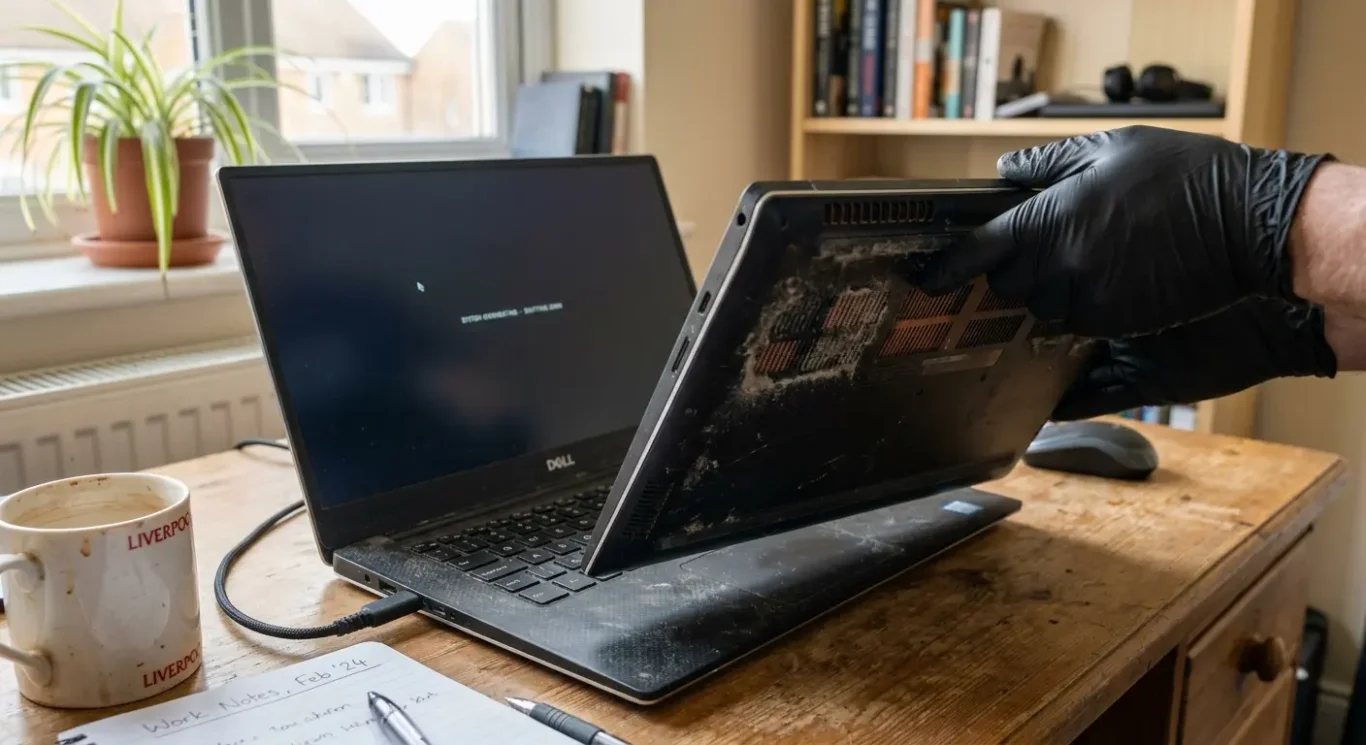
Overheating, loud fan noise, or sudden shutdowns
What people usually notice first is a laptop that feels too hot, sounds busier than normal, or switches off when it should not.
In day to day use, heat problems often show up as a very hot base, a fan that seems to run all the time, performance dropping after a short while, or the machine cutting out without much warning. Some warmth is normal, especially during updates, video calls, gaming, or anything else that pushes the processor hard. What raises suspicion is when the laptop feels unusually hot during light use, gets noisy just opening a few tabs, or becomes sluggish once it has been on for ten or fifteen minutes.
When the cause is more likely to be hardware
Blocked airflow is one of the most common causes I see. Dust builds up inside over time, vents get restricted, fans wear out, and older thermal paste can dry out so heat no longer moves away properly from the processor. That does not always mean a major internal failure, but it does mean the cooling system is no longer doing its job as it should.
When the cause is more likely to be software
Sometimes the cooling system is reacting to load rather than causing the problem. A stuck update, heavy background activity, runaway software, or malware symptoms can keep the processor working flat out, which makes the fan ramp up and the case run hotter even if the hardware itself is still intact. That is why loud fan noise on its own does not prove internal damage.
Once heat starts affecting stability, it needs proper diagnosis rather than guesswork. Random shutdowns, repeated freezing when the machine is hot, or clear slowdowns under basic use usually mean the laptop is protecting itself or struggling to stay within safe temperatures. Left too long, ongoing overheating can shorten the life of fans, batteries, storage, and other internal parts, so this is one of those faults that is better checked sooner rather than later.
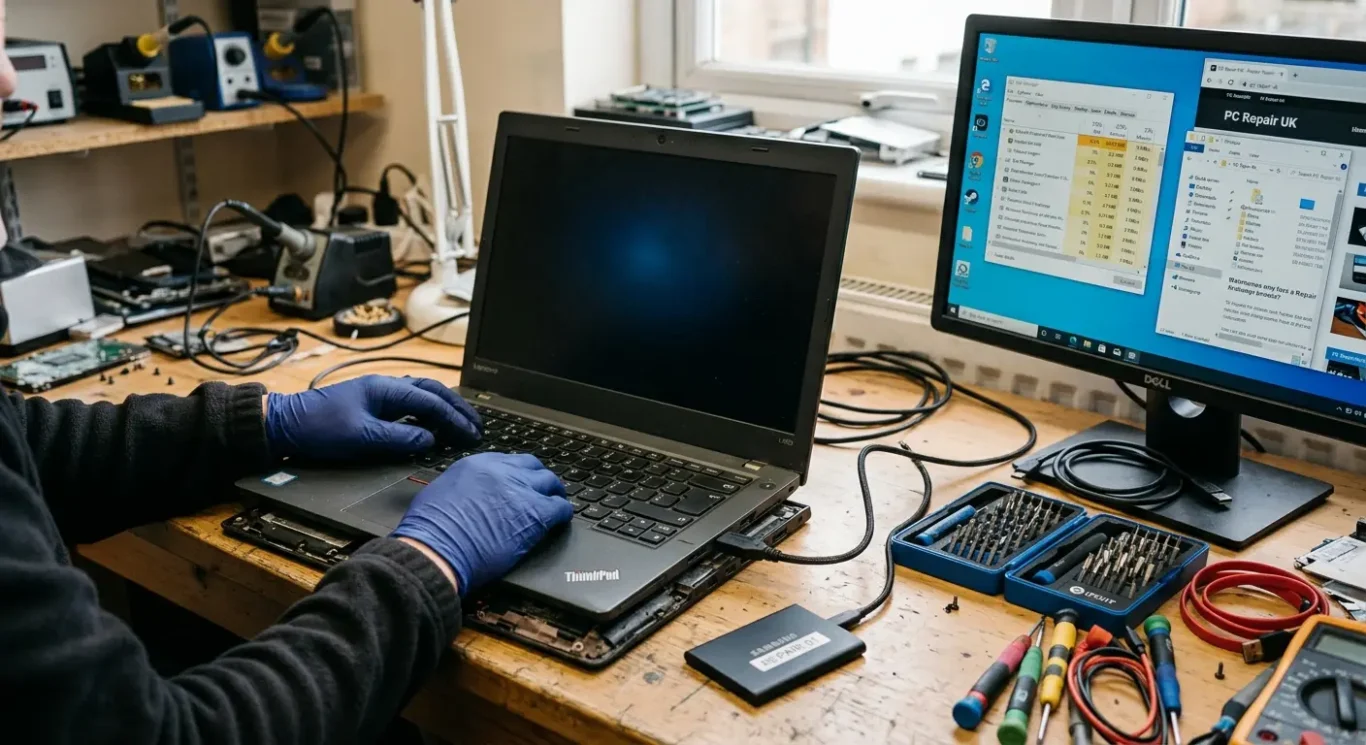
Crashing, freezing, and the blue or black screen problem
The key clue is whether only one program fails, or the whole machine locks up, restarts, or drops out completely
If one app closes by itself but Windows or macOS stays usable, that often points to a problem inside that program, a bad plug-in, or something it relies on. If the cursor stops moving, the keyboard does nothing, the screen goes black, or the laptop restarts on its own, that is a wider system problem and the cause can sit much deeper.
What hardware faults often look like
Memory faults can cause random freezing, sudden restarts, or crashes that seem to hit different tasks for no obvious reason. Overheating can do something similar, especially after the laptop has been on for a while. Failing storage often shows up as lock-ups while opening files, saving work, signing in, or starting the laptop. Motherboard faults are less common, but when they do turn up the behaviour is often inconsistent and hard to pin down without proper testing.
What software faults often look like
Driver conflicts, damaged system files, or updates that did not finish properly can all make a stable machine suddenly start crashing. In real jobs, I often see laptops that fail only when waking from sleep, connecting to Wi-Fi, using an external screen, or starting a certain app. That sort of repeatable pattern matters because it points more towards software than a purely physical fault, although the two can overlap.
Repeated crashes under the same conditions are useful because they narrow the fault down. If it only freezes during video calls, large file transfers, gaming, or after ten minutes of use, that tells you far more than a one-off crash ever will. A professional diagnosis is usually the sensible step when the laptop problem keeps returning, affects the whole system rather than one app, or starts happening alongside heat, noise, boot trouble, or missing files.
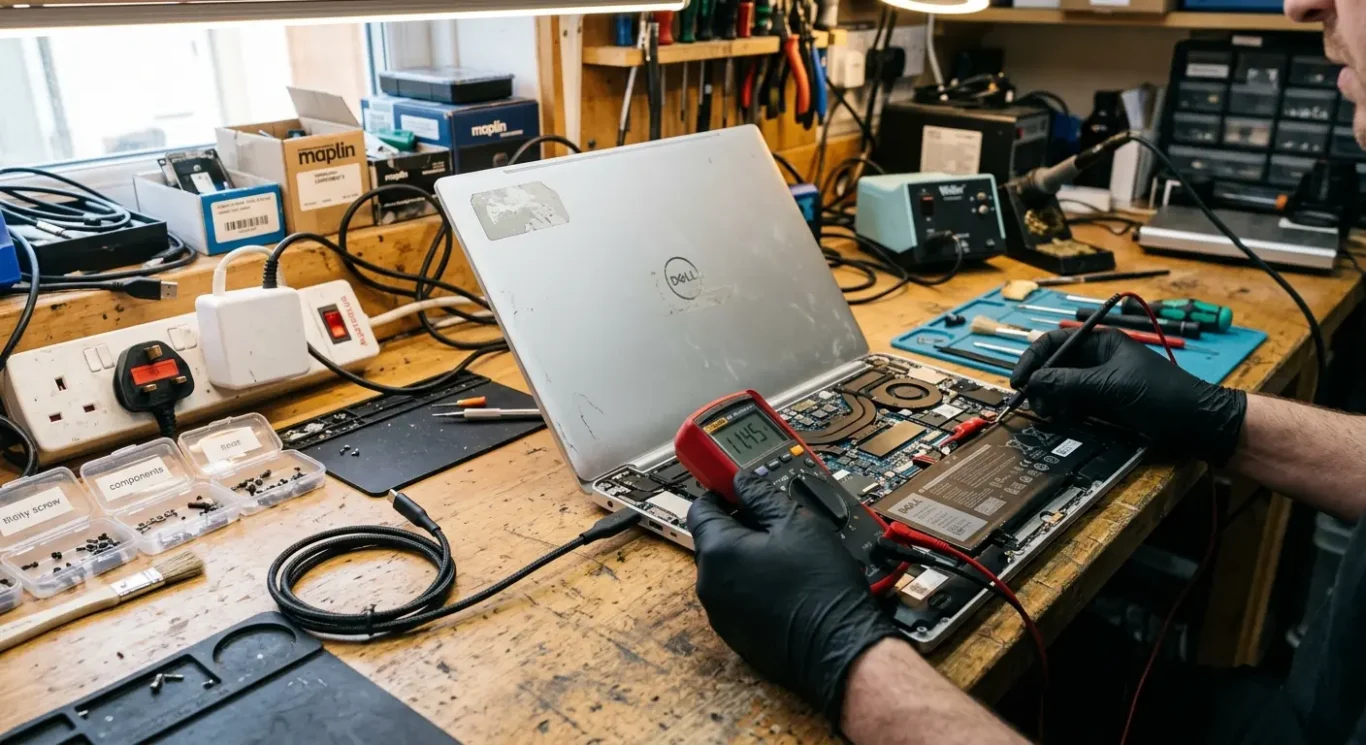
Battery drains quickly or the laptop only works on charge
How everyday battery trouble shows up, and why the battery is not always the part at fault
What people usually notice first is practical stuff – the charge runs down far too fast, the percentage drops suddenly, the laptop shuts off with power still showing, or it works normally only when the charger is connected. On a laptop repair job, those signs often point towards battery wear, but not always.
Battery wear and charging faults are not the same thing
A worn battery tends to store less power than it used to, so the runtime gets shorter and the level can become less reliable. A charging system fault is different. That is when the battery may be fine, but the laptop is not charging it properly because of a faulty charger, a damaged charging port, a loose internal power connection, or a deeper board-level problem.
Intermittent charging is one of the more useful clues. If the charging light flickers, the laptop only charges at a certain angle, or it keeps switching between charging and battery power, that often suggests a port or charger issue rather than simple battery ageing. On some machines, excess heat can also affect charging behaviour and make the fault look worse than it is.
When it needs checking properly
Swelling, unusual heat around the battery area, or a machine that cuts out at random on battery power should be checked professionally rather than guessed at. Same goes for a laptop that only works on mains power after a drop, after liquid exposure, or after the charger has been forced in – those cases can involve more than one fault, and the cause is not always visible from the outside.
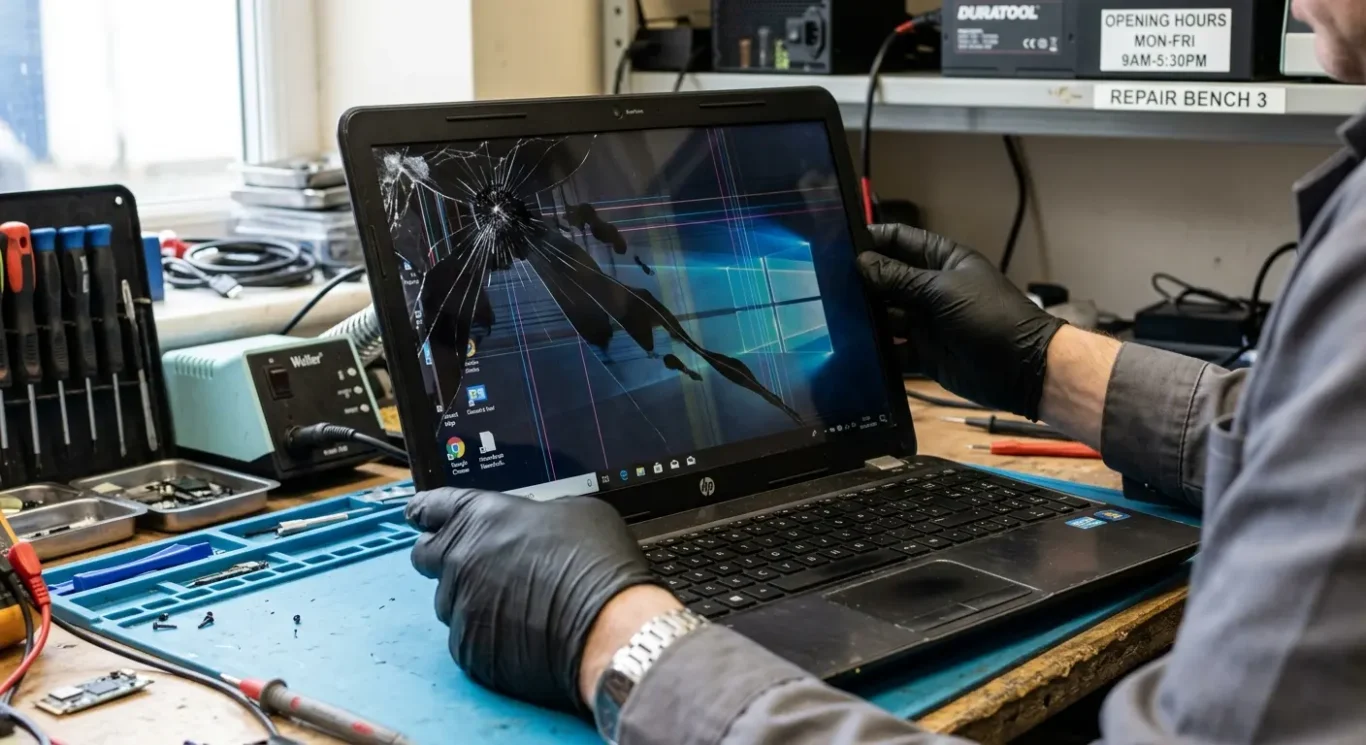
Screen faults – cracks, flicker, lines, dim display, or no picture
Some faults are obvious physical damage, while others come from the cable, backlight, graphics system, or another part of the display circuit.
A cracked screen is usually easy to spot. You may see spiderweb damage, black blotches, ink-like spreading patches, or parts of the picture that are clearly broken even though the laptop still starts up. That is different from an image fault where the panel looks physically intact but the picture flickers, shows lines, goes dim, changes colour, or cuts in and out.
Why the way it started matters
Impact damage and gradual flicker often point in different directions. After a drop, pressure on the lid, or something trapped between keyboard and screen, the panel itself is a common cause. If the fault came on slowly, changes when the lid is moved, or appears only at certain angles, I would be more suspicious of hinge strain, a loose internal display cable, or wear where the cable flexes every time the laptop is opened and closed.
When the laptop seems to run but nothing useful appears
Sometimes the machine is actually turning on – lights come on, the fan runs, you may even hear Windows or macOS load – but the screen stays black, very dim, or unreadable. That does not automatically mean the screen panel has failed. A backlight issue can leave a faint image that is hard to see, a display cable fault can stop the picture reaching the screen properly, and a graphics fault on the motherboard can also produce no display, coloured lines, or a distorted picture.
These laptop problems need proper diagnosis when there is no visible damage, when the picture changes as the lid moves, or when the fault is mixed in with crashes, overheating, or power issues. In real repair work, no-picture faults can come from more than one place, and guessing wrong usually wastes time.
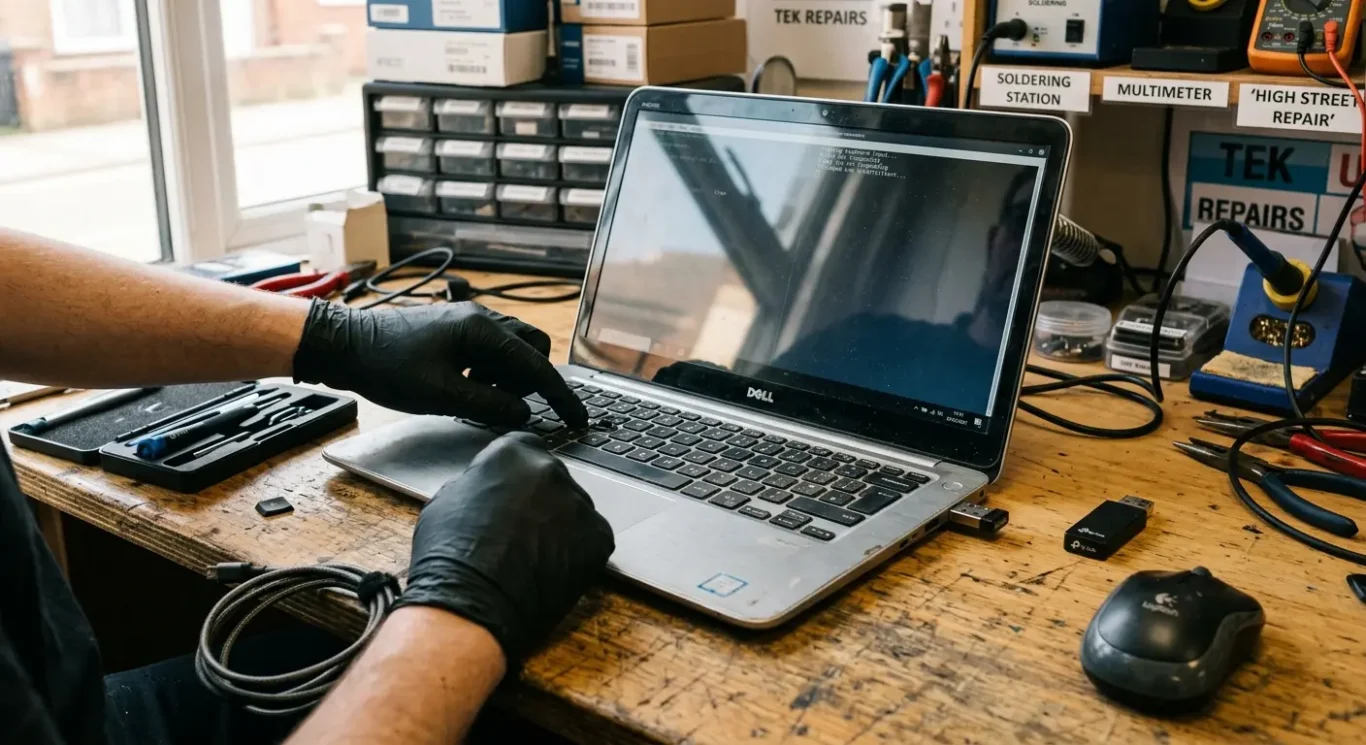
Keyboard, trackpad, USB, Wi-Fi, and other parts that stop responding
Small everyday faults often come from either a worn or damaged part, or from Windows, macOS, drivers, and settings behaving badly.
These faults usually show up as keys that miss presses, type twice, or keep repeating, a trackpad that clicks but will not move properly, USB devices that connect and disconnect, or Wi-Fi that drops out for no clear reason. Annoying as they seem, they do not all point to the same type of problem, and the pattern matters more than people realise.
When it is likely to be a physical fault
Spilled liquid, worn key mechanisms, impact damage, internal cable problems, and loose ports are all common hardware causes. Liquid damage is a good example of why guessing goes wrong – a keyboard can seem fine at first, then days later certain keys stop working, start repeating, or trigger the wrong input because corrosion has started inside. Trackpads can also fail from wear, pressure damage, or a swollen battery underneath, while USB faults may come from a damaged socket or movement on the board from repeated strain.
When software is the more likely explanation
Driver problems, input settings changes, operating system faults, and failed updates can all make a working part behave as if it has failed. I see this a lot with trackpads being disabled after a setting change, function keys doing the wrong thing after software changes, USB devices dropping because the system stops talking to them properly, and Wi-Fi cutting out because of driver instability rather than a broken wireless card.
Intermittent faults are harder because the laptop may behave normally on the bench and fail only when warm, moved, or used for longer periods. A loose connection, early liquid damage, a failing wireless card, or a software fault that appears only after sleep mode can all produce the same on-off symptoms, which is why proper testing is often needed before anyone can say what the problem usually means.
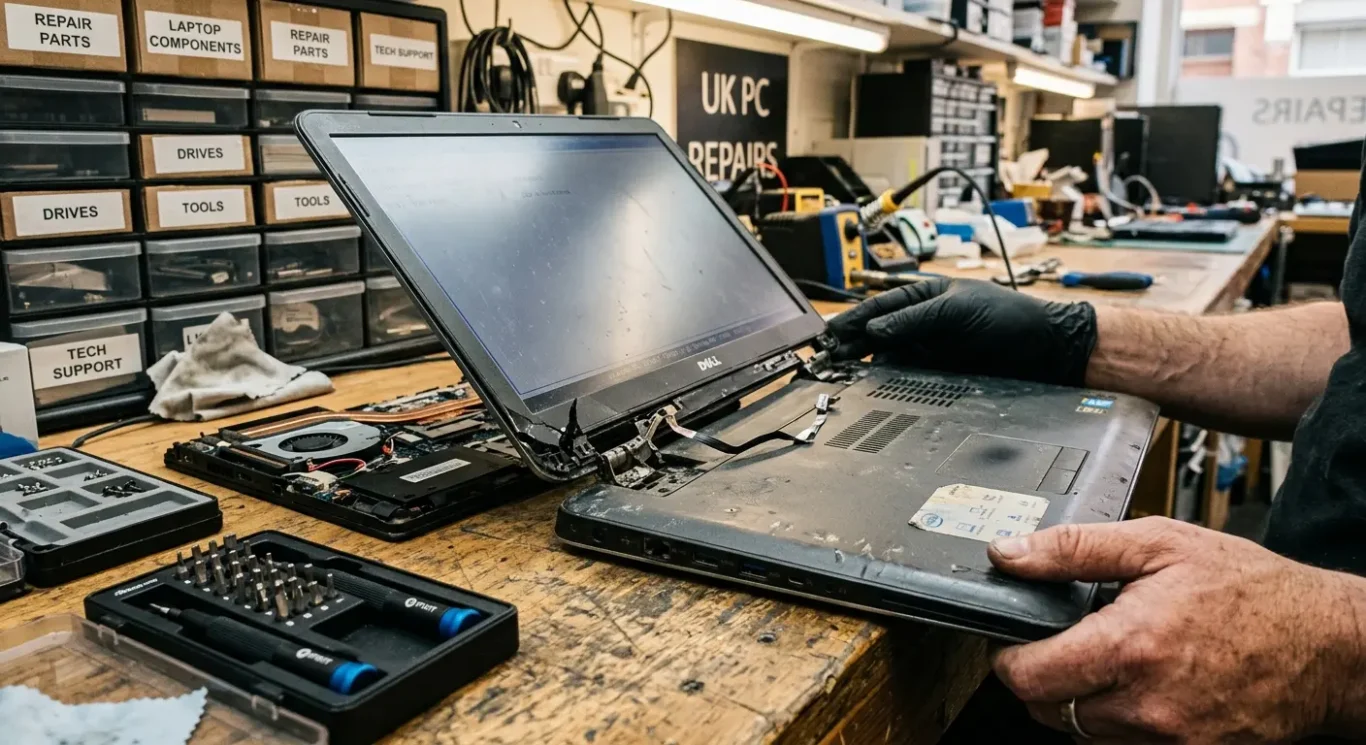
Unusual noises, burning smells, or signs of physical damage
These warning signs often mean the laptop needs to be stopped, checked, and properly inspected before it is used again.
A clicking drive, a grinding fan, an electrical smell, cracked casing, or loose hinges do not all point to the same fault. In day to day repair work, clicking usually suggests a mechanical storage problem, while grinding or rattling is more often a fan or cooling issue, and damaged outer parts can mean strain has already reached the screen, hinges, ports, or internal frame.
Noise matters because the type of sound often gives a clue
A hard drive that clicks, spins up, then goes quiet can be struggling internally, and that is not something to ignore if the laptop also freezes or takes ages to open files. A fan noise is different – more of a buzz, scrape, or grinding sound – and that usually points to worn bearings, dust build-up, something catching the blades, or a cooling system working far harder than it should because heat is not leaving the machine properly.
Smells, smoke, and heat near power parts need caution
If there is a burning or sharp electrical smell, any smoke, or unusual heat around the charger, charging port, or power brick, stop using it and unplug it if it is safe to do so. That sort of symptom can come from a failing charger, a damaged charging socket, battery trouble, or a power fault on the board, and using it through can make the damage worse.
Physical damage is often underestimated because the laptop may still switch on for a while. A cracked corner, split casing, bent lid, or hinge that feels loose can put pressure on the screen, internal cables, and motherboard mounting points, so if the machine creaks when opened, the lid sits unevenly, or the port area moves when the charger is plugged in, that is a good point to have it diagnosed rather than carry on as normal.
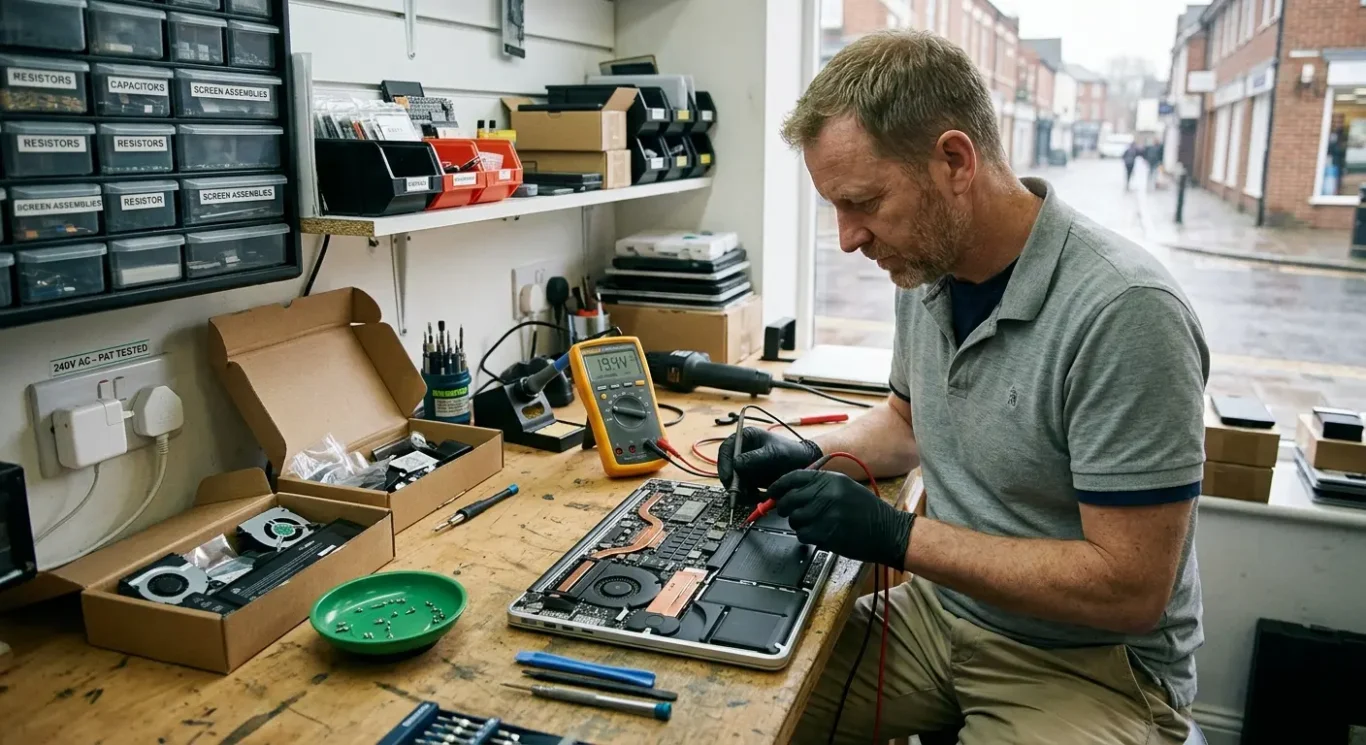
When a professional diagnosis is the sensible next step
Some symptoms are too broad to pin on one part, so proper testing is the safest way to work out what is actually wrong.
A laptop that will not turn on could have a bad charger, a faulty battery, a damaged charging socket, a board level power fault, or software corruption that only looks like a dead machine. The same goes for crashing, freezing, overheating, no display, or random shutdowns – those are symptoms, not reliable diagnoses.
Why testing matters before parts are replaced
In real repair work, swapping parts too early is where time and money get wasted. A dim or black screen might be the panel, the backlight, the display cable, the graphics side of the board, or simply that the laptop is booting badly and never reaching a proper image. Internal testing is meant to separate those possibilities before anyone starts ordering parts that may not fix it.
When data should be treated carefully
If the machine is clicking, taking ages to open files, asking to repair the drive, or disappearing from the system altogether, data may also be at risk. The same applies after liquid damage, especially if the laptop still works but behaves oddly, because corrosion can spread over time and turn a repairable fault into a storage or board problem later.
A proper diagnosis is not there to make things sound complicated. It is there to confirm what the fault actually is, rule out lookalike problems, check whether more than one issue is present, and show whether repair is sensible at all. Sometimes that leads to a straightforward fix. Sometimes it shows the fault is uneconomical, or that recovery of files is uncertain and needs to be handled with care.
Questions we get every day
What our engineers actually say
We often see the same symptom traced back to different faults, and that is where people get caught out. A common problem is assuming slowdowns, crashes, heat, or charging trouble must have one obvious cause when they do not. In practice, we start with diagnosis before any repair is agreed, because the same behaviour can come from hardware or software.
If a laptop problem is repeating, changing, or getting worse, the sensible call is to stop guessing and treat the symptom as a warning sign rather than a diagnosis. That matters most with overheating, power faults, random shutdowns, and storage issues, where carrying on as normal can make the outcome less straightforward.