
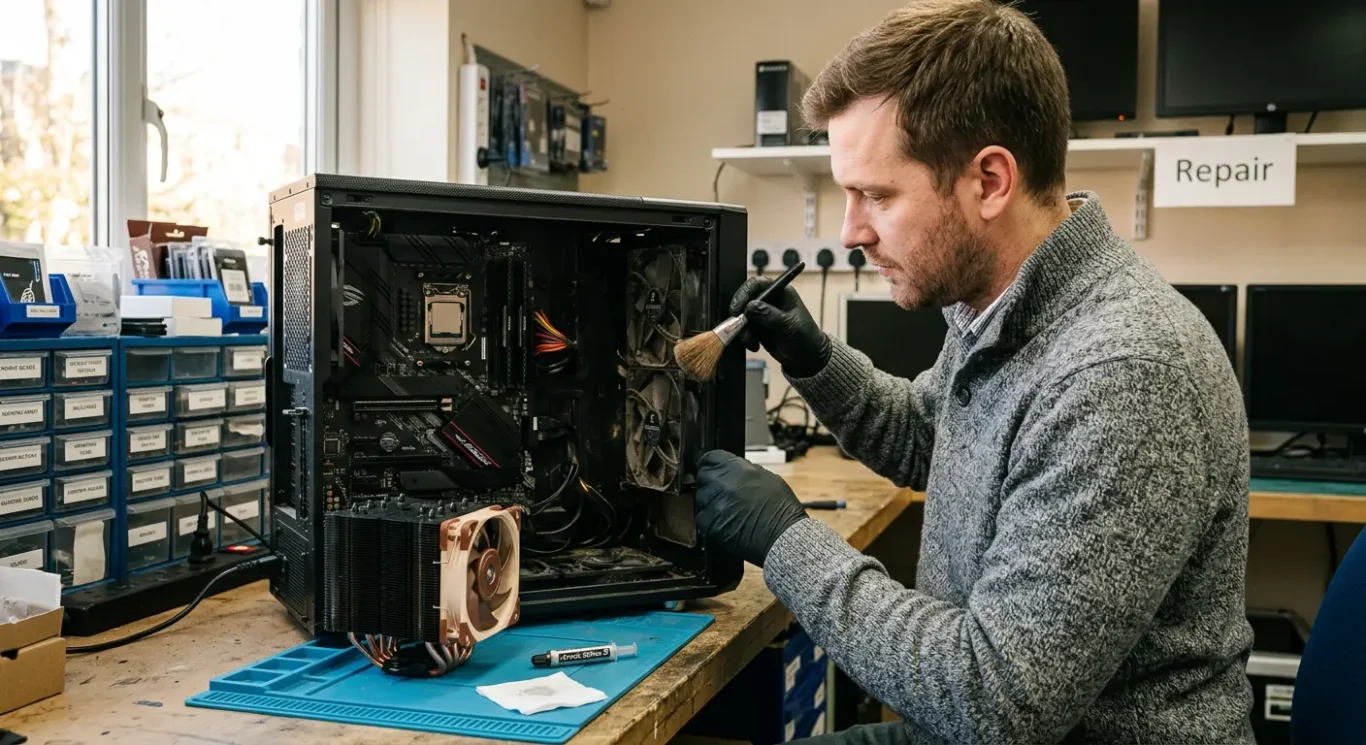
Desktop PC dust cleaning and repasting – how it differs from laptops
If your desktop has started running hot, sounding louder than usual, crashing under load, or just feeling a bit off, dust and dried thermal paste are common causes. Desktop PC dust cleaning and repasting is usually more straightforward than laptop work because there is more space to get to the fans, heatsinks, filters, and cables, but that does not make it a no-risk job – especially on systems with a heavy CPU cooler, older plastic clips, or a separate graphics card. I see plenty of desktops that look simple from the outside and turn into a careful job once the side panel comes off.
This guide explains, in plain English, what actually gets cleaned inside a desktop, which parts may need fresh paste, why CPU repasting and GPU repasting are not the same thing, and what tends to affect cost, time, and whether an on-site visit is realistic or if the machine is better worked on at a bench. That matters if you need the computer back quickly, or you are trying to work out whether the noise is just dust buildup or a sign of a failing fan or overheating part.
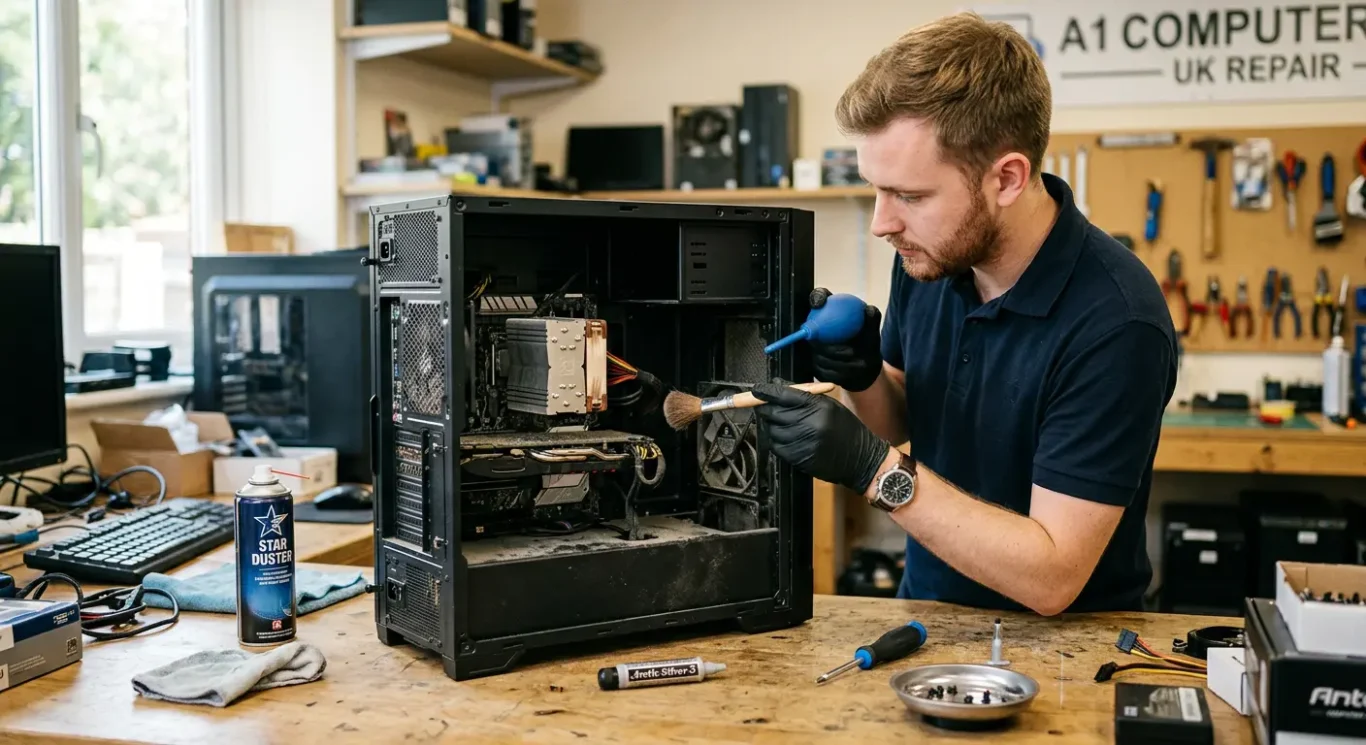
What dust cleaning and repasting actually means on a desktop PC
These are two separate jobs, and a proper check comes first so you do not pay for work the machine does not need.
Dust cleaning means removing built-up dust from the fans, heatsinks, filters, vents, and the inside of the case. That can make a real difference when airflow is being blocked, especially if the system has started making more fan noise, showing overheating warnings, slowing down under load, or shutting itself off when it gets too hot.
Repasting is not the same thing
Repasting means removing the old thermal paste and applying fresh paste between the processor and its cooler. That paste helps transfer heat out of the CPU properly. When it dries out or has been badly applied in the past, temperatures can climb even if the fans are clean and working.
Some desktops only need a proper internal clean. Others need cleaning and fresh paste after diagnosis shows the CPU is still running hotter than it should. I would not assume every hot desktop needs repasting, because a clogged heatsink, blocked front filter, failing fan, or poor case airflow can cause very similar symptoms.
With desktop PC dust cleaning and repasting, the right job depends on what the machine is actually doing. Common signs include constant fan noise, high temperatures, sudden shutdowns, poor performance when the system is under load, and warnings that the processor is overheating.

Why desktops are easier to work on than laptops – but not risk free
There is usually far better access inside a desktop, but that does not mean every clean or repaste is a quick, low-risk job.
On a typical desktop, once the side panel is off, you can usually get to the case fans, dust filters, CPU cooler and graphics card without taking half the machine apart first. That better access makes desktop PC dust cleaning and repasting more straightforward than laptop work in many cases, and it also makes it easier to see what is actually causing the heat or noise rather than guessing.
Modular parts help, but only if they are handled properly
Desktop parts are often modular. The graphics card, power supply, storage drives, memory and sometimes even the cooler can be removed separately, tested separately and refitted without dismantling the whole system. From a repair point of view, that is useful, because diagnosis is often clearer and servicing can be more targeted.
The risk is that people look at the extra space and assume nothing much can go wrong. In reality, I still see stripped screws, cracked plastic clips, bent pins, damaged fan headers, static damage and systems put back together with the wrong cable in the wrong place or a cooler not tightened down evenly. Any of those can turn a maintenance job into a computer fault repair.
Big coolers and small cases can both be awkward
Larger tower coolers can be heavy and awkward to remove cleanly, especially if the paste has gone hard and the cooler is gripping the processor. At the other end of the scale, small-form-factor desktops can be cramped enough to make a simple clean fiddly, with tight cable runs and very little room around the cooler or graphics card. So yes, desktops are usually easier to service than laptops, but not every one is an easy bench job and not every one is ideal for a quick on-site visit.
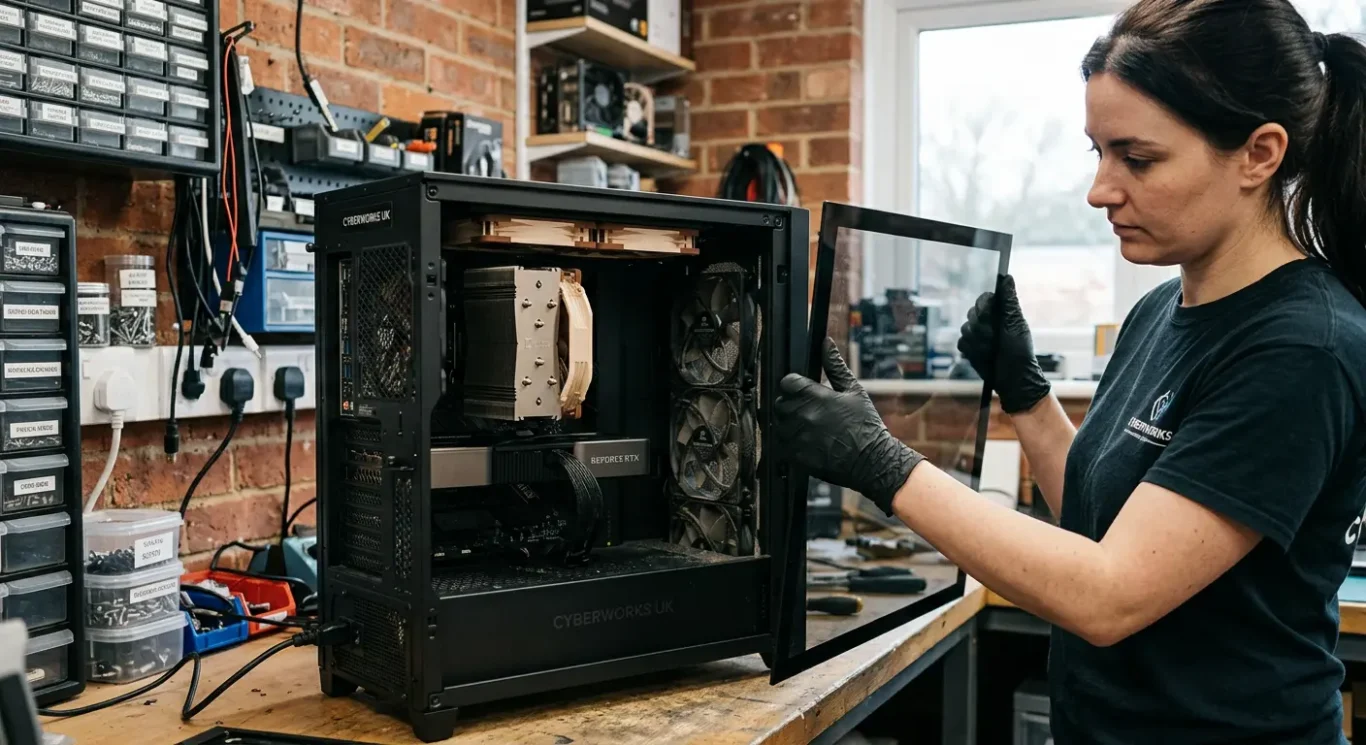
Airflow matters more than most people think
A proper clean is about getting cool air in, moving hot air through, and letting that heat leave the case properly.
On a desktop, the basic idea is simple. Front fans usually pull cooler room air into the case, while rear and top fans push warmer air back out. If that path is working properly, the CPU cooler, graphics card and other parts are not just sitting in their own trapped heat.
Filters help until they clog up
Many desktop cases have dust filters at the front, underneath, or sometimes on the top. They do a useful job, but once they are blocked, the fans have to work harder to pull air through them and the system ends up cooling less efficiently. I often see machines where the inside does not look terrible at first glance, but the front filter is matted over and the intake fans are basically starved of air.
Air needs a clear route
Cable placement matters more than people expect, especially in smaller towers or older builds with loose wiring across the middle of the case. Dust packed into heatsink fins is another common problem, because even if the fans are spinning, the heat cannot pass through the cooler properly. That is why desktop PC dust cleaning and repasting is not always just a quick blow-out and done.
A desktop can still function while dusty if the airflow is balanced and the coolers are doing their job. The bigger problem is when the machine has a cooling imbalance – for example, weak intake at the front, one exhausted rear fan, blocked filters, or a graphics card dumping heat into a case that cannot clear it. That is when you tend to get constant fan noise, rising temperatures under load, and a system that feels hotter and louder than it should for the work it is doing.
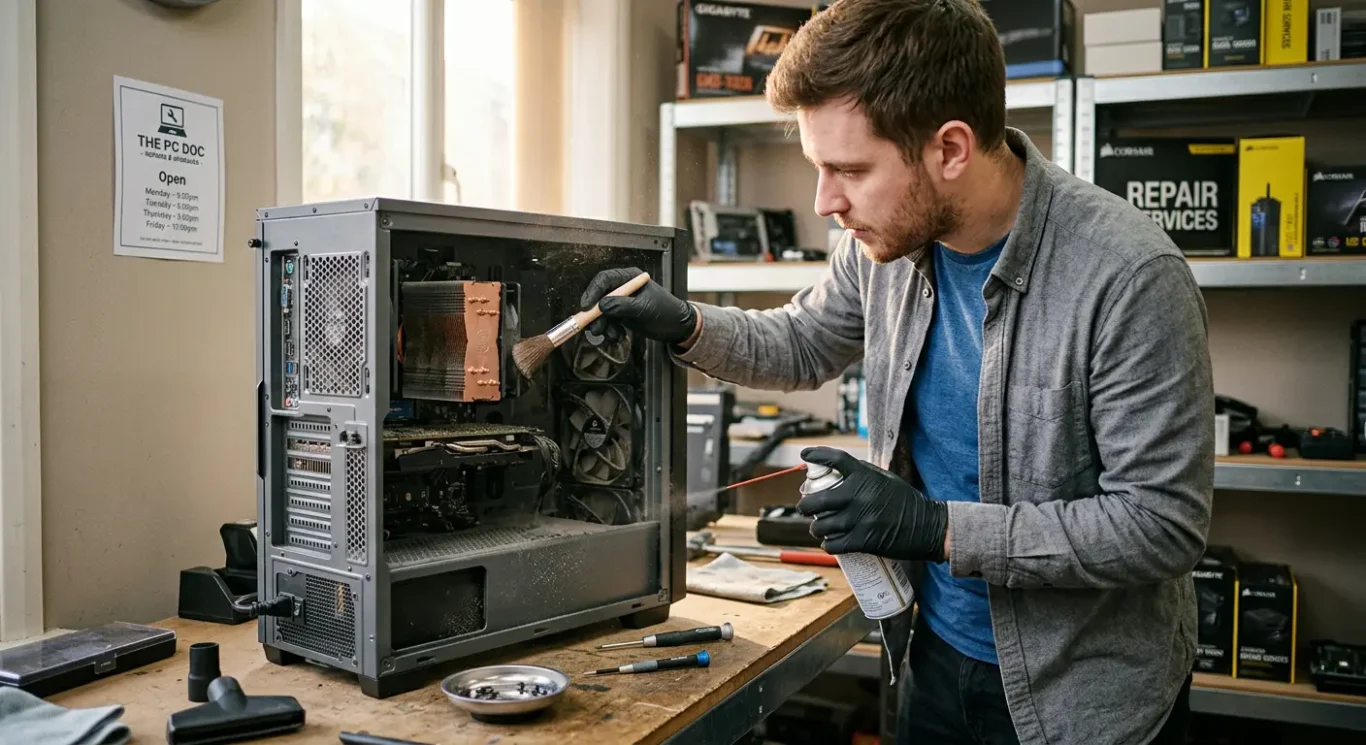
What gets cleaned during a proper desktop service
This is the part of the job where a technician works through the main airflow path and checks for anything that may already be starting to fail.
On most desktops, that means removing dust from the case filters, case fans, CPU cooler fins, motherboard surface dust, and the graphics card shroud area. If the power supply intake area is accessible from outside or through the case, that is usually cleaned as well, because it often collects a surprising amount of fluff and can restrict airflow without being obvious.
Cleaning and inspection go together
A proper desktop PC dust cleaning and repasting job is not just about making it look tidy inside. While the machine is open, I would also be checking for worn fan bearings, dried thermal paste, loose cooler fittings, cracked plastic mounts, missing screws, and any signs of heat damage around the CPU area, graphics card, or power connectors. Quite often the dirt is only part of the story.
The power supply itself is not always opened. That depends on the type of unit, how it is built, and whether it is safe and sensible to do so. In many cases the right approach is to clean around the intake and inspect how it is behaving, rather than open the PSU body itself.
One thing people do not always expect is that cleaning can expose faults that were hidden by the dust. A fan may start rattling once debris is gone, a cooler may turn out to be loose, or a damaged mount may only become obvious when the assembly is checked properly. That is why not every desktop gets exactly the same work, even when the booking sounds similar at the start.
CPU repasting on a desktop – when it helps and when it does not
What the paste actually does, when changing it makes sense, and when the real problem is somewhere else
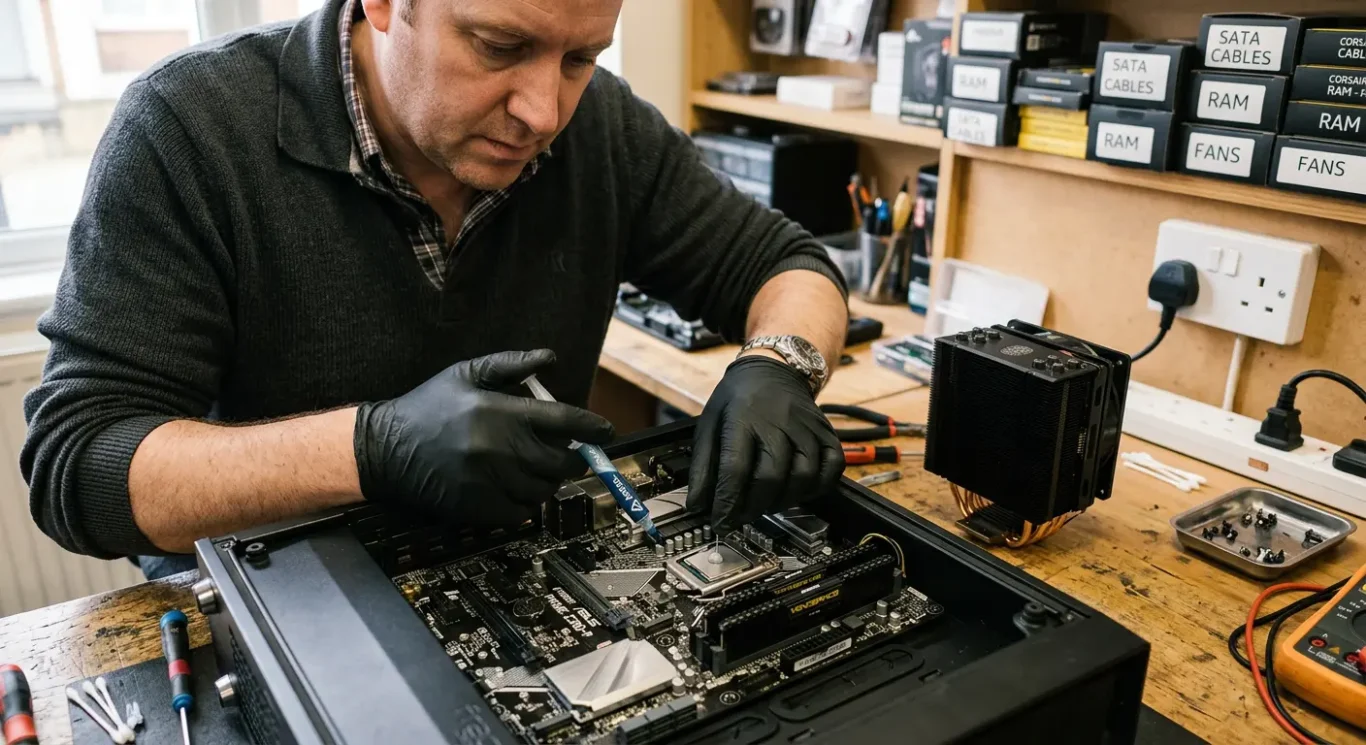
Thermal paste is a heat transfer material that sits between the top of the CPU and the base of the cooler. Those two metal surfaces look flat, but up close they have tiny imperfections, and the paste helps fill those gaps so heat can move into the cooler properly instead of getting trapped at the chip.
Replacing it is sensible when the old paste has dried out, when the cooler has been removed, when the machine overheats under load, or when a previous fitting job was not done properly. I also see desktops where too much paste was used, the wrong amount of mounting pressure was applied, or the cooler was fitted slightly unevenly, which can leave part of the CPU making poor contact.
Good contact matters as much as fresh paste
For a desktop PC dust cleaning and repasting job to help, the old material needs to be cleaned off properly and both contact surfaces need to be clear and flat before new paste goes on. After that, the cooler has to be mounted with the right pressure, because even decent paste will not work well if the heatsink is loose, skewed, or not sitting square on the CPU.
When repasting will not solve it
If a fan has failed, the case airflow is blocked, a liquid cooler pump is not circulating properly, or the system is running unstable overclock settings, changing the CPU paste will not fix the underlying fault. In those cases the paste may only be a small part of the picture, and sometimes not part of it at all, which is why I do not treat repasting as routine on every desktop that comes in.
Why GPU repasting is a different job
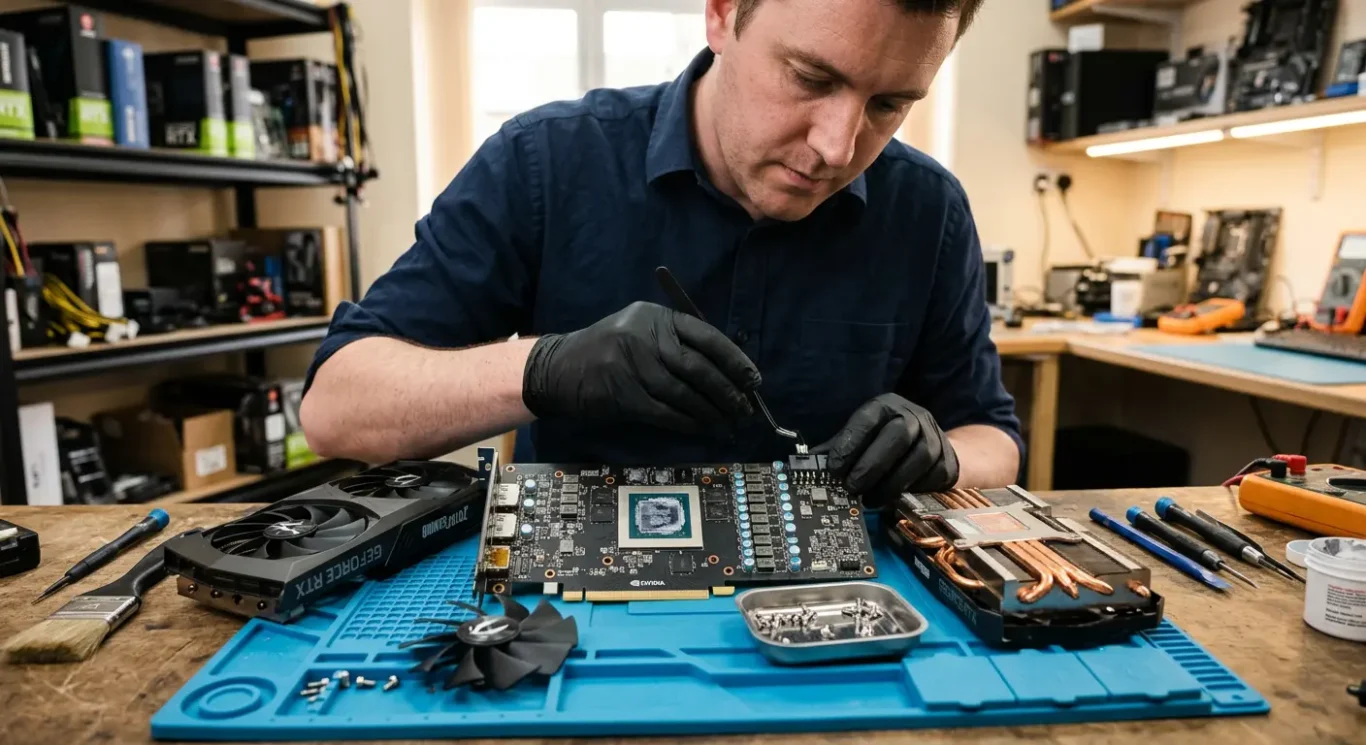
A desktop graphics card has its own cooling system, and servicing it is usually more involved than removing and refitting a CPU cooler.
On most desktop PCs, the CPU cooler is accessible once the side panel is off. A graphics card is different. Its heatsink, shroud and fans are built into the card itself, so getting to the GPU chip usually means a deeper strip-down with small screws, delicate fan cables and a lot less room for mistakes.
Paste is only part of it
GPU servicing can involve thermal paste on the main chip and thermal pads on memory chips and power components. Those pads matter just as much as the paste. If the wrong thickness is used, if one is torn, or if a pad goes back in the wrong place, contact can be lost and temperatures can get worse instead of better.
Card design varies a lot
There is no single pattern across graphics cards. Different manufacturers and even different versions of the same model can use different screw lengths, cooler layouts, pad sizes and mounting systems. That is why GPU repasting is usually treated as a separate repair task rather than bundled in with desktop PC dust cleaning and repasting as if it were the same job.
If diagnosis points towards a graphics card cooling issue, it can be worth doing properly. If not, I would not touch it just because the card is noisy or running warm. Done badly, it is very easy to damage a fan connector, get the pad placement wrong, tighten the cooler unevenly, and end up with higher temperatures than before.
Signs the problem is dust, paste, or something else
A desktop PC dust cleaning and repasting job only makes sense once the actual cause has been narrowed down.
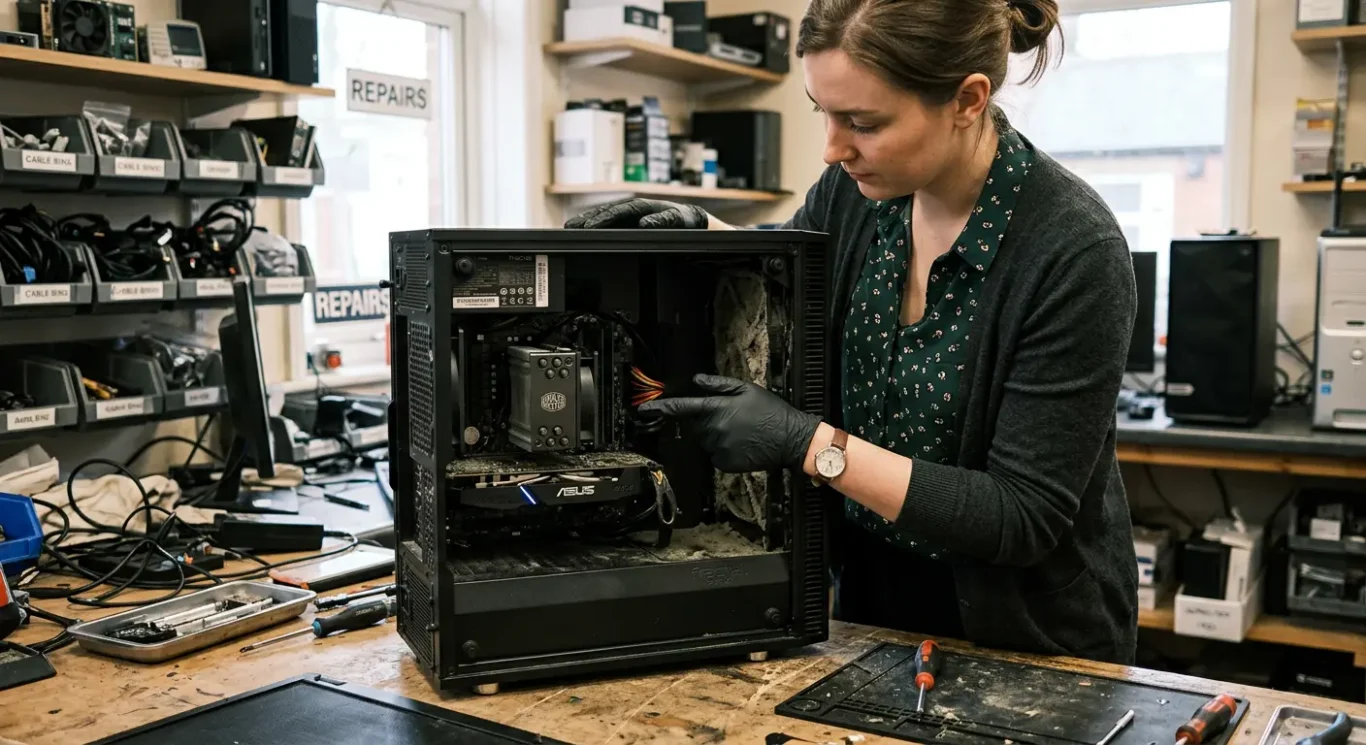
Dust build-up usually shows itself gradually. Fans get louder over time, vents and filters start looking clogged, and temperatures creep up over weeks or months rather than all at once. On a desktop, you can often see the story quite quickly once the panels are off – packed front filters, a heatsink full of fluff, or a graphics card cooler pulling in years of dust.
Paste problems tend to show up under load
Thermal paste issues are a bit different. A system may sit idle looking mostly fine, then overheat soon after the CPU or GPU starts working properly, such as during gaming, video work, rendering, or heavy office tasks on an older machine. I pay more attention to paste on systems that are several years old, or on machines that have had previous laptop or PC repair work, because poor cooler contact or badly applied paste can cause trouble even when the inside is not especially dusty.
Similar symptoms can come from very different faults
A noisy or hot desktop is not automatically a cleaning or repasting job. I see similar symptoms from failing fans, liquid cooler pumps that are not circulating properly, temperature sensor reporting faults, BIOS settings that push voltages too hard, unstable RAM or CPU settings, and power supply problems that make a machine crash under load. Some desktops also have airflow issues caused by case layout, missing fans, or cables blocking intake paths, which is not the same thing as paste failure.
Crashes and sudden shutdowns are worth checking properly because overheating is only one possibility. A computer can restart, freeze, or cut out because of power faults, motherboard problems, unstable components, or software-level instability as well, so symptoms on their own are not enough to call the fault with confidence.
How long it takes and what affects cost
The price and turnaround depend on how far the machine needs to come apart and whether testing shows anything beyond basic cleaning.
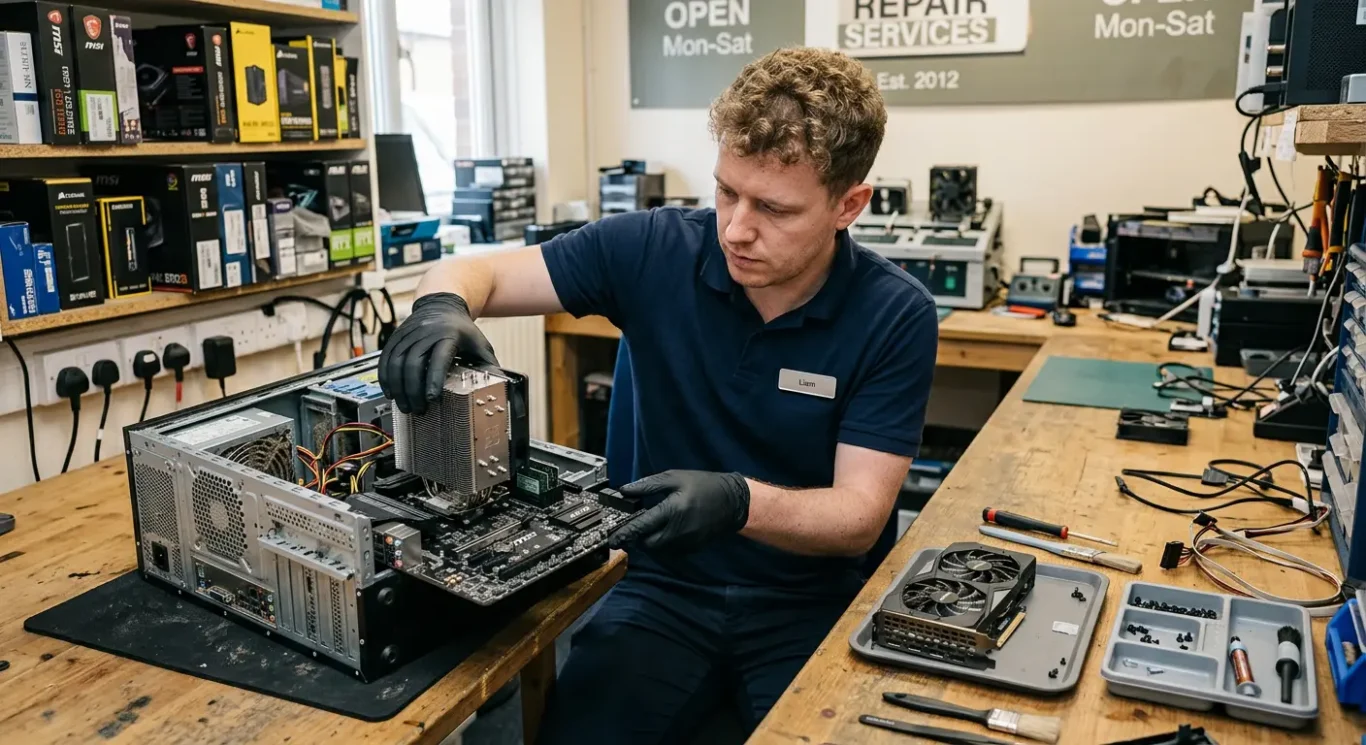
A straightforward desktop PC dust cleaning job is usually the lightest level of labour. Cleaning plus a CPU repaste is a step up because the cooler has to come off, old paste has to be cleared properly, and the contact needs checking before it goes back together. Graphics card work is a different level again, because the card often needs its own strip-down and much more care.
What makes one desktop take longer than another
Access matters more than people expect. A roomy case with decent cable management is quicker to work on than a cramped build with large coolers, awkward fan hubs, or parts blocking each other. Dust level matters too – a light clean is not the same as a heatsink packed solid, and liquid coolers, tower coolers, and compact small-form-factor cases all change the job.
Cost depends on the fault and level of disassembly. If further testing is needed because temperatures still look wrong after cleaning, or because a fan, pump, or sensor may be faulty, that adds time. If a site lists example pricing in a format such as from £60, treat that as a starting point rather than a fixed quote for every desktop.
Turnaround can change once the fault is confirmed
Some systems can be cleaned, tested, and returned quite quickly, while others need more time to strip safely, dry out properly if they are very dusty, or run under load to check temperatures properly. Turnaround depends on the machine, the fault, and whether extra parts are needed.
Can it be done at home, or does the desktop need to be taken away?
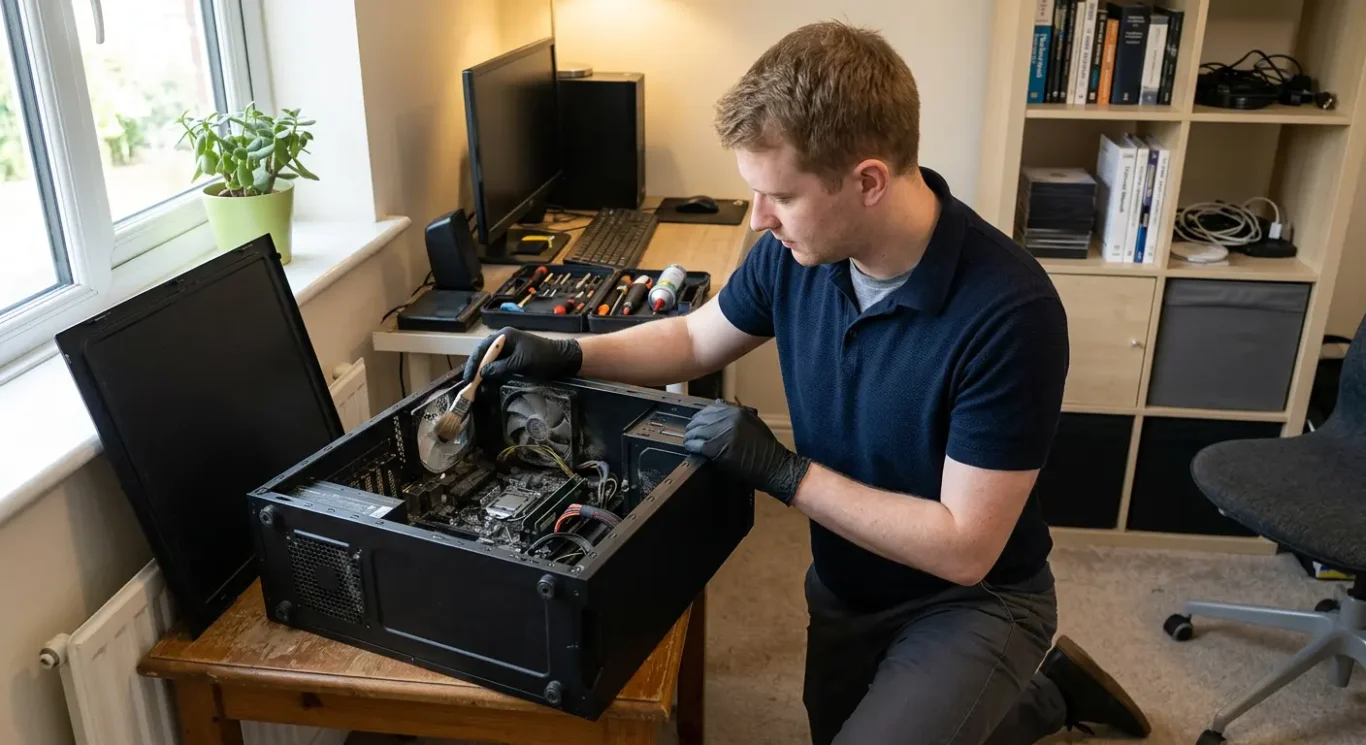
For some desktop PC dust cleaning jobs, an on-site visit is fine, but heavier work is usually safer on the bench.
If the machine is easy to access, there is enough working room, and the issue looks straightforward, some cleaning and basic servicing can be done on-site. That usually means opening the case, clearing normal dust build-up, checking fans, and doing light internal cleaning without a major strip-down.
What often makes a home visit less practical
Real world access matters more than people think. A tower wedged under a desk, no clear surface to work on, poor lighting, pet hair packed through filters, smoking residue inside the case, or limited room around the back can all turn a simple job into a messy one. In London, even practical things like parking and how far the system has to be carried from the door can affect what is sensible to do on-site.
Once a desktop needs major disassembly, the balance changes. Heavy contamination, unstable systems that need repeated testing, cooler removal for repasting, or any graphics card strip-down are often better handled in a workshop where the machine can be cleaned properly, tested under load, and left apart safely if something else shows up. GPU repasting in particular is not a quick living room job.
Why some business users start with an on-site check
If the computer is used for work, an on-site assessment first can make sense because it helps confirm whether the fault is just dirt and airflow or something deeper. That can reduce downtime, especially where the desktop runs accounts, booking systems, or day to day office work, because you get a clearer answer before deciding whether the machine needs to go back for workshop computer repair.
When professional PC repair is the sensible option
Use a repair engineer when the risk, testing, or fault finding goes beyond a simple clean
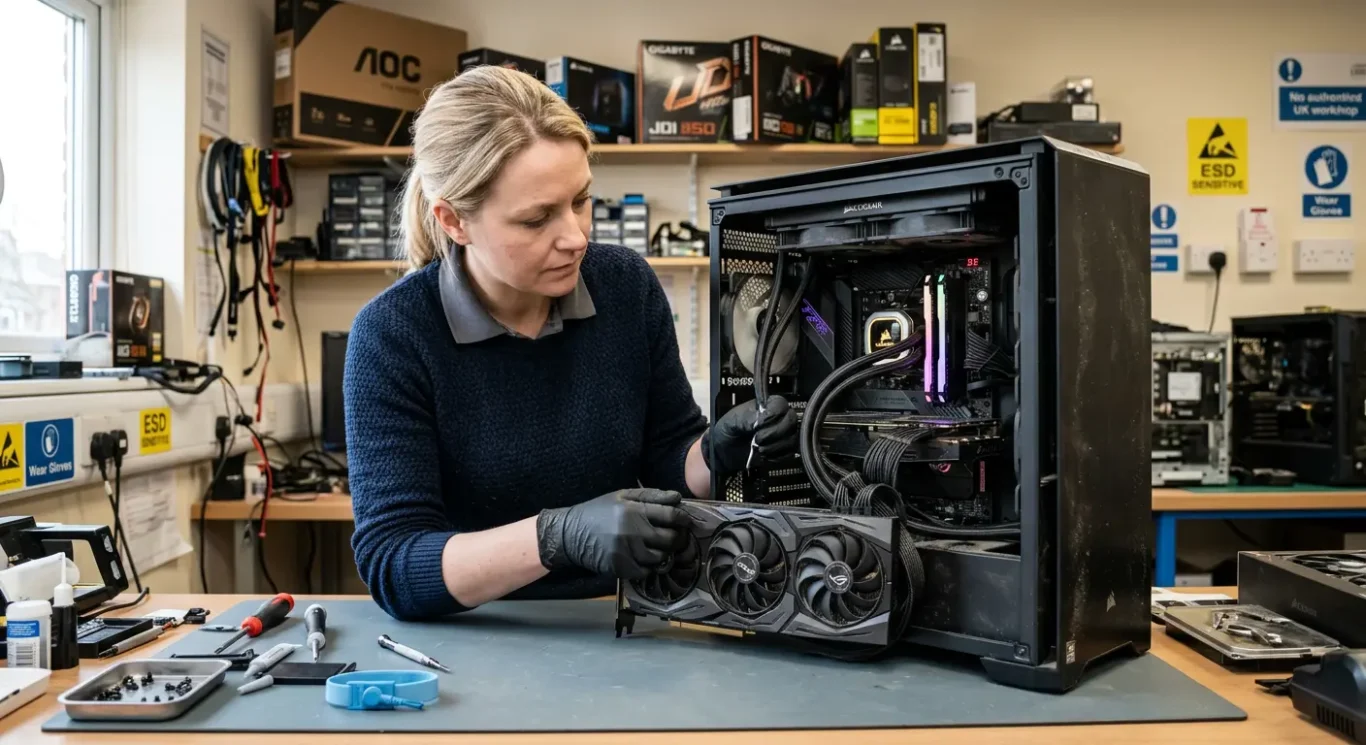
If the system is a high-end gaming PC, workstation, liquid-cooled build, or anything with an expensive graphics card, there is more to lose if it is handled badly. Desktop PC dust cleaning is usually easier than laptop work, but that does not mean every desktop is low risk. I see plenty of machines where one rushed cooler refit, one missed cable, or one cracked plastic clip turns a maintenance job into a proper repair.
Testing matters after the clean
A proper service is not just blowing dust out and closing the side panel. A technician can check temperatures under load, fan behaviour, cooler mounting pressure, and whether the machine stays stable once it has warmed up. That matters because a desktop can look clean and still run hot if the heatsink is not seated properly, a fan curve is wrong, or the thermal paste job is poor.
Heat is not always the main fault
Overheating can be the symptom rather than the root problem. A failing pump in an AIO cooler, a weak fan, a warped mounting bracket, a power issue, or a graphics card fault can all show up as heat, noise, crashing, or sudden shutdowns. That is where diagnosis matters, because repasting the CPU or GPU will not fix a different fault just because the temperatures looked high on first glance.
It is also worth being blunt about older machines. Some are fine candidates for cleaning and repasting, but some are already at the point where spending much more does not make sense. If parts are worn, the platform is dated, and the value of the PC is low, a sensible engineer should say so rather than keep adding labour to a machine that is unlikely to be worth it.
Questions we get every day
What our engineers actually say
We often see desktops that look like they just need a quick clean, but the real issue is poor airflow through the whole case or old paste that is no longer transferring heat properly. A common problem is dust packed into the front intake filter, which cuts down cool air before it even reaches the CPU cooler or graphics card.
If it is a standard desktop clean or CPU repaste, the job is usually more straightforward than laptop work, but GPU repasting is a different judgement call and not something I would treat as a casual add-on. The card has to come apart properly, be cleaned carefully, and then be tested afterwards, so if there is no clear overheating or noise issue, it is often better not to disturb it just for the sake of it.