
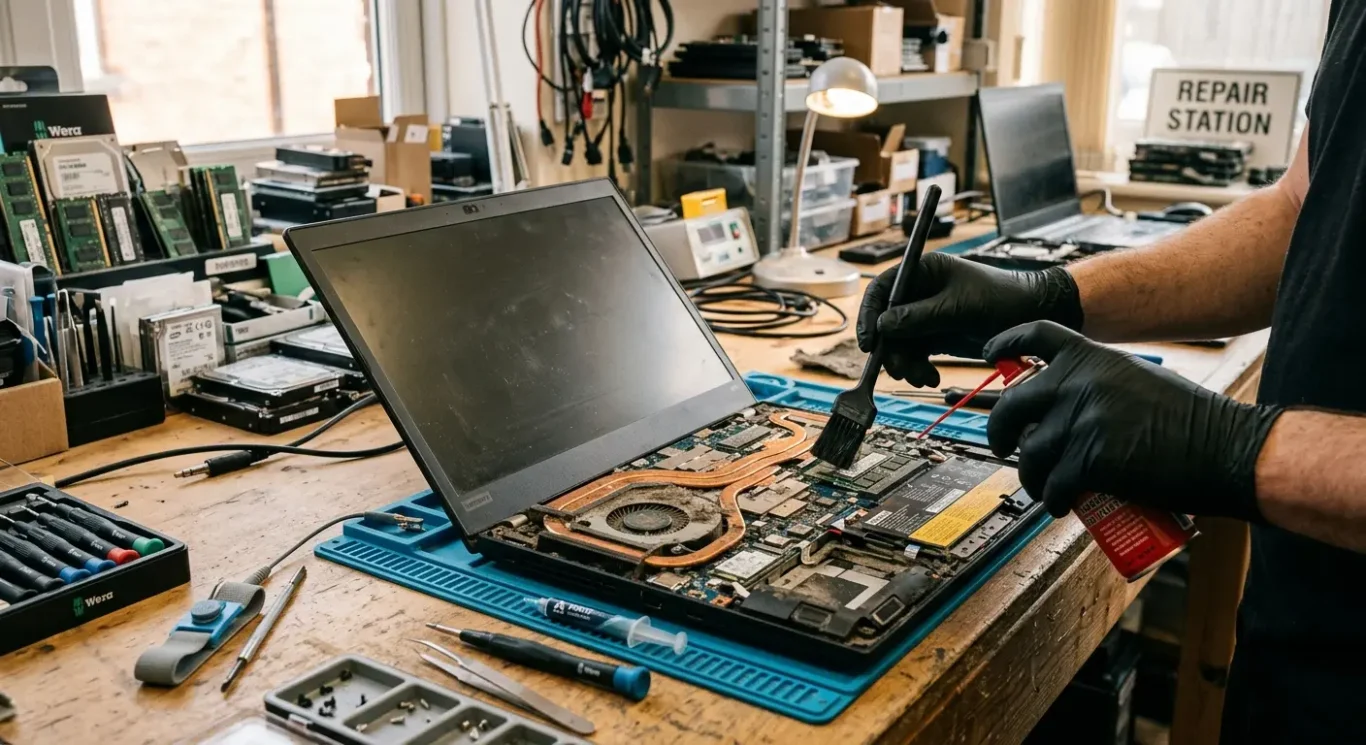
Laptop overheating and cooling problems explained
A warm laptop is not automatically a sign of a serious fault. Most machines run noticeably warm when they are busy, especially during Windows updates, video calls, gaming, photo or video work, or when several browser tabs and apps are open at once. That part is normal. What tends to point to a cooling problem is heat that does not settle down, fans that stay loud all the time, the case becoming uncomfortably hot, sudden slowdowns, or the laptop switching off to protect itself – and yes, sometimes you can hear the poor thing working far too hard.
This guide explains, in plain English, how laptop cooling works, what usually goes wrong, and what the repair options actually involve. I will separate out internal dust cleaning, fan issues, blocked airflow, and thermal paste replacement, because they are not the same job and they are not all needed on every machine. Proper diagnosis matters here. A laptop can run hot for several different reasons, and guessing often wastes time and money.
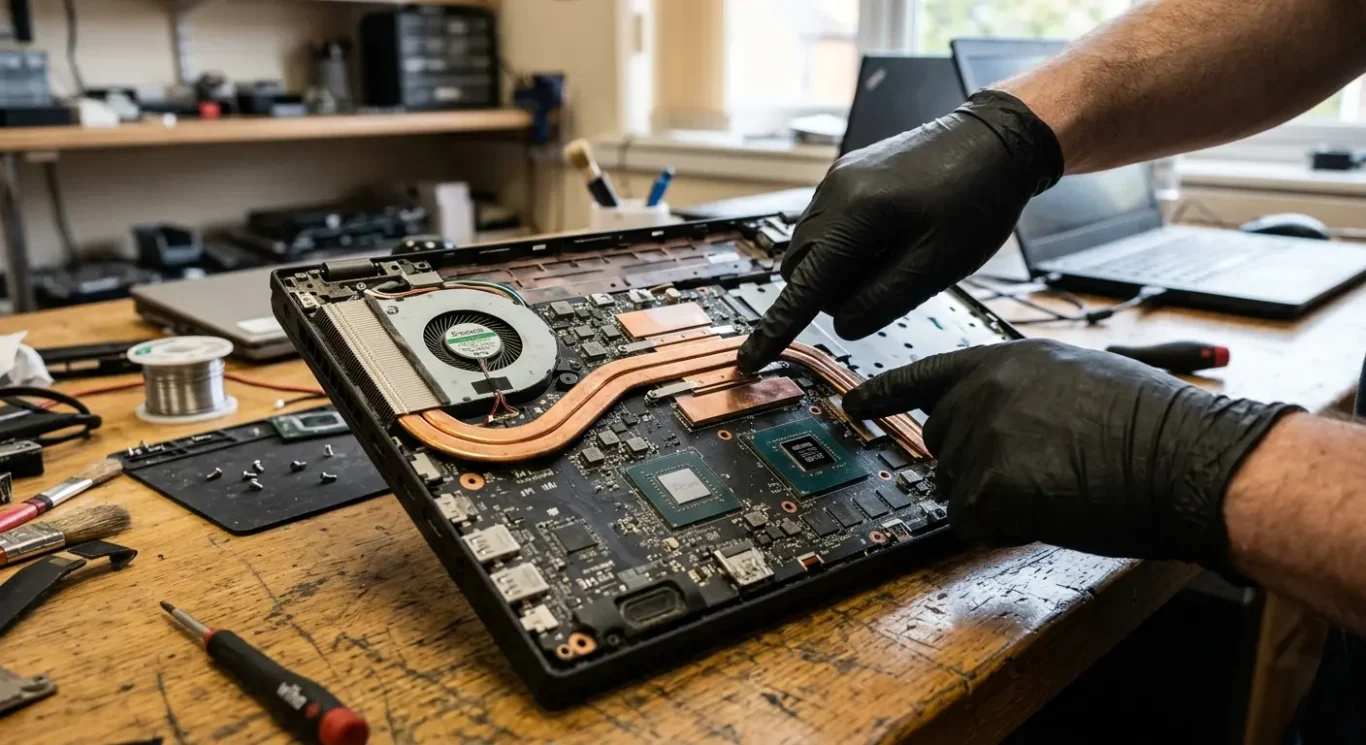
How a laptop gets rid of heat
A simple picture of the cooling path inside the machine
The processor and graphics chips do the heavy lifting, so they are the parts that create most of the heat when you are working, streaming, gaming, on video calls, or just asking too much of too many apps at once.
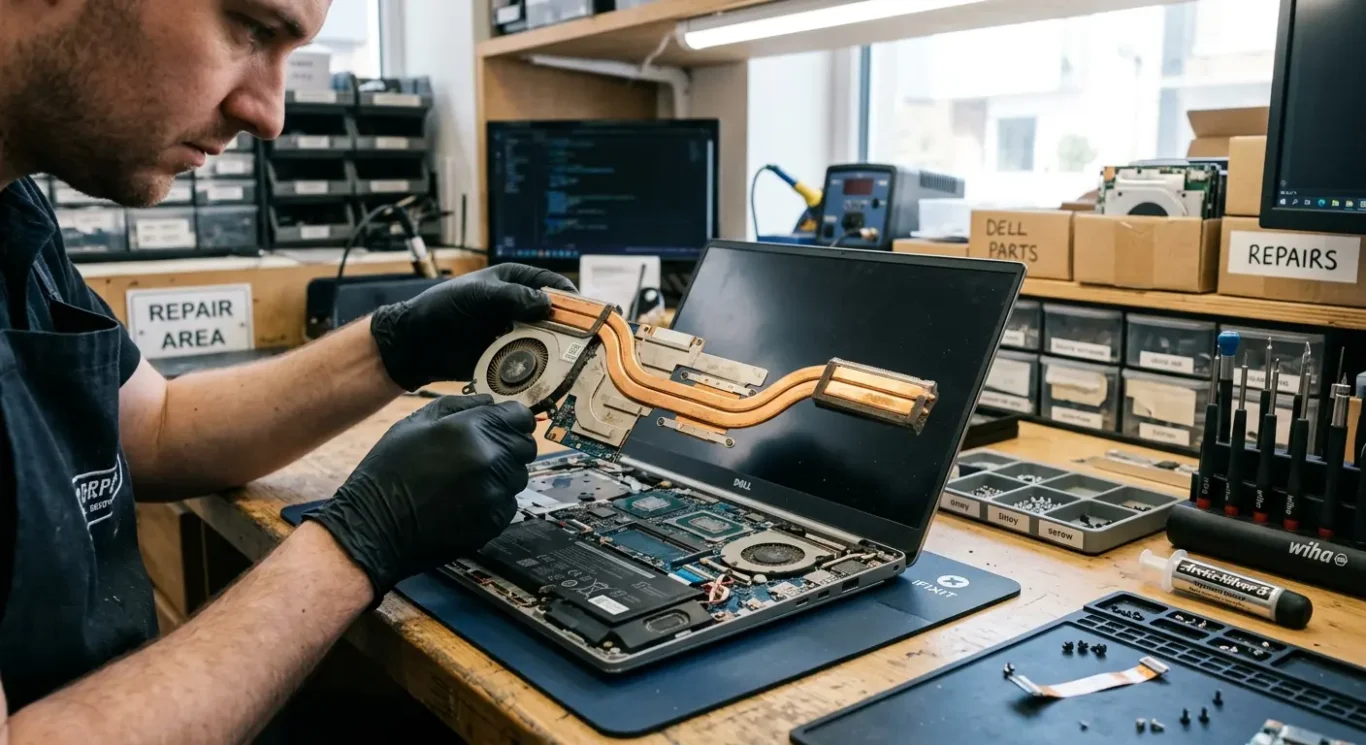
That heat does not just sit on the chips. It is pulled into a metal cooling assembly, usually a heatsink with heat pipes or a similar setup, which carries the heat away to a part of the laptop designed to lose it safely. In day to day computer repairs, this is the bit I check closely when a machine is running hot or the fan noise never seems to calm down.
Air has to move properly
A fan then pushes the hot air out through the vents. For that to work, cool air also needs to get in, so airflow matters at both ends – intake and exhaust. If either side is restricted, heat builds up faster and stays trapped longer.
Slim laptops and more powerful models often run warmer simply because there is less room inside for larger cooling parts and free air movement. That does not always mean there is a fault, but it does mean these machines have less margin for dust, blocked vents, tired fans, or poor contact in the cooling system.
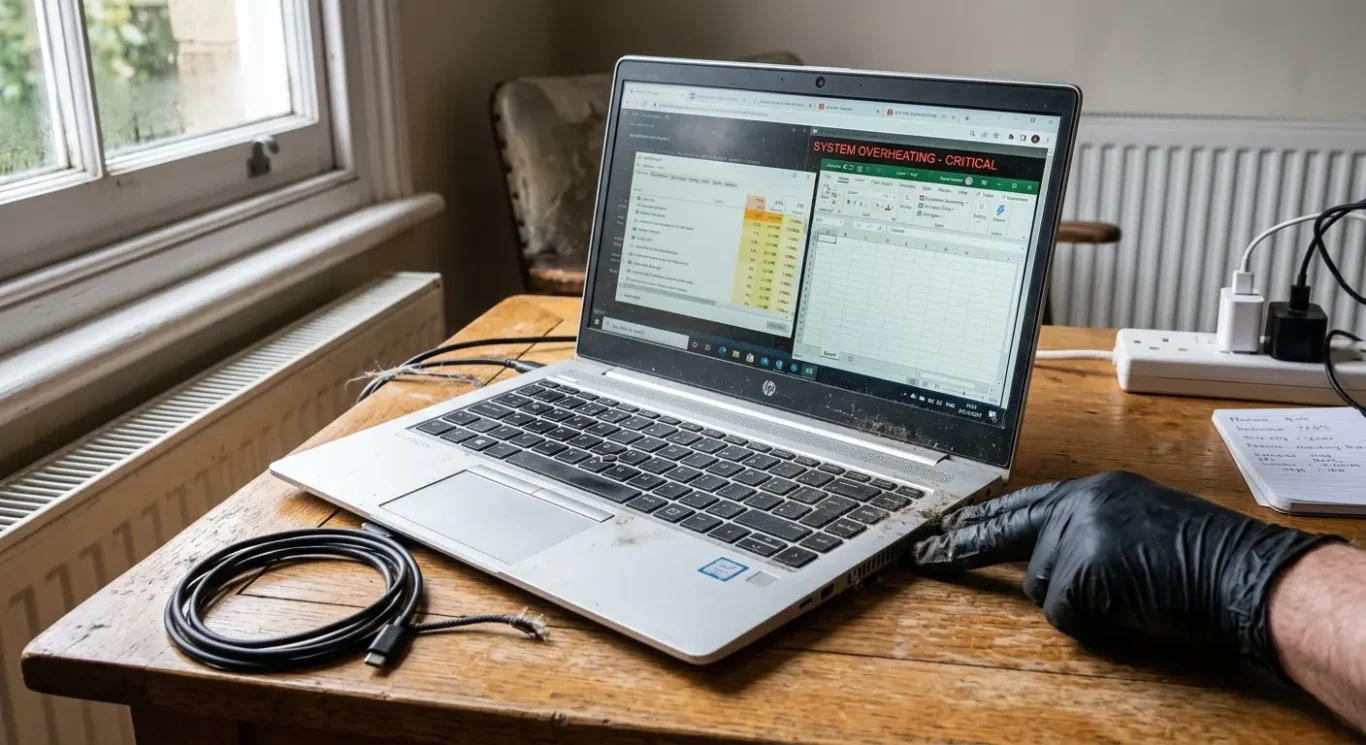
When normal heat becomes a real overheating problem
How to tell the difference between expected warmth and signs that something is not coping properly
A laptop can feel warm and the fan can become clearly audible when it is doing demanding work. That includes updates, video calls, gaming, exporting files, or having lots of apps and browser tabs open. On plenty of machines, especially slim ones, that is just normal behaviour.
What tends to be more worrying
What gets my attention is heat building up quickly during light use, like email, basic web browsing, or a document open with very little else going on. If the fan runs hard most of the time, the laptop becomes too hot to use comfortably, or the case stays hot long after the workload drops, that points more towards a cooling issue or airflow problem than ordinary warm running.
Another clue is behaviour rather than temperature alone. Laptops often reduce their own speed when they get too hot, because the system is trying to protect the processor and other parts. To you, that can look like sudden slowdowns, stuttering, apps freezing, crashes, or the machine switching off without much warning. Not every one of those symptoms means overheating on its own, but they are common signs when heat is no longer under control.
Sometimes the environment is the problem
One hot day in London, a duvet, a sofa cushion, or even using the laptop on your lap can make temperatures climb faster without any part actually having failed. That is why proper diagnosis matters. A blocked vent, dust inside, a tired fan, dried thermal paste, or simply poor airflow around the machine can all produce similar symptoms at first glance.
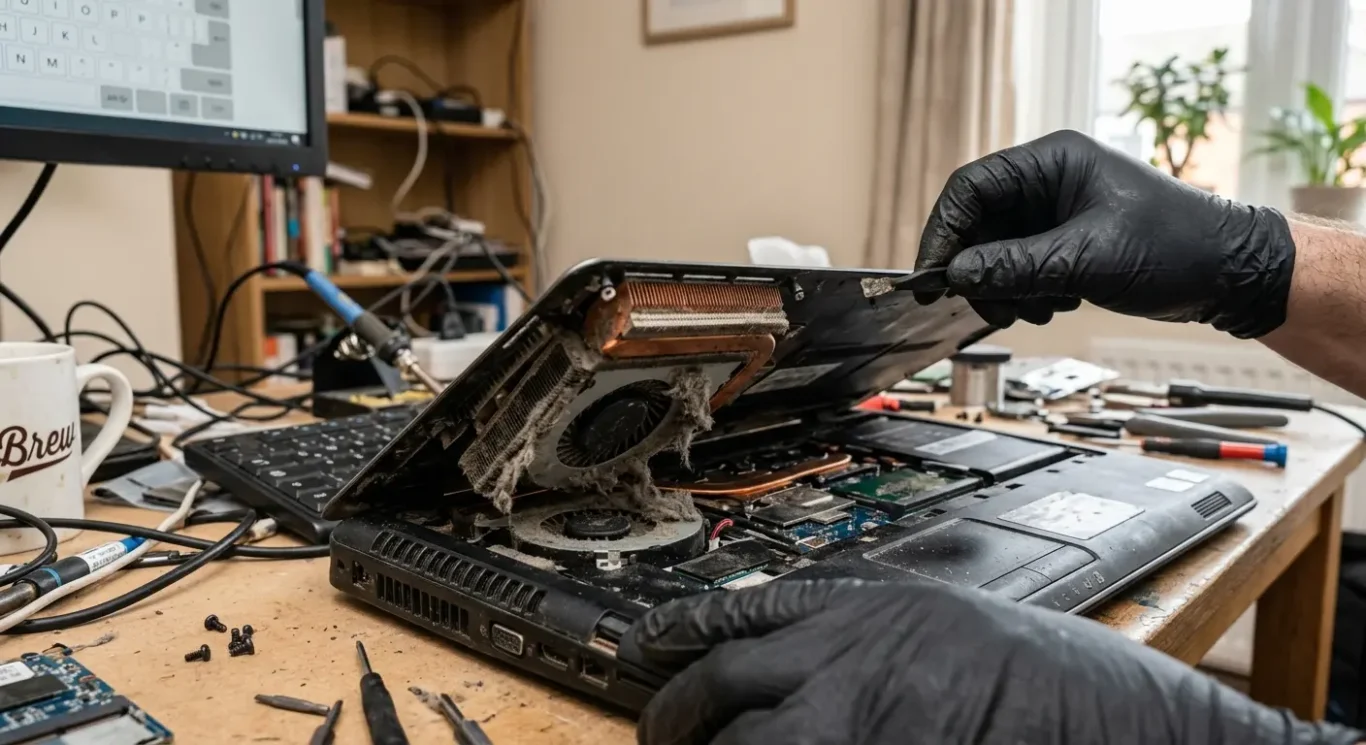
Dust and blocked airflow – the most common cooling issue
Why everyday use in homes and offices often leads to heat getting trapped inside
In a lot of overheating jobs, I find the same pattern inside the machine – dust has collected in the vents, on the fan blades, and packed into the thin heatsink fins where the hot air is meant to escape. It builds up slowly, so people usually do not notice it until the fan gets louder or the laptop starts running hotter than it used to.
Air still has to get in and out
Even if the fan is still spinning, blocked airflow means the heat has nowhere to go properly. A laptop used on bedding, a sofa, your lap, or a cluttered desk can have its air intake partly covered, which makes the cooling system work much harder for no good reason. I see this a lot with slim machines that pull air from underneath.
Some homes and workplaces collect debris faster than others. Pets, smoking, and general household dust can all make build-up happen sooner, and office machines tucked near floors or under desks are often worse than people expect. That does not mean dust is the cause every time, but it is one of the first things worth checking because it is so common.
External cleaning is not the same as internal cleaning
Wiping the vents and case can help a bit, but it does not remove the compacted dust sitting deeper inside the cooling path. Proper internal cleaning is different from just cleaning the outside, and it is also separate from replacing thermal paste – they solve different problems.
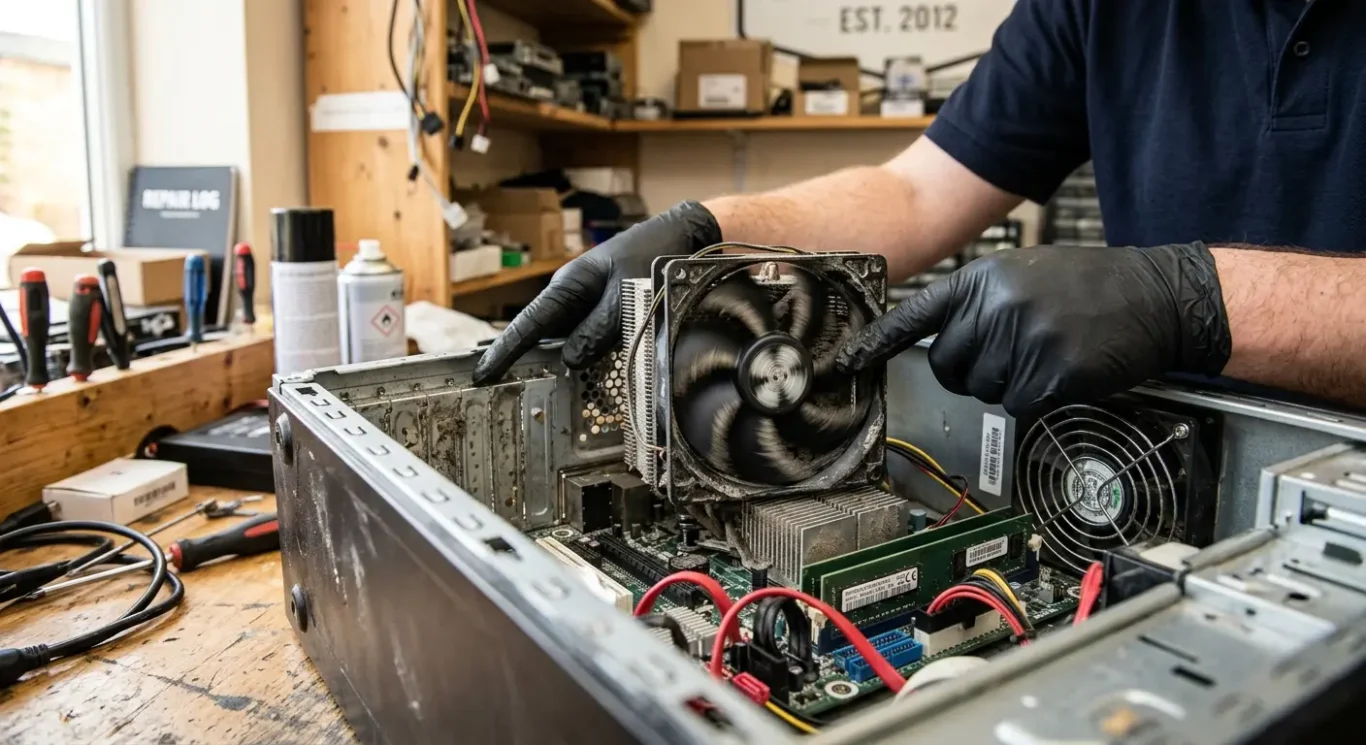
What a failing fan looks and sounds like
How to tell the difference between a worn fan and a machine that is simply clogged with dust
A cooling fan does not always fail in one go. It can become noisy, weak, intermittent, or stop working altogether, and each version tends to show up a bit differently in day to day use.
When the fan starts to wear out, people often notice rattling, grinding, buzzing, or odd changes in speed. Sometimes it runs loudly for a few seconds and then goes quiet when it should still be working. Sometimes it sounds rough rather than just loud. I also see fans that spin, but not strongly enough to move air properly, so the laptop overheats even though the vents look clear from the outside.
Noise does not always mean the fan itself is dead
A bad sound can also come from trapped debris, a cracked or damaged fan housing, or something slightly out of place inside the cooling assembly. That is why diagnosis matters. Swapping the fan on guesswork is not always the right answer, because the noise and the heat may have more than one cause.
Fan replacement depends on the model and the exact fault. On some laptops the fan comes out on its own, while on others it is tied into a larger cooling unit or buried much deeper in the machine. The right computer repair depends on what has actually failed, not just the symptom you can hear.
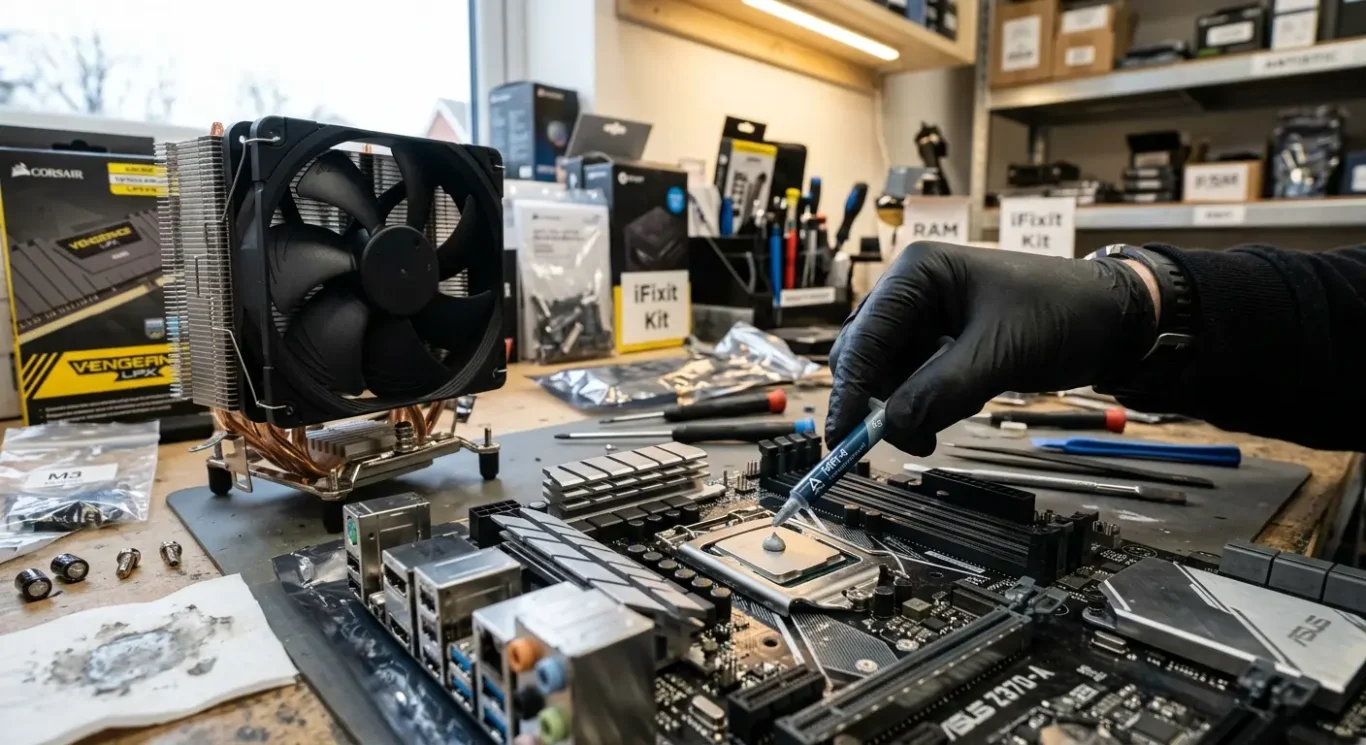
Thermal paste – what it does and when it becomes a problem
This is the material that helps move heat out of the chip and into the metal cooling parts, so it is a different issue from dust or a dirty fan.
Between the main chip and the heatsink there is a thin layer of thermal paste. Its job is simple – it helps transfer heat from the chip to the metal heatsink so the fan and vents can carry that heat away.
Why it becomes a fault
Over time that paste can dry out, break down, or stop making good contact. When that happens, heat is not carried away as effectively, so the machine may run hotter, the fan may stay busy more often, or the system may throttle itself under load.
Not the same job as cleaning
Thermal paste replacement is an internal repair. It means opening the machine, removing the cooling assembly, cleaning off the old material properly, and applying fresh paste before refitting everything. That is separate from fan cleaning, which is about removing dust and debris from the cooling path.
It is not automatically needed on every hot laptop. In practice, it depends on diagnosis, the age of the machine, the cooling design, and the exact symptoms. Some laptops mainly need internal cleaning, some have a failing fan, and some do have old paste that is no longer doing its job properly.
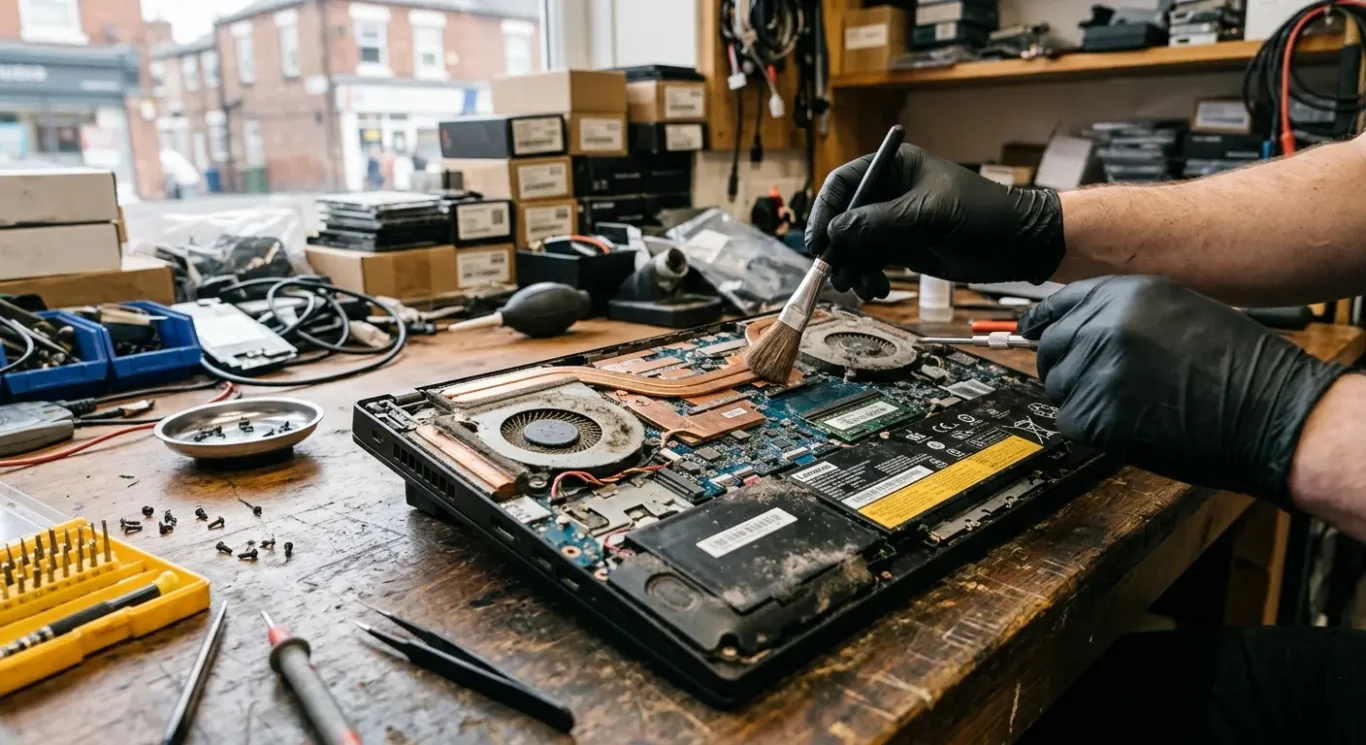
Why some laptops run hotter than others
A warm machine is not always a fault, but cooling design and condition still matter.
Some laptops naturally run hotter because they are doing more in a smaller space. Thin laptops have less room for airflow, gaming laptops produce more heat under heavier graphics load, and work machines used for design, editing, or large spreadsheets can stay warm for long periods simply because the hardware is busy.
Age and use change how well the cooling system copes
Older models often struggle more as dust builds up inside, fan bearings wear, and the cooling parts no longer work quite as efficiently as they did when new. I also see laptops that seem fine in winter but start showing the problem in a warm room, on charge, or when background tasks are running quietly in the background and adding extra heat.
That is why I do not judge an overheating complaint from one symptom on its own. A repair engineer looks at the whole pattern – what the laptop is being used for, whether the fan behaviour matches the load, if the heat appears only when charging, and whether the issue is constant or only happens at certain times.
Macs and Windows laptops both suffer from cooling problems, but the internal layouts vary a lot by model. On some machines the fan and heatsink are straightforward to access, while on others the cooling system is buried much deeper, so the diagnosis and repair approach depends on the design as much as the symptom.
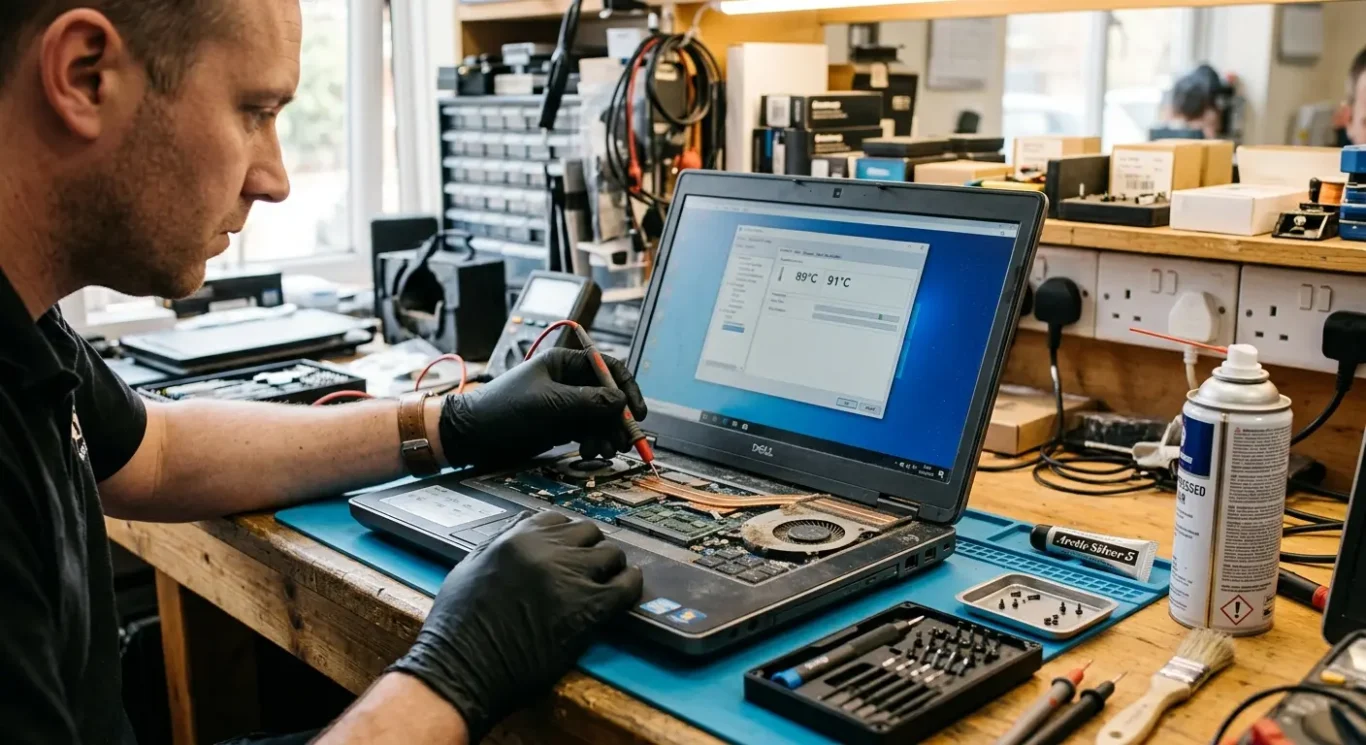
What laptop overheating repair usually involves
A proper laptop repair starts by checking what the machine is actually doing, then matching the work to that fault.
The first step is usually basic diagnosis, not taking the whole laptop apart straight away. I would normally check the symptoms, how the fan behaves, whether air is moving properly through the vents, and whether the system stays stable under normal use or starts freezing, shutting down, or slowing itself to keep heat under control.
Cleaning is not one single job
If dust build-up is the problem, internal cleaning means removing the blockage from the vents, fans, and heatsinks so heat can escape again. That is different from replacing a fan. A fan clean deals with dirt and debris around a working part, while fan replacement is needed when the fan itself is noisy, weak, intermittent, or has stopped spinning properly.
Thermal paste is a separate step
Thermal paste replacement is its own repair and may or may not be required. It involves removing the cooling assembly, clearing off the old material, and applying fresh paste before refitting it correctly. Some overheating repair jobs need that step, but plenty do not, so it should be based on diagnosis rather than added automatically.
Now and then the cause goes deeper. I do see damaged heatsinks, temperature sensor faults, and motherboard-related problems that can affect fan control or heat reporting. In those cases, cleaning alone will not sort it, and the sensible recommendation should be only the work that matches the fault.
Cost, timing, and whether you need to bring it in
What you can usually find out quickly, and what depends on the repair itself
The cost depends on the fault, the laptop model, and how far the job needs to go. A straightforward internal clean is not the same level of work as replacing a worn fan, and both are separate from removing the cooling assembly to replace thermal paste. On some machines that access is simple enough. On others, getting to the cooling parts takes much more strip-down time.
Diagnosis first, then the right repair
I can often tell quite quickly whether the symptoms point towards blocked airflow, a noisy or failing fan, or something less obvious, but internal overheating repair still takes proper time to do correctly. If the machine needs to be opened, cleaned properly, tested, and reassembled, that is workshop work rather than a five-minute check while you wait.
Turnaround depends on diagnosis and part availability. Cleaning work may be more straightforward if the fault is confirmed early, but fan replacement or deeper repair can take longer, especially if a specific part has to be sourced for that exact model. Macs and slim laptops are often less forgiving here, which is just the reality of how they are built.
Home visit or workshop
For London customers, whether a home visit is suitable depends on the device and the repair needed. Some overheating jobs can be inspected on-site, particularly if the aim is to confirm symptoms and rule out obvious airflow issues, but many internal cooling repairs need workshop access for safe strip-down, cleaning, testing, and parts fitting.
When to stop using the laptop and get it checked
The main thing is knowing when heat has gone beyond normal hard work and needs proper attention.
If it is repeatedly shutting down, becoming severely sluggish as it gets hot, giving off a strong burning smell, or the fan has stopped altogether, do not keep pushing it through normal use. Those are the points where I would stop treating it as an annoyance and start treating it as a fault that needs checking.
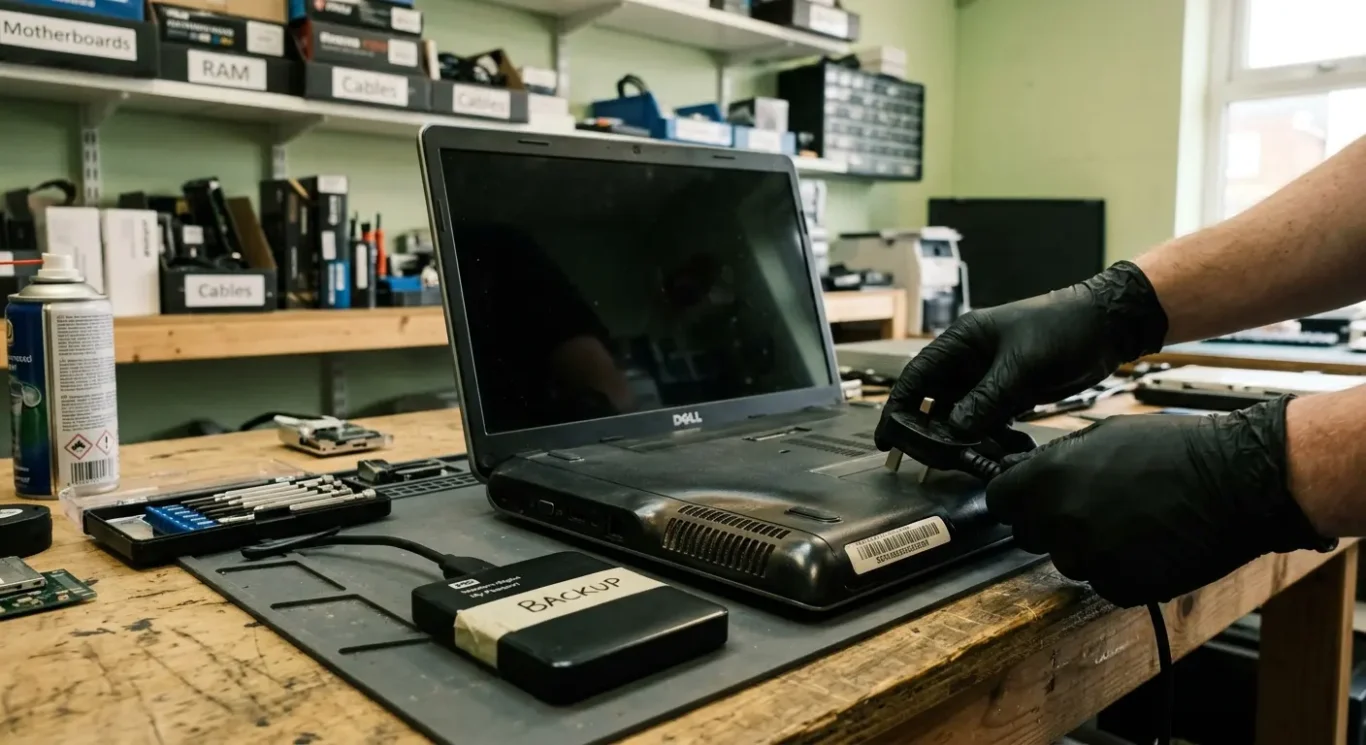
Back up anything important first
If the machine still starts and your files are accessible, copy the important work off it before anything else. That matters even more for business use, because continued use under heavy heat can turn one repair into a bigger interruption if the laptop becomes unstable or stops booting properly.
Why delaying can make things worse
Ongoing overheating can shorten the life of internal parts, but the exact level of damage depends on the fault and how long it has been happening. A dusty cooling system is one thing. A failed fan, damaged heatsink, charging issue, or board fault is another, and the outcome is not something to guess from symptoms alone.
If the problem keeps coming back after basic external checks, such as making sure vents are not blocked and the laptop is being used on a hard surface, it is time for proper diagnosis rather than trial and error. That is usually the quickest way to find out whether the overheating is just airflow related or a deeper cooling fault.
Questions we get every day
What our engineers actually say
We often see laptops that sound like they have a serious hardware fault, when the real problem is just dust packed into the cooling path and the hot air has nowhere to go. A common problem is people assuming the fan itself has failed because it is loud, but in practice we open the machine and check whether the heatsink fins are blocked before deciding anything else.
If a laptop runs warm when you are doing heavier work, that is not automatically a repair job. If it gets hot during light use, the fan keeps surging, or it starts slowing down, freezing, or switching off, that is when I would treat it as a proper overheating fault rather than normal heat.